Python Extract Text from PDF A Developer's Practical Guide
Pulling text from a PDF with Python sounds straightforward, right? But as many developers quickly discover, the real world is messy. The script that works perfectly on a clean, digitally-created report will often fall flat on its face when you feed it a scanned invoice or a complex, multi-column layout.
The core of the problem isn't your code; it's the PDF itself.
Why Extracting Text From PDFs Is Harder Than It Looks
A PDF might look like a simple document on your screen, but its internal structure is surprisingly complex. Think of it less like a Word doc and more like a set of instructions for a printer, telling it precisely where to place text, lines, and images on a page. It's designed for visual consistency, not for easy data access.
This is why, when you try to extract text from a PDF with Python, a basic library might return a jumbled mess. It's just grabbing text fragments in the order they're defined in the file, not the logical reading order you see. Tables and columns are notorious for causing this kind of chaos.
Native vs. Scanned PDFs: The First Big Hurdle
Before you write a single line of code, you have to figure out what kind of PDF you're dealing with. This one question will dictate your entire approach.
There are two main flavors:
-
Native PDFs (also called "born-digital") are the easy ones. They're created by software like Microsoft Word or InDesign, and the text is already there as actual character data. You can select it, copy it, and search for it.
-
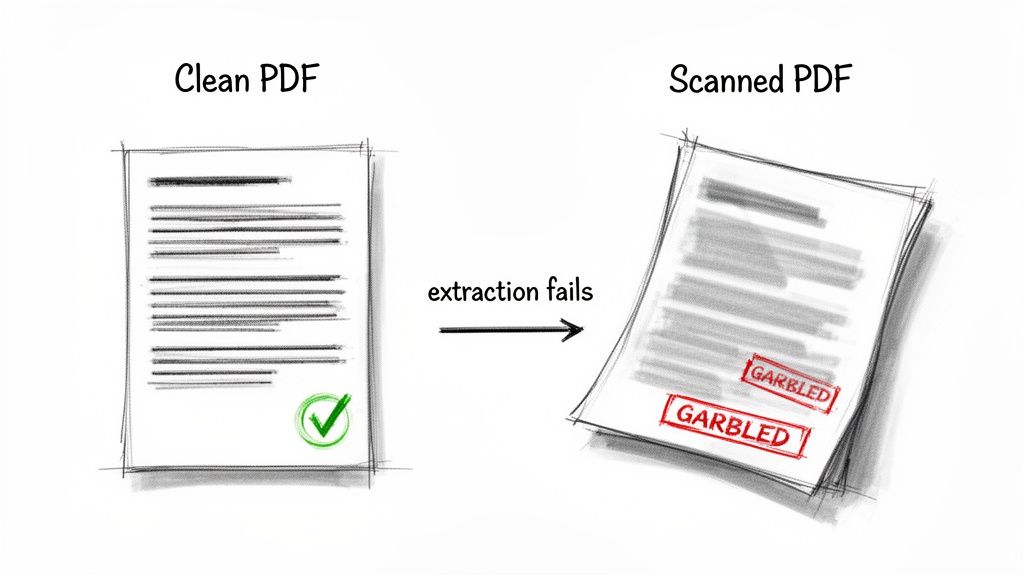
Scanned PDFs are just pictures of paper. When someone puts a document on a scanner, the resulting PDF is a single, flat image. As far as a computer is concerned, there’s no text—just a collection of pixels. Standard extraction methods will come up completely empty.
Here's a quick gut check: Open the PDF and try to highlight a sentence with your mouse. If you can select the text word-by-word, you've got a native PDF. If your cursor just draws a big blue box over everything, it's scanned.
This simple distinction is the first branch in your decision-making process.
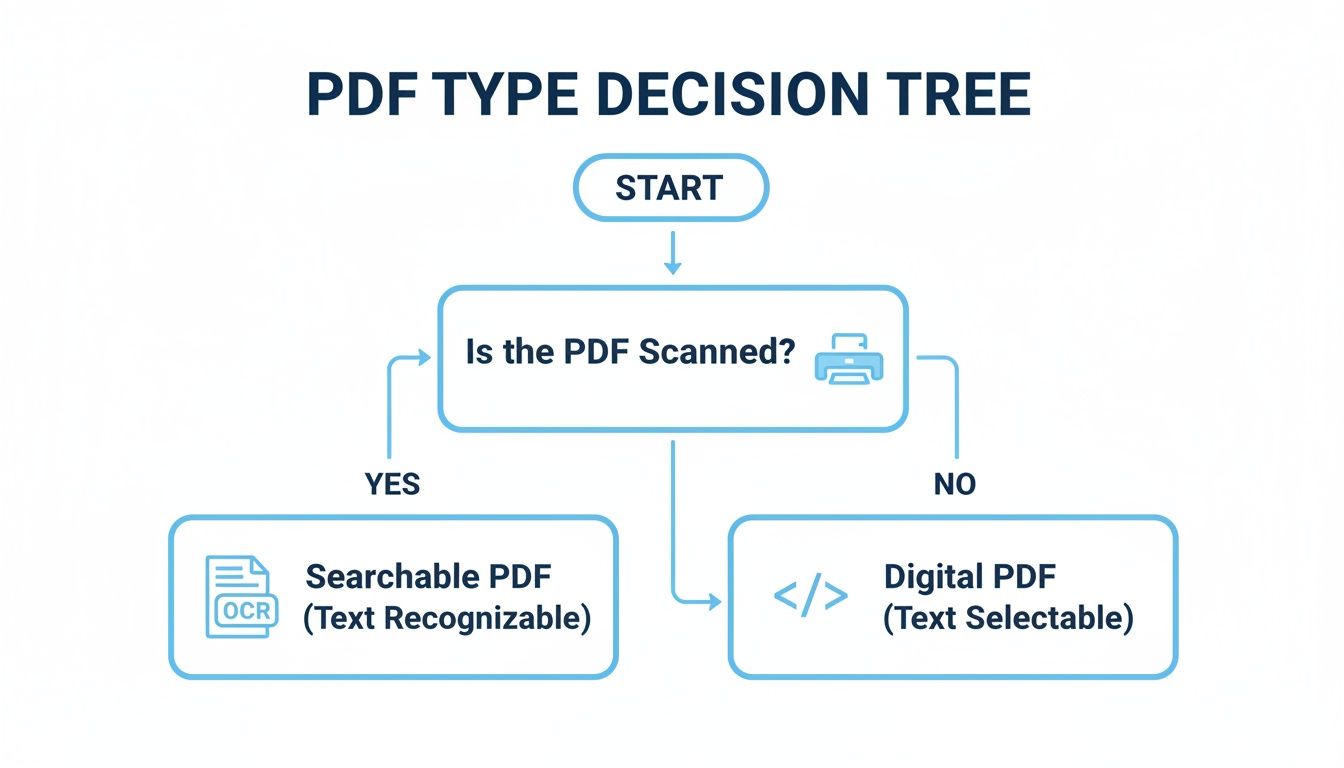
As you can see, scanned PDFs require an extra, crucial step: Optical Character Recognition (OCR). This technology "reads" the image and converts the pixels back into text characters.
Getting this part right is fundamental to structuring unstructured data from your documents. If you start with the wrong tool for the job, you're setting yourself up for failure before you even begin.
Your First Stop: Simple Text Extraction with PyPDF2 and pdfminer.six
Let's start with the basics. When you first decide to pull text from a PDF with Python, you'll almost certainly run into PyPDF2 and pdfminer.six. They're the go-to starting points for good reason—they are pure Python, a breeze to install, and work surprisingly well for simple, text-based PDFs.
Think of these libraries as the entry-level tools in your PDF toolkit. They're great for getting your feet wet.
PyPDF2 has been around the block. It's fantastic for manipulating PDFs—merging files, splitting them apart, or rotating pages. However, its text extraction is a bit of an afterthought. It essentially just reads the raw text stream from the file without trying to figure out the layout.
On the other hand, pdfminer.six is a fork of the original pdfminer and is generally a stronger choice for text extraction. It puts more effort into analyzing where text is positioned on the page, which often results in a more logical output than what PyPDF2 can muster.
Kicking the Tires with a Simple Extraction
To see how they work, let's grab a "perfect" PDF—a digitally created, single-page document with a few clean paragraphs. This is where these libraries truly excel.
First, you'll need to get them installed. A quick pip command will do the trick:
pip install PyPDF2 pdfminer.six
Now, let's try a quick PyPDF2 script to grab the text. The code is pretty straightforward: it just opens the file, loops through the pages, and pulls out the text from each one.
from PyPDF2 import PdfReader
reader = PdfReader("simple-document.pdf") full_text = "" for page in reader.pages: full_text += page.extract_text() + "\n"
print(full_text)
When you run this on a clean, native PDF, you'll likely get a perfect result. The full text comes out, in order, and it feels like a quick win. It's a great feeling!
The Point Where Basic Tools Break Down
But that feeling doesn't always last. The real challenge begins when you throw a real-world business document at it. Picture a typical invoice: it has a header, line items in multiple columns, and a summary table at the bottom.
If you use that same PyPDF2 script on an invoice, the output will probably be a jumbled disaster. You’re likely to see:
- Text from separate columns mashed together on a single line.
- Header and footer text showing up randomly in the middle of the content.
- The entire logical flow of the document being completely lost, making the extracted data useless.
This happens because PyPDF2 has no concept of visual layout. It simply reads text objects in the order they were written to the file, which has almost nothing to do with how they look on the screen.
This is the most important lesson you'll learn early on: The success you have with simple PDFs almost never translates to the complex documents you'll find in the wild. The simplicity of these libraries can be deceptive if you're aiming to build a reliable data extraction workflow.
While pdfminer.six might do a slightly better job because it considers text coordinates, it still often fumbles with complex tables and unusual layouts. For anything more than a straightforward block of text, you'll quickly discover their limitations. This failure to preserve document structure is exactly why developers have to turn to more powerful methods.
Tackling Complex Layouts with PyMuPDF and OCR
Sooner or later, you'll hit a wall with the simpler PDF libraries. When tools like PyPDF2 start spitting out jumbled nonsense from a PDF with columns or a tricky layout, it's time to call in the heavy hitters.
My go-to for this is PyMuPDF, also known as fitz. It's a game-changer. It’s not just faster; it's smarter about how it sees and processes a PDF page.
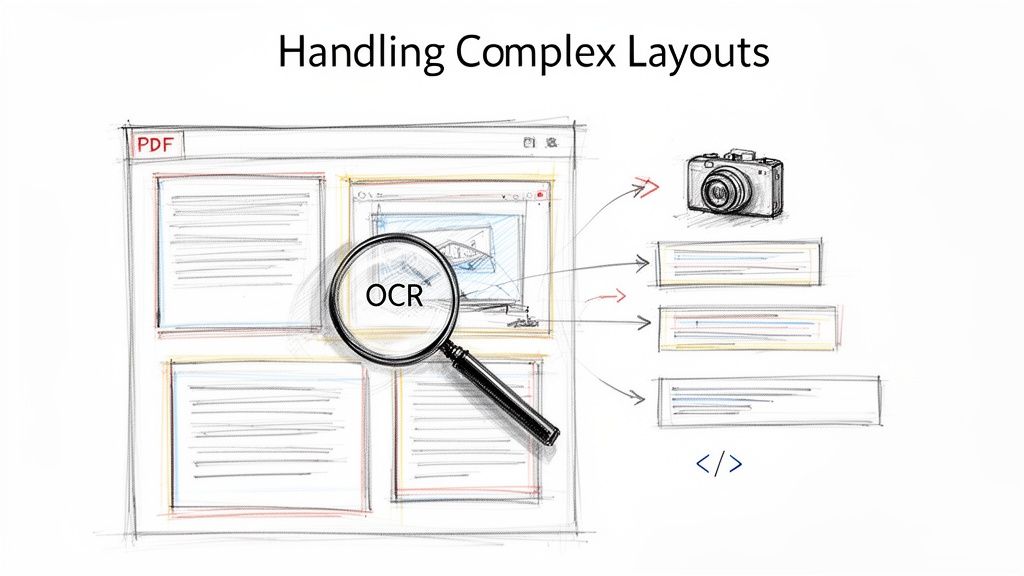
Unlike more basic tools that just dump out a stream of text, PyMuPDF understands that text has a spatial relationship. It can identify distinct blocks of text on a page, which is crucial for preserving the reading order of columns and sidebars. No more jumbled sentences.
How to Preserve Structure with PyMuPDF
Getting PyMuPDF up and running is straightforward. Just a quick pip install:
pip install PyMuPDF
The real power is in how you ask it to extract text. Instead of a single, blunt extract_text() function, PyMuPDF gives you options. For example, using page.get_text("blocks") gives you a list of text blocks, complete with their coordinates on the page. This gives you a much richer understanding of the document's structure.
Here’s a quick example of how to pull out text in a more organized way:
import fitz # PyMuPDF
doc = fitz.open("complex-layout.pdf") for page_num, page in enumerate(doc): text_blocks = page.get_text("blocks") print(f"--- Page {page_num+1} ---") for block in text_blocks: # The actual text is the 5th item in the block tuple print(block[4]) doc.close()
This approach is dramatically better for any document that isn't just a simple, single-column wall of text. It's how you get clean, readable output from reports, datasheets, or newsletters.
The Ultimate Challenge: Scanned Documents and OCR
But what if your PDF is just a picture? If it's a scanned document, there's no actual text to extract, just pixels. This is where Optical Character Recognition (OCR) comes into play.
Tesseract is the leading open-source OCR engine, originally from HP and now maintained by Google. To use it in Python, we'll need a wrapper called pytesseract.
The workflow for this is a two-step dance:
- Convert PDF pages to images. Tesseract only works with images, so our first job is to render each page of the scanned PDF into a format like PNG. The
pdf2imagelibrary is perfect for this. - Run OCR on each image. With our pages converted to images, we can feed them one by one to
pytesseractand let it "read" the text from the pixels.
Setting this up involves more than just a pip install. You have to install the Tesseract engine on your actual system first, then install the Python libraries:
pip install pytesseract pdf2image
Be warned, this path can be rocky. Studies show open-source OCR pipelines often struggle with real-world business documents, with failure rates hitting 50-70% on things like scanned financial statements. While PyMuPDF is a speed demon for native PDFs, it doesn't have built-in OCR. This means you're on the hook for a complex, and often brittle, Tesseract integration. This is a far cry from specialized solutions that are built for high accuracy right from the start. You can get a sense of the developer headaches in this detailed analysis of Python PDF extraction methods.
Here's what a basic script to combine these tools looks like:
from pdf2image import convert_from_path import pytesseract
images = convert_from_path('scanned-invoice.pdf') full_text = ""
for i, image in enumerate(images): text = pytesseract.image_to_string(image) full_text += f"--- Page {i+1} ---\n{text}\n"
print(full_text)
A Word of Caution: I can't stress this enough: getting Tesseract to work reliably is a major project. Its accuracy is highly dependent on the quality of the image. You'll almost certainly need to write extra code for image preprocessing—things like denoising, binarization, or deskewing—to get decent results. It's not a plug-and-play solution for production. If you want to go down this rabbit hole, you can learn more about advanced PDF OCR strategies to see what it takes to improve accuracy.
The Unique Challenge of Extracting PDF Tables
If you've ever tried to pull data from a PDF using Python, you know the feeling. Everything is going smoothly until you hit a table. Suddenly, your clean, structured text turns into a chaotic mess. It’s not just you—this is the final boss of PDF data extraction for a reason.
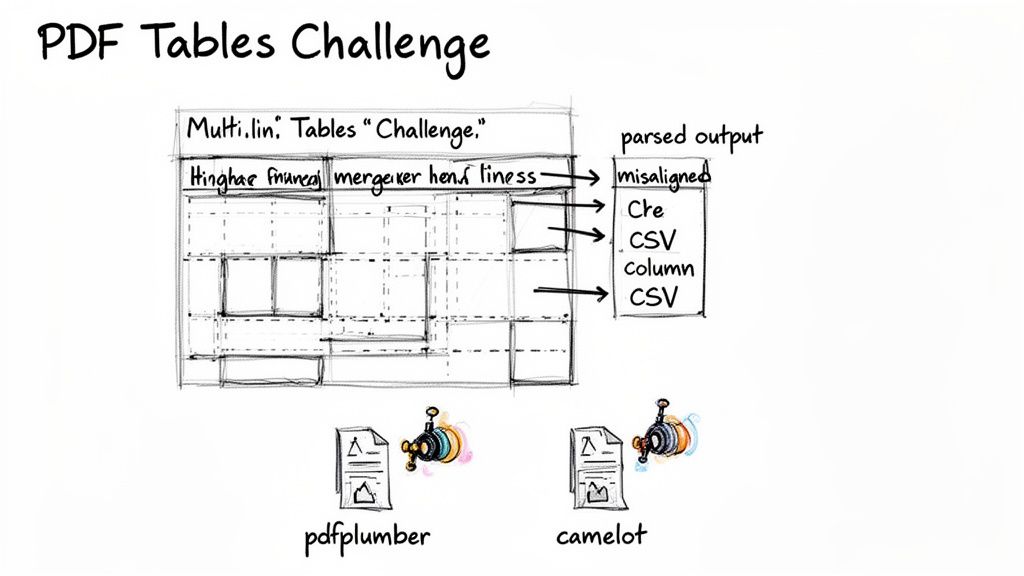
The problem lies in how PDFs are built. A table isn't stored as a neat grid of rows and columns. Instead, it's a loose collection of individual text snippets and lines scattered across the page. Simple text extraction methods see this and just grab everything in order, completely missing the table's structure. Merged cells, headers that span multiple lines, and invisible gridlines only make things worse, leaving you with jumbled data that’s useless for any real analysis.
Specialized Libraries for Table Extraction
When your go-to tools like PyMuPDF or pdfminer.six fall short, it's time to bring in the specialists. Python has a couple of libraries built just for parsing tables, and the two most common are pdfplumber and camelot.
pdfplumber is a personal favorite because it's so intuitive. It works by analyzing the visual layout of the page, using the actual lines and character alignment to figure out where the table cells are. This approach is fantastic for PDFs with clear, well-defined gridlines.
Here's a quick look at how you'd use it:
import pdfplumber
with pdfplumber.open("financial-report.pdf") as pdf: first_page = pdf.pages[0] # The extract_tables() method is a game-changer for grid-like tables. tables = first_page.extract_tables()
for table in tables:
    # Each 'table' is returned as a list of lists.
    print(table)
camelot is another heavy hitter. It even offers different parsing "flavors" to work with: "lattice" for tables that have visible lines and "stream" for those that don't. While powerful, camelot often requires a lot of trial and error to get the settings just right, especially when you're dealing with messy documents like complex invoices or financial reports.
The Uncomfortable Truth About Accuracy
Here’s the thing: even these specialized libraries aren't a silver bullet. They're a huge improvement, but in the real world, their accuracy can be surprisingly low.
Recent benchmarks paint a pretty stark picture. For example, some tests show that even good libraries struggle with tables that have irregular layouts, sometimes only extracting 60% of cells correctly. We've seen camelot fail on nearly 30% of tables that contain mixed data types, which is common in vendor invoices.
Think about it. If you're a procurement team trying to compare vendor bids, or a financial analyst pulling numbers from quarterly statements, a 30-40% error rate isn't just an inconvenience—it's a deal-breaker. That level of unreliability makes a pure Python solution a pretty risky bet for any critical business process.
Then there's the setup time. Even with a great tool like pdfplumber, a development team might spend a solid two weeks just getting an automation workflow dialled in. You have to learn the library, understand the quirks of your specific PDFs, and write code to handle all the exceptions.
This is why many teams eventually start looking beyond open-source libraries. For a deeper look at these specialized tools, check out our guide on how to extract tables from PDFs in our dedicated article. The need for reliable, production-ready table extraction is what ultimately pushes developers to explore more advanced, AI-driven solutions.
When a Python Script Is Not the Right Answer
So, we've walked through a bunch of Python libraries for pulling text out of PDFs. It’s powerful stuff, but it begs a serious question: is building your own custom script always the best approach? Having full control sounds great, but the hidden costs of a DIY solution can pile up fast, especially if you’re a business that depends on accurate data.
The initial coding is just the first hurdle. If you want a truly reliable system that can handle different document layouts and even process scanned PDFs with OCR, you’re looking at a serious project. A skilled developer could easily spend 2-3 months getting a solid first version built. And it's never a "set it and forget it" deal. New invoice layouts, updated report designs, and weird PDF quirks mean you'll constantly be tweaking and debugging your code.
The Hidden Costs of Inaccuracy
Beyond the hours spent coding, the real-world cost of bad data can be staggering. Libraries like PyMuPDF do a decent job with clean, simple PDFs, but their performance tanks when you throw complex business documents at them. We've seen it time and again—even the best Python libraries can choke on real-world financial reports, spitting out jumbled table data that takes hours to fix by hand.
In fact, it’s not uncommon for traditional tools to only hit 40-50% accuracy on scanned documents or PDFs with complex tables. For a finance manager trying to process hundreds of invoices each month, that’s a nightmare. It means their team is spending valuable time cleaning up parsing errors instead of doing actual financial analysis. If the job gets too complex, you might even have to hire Python coders, which adds a whole new layer of cost and management.
The real cost isn't just the developer's salary. It's the constant maintenance, the hours your team wastes fixing bad data, and the risk of making bad decisions based on faulty information. Once your error rate hits 15-20%, the manual cleanup work can completely wipe out any savings you thought you were getting from automation.
When to Choose an AI-Powered Platform
This is where dedicated, AI-powered platforms come into the picture. A tool like DocParseMagic is engineered specifically to solve the problems that trip up custom Python scripts. They're built to read messy scans, understand a document’s structure without needing a template, and pull out key information—like invoice numbers, line items, and totals—with over 99% accuracy.
These solutions are made for professionals in finance, operations, and procurement who need clean, usable data right now, not after a three-month development project. The entire point is to turn your documents into structured, spreadsheet-ready data in just a few minutes, completely removing the need for an in-house engineering effort. If your team values speed, scalability, and above all, accuracy, then a specialized platform is almost always the smarter investment.
Frequently Asked Questions
As you dive into extracting text from PDFs with Python, you'll inevitably hit a few common roadblocks. I've been there myself. Here are some quick answers to the questions that pop up most often when developers are getting started.
Can Python Read Scanned PDFs Without OCR?
The short answer is no. A standard Python library can't read text from a scanned PDF because, to the computer, it's just an image. The file contains pixels, not selectable text characters.
To pull text from these image-based PDFs, you absolutely need an Optical Character Recognition (OCR) engine. A great open-source tool for this is Tesseract, which you can easily plug into your Python code using a wrapper like pytesseract. The OCR engine scans the image, recognizes the shapes of letters and words, and converts them back into actual text you can work with.
Which Python Library Is Best For Tables?
Extracting tables is a notoriously tricky part of working with PDFs. While no open-source tool is perfect, your two best options are pdfplumber and camelot.
pdfplumber: This is my go-to for tables with clear, visible gridlines. It’s pretty clever at using the document's visual layout to identify rows and columns automatically.camelot: This library is more powerful and configurable. It gives you different parsing strategies ("lattice" for grid-lined tables and "stream" for those without) to tackle more complex layouts. Be prepared to spend a bit more time fine-tuning its settings, though.
Keep in mind that both can stumble on real-world financial reports or invoices with messy structures like merged cells or multi-line headers. If you need flawless table extraction every time, a specialized AI-powered tool is almost always a better investment.
Is PyMuPDF Better Than PyPDF2?
For most text extraction jobs, yes, PyMuPDF (fitz) is the clear winner. It's not even a close race in some areas.
PyMuPDF is significantly faster, is more actively developed, and simply does more. It can pull out images and metadata with ease and is far more reliable at preserving the natural reading order of the text.
PyPDF2 is a decent library for simple PDF tasks like merging files or grabbing text from a very basic document. But when you're dealing with complex layouts or need better performance, PyMuPDF is the modern, more powerful choice.
Finally, as you build out your extraction scripts, don't forget about the bigger picture. It's always smart to review the legal and ethical considerations of data extraction from any document source.
Tired of wrestling with Python scripts for every new document layout? If you're struggling to get clean, structured data, let DocParseMagic do the heavy lifting. Turn your messy PDFs, scans, and invoices into ready-to-use spreadsheets in minutes—no coding required. Get started for free at https://docparsemagic.com.