How to Extract Tables from PDF Files
Trying to pull a table out of a PDF can feel like an exercise in frustration. We've all been there: you copy and paste, and what you get is a jumbled mess of text and numbers that looks nothing like the original. This forces you into a painstaking manual cleanup that eats up valuable time.
The reason this happens is simple: PDFs are built to look good and stay consistent everywhere, not to be a source for easy data retrieval.
Why Is It So Hard to Get Tables Out of PDFs?

The root of the problem is how a PDF is put together. It doesn't actually have a "table" in the way a spreadsheet does, with defined rows and columns. Instead, it's just a bunch of text and lines arranged on a page to look like a table. This fundamental difference is what causes all the headaches.
The Digital vs. Scanned Divide
First off, you need to figure out what kind of PDF you're dealing with. A digital PDF—sometimes called "text-based"—contains actual text characters you can highlight and copy. On the other hand, a scanned PDF is really just an image of a document. If you have a scanned file, standard tools won't see any text to grab, making data extraction impossible without an extra step.
For scanned documents, success hinges on converting the image into machine-readable text first. This process requires a technology you can learn more about in our guide on what is Optical Character Recognition, a critical component for handling image-based files.
Common Roadblocks in PDF Structure
Even when you're working with a nice, clean digital PDF, the way it's laid out visually can still throw a wrench in the works. I've seen even sophisticated parsers get tripped up by these common issues:
- Inconsistent Formatting: Imagine a financial report where one table uses a different font or alignment than the next. This kind of inconsistency can easily confuse simpler extraction logic.
- Merged Cells: Cells that span multiple columns or rows are a classic nightmare for any tool expecting a perfect grid. The parser often misaligns the entire dataset because of one merged cell.
- Multi-line Text: This one gets people all the time. When the text inside a single cell wraps onto a second line, a basic tool might see it as two separate rows, completely scrambling your data.
Knowing what you're up against is half the battle. Once you understand these obstacles, you're in a much better position to pick the right tool for the job, whether you're tackling a simple report or a complex scanned invoice.
Programmatic Extraction with Python Libraries
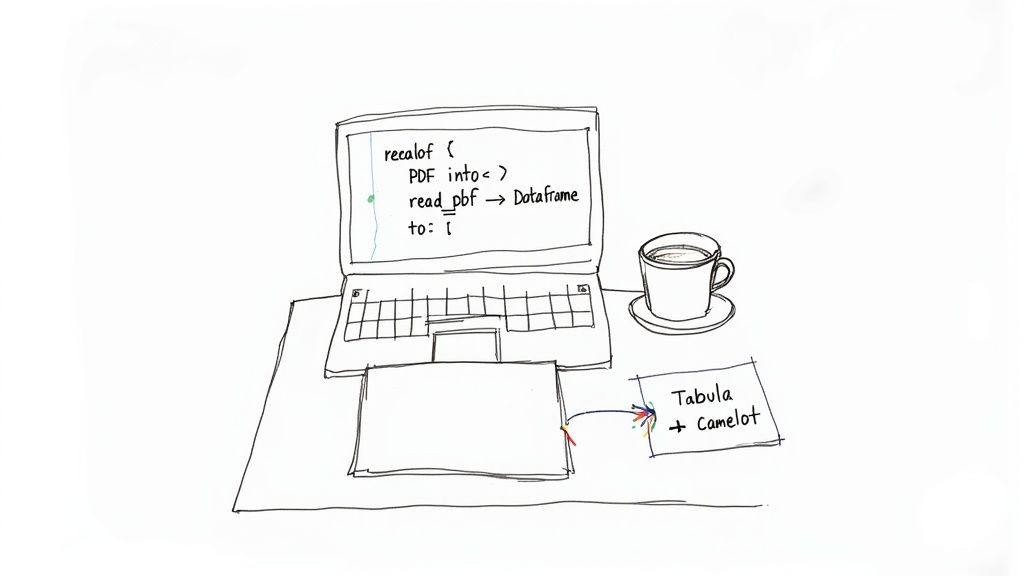
This screenshot from the Python Package Index (PyPI) shows the project page for Camelot, a popular library for this task. It highlights key information like the installation command (pip install camelot-py[cv]) and dependencies, which are crucial first steps for any developer.
When you need to pull tables from PDFs at scale, nothing beats the power of a good script. For developers and data scientists, turning to Python is a no-brainer. The language is packed with excellent open-source libraries built specifically for this, letting you create solid, repeatable data pipelines.
This approach gives you total control. Forget manually clicking through a clunky interface. With a few lines of code, you can process thousands of documents, clean up the data, and pipe it directly into a database or an analysis tool. Two libraries that I find myself coming back to again and again are Tabula-py and Camelot.
Getting Started with Tabula-py and Camelot
Before you jump into writing code, there’s a little setup involved. Both Tabula-py and Camelot are essentially Python wrappers for powerful Java libraries, which means you absolutely need to have Java installed on your system. This is a common stumbling block I see people run into, so make sure your Java Development Kit (JDK) is set up and working first.
With Java good to go, you can install the Python packages with a quick pip command:
pip install tabula-pypip install camelot-py[cv]
That [cv] part for Camelot is important—it pulls in extra dependencies like OpenCV and Ghostscript, which the library uses to visually analyze the PDF layout.
Extracting tables from PDFs isn't just a technical exercise; it's a critical operation that helps businesses turn static documents into real, actionable intelligence. This data often gets fed into CRMs and ERPs to automate workflows and ensure accuracy. For scanned PDFs, AI-powered tools with dynamic Optical Character Recognition (OCR) are becoming the standard.
Choosing Between Tabula and Camelot
So, which one should you use? While they both pull tables from PDFs, they have different sweet spots. The best choice really depends on the kinds of tables you're dealing with.
-
Tabula-py is my go-to for simple, clean tables. If your PDF has straightforward grids with clear lines—like a basic financial statement—Tabula is fast, incredibly easy to use, and gets the job done with minimal fuss.
-
Camelot gives you much more granular control, which makes it perfect for messy or complex tables. It has two different parsing methods: "Lattice" for tables with obvious grid lines and "Stream" for tables that just use white space to separate cells. This flexibility is a lifesaver when you're working with documents that have borderless tables or wonky layouts.
A good rule of thumb I follow is to start with Tabula because it's so simple. If it struggles to find the tables or gives you a messy output, then it's time to bring in Camelot and its more advanced options.
A Practical Code Example
Let's look at how this actually works. Say you have a PDF report called financials.pdf and you want to pull the tables into a Pandas DataFrame for some number crunching.
With Tabula-py, the code is beautifully short and sweet:
import tabula import pandas as pd
Read all tables from the PDF into a list of DataFrames
dfs = tabula.read_pdf("financials.pdf", pages='all')
You can then loop through the tables and work with them
for df in dfs: print(df)
Camelot is just as straightforward but gives you a handy extraction report:
import camelot import pandas as pd
Read tables from the first page of the PDF
tables = camelot.read_pdf("financials.pdf", pages='1')
The first table found is at index 0
print(tables[0].df)
You can also check out the parsing report for accuracy details
print(tables[0].parsing_report)
As you can see, both libraries play nicely with Pandas, the gold standard for data manipulation in Python. This direct pipeline from PDF to a clean DataFrame is a huge time-saver for anyone working with data. If you want to explore this topic further, our guide on transferring PDF data to Excel covers some closely related concepts.
Using Command-Line Tools for Fast Extractions
Sometimes you just need to rip a table out of a PDF without spinning up a whole development environment. For those moments, command-line interface (CLI) tools are your best friend. They give you a powerful, scriptable way to get the job done, blending the speed of automation with the precision of code.
This approach is perfect for quick, one-off tasks. Let's say you get a 50-page financial report and only need the summary table from page 12. Instead of writing a Python script, you can pop open your terminal, run a single command, and have a clean CSV file in seconds. It’s a beautifully efficient workflow that sidesteps a lot of complexity.
While the screenshot above shows the slick graphical interface for Tabula, its real power for developers and data folks is unlocked in its command-line version. You get the same great extraction logic but in a format you can easily script and automate.
Getting Started with the Tabula-java CLI
One of my go-to tools for this is the command-line version of Tabula. It's a Java application, which means you'll need to have Java installed on your system first. Once you've got that sorted, you just need to download the tabula-java.jar file, and you're good to go.
The basic command couldn't be simpler. To pull every table from a PDF called annual-report.pdf and save it all into a single output.csv file, you’d run this command from your terminal:
java -jar tabula-java.jar -p all -o output.csv annual-report.pdf
Let's break that down: you're telling Java to run the Tabula JAR file, process all pages (-p all), and send the output (-o) to your new CSV file. In just a few seconds, you’ll have structured data ready to use.
Advanced Commands for Targeted Extraction
But let's be honest, you rarely want every table from a massive document. The real magic of CLI tools lies in their flexibility and the flags that let you zero in on exactly what you need.
Here are a few commands I use all the time to get more granular control:
- Target Specific Pages: If the table you need is on page 5, just use the
-pflag:-p 5. If it spans a few pages, say 5 through 7, you can specify a range:-p 5-7. - Define a Precise Area: What if a page has multiple tables or other text you want to ignore? The
-aflag lets you define a specific rectangular area to extract from. You provide the coordinates as top, left, bottom, and right. - Change Output Format: CSV is the default and often what you need, but you can easily switch to JSON or TSV with the
-fflag. Just add-f JSONto get a JSON file instead.
For anyone building simple automation pipelines, CLI tools are a game-changer. You can chain commands in a shell script to process a whole folder of files, extract specific tables, and then move the results somewhere else—all without touching a line of Python. It’s a super pragmatic solution for those straightforward, repetitive data extraction jobs.
When It’s Time to Bring in the AI: Maximum Accuracy at Scale
So, you’ve tried the open-source libraries and command-line tools, but they’re choking on your real-world documents. Scanned invoices come back as gibberish, financial reports with borderless tables are a mess, and documents with inconsistent layouts just break your scripts. This is a classic scenario, and it's precisely where AI-powered APIs like DocParseMagic enter the picture.
Unlike tools that are stuck trying to interpret a PDF's underlying code or find perfect grid lines, an AI API looks at the document visually—much like you would. It understands the context and spatial relationships on the page, allowing it to intelligently identify where a table starts and ends, even when there are no borders. This is a common situation that trips up nearly every other method.
For any business that needs to build reliable, high-volume data extraction directly into their applications, this approach is a game-changer.
Why an AI API Is a Different Beast Altogether
The real magic of an AI service is its ability to handle ambiguity. It’s been trained on millions of diverse documents, so it recognizes patterns that would send a rules-based parser into a tailspin. The benefits are immediate and obvious.
- Scanned PDFs? No Problem: An AI API has advanced Optical Character Recognition (OCR) baked right in. You don't need a separate tool or an extra step; it automatically converts images to text before extraction.
- No Templates Needed: Forget defining coordinates or building templates for every new document layout. The AI model adapts on the fly to any table format, from simple grids to complex, multi-page financial statements.
- Built to Scale: APIs are designed to handle thousands or even millions of documents without breaking a sweat, making them perfect for enterprise-level automation.
The growing demand for this level of AI-powered accuracy is why the global table extraction software market was valued at around $1.12 billion in 2024. Industry analysis projects it will surge to $4.27 billion by 2033 as more businesses move away from fragile, rule-based systems.
A Practical Python Example with DocParseMagic
You might think integrating an AI would be complex, but it’s surprisingly straightforward. You just send your PDF file via a simple HTTP request and get back a structured JSON response with your clean, organized data.
The real power here is abstracting away the complexity. You don’t need to worry about the PDF's source, whether it’s scanned, or how the tables are formatted. You just send the file and get clean, structured data back, allowing you to focus on building your core product. This is a crucial step if you want to learn how to automate data entry at scale and eliminate manual work for good.
Comparison of PDF Table Extraction Methods
Choosing the right tool depends on your specific needs—from the complexity of your documents to the scale of your operation. This table breaks down the key differences between the methods we've covered to help you decide.
| Feature | Python Libraries (Tabula, Camelot) | CLI Tools | AI API (DocParseMagic) |
|---|---|---|---|
| Best For | Simple, well-structured PDFs | Quick, one-off extractions | Complex, scanned, and varied documents at scale |
| Handles Scanned PDFs (OCR) | No, requires a separate OCR tool | No, requires preprocessing | Yes, built-in advanced OCR |
| Accuracy on Borderless Tables | Low to moderate | Low | High, uses visual analysis |
| Setup & Dependencies | Can be complex (Java, Ghostscript) | Moderate, requires software installation | Minimal, just an API key and a few lines of code |
| Scalability | Limited by local machine resources | Limited, best for single-file use | High, cloud-based and built for high volume |
| Output Format | CSV, DataFrame | CSV, TSV | JSON, highly structured and easy to parse |
| Maintenance | Self-managed (updates, bugs) | Self-managed | None, handled by the API provider |
Ultimately, while open-source libraries and CLI tools are great for simple tasks, an AI API is the clear winner when you need accuracy, reliability, and scale without getting bogged down in the technical weeds of PDF parsing.
How to Choose the Right Extraction Method
Figuring out the best way to extract tables from a PDF can feel like a maze of options. But it's actually pretty straightforward once you break it down. Your decision really just comes down to three things: the kind of PDFs you have, how many you need to process, and your comfort level with code.
There’s no single “best” tool out there. The only thing that matters is finding the best tool for your specific job.
For example, if you're a data analyst who just needs to pull a simple table from a clean, digitally-created annual report every now and then, a command-line tool or a quick Python script will get the job done. These methods are fast, free, and more than enough for well-behaved tables with predictable layouts.
On the other hand, a developer building an automated invoice processing system is playing a completely different ballgame. They're dealing with a flood of PDFs from all over the place—including messy scans, skewed tables, and layouts without any clear borders. In a situation like that, the raw accuracy and reliability of an AI-powered API becomes a necessity.
Analyzing Your Core Needs
To land on the right solution, you first have to get clear on your project's needs. Ask yourself these questions:
- Document Complexity: Are your tables neat and tidy with clear lines, or are you dealing with a tangled mess of merged cells, missing borders, and weird formatting?
- PDF Source: Are your PDFs born-digital (exported from a program), or are they scanned documents that will need Optical Character Recognition (OCR) to even be readable?
- Task Scale: Is this a one-and-done job, or are you setting up a process to handle hundreds or even thousands of documents regularly?
- Technical Skill: Are you happy to jump into a terminal and write some code, or would you prefer a solution that doesn't require any programming?
This decision tree gives you a great visual guide for picking a path based on your answers.
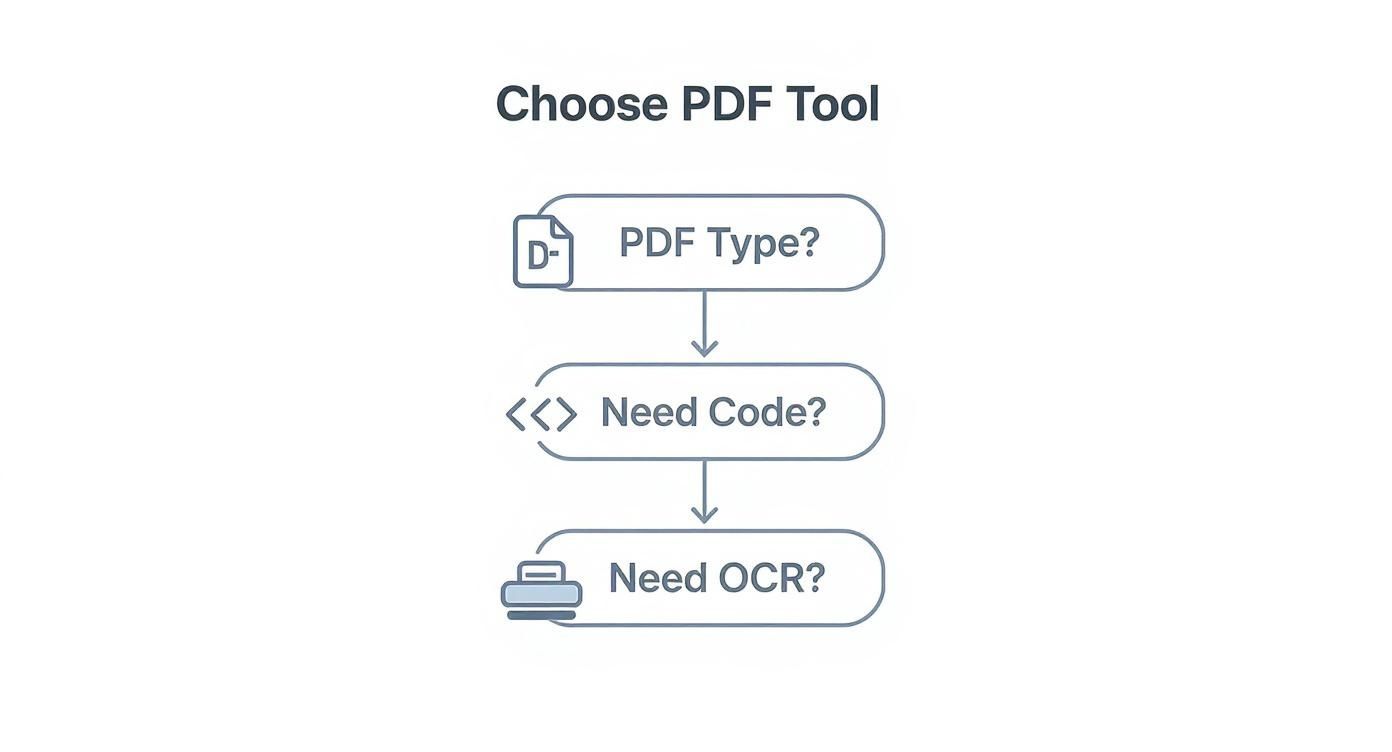
As you can see, the more complex your project gets—moving from simple digital files to scanned documents needing OCR and full automation—the more you'll want to lean away from basic open-source tools and toward a more powerful AI solution.
The Business Impact of Your Choice
This isn't just a technical decision; it has real business consequences. The global data extraction software market was valued at $2.01 billion in 2025 and is expected to reach $3.64 billion by 2029. That growth is driven by industries like finance and healthcare needing to automate their data workflows.
Picking the wrong tool can lead to hours of mind-numbing manual corrections and data entry errors, which gets expensive fast. The right tool, however, can save you an incredible amount of time. You can find more insights about data extraction market trends and see how it's shaping different industries.
The whole point is to make your life easier. If you’re spending more time cleaning up the extracted data than actually analyzing it, that’s a huge red flag. It’s a sign that you’ve outgrown your current tool and need something smarter. The upfront cost of a better solution almost always pays for itself in time saved and better quality data.
Got Questions About PDF Table Extraction? Let's Clear Things Up
Even with the best tools, pulling tables out of PDFs can sometimes feel like a dark art. You're almost guaranteed to hit a few snags along the way. Let's walk through some of the most common questions and hurdles I see people encounter.
Can I Actually Get Tables from a Scanned PDF?
Yes, you can, but this is a huge gotcha that trips a lot of people up. It's a critical distinction to understand.
Most standard tools, like Tabula-py, work by reading the digital text layer of a PDF. A scanned document, however, is essentially just a flat image of text. To a tool like Tabula, it's a blank page with no data to grab.
To work with scanned PDFs, you need a tool that has Optical Character Recognition (OCR) baked in. An OCR engine looks at the image, recognizes the shapes of letters and numbers, and converts them into actual text you can work with. This is where AI-powered APIs like DocParseMagic really pull ahead—they have high-accuracy OCR built right into their workflow, making scanned documents just as straightforward as digital ones.
What’s the Best Format for Saving My Extracted Table Data?
For sheer compatibility, CSV (Comma-Separated Values) is king. It’s a simple, no-frills format, and I'd be hard-pressed to name a data tool, spreadsheet program like Excel, or database that can't import it cleanly. It's my go-to for most quick analysis tasks.
But what if you're a developer building an application, or your data has a more complex, nested structure? In that case, JSON (JavaScript Object Notation) is probably what you're looking for. It does a much better job of preserving data types and relationships, which can save a ton of headaches when you're working with the data programmatically.
My rule of thumb: If the data's final destination is a spreadsheet for analysis, stick with CSV. If you're feeding it into an application, JSON is almost always the smarter choice.
How Do I Handle a Single Table That Spans Multiple Pages?
Ah, the classic headache. A table starts on page five and spills over onto page six. A simple parser will almost always see this as two separate, broken tables. It's one of the most common failure points and leads to a ton of manual data cleanup.
Some of the more sophisticated libraries, like Camelot, have specific features designed to spot and stitch these multi-page tables together, but getting the settings just right can take some trial and error.
This is another situation where modern AI solutions really shine. Because they don't just look for lines but analyze the entire document's layout and context, they are far more reliable at recognizing that a table continues across a page break. They’ll automatically merge the parts into one complete, correct table for you.
Ready to stop wrestling with messy PDFs and get clean, structured data every time? DocParseMagic uses advanced AI to accurately extract tables from any document—scanned or digital—in seconds. Try DocParseMagic for free and see how much time you can save.