A Practical Guide to PDF to XML Conversion
Converting a PDF to XML is less about changing a file format and more about translating a static document into a dynamic, structured set of data. It's the key to unlocking the valuable information trapped inside your PDFs, making it ready for data analysis, system integration, and workflow automation. For any business trying to turn invoices, reports, or forms into actionable data, this process is a must.
Why PDF to XML Conversion Matters for Your Business
Let’s be real—PDFs are fantastic for preserving a document's look and feel, but they are absolutely awful for data work. They were designed to be a digital printout, ensuring a document looks the same on any screen. This makes them great for sharing, but a nightmare when you need to pull specific information out.
Think of a PDF as a digital snapshot of a document. All the data is there, but it's frozen in a visual layer. Converting that PDF to XML is like turning that snapshot into a neatly organized spreadsheet that a computer can read and understand instantly. It's a game-changer for anyone drowning in manual data entry.
To really get it, let's look at their core differences.
PDF vs XML A Quick Comparison
Understand the core differences between PDF and XML to see why conversion is so valuable.
| Attribute | PDF (Portable Document Format) | XML (eXtensible Markup Language) |
|---|---|---|
| Purpose | Designed for presentation and viewing. | Designed for storing and transporting data. |
| Structure | Visually structured (fixed layout). | Data-structured (hierarchical tags). |
| Readability | Human-readable. | Both human and machine-readable. |
| Editability | Difficult to edit data without special tools. | Easily edited and manipulated. |
| Data Extraction | Challenging; data is not tagged. | Simple; data is self-describing. |
As you can see, they serve completely different purposes. The goal of conversion is to bridge that gap, turning a presentation-focused file into a data-centric one.
Unlocking Trapped Data in Daily Workflows
Picture an accounting team spending hours every week manually typing invoice details from hundreds of vendor PDFs into the company’s ERP system. Or a logistics company struggling to pull shipping data from countless digital manifests. These manual workflows aren't just slow; they're expensive and riddled with human error. A huge reason for making this change is the need to efficiently extract information from PDF files, turning unstructured content into a useful, structured format.
This is where PDF to XML conversion shows its true worth. It’s about much more than just a new file extension. It’s about:
- Automating Tedious Work: Stop the copy-paste grind and let your team focus on tasks that actually require their expertise.
- Integrating Documents Seamlessly: XML files can be directly fed into most business software, from accounting platforms to CRMs.
- Improving Data Accuracy: Automation gets rid of the typos and transposition errors that plague manual data entry.
The demand for this kind of efficiency is exploding. The global market for data conversion services was valued at USD 39.8 billion in 2021 and is on track to hit an astonishing USD 566 billion by 2031. You can dig into the numbers yourself in this detailed data conversion report. This incredible growth shows just how vital structured data has become.
The real power of converting PDF to XML lies in making your document data fluid. Instead of being stuck in a digital filing cabinet, your information becomes an active asset that can power automated decisions, trigger actions, and provide valuable business insights.
For example, by getting a handle on automatic document processing, you can create a system where a new PDF invoice is automatically converted to XML, checked for errors, and queued for payment without anyone lifting a finger.
How you approach the conversion depends entirely on the kind of PDF you’re starting with. A native, text-based PDF is fairly straightforward. But a scanned document—which is really just an image—needs a smarter, more sophisticated approach to get accurate results. This difference is what will guide your choice of tools and techniques.
Choosing the Right PDF to XML Conversion Tool
Picking the right tool to convert a PDF to XML can be the difference between a quick win and a day-long headache. They aren't all created equal, and the best choice really hinges on what you need—security, how many files you’re running, and just how complicated your documents are.
It’s a big market, too. Document conversion services, which cover this exact kind of work, make up 23.7% of the global data conversion industry. That slice of the pie was worth about USD 7.67 billion and is on track to nearly double. If you want to dive into the numbers, you can read the full research on the data conversion market.
This growth just underscores how vital it is to get this decision right. And your first question is a simple one: what kind of PDF are you actually working with?
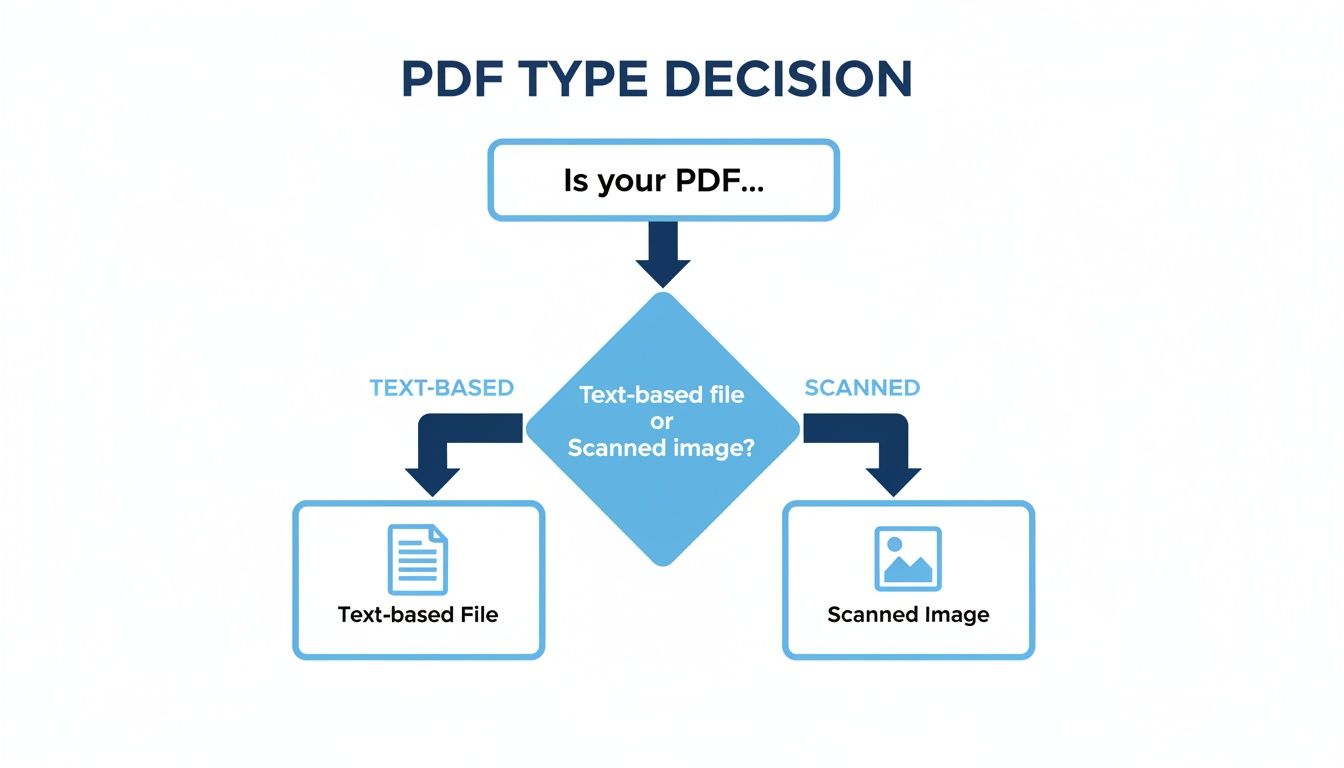
Knowing your PDF type is step one. Scanned documents need a tool with Optical Character Recognition (OCR) to even begin, and that’s something a lot of basic converters just don't have.
Comparing Your Conversion Options
Once you know your PDF type, the tools themselves generally fall into three buckets. Each comes with its own pros and cons.
-
Free Online Converters: Perfect for a quick, one-off job with a non-sensitive file. They’re fast and you don't have to install anything. The catch? You're sending your data to a third-party server, which is a major security red flag for business documents. They also tend to choke on complex layouts and give you almost no say in the final XML structure.
-
Desktop Software: This is a much more secure route since all the processing happens right on your computer. Desktop tools typically offer better control over mapping and configuration, but they can have a bit of a learning curve. They’re a solid middle-of-the-road choice for anyone who needs more power but isn't ready for a full enterprise setup.
-
API-Driven Platforms: For any business that handles documents in bulk, platforms like DocParseMagic are the way to go. These systems use intelligent parsing and AI to do more than just convert the file—they understand it. They can automatically identify and tag fields from invoices, reports, or forms, saving an incredible amount of manual effort.
The hidden cost of a "free" tool is the time you'll inevitably spend fixing its messy output. A smart platform might have a subscription, but it pays for itself by giving you clean, audit-ready XML from the get-go.
Making the Smart Choice for Your Business
So, how do you decide? If you’re just converting a public-facing brochure once, a free online tool will get the job done. For a small business with a mix of needs, desktop software often strikes the right balance between control and cost.
But for any organization where processing documents is a core part of the daily workflow—like an accounting team drowning in invoices or a logistics firm buried in shipping manifests—an intelligent, API-driven platform is the only real long-term solution. These tools are built for volume, security, and accuracy, turning a tedious manual chore into a streamlined, automated process. They’re what modern document data extraction software is all about.
At the end of the day, the goal isn't just to get an XML file. It's to get structured, reliable data you can immediately trust and plug right into your other systems.
Tackling Scanned and Complex PDFs with OCR
When you're trying to convert a PDF to XML, scanned documents are the first major roadblock. This is where most standard tools just give up. A native PDF has text you can highlight and copy, but a scanned PDF is basically just a picture. To your computer, it's a collection of pixels, not letters and numbers.
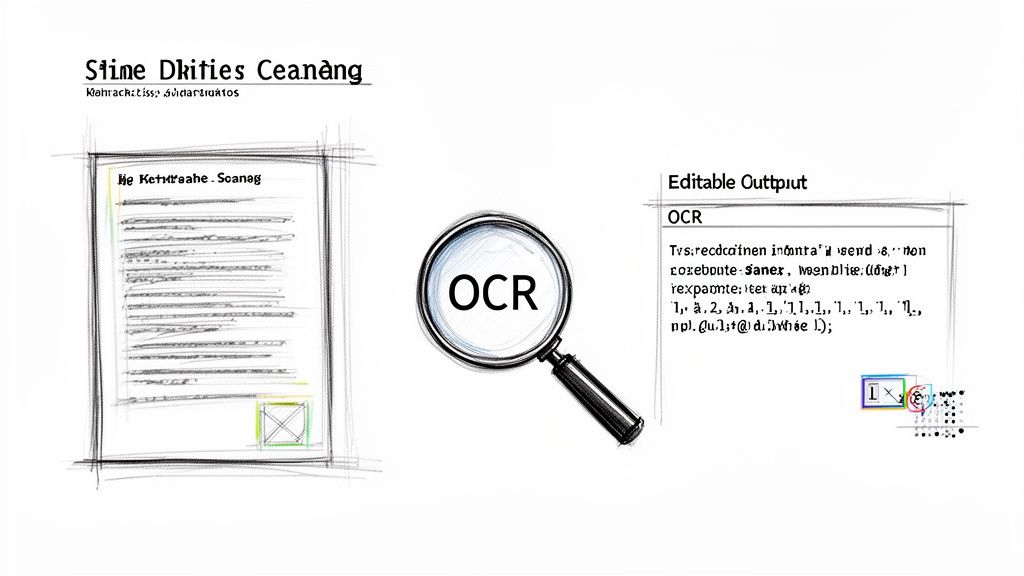
That's where Optical Character Recognition (OCR) saves the day. Think of OCR as a digital translator that scans the image, recognizes the shapes of characters, and converts them back into actual text that a machine can understand and structure into an XML file. If you're curious about the nuts and bolts, you can learn more about what is OCR technology and how it works.
Why Basic OCR Often Isn't Enough
Here’s the thing, though: not all OCR is created equal. The quality of the output is directly tied to the quality of the scan. A blurry, crooked, or low-resolution document is a recipe for disaster, leading to some common and incredibly frustrating errors.
- Character Confusion: You’ll see things like a '1' being mistaken for an 'l', or an 'S' read as a '5'.
- Layout Blindness: Basic OCR often gets confused by complex layouts. It might try to read a two-column document straight across, mashing everything into one nonsensical paragraph.
- Table Troubles: Invoices and reports with detailed tables are a nightmare. A simple OCR tool will often spit out a jumbled mess of text, completely losing the crucial row-and-column relationships.
This isn't just a minor annoyance; it's a huge problem for businesses. In fact, unstructured data conversion—which is exactly what we're talking about—dominated the market with a massive 66.8% share. It just goes to show how many organizations are wrestling with turning scans and images into usable data.
The Advantage of Intelligent Parsing
This is exactly why smarter, AI-driven platforms like DocParseMagic are so important. They go far beyond just "reading" the text. Instead, these tools analyze the entire document's layout and context. They understand that a number sitting under a "Total" header is a dollar amount and that a list of items in a table all belong to the same invoice.
The real challenge isn't just turning an image into text; it's turning a document's visual structure into a logical data structure. That's the leap from basic OCR to intelligent document parsing.
For the really tough documents, advanced methods like intelligent document processing (IDP) work alongside OCR to guarantee accuracy. An intelligent tool can spot key-value pairs (like "Invoice Number" and the digits next to it), figure out where tables begin and end even if there are no lines, and correctly group line items together. This level of intelligence is what you need to create the clean, structured, and audit-ready XML that modern business systems depend on.
From a Messy PDF to Clean XML: A Real-World Walkthrough
Theory is great, but let's be honest—seeing a tool actually work is what really matters. So, let’s walk through a practical scenario: converting a PDF invoice to XML using a tool like DocParseMagic. We’re not going to use some cherry-picked, perfectly formatted document. Instead, we'll tackle a typical multi-page supplier invoice—the kind that gives you headaches, with multiple line items, tricky tax calculations, and those surprise shipping fees.
This is exactly where most basic converters fall flat, spitting out a jumbled mess of text that takes hours to fix by hand. Our goal here is to get from that messy PDF to clean, audit-ready XML data in just a few minutes, showing how a modern tool can intelligently handle the whole process.
Getting the Invoice into the System
First things first, you just drag and drop the PDF invoice right into the DocParseMagic interface. That's it. You don't have to pre-process the file, draw little boxes around the data you want, or write a bunch of complicated rules. The platform immediately starts analyzing the document’s layout and content.
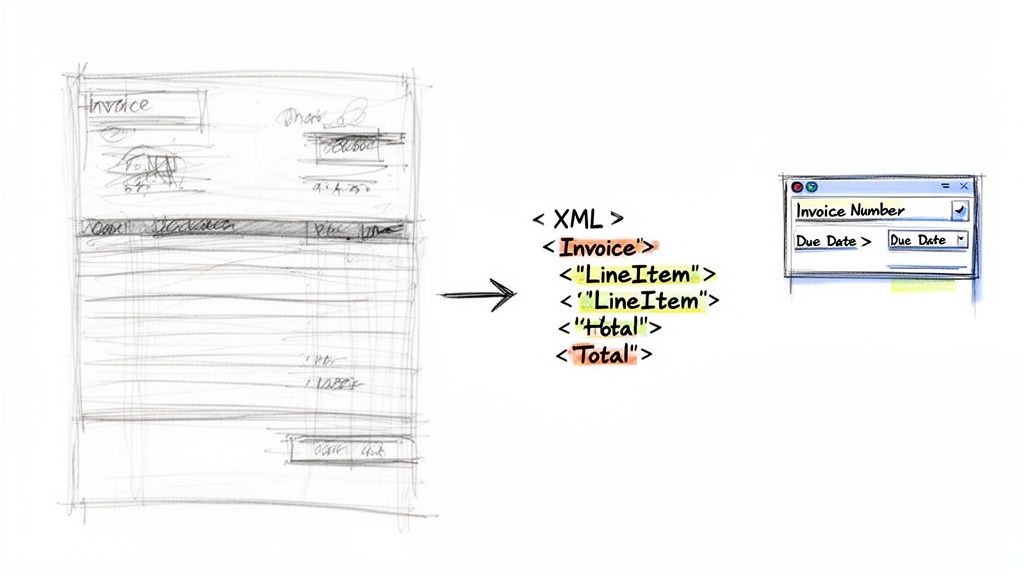
What’s happening in the background is more than just simple text recognition (OCR). The AI is using contextual analysis to figure out what each piece of information actually is. It sees "Invoice Number" and understands it’s a key identifier, not just random text. It recognizes that a table of items contains distinct rows, and that the data in those rows—like quantity, description, and price—all belong together.
The Magic of AI-Powered Data Identification
In a matter of seconds, the results are back. Without you having to lift a finger, DocParseMagic has already identified and labeled all the important fields.
- Header Data: It correctly pulls out fields like
Invoice Number,Due Date,Vendor Name, and theTotal Amount. - Line Items: The tool spots the entire table and correctly breaks down each row. This means each one will become a neat
<item>entry in your final XML file. It also knows the difference between column headers (Description,SKU,Price) and the actual data in the cells. - Footer Details: Things like subtotals, tax, and shipping fees are recognized as separate financial components, not just stray numbers at the bottom of the page.
This automatic field recognition is what separates an intelligent parser from a basic scraper. You’re not just getting a dump of text; you’re getting structured, labeled data right from the start.
The real magic isn't just pulling the text out; it's understanding the relationships between different pieces of text. An intelligent parser knows that a price in a table row belongs to a specific product—a concept that simpler tools just can't grasp.
A Quick Review and One-Click Export to XML
Once the data has been extracted, it's laid out in a clean, simple table for you to look over. You can quickly scan everything to make sure the line items and totals match the original PDF. If you spot anything that needs a tweak, you can edit it right there in the interface.
After you’ve confirmed the data is accurate, the final step is a single click on the "Export" button. Just choose XML as your output format, and DocParseMagic will generate a perfectly structured file. The natural hierarchy of the invoice—with line items nested inside the main invoice tag—is preserved perfectly. The result is clean, validated XML, ready to be imported directly into your accounting software or ERP system. No more manual data entry, and no more costly mistakes.
Best Practices for Accurate XML Conversions
Getting a file out of a converter is one thing. Getting data you can actually trust without spending hours on manual cleanup? That's the real challenge. Sloppy output is more than just an annoyance—it can corrupt your database, break system integrations, and lead to some seriously costly business errors.
The goal isn't just to change a file's extension from .pdf to .xml. It's about building a reliable data pipeline that produces clean, consistent results every single time.
Validate Against a Predefined Schema
The most powerful thing you can do to guarantee structural integrity is to validate your XML against a schema. Think of a schema—usually an XSD (XML Schema Definition) file—as the blueprint for your document. It sets the rules: which tags are allowed, what order they must appear in, and what type of data they can hold.
It's like having a quality control inspector for your data. By checking the converted XML against the XSD, you can instantly flag problems that would otherwise slip through:
- Missing Tags: A crucial
<DueDate>field is completely absent from an invoice. - Incorrect Data Types: Someone entered "two" instead of "2" in a
<Quantity>field. - Improper Nesting: The line items are floating outside the main
<Invoice>tag where they belong.
Validation takes the guesswork out of the equation. It's how you can be certain that malformed data never makes it into your critical systems.
Handle Special Characters and Encoding
I’ve seen more data pipelines break over small details than big ones. Special characters and encoding are at the top of that list. PDFs often contain symbols like ampersands (&), less-than signs (<), or accented letters (é), all of which have special meanings in XML and can shatter your file's structure if handled poorly.
Make sure your conversion process escapes special characters (like turning
&into&) and always saves the final XML file with UTF-8 encoding. This one step will prevent the vast majority of parsing errors you're likely to encounter.
Preserve Hierarchical Data Structures
The beauty of XML is how it represents data with multiple layers. A typical PDF invoice is a perfect example. You have the main invoice information at the top, with a neat list of line items nested inside. A bad conversion process completely flattens this, mashing all the data together into a single, confusing layer.
The right approach is to use a tool smart enough to see these relationships. It should know to create a parent <LineItems> tag and place each <Item> tag underneath it, preserving the document's original logic. This makes the XML infinitely more useful for whatever application needs to process it next.
Focusing on these fundamentals—validation, character handling, and structure—is what elevates a simple file conversion into a truly reliable data extraction workflow.
Got Questions About PDF to XML Conversion? We've Got Answers
Even when you've got the right software, turning a PDF into clean XML can throw you a few curveballs. It’s a common scenario: you’re trying to pull key data, but you keep hitting the same walls. Let's walk through some of the questions we hear all the time to get your workflow smoothed out.
Can a Scanned PDF Be Converted to XML?
It can, but there's a crucial extra step. You can't just run a scanned PDF through a standard converter. To the software, a scanned document is just one big image file, not text.
The magic ingredient you need is Optical Character Recognition (OCR). An OCR engine looks at the image, identifies the shapes of letters and numbers, and turns them into actual, machine-readable text. When you're dealing with detailed documents like invoices or shipping manifests, the accuracy of that OCR is everything. This is where a more intelligent platform like DocParseMagic really shines—its AI-powered OCR doesn't just pull the text, it actually understands the layout, correctly spotting fields and tables even if the scan isn't perfect.
My XML Output Is a Jumbled Mess. What Went Wrong?
Ah, the classic "wall of text" problem. This happens because PDF and XML are built for completely different jobs. A PDF cares about how things look on a page. XML cares about how data is structured and what it means.
When a basic converter tackles a PDF, it often just rips out all the text it can find and dumps it into a single XML file. The result? You lose all the context. The price is no longer connected to the line item, the address is just a string of words. To avoid this, you need a tool that can intelligently map the PDF’s visual layout to a logical XML structure. That's the only way to preserve the relationships between your data points.
The number one reason PDF to XML conversions fail is a loss of structure. A good tool doesn't just read the words on the page; it understands that this price belongs to that line item.
How Do I Handle Tables Without Creating a Disaster?
Tables are notoriously difficult. It's so easy for a simple tool to flatten them, mushing all the cells together into an unreadable block of text and destroying the row-and-column structure that gives the data meaning.
A solid conversion tool has to be smart enough to recognize a table and recreate its hierarchy in the XML output. This means it should generate parent tags for the table itself and for each row, with child tags for every cell inside. For the really messy stuff—tables with merged cells or invisible borders—an AI-driven platform is a game-changer. It can figure out the structure just by looking at the alignment and spacing, saving you from a world of manual data cleanup.
Should I Be Using an Online Tool or Desktop Software?
This really boils down to what you’re working on.
- Free online converters can be okay for a one-off, non-sensitive document. But be careful—you’re uploading your data to a third-party server, which is a major security red flag for business documents. They're also pretty limited in what they can do.
- Desktop software gives you much more security and control, but often comes with a steeper learning curve and can require a lot of manual configuration to handle different document layouts.
For any business that processes sensitive or a high volume of documents—think invoices, purchase orders, or financial statements—a dedicated, secure parsing platform is the way to go. You get the power of a professional-grade tool without the headaches, all wrapped in an easy-to-use cloud service.
Ready to stop wasting hours on manual data entry and wrestling with messy files? DocParseMagic uses AI to turn your most complex PDFs into clean, structured, and audit-ready XML in seconds.
Give it a try and see for yourself how easy it is to unlock the data trapped in your documents.