The Top 12 Best PDF to Text Converter Tools for Businesses in 2026
Extracting data locked inside a PDF is a common but surprisingly complex challenge for many businesses. For finance, insurance, and operations teams, the task goes far beyond simply converting a PDF to a block of plain text. You need a tool that can accurately pull specific information like invoice numbers, policy details, or line items from vendor proposals, often from scanned documents or complex layouts. A basic PDF to text converter often fails here, producing jumbled text that requires hours of manual cleanup. This guide is designed to help you find the right solution for your specific business workflow, saving you time and preventing costly data entry errors.
We've evaluated a wide range of tools, from simple online converters to powerful AI-driven platforms. This comprehensive listicle dives deep into the best options available, moving past marketing claims to provide a clear, practical assessment. You won’t find generic feature lists here. Instead, we focus on what matters for professional use cases:
- Accuracy: How well does the tool handle scanned documents using Optical Character Recognition (OCR)?
- Structured Data: Can it pull data into organized formats like tables or key-value pairs?
- Security: Are your sensitive financial and client documents processed securely?
- Integration: Can the tool connect with your existing software and workflows?
Each review includes detailed pros and cons tailored to business needs, pricing information, and screenshots to show you exactly what to expect. We cut straight to the point, helping you select the best PDF to text converter to automate your document processing, whether you're handling a few invoices a week or thousands of policy documents a day. Let's find the right tool for the job.
1. Adobe Acrobat (Export PDF + Acrobat Online)
As the creator of the PDF format, Adobe offers one of the most reliable and high-fidelity pdf to text converter solutions available. Its main strength lies in its powerful Optical Character Recognition (OCR) engine, which consistently delivers accurate results for both scanned documents and native PDFs. The platform is ideal for business environments where document integrity and security are paramount.
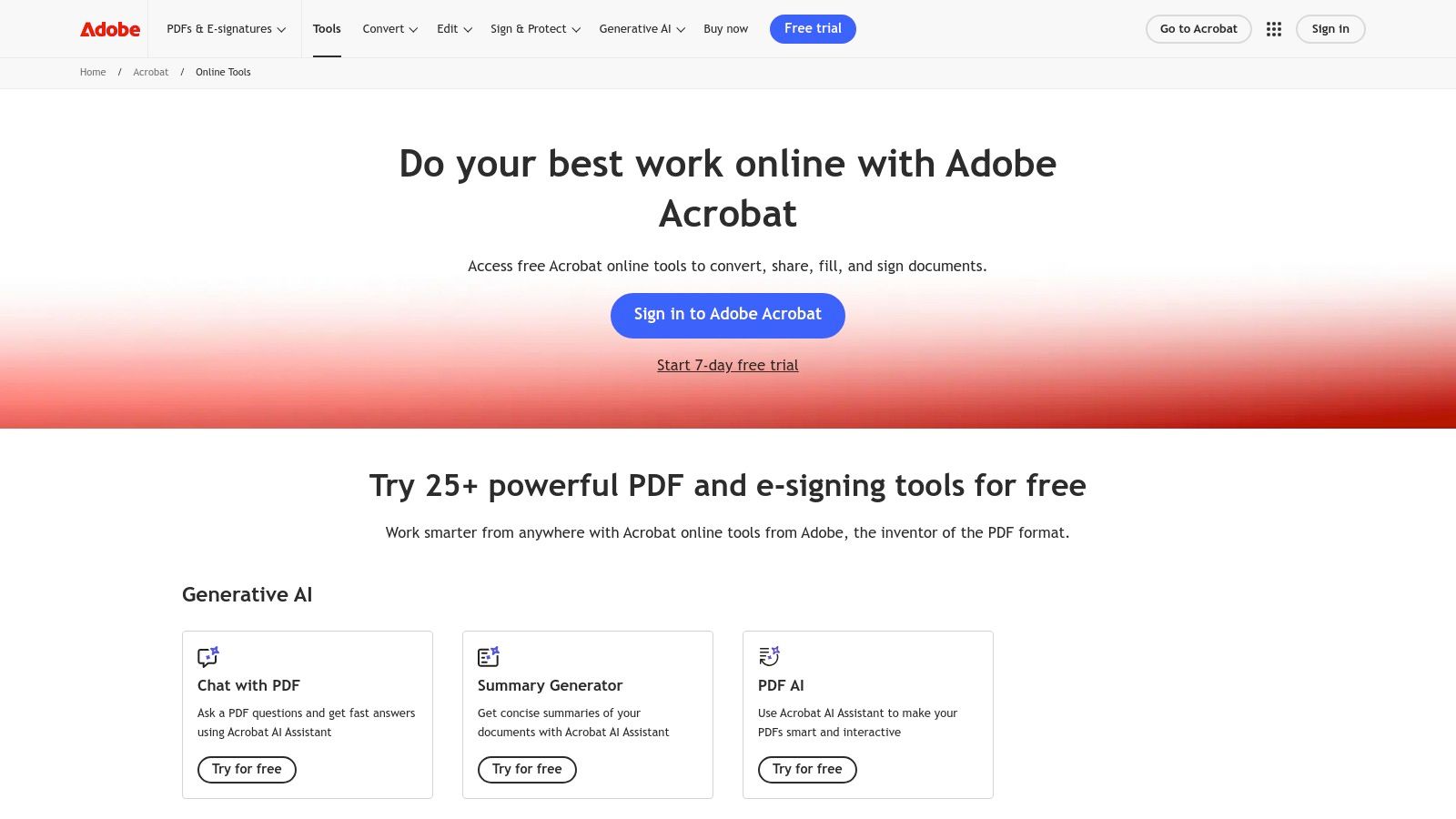
Adobe’s online tools and desktop software (Acrobat Pro) are particularly useful for finance and insurance professionals who need to extract data from invoices, policy documents, or financial statements. Instead of converting directly to a plain text file, the more common workflow involves exporting to an editable format like Microsoft Word (.docx) or Excel (.xlsx). This preserves formatting and structure, making it easier to work with the extracted information.
Key Features & User Experience
The user experience is seamless, especially for those already within the Adobe ecosystem. The online interface is a simple drag-and-drop tool, though it requires a sign-in to download the final converted file.
- Conversion Accuracy: High-fidelity OCR ensures minimal errors, even with complex layouts.
- Structured Data: Excels at exporting structured data into formats like DOCX and XLSX, which is a crucial step for professionals who need to maintain tables and columns. For specific guidance on this, check out this resource about how to extract tables from PDF documents.
- Security: Offers enterprise-grade security, a critical feature for handling sensitive financial or client data.
- Integration: Natively integrates with Adobe Reader, Creative Cloud, and mobile apps for a unified workflow.
Pros & Cons
| Pros | Cons |
|---|---|
| Market-leading accuracy and reliability. | Direct .txt export is less straightforward online. |
| Excellent for structured data (tables, columns). | Requires an Adobe account to download files. |
| Strong security and compliance features. | Premium features require an Acrobat Pro subscription. |
Website: https://www.adobe.com/acrobat/online
2. Smallpdf
Smallpdf is a popular, browser-based toolkit known for its simplicity and speed. As an all-in-one platform, it offers a versatile pdf to text converter alongside over 30 other PDF utilities, making it a go-to for quick document tasks. Its main appeal is a clean, intuitive interface that streamlines the conversion process for users who need fast, reliable results without a steep learning curve.
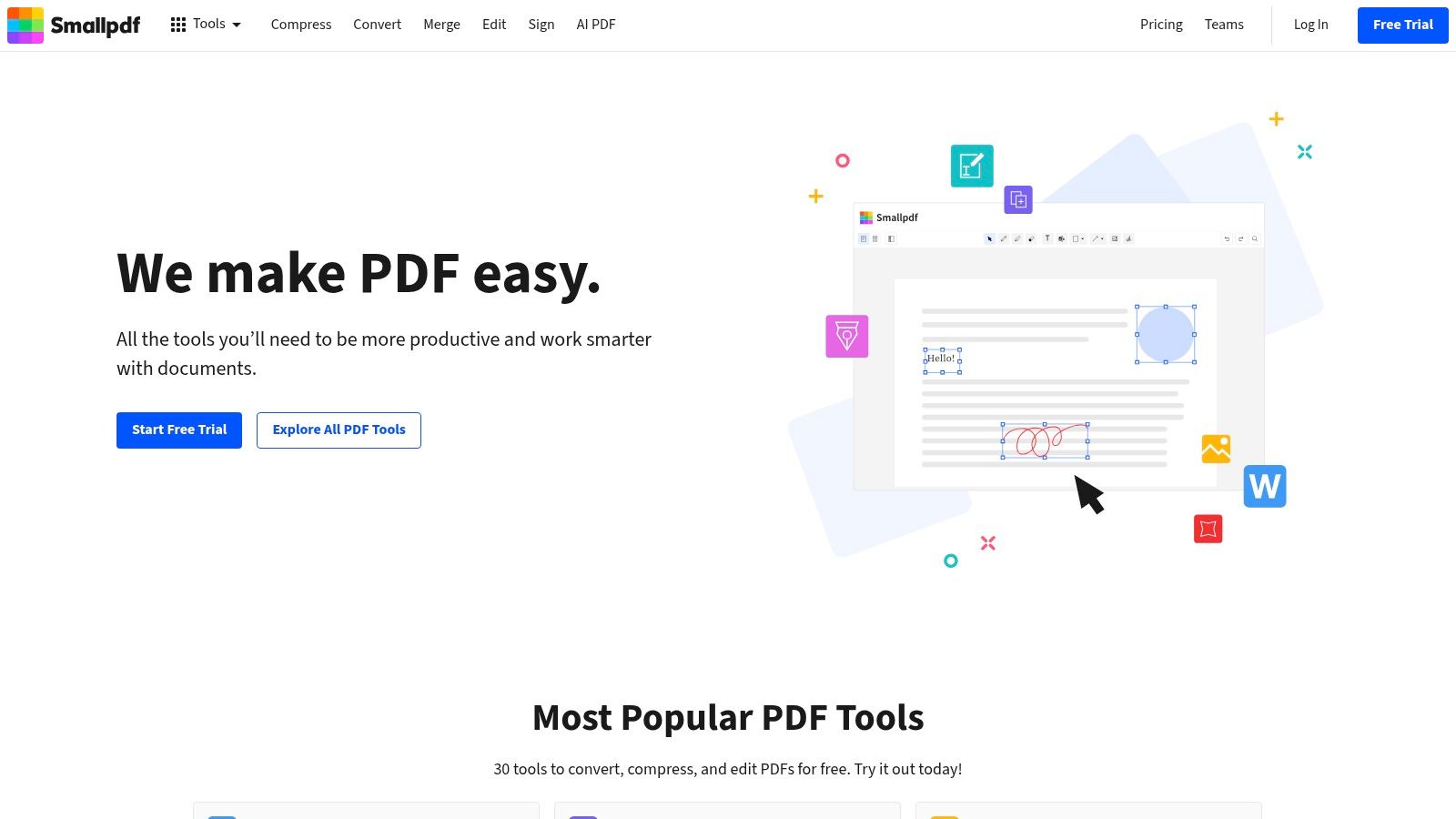
For business users, particularly in procurement or operations, Smallpdf is excellent for converting scanned purchase orders or proposals into editable formats like DOCX. While it doesn't always offer a direct-to-TXT export, converting to a Word document first allows users to easily copy the plain text. Its OCR capabilities are solid for standard documents, and its workflow is ideal for teams that need an accessible tool for various document management needs. The platform's ability to handle multiple formats also makes it a strong choice when you need to convert PDF files into structured formats like CSV for data analysis.
Key Features & User Experience
The user experience is designed for maximum efficiency. The web interface is a straightforward drag-and-drop system that processes files quickly, with mobile apps available for on-the-go conversions.
- Ease of Use: A minimalist and intuitive interface makes it easy for anyone to convert files without training.
- All-in-One Toolkit: Provides a comprehensive suite of tools (merge, split, compress, edit) beyond just conversion.
- Security & Compliance: ISO 27001 certified and compliant with GDPR/CCPA, ensuring business data is handled securely.
- Team Features: Business plans include centralized billing and team management, simplifying software administration for SMEs.
Pros & Cons
| Pros | Cons |
|---|---|
| Extremely easy-to-use with a fast interface. | Free version is limited by usage caps. |
| Comprehensive suite of over 30 PDF tools. | Direct .txt export isn't a primary feature. |
| Strong security with business-grade compliance. | OCR is a Pro feature, not available for free. |
Website: https://smallpdf.com
3. Sejda PDF
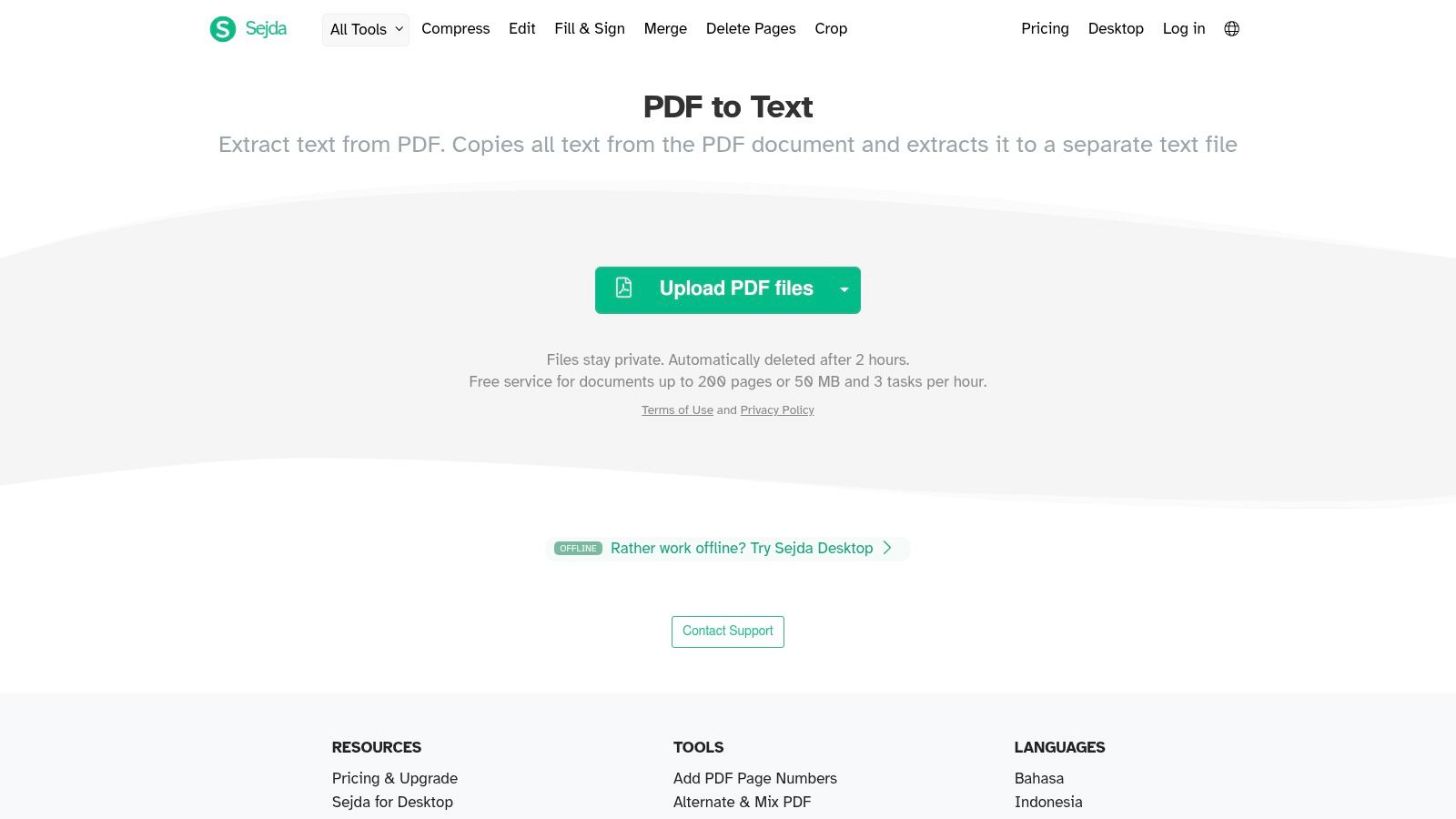
Sejda offers a suite of PDF tools, including a dedicated and straightforward online pdf to text converter. Its main advantage is simplicity and directness. Unlike platforms that push users toward Word or Excel conversions, Sejda provides an "Extract text from PDF" tool that outputs a clean, plain text (.txt) file with minimal fuss. This makes it an excellent choice for users who need raw text for data processing or simply want to copy content without formatting.
The platform is well-suited for small businesses or individuals who need to perform quick conversions without committing to a long-term subscription. For example, a project manager might use it to quickly pull text from a dozen subcontractor proposals for a comparison document. The flexible pricing, including a weekly pass, makes it a cost-effective solution for short-term projects or occasional use.
Key Features & User Experience
The user experience is clean and intuitive, with a simple drag-and-drop interface that gets the job done quickly. Sejda is transparent about its usage limits for free users, which helps manage expectations and avoid surprises. The focus is on efficiency rather than an extensive feature set.
- Direct Text Extraction: The dedicated tool for converting PDF to TXT is highly efficient for users who need unformatted text.
- Flexible Pricing: Offers a low-cost weekly pass, perfect for one-off projects without needing a monthly or annual commitment.
- Offline Functionality: A desktop app is available for users who need to process sensitive documents offline, though this typically requires a paid plan.
- Clear Usage Limits: The free tier is clearly defined (e.g., 3 tasks per hour, files up to 50 MB), so users know exactly what they get.
Pros & Cons
| Pros | Cons |
|---|---|
| Simple, direct TXT export with no detours. | Free tier limits are strict (up to 200 pages/50 MB). |
| Affordable short-term passes for project-based work. | Desktop access requires an annual plan or separate pass. |
| User-friendly interface with no account needed for free use. | OCR quality may vary with very complex or low-quality scans. |
Website: https://www.sejda.com/extract-text-from-pdf
4. PDF Candy
PDF Candy is a versatile online toolkit that offers a straightforward and accessible pdf to text converter ideal for quick, one-off tasks. Its main advantage is simplicity and speed, allowing users to extract text directly into a .txt file without needing an account. The platform is particularly useful for small businesses or individuals who need to quickly pull plain text from a native or scanned PDF without committing to a subscription.
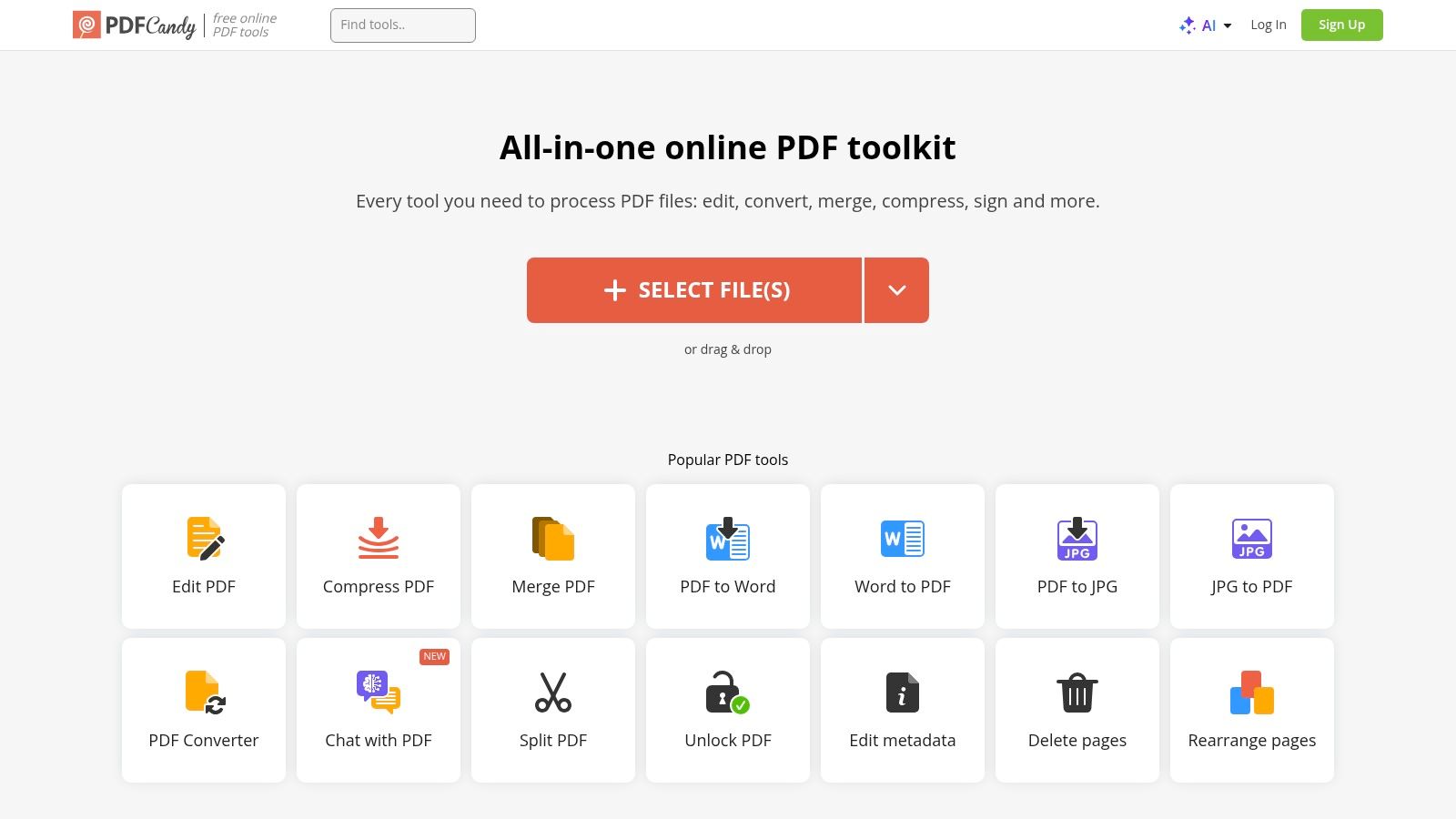
For professionals in operations or procurement who occasionally handle scanned documents like vendor proposals or simple invoices, PDF Candy's OCR feature gets the job done efficiently. The platform’s commitment to privacy, with automatic file deletion after two hours, provides a layer of security for less sensitive documents. For users needing to process multiple files, a downloadable Windows application offers batch processing capabilities.
Key Features & User Experience
The user experience is incredibly simple. The website features a clean, tool-focused interface where you select "Extract Text," upload your file, and download the resulting .txt file. There are no mandatory sign-ups for most single-file conversions.
- Direct Text Extraction: A dedicated "PDF to TXT" tool provides a fast, no-frills conversion for plain text needs.
- Built-in OCR: The tool can recognize and extract text from scanned PDFs, supporting over 19 languages.
- Privacy-Focused: Uploaded files are automatically deleted from their servers after two hours, which is a key benefit for users concerned about data retention.
- Batch Processing: A Windows-only desktop application is available for users who need to process multiple files at once.
Pros & Cons
| Pros | Cons |
|---|---|
| Free for many tasks without sign-up. | Hourly or task limits apply for unregistered users. |
| Simple and quick user interface. | Desktop app for batch processing is Windows-only. |
| Includes OCR for scanned documents. | Less suitable for complex, structured data like tables. |
Website: https://pdfcandy.com
5. Zamzar
Zamzar is a veteran in the online file conversion space, offering a versatile platform that handles a massive range of file types beyond just documents. Its strength lies in its simplicity and breadth of support, making it a reliable choice for users who need a quick and straightforward pdf to text converter without installing any software. It's an excellent general-purpose tool for ad-hoc conversions where the primary goal is to get raw text from a PDF quickly.
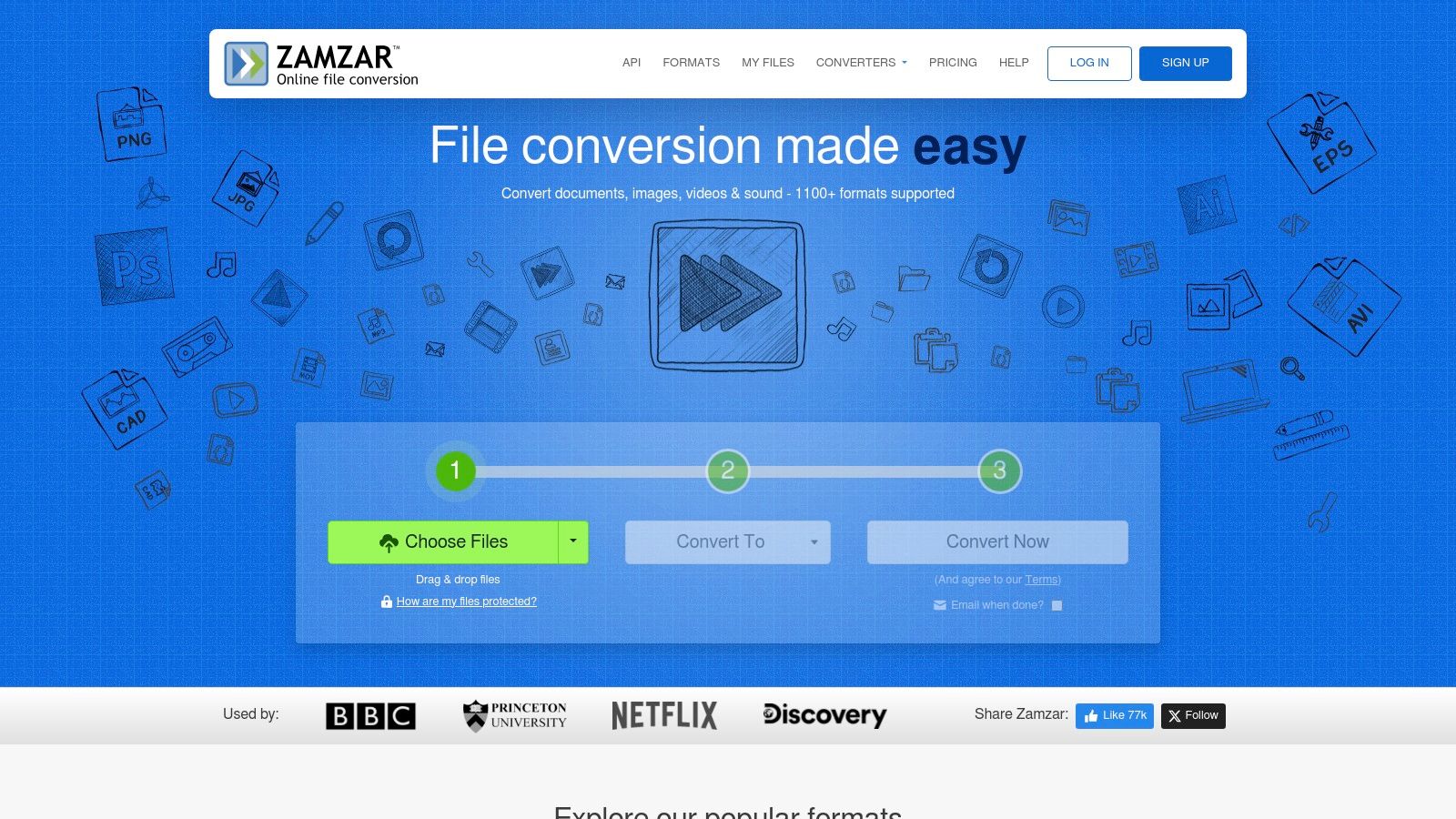
While not specifically tailored for structured data extraction like invoices or financial statements, Zamzar serves business users who need to convert a variety of documents, from marketing materials to reports, into plain text for archival or content repurposing. The platform also offers a developer API, allowing for the integration of its conversion capabilities into custom business workflows, which is a significant advantage for more technical teams.
Key Features & User Experience
The web interface is a clean, three-step process: upload, choose format, and convert. Users can opt for an email notification when the file is ready, which is helpful for larger files or during busy periods. The experience is designed for convenience and speed.
- Extensive Format Support: Supports over 1,100 conversion types, making it one of the most versatile tools available.
- Simple Web Interface: The browser-based tool is incredibly easy to use, requiring no registration for basic conversions.
- Developer API: Provides an API for businesses to automate file conversions within their own applications and systems.
- Email Notifications: A convenient feature that alerts you when your converted file is ready for download, so you don't have to wait on the page.
Pros & Cons
| Pros | Cons |
|---|---|
| Supports a huge variety of file formats. | Free usage is limited by file size and daily caps. |
| Extremely easy-to-use web interface. | Queue times can occur for free users. |
| No software installation required. | Less effective for complex, structured data extraction. |
Website: https://www.zamzar.com
6. CloudConvert
CloudConvert is a highly versatile and developer-friendly pdf to text converter that supports over 200 formats. It stands out for its powerful API and flexible, pay-as-you-go pricing model, making it an excellent choice for businesses that need to automate document processing or handle fluctuating conversion volumes without committing to a fixed subscription.
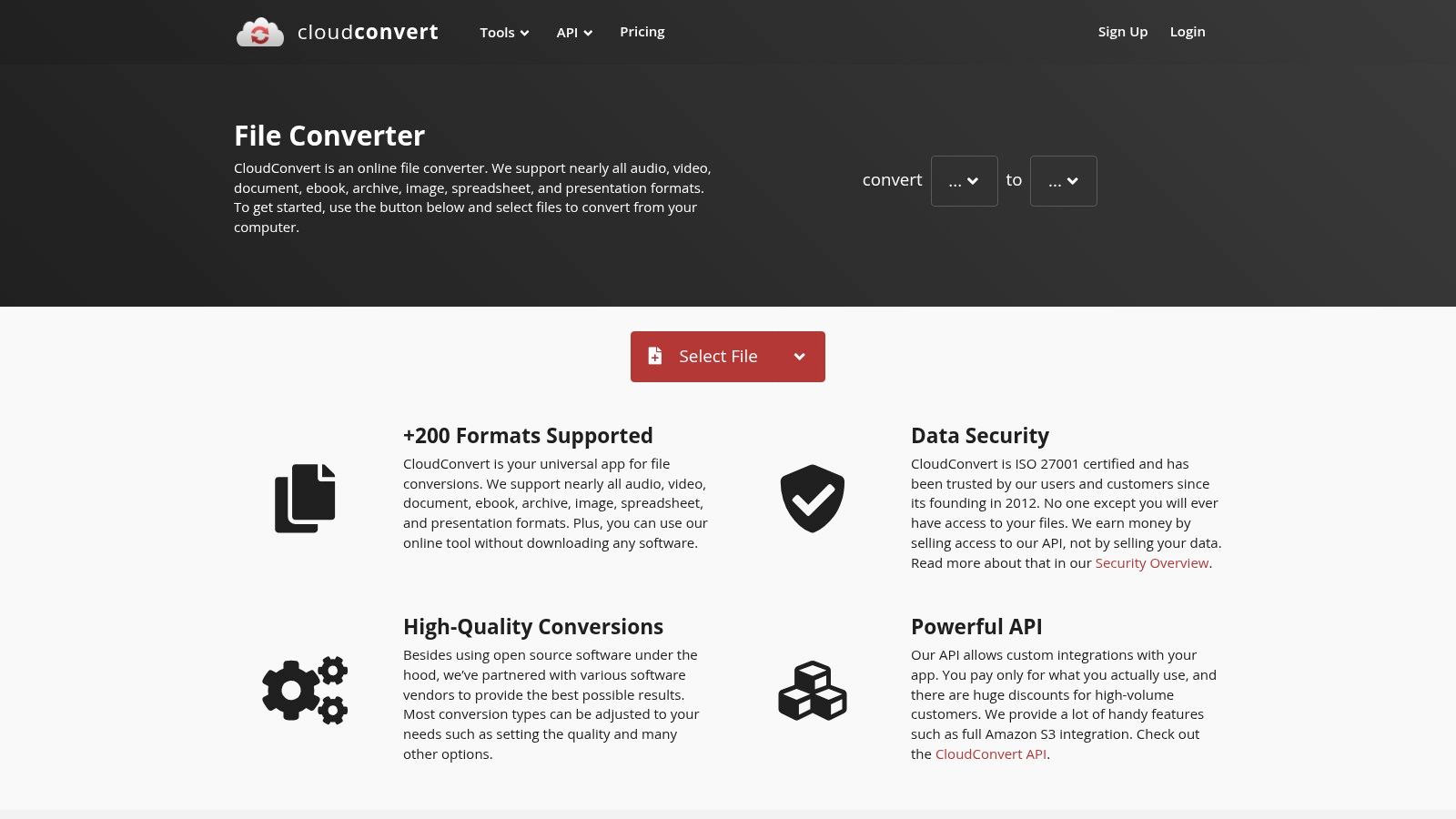
This platform is particularly useful for operations teams looking to integrate PDF conversion into their existing workflows, such as automatically extracting text from incoming invoices or reports stored in cloud services like Google Drive or Dropbox. Its no-code user interface is straightforward, but its true power lies in its automation capabilities, allowing for reliable batch processing and integration into custom applications.
Key Features & User Experience
The web interface is clean and functional, offering a simple tool for manual conversions. The real value for business users comes from the API and the pricing structure, which is based on "conversion minutes" or credits. A free tier is available for up to 10 conversions per day, which is great for testing or very light use.
- Flexible Pricing: Offers pay-as-you-go credits and subscription packages, ideal for businesses with inconsistent or "spiky" conversion needs.
- Powerful API: Provides robust API access for automating document workflows and integrating conversion capabilities into proprietary software.
- Broad Format Support: Handles a vast array of file types beyond just PDF to TXT, making it a comprehensive conversion solution.
- Team Billing: Simplifies account management for businesses by allowing centralized billing for multiple users.
Pros & Cons
| Pros | Cons |
|---|---|
| Flexible pricing suitable for spiky workloads. | Understanding "credits per minute" pricing can be confusing. |
| Reliable for batch processing and automations. | Complex conversions can consume more credits. |
| Extensive format support beyond PDF. | The web UI is functional but less feature-rich than dedicated PDF editors. |
Website: https://cloudconvert.com
7. Google Drive + Google Docs
For those already invested in the Google Workspace ecosystem, Google Drive offers a surprisingly capable, built-in pdf to text converter at no extra cost. Its strength lies in its simplicity and accessibility. By simply opening a PDF with Google Docs, users can trigger a powerful OCR engine that extracts text from both native and scanned image-based documents directly into an editable format. This makes it an excellent choice for quick, ad-hoc text extraction without needing specialized software.
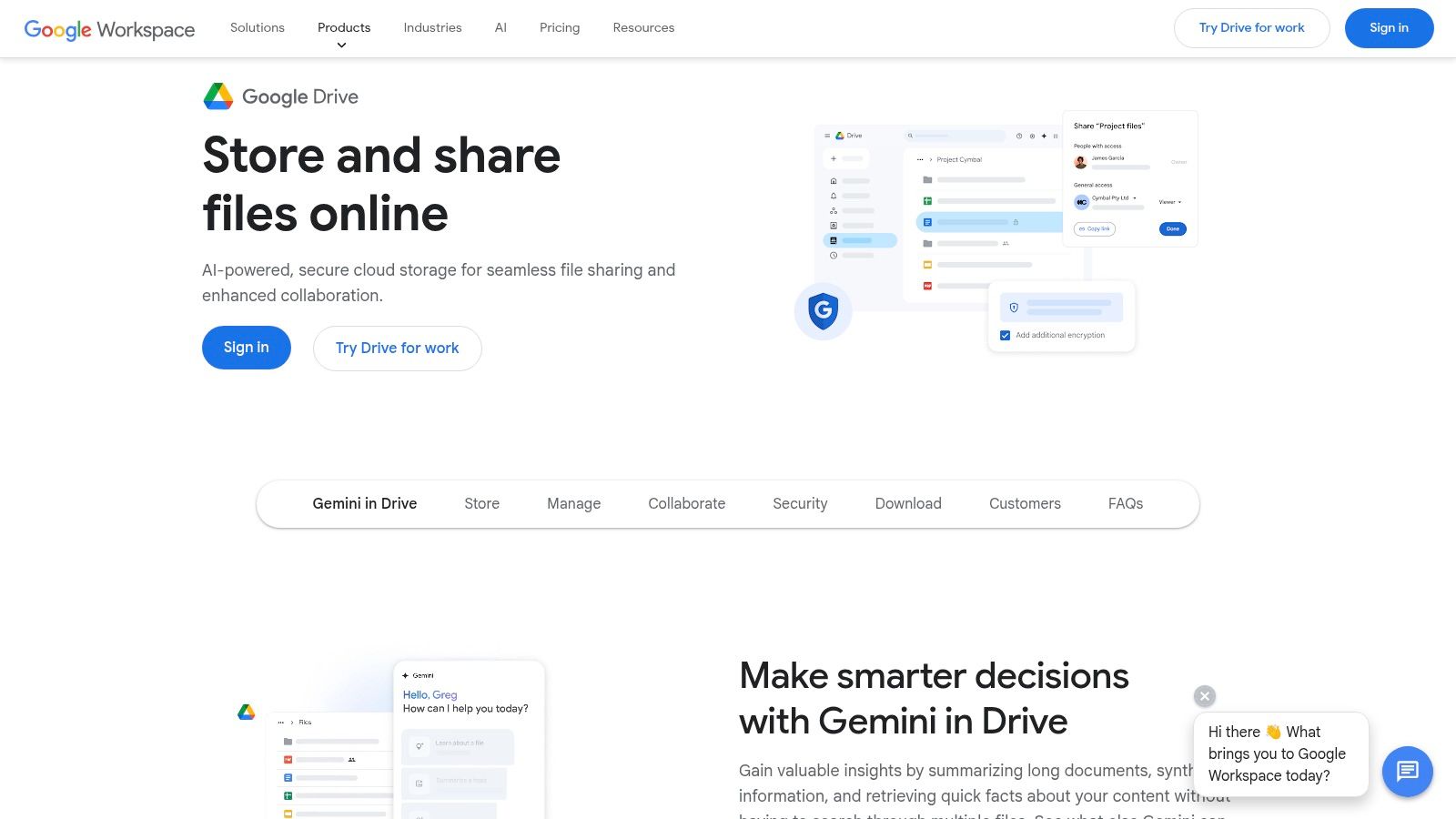
This method is particularly useful for professionals who need to grab text from a single invoice, report, or contract for immediate use. The workflow involves opening the PDF in Google Docs, which converts it into an editable document, and then using the "File → Download" menu to save it as a plain text (.txt) file. This integrated approach is ideal for collaborative environments where a team member might need to quickly pull text and share it within a shared document or email.
Key Features & User Experience
The user experience is seamless for anyone familiar with Google Drive. There are no new interfaces to learn; the entire conversion process happens within the familiar Docs environment. While powerful for simple jobs, it is not designed for high-volume, automated workflows.
- Built-in OCR: Automatically performs OCR when you choose "Open with Google Docs" on any PDF file, including image-only scans.
- Direct Editing: The converted text appears directly in a Google Doc, allowing for immediate editing, correction, and collaboration before exporting.
- Zero Installation: Entirely browser-based, requiring no software installation and accessible from any device with an internet connection.
- Integrated Collaboration: Leverages Google Workspace's powerful sharing and real-time collaboration features on the extracted text.
Pros & Cons
| Pros | Cons |
|---|---|
| Completely free with a Google account. | Formatting and layout often shift during conversion. |
| Seamless integration for Google Workspace users. | Tables, columns, and complex lists may not map well. |
| Adequate OCR for clear, simple documents. | Lacks features for batch processing or automation. |
Website: https://drive.google.com
8. ABBYY FineReader PDF
ABBYY FineReader PDF is a premium desktop software renowned for its industry-leading Optical Character Recognition (OCR) technology. As a powerful pdf to text converter, it excels at handling complex documents, including low-quality scans and multi-language texts, making it a top choice for enterprises that require maximum accuracy and layout retention. Its core strength is its ability to not just extract text but to understand and preserve the document's original structure.
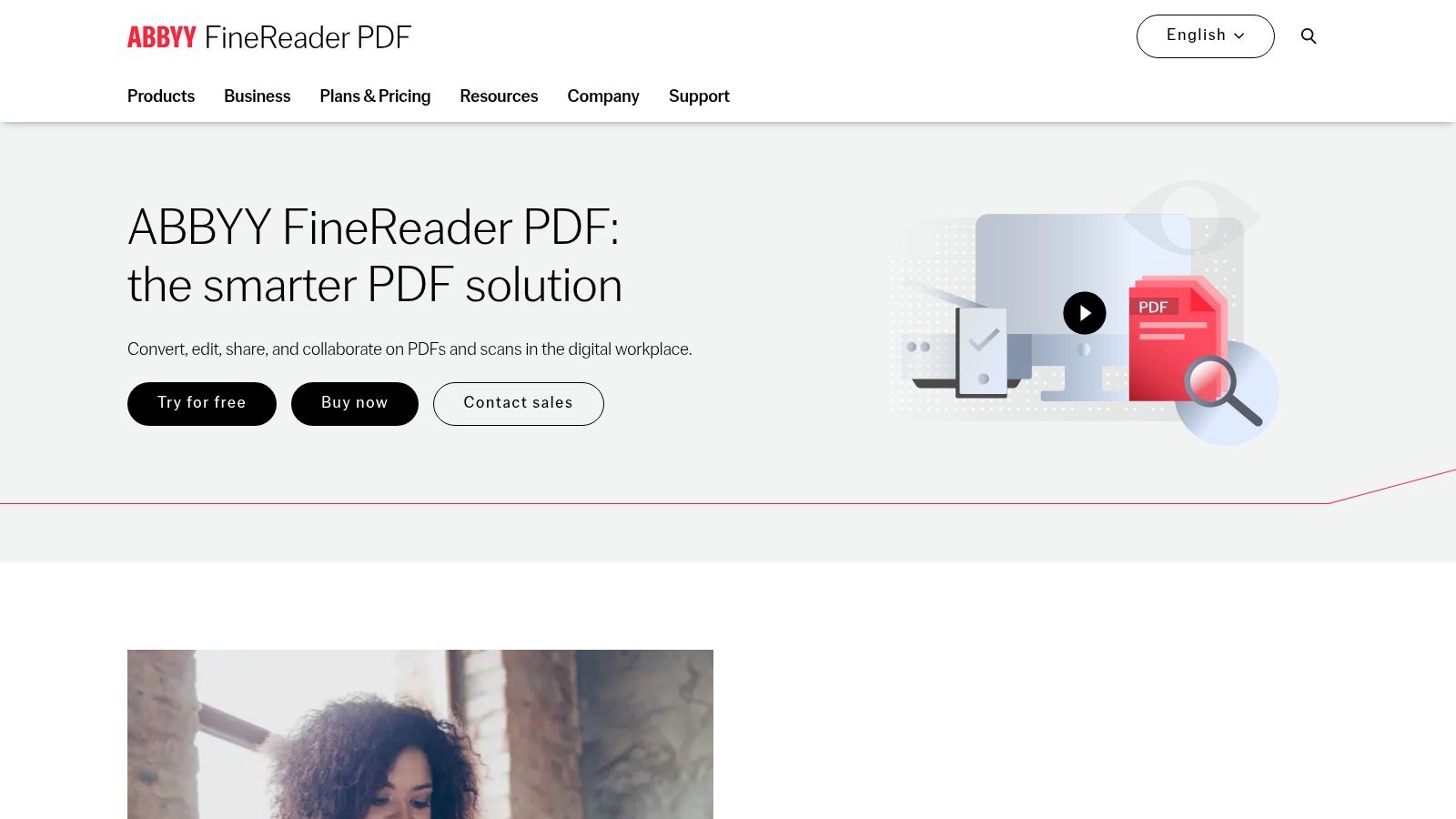
This tool is particularly suited for organizations in legal, finance, and government sectors where processing intricate forms, contracts, or archival documents is a daily task. FineReader allows for conversion into various editable formats, including plain text (.txt), Word (.docx), and Excel (.csv), while maintaining tables, columns, and formatting with precision. Its automation capabilities, including command-line interface (CLI) options, allow it to be integrated into larger, automated document processing workflows.
Key Features & User Experience
The user experience is that of a professional-grade, feature-rich desktop application. While it requires installation and licensing, it provides a high degree of control and offline processing capabilities.
- Industry-Leading OCR: Delivers exceptional accuracy, even on challenging documents with mixed fonts and poor image quality. To better understand the technology behind this, you can learn more about what Optical Character Recognition is.
- Structured Format Export: Excels at converting PDFs to DOCX, RTF, and CSV formats while preserving the original layout, tables, and columns.
- Multi-Language Support: Supports a vast number of languages, often in the same document, a critical feature for global organizations.
- Enterprise Automation: Offers RPA and CLI options for integrating its powerful OCR engine into automated, high-volume workflows.
Pros & Cons
| Pros | Cons |
|---|---|
| Excellent accuracy on complex layouts and scans. | Paid software with pricing varying by edition. |
| Mature enterprise licensing and deployment options. | Desktop-centric; requires setup and license management. |
| Strong automation capabilities for large-scale tasks. | Can be more complex than simple online converters. |
Website: https://pdf.abbyy.com
9. Nitro PDF (Nitro PDF Pro & subscriptions)
Nitro PDF Pro is a comprehensive, all-in-one PDF editor that serves as a powerful alternative to Adobe Acrobat. Its strength as a pdf to text converter lies in its robust OCR engine and flexible export options, making it a favorite in business environments that need more than simple text extraction. The platform is designed for users who require editing, signing, and converting capabilities within a single desktop application.
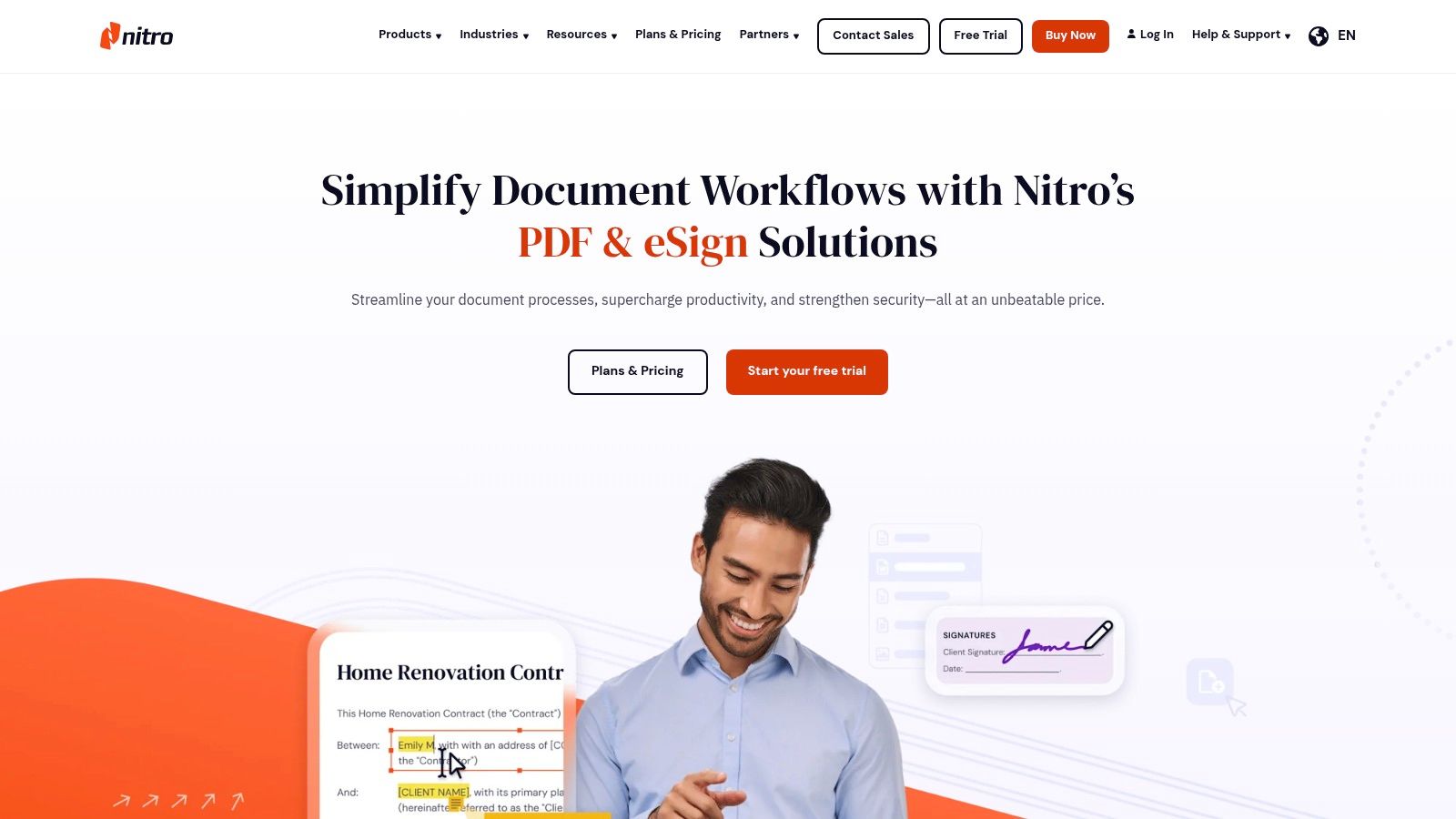
This tool is particularly well-suited for finance and operations teams who manage a high volume of documents. Instead of a direct PDF-to-TXT conversion, the most effective workflow involves exporting the PDF to an editable format like Microsoft Word (.docx) or Rich Text Format (.rtf). This two-step process preserves the document's structure, allowing users to then easily copy and paste clean, formatted text into other systems.
Key Features & User Experience
Nitro PDF Pro offers a familiar, Microsoft Office-style interface that is intuitive for most business users. It provides both a one-time purchase license and a subscription model, offering flexibility for different budget needs. The platform is available for Windows, macOS, and iOS, ensuring cross-team compatibility.
- All-in-One Functionality: Combines PDF editing, conversion, OCR, and e-signing in a single application.
- Flexible Licensing: Users can choose between a perpetual one-time license or an ongoing subscription with updates.
- Cross-Platform Support: Native applications for Windows and macOS, with mobile support for iOS.
- Free Trial: A 14-day free trial allows teams to test the full feature set before committing.
Pros & Cons
| Pros | Cons |
|---|---|
| All-in-one PDF editor with eSign functionality. | Best TXT results often come via DOCX/RTF export first. |
| Flexible licensing: one-time or subscription. | Requires desktop software installation and management. |
| Cross-platform support for Windows and Mac. | Online tools are less powerful than the desktop version. |
Website: https://www.gonitro.com
10. OnlineOCR.net
OnlineOCR.net offers a focused and no-frills pdf to text converter service that excels at one primary function: extracting plain text from images and PDF documents. Its strength lies in its simplicity, making it a go-to option for users who need a quick, one-off conversion without the complexity of a full software suite. The platform is especially useful for pulling text from scanned receipts, simple contracts, or single-page reports where preserving intricate formatting is not a priority.
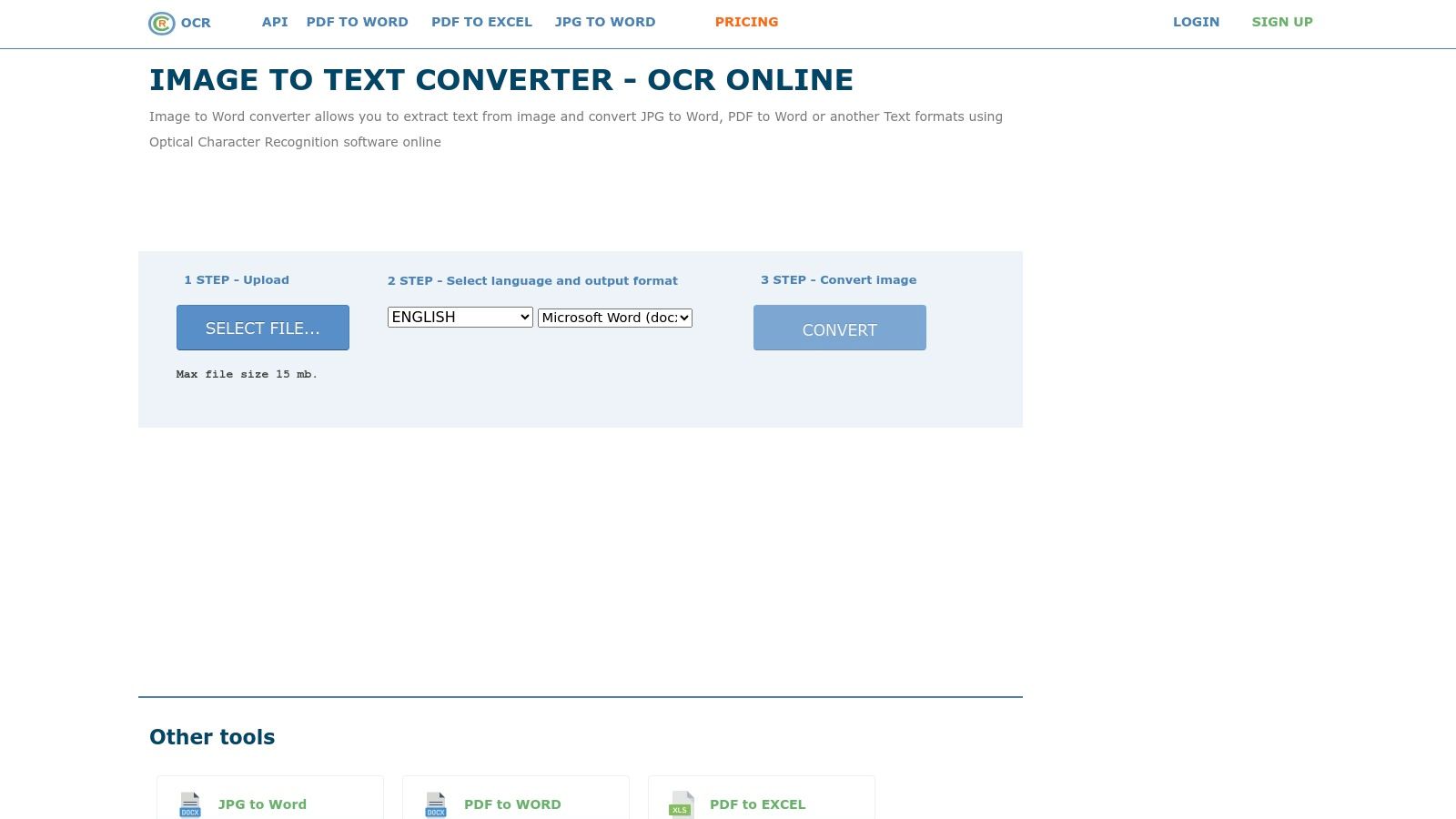
Unlike enterprise-grade solutions, OnlineOCR.net provides a direct path to getting raw text. Users can upload a file, select the output format (including TXT, DOCX, and XLSX), and receive the extracted content almost instantly. Its pricing model, which includes page bundles for short-term needs, is a practical choice for small businesses or individuals who have a temporary surge in document processing but don't require an ongoing subscription.
Key Features & User Experience
The user experience is incredibly straightforward: upload, select, and convert. There are no mandatory sign-ups for basic use, which removes friction for quick tasks. However, the interface is basic and lacks the advanced features or polish of premium platforms.
- Direct Text Extraction: Its primary function is converting PDFs and images directly into plain text files (.txt), which is perfect for data entry or content repurposing.
- Flexible Pricing: Offers weekly, monthly, or lifetime page bundles, providing a cost-effective solution for users with fluctuating conversion needs.
- Large File Support: Paid plans can handle files up to 200 MB, accommodating larger, multi-page scanned documents.
- Multiple Output Formats: Supports export to TXT, DOCX, and XLSX, offering some flexibility for different use cases.
Pros & Cons
| Pros | Cons |
|---|---|
| Straightforward, no-frills OCR to TXT. | Data sensitivity is a concern as it's a web service. |
| Good value for users needing many pages briefly. | Basic interface and limited customer support options. |
| Free for basic use without account registration. | Accuracy may vary with complex document layouts. |
Website: https://www.onlineocr.net
11. Amazon Textract (AWS)
Amazon Textract is a machine learning service that goes beyond simple OCR, positioning itself as a powerful pdf to text converter for developers and businesses with large-scale document processing needs. It is not a drag-and-drop web tool but a cloud service integrated into Amazon Web Services (AWS). Its primary strength is its ability to extract not just text, but also the structure, layout, and data from documents like forms and tables.
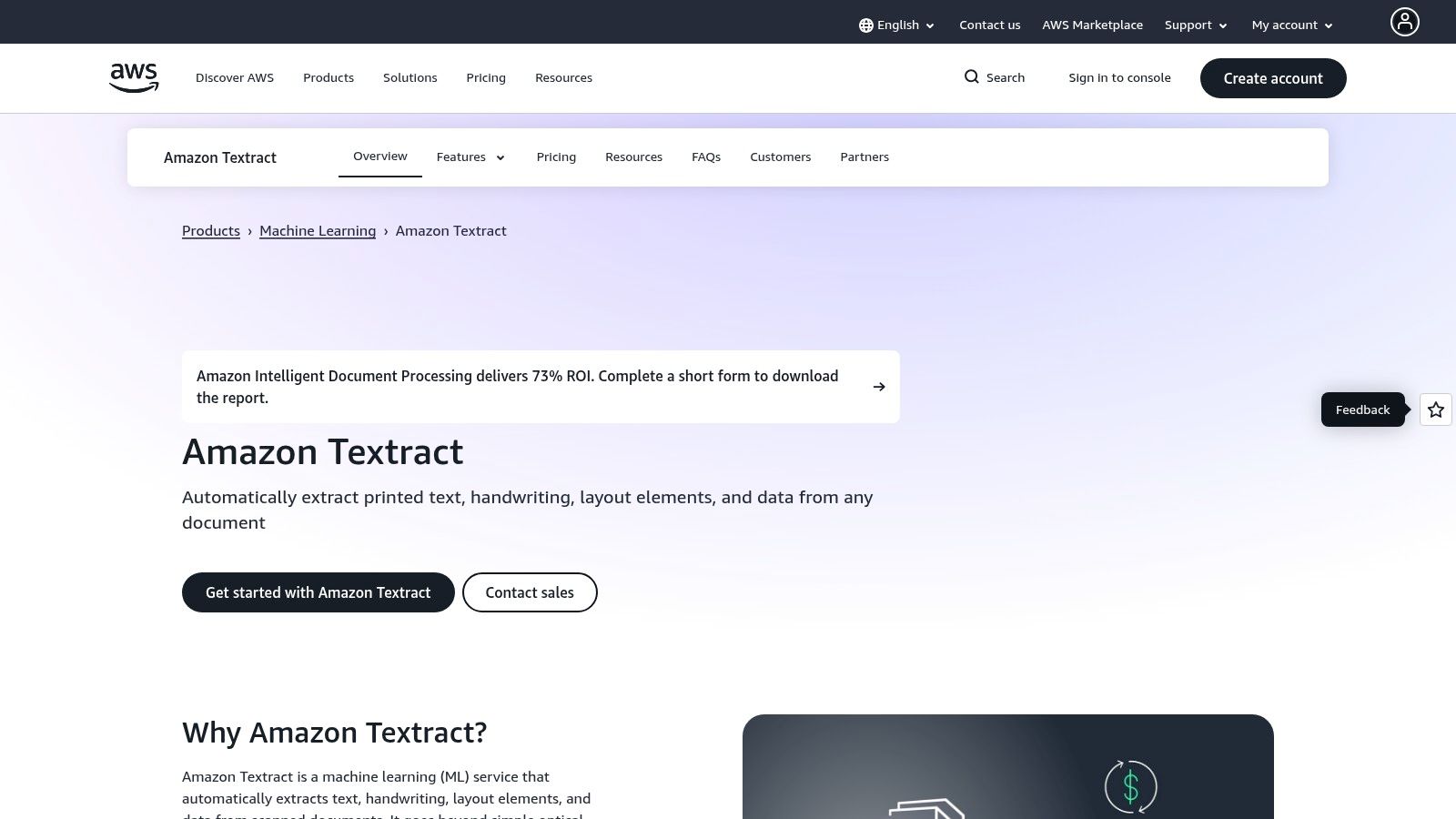
This platform is built for automation workflows, where thousands of invoices, insurance claims, or financial reports need to be processed programmatically. Instead of manual conversion, a developer can use the Textract API to automatically ingest PDFs, extract key-value pairs (e.g., "Invoice Number": "INV-123"), and feed the structured data directly into a database or business application. It’s an enterprise-grade solution for embedding document analysis into your own software.
Key Features & User Experience
The user experience is developer-centric, requiring an AWS account and some technical knowledge to implement via APIs or SDKs. The power lies in its programmatic control and scalability.
- Structured Data Extraction: Uses specific API calls (
AnalyzeDocument) to identify and extract data from tables and forms, preserving relationships between labels and values. - Handwriting Recognition: Capable of extracting handwritten text from documents like applications or notes, a feature many standard converters lack.
- Scalability: As a serverless AWS service, it can process millions of pages without requiring you to manage any infrastructure.
- Pay-per-use: Pricing is based on the number of pages processed, which can be cost-effective for variable workloads. A free tier is available for new AWS customers to test the service.
Pros & Cons
| Pros | Cons |
|---|---|
| Highly scalable for bulk document processing. | Requires development effort to integrate; not for casual users. |
| Superior structured data extraction (forms/tables). | Pay-per-page pricing can become expensive for large volumes. |
| Reliable and accurate machine learning-based OCR. | Needs an AWS account and familiarity with cloud services. |
Website: https://aws.amazon.com/textract
12. Google Cloud Document AI
For organizations requiring a scalable, high-volume pdf to text converter, Google Cloud's Document AI provides a powerful, API-driven solution. It moves beyond simple text extraction, offering a suite of pre-trained models designed to understand and structure data from specific document types. This makes it a top choice for enterprises aiming to automate complex finance, insurance, and operational workflows.
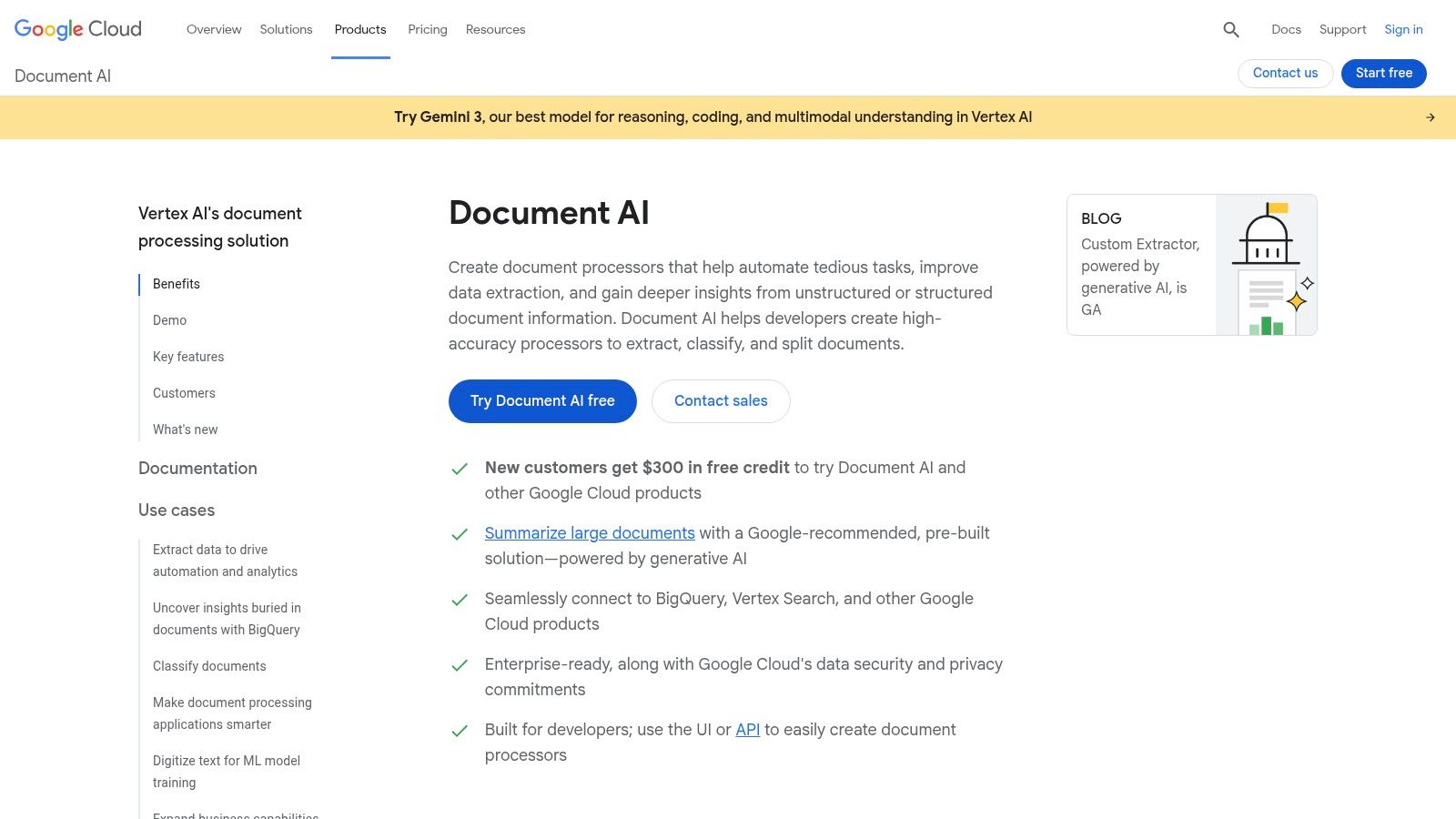
Document AI is particularly effective for businesses that need to process thousands of invoices, bank statements, or insurance forms. Instead of just converting a PDF to a block of text, its specialized parsers can identify and extract key-value pairs, such as invoice numbers, line items, and policy details. The output is typically structured data (like JSON), which can be directly fed into accounting software, databases, or other business systems, eliminating manual data entry.
Key Features & User Experience
As a cloud platform, user experience is developer-centric, requiring setup within the Google Cloud ecosystem and API integration. It is not a simple drag-and-drop tool for one-off conversions but a robust engine for building automated document processing pipelines.
- Pre-trained Parsers: Offers specialized models for invoices, receipts, bank statements, and IDs, accelerating deployment for common use cases.
- Enterprise OCR: The general Document OCR processor provides highly accurate text extraction from a wide variety of document layouts.
- Scalability: Built on Google's cloud infrastructure, it can handle massive volumes of documents without performance degradation.
- Custom Models: Users can train custom extractors and classifiers to handle unique or industry-specific document types.
Pros & Cons
| Pros | Cons |
|---|---|
| Excellent for structured data extraction. | Requires Google Cloud setup and technical integration. |
| Competitive pricing for high-volume OCR. | Pricing structure can be complex and varies by processor. |
| Highly scalable for enterprise needs. | Not suitable for quick, one-off conversions. |
Website: https://cloud.google.com/document-ai
Top 12 PDF-to-Text Converter Comparison
| Tool | Core capability ✨ | Accuracy ★ | UX & workflow | Price/value 💰 | Best for 👥 |
|---|---|---|---|---|---|
| Adobe Acrobat (Export PDF + Acrobat Online) | Robust OCR, batch export to DOCX/Excel, Adobe ecosystem integration ✨ | ★★★★★ 🏆 | Desktop + web + mobile; reliable enterprise flows (sign‑in req.) | 💰 Subscription (Acrobat Pro/Online), enterprise tiers | 👥 Enterprises, legal, security‑sensitive teams |
| Smallpdf | 30+ PDF tools with OCR, fast web/mobile conversions ✨ | ★★★★ | Simple browser/mobile UX; quick one‑off tasks | 💰 Freemium (caps); Pro for heavy use | 👥 Small teams, fast ad‑hoc conversions |
| Sejda PDF | Direct “Extract text” tool; desktop app option ✨ | ★★★ | Straightforward online tool; free limits/timeouts | 💰 Affordable weekly/annual passes | 👥 Occasional users, short projects |
| PDF Candy | Direct PDF→TXT + OCR (19 languages); Windows batch app ✨ | ★★★ | Many free online tasks, quick no‑signup use | 💰 Free tiers; paid for extended use | 👥 Casual users, Windows batch processors |
| Zamzar | Broad format converter + API (many formats) ✨ | ★★★ | Easy web UI; possible queue times | 💰 Freemium with limits; paid plans | 👥 Users needing many format conversions, simple API |
| CloudConvert | Developer‑friendly converter with API & credits ✨ | ★★★★ | No‑code UI + API automations; good for batch | 💰 Pay‑as‑you‑go credits or subs; flexible | 👥 Devs, automation workflows, spiky workloads |
| Google Drive + Google Docs | Built‑in OCR via Docs; edit then export as .txt ✨ | ★★★ | Browser‑based, collaborative; formatting shifts possible | 💰 Free with Google account | 👥 Ad‑hoc users, Google Workspace teams |
| ABBYY FineReader PDF | Premium OCR & layout retention; enterprise exports ✨ | ★★★★★ 🏆 | Desktop/enterprise tools; high accuracy for complex docs | 💰 Paid licenses; enterprise pricing | 👥 Enterprises needing top accuracy & RPA |
| Nitro PDF | PDF editor with OCR, eSign, cross‑platform support ✨ | ★★★★ | Desktop install; one‑time or subscription options | 💰 One‑time license or subscription | 👥 Businesses wanting editor + OCR + eSign |
| OnlineOCR.net | Simple browser OCR → TXT/DOCX/XLSX; page bundles ✨ | ★★★ | Very basic interface; quick single‑file OCR | 💰 Page bundles / subscriptions | 👥 Users needing bulk pages briefly on a budget |
| Amazon Textract (AWS) | Scalable OCR + forms/tables analysis, handwriting support ✨ | ★★★★★ 🏆 | API/SDK; serverless scaling but needs integration | 💰 Pay‑per‑page; can scale costly | 👥 Large‑scale automation, dev teams, enterprises |
| Google Cloud Document AI | Pretrained parsers (invoices, statements), custom extractors ✨ | ★★★★★ 🏆 | API integrations; specialized processors for finance | 💰 Per‑1,000 pages / processor pricing | 👥 Finance/ops teams, enterprises needing structured parsers |
Choosing the Right Tool: From Simple Text to Smart Data
Navigating the landscape of PDF to text converter tools can feel overwhelming, but as we've explored, the market offers a diverse range of solutions tailored to nearly every business need. From simple, one-off file conversions to sophisticated, automated data extraction workflows, the right tool is out there. Your final decision hinges on a clear understanding of your specific objectives, budget, and technical requirements.
Key Takeaways: Matching the Tool to the Task
The core lesson from our review is that not all converters are created equal. The best choice for your organization depends entirely on what you want to achieve with the text after it's been extracted.
- For quick, simple text extraction: If your goal is just to grab the raw, unformatted text from a PDF for copying or archiving, free online tools like Smallpdf, Sejda, or even the built-in function in Google Docs are often sufficient. They are accessible, require no installation, and get the job done for straightforward documents.
- For high-fidelity, formatted documents: When preserving layout, tables, and formatting is crucial, a robust desktop application like Adobe Acrobat Pro or ABBYY FineReader PDF is the superior choice. These tools are built for precision and offer powerful OCR capabilities, making them ideal for converting reports, contracts, and proposals where context and structure are vital.
- For automated, high-volume data extraction: For businesses processing hundreds or thousands of invoices, receipts, or insurance forms, the conversation shifts from simple text conversion to intelligent data parsing. This is where cloud-based AI services like Amazon Textract and Google Cloud Document AI shine. They don't just see text; they understand it, identifying key-value pairs (like "Invoice Number" and "12345") and structured data within tables.
Factors to Guide Your Decision
Before committing to a solution, consider these critical factors:
- Accuracy and OCR Quality: How clean are your source PDFs? If you're dealing with scans, low-resolution images, or documents with complex layouts, the quality of the Optical Character Recognition (OCR) engine is your most important feature.
- Structured vs. Unstructured Data: Do you need plain text, or do you need specific data points like customer names, policy numbers, or line-item totals? If it's the latter, you need a tool that can perform structured data extraction, not just a basic pdf to text converter.
- Integration and Automation: How will this tool fit into your existing workflow? Look for solutions with API access or integrations with your current software (accounting, CRM, etc.) if you want to eliminate manual data entry and build a truly automated process.
- Security and Privacy: For finance, insurance, and any industry handling sensitive information, security is non-negotiable. Desktop applications often offer better control, while cloud services require a thorough review of their data privacy policies and compliance certifications (like SOC 2 or HIPAA).
The most advanced of these tools, particularly those in the data extraction category, leverage powerful machine learning models to achieve their impressive accuracy. The technology behind this is a fascinating field in itself. For a deeper understanding of the engine driving these modern solutions, consider resources on Artificial Intelligence.
Ultimately, the journey from a static PDF to actionable data is a transformative one for any business. It unlocks efficiency, reduces costly errors, and frees up your team to focus on high-value analysis rather than mind-numbing data entry. Start by identifying your most document-heavy, repetitive process and pilot a tool that aligns with that specific use case. The right pdf to text converter isn't just a utility; it's a strategic asset for a smarter, more data-driven operation.
Feeling overwhelmed by setting up complex APIs or managing templates? DocParseMagic offers a powerful, user-friendly solution designed specifically for businesses to extract structured data from invoices, receipts, and other documents without the steep learning curve. Get started with our simple, effective pdf to text converter and turn your documents into actionable data today.