A Guide to Convert PDF to CSV The Right Way
If you want to convert a PDF to CSV the right way, your best bet is a dedicated data extraction tool that uses Optical Character Recognition (OCR). This is the secret to automating the whole process, letting you accurately grab tables and fields from any PDF—even scanned ones—and saving you from hours of mind-numbing manual work.
Why Copying and Pasting from PDFs Is a Thing of the Past
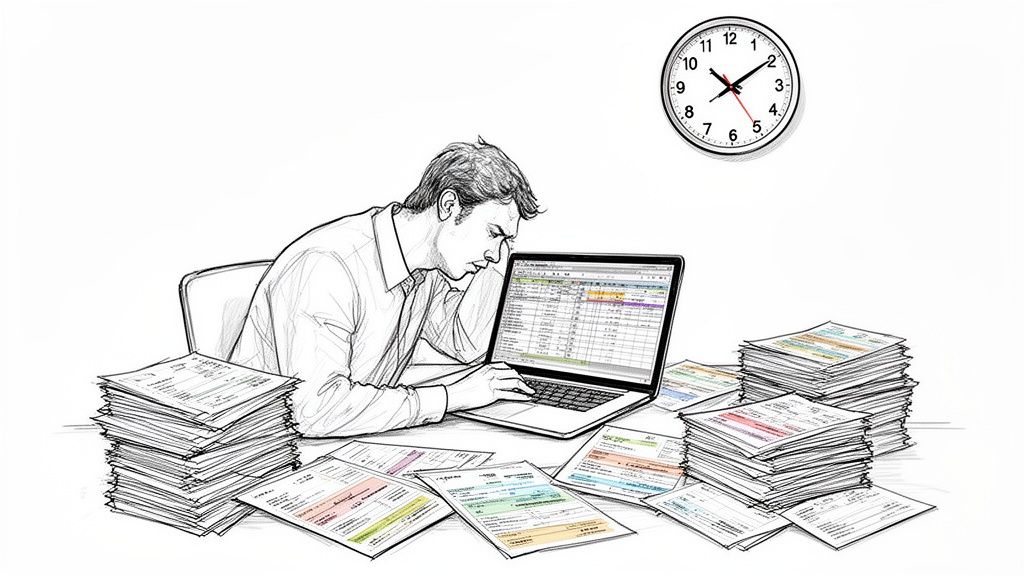
Manually keying data from PDFs into a spreadsheet often feels like a necessary chore, but it's a massive drain on resources. The real cost goes far beyond wasted time; it’s the expensive mistakes and delayed decisions that send ripples across the entire organization. This isn't just some administrative headache—it's a serious business bottleneck that anyone in finance or operations knows all too well.
The Hidden Costs of Doing It by Hand
Think about an accounting team trying to process hundreds of vendor invoices every month. Each PDF has a completely different layout, turning a straightforward task into a painful puzzle. Or picture an insurance broker struggling to pull policy details from different carrier documents for a compliance report—one typo could lead to hefty fines.
These real-world examples show just how costly sticking to outdated methods can be.
- Expensive Human Errors: A single misplaced decimal point can cause huge financial discrepancies, throwing off budgets and forecasts.
- Wasted Employee Hours: You have skilled professionals spending their days on low-value copy-paste work instead of high-impact analysis.
- Delayed Business Decisions: A procurement manager can't compare vendor proposals when the data is locked away in PDFs, slowing down critical purchasing decisions.
The bottom line is that manual data entry simply doesn't scale. As your business grows, so does the mountain of documents. The problem just gets worse, creating a bottleneck that kills efficiency and holds you back.
Making the Smart Move to Automation
Switching to a process that automatically converts PDFs to CSVs is a strategic move to clear that bottleneck. For accounting and finance teams juggling thousands of invoices, it’s been a total game-changer. Automation can cut down manual data entry time by up to 90%, and modern OCR tools can hit over 98% accuracy right out of the gate.
In fact, a recent survey found that after teams switched to automation, data entry errors dropped by a massive 85%. That’s a lot of time freed up for more important work.
If you’re ready to move past these outdated practices, it's worth learning how to automate data entry effectively. Adopting modern tools isn't just about being more efficient; it's about empowering your team. To see the bigger picture, check out our guide on how automation is changing data entry: https://docparsemagic.com/blog/automation-data-entry.
Picking the Right PDF to CSV Conversion Method
When it comes to getting data out of a PDF and into a CSV, one size definitely does not fit all. The best approach really depends on what you're trying to accomplish. Are you just trying to pull a single table from a report for a one-off analysis, or are you building a system to handle hundreds of invoices every single day?
Think about it this way: a procurement manager who gets dozens of vendor proposals in all sorts of wacky PDF formats has a completely different problem than a developer scripting a data pipeline. Choosing the right tool from the start will save you a ton of headaches and make sure the data you get is actually clean and usable.
What’s Your PDF Challenge?
Before you even look at a tool, take a second to think about the job itself. Are we talking about a clean, computer-generated PDF with a perfect table? Or is it a 50-page scanned bank statement that looks like it came out of a fax machine from 1995? The difference is everything.
Ask yourself a few quick questions:
- How many files? Is this a one-and-done conversion, or are you dealing with a firehose of documents every day?
- What’s the quality like? Are your PDFs crisp and digital, or are they grainy scans that need OCR (Optical Character Recognition)?
- How messy is the data? Is it a simple grid, or is the information spread across multiple pages with weird formatting and footnotes?
- What are your technical skills? Are you happy in a command-line window, or do you need a simple, user-friendly interface?
Being honest about these points gives you a roadmap. You wouldn't use a sledgehammer to hang a picture frame, and you don't need an enterprise-grade platform for one simple table. On the flip side, trying to manage high-volume conversions with a free web tool is a recipe for frustration.
The goal here isn't just to convert the file. It's to get it done efficiently and accurately so you can spend less time wrestling with data and more time actually using it.
Comparing PDF to CSV Conversion Methods
Here’s a quick breakdown of the best use cases, pros, and cons for different PDF to CSV conversion tools. This should help you figure out which one is the right fit for your specific task.
| Method | Best For | Pros | Cons |
|---|---|---|---|
| No-Code Tools | Business users needing reliable, automated batch processing for complex or scanned PDFs. | Highly accurate with OCR, handles varied layouts automatically, secure, and user-friendly. | Subscription-based cost, may be overkill for very simple, one-off tasks. |
| Desktop Software (Excel) | Quick, one-off conversions of simple, digitally generated PDFs with clean tables. | Already installed on most computers, familiar interface for many users. | Struggles with scanned files and complex layouts, requires manual cleanup, not scalable. |
| Command-Line/Python | Developers and data scientists building custom, automated data extraction pipelines. | Maximum flexibility and control, can be integrated into larger software systems. | Requires coding knowledge, steep learning curve, significant setup time. |
| Free Online Converters | Non-sensitive, simple documents for a single, quick conversion. | Free and accessible, no installation required for a fast turnaround. | Major security and privacy risks, poor accuracy on complex files, often has file size limits. |
As you can see, the "best" tool is entirely situational. A finance team drowning in monthly invoices would find a no-code platform like DocParseMagic a lifesaver because of its security and automation. But if you're a student who just needs to grab a table from a research paper for a term project, a free online tool will probably get the job done—as long as you're not uploading anything confidential.
Ultimately, matching the tool to the task is the secret to a smooth, pain-free conversion process.
Effortless PDF Conversions with No-Code Tools
If you're in finance, operations, or procurement, the last thing you want to do is wrestle with code to extract data. The good news is, you don't have to. You can easily convert PDF to CSV without being a developer, thanks to a new breed of no-code platforms.
These tools are built for business professionals who just need to get data out of documents and into a spreadsheet. The process is usually as simple as uploading a file. You can take a messy, scanned invoice from a vendor, and instead of typing it all out, the tool’s AI figures out the invoice number, line items, and totals for you. It then spits out a perfectly clean CSV, ready to go.
An Intelligent Drag-and-Drop Experience
The real power of these platforms is their smart parsing. They don't just dumbly copy and paste text; they actually understand the layout of a document.
This means you can feed them invoices from ten different vendors, each with a unique format, and the tool is smart enough to find the "due date" or "subtotal" every single time. No need to build a new template for every single variation you encounter. It’s a huge time-saver.
This quick guide can help you figure out which type of tool is the right fit for your situation.
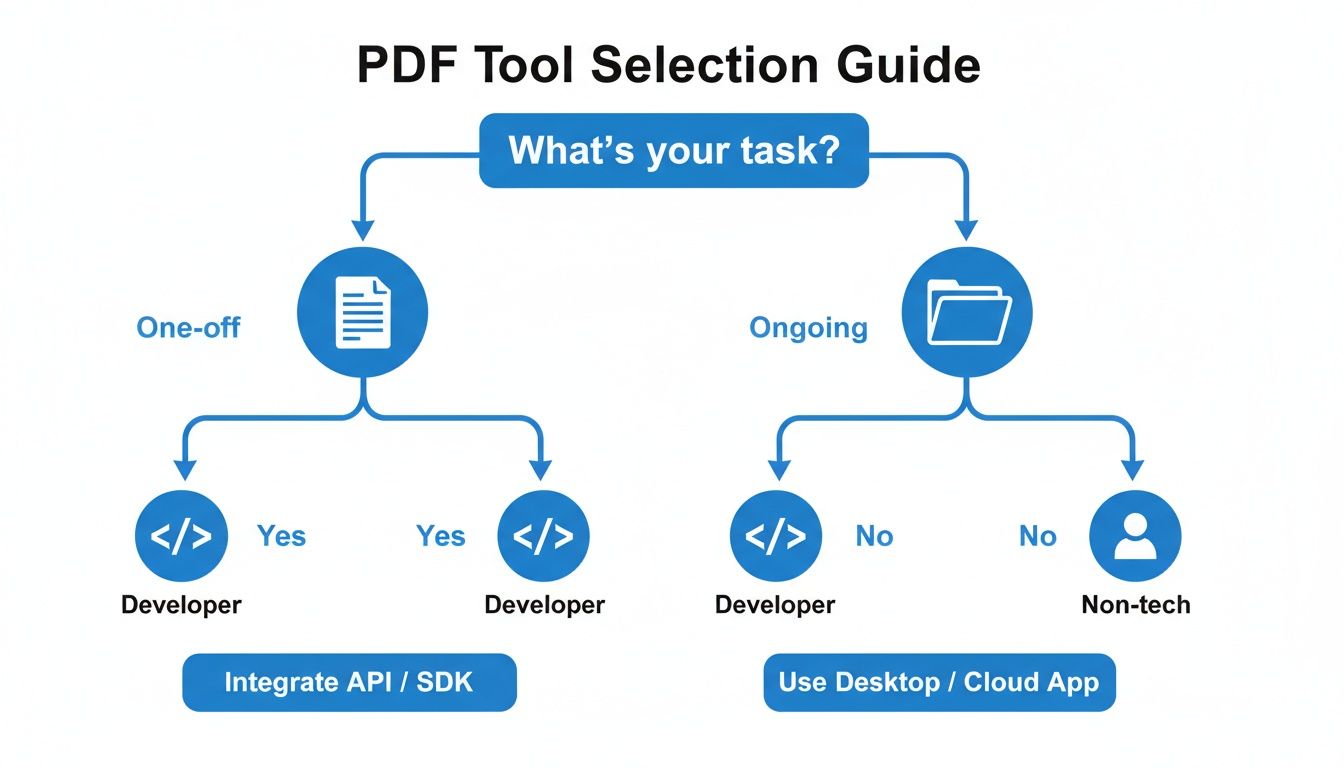
As you can see, if you're not a technical person but need to process documents regularly, a no-code tool is your most efficient bet.
More Than Just Text Extraction
Today’s no-code solutions do more than just pull text. They come packed with advanced Optical Character Recognition (OCR) technology to handle scanned documents. That grainy contract or blurry photo of a receipt can be turned into a source of clean, reliable data.
Many of these tools even have built-in validation rules. They can automatically flag potential errors, like a missing invoice number, before that bad data ever makes it into your system.
The biggest win here is reliability. You’re not just getting data faster—you’re getting data you can actually trust. This completely changes the game, freeing up your team from hours of mind-numbing data entry to focus on analysis and making decisions.
If you’re curious about how this all works behind the scenes, you can learn more about what no-code automation is and how it’s helping teams get more done.
The impact is immediate. An accounts payable clerk can process a hundred invoices in the time it used to take to do ten. A procurement manager can pull pricing from three different vendor proposals and compare them in seconds. A tedious, manual task becomes a simple, automated step in your workflow.
Dealing with Scanned Documents and Tricky Tables
When you need to convert a PDF to CSV, the real challenge isn't the clean, digitally-created files. The true test comes from the messy stuff: a grainy, scanned invoice from a supplier, or a dense financial report with tables tucked inside other tables. This is exactly where most simple converters fall flat, spitting out a jumble of text that costs you hours in manual cleanup.
The magic behind processing these scanned files is Optical Character Recognition (OCR). Think of it as a technology that "reads" the text from an image, turning a picture of words and numbers into actual data your computer can understand. Without OCR, your software just sees a scanned document as one giant picture, making it impossible to pull any useful information out.
Going Beyond Basic OCR with Smart Parsing
Here’s the thing, though: not all OCR is created equal. I've seen plenty of older, basic tools that can pull the text but completely lose the table structure. It's a classic headache, especially with multi-column layouts or reports where a single table stretches across several pages. You technically get the data, but it’s a chaotic mess with no context.
This is where modern, AI-powered platforms really change the game. They use intelligent parsing, which means they don't just recognize characters—they actually understand the document's layout.
- It spots table boundaries: The software can figure out where a table starts and stops, even if there are no visible gridlines.
- It fixes skewed or warped scans: Got a scan that's a little tilted or distorted? A good tool can straighten it out digitally.
- It handles complex structures: It can make sense of nested tables and multi-column reports, keeping all the data relationships intact.
For anyone who's ever wrestled with invoices from dozens of different suppliers or tried to make sense of complicated commission statements, this is a massive improvement. If this is a pain point for you, our detailed guide on how to extract tables from PDF documents dives much deeper into specific strategies.
A Real-World Example: Bank Statements
Processing bank statements is a perfect case study. Financial analysts often have to sort through millions of transactions locked inside PDFs. In fact, a surprising 65% of global banks still send out statements primarily in this format. The old way—manual data entry—is slow and riddled with errors, with mistake rates as high as 4-6%. Those little mistakes can add up, costing businesses trillions in discrepancies.
By switching to an intelligent parsing tool, teams I've worked with have hit 99% accuracy on balances and transactions. This completely transforms their workflow, speeding up everything from risk assessments to loan approvals. For a closer look, check out this analysis of PDF to CSV conversion challenges.
The takeaway is simple: for reliable data extraction from scanned or complex PDFs, you need more than a basic converter. You need an intelligent tool that can read, understand, and properly structure the information, no matter how messy the source file is. That's how you get a CSV file that's clean, accurate, and ready to use right away.
Automating Your Workflow with Batch Processing
Converting files one by one is a soul-crushing task that just doesn’t scale. If your team is buried under a mountain of documents, the only way to dig out is with batch processing. Just imagine uploading an entire folder of subcontractor invoices or a single ZIP file with a year's worth of bank statements, and getting back a complete set of clean, structured CSVs.
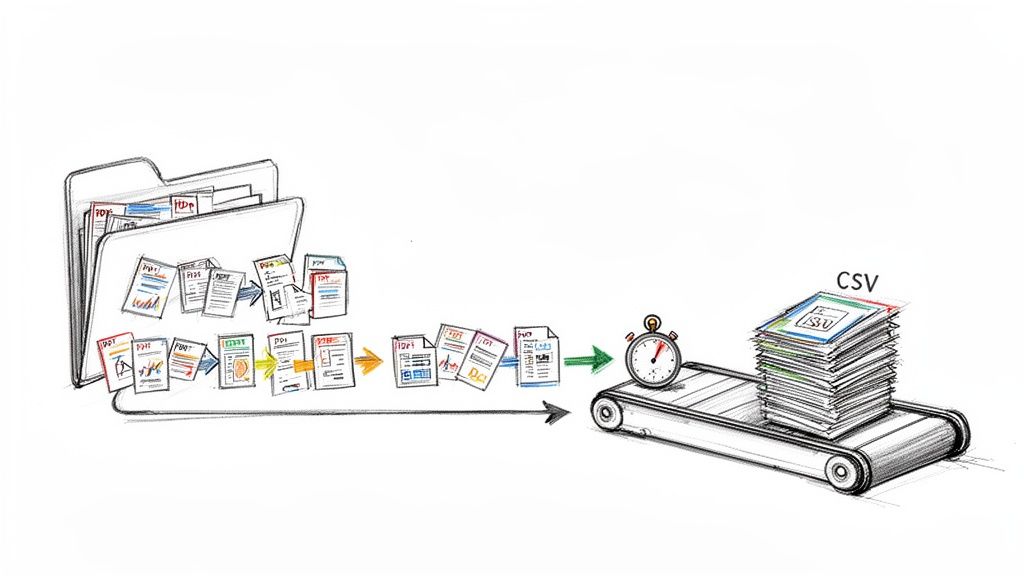
This is what automation looks like in the real world. A project manager can process dozens of vendor files in minutes, not days. An insurance carrier can finally digitize an entire archive of policy documents, unlocking valuable data that was previously trapped on paper. The best platforms are built to handle these large jobs, making sure every single document is processed with the same precision as the first.
From Manual Grind to Automated Flow
The difference is staggering. A job that once took a full week of manual data entry can now be knocked out in under 15 minutes. Think about that. You’re not just saving time; you're freeing up your team to focus on high-value work like analysis and strategy instead of mind-numbing copy-paste tasks.
The latest AI-powered PDF to CSV tools have made this possible, with many supporting one-click ZIP exports from dozens of PDFs at once. The numbers tell the story: while 80% of businesses in manufacturing and procurement get vendor proposals as PDFs, only 25% could actually analyze them effectively before 2023. The format was just too much of a barrier.
With modern conversion tools, those numbers have flipped. Conversion rates have shot up by 300%, and one recent study found that companies adopting these tools saw a 35% productivity boost.
The core idea is to shift from a document-by-document mindset to a workflow-centric one. Instead of asking, "How do I convert this PDF?" the question becomes, "How do I build a system to process all my PDFs automatically?"
Setting Up a Batch Conversion Process
Getting a batch workflow up and running is surprisingly simple with the right no-code tool. It usually just comes down to a few key actions:
- Connect Your Source: Point the tool to a cloud storage folder (like Google Drive, Dropbox, or OneDrive) where you drop all your incoming PDFs.
- Define Your Template: Tell the tool exactly what data you want to pull from each document. For an invoice, this might be the invoice number, date, vendor name, and total amount.
- Run the Automation: The platform then keeps an eye on that folder, automatically processes any new files that appear, and sends the clean CSVs wherever you need them to go.
This kind of "set it and forget it" approach creates a steady, reliable flow of structured data without anyone having to lift a finger.
This is more than just file conversion; it's about building a robust document management workflow that handles your files efficiently from start to finish. You end up with a fully automated pipeline that makes large-scale data analysis possible and helps your team make faster, better-informed decisions.
Keeping Your Financial Data Secure
When you're turning a PDF into a CSV, you're almost always working with sensitive information. Think about it: invoices, bank statements, client contracts—this is the kind of stuff you don't want floating around the internet.
So, uploading these documents to just any website requires a huge leap of faith. And frankly, not all platforms are worthy of that trust.
It's easy to get tempted by free online converters for a quick, one-off job. The problem is, they often come with some pretty serious security risks. Many of these free tools have weak encryption (if any) and murky privacy policies. This means your confidential data could be left exposed, stored indefinitely, or even sold.
How to Spot a Secure Platform
If this is part of your regular business workflow, you absolutely need to use a professional, enterprise-grade tool. There's just no other way. A platform you can trust will be completely upfront about its security measures, giving you the confidence to upload your financial documents without a second thought.
Here’s what to look for:
- End-to-End Encryption: This is non-negotiable. It ensures your data is scrambled and protected from the moment it leaves your computer until it's back in your hands, making it unreadable to anyone else.
- A Crystal-Clear Privacy Policy: The service needs to state, in no uncertain terms, that it will never sell or share your data with third parties. If you have to dig for this, it's a red flag.
- Compliance with Data Regulations: Look for mentions of standards like GDPR. This isn't just jargon; it shows the company is serious about protecting user privacy and handling data the right way.
Choosing a secure service is more than just a compliance checkbox. It’s about protecting the financial core of your business. The peace of mind you get from knowing your data is safe is priceless, especially when the stakes are this high.
Questions That Come Up All the Time
When you're trying to get data out of a PDF and into a CSV, you're bound to run into a few common roadblocks. I've seen these questions pop up time and again, so let's get you some straight answers.
What About Scanned PDFs? Can I Turn Those Into a Real CSV?
You absolutely can, but there's a catch. You need a tool with Optical Character Recognition (OCR).
A regular converter just sees a scanned document as one big image—it can't read the words or numbers. But a tool with a solid OCR engine is different. It scans the image, identifies the characters, and intelligently pulls the text and table data out. This is the key to getting usable data from things like old scanned invoices or paper bank statements without having to type everything out by hand.
How Do I Deal with PDFs That Have Tables on Multiple Pages?
This is a classic headache. You've got a 20-page report with a table on pages 3, 7, and 15. The trick is to use a tool that's smart enough to handle the entire document at once.
Instead of the painful process of splitting the PDF and converting each page separately, a modern document parsing tool lets you upload the whole file.
It will automatically find every table on every page and pull all that information together into one clean, organized CSV file. This is a massive time-saver and cuts out the risk of copy-paste errors.
Is It Actually Safe to Upload Financial Documents to an Online Converter?
This is a big one, and the answer is: it completely depends on the service.
Your average free, no-name website converter is a huge security risk. Many have weak (or no) encryption and their privacy policies are often vague, meaning they could be storing or even selling your data.
When you're dealing with anything sensitive—invoices, bank statements, client reports—you have to use a professional, reputable service. Look for features like end-to-end encryption and a clear privacy policy. Always choose a platform built for business security, not a random tool you found on Google. This is the only way to ensure your confidential data stays that way.
Ready to stop wrestling with messy PDFs and start getting clean data in minutes? DocParseMagic turns your invoices, statements, and reports into analysis-ready spreadsheets effortlessly. Sign up for free and see how it works.