Automation Data Entry: Accelerate Operations with Smart Automation
Automated data entry is all about using smart tech, like AI and optical character recognition (OCR), to pull information from your documents and get it into your business systems—no hands required. It’s the answer to getting rid of tedious, error-filled manual typing from invoices, reports, and forms. For any business feeling buried in paperwork, this is how you turn a daily drag into a real advantage.
Leaving Manual Document Processing Behind
If you’re an accountant facing a tower of vendor invoices or an insurance broker trying to make sense of commission reports, you know the grind all too well. It’s not just boring; it’s a major roadblock that introduces costly human errors, quietly eating up time and money. Every wrong decimal point or mistyped customer ID creates risk and can take hours of detective work to fix.
This is exactly why so many teams are looking for a better way. The problem isn't the data itself. It’s the broken, inefficient process of getting that data from a piece of paper or a PDF into the systems where it actually does some good.
The Real Price of Doing Things the Old Way
The move to automate data entry isn't just about following a trend; it's a direct solution to some very real business headaches. Sticking with manual processing causes a few consistent problems:
- Painful Delays: Simple things, like paying a supplier or setting up a new customer, get stuck waiting for someone to type in the information.
- Team Burnout: Forcing skilled people to do repetitive, mind-numbing work is a surefire way to kill motivation and increase turnover. They could be doing so much more.
- Zero Real-Time Insight: When your crucial data is trapped in filing cabinets or buried in email attachments, you can’t get a clear, up-to-the-minute picture of your company's health.
An intelligent tool like DocParseMagic completely changes the game by automatically reading, understanding, and pulling out the key information for you.
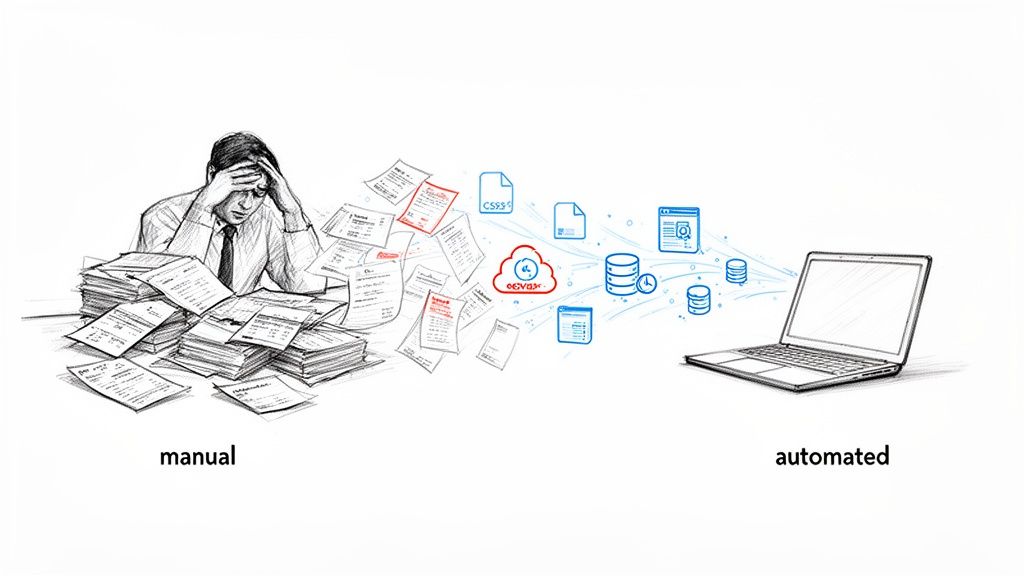
This image really gets to the heart of it: turning a chaotic mess of documents into clean, structured data you can use right away.
To get a clearer picture, let's look at a quick side-by-side comparison.
Manual vs Automated Data Entry a Quick Comparison
| Aspect | Manual Data Entry | Automated Data Entry (with DocParseMagic) |
|---|---|---|
| Speed | Slow, limited by human typing speed. | Nearly instant; processes thousands of documents in minutes. |
| Accuracy | High risk of human error (1-4% error rate is common). | 99%+ accuracy with validation rules. |
| Cost | High labor costs, plus the hidden costs of fixing errors. | Low per-document cost; frees up staff for valuable work. |
| Scalability | Difficult and expensive to scale; requires hiring more people. | Scales effortlessly with business growth. |
| Employee Morale | Low; leads to boredom and burnout. | High; employees focus on strategic, engaging tasks. |
This table highlights the stark differences and shows why automation isn't just a convenience—it's a fundamental operational upgrade.
The market is definitely responding to this need. The global accounts payable automation market alone is expected to jump from USD 6.17 billion in 2025 to USD 11.17 billion by 2030. A massive 62% of companies are adopting these tools for one big reason: to cut down on manual mistakes and speed everything up. To see the full picture, it's worth exploring the broader benefits of automation in business and how it fuels growth.
The goal of data entry automation isn’t just about copying and pasting faster. It's about getting data you can trust, at speed, and on a scale that grows with you. This lets your team stop questioning the numbers and start focusing on what they actually mean.
This whole shift is powered by something called intelligent document processing, a technology that does much more than just read text. If that term is new to you, our guide on what is intelligent document processing is a great place to start. Bringing these tools into your workflow is the first real step toward building a smarter, more efficient foundation for your company.
Choosing Which Documents to Automate First
Before you jump into any data entry automation project, you need a game plan. Going in without a clear strategy is like trying to build a house without a blueprint—you might end up with something, but it probably won’t be what you had in mind. A solid plan starts with figuring out where automation will make the biggest splash in your current workflow.
The whole point is to find the tasks that are causing the most friction. Where are the bottlenecks? Which processes are repetitive, high-volume, and, let's be honest, a bit soul-crushing for your team? Those are your best bets for automation.
Pinpoint High-Impact Workflows
First, take a hard look at your current processes. Don't just guess—get some real data. Ask your team to track their time on different data entry tasks for a week. You're searching for the low-hanging fruit, the documents that will give you the biggest and fastest return on your investment.
Look for these common culprits:
- Vendor Invoices: An accounting department can easily process hundreds, if not thousands, of these every month. They come from all different suppliers with wildly different layouts, which makes manual entry a slow, error-prone nightmare.
- Monthly Sales Reports: These often involve pulling numbers from multiple places and dumping them into a single spreadsheet. It's a classic copy-paste-repeat task that's just begging to be automated.
- New Client Intake Forms: Getting new clients set up means moving their information from a form into your CRM or project management tool. Automating this step makes sure that data is clean and consistent right from the start.
- Insurance Policy Declarations: For an insurance agency, manually typing in policy numbers, effective dates, and coverage limits from declaration pages is a massive time sink.
Once you have a list, it's time to prioritize. The sweet spot is a process that is both high-volume and highly repetitive. Automating something that only happens once a month probably won't deliver the immediate impact you're hoping for.
Set Clear and Measurable Goals
Okay, you've picked your target document. Now what? You need to define what success actually looks like. Vague goals like "save time" or "be more efficient" aren't going to cut it. You need specific, measurable objectives that will prove the project was worth it.
Good goals are tangible and tied directly to business results. For instance:
- Time Reduction: "We will cut the time spent processing each vendor invoice from 8 minutes down to under 2 minutes."
- Cost Savings: "Our goal is to reduce our invoice processing cost from $15 per invoice to less than $4."
- Error Rate: "Let's decrease data entry errors in new client setups by 95% within the first quarter."
- Faster Turnaround: "We want to speed up payment cycles by processing all approved invoices within 24 hours of receiving them."
Setting these benchmarks is so important. They don't just guide how you set things up; they give you the hard data you need to show a clear return on investment to your boss or the leadership team.
Real-World Scenarios in Action
Let's make this real. Picture an accounting firm that manually processes 500 vendor invoices every month. An employee spends about 6 minutes on each one, keying in the data. That adds up to 3,000 minutes, or a whopping 50 hours of manual work every single month, just for this one task.
By choosing to automate invoice processing first, they could set a goal to slash that time by 80%. That would free up 40 hours of their employee’s time to focus on much more valuable work, like financial analysis, managing vendor relationships, or chasing down overdue payments.
Or think about an insurance brokerage buried in policy renewals. By targeting policy declaration pages for automation, they could aim to wipe out manual entry errors completely. This ensures their records are always spot-on and compliant. This kind of focused approach makes sure your first step into data entry automation is a clear win, building momentum for whatever you decide to tackle next.
Building Your No-Code Document Parsing Workflow
Once you've figured out which documents are bogging you down, it's time to build the engine that will actually do the work. This part might sound intimidatingly technical, but it’s not. Modern no-code tools have made this surprisingly simple. You don't need to be a developer—you just need a clear idea of what information you want to pull out.
The whole concept is to show the system what a typical document looks like and visually point out the data you care about. It's a lot like training a new team member. Instead of writing complicated code, you upload a sample, like a PDF invoice, and just highlight the fields that matter.
Starting with a Sample Document
Your first move is to grab a representative document and upload it into a no-code platform. Let's say you're using DocParseMagic. This could be anything from a vendor invoice to a customer purchase order, but we'll stick with a basic PDF invoice for this example. The tool immediately gets to work reading the document, not just as text, but by understanding its structure.
This simple flow chart breaks down how to get started.
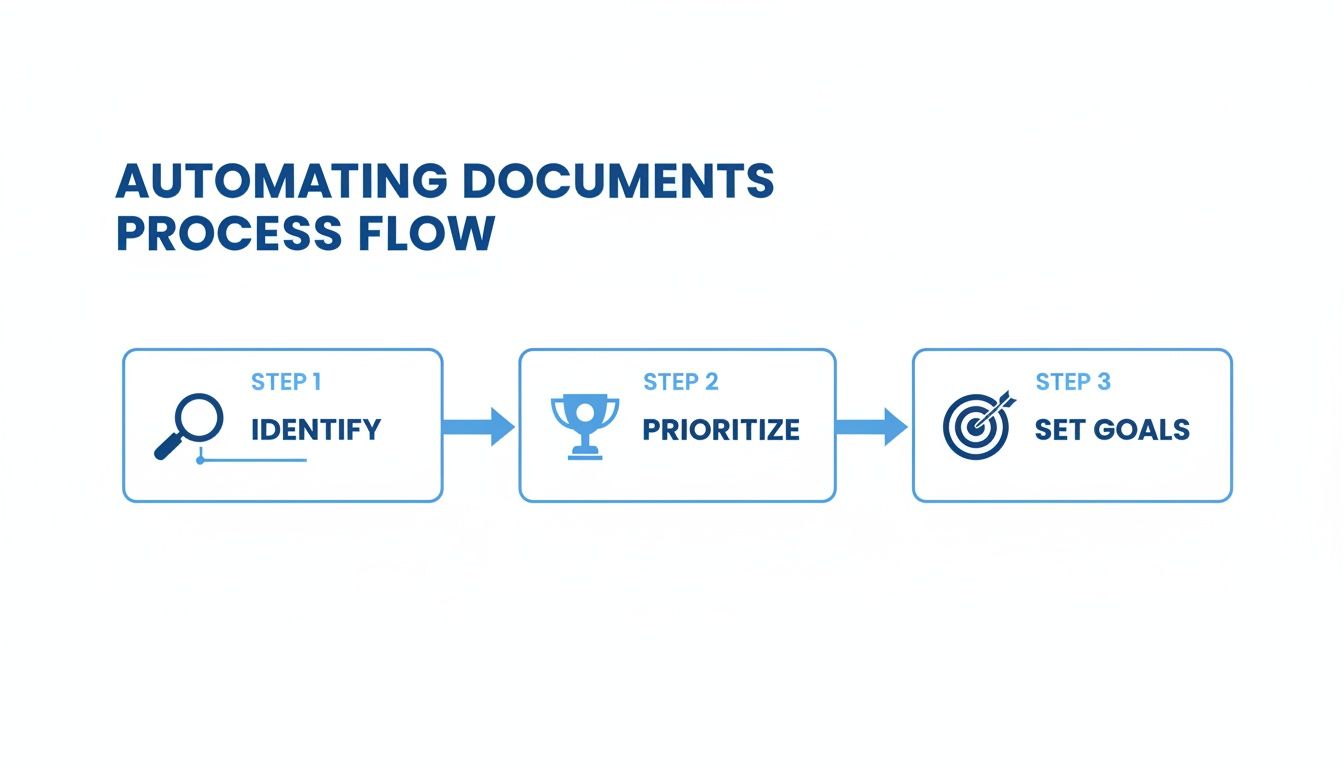
It’s all about identifying the problem, prioritizing where you'll get the biggest win, and setting clear goals for what success looks like.
After you upload your sample, a digital version of it appears on your screen. This is where the "no-code" magic happens. You simply click or draw boxes around the key pieces of information you need to capture.
- Invoice Number: Click on the number next to "Invoice #" and give it a label, like "InvoiceNumber."
- Total Amount: Highlight the final dollar figure at the bottom and call it "GrandTotal."
- Line Items: Select the entire table of products or services and define it as a "LineItems" table.
This visual mapping process is the heart of your workflow. You're effectively building a template without ever touching a line of code.
Handling Document Variations with AI
Here’s where today's automation data entry tools really pull away from the old methods. In the past, you needed a rigid, pixel-perfect template for every single document layout. If Vendor A put their invoice number on the top left and Vendor B put it on the top right, you needed two different templates. It was a maintenance nightmare.
Modern AI-powered systems are much smarter. After you train the tool on just a few examples, the platform learns to find fields by context, not just their exact location. It understands that the text next to "Invoice No." is the invoice number, no matter where it shows up on the page. This flexibility is a game-changer for anyone dealing with documents from hundreds of different suppliers.
The real power isn't just in extracting text; it's in understanding the document's intent. The system learns what an "invoice" looks like conceptually, allowing it to adapt to new layouts from vendors you've never even seen before.
This kind of advanced text recognition is powered by some pretty sophisticated technology. If you want to dive deeper into the basics, our guide explaining what is Optical Character Recognition is a great place to start.
A Practical Example with Scanned Documents
Let's walk through a messier, real-world scenario. Imagine you're an insurance underwriter and you've just received a scanned claims form. It's a bit crooked, maybe a little blurry, but it contains critical policy details like the claim amount and incident date.
With a no-code tool, the process is exactly the same. You upload the scanned image. The AI first cleans it up—deskewing the page, enhancing the contrast—and then reads the text. From there, you just visually select "Claim Amount," "Date of Incident," and "Policy Number." The system learns to find these fields even on less-than-perfect scans. It’s that straightforward.
Making Sure Your Data is Actually Correct
Pulling data off a document is a great first step, but it’s only half the job. If you can't trust the information your automation pulls, the whole effort is pointless. This is where you need to set up some smart validation rules. Think of them as your personal quality control assistant, working 24/7 to make sure every piece of data is accurate and makes sense before it hits your systems.
Bad data isn't just a small headache; it can cost companies a fortune in wasted time and rework. By building these checks directly into your workflow, you’re turning messy, raw text into a clean, reliable dataset you can actually use for important business decisions.
Start with the Basics: Foundational Rules
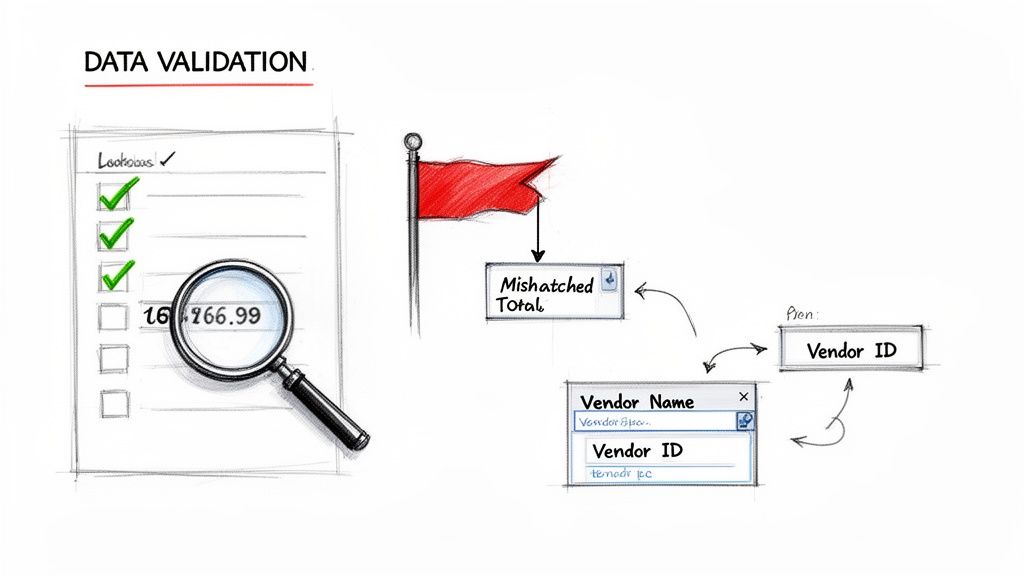
You don't need a complex web of checks to get started. The key is to implement a few common-sense rules that catch the most frequent mistakes. Most no-code tools let you apply these rules to specific fields, automatically flagging any document that looks fishy so a human can take a quick look.
Here are a few practical rules you can set up in minutes:
- Check the Format: Is the data in the right structure? For example, a “Policy Start Date” field should always be a valid date (like MM/DD/YYYY), not just random text. A "Zip Code" should be five digits, nothing more, nothing less.
- Do the Math: This is a game-changer for anyone in finance. You can set a rule to automatically check if the sum of all "Line Item" amounts adds up to the "Grand Total" on an invoice. If it doesn't, the system flags it immediately. No more manual calculations!
- Make Sure It's There: Some fields are simply too important to be missing. A presence check ensures that critical info like an "Invoice Number" or "Customer ID" is never blank. If the AI misses it, the document gets sent for review instead of creating a problem downstream.
These simple rules are your safety net. They catch the kinds of small errors that are easy for a person to overlook during mind-numbing manual entry but are ridiculously easy for a machine to spot every single time.
Take It to the Next Level with Data Enrichment
Validation keeps your data clean, but enrichment makes it powerful. Data enrichment is all about adding context by cross-referencing the information you've extracted with data you already have. This turns a simple piece of text into something far more useful.
For instance, say you pull a "Vendor Name" from an invoice. An enrichment rule can instantly look up that vendor in your accounting software or even a simple spreadsheet and automatically add their corresponding "Vendor ID" and "Payment Terms."
This is where the magic really happens. You’re no longer just copying and pasting data; you’re making it more complete and actionable without lifting a finger.
The possibilities here are huge. A procurement team could enrich extracted product names with internal SKUs. An insurance agency could pull in a client's policy status just by looking up their name. Of course, setting up these rules is just one part of a bigger strategy for how to improve data quality and ensure your automated data stays trustworthy over the long haul.
Putting It All Together: A Real-World Example
Let's see how this works in practice. An accounts payable clerk needs to process 300 vendor invoices a month and is tired of the manual grind. They set up the following rules in their automation workflow:
- Validation Rule #1: The
InvoiceDatemust be a real date, and it can't be in the future. - Validation Rule #2: The
TotalAmounthas to be a positive number. - Validation Rule #3: The sum of all
LineItemTotalsmust exactly match theTotalAmount. - Enrichment Rule: Look up the
VendorNamein our company's Google Sheet and pull in the matchingVendorID.
The next time an invoice from "Office Supplies Inc." comes in, the system instantly extracts the data. It confirms the date is valid, the total is correct, and the math checks out. Then, it finds "Office Supplies Inc." in the Google Sheet and automatically adds the Vendor ID, "V-OSI-482," to the record.
The whole thing takes just a few seconds. The final data is clean, verified, and enriched—completely ready to be pushed into the accounting software without anyone having to touch it.
Getting Your Automated Data Where It Needs to Go
Extracting and cleaning up data is a huge win, but let's be honest—the real magic happens when that information lands in the business tools you use every day. This is the final piece of the puzzle. It’s what connects your new, efficient process back into your core operations and makes the whole thing worthwhile.
The goal here is simple: move the structured data from your parsing tool into your accounting software, CRM, or even just a master spreadsheet, without anyone having to copy and paste a single thing. This is what makes the workflow truly "set it and forget it."
Choosing Your Export Destination
Modern document automation tools give you a few different ways to get your data out. The right choice really just depends on what you plan to do with the information once you have it.
-
Downloading as a CSV File: This is the universal workhorse. A CSV export bundles all the data from a batch of documents into a single spreadsheet. It’s perfect for accountants who need to pull invoice data into Excel for some serious number-crunching or for a sales manager who wants to upload commission reports into a custom dashboard.
-
Direct API Integrations: For a truly seamless handoff, nothing beats an API (Application Programming Interface). This lets your parsing tool "talk" directly to other software. You could, for instance, set it up so that every time a vendor invoice is processed, a new bill is automatically created in QuickBooks or Xero.
This kind of integration is catching on fast. The market for digital process automation is expected to jump from $14.42 billion in 2024 to $16.4 billion in 2025, largely because AI has gotten so good at reading messy documents. With 60% of companies already using some form of automation, it’s clear where things are headed. You can read more about the key drivers of this market growth to see the bigger picture.
Connecting to Your Accounting Software
Let’s zero in on one of the most popular uses: pushing invoice data straight into an accounting system. Getting this right eliminates that last, soul-crushing manual step in the accounts payable cycle.
Most no-code platforms have pre-built connectors that make this surprisingly easy. The setup usually looks something like this:
- Authorize the Connection: First, you’ll give the parsing tool permission to access your QuickBooks or Xero account. It’s a secure, one-time handshake between the two systems.
- Map Your Data Fields: This is the fun part. You just drag and drop to match the fields you extracted (like "VendorName" or "GrandTotal") to the right spots in your accounting software (like "Supplier" or "Total Amount").
- Set the Trigger: Finally, you decide when the data should be sent over. A common choice is to trigger the export as soon as a document has been successfully parsed and validated.
Once that’s done, the system runs on its own. An invoice comes in, it gets read and checked, and a bill instantly appears in your accounting ledger, all ready for you to approve payment.
This is where you really feel the payoff. It’s not just about entering data faster; it’s about creating a smooth, error-free flow of information that speeds up entire business cycles, from ordering to payment.
A Practical Integration Scenario
Imagine a procurement team at a manufacturing company. They get dozens of complex vendor proposals as PDFs every week and have the tedious job of comparing pricing, terms, and delivery dates.
- Their Workflow: They use a parsing tool to pull all the key details from each proposal into a clean, structured format.
- Their Integration: Instead of a direct accounting link, they export all the data as one consolidated CSV file.
- The Outcome: They drop this CSV into a master spreadsheet. Suddenly, they can sort and filter every vendor proposal side-by-side. It becomes incredibly easy to spot the best deal and make a purchasing decision in minutes, not hours.
This just goes to show that the "best" integration isn't always the most complicated. It's the one that puts clean, usable data right where your team needs it to do their job better.
Proving Your Automation Was Worth It
Once you've got your new automated workflow up and running, the job isn't quite done. You need to show that it's actually making a difference. Just telling your boss you've automated data entry is one thing, but showing them the cold, hard numbers is how you prove the investment was a smart one.
This is all about translating your technical work into a clear business win. We’re going to move beyond vague ideas like "we saved time" and get into tangible metrics that a finance manager will understand and appreciate. It's not complicated, I promise. It's really just about comparing the old way of doing things with the new.
What to Start Tracking
To build a strong case, you first need a snapshot of how things looked before you started. This is your baseline. Then, you'll track the same things after your automation is in place.
Here are the big three metrics to focus on:
- Time Saved Per Document: How many minutes did it take a real person to type out all the data from a single invoice? Now, how long does it take the new system? We’re usually talking about minutes versus seconds.
- Fewer Mistakes: Humans make mistakes. It's normal. Before automation, what percentage of documents had errors that needed fixing? Manual data entry often has a 1-4% error rate. Your new system should get that number incredibly close to zero, which is a powerful stat to share.
- Cost Per Document: Figure out what it cost to have an employee process a single document, including their salary and benefits. Compare that to the tiny per-document cost of your new automation tool.
The goal here is simple: create a clear "before and after" picture. When you can walk into a meeting and say, "We’ve cut our invoice processing cost from $12 down to just $1.50," you've made a point that everyone understands.
Calculating Your Return on Investment
Let’s put this into practice with a quick example. Imagine you’re a business that processes about 500 invoices every month. We can use this framework to nail down the financial benefits from labor savings, error reduction, and maybe even those early payment discounts you can now catch.
First, let's figure out your old manual costs. If you have an employee who makes $25/hour and they spend about six minutes on each invoice, your monthly labor cost for this task is $1,250.
Now, let's compare that to the automated process.
Sample ROI Calculation for Invoice Processing
This table breaks down how the numbers stack up, showing exactly where the savings come from.
| Metric | Manual Process (Monthly) | Automated Process (Monthly) | Monthly Savings |
|---|---|---|---|
| Labor Time (Hours) | 50 hours | 5 hours (for review) | 45 hours |
| Labor Cost | $1,250 | $125 | $1,125 |
| Cost of Errors (Est.) | $250 | $10 | $240 |
| Automation Tool Cost | $0 | $150 | -$150 |
| Total Monthly Savings | $1,215 |
In this simple scenario, you're looking at a total monthly savings of $1,215. That's a huge win.
And remember, this calculation doesn't even touch on the other great stuff, like happier employees who aren't stuck doing mind-numbing data entry or the strategic edge you get from having financial data available almost instantly.
Presenting these numbers makes the value of your work crystal clear. To build an even stronger case, you can explore the full benefits of automated invoice processing and bring even more data to the table.
Got Questions? Here’s What Most People Ask
When I talk to people about moving away from manual data entry, the same few questions always pop up. Let's get right into them, because understanding the practical side of things is what really matters before you jump in.
What About All My Different Document Layouts?
This is probably the biggest concern I hear. You're thinking about the dozens, maybe hundreds, of different invoice formats you get from vendors. It sounds like a nightmare to set up, right?
The good news is that modern tools don't rely on rigid, location-based templates anymore. Instead, they use AI to understand the context of a document. It learns to find the "invoice number" or "total amount" by recognizing the words and patterns around it, no matter where they are on the page.
Think of it this way: you don't need a separate template for every single vendor. The system learns what an invoice is, not just where the boxes are supposed to be. This is a massive time-saver, both during setup and down the line.
How Secure Is This for My Financial Data?
It's a valid question—we're talking about sensitive information here. Reputable automation platforms are built with security as a core feature, not an afterthought. They use enterprise-grade encryption for your data, both when it's being uploaded (in transit) and when it's stored on their servers (at rest).
This isn't just a promise; it's a fundamental part of the service. Your financial data is protected with the same rigor as any of your other critical business systems, keeping you compliant and giving you peace of mind.
Whether it’s a customer invoice or an internal expense report, your information is locked down.
What if the AI Messes Up and Can't Read Something?
Let’s be realistic: no technology is 100% perfect, especially when you're dealing with blurry scans or handwritten notes. So, what happens then?
The best tools are designed for this very scenario. They have built-in checks and balances. If the AI isn't confident about a piece of data it extracted, it flags it for a human to review.
This "human-in-the-loop" model gives you the best of both worlds:
- You get the incredible speed of automation for the 90% of documents that are easy to read.
- You get the accuracy of human oversight for the tricky 10% that need a second look.
It’s all about maximizing efficiency without ever compromising the quality of your data.
Ready to stop the copy-paste grind and see how much time you can save? DocParseMagic turns your messy documents into clean, usable spreadsheets in minutes. Sign up for free and get started at DocParseMagic.com.