Pdf to text: Modern Invoicing Data Extraction that Saves Time
Turning a PDF into text sounds straightforward, but getting useful information out of it is a whole different ball game. Just pulling out the words often gives you a chaotic jumble of text, forcing your team to manually pick through the mess. Real efficiency comes from systems that don't just read the words, but actually understand what they mean and how they’re organized.
Why Basic PDF to Text Just Doesn't Cut It Anymore
Let's face it: manually entering data from PDFs is a colossal waste of time. The real problem businesses face isn't just pulling words from a document; it's about getting structured data that your software can actually work with. This is where the cracks in basic conversion tools start to show.
A simple pdf to text converter is like a photocopier. It dumps all the words and numbers onto a blank page, but it has zero understanding of their context or relationship to one another. The invoice number, the due date, and the line item descriptions all end up mashed together in one long, messy string of characters.
The Real Need is for Intelligent Structure
For any practical business process, that jumbled text is almost as useless as the original PDF. You’re still stuck manually finding, copying, and pasting every single piece of information into the right field in your ERP or accounting software. An intelligent system, however, works more like a seasoned assistant.
This kind of assistant doesn't just see a block of text; it understands it. For example, it can:
- Pinpoint an "Invoice Number" and tell it apart from a "PO Number."
- Recognize a "Due Date" and format it correctly for your system.
- Pull out individual line items, including the quantity, description, and price for each.
- Neatly organize all of this information into a structured format like a spreadsheet.
This leap from basic text extraction to intelligent data parsing is the key. It's the difference between creating more manual work for your team and getting rid of it for good. The goal is to get data that is clean, labeled, and ready to be used instantly.
The demand for this kind of automation is exploding. The global market for PDF software, which includes these vital conversion tools, was recently valued at USD 2.15 billion and is expected to hit USD 5.72 billion by 2033. As you can read in this PDF market growth analysis on PDFReaderPro.com, this growth shows a clear business need to move far beyond simple text grabbing.
Decoding Your Documents: Native vs. Scanned PDFs
Have you ever tried to copy text from a PDF, only to find you can't select a single word? That common frustration gets right to the heart of document processing. To really get a handle on pdf to text conversion, you have to understand that not all PDFs are built the same. They generally fall into two main categories.
The first kind is a native PDF. The best way to think of a native PDF is like a live webpage. The text you see is actually text—it's selectable, searchable, and was created digitally from a source like Microsoft Word or a design program. All that information exists on a digital layer, which is why copy-pasting is a breeze.
The second kind is a scanned PDF. This is basically just a picture of a document. Imagine snapping a photo of that same webpage—sure, you can see the words, but they’re just pixels making up a flat image. There's no underlying text layer for your computer to grab onto, which is why your cursor can't select anything.
The Critical Difference for Data Extraction
This distinction is the single biggest factor in figuring out how you're going to get data out of your document. With native PDFs, it's pretty straightforward because the text is already machine-readable. Scanned PDFs, on the other hand, need a much smarter approach.
- Native PDFs: Allow you to pull text out directly, keeping the characters and some basic formatting intact.
- Scanned PDFs: Need special technology that can look at the image, recognize the shapes of letters, and convert them into actual text.
Here's a quick cheat sheet to help you tell them apart at a glance.
Native PDF vs. Scanned PDF Key Differences
| Characteristic | Native PDF (Text-Based) | Scanned PDF (Image-Based) |
|---|---|---|
| Origin | Created digitally (e.g., from Word) | Created from a physical scanner or camera |
| Text Interaction | Text is selectable and searchable | Text is part of an image; cannot be selected |
| File Size | Generally smaller | Often larger due to image data |
| Quality | Crisp, clear text at any zoom level | Quality depends on the scan; can be blurry |
| Extraction Method | Direct text copy/paste | Requires OCR (Optical Character Recognition) |
Spotting these differences early on will save you a ton of headaches and help you choose the right tools for the job.
This flowchart maps out the journey from a basic PDF to usable, structured data, highlighting where different technologies come into play.
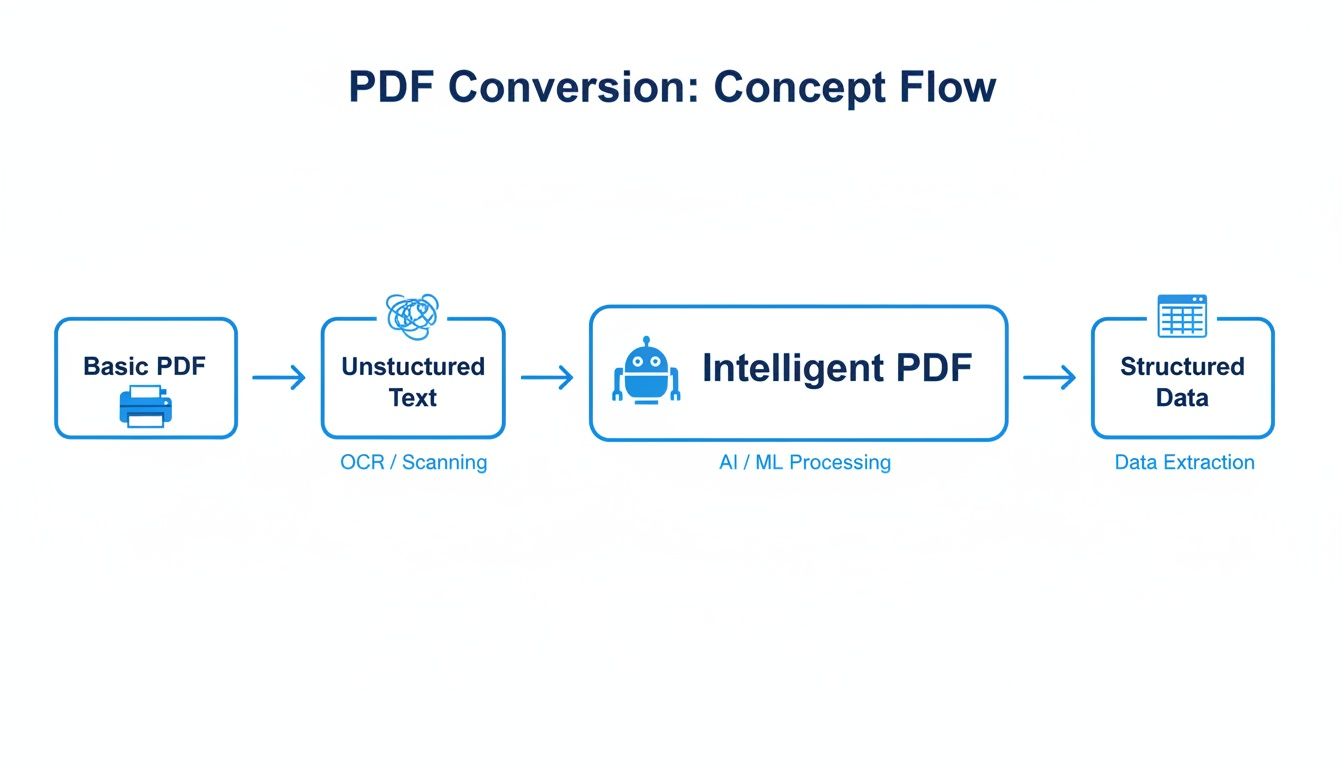
The big takeaway here is that just pulling raw text out is only the first step. The real magic happens when you turn that jumble of words into organized, actionable information.
For any business dealing with invoices, contracts, or reports, knowing whether a document is native or scanned is step one. It sets the stage for your entire workflow and determines which tools you'll need to work accurately and efficiently.
This challenge of reading image-based documents leads us straight into the world of Optical Character Recognition, or OCR. Think of OCR as the bridge that connects the visual world of scanned documents to the digital world of editable text, making it an essential part of modern document automation.
How OCR Technology Reads Your Scanned Documents
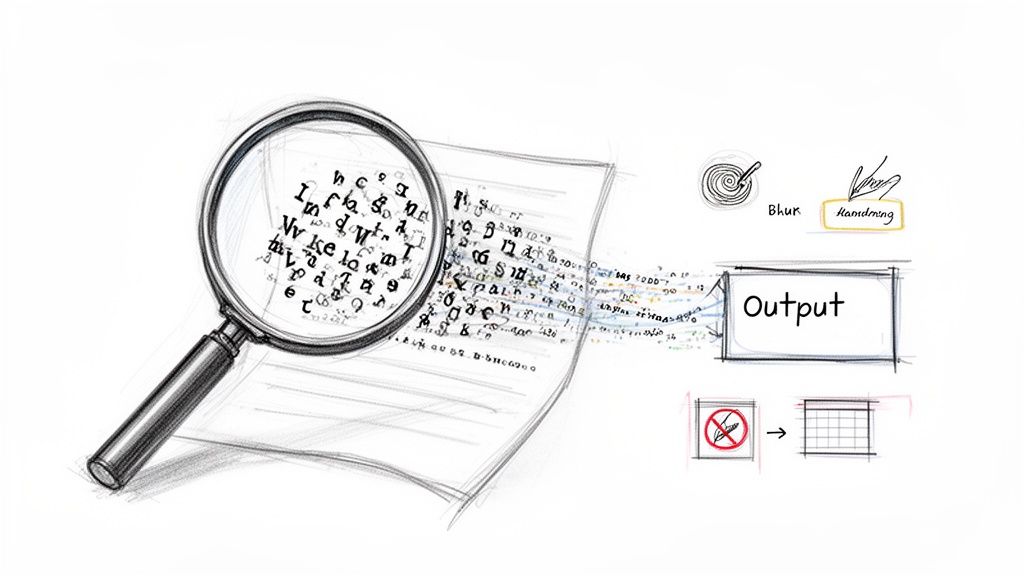
Optical Character Recognition, or OCR, is the magic that turns a flat picture of a document into actual, usable text. Think of it as a digital translator that scans an image, carefully identifying the shapes of letters and numbers, and then converts those pixels back into characters your computer can understand.
This is the technology that makes pdf to text conversion a reality for scanned files. The software essentially "reads" the document by breaking the image down into tiny pieces and using sophisticated pattern-matching to figure out what each character is. For a crisp, clearly typed document, modern OCR can be incredibly accurate.
But let's be honest, real-world documents are rarely perfect. The quality of the original scan plays a huge role in the final result. A blurry or crooked scan is like trying to read a street sign in a heavy fog—the OCR software is going to struggle, leading to errors and jumbled text.
Common Hurdles for Basic OCR
Even the best off-the-shelf OCR tools can get tripped up by everyday document flaws. The process is more than just reading letters; it’s about navigating visual noise and complexity that can easily confuse the software.
Here are a few common obstacles that stop standard converters in their tracks:
- Poor Image Quality: Low-resolution scans, dark shadows, and even coffee stains can make characters unreadable for the software, resulting in gibberish or missing words.
- Complex Layouts: Documents with multiple columns, tables, or text boxes often get spit out as a messy "wall of text," losing all the original structure.
- Unusual Fonts: Fancy, stylized, or non-standard fonts can baffle the pattern-recognition algorithms, causing it to misinterpret characters all over the place.
- Handwritten Notes: Standard OCR simply isn't built to read handwriting. Any handwritten notes or signatures will usually be ignored or turned into a garbled mess.
These limitations bring up a critical point for any business. While OCR is a fantastic first step for pulling words from an image, it often just gives you raw, unstructured text that needs a ton of manual cleanup. That jumble of words and numbers is almost never ready to be plugged directly into your business software. To dive deeper into this foundational tech, check out our guide on what Optical Character Recognition is.
The core challenge with basic OCR is that it delivers text without context. It might extract the number "123 Main Street" and "Invoice #456," but it has no idea that one is an address and the other is an invoice identifier.
For any serious business process, this lack of context is a massive roadblock. Your accounting team can't do much with a block of text where line items, totals, and due dates are all mashed together. This is why simply converting a pdf to text is only half the battle. The real goal is to extract structured, meaningful data you can actually use.
The Hidden Cost of Unstructured Text
Getting the text out of a PDF is just the first step. The real challenge—and where most people get stuck—is turning that raw text into something genuinely useful. A basic pdf to text conversion often just creates a digital mess, leaving your team to clean up the chaos.
Imagine you've just run a 10-page supplier invoice through a simple converter. Sure, you got all the words, but they're completely jumbled. The invoice number is crammed next to a shipping address, line items are divorced from their prices, and the grand total is lost somewhere in a sea of text.
What you're left with is unstructured text. It's nothing more than a long, messy string of characters. All the critical relationships that made the document an invoice in the first place are completely gone.
From Text to Truly Useless Data
For anyone in accounting, logistics, or procurement, this kind of output is almost as bad as the original PDF. Your team still has to manually hunt for the data they need, copy each piece, and paste it into the right field in your ERP or accounting software. This isn't just slow—it’s a breeding ground for expensive mistakes.
It's estimated that nearly 80% of enterprise knowledge is trapped in unstructured formats like PDFs and reports. Just pulling the text out doesn't unlock that knowledge; it just puts the mess into a different container. The real value is in adding structure back.
This is where the hidden costs really start to add up. Every minute an employee spends decoding that jumbled text is a minute they aren't spending on analysis, building vendor relationships, or strategic work. You’ve automated one tiny step only to create a bigger manual bottleneck down the line.
The Real Business Need is Structure
What your business actually needs isn't a wall of text. It needs structured, labeled data that your software can immediately understand and use. You're not trying to read a novel; you're trying to get clean, organized information into your systems.
Think about the difference between these two outputs from the same invoice:
-
Unstructured Text: "Invoice #INV-9876 Due 10/25/2024 Ship To 123 Business Lane Anytown USA Widget A 5 $50.00 $250.00 Widget B 2 $75.00 $150.00 Total $400.00"
-
Structured Data:
invoice_number: "INV-9876"due_date: "10/25/2024"line_items: [ {item: "Widget A",qty: 5,price: "$50.00" }, {item: "Widget B",qty: 2,price: "$75.00" } ]total_amount: "$400.00"
The second example is ready to go. It can be automatically fed into your accounting system, update your inventory, or populate a financial report without a human ever touching it. This is the critical jump from basic pdf to text conversion to intelligent data extraction.
Using Intelligent Parsing to Get Structured Data
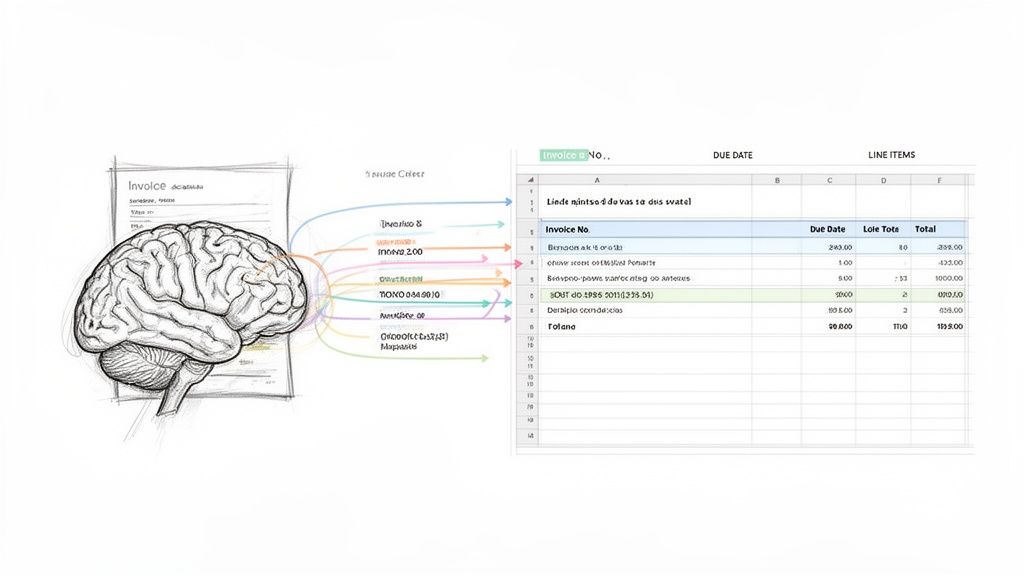
Getting from a jumble of unstructured text to truly usable information takes a much smarter approach than basic OCR. This is where intelligent parsing enters the picture, and it represents a huge leap forward for pdf to text technology. It’s the difference between just seeing the words on a page and actually understanding what the document is trying to tell you.
Think of it like having an assistant who doesn't just read an invoice but instantly gets it. They know what an "Invoice Number" is and can tell it apart from a "PO Number," no matter where it’s located. That's precisely what a smart parser does, using sophisticated algorithms and machine learning to find and categorize specific data fields.
This kind of technology goes way beyond simple pattern matching. It actually learns the common layouts and phrasing used in different documents, whether it's an invoice, a bank statement, or an insurance policy. This allows it to chew through messy, multi-page files without you having to set up manual rules for every new vendor or format that comes along.
The Power of Context-Aware Extraction
Standard tools get you the text, but then they stop. Intelligent parsers add that critical next layer: comprehension. They don't just pull out a random date; they identify it as the "Due Date" or "Ship Date." It’s this context that turns raw data into something you can actually use to make business decisions.
This really changes how we think about automating document workflows. The goal is no longer just to digitize the text but to pull out specific, labeled pieces of information.
- Identifies Key Fields: It automatically finds and labels the important stuff, like vendor names, line items, and grand totals.
- Handles Variation: It can adapt to different document layouts and formats without needing you to constantly tweak the settings.
- Preserves Relationships: It understands that a quantity, a description, and a unit price all belong to the same line item.
Often, the ultimate goal is effortless PDF to notes conversion with AI, turning messy source documents into organized, useful insights. This kind of automation is a game-changer for any process that deals with a high volume of documents, where getting it right and getting it fast are top priorities.
A smart parser doesn't just convert a pdf to text; it translates a complex document into a clean, organized database entry. It rebuilds the structure that basic OCR destroys, making the information immediately useful for your software and your team.
For example, DocParseMagic uses this very approach to turn a chaotic pile of invoices directly into a spreadsheet ready for analysis. It understands the specific details of financial documents, which gets rid of manual data entry and prevents the costly mistakes that often come with it. You can learn more about this technology by reading our article on what intelligent document processing is.
From Manual Work to Automated Workflows
When you bring intelligent parsing into your operations, it completely changes how things get done. Instead of your team spending hours manually typing data from PDFs, they can focus on analyzing that information and making smart decisions. The technology handles the grunt work, delivering clean, reliable data in a matter of seconds.
This doesn't just speed up processes like accounts payable or client onboarding; it also makes your data much more reliable. By taking human error out of the tedious task of transcription, you dramatically cut down on the risk of typos and other mistakes. The result is a workflow that's faster, more accurate, and far more efficient from start to finish.
Practical Workflows for Intelligent Document Processing
Knowing the theory is one thing, but putting intelligent parsing into practice is where you see the real magic happen. It’s about much more than just converting a pdf to text. Smart document processing solves real-world business problems by actually understanding a document’s content and organizing it so you can use it right away. This shift saves a staggering number of hours and sidesteps costly mistakes in almost every department.
Take an accounting team, for instance. They can completely overhaul their three-way matching process. Instead of someone manually squinting at invoices, purchase orders, and receiving reports, an intelligent parser extracts the critical data from all three documents in a flash. It cross-references quantities, prices, and PO numbers automatically, only flagging the rare exceptions that need a human eyeball.
The result? Payment cycles get way faster, and the risk of paying a wrong or duplicate invoice plummets.
Real-World Applications Across Teams
Just about every department has its own unique data entry headaches, and this is where the technology really shines. The core idea is the same everywhere: turn static, locked-down documents into living, usable data without the mind-numbing manual work.
Here are a few ways different teams put this to work:
- Procurement Specialists: Think about comparing proposals from ten different vendors. A smart tool can yank the specific terms, pricing tables, and delivery dates from each contract and drop them into a single, clean spreadsheet. Suddenly, you have an instant side-by-side comparison, making vendor selection quicker and based on hard data.
- Logistics Coordinators: When you’re dealing with dozens of shipments every single day, keying in details from bills of lading is a massive time-drain. A parser can grab container numbers, shipping dates, and contents automatically, pushing that information straight into your logistics or tracking software.
- Insurance Agents: Processing claims or onboarding new clients means digging for details in stacks of forms. Intelligent parsing can instantly lift policy numbers, coverage limits, and claimant info, speeding up the entire pipeline from first submission to final approval.
Each of these examples goes far beyond basic text extraction. The goal isn't just to pull the words off the page; it's to get the right information to the right person with as little friction as possible.
For any business looking to iron out its document-heavy processes, exploring solutions for streamlined intelligent document processing workflows can be a game-changer. It all comes down to practical application. You can see a great example of this in our guide on data extraction from invoices, which dives deep into one of the most common and impactful use cases.
When you connect a specific business pain point to a clear, automated solution, the value of moving past simple pdf to text becomes crystal clear.
Common Questions About PDF to Text Conversion
Diving into document conversion always brings up a few questions. It’s easy to get tangled up in the differences between various tools and technologies, so let's clear the air. Getting these answers right is the key to picking a solution that actually solves your problems instead of just creating new ones.
Can I Really Convert a PDF Table into Excel?
Yes, you can—but your mileage will vary wildly depending on the tool you pick.
A basic pdf to text converter will probably just rip the text out, leaving you with a jumbled mess of words and numbers. All that precious table structure? Gone. You'll be left with a headache trying to piece it all back together.
An intelligent parsing tool, on the other hand, is built for exactly this. It’s smart enough to see the rows, columns, and individual cells, and it will rebuild your table perfectly in a clean, usable spreadsheet.
Does OCR Work on Handwritten Notes?
Most of the time, no. Standard OCR is trained to recognize clean, printed fonts. It gets easily confused by the loops, slants, and unique quirks of human handwriting.
There is more advanced tech out there (sometimes called ICR, or Intelligent Character Recognition) that tries to tackle handwriting, but it’s often hit-or-miss. When you're dealing with important business data, "hit-or-miss" isn't good enough. For reliable results, it's best to stick to converting typed or printed documents.
The bottom line is that for business-critical information, security should be a top priority. Free online tools may not provide the necessary data protection for sensitive documents like invoices, contracts, or financial statements.
Always choose a professional platform that spells out its privacy policy and offers strong security measures. This ensures your confidential information stays that way from start to finish.
Ready to stop wrestling with messy text and start extracting clean, structured data? DocParseMagic turns your invoices, statements, and reports into analysis-ready spreadsheets in minutes. Try it for free and see how much time you can save.