A Practical Guide to PDF to Markdown Conversion
Let's be real, PDFs can be a nightmare. They're built to be the final word—a digital printout that looks the same everywhere. That's great for preserving a layout, but it's a massive roadblock when you actually need to use the information trapped inside.
Think about it. You're in finance, staring down a pile of 50 vendor invoices. You need to pull the invoice number, total, and due date from each one and manually punch it into your accounting software. Or maybe you're in operations, and you've got a scanned maintenance report. You need to grab a few key paragraphs for a new training manual, but copy-paste just gives you a jumbled mess.
It’s slow, mind-numbing work that's just begging for a typo.
The Problem with "Locked" Content
This is what I call the "data jailbreak" problem, and it's a source of frustration for almost everyone. The fundamental issue is that PDFs lock down content, prioritizing a static visual layout over accessibility. It's a design choice that creates a ton of friction in modern workflows.
Here's what that friction looks like in the real world:
- Endless Manual Entry: Wasting hours retyping data from invoices, bank statements, or reports into other systems.
- Mangled Formatting: Ever tried to copy-paste from a PDF? You end up with broken lines, random spacing, and a formatting disaster that takes longer to fix than just retyping it.
- Useless Scans: A scanned PDF is just a picture of text. You can't search it, you can't copy it, and you certainly can't edit it without specialized tools.
- Clunky Collaboration: Trying to get feedback on a PDF is a mess of sticky notes, confusing comments, and endless file versions like
report_final_v3_final_final.pdf.
Why Markdown is the Answer
This is exactly where converting to Markdown saves the day. If PDF is a rigid, locked box, Markdown is the complete opposite. It’s a simple, text-based format that's all about flexibility. It uses incredibly simple syntax—like # for a heading or * for a list item—to add structure without getting bogged down in complex formatting.
Converting a PDF to Markdown is like liberating your content from a visual prison. You're turning a static image of a document into a living text file you can actually work with.
This isn't just a theoretical benefit; it has an immediate, practical impact. That finance team can suddenly pull invoice data automatically. The operations manager can lift entire sections from that maintenance report and drop them into a new document with all the headings and lists perfectly intact.
Better yet, Markdown plays beautifully with tools like Git for version control, making it perfect for technical documentation, company wikis, and any kind of collaborative writing.
Before we get into the nuts and bolts, you have to know what kind of PDF you're up against. There are two main flavors:
- Text-Based (or "Native") PDFs: These are the ones created directly from an application like Microsoft Word or Adobe InDesign. The text is already machine-readable, which makes the conversion process much cleaner.
- Image-Based (or "Scanned") PDFs: These are just photos of paper documents. The text isn't actually text—it's just pixels. To get anything useful, you first need to run it through Optical Character Recognition (OCR) to "read" the words.
Figuring out which one you have is the very first step. It dictates the entire approach you'll take.
Choosing the Right PDF to Markdown Tool
Let's be honest: not all PDFs are created equal. A simple, one-page article is a world away from a 100-page scanned financial report filled with tables. The "best" way to get from PDF to Markdown depends entirely on what kind of document you're starting with and what you need the final result to look like.
The very first question to ask is: is this a native, text-based PDF or a scanned image? That single detail will point you down the right path and save you a ton of headaches.
This decision tree gives you a quick visual guide for figuring out your first move.
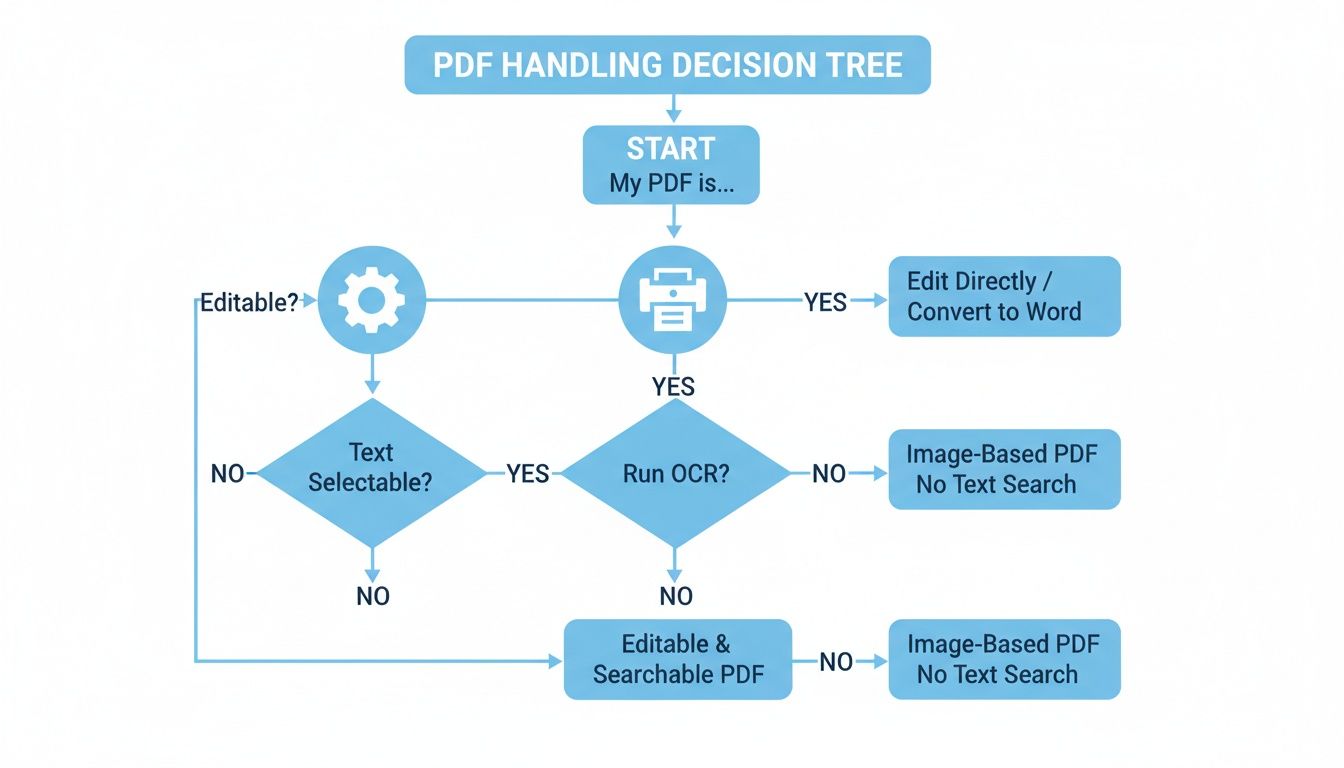
As you can see, there's a clear fork in the road. Native PDFs can often be converted directly, but scanned documents always need Optical Character Recognition (OCR) first. Getting this right from the start is half the battle.
Command-Line Tools for Precision and Power
If you're a developer, data scientist, or anyone who values control and repeatability, command-line (CLI) tools are your best bet. Pandoc is the undisputed champion here—it's often called the "Swiss Army knife" of document conversion, and for good reason. It gives you incredible control over the final output, letting you manage citations, preserve complex table structures, and handle tricky formatting with a few targeted commands.
But even the best tools have their limits. Open-source benchmarks show that Pandoc's accuracy on highly structured documents can be around 60-70%. Newer, AI-powered tools are changing the game. Marker, for example, can rip through a 250-page PDF in just 15 seconds via its API, doing a much better job with images and equations.
Think about the scale of this. For an insurance carrier working through some of the 1.2 billion policies active in the US, that kind of speed and accuracy can lead to 40% faster reconciliation times. That's a massive impact.
Online Converters for Quick and Easy Tasks
Sometimes you just need a quick, one-off conversion of a simple document. This is where online tools shine. You just drag, drop, click a button, and download your Markdown file. No installation, no learning curve.
Of course, that convenience comes with some big trade-offs:
- Zero Customization: You're stuck with whatever the tool spits out. There are rarely any options to fine-tune the conversion.
- Privacy Risks: Are you comfortable uploading confidential or sensitive documents to a random third-party server? It’s a major security risk.
- Fails on Complexity: Most free online tools will just give up on scanned documents, multi-column layouts, or detailed tables, leaving you with a mess of jumbled text.
These are really only good for non-sensitive, simple articles where perfect formatting isn't a top priority.
OCR-First Workflows for Scanned Documents
If your PDF is just a picture of a document—a scan—a standard converter won't see any text to convert. It just sees an image. This is where an OCR-first workflow becomes absolutely essential. Before you can even think about Markdown, you need to understand the different tools for extracting text from PDF documents.
An OCR engine scans the image, recognizes the shapes of letters and numbers, and turns it all into machine-readable text. Only then can you convert that text into Markdown. Thankfully, many modern document processing platforms build OCR right into their workflow, so it feels like a single, seamless step.
For any scanned invoice, contract, or report, your process must start with OCR. Trying a direct PDF to Markdown conversion on a scanned file is a guaranteed way to get garbled, unusable junk. Find a tool with a solid, integrated OCR engine.
PDF to Markdown Conversion Method Comparison
To help you decide, here’s a quick breakdown of the most common methods and where they work best.
| Method | Best For | Pros | Cons |
|---|---|---|---|
| Command-Line Tools (e.g., Pandoc) | Developers & technical users needing batch processing, automation, and precise control. | High degree of customization; scriptable for repeatable workflows; powerful and versatile. | Steep learning curve; requires software installation and comfort with the command line. |
| Online Converters | Quick, one-off conversions of simple, non-sensitive text documents. | Extremely easy to use; no installation required; fast for simple files. | Major security/privacy risks; poor handling of complex layouts, tables, and images; no customization. |
| OCR-First Platforms | Any scanned document, including invoices, contracts, receipts, and archived reports. | The only way to handle image-based PDFs; often integrated into larger automation platforms. | Can be more expensive; accuracy depends heavily on the quality of the OCR engine and the original scan. |
| Structured Data Parsers | Complex, template-based documents like invoices, statements, or forms where data extraction is the main goal. | Extracts data into structured formats (JSON, XML) with high accuracy; ideal for data-driven workflows. | Overkill for simple text conversion; Markdown output is a secondary feature, not the core focus. |
Ultimately, the right tool is the one that fits your specific document and your workflow. For a quick article, an online tool might be fine. For automating a hundred scanned invoices, you need a robust OCR platform. And for fine-grained control over technical documentation, nothing beats the command line.
Getting Your Hands Dirty with Pandoc for Clean Conversions
When you need serious control over your PDF to Markdown conversions, it's time to roll up your sleeves and meet Pandoc. It’s the command-line powerhouse that developers and technical writers swear by. Think of it less as a tool and more as a universal document translator that lets you script, automate, and perfect your workflow without touching a third-party website.
Getting it set up is a breeze. Pandoc is available for any major OS, and the installation is usually just a single command away.
Installing Pandoc on Your Machine
The best way to get Pandoc running is through your system's package manager. This keeps things simple and ensures you have the latest stable version.
- Windows: If you use Chocolatey, just open PowerShell as an administrator and run
choco install pandoc. - macOS: With Homebrew installed, it's as easy as typing
brew install pandocinto your terminal. - Linux: For Debian/Ubuntu users, it’s
sudo apt-get install pandoc. On Fedora or CentOS, you'll usesudo dnf install pandoc.
Once that’s done, pop open your terminal and type pandoc --version. See a version number? You're good to go.
Your First Conversion: The Basics
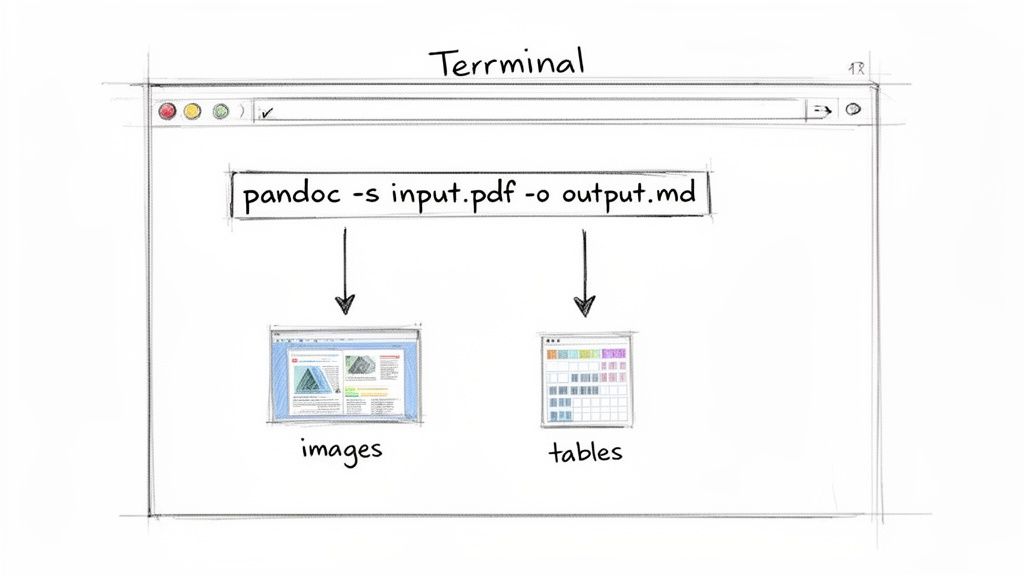
Let's start with the most basic command. The formula is beautifully simple: pandoc [input_file] -o [output_file]. That -o flag just tells Pandoc what to name the new file.
So, to turn a PDF into Markdown, you’d run this:
pandoc my-document.pdf -o my-document.md
This takes my-document.pdf and spits out a fresh my-document.md file. It's a great first step for text-heavy documents. But let's be honest, most PDFs aren't that simple. You’ll quickly find that things like images, tables, and tricky layouts need a bit more finesse.
The basic command is just the beginning. The real magic of Pandoc comes from its flags and extensions, which give you the granular control needed to turn a messy PDF into a beautifully structured Markdown file.
Dealing with Images and Tables Like a Pro
Images and tables are usually the first things to break during a conversion. Thankfully, Pandoc has specific commands to wrangle them and keep your final document from looking like a complete mess.
If your document is packed with visuals, you need to tell Pandoc what to do with them. The --extract-media=./images flag is your best friend here. It pulls every image out of the PDF and neatly tucks them into a new folder called images.
Your command will look something like this:
pandoc my-report.pdf --extract-media=./images -o my-report.md
Better yet, Pandoc is smart enough to automatically update your new Markdown file with the correct image paths, like . No manual cleanup required.
Tables are another story. Pandoc does its best out of the box, but complex tables often come out garbled. You can guide it by specifying a better table format, like pipe tables, which work almost everywhere. If you're really struggling with a difficult table, our guide on how to extract tables from PDF files dives into more advanced techniques.
This is a huge deal in fields like finance, where teams are buried under thousands of PDF invoices. A recent study found that older PDF parsing models could take a staggering 96.99 seconds per page. Since Adobe introduced the PDF format back in 1993, finding efficient ways to parse them has been a constant battle. Thankfully, as you can see from the research on these accelerated conversion methods, open-source tools like Pandoc are making real progress.
Choosing the Right Markdown Flavor
Here’s something many people don’t realize: not all Markdown is created equal. GitHub, GitLab, and other platforms use their own "flavors" of Markdown with special syntax for things like checklists and footnotes. Pandoc gets this, and it lets you specify the exact flavor you need.
For example, to convert a PDF into GitHub-Flavored Markdown (GFM), you just add the -t gfm flag:
pandoc technical-paper.pdf -t gfm --extract-media=./images -o technical-paper.md
This little flag ensures your tables, code blocks, and other elements will look perfect when you push them to GitHub. Don't be afraid to experiment with different output formats (-t) to get the perfect result for your needs. Once you get the hang of these commands, you can build a reliable, repeatable process for any PDF conversion task that comes your way.
Tackling Scanned Documents and Complex Layouts
This is where most PDF to Markdown conversion workflows fall apart. Simple, text-based PDFs are one thing, but the real test comes when you’re faced with a scanned document, a multi-column invoice, or a report with a tricky layout. These are the files that make people throw their hands up and resort to manual copy-pasting.
The core of the problem is surprisingly simple: a standard converter looks at a scanned PDF and just sees a flat image. It has no concept of text, headings, or tables because, to the software, there aren't any. There are only pixels. Trying to convert a file like this directly almost always gives you a blank document or a chaotic mess of symbols.
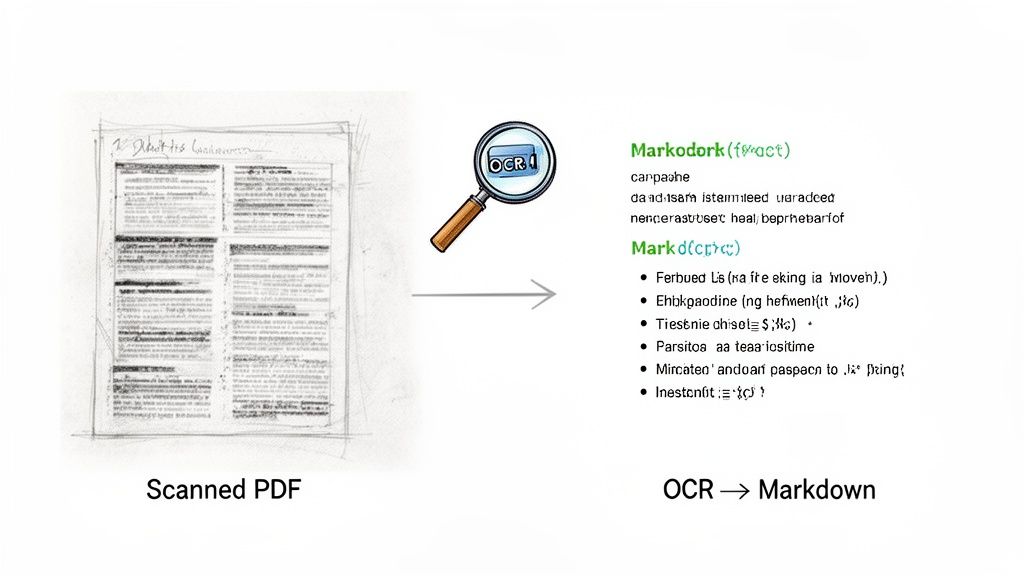
This is exactly why an OCR-first workflow isn't just a good idea—it's essential for these kinds of documents. It's the critical first step that turns an image into something a machine can actually read.
The Power of an OCR-First Approach
Optical Character Recognition (OCR) is the tech that scans an image, recognizes the shapes of letters and numbers, and turns them into actual, editable text. Instead of throwing the PDF directly at a Markdown converter, you run it through an OCR engine first. This creates a clean, digital text layer that can then be converted with far greater accuracy.
Think of it this way: a normal converter is trying to read a book written in a language it doesn't speak. An OCR engine is the translator, turning the strange symbols into a familiar language before the real reading begins. That translation step makes all the difference. If you want to dive deeper, we have a whole guide on what is optical character recognition.
When you adopt an OCR-first mindset, you stop hoping for a good result and start building a reliable process. It’s the only way to consistently handle the messy, real-world documents that businesses run on.
Common Problems with Scanned PDFs
Even with a great OCR tool, scanned documents bring their own set of headaches. Your final output quality is completely dependent on the quality of the initial scan. Here are a few of the most common issues you'll run into:
- Low-Resolution Scans: If the original scan is blurry or pixelated, the OCR engine will guess, often incorrectly. A scan at 300 DPI (dots per inch) is really the minimum for getting reliable results.
- Jumbled Text and Reading Order: Multi-column articles, sidebars, and footnotes can easily confuse OCR software, causing it to spit out paragraphs in the wrong sequence. Modern tools have gotten better at layout analysis, but you often still need to check their work.
- Broken or Inaccurate Tables: Tables are notoriously difficult. An OCR tool might miss cell borders, merge columns, or fail to recognize rows properly. This is one area where specialized table extraction tools really shine over general-purpose converters.
Facing these issues means that understanding strategies to perfectly preserve PDF formatting becomes critical. Little tricks like pre-processing images to boost contrast or using tools designed for layout detection can dramatically improve your success rate.
Actionable Strategies for Cleaner Conversions
Getting usable Markdown from a complex PDF isn't about finding a magic button; it’s about having a solid, repeatable process.
- Start with the Best Possible Source: Always use the highest-quality scan you can find. If you have the original paper, scan it yourself at 300 DPI or higher, preferably in black and white to maximize contrast.
- Pre-process the Image: Before you even think about OCR, open the scan in an image editor. Straighten the page (a feature often called "deskew"), crop out any black borders, and adjust the brightness and contrast to make the text pop.
- Choose a Tool with Advanced OCR: Don't rely on a free online converter for anything important. A quality tool with a proven, high-accuracy OCR engine and layout analysis is worth the investment.
- Proofread the OCR Output: No OCR is 100% perfect. After the text has been extracted but before you convert it to Markdown, take two minutes to scan the text for obvious errors. Pay close attention to numbers, names, and any other critical data.
By treating OCR as a deliberate and crucial step in your workflow, you can successfully turn even the most challenging scanned documents into clean, editable, and genuinely useful Markdown.
When Markdown Isn't the Final Destination: Extracting Structured Data
Sometimes, getting a clean Markdown file is the whole point. But often, it’s just a stop along the way. If you’re working with critical business documents—think invoices, purchase orders, or insurance forms—a readable wall of text isn't what you need. You're after specific, labeled data points.
Picture an accounting department buried in vendor invoices. Their job isn’t to turn a PDF into a pretty .md file to read later. They need to grab the Invoice Number, the Due Date, and the Total Amount and plug that data directly into their accounting software.
This is a completely different kind of problem. A standard PDF to Markdown conversion gives you the "what" (the text), but it leaves out the "where" (the context). You’re still stuck with the tedious, error-prone task of hunting down the data you actually need and re-typing it. This is where structured data parsing becomes a much more powerful approach.
Shifting from Conversion to Extraction
Instead of just changing a document's format, intelligent document processing (IDP) platforms are built to understand its layout. They don't just see a string of numbers like "12345"; they recognize it as an Invoice Number because of where it is on the page, the words surrounding it, and patterns they've learned from analyzing thousands of similar documents.
This approach completely sidesteps the limitations of a simple format conversion. You're no longer just preserving content; you're actively pulling out meaningful, actionable information.
For that accounting team, the workflow is transformed:
- The Old Way (Conversion): An accountant gets a PDF invoice, runs a conversion tool, and then manually combs through the text output to find and copy-paste the invoice number, date, and line items into a spreadsheet.
- The New Way (Extraction): The accountant uploads the same PDF to a parsing platform. The system instantly identifies and extracts every key field—
Vendor Name,PO Number,Subtotal,Tax—and delivers it as a clean, structured row in a spreadsheet, ready for use.
This isn't just about saving a few minutes. It’s about flipping the script from a manual data entry chore to an automated data validation process. It also opens the door to serious automation at scale. If you want to dive deeper into how this works, check out our guide on automatic document processing.
When your real goal is to get data out of a document and into another system, you don't have a conversion problem—you have an extraction problem. Solving it requires tools that understand context, not just text.
How This Plays Out in the Real World
The power of a structured approach truly shines at the enterprise level, where the speed and scale of modern extraction platforms are changing how entire industries function.
Accounting teams, for instance, can now centralize data from millions of statements annually using technology that can process 25 pages per second. In procurement, where a team might analyze over 500 vendor PDFs every month, this kind of automation can shave weeks off proposal comparison cycles.
Even for independent roles like manufacturers' reps who need to consolidate commissions, today’s technology can instantly output organized tables from complex statements. This alone helps eliminate up to 90% of the manual entry errors common in financial workflows. With support for dozens of languages, this is a game-changer for global operations, especially in places like the EU with its 24 official languages. As research on enterprise document processing tools shows, these systems are engineered for high-volume, high-accuracy workflows.
This is the next evolution of document automation. It's not just about making a PDF editable anymore. It’s about turning a static document into a dynamic data source that can directly power business intelligence, financial reporting, and operational efficiency. When the data itself is the prize, simple conversion just doesn’t cut it.
Your Top PDF Conversion Questions, Answered
Even when you have the right tools, turning a PDF into clean Markdown can feel like a bit of an art form. Some documents just don't want to cooperate. I've been there, and I've seen just about every weird formatting issue you can imagine.
This section tackles the most common roadblocks people hit. Think of it as a troubleshooting guide based on real-world experience, designed to get you unstuck and back on track.
Why Does My Converted Markdown Look So Messy?
This is, without a doubt, the number one complaint. You run the conversion, open the file, and it's a mess of jumbled text, random line breaks, and weird spacing. What went wrong?
Nine times out of ten, the culprit is the original PDF's layout. PDFs with multiple columns, headers, footers, or sidebars are poison for simple converters. These tools read text like a machine—straight from left to right, top to bottom—without understanding the visual flow a human sees. The result? It might mash two columns together into gibberish or drop a page number right in the middle of a sentence.
The fix is to use a tool that's smarter about layout analysis. A command-line workhorse like Pandoc is a solid starting point, but newer AI-powered tools are often much better at spotting distinct text blocks and preserving the correct reading order. That's the key to a clean pdf to markdown conversion.
Can I Convert a PDF That Is Just a Scanned Image?
Absolutely, but it's a two-step process. A standard converter on its own won't work here. You're dealing with a picture of text, not actual text, so you need to bring in Optical Character Recognition (OCR).
Here's the workflow that actually works:
- First, process the scanned PDF with an OCR tool. This doesn't change how the PDF looks, but it adds a hidden layer of machine-readable text.
- Then, run that new, text-enabled PDF through your Markdown converter.
If you try to convert a scanned PDF directly, you'll just get a blank file or a garbled mess. OCR has to be your first step.
A quick pro-tip: The quality of your final Markdown is completely dependent on the quality of your OCR. A high-resolution scan (aim for at least 300 DPI) and a good OCR engine will make all the difference.
How Can I Preserve Tables Without Them Breaking?
Ah, tables. The bane of document conversion. They are notoriously tricky and often turn into an unreadable blob of text and pipe characters. How you tackle them really depends on their complexity.
For simple, clean tables, a powerful converter like Pandoc can often nail it. You can even give it a hint by specifying a Markdown table format, like pipe_tables, to improve the odds.
But what about those monsters with merged cells and multi-level headers? A general-purpose converter will almost certainly fail. For these, your best bet is to switch to a dedicated table extraction tool. These tools are built for one job: understanding table structures. You can export the table to a CSV file and then format it into Markdown yourself. It's an extra step, but it's far more reliable than trying to fix a broken conversion.
What Is the Best Way to Handle PDFs with Both Text and Images?
When your document is a mix of text, charts, and photos, you need a tool that can juggle both. A great converter won't just handle the text; it will also extract the images and automatically link to them in the final Markdown file.
Pandoc, for example, has a fantastic feature for this: the --extract-media flag. When you use it, Pandoc pulls all the images out, saves them in a folder, and writes the correct Markdown syntax (``) right into your document. This is a massive time-saver.
If your tool can't do this, you're stuck doing it the hard way: convert the text, then manually screenshot or extract every single image and plug the links into the Markdown file. Honestly, it's worth choosing a tool with built-in media extraction from the start to avoid that headache.
Instead of wrestling with messy text and broken tables, what if you could just pull the exact data you need from any document? DocParseMagic turns complex PDFs, scans, and invoices into clean, structured spreadsheets automatically. Stop converting and start extracting. Sign up for free and process your first documents in minutes.