Pdf to csv: Turn PDFs into CSV in Minutes
Let's be honest, staring at a mountain of PDF invoices or reports feels like a universal bottleneck. We've all been there—the mind-numbing task of copy-pasting data into a spreadsheet. It’s not just slow; it’s a massive drain on resources and a perfect recipe for costly mistakes. Switching from PDF to CSV with the right tools can completely automate this process, turning those static documents into clean, usable data in minutes.
The Hidden Costs of Manual Data Entry from PDFs
Moving data from a PDF to a spreadsheet seems simple enough on the surface, but the true cost is often buried in lost productivity and operational headaches. For teams in accounting, procurement, and operations, manual data entry is more than an annoyance—it's a roadblock that directly hits the bottom line. It's the silent productivity killer we've all been trained to accept as a necessary chore.
Picture an accounting clerk retyping hundreds of line items from vendor invoices. Every single keystroke is a new opportunity for error. A misplaced decimal point or a mistyped invoice number can throw off an entire quarterly reconciliation. These aren't just small slip-ups; they are real business risks that can take hours of detective work to fix.
Wasted Hours and Delayed Decisions
The sheer amount of time wasted is staggering. I've seen analysts spend two full days just transcribing figures from a 100-page market research PDF, holding up the critical insights everyone is waiting for. That’s time that should be spent on actual analysis and strategy, not on low-value, repetitive work. The delay creates a ripple effect, impacting everything from financial forecasts to inventory management.
In finance, for instance, where teams handle thousands of invoices every month, automating PDF to CSV conversion isn't a luxury—it's essential. It can cut down manual data entry time by up to 90%. Modern tools can hit over 98% accuracy, transforming messy invoice PDFs into perfectly structured CSV files—complete with line items, dates, and totals—in minutes, not hours. A 50-page market analysis report can be converted and ready for review the same day, leading to much faster and better-informed decisions. If you're curious, you can learn more about how modern OCR tools achieve this.
The real cost of manual data entry isn't just the salary you pay someone to type. It’s the cost of the errors they make, the opportunities you miss while waiting for the data, and the burnout that comes from such mind-numbing work.
The Problem with Inconsistent Data
Manual entry is also a nightmare for data consistency. One person might abbreviate a vendor's name, while another types it out in full. This kind of inconsistency makes aggregating and analyzing the data almost impossible without a massive cleanup effort first.
An automated solution, on the other hand, pulls the data the same way, every single time. It creates a reliable, standardized foundation for whatever you need to do next. Once you really look at these pain points, the need for a better system becomes crystal clear.
A Practical Look at Your PDF to CSV Conversion Workflow
Let’s get our hands dirty and walk through what a smart PDF to CSV conversion process actually looks like. Forget just switching a file format; we're talking about teaching a system to read and understand your specific documents. This turns a static PDF—whether it's a pristine digital invoice or a blurry photo of a receipt—into clean, usable data.
It all starts with a simple upload. Once your document is in the system, the real work begins. The software isn't just seeing a jumble of words and numbers; it's actively scanning for patterns, looking for headers, footers, and, most importantly, tables.
Before we jump into the steps, it’s helpful to understand the core mechanics behind it all. This practical guide on how to extract data from PDF files gives a great overview of the technology that makes this possible.
From Raw Document to Mapped Fields
With the document uploaded, the most crucial step is field mapping. This is where you point the software to the exact pieces of information you need. You're not just grabbing random text; you're creating a reusable template for that specific document layout.
Think about it like this: if you’re an accountant processing invoices from a regular supplier, you only need to do this once. You’d literally draw a box around the invoice number and tell the system, "This is the InvoiceID." You'd repeat this for the DueDate, VendorName, and the final TotalAmount.
This same logic applies everywhere:
- Insurance Teams: Map fields for PolicyholderName, PolicyNumber, EffectiveDate, and PremiumAmount from piles of declaration pages.
- Procurement Specialists: Extract SKU, ItemDescription, Quantity, and UnitPrice from hundreds of different vendor catalogs.
You're essentially creating a custom "lens" that the tool will use to view every similar document from now on. It’s a one-time setup for ongoing accuracy.
The alternative—manual data entry—is a huge drain on resources. This chart breaks down just how quickly the costs of typing and fixing human errors add up.
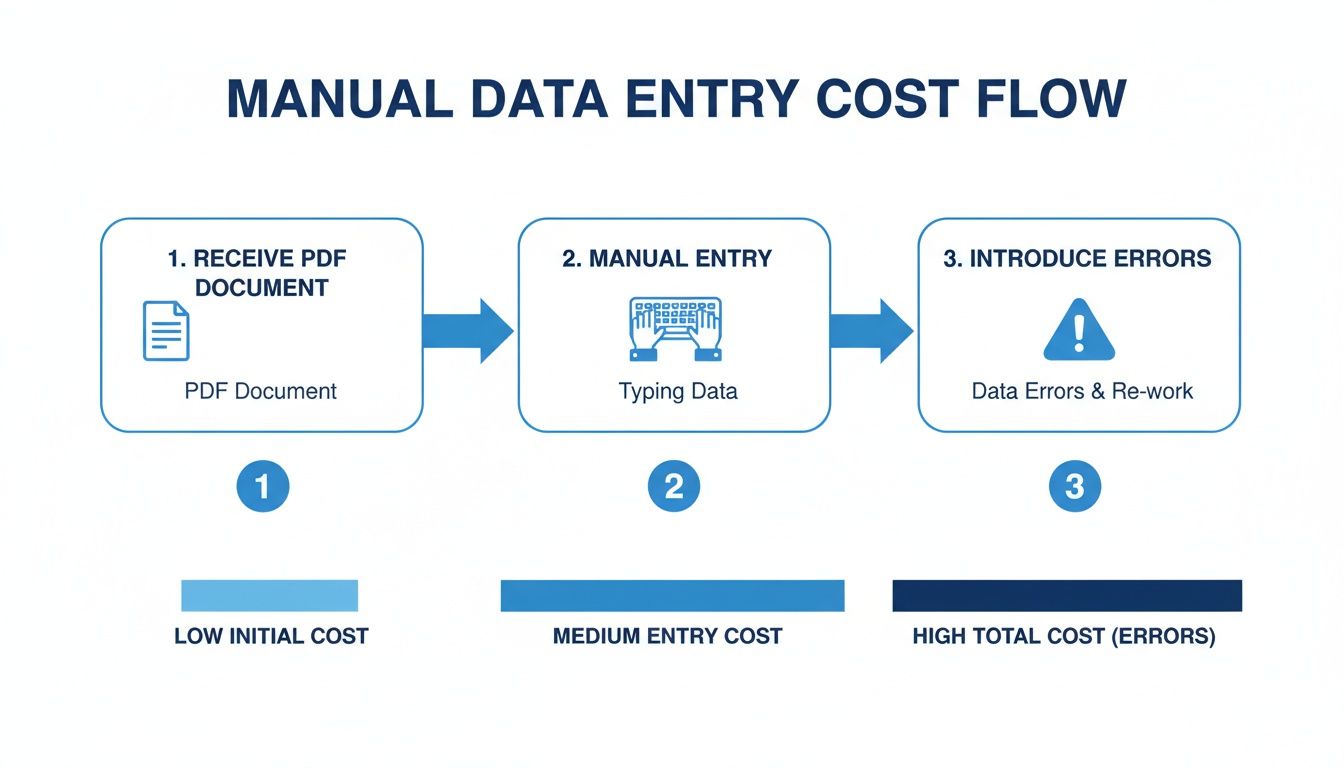
As you can see, every manual touchpoint introduces friction and the potential for costly mistakes, compounding the total expense.
The table below summarizes the key stages involved in an intelligent conversion workflow, showing how each step contributes to the final data quality.
Key Stages of Intelligent PDF to CSV Conversion
| Stage | What It Does | Why It Matters for Your Data Quality |
|---|---|---|
| Document Upload | Ingests native PDFs, scanned images, and photos. | Handles diverse document sources without pre-processing, from crisp invoices to phone pictures of receipts. |
| OCR & Text Recognition | Converts images of text into machine-readable characters. | Ensures that data from scanned or photographed documents is accurately captured for extraction. |
| Table & Field Detection | Automatically identifies the document's structure, including tables and key-value pairs. | Lays the groundwork for targeted extraction, saving you from manually defining every single boundary. |
| Field Mapping & Rules | You define which specific data points to extract and how to format them. | This is where you gain control, ensuring consistency (e.g., all dates are YYYY-MM-DD) and relevance. |
| Data Validation | Allows for a final human review to catch exceptions or confirm accuracy before export. | Acts as a final quality-control check, catching any outliers before they enter your systems. |
| CSV Export | Generates a clean, structured CSV file with your mapped data in neatly organized columns. | The final output is analysis-ready, perfectly formatted for Excel, databases, or business intelligence tools. |
Each of these stages builds on the last, systematically turning a chaotic document into a perfectly organized dataset.
Setting Up Your Extraction Rules
Intelligent data extraction is more than just pointing and clicking. The real power comes from setting up rules to clean and format the data as it’s pulled. This is how you guarantee the output fits your exact needs.
For instance, dates are a classic problem. They show up in all kinds of formats: "Jan 5, 2024," "01/05/2024," or "2024-01-05." Instead of fixing this mess in your spreadsheet later, you can create a rule to automatically standardize every date into a single format, like YYYY-MM-DD.
Pro Tip: When you're mapping data inside a table (like line items on an invoice), don't just grab the text. Define the columns. Tell the tool, "This first column is the Product, the second is Quantity, and the third is Price." This step ensures your final CSV has perfectly labeled columns, ready to go.
A few minutes spent on this initial setup can save your team hundreds of hours in the long run. You're not just converting a file; you're building a reliable data pipeline.
Dealing with Scanned Documents and Tricky Tables
So far, we've been talking about the easy stuff—clean, digitally-born PDFs. But let's be real, the world runs on messy documents. What do you do with a stack of scanned shipping manifests or a financial report with a table that sprawls across five pages? This is where basic converters give up, but the right tools can work some serious magic.
When you're looking at a scanned document, you're essentially looking at a picture. You can't just copy and paste the text. This is where software optical character recognition (OCR) comes into play. Think of it as a digital eye that reads the image, recognizes the letters and numbers, and turns them into actual text you can work with. If you want to get into the nitty-gritty, we have a whole guide on what Optical Character Recognition is.
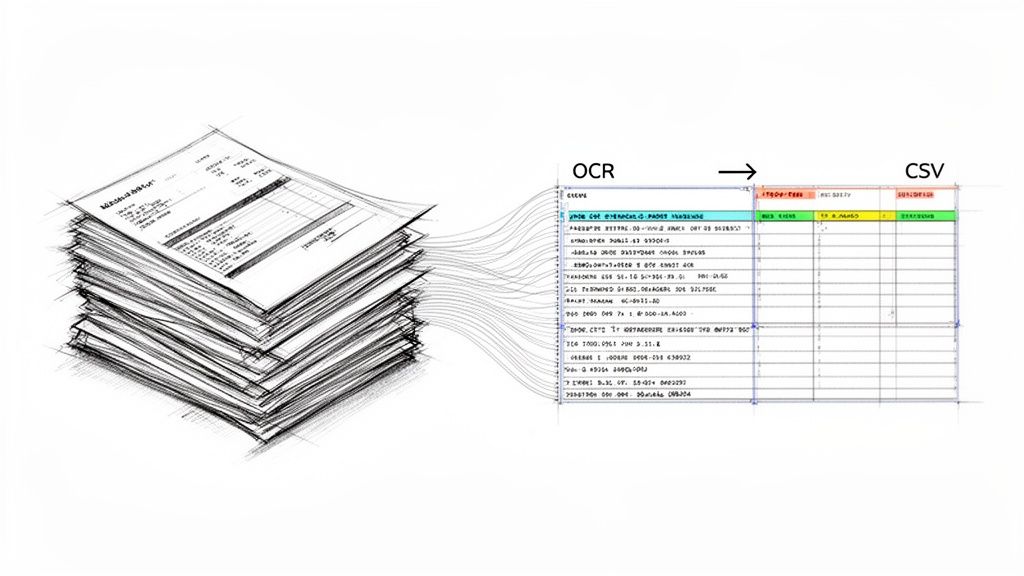
For industries like healthcare and logistics that are drowning in paperwork, this is a lifesaver. Modern OCR can hit accuracy rates over 98%, which helps slash data entry errors by as much as 85%. I've seen logistics firms that process 10,000 PDF manifests a month cut their data handling time from a full workweek (40 hours) down to just four. That’s a huge win.
Taming Tables That Span Multiple Pages
Another all-too-common headache is the multi-page table. You know the one—the headers are on page one, and the data continues for pages, forcing you to constantly flip back and forth. Trying to piece that together by hand is a recipe for mistakes and a whole lot of frustration.
This is another area where intelligent pdf to csv tools really prove their worth. They’re built to recognize that a table hasn't ended just because the page has. The software can see the repeating pattern, follow it to the next page, and automatically stitch all the pieces together into one coherent table in your final CSV. It even applies the original headers to all the rows, no matter what page they came from.
Pro Tip: The secret to great OCR is a great scan. Garbage in, garbage out. For the best results, make sure your document is flat, evenly lit with no weird shadows, and photographed straight-on to prevent skewing. A clean source image makes all the difference.
This intelligent stitching feature is a massive time-saver. It means a procurement manager can pull all the pricing data from a 20-page vendor catalog without a single copy-paste command. The tool handles the tedious work, leaving you with a clean, complete dataset ready for analysis.
Ensuring Your Data Is Clean and Accurate
Getting data out of a PDF is a huge win, but let's be honest, the job isn't done yet. The real value comes from trusting that data is 100% correct before you pump it into your financial systems or analytics dashboards. This is where data validation becomes your most important quality control step in the pdf to csv process.
Even the best tools can sometimes get it wrong, especially with messy or low-quality scans. A quick manual spot-check is your best first line of defense. And don't worry—this doesn't have to be a painful, line-by-line review. A targeted approach works much better.
Creating Your Simple Validation Checklist
Think of this as your quick, final audit. I always recommend pulling up the original PDF and your new CSV file side-by-side. Your only goal here is to hunt for the common, sneaky errors that can easily slip through.
Focus your attention on these high-risk areas first:
- Lookalikes: Scan for those classic OCR mistakes. You know the ones—is a ‘0’ showing up as the letter ‘O’? Is the number ‘1’ masquerading as a lowercase ‘l’? These are incredibly common and will wreck your calculations.
- Merged Columns: Take a close look at columns that were tightly spaced on the original PDF, like 'Quantity' and 'Unit Price'. Did they get accidentally smooshed into a single column in your CSV? It happens all the time.
- Row and Column Totals: This is a big one. Don’t just trust the extracted grand total. Do a quick sum on the line-item totals in your CSV yourself. Does your math match the total printed on the PDF? This simple check is the fastest way to flag numerical errors.
After extraction, your data is just raw material. Validation is the refinement process that turns it into a finished, reliable product. Without it, you're building business decisions on a shaky foundation.
Using Built-in Validation Rules
Beyond a quick manual check, most modern tools have built-in validation features that can automate a lot of this for you. These are incredibly powerful for ensuring consistency, especially when you're drowning in hundreds of documents.
You can set up rules that act as an automated safety net. For instance, you could configure a rule that flags any row where the 'Invoice Date' field is empty or contains text that isn't a valid date format. For accounting teams, a rule that checks the math—like Quantity * Unit Price = Line Total—is a lifesaver. It instantly highlights any rows where the numbers just don't add up.
Ultimately, cleaning and structuring data is just part of the game. For anyone who lives in spreadsheets, understanding the fundamentals of data parsing in Excel can make this whole validation step much faster. A good mix of automated rules and smart, targeted manual checks gives you a repeatable workflow that ensures every CSV you generate is audit-ready and completely trustworthy.
Putting Your Workflow on Autopilot with Batch Processing
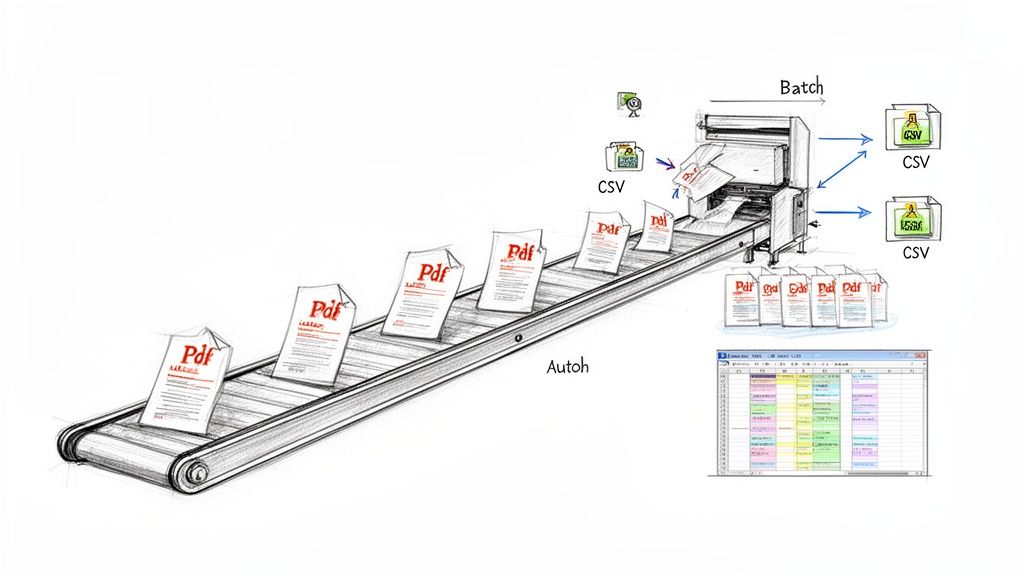
Getting one PDF converted into a clean CSV is a good feeling. But the real "aha!" moment comes when you realize you can do hundreds or even thousands at once. That's where batch processing completely changes the game.
Think about the manual alternative. Opening file after file, extracting the data, and copy-pasting it is a soul-crushing, week-long task. Batch processing turns that entire nightmare into a few minutes of work.
For example, I've seen finance teams at month-end buried under a digital mountain of vendor invoices. Instead of tackling them one by one, they can now just drag and drop the entire folder into the system. The tool applies the same rules to every single file and spits out one master CSV, ready for their accounting software.
From Batching to True Automation
Batch processing is a massive leap in efficiency, but you can push it even further. The next logical step is full workflow automation—creating a hands-off process where your tools talk to each other without you being the middleman.
This is about building a data pipeline. A new email with a PDF attachment can kick off the entire process automatically. The data gets pulled, checked for errors, and then sent right where it needs to go. No one has to lift a finger. This is what turns a neat utility into a core part of your business operations.
Here’s what this looks like in the real world:
- For Accountants: A vendor invoice lands in a dedicated inbox. The system grabs it, extracts the vendor name, amount, and due date, and automatically creates a new bill in a tool like QuickBooks Online.
- For Sales Teams: Partner lead reports arrive as PDFs. The system processes them and uses the contact info to create or update leads directly in Salesforce.
- For Marketers: Weekly performance reports are converted, and the key metrics are instantly pushed to a shared Google Sheet for the whole team to see.
The point of automation isn't just to save a few hours on data entry. It's about building a reliable, error-proof system that lets your team stop copying and pasting and start thinking strategically.
Why a Connected System Is So Powerful
When your systems are connected, you eliminate the constant stop-and-start of manual work. Data flows smoothly from one place to the next, which means information is available almost instantly. Decisions get made faster, and you virtually eliminate the risk of someone fat-fingering a crucial number.
Ultimately, this is the real goal of converting PDFs to CSVs. It's not about the file format; it's about fundamentally improving how your business gets work done.
If you’re ready to build these kinds of self-running workflows, the next thing to explore is the world of automatic document processing. It lays the groundwork for creating systems that truly run themselves.
Where PDF to CSV Conversion Really Shines
Okay, so we've covered the "how." Now let's get to the "why." The real magic isn't just about changing a file from one format to another; it's about solving painful, time-sucking problems that bog down teams every single day.
When you nail down your PDF to CSV workflow, you’re not just moving data—you’re creating a shortcut to faster, smarter business decisions. Let's look at some real-world examples where this makes a massive difference.
Finance Teams: Taming Month-End Chaos
Ask anyone in finance about their least favorite task, and "month-end close" is likely to top the list. Picture this: you’ve got a pile of PDF bank and credit card statements from a dozen different institutions, and your job is to get all that transaction data into your accounting software.
The old way? Hours—or even days—of soul-crushing copy-pasting. The new way? You batch-process the whole lot. The tool pulls the transaction dates, descriptions, and amounts from every single statement and lines it all up in one clean CSV file. That file is now ready to be uploaded directly into your accounting system. Tax prep, expense analysis, and reconciliation suddenly become much, much faster.
Procurement and Sales: From Clunky PDFs to Clear Comparisons
In procurement, getting a clear side-by-side comparison of vendor quotes is crucial. The problem is, every vendor sends their proposal as a PDF with a unique layout. Trying to manually build a spreadsheet to compare line-item pricing is a recipe for mistakes.
Instead, you can set up a system to automatically grab the SKU, item description, and unit price from each proposal PDF. All that data gets organized into a standardized CSV. Now you have a perfect, apples-to-apples view, which means better negotiations and smarter buying.
The same logic applies to sales operations. If you're managing commission reports from multiple partners, you know the headache of dealing with different PDF formats. By creating a specific rule for each partner's report, you can automatically extract salesperson IDs, sales volume, and commission figures. Everything flows into a single master CSV, making payroll accurate and on time, without the manual grind.
Putting Numbers on the Impact
This isn't just about convenience; it's about a serious return on investment.
When it comes to processing bank statements, a solid PDF to CSV workflow can speed up imports into budgeting tools by up to 95%. Think about that. One study found that turning uneditable bank statements into structured data slashes manual entry time by 80-90%.
And the scale is enormous. Globally, banks issue something like 50 billion statements every year, and a whopping 70% of those are PDFs. The potential time savings are staggering. Accountants who’ve adopted these tools often report cutting their reconciliation time in half for platforms like QuickBooks. You can dig deeper into the benefits of converting bank statements to see just how big the impact can be.
Ultimately, this is all about turning locked-down documents into living, breathing data you can actually use. Whether it's for financial reconciliation or vendor analysis, the goal is to transform a painful manual task into an automated workflow that frees your team up for more important, strategic work.
Got Questions About PDF to CSV Conversion? We've Got Answers.
Even with the best tools, you're bound to run into a few questions when you start pulling data out of PDFs. It's totally normal. Getting these sorted out early on will make your transition from manual data entry to a smoother, automated workflow much easier.
Let's dive into some of the things people ask me about all the time.
What About PDFs with Multiple Tables on One Page?
This is a classic one. You’ve got a summary report or a complex invoice, and it has two, three, or even more tables all sitting on the same page. Can a tool handle that?
Yes, absolutely. This is where a good data extraction tool really shines. Modern platforms are designed to spot each individual table automatically. You then get the choice: do you want to export each table as its own separate CSV, or would you rather merge all that data into one master spreadsheet? It’s a lifesaver for things like financial reports or dense product catalogs.
Simple Converters vs. Intelligent Data Extraction
People often wonder what the real difference is between a free online converter and a more advanced, intelligent tool. The difference is night and day, and it's crucial to understand.
Your basic, free converters are pretty blunt instruments. They essentially "dump" all the text from the PDF into a CSV file. The result is often a chaotic jumble of data in a single column that you have to spend hours cleaning up just to make sense of it.
An intelligent platform is different. It doesn't just see text; it understands the document's structure. It uses AI to pinpoint the exact data you need—like an Invoice Number, the Total Amount, or specific line items—and places each piece of information into its own clean, labeled column. You get data that's ready for analysis right out of the gate.
When you're dealing with invoices, bank statements, or contracts, security isn't just a feature—it's everything. Make sure any tool you use has enterprise-grade encryption for your data, both when it's being uploaded and when it's stored. Always look for a provider that is upfront about their security measures.
Top-tier services also have strict privacy policies to ensure your sensitive business data stays protected. This is a non-negotiable, especially in accounting and finance, so it should be a major factor when you're choosing a platform.
Ready to stop copy-pasting and start getting real work done? DocParseMagic can turn those stacks of PDFs into clean, organized spreadsheets in minutes. Give it a try for free and see the difference for yourself.