OCR Software Mac OS X: A Guide for Business Workflows
You’re probably looking at a folder full of PDFs right now. Some are invoices from vendors. Some are bank or commission statements. A few are scanned documents that nobody can copy from. You need the numbers in Excel, but the only obvious path is opening each file, highlighting text that may or may not be selectable, and typing the important bits by hand.
That’s the moment when ocr software mac os x starts to matter.
For finance teams, OCR isn’t about fancy tech. It’s about whether your Mac can turn a static document into something useful. Can it pull text from a scanned invoice? Can it make a contract searchable? Can it read a statement well enough that someone doesn’t have to key everything in again? And the harder question is this: can it do more than read?
If you’ve ever wondered why one tool feels fine for grabbing a phone number from a screenshot while another is built for invoices, tables, and audit work, the answer is workflow. Different OCR tools act like different kinds of assistants. One is quick and convenient. One is meticulous and private. One is built for scale.
Your Mac Can Read But Can It Understand Your Documents
A finance manager gets an emailed invoice as a PDF. It looks digital, but the text won’t highlight. Another vendor sends a phone photo of a receipt. A third sends a scanned statement with crooked columns and faint totals. By noon, that finance manager has opened six files, copied partial text from two, typed data from three, and given up on one.
That’s a normal day in many teams.
OCR, or optical character recognition, solves the first layer of that problem. It lets your Mac look at a page as an image and turn what it sees into text you can search, copy, or export. If you want a quick primer focused on PDFs, this explanation of what OCR in PDF documents means is a useful starting point.
But readers often get tripped up here. They hear “OCR” and assume all tools do the same job. They don’t.
A simple Mac tool might be perfect when you need to grab a tracking number from a screenshot. The same tool may struggle when your accounting team needs line items from supplier invoices. A desktop OCR app may handle scanned statements well, but still leave you with a page full of text that someone must organize manually.
OCR answers, “What words are on this page?” Your workflow usually needs a second answer: “Which of these words belong in which business field?”
That distinction matters in accounting, procurement, insurance, and operations. If your documents are mostly for reading, searching, and reference, one kind of OCR may be enough. If your documents drive spreadsheets, reconciliations, approvals, or comparisons, your choice has bigger consequences.
From Image Pixels to Editable Text
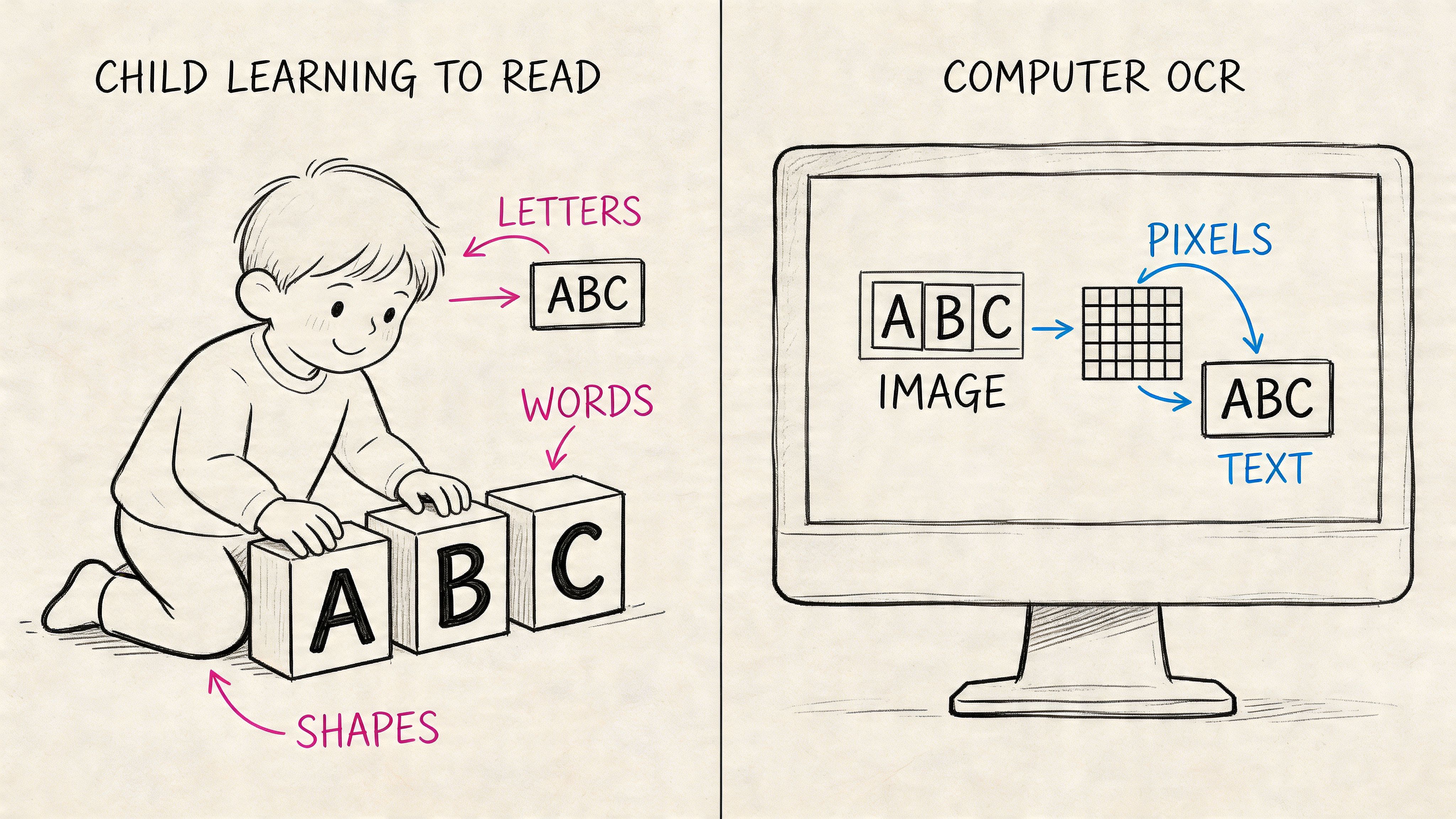
OCR sounds technical, but the basic idea is simple. Your Mac starts with a picture of a document. It might be a scanned PDF, a JPG from a phone, or a screenshot. OCR software studies the image and tries to identify letters, numbers, words, and layout.
It's comparable to teaching a child to read. At first, the child sees shapes. Then the child learns that one shape is an A, another is a 7, another is a dollar sign. After that comes pattern recognition. Words, lines, and familiar formats start to make sense.
What happens under the hood
Most OCR on macOS follows a sequence like this:
-
Image capture
The software receives a file. If it’s a scan, the page is basically a photograph. -
Clean-up
The app straightens the page, improves contrast, reduces shadows, and separates text from background noise. -
Character recognition
It compares patterns in the image against known letters and numbers. Modern tools also use more advanced models to identify words in context. -
Text output
The result becomes selectable text, a searchable PDF, or content exported into another format.
If you want to see how this applies to pictures and scans specifically, this guide on extracting data from image files makes the process concrete.
Why modern OCR feels much better than old OCR
OCR is not new. A key milestone came on December 31, 1935, when U.S. patent 2,026,329 was granted to Gustav Tauschek for a “reading machine.” In 1974, Ray Kurzweil’s omni-font OCR system pushed the field forward and achieved up to 99% accuracy, helping pave the way for the document recognition used in modern Mac apps for invoices and statements, as described in the history of OCR from Veryfi.
That history matters because it explains why today’s tools feel practical instead of experimental. Modern OCR has had decades to improve. On a Mac, that means software can often cope with skewed scans, mixed fonts, and business documents that aren’t perfectly clean.
Where users usually get confused
People often expect OCR to “understand” a page because it can read it. That’s not always true.
A Mac app might correctly detect these words from an invoice:
- Vendor name
- Invoice number
- Date
- Subtotal
- Tax
- Total
But reading those words doesn’t automatically mean the software knows which value belongs to each label. OCR can turn pixels into text. Whether it can turn text into structured business data is a different question.
Practical rule: If your goal is to search, highlight, or copy text, basic OCR is often enough. If your goal is to update a spreadsheet or accounting workflow, you usually need more than OCR alone.
Comparing Your Three Mac OCR Options
When people search for ocr software mac os x, they usually find a mixed bag of apps, built-in features, and online tools. It helps to separate them into three groups because each one fits a different workflow.
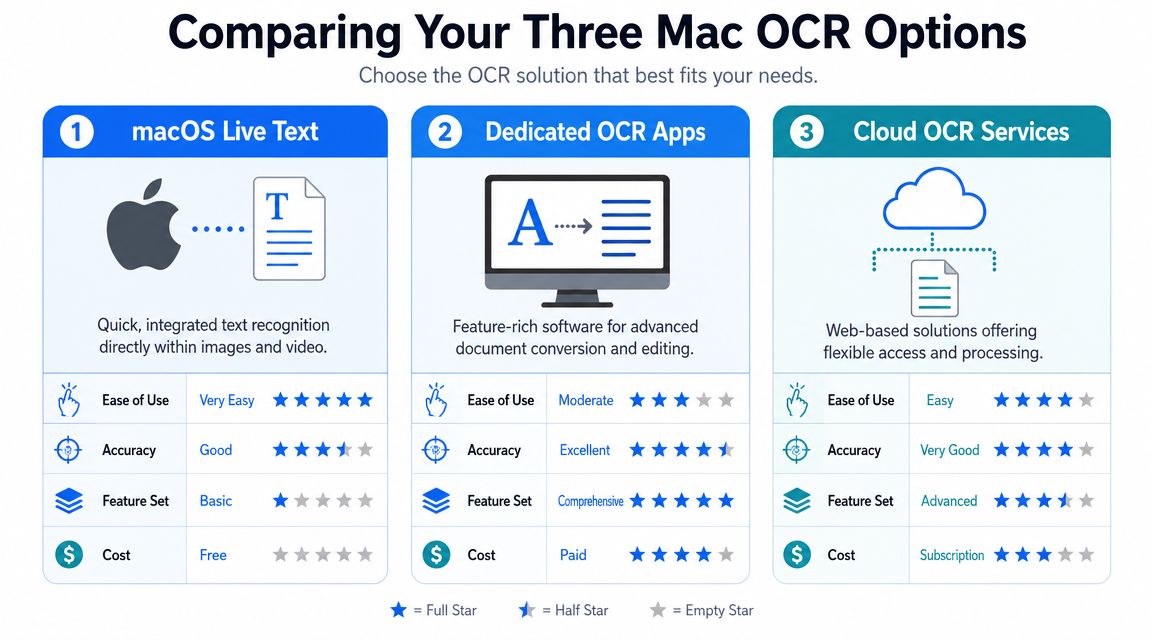
Option one is built into macOS
macOS includes handy text recognition features such as Live Text. This is the easiest starting point because it’s already there. You open an image or screenshot, select recognized text, and copy what you need.
This is the OCR equivalent of asking a front-desk assistant for a quick lookup. Fast. Convenient. Good for small tasks.
Use cases include:
- Quick extraction: pulling a phone number, account reference, or tracking ID from a screenshot
- Ad hoc finance tasks: copying one total from a receipt image
- Low-friction access: reading text from photos without installing anything
The limitation is depth. Built-in tools are not designed for heavy document work, long batches, or structured extraction from messy layouts.
Option two is dedicated desktop software
Dedicated OCR apps on Mac are closer to hiring a document specialist. They’re built for scanned PDFs, long files, table-heavy layouts, and offline processing.
A well-known example is ABBYY FineReader PDF for Mac OS X. According to this Mac OCR software comparison from ScreenSnap, dedicated desktop software like ABBYY FineReader PDF can achieve up to 99.8% character recognition accuracy, using advanced AI to analyze document structure, detect tables, and extract fields like invoice numbers and totals from complex layouts with high fidelity.
That matters if your team handles contracts, scanned statements, or invoice packets where formatting must stay intact.
Desktop OCR is usually the best fit when:
- Privacy matters: files should stay on the Mac rather than being uploaded
- Documents are long: multi-page PDFs need batch conversion
- Layout matters: tables, columns, and formatting need careful handling
The trade-off is that these tools can feel heavier. They often cost more, and they take a bit more setup than built-in options.
Option three is cloud OCR services
Cloud OCR services are the operations-friendly option. They’re useful when documents arrive constantly and need to flow into a broader process.
This is like hiring a remote assistant who can work through a queue all day. Instead of opening files one by one on a Mac, you upload or route documents into a web service. Some teams use this for inbox-driven workflows, shared folders, or automated intake from multiple offices.
Cloud services can work well for:
- Distributed teams: several people need access
- Centralized intake: documents arrive from many vendors or brokers
- Repeatable workflows: the goal is less clicking and more throughput
The concern is usually data handling. Finance and insurance teams often need to review where files go, who can access them, and whether an offline option would be safer.
A simple comparison table
| Approach | Best For | Typical Cost | Data Privacy | Key Limitation |
|---|---|---|---|---|
| Built-in macOS tools | Quick text grabs from images and screenshots | Included with macOS | Strong for local use | Limited depth for complex business documents |
| Dedicated OCR apps | Heavy PDF work, searchable archives, layout-sensitive scans | Paid software | Strong because processing can stay local | More setup and a steeper learning curve |
| Cloud OCR services | Shared workflows, recurring intake, operational scale | Subscription or usage-based | Depends on vendor setup | Requires trust in external handling of files |
If you only need occasional extraction from an image and want something lightweight, an Image To Text tool can also be useful for quick experiments before you commit to a broader workflow.
Which category fits which business problem
Here’s a practical approach:
- Choose built-in OCR when the task is occasional and small.
- Choose desktop OCR when your Mac is your main workstation and documents are sensitive or messy.
- Choose cloud OCR when the primary problem is volume, collaboration, or process consistency.
If you’re still comparing names and categories, this roundup of best OCR softwares helps define the range of options.
Don’t ask which OCR tool is “best.” Ask which one removes the most manual work from the specific document path your team repeats every week.
Choosing the Right OCR for Your Business Documents
The best OCR choice usually becomes obvious once you stop looking at features and start looking at document habits.
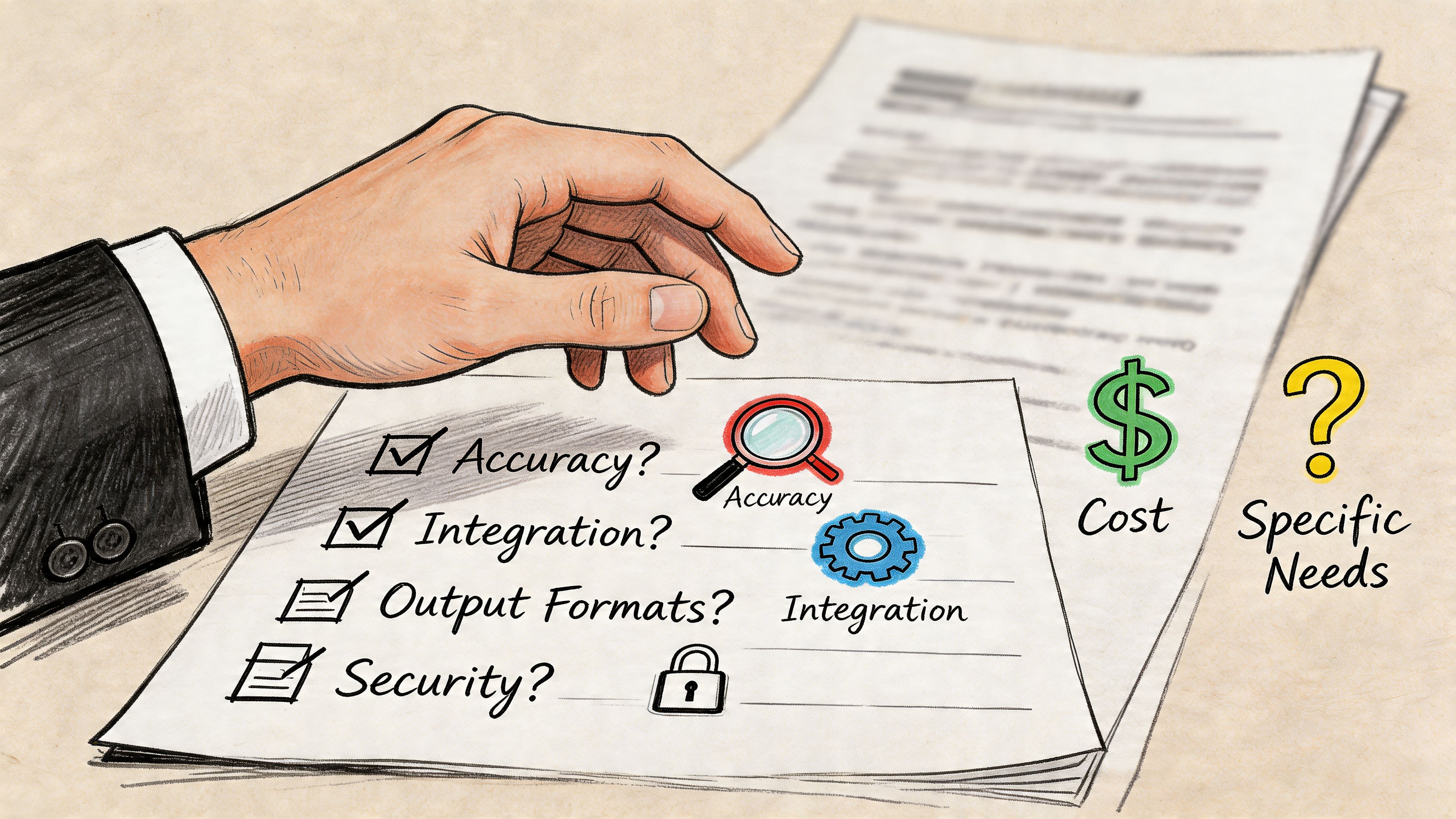
Start with the documents themselves
Ask four practical questions.
-
What do the files look like?
Clean digital PDFs are much easier than crooked phone photos, faded scans, or multi-column statements. -
What do you need out of them?
Sometimes searchable text is enough. Sometimes you need invoice dates, totals, line items, or policy details in separate columns. -
How often does this happen?
A once-a-week task can live with more manual steps. A daily backlog can’t. -
Who touches the files?
If one person works on a Mac locally, desktop OCR may be fine. If several people route documents through a shared process, workflow design matters more.
Match the tool to the risk of mistakes
A common mistake is choosing the lightest tool for the heaviest workflow. That works for a week, then the cleanup starts. Someone catches copied numbers in the wrong column. Someone else notices that the tax amount was read as part of the subtotal line. The team starts “checking everything,” which defeats the point of automation.
The more your team depends on the extracted data for payment, reconciliation, or comparison, the less you should think of OCR as a convenience feature and the more you should treat it like operational infrastructure.
Another useful filter is compliance and internal policy. If documents contain sensitive financial or customer information, ask whether local processing is preferred or required.
Use this short decision checklist
- Need quick copy-paste from images? Built-in Mac features may be enough.
- Need searchable PDFs and editable document conversion? A dedicated OCR app is usually the better fit.
- Need repeated extraction from recurring business documents? You’re moving toward automation, not just OCR.
- Need files to stay local? Favor desktop software.
- Need multiple users or centralized intake? Consider a shared cloud workflow.
A short walkthrough can help you think through those trade-offs in a more visual way:
When OCR Is Not Enough The Need for Document Parsing
OCR gives you text. Business workflows usually need structure.
That’s the missing piece in many Mac OCR discussions. A scanned invoice can become readable and searchable, but your AP process doesn’t run on “readable.” It runs on fields like vendor, invoice number, due date, subtotal, tax, and total. If those values are still buried in a block of extracted text, someone still has to sort them out.
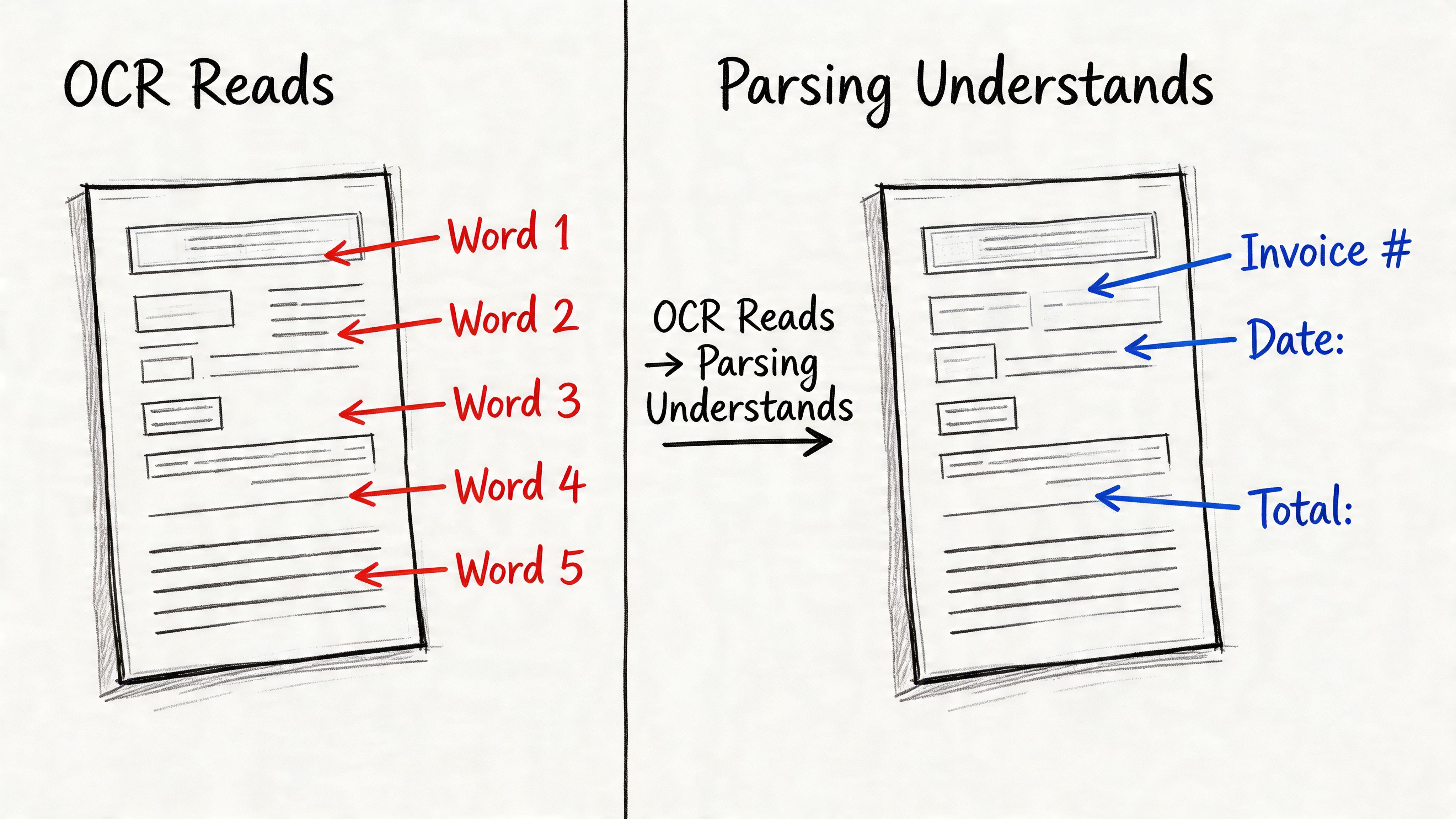
OCR reads the page. Parsing interprets the page.
A useful analogy is this:
- OCR is like a clerk who types everything on a form into a blank document.
- Document parsing is like a trained analyst who puts each value into the right spreadsheet column.
That difference is what turns document handling into automation.
Suppose a page contains:
- Invoice No. 84731
- Invoice Date 04/10
- Total Due 1,250.00
Basic OCR may capture all of that text correctly. But a parser tries to understand that 84731 belongs in the invoice number field, 04/10 is the date, and 1,250.00 is the total. That’s a very different outcome if your team needs analysis-ready output.
Why structure matters at scale
Large institutions have shown what reliable automated extraction can look like. The U.S. Census processed records for 281 million people in 2000 with over 99.5% accuracy using OCR and OMR, according to the Census Bureau’s account of that technology shift. That same source notes that manual workflows can be error-prone, which is exactly why structure matters when businesses process invoices and statements repeatedly.
The lesson for finance teams is simple. At small scale, a wall of text is annoying. At larger scale, it becomes operational drag.
Where NLP starts to matter
As document workflows become more complex, teams often hear related terms such as Natural Language Processing (NLP). It helps to think of NLP as part of the broader effort to work with meaning, not just characters. For business documents, true value emerges when software can connect labels, values, context, and layout.
A searchable PDF is a better file. Structured data is a better workflow.
This is especially true for invoices, policy documents, commission statements, and vendor proposals. Those documents aren’t valuable because they contain words. They’re valuable because they contain decisions, amounts, dates, and comparisons.
An Example Workflow From Messy PDF to Clean Data
A legal assistant and an accounting manager can both say they “need OCR,” but they may need completely different outcomes.
Workflow one is about search and reference
A legal assistant receives a long scanned contract file. The pages are readable to the eye, but nothing is selectable. The immediate need isn’t spreadsheet output. It’s the ability to search names, clauses, and terms without scrolling page by page.
In that case, a dedicated desktop OCR app on a Mac is a strong fit. The assistant runs OCR on the full PDF, creates a searchable version, and now the legal team can find contract language quickly. The document remains a document. It’s just much easier to work with.
That’s a good example of OCR doing exactly what it should do.
Workflow two is about extracting fields for operations
Now take an accounting team receiving vendor invoices in mixed formats. Some arrive as digital PDFs. Others are scans. A few are phone photos. The team doesn’t just need to read them. The team needs vendor name, invoice date, invoice number, and total in one clean sheet for review and upload.
Basic OCR helps only partway. It can make the files readable, but it often leaves the team to copy values into columns manually.
That’s where the workflow changes. Instead of creating better-looking documents, the goal becomes creating usable data. Teams that are also tightening back-office habits often pair this with stronger filing discipline. If receipts are part of your process too, this guide on how to organize receipts for taxes is a useful companion.
If the final destination is Excel, your process should be designed for Excel from the start, not for prettier PDFs in the middle.
The easiest way to decide between these workflows is to ask one question: after OCR finishes, does a person still have to sort the output into rows and columns? If the answer is yes, OCR may be helping, but it isn’t finishing the job.
Common Questions About OCR on macOS
Is cloud OCR safe for finance documents
It can be, but safety depends on the specific service, your internal policies, and how files are handled. Some teams prefer cloud tools for convenience and shared access. Others prefer desktop OCR on Mac so documents stay local. If invoices, statements, or policy files contain sensitive data, review your vendor settings and access controls before adopting a cloud workflow.
Can OCR read handwriting
Sometimes, but expectations should stay realistic. OCR tends to do best with printed text and clearer scans. Messy handwriting, rushed notes, and low-quality photos are harder. For finance teams, typed invoices and statements are usually much more suitable than handwritten forms.
What’s the difference between OCR and document parsing
OCR converts text in an image or scanned PDF into machine-readable text. Document parsing goes further and pulls specific fields into structure. If OCR tells you the page says “Invoice Total 1,250.00,” parsing aims to place 1,250.00 into the Total column automatically.
Do I need a dedicated app if macOS already has text recognition
Not always. If your tasks are small and occasional, built-in tools may be enough. If you regularly handle scans, multi-page PDFs, tables, or audit-sensitive records, dedicated OCR software often gives you better control. If your goal is repeatable extraction into spreadsheets, you may need a parsing workflow instead of basic OCR alone.
What should I do first
Start with one document type that wastes the most time. Not all of them. Pick invoices, statements, or receipts. Test whether you only need searchable text or whether you really need structured output. That single distinction will save you from choosing the wrong category of tool.
If your team is tired of copying values out of invoices, statements, and other messy files by hand, DocParseMagic is built for the next step after OCR. It turns business documents into clean, analysis-ready spreadsheets by extracting the fields that matter, so you can spend less time on copy-paste and more time reviewing the numbers.