Extracting Data from Image: Master the Workflow
Month-end closes tend to expose the same weak point. Someone on the team is still opening scanned PDFs, zooming into blurry totals, copying invoice numbers into Excel, and checking whether the line items made it over correctly.
The work looks small until it piles up. A vendor invoice arrives as a phone photo. A carrier statement comes in as a crooked scan. A proposal includes a table that shifts to page two. Suddenly the problem isn't just reading text. It's finding the right fields, keeping rows aligned, and making sure the extracted data can support accounting, reconciliation, and reporting.
That distinction matters. Extracting data from image isn't the same as copying words off a page. Basic OCR can give you text. Operations teams need structured outputs like invoice dates, policy numbers, premiums, quantities, totals, and line items in the right columns. That's where most cheap tools break.
The Hidden Drain of Manual Data Entry
A finance manager usually doesn't complain about one invoice. They complain about the stack.
It starts with a simple request. Enter the latest vendor bills. Pull the totals from commission statements. Compare submitted pricing from three suppliers. None of those tasks sounds strategic, but each one drags a skilled person into clerical work.
The cost isn't only time. It's interruption. Someone has to stop what they're doing, hunt for the right value, check whether the image is readable, retype it, then verify they didn't transpose a date or total. When a document contains tables, the work gets slower. When the layout changes, it gets risky.
What the backlog looks like
In live operations, the pain usually shows up in a few repeatable ways:
- Month-end pileups: AP teams get through most of the queue, then stall on scanned or inconsistent documents.
- Search fatigue: Staff spend more time locating a line item than reviewing what it means.
- Rework loops: One person keys the data, another checks it, and a third fixes what the first two missed.
- Low-value effort: Experienced employees spend hours on transcription instead of exception handling or analysis.
A lot of teams still treat this as unavoidable overhead. It isn't. It's a workflow problem.
For a deeper look at why this work expands faster than people expect, this post on manual entry lays out the operational drag clearly: https://docparsemagic.com/blog/manual-data-entry
Manual entry rarely fails all at once. It fails through delay, inconsistency, and the constant need to check the checker.
Once you see the pattern, the goal changes. You stop asking, "How do we type this faster?" and start asking, "How do we turn messy files into usable data without hand-keying them at all?"
Preparing Images for Accurate Data Extraction
Most extraction failures happen before OCR starts.
Teams often upload whatever they have and hope the software figures it out. A clean PDF might survive that approach. A faxed proposal, folded invoice, or phone photo usually won't. Image quality is a critical but often underaddressed barrier. Research notes that "when an image is low quality, the details cannot be well-rendered, which poses problems when performing tasks such as extracting small texts or patterns" (Docsumo on image quality issues).
Fix the page before you read the page
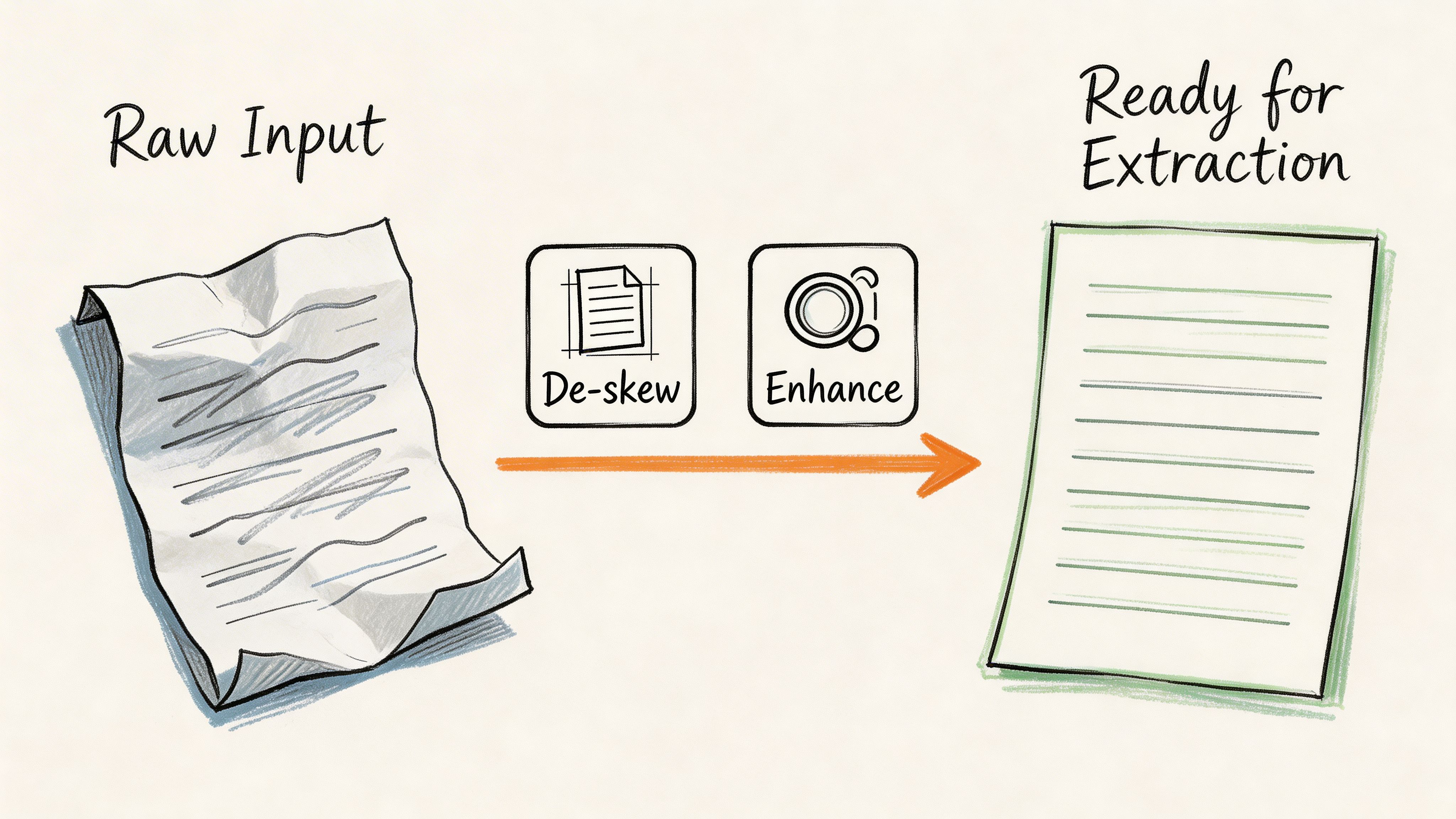
A practical preprocessing workflow usually starts with deskewing, noise reduction, and contrast normalization.
If the page is rotated, table boundaries and text lines stop behaving like rows and columns. If the image has speckles or compression artifacts, OCR engines treat dirt as characters. If the contrast is weak, faint numbers disappear first, which is exactly what causes downstream problems in totals, dates, and reference codes.
The underlying extraction workflow is well established. A research summary describes preprocessing as including artifact removal such as deskewing and noise reduction, normalization for contrast and brightness, and segmentation to isolate regions of interest before feature extraction and OCR (PMC methodology overview).
What to adjust in practice
Use preprocessing selectively. More editing isn't always better.
- Deskew rotated scans: If baselines tilt even slightly, line-level OCR and table parsing become unstable.
- Reduce noise on faxed or copied pages: Speckles and stray marks create false characters and broken fields.
- Increase contrast on faded text: This helps separate characters from gray backgrounds and scanner shadows.
- Crop irrelevant borders: Remove hands, desks, folder edges, and dark margins from mobile photos.
- Segment likely regions: Isolate tables, headers, totals, or signature blocks when the page has many competing elements.
When preprocessing helps and when it hurts
I've seen teams overcorrect images and create new problems. Heavy sharpening can distort characters. Aggressive thresholding can erase punctuation or thin strokes. Cropping too tightly can cut off totals that sit close to page edges.
Use a simple rule:
Practical rule: Preprocess just enough to make the document more legible to a machine, not prettier to a person.
A useful way to think about it is this:
| Document issue | Best first move | Common mistake |
|---|---|---|
| Slight rotation | Deskew the page | Ignoring it because text still looks readable to humans |
| Gray or faded print | Normalize brightness and contrast | Over-thresholding until thin characters vanish |
| Fax artifacts or dust | Light denoising | Smearing letters with aggressive filters |
| Mobile photo with background clutter | Crop and straighten | Feeding the full photo into OCR unchanged |
Why operations teams should care
Preprocessing sounds technical, but it's really a control step.
Accounting teams inherit old scans. Insurance teams receive broker paperwork from multiple channels. Procurement teams compare proposals that were never designed for machine reading. If the input quality varies, the extraction process needs a gate at the front.
Skipping that gate creates a false economy. You save a minute upfront, then spend far longer cleaning broken outputs later.
Choosing Your Optical Character Recognition Engine
Once the page is readable, the next question is simpler than most vendor pitches make it sound. What kind of OCR do you need?
If you're extracting typed text from a clean receipt, almost any decent engine can work. If you're working with mixed layouts, handwriting, tables, stamps, logos, and low-quality scans, engine choice starts to matter fast.
OCR has improved, but not all OCR is equal
The long arc of OCR is useful context because it explains why older tools feel brittle. OCR began much earlier than commonly known. Gustav Tauschek invented an OCR "Reading Machine" in 1929, IBM adopted the OCR terminology in 1959, and later systems improved in stages before deep learning changed the curve. Early Tesseract versions moved from 38% to 63%, then to 71.76% by the third iteration, while deep learning in the 2010s pushed OCR performance to nearly 99% by using CNNs for feature extraction and RNNs for contextual recognition (Docsumo OCR history).
That history matters because many business users still evaluate OCR as if all tools are doing the same thing. They aren't.
Three common OCR options
Here's the comparison I use with operations teams:
| OCR option | Best for | Where it breaks |
|---|---|---|
| Free online OCR tools | Clean, simple pages and one-off tasks | Inconsistent layouts, tables, poor scans, repetitive business workflows |
| Traditional template-based OCR | Stable document formats with fixed geometry | New vendors, changed layouts, multi-page variation |
| AI-driven OCR with layout awareness | Mixed document sets and field extraction | Needs validation workflow, not blind trust |
If you're sorting through basic options, this roundup of free tools is a useful starting point: https://docparsemagic.com/blog/best-free-ocr-software
And if someone on your team still needs a straightforward primer on turning an image into machine-readable text before moving into structured parsing, this practical guide to convert image to text is a solid orientation piece.
The hidden trade-off nobody mentions early enough
Free OCR tools usually optimize for quick text capture. Business workflows need consistency.
Template systems can be strong when every document looks the same. Utility bills from one provider. A fixed government form. A standard internal cover sheet. But the minute vendors redesign invoices or brokers send statements in a new layout, someone has to rebuild or adjust the template. That maintenance burden often gets ignored during evaluation.
AI-based OCR engines do better when layout variation is normal. They don't rely as heavily on fixed coordinates. They can infer where fields are from context, page structure, and neighboring text.
Clean text output is not the finish line. It's only a usable intermediate step if the business process needs fields, rows, and decisions.
How to choose without overbuying
Use the document mix as your guide.
- Choose basic OCR if the work is occasional, the pages are clean, and nobody needs structured fields.
- Choose template-driven OCR if the format is stable and controlled.
- Choose layout-aware AI OCR if documents vary across vendors, carriers, clients, or channels.
The mistake isn't buying a modest tool. The mistake is expecting a text reader to behave like a document understanding system.
Extracting Structured Tables and Line Items
A wall of text isn't useful to AP, underwriting, or procurement.
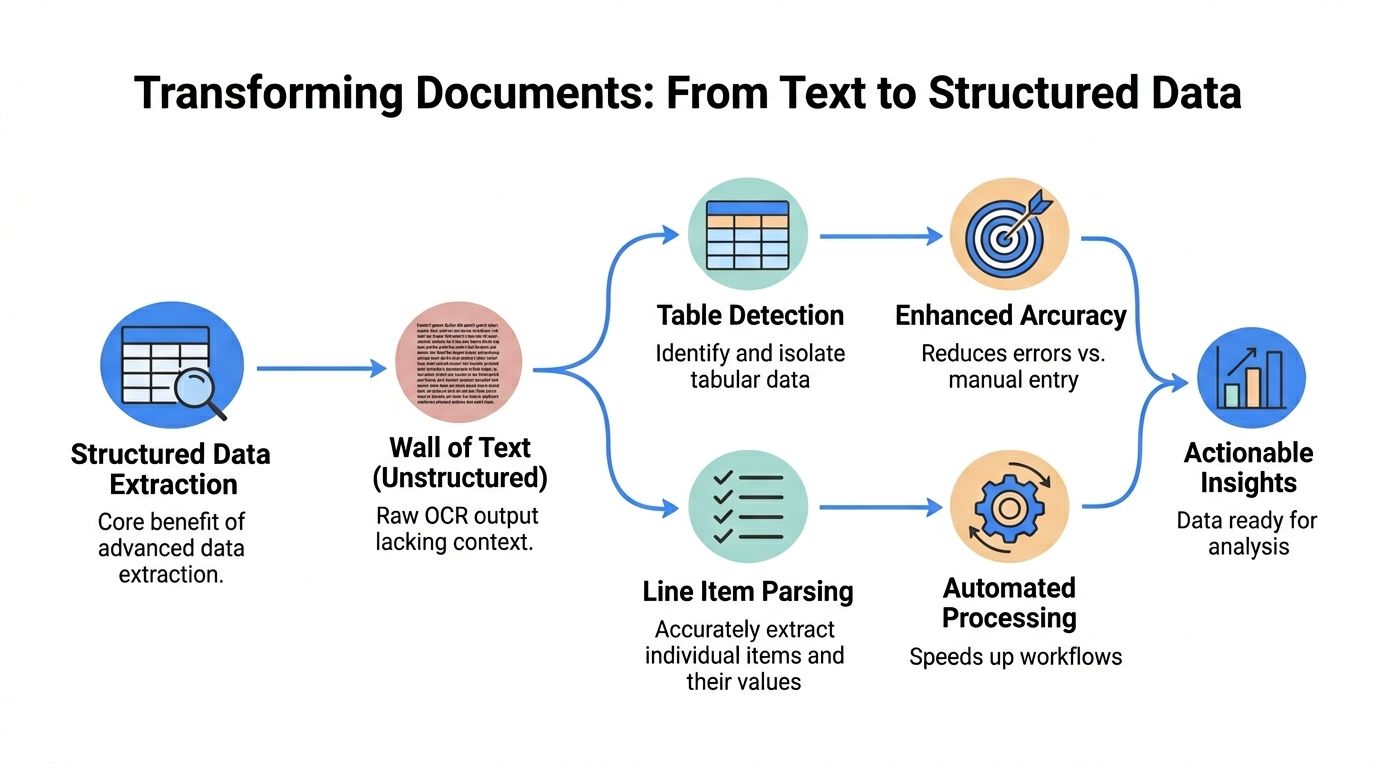
That's the point too many OCR projects miss. Teams celebrate when a tool can "read" a document, then discover the output is a giant text blob with no usable structure. The invoice number is somewhere in the middle. The line items are flattened. Quantities drift away from descriptions. Taxes and totals become guesswork.
Text extraction is not data extraction
This is the central shift in extracting data from image workflows.
Basic OCR answers one question: what characters appear on this page? Structured parsing answers a different one: what does each piece of text mean, and how does it relate to nearby values?
That second question is where the business value lives.
A field like invoice number is static. A section like line items is repeating. A total may need to be interpreted differently depending on whether the page includes tax, discount, freight, or currency notes. That's why getting plain text out of an image often isn't enough.
Research on structured extraction highlights the gap directly. The challenge isn't just copying text. It's programmatically identifying repeating patterns like line items versus static fields like invoice numbers, especially when layouts vary. It also notes that template-based systems create hidden costs because each new document variant needs setup, while AI-native extraction learns across layouts without re-templating (Edward Benson on structured extraction).
Where line item extraction usually fails
The weak spots are consistent across industries:
- Merged rows: Description text wraps, but the quantity and unit price stay on one line.
- Broken columns: OCR reads across the page instead of down the table.
- Header confusion: The engine mistakes a subtotal row for a line item.
- Variant labels: One supplier says "Qty," another says "Units," another omits the header entirely.
- Cross-page tables: Rows continue onto the next page and lose context.
If you work with PDFs specifically, this guide to extracting tables from PDF gets into the mechanics of handling tabular layouts in more detail: https://docparsemagic.com/blog/how-to-extract-tables-from-pdf
What better systems do
High-performing document parsers don't only run OCR. They combine computer vision, layout detection, and post-processing logic.
The OCR step turns image regions into text. The structure step identifies probable headers, cells, rows, and field relationships. Then the post-processing step maps those outputs into business fields such as invoice date, premium amount, broker code, subtotal, or item-level quantity.
A strong extraction pipeline often behaves like this:
- Locate regions of interest such as header blocks, totals sections, and tables.
- Detect field candidates based on position, nearby labels, and visual grouping.
- Parse repeated rows without assuming every vendor uses the same layout.
- Standardize outputs so "Inv. No." and "Invoice #" land in the same target field.
- Preserve row relationships so quantities, descriptions, and amounts stay attached.
Why business users should insist on field-level outputs
A text dump still leaves a person to interpret the page manually.
A structured output gives the team something they can work with immediately:
- Accounting: Match invoice totals, code costs, and import line items into downstream workflows.
- Insurance: Pull policy numbers, premiums, commission values, and carrier references into review tables.
- Procurement: Compare pricing rows, terms, and exclusions side by side.
The useful output is not "the document was read." The useful output is "the right fields landed in the right columns."
That is the difference between a demo that looks impressive and a workflow that survives daily use.
Achieving Audit-Ready Accuracy and Validation
Extraction is only valuable if the team trusts the output.
Many automation projects get exposed at this point. A vendor claims high accuracy, the pilot looks fine, and then production files start surfacing edge cases. A line item is partially captured. A subtotal is mistaken for a total. A validation report shows good averages while hiding the exact errors that matter to finance.
Accuracy claims can mislead
The most common problem is measuring the wrong thing.
A model can score well on generic metrics and still fail on object completeness, row continuity, or field-level usability. In document extraction, those misses are expensive because one dropped row can change a reconciliation result even when most of the page was read correctly.
Research on metric validation warns about several specific traps. Inadequate category metrics can underreport missing object completeness by 15% to 25% in multi-instance documents such as invoices. Data leakage can inflate cross-validation accuracy by 10% to 20%. It also recommends flagging outputs below a high confidence threshold such as >0.9 for human review to support audit-ready accuracy (arXiv analysis of validation pitfalls).
What validation should look like in operations
Don't ask whether the engine "read the document." Ask whether the extracted result can survive downstream use.
A practical validation layer usually includes:
- Confidence-based review: Low-confidence fields get routed to a human before posting or export.
- Rules-based checks: Totals should align with line items, tax logic, and known document patterns.
- Cross-record matching: Vendor names, policy identifiers, or account references should match master data where possible.
- Exception handling: Missing fields, duplicate invoices, and improbable values need explicit rules.
Use business rules, not only model scores
Confidence scores help, but they aren't enough by themselves.
A field can have high OCR confidence and still be wrong in business context. For example, a document may contain two dates. OCR reads both perfectly. Only one is the required invoice date. That's why finance-grade workflows add rule checks after extraction.
Here are examples that work well:
| Validation rule | Why it matters |
|---|---|
| Total should align with subtotal plus tax when those fields exist | Catches row omissions and misread totals |
| Invoice number should not be blank or duplicated in the current batch | Prevents duplicate payment risk |
| Policy number should match expected format or source system reference | Reduces reconciliation failures |
| Currency indicators should align with amount interpretation | Prevents mixed-currency confusion |
Review the exceptions, not every document
The best workflows don't promise zero review. They reduce review to the documents that need judgment.
That means routing attention intelligently. A dense carrier statement with low-confidence premium fields deserves a second look. A clean invoice that passes field checks and arithmetic validation usually doesn't.
Field check: Human review is most valuable when it's targeted at uncertain or contradictory outputs, not sprayed across the full queue.
This is also why small score differences during vendor evaluation don't matter much. If one tool scores 0.82 and another scores 0.83 on a benchmark, that ranking difference may be irrelevant unless it changes business outcomes. The question is whether the system catches exceptions, preserves line items, and gives reviewers enough context to resolve issues quickly.
Audit-ready means traceable
Finance and insurance teams need more than convenience. They need evidence.
A reliable extraction process should preserve the source document, the extracted fields, any confidence indicators, and the review action taken when something was corrected. That trail matters during audits, reconciliations, disputes, and internal controls testing.
The standard for production use isn't "mostly right." It's "reliable enough to trust, and transparent enough to verify."
Automate Your Workflow with No-Code Platforms
At some point, teams often face the same choice. Build a patchwork of OCR tools, scripts, spreadsheets, and manual checks, or use a system that handles the workflow end to end.
For most operations groups, the second option wins.
Why no-code has become the practical choice
Custom pipelines sound attractive when you're looking only at technical capability. In practice, they create maintenance work that business teams don't want.
Someone has to manage preprocessing logic. Someone has to swap OCR engines when a layout changes. Someone has to define field mappings, update exception rules, and monitor failures. If the process depends on one technical owner, the workflow becomes fragile.
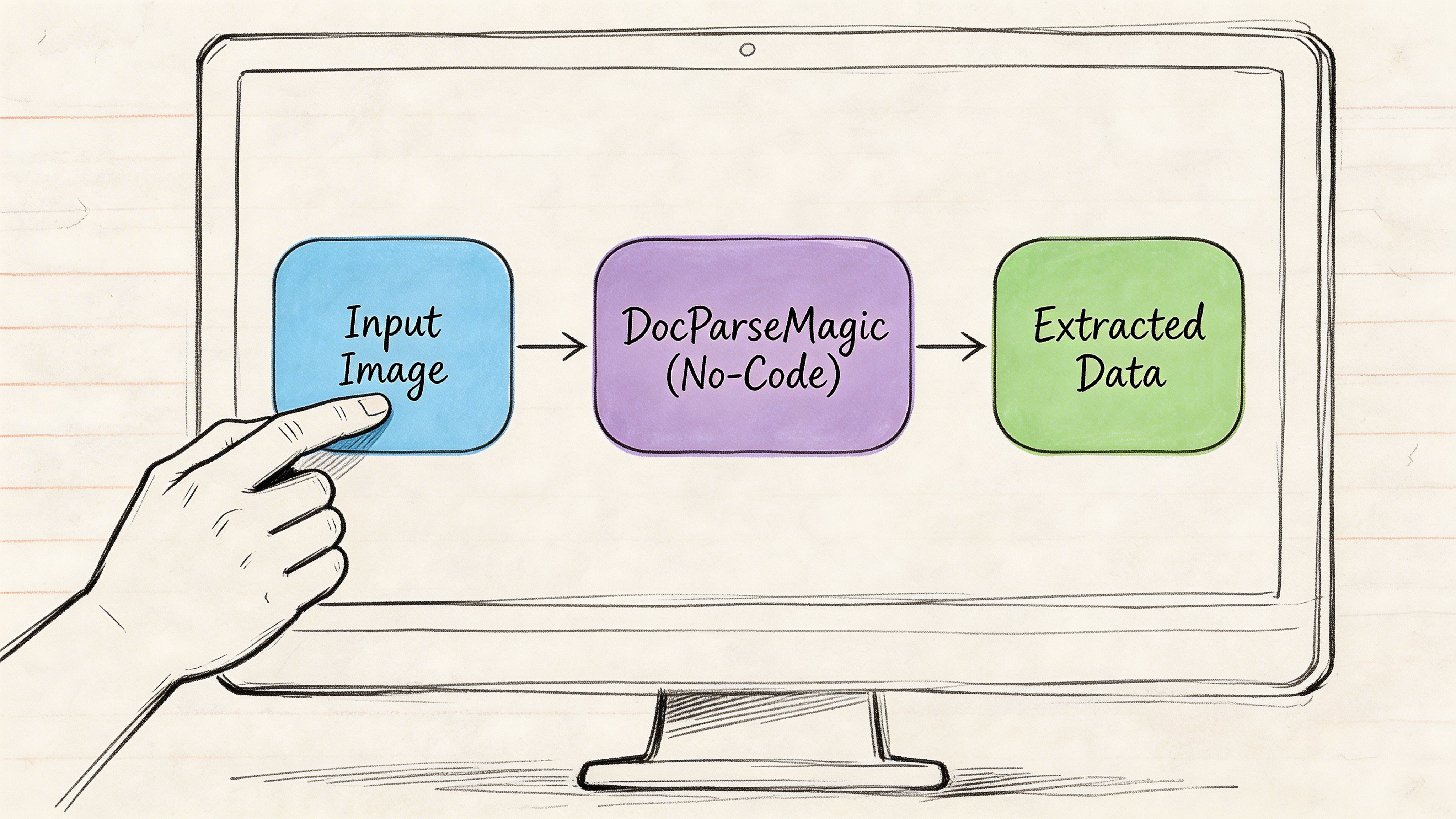
No-code document automation platforms exist because most companies don't need to invent document parsing from scratch. They need a dependable operational layer that accepts PDFs, scans, and photos, then returns structured outputs people can use immediately.
That progression has deep roots. The field reaches back to 1957, when Russell Kirsch and his team created the first digital image using a rotating drum scanner and the SEAC computer, converting a 5 cm by 5 cm black-and-white photo into 176 x 176 pixels, or 30,976 pixels total. That milestone established the basic idea that computers could process visual data as numerical grids, which later enabled OCR and modern document parsing. In 2003, Life magazine recognized that image as one of "the 100 photographs that changed the world" (Imagga on the evolution of image recognition).
What a good no-code workflow removes
The best no-code systems reduce operational friction in a few specific places:
- No template upkeep: Teams don't want to rebuild extraction logic every time a vendor changes layout.
- Unified intake: PDFs, scans, mobile photos, and office files should enter one workflow.
- Structured outputs first: The result should be rows and fields, not raw text blobs.
- Correction feedback: When reviewers fix an output, the system should improve how it handles similar files.
- Business-friendly deployment: Ops teams should be able to configure and monitor the process without waiting on engineering.
If you're evaluating where this fits in a broader operations stack, this article on mastering no-code workflow automation gives useful context on how no-code systems reduce process bottlenecks outside document work too.
When no-code is a better fit than building
A custom stack makes sense when extraction is only one part of a larger proprietary platform or the document type is highly specialized and stable.
Most finance and insurance workflows are the opposite. The inputs vary, the users are non-technical, and the core need is consistency. Teams want to upload files, review exceptions, and export clean data. They don't want to debug OCR, maintain regex rules, or keep retraining staff on a brittle process.
No-code works because it aligns with the actual job to be done. Not "run OCR." The job is "turn messy business documents into structured data without creating a new software project."
Real-World Wins in Finance and Insurance
The gains become obvious when you look at the before-and-after workflow, not just the software feature list.
In finance and insurance, the problem usually isn't lack of data. It's that the data is trapped inside files people receive in inconsistent formats. Once those files become structured records, teams move from transcription to review and analysis.
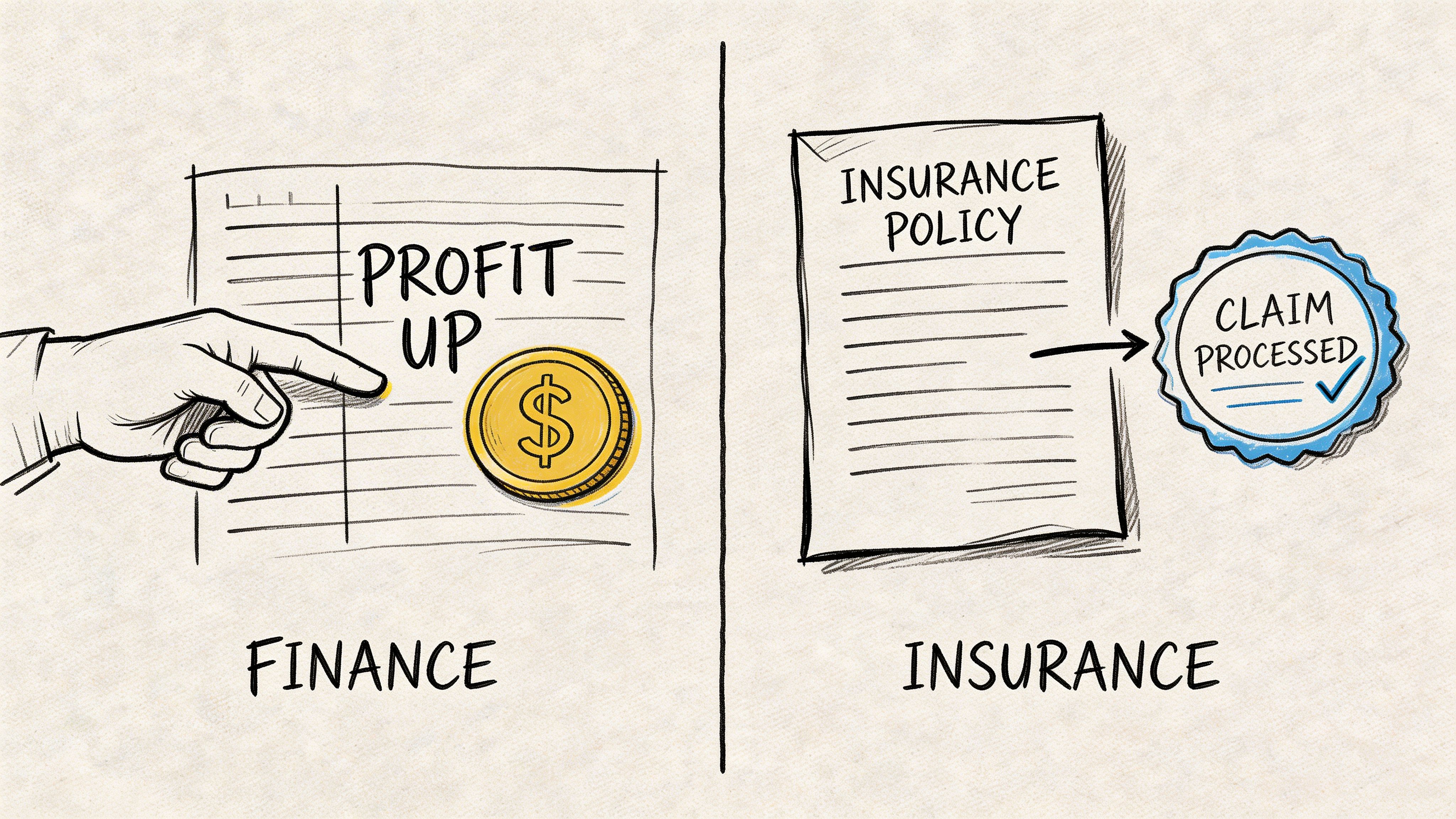
Finance teams stop chasing fields
A typical accounts payable workflow looks messy in familiar ways. Vendor invoices arrive by email, portal download, and mobile scan. Some are clean PDFs. Others are print-and-scan copies with faint totals and long line-item tables.
Before automation, the team usually does three things by hand: find the header fields, enter the amounts, and rekey line items when costing detail matters. The review step then catches mismatched totals, duplicate invoice numbers, or missing tax lines.
After a strong extraction workflow is in place, the work changes shape. Staff no longer spend their day reading documents. They review exceptions, validate unusual rows, and focus on coding or approval. That shift matters because experienced AP staff are far more valuable when they're resolving discrepancies than when they're copying descriptions into columns.
Insurance teams gain control over messy statements
Insurance documents create a different kind of pain. The issue isn't only text recognition. It's interpretation.
Carrier statements and policy documents often include repeating policy rows, premium amounts, codes, endorsements, and formatting that changes by carrier. A basic OCR export gives you text, but it doesn't tell you which number is the premium, which identifier is the policy number, or where one row ends and another begins.
That's why structured extraction matters more in insurance than raw OCR. Teams need rows they can reconcile, not paragraphs they have to reread.
A practical workflow usually looks like this:
- Import carrier and broker files from email or shared folders.
- Extract policy-level fields such as policy number, premium details, and related identifiers.
- Review low-confidence exceptions where logos, stamps, or layout variation interfere.
- Export a normalized table for reconciliation, reporting, or downstream system entry.
Good document automation doesn't remove judgment. It removes the clerical work that prevents judgment from being used where it matters.
What both industries have in common
The documents differ, but the operating pattern is the same.
Finance teams need invoice-level and line-level structure. Insurance teams need policy-level and premium-level structure. Both need validation. Both deal with inconsistent inputs. Both lose time when the tool stops at text extraction.
The win is not abstract. It's visible in daily work. Fewer people spend the morning typing. More people spend it resolving exceptions, comparing values, and making decisions from a clean dataset.
Stop Copying and Start Analyzing
The modern workflow for extracting data from image has a clear progression. Clean the document. Use OCR that fits the document mix. Parse fields and tables, not just text. Validate the output with business rules and confidence-based review. Then automate the process so the team works from structured data instead of screenshots and scans.
That change is bigger than convenience. It shifts work away from manual entry and toward analysis, reconciliation, and control. For finance, insurance, procurement, and operations teams, that's where the payoff sits.
If you're still copying values from images into spreadsheets, you're spending skilled time on the least valuable part of the process.
DocParseMagic turns invoices, statements, scanned pages, and photos into clean, analysis-ready spreadsheets without template setup. If you want to stop hand-keying fields and start working from structured data, try DocParseMagic and see how quickly your document-heavy workflow can move.