The 12 Best Free OCR Software Picks for 2026
Buried under a mountain of scanned invoices, bank statements, or vendor proposals? The data you need is trapped inside image files or non-selectable PDFs, forcing you into hours of manual data entry. Optical Character Recognition (OCR) software solves this problem by converting images of text into machine-readable, searchable, and editable data. This technology is essential for accounting teams processing invoices, insurance brokers extracting policy details, and procurement managers comparing terms.
Finding the right tool can be a challenge. The market is filled with options, but many free solutions are limited, inaccurate, or difficult to use. This guide cuts through the noise. We’ve tested and analyzed the best free OCR software available today to help you find the perfect fit for your specific needs, whether you're a small business owner, a finance professional, or an operations manager.
In this comprehensive list, you will find:
- Detailed Reviews: An honest breakdown of 12 top-tier free OCR tools, including Tesseract, OCRmyPDF, and Google Drive's built-in function.
- Practical Comparisons: We evaluate each option on key factors like accuracy, language support, file type compatibility, and batch processing capabilities.
- Real-World Use Cases: See exactly how each tool performs for tasks like invoice data extraction and report consolidation.
- Actionable Advice: Every review includes screenshots, direct download links, and clear pros and cons to make your decision simple.
Our goal is to give you a clear, straightforward path to automating your document workflows. We'll also explain the limitations of free tools and provide guidance on when it makes sense to consider a more advanced document parsing solution. Let's get started and turn your document piles into valuable, accessible data.
1. Tesseract OCR: The Powerhouse Engine Behind the Scenes
Tesseract isn't a ready-to-use application with a user interface; it's a powerful, open-source OCR engine. Maintained by Google, it's the technology that drives many other free and paid OCR tools. For those with some technical skill, Tesseract offers unmatched control and customization, making it one of the best free OCR software options for specialized projects. You interact with it via the command line, feeding it image files and receiving text output.
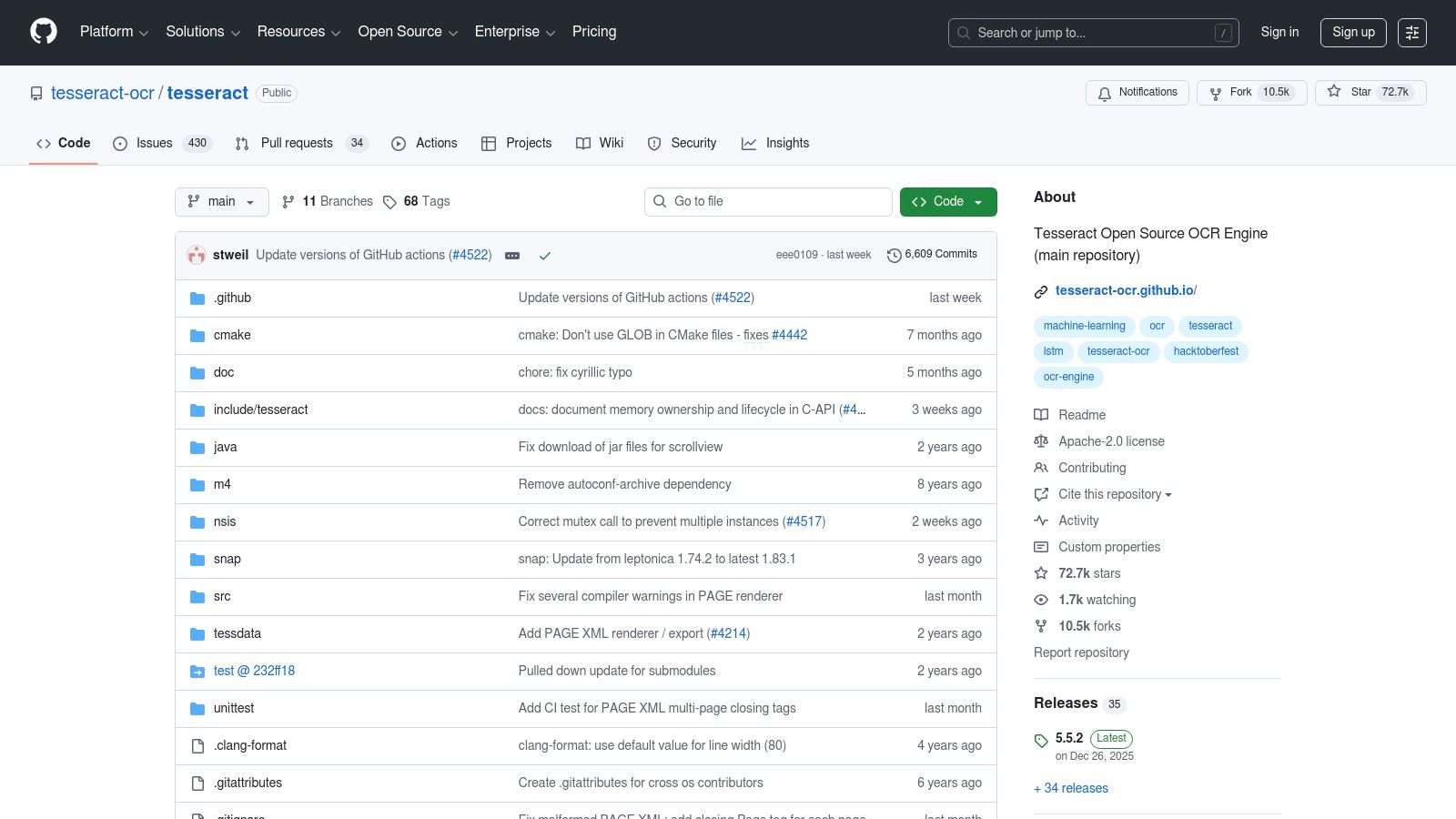
Its real strength lies in its accuracy and extensive language support, covering over 100 languages right out of the box. You can also train Tesseract on specific fonts or document types, which is a significant advantage for businesses like accounting firms that process invoices with a consistent layout. To get started, you will need to install it on your system and use a terminal or command prompt. For a deeper dive into the core principles of this technology, you can learn more about what optical character recognition is and how it functions.
Key Features and Considerations
| Feature | Details |
|---|---|
| Best For | Developers, technical users, and businesses needing a custom OCR solution. |
| User Interface | None. Operated via command line. Requires technical knowledge to install and use. |
| Accuracy | High, especially with clear, pre-processed images. Can be trained for higher accuracy. |
| File Support | Accepts various image formats (TIFF, PNG, JPEG). Requires image pre-processing for best results. |
| Export Formats | Plain text (TXT), searchable PDF, and others. |
Pros:
- Completely free and open-source.
- Highly accurate and supports over 100 languages.
- Can be trained for specific documents, fonts, or character sets.
Cons:
- Steep learning curve; not suitable for non-technical users.
- Requires manual image pre-processing (like deskewing and noise reduction) for optimal results.
- No graphical user interface (GUI) included.
Access Tesseract here: Tesseract on GitHub
2. OCRmyPDF: The Go-To Tool for Searchable PDF Archives
While Tesseract handles the core text recognition, OCRmyPDF is a specialized tool that perfects the final output. It's a command-line utility designed specifically to add a searchable text layer to existing PDF files. This makes it an essential piece of the puzzle for anyone looking to digitize paper records, such as invoices or historical documents, into functional, findable digital archives. It essentially acts as a powerful script that orchestrates Tesseract, cleans up the source image, and properly embeds the text into a new PDF.
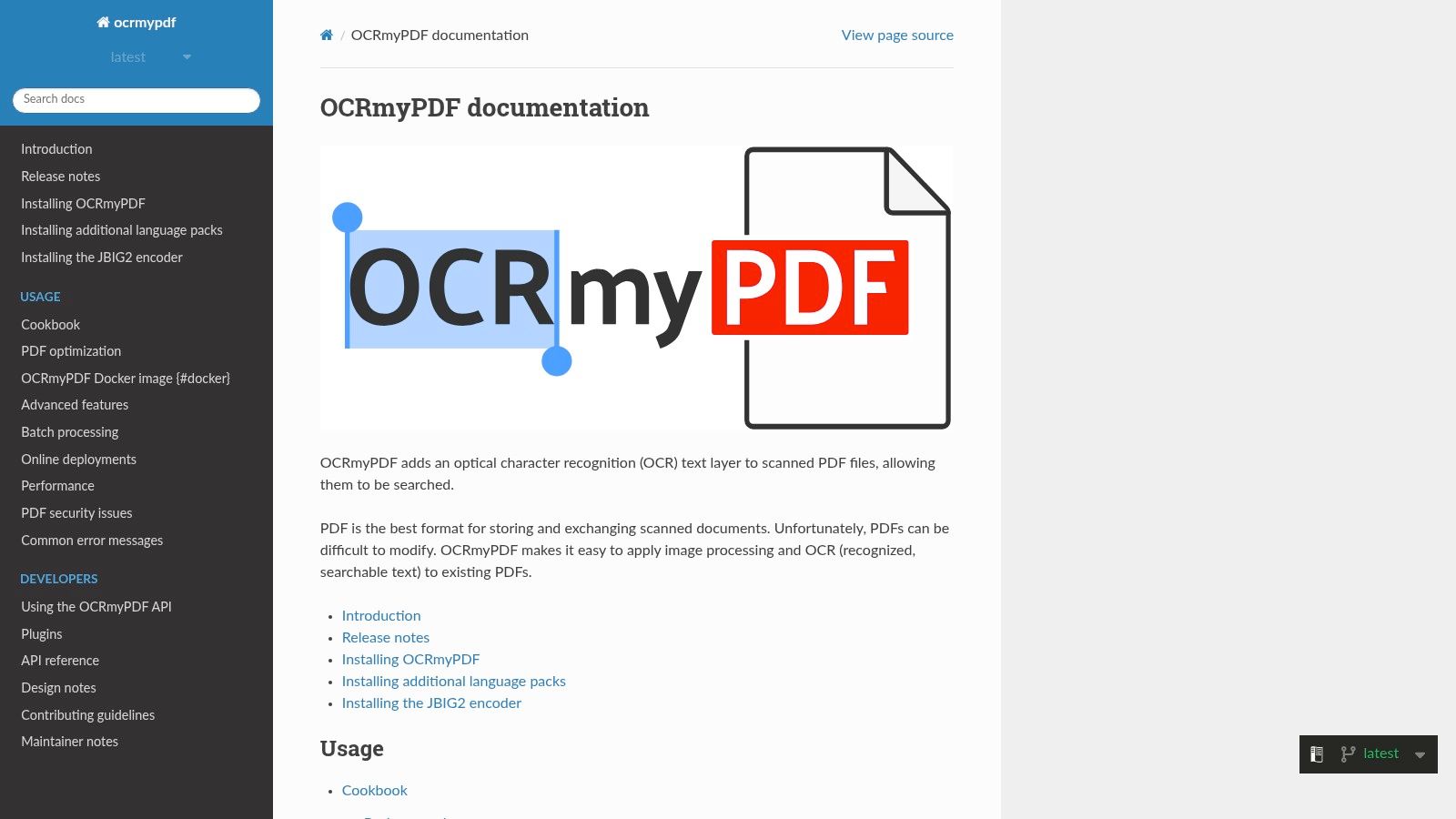
Its primary strength is its focus on creating archival-quality, searchable PDFs. OCRmyPDF automates crucial pre-processing steps like deskewing (straightening crooked scans) and page cleanup, which significantly improves the accuracy of the underlying Tesseract engine. Because it operates via the command line, it's ideal for batch processing hundreds of files at once or integrating into server-side workflows for automated document handling, making it one of the best free OCR software solutions for archival tasks.
Key Features and Considerations
| Feature | Details |
|---|---|
| Best For | Archiving, creating searchable PDF libraries, and automated server-side document processing. |
| User Interface | None. Operated via command line. Requires installing both Tesseract and OCRmyPDF. |
| Accuracy | High, as it automatically pre-processes images to improve the results from its Tesseract engine. |
| File Support | Specifically designed for PDF input. Can process PDFs containing scanned images. |
| Export Formats | Searchable PDF and PDF/A (for long-term archiving). |
Pros:
- Purpose-built for creating high-quality, searchable PDFs.
- Automates image cleanup like deskewing and rotation for better accuracy.
- Excellent for batch processing and integrating into automated server pipelines.
Cons:
- Requires command-line knowledge and has a learning curve.
- Dependent on a separate Tesseract installation to function.
- Strictly focused on PDF-to-PDF workflows.
Access OCRmyPDF here: OCRmyPDF Documentation
3. NAPS2 (Not Another PDF Scanner 2)
NAPS2 provides a much-needed user-friendly interface for the powerful Tesseract engine, making it one of the best free OCR software choices for non-technical users. It's a free, ad-free desktop application designed for scanning documents, organizing pages, and converting them into searchable PDFs with a single click. For teams in accounting or procurement, this tool simplifies the process of digitizing paper invoices and vendor documents without needing to touch a command line.
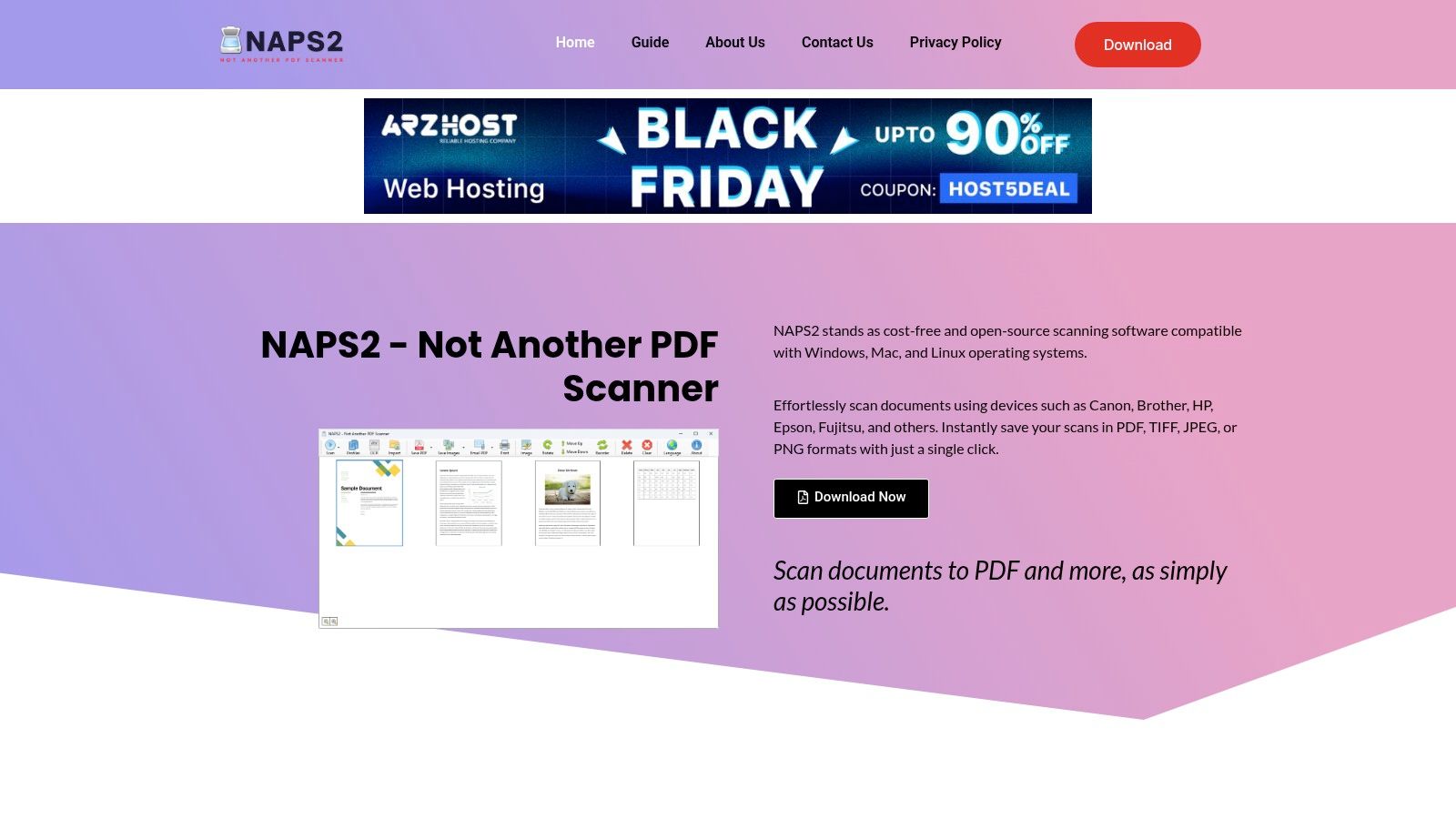
The application excels at streamlining scanner workflows by allowing you to create multiple profiles with custom settings (like DPI, color, and page size) for different document types. Its one-click OCR function is its biggest draw, automatically running in the background to make your scanned PDFs text-searchable. This is particularly useful for creating a digital archive of statements or reports that you can easily search later. For more complex data extraction, such as getting table data out of these PDFs, you can learn how to convert scanned documents to Excel.
Key Features and Considerations
| Feature | Details |
|---|---|
| Best For | Individuals and small teams needing a simple desktop tool to scan and OCR documents. |
| User Interface | Clean and simple GUI. Easy for non-technical users to scan, arrange, and save. |
| Accuracy | Relies on the Tesseract engine, so accuracy is generally high for clear documents. |
| File Support | Imports images (PNG, JPEG, TIFF) and existing PDF files. Scans from TWAIN & WIA drivers. |
| Export Formats | Searchable PDF, image files (PNG, JPEG), and multi-page TIFF. |
Pros:
- Completely free, open-source, and contains no advertisements.
- Very easy-to-use graphical interface.
- Supports batch scanning and one-click OCR processing.
Cons:
- Limited to desktop scanning and file conversion workflows.
- Advanced OCR tuning is not possible within the app itself.
- Primarily focused on creating searchable PDFs, not extracting structured data.
Access NAPS2 here: NAPS2 Official Website
4. gImageReader: Tesseract with a User-Friendly Face
If the command-line nature of Tesseract seems intimidating, gImageReader is the perfect solution. It acts as a graphical front-end for the powerful Tesseract engine, packaging its high accuracy into a simple, clickable interface. This makes it one of the best free ocr software choices for users who want Tesseract's power without learning code, ideal for quick, one-off document conversions.
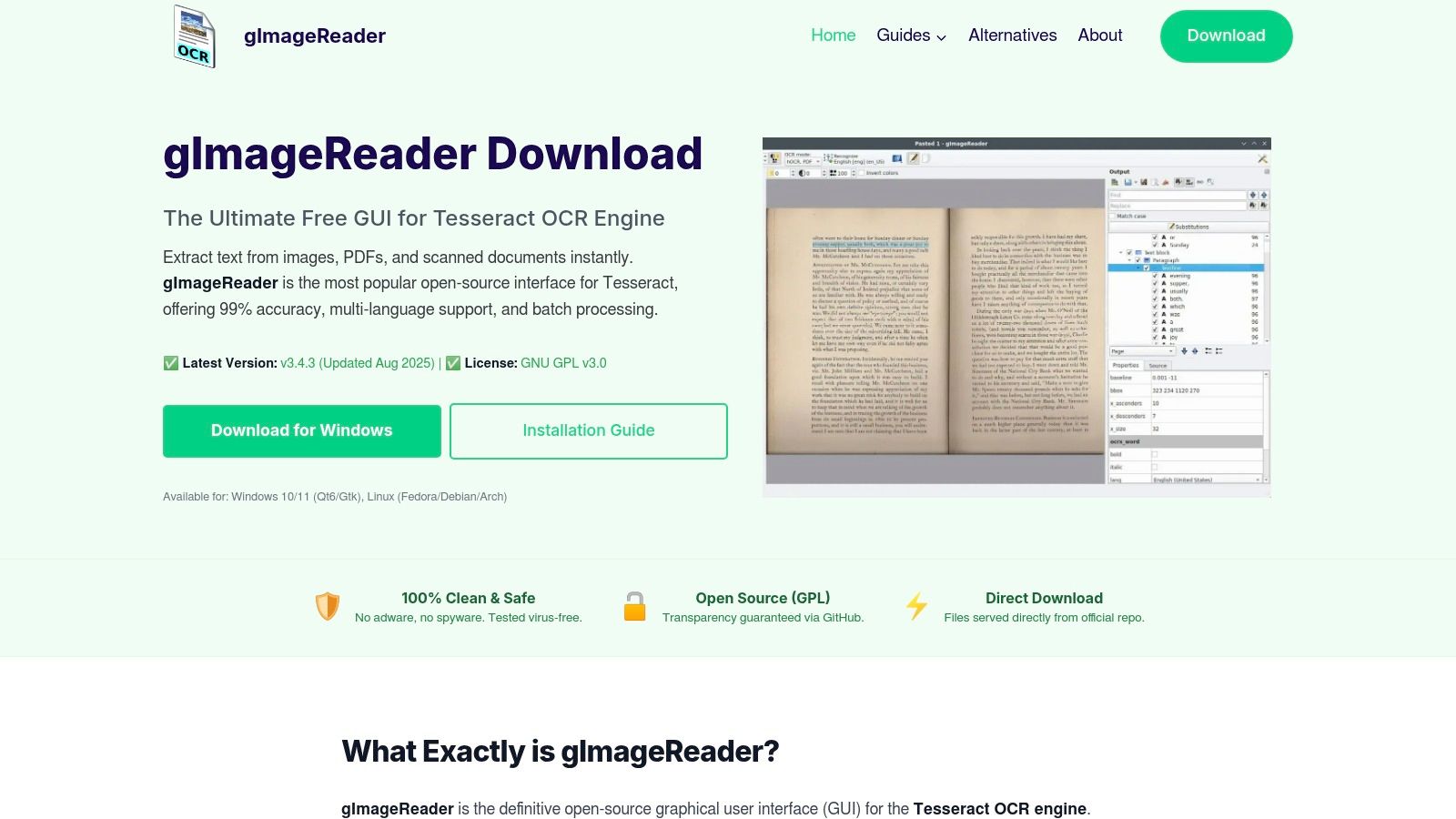
With gImageReader, you can load an image or PDF, draw a box around the text you want to extract, and click a button to get the output. It supports processing multiple pages and allows for easy export to plain text, ODT files for word processors, or searchable PDFs. It neatly bridges the gap between raw engine power and everyday usability, making it a great tool for individuals and small teams.
Key Features and Considerations
| Feature | Details |
|---|---|
| Best For | Individuals, students, and small businesses needing an easy-to-use desktop OCR tool. |
| User Interface | Simple graphical user interface (GUI). Load an image, select the area, and recognize text. |
| Accuracy | High. Accuracy is directly dependent on the installed Tesseract engine and its language models. |
| File Support | Imports most common image formats (PNG, JPG, TIFF) and PDF files. |
| Export Formats | Plain text (TXT), OpenDocument Text (ODT), and searchable PDF. |
Pros:
- Makes the powerful Tesseract engine accessible to non-technical users.
- Completely free with no ads or limitations.
- Supports batch processing for converting multiple files at once.
Cons:
- Requires you to install Tesseract separately on some systems.
- Less suited for complex, large-scale automation compared to a custom script.
- User interface is functional but looks dated.
Access gImageReader here: gImageReader on GitHub
5. Microsoft OneNote: The Built-In Tool for Quick Scans
For many businesses already operating within the Microsoft 365 ecosystem, one of the best free OCR software options is already installed on their computers. Microsoft OneNote, the popular digital note-taking app, has a built-in OCR function that is perfect for quick, one-off text extraction from images or PDF printouts. You can simply insert a picture, like a screenshot of a vendor statement or a photo of a receipt, right-click it, and select "Copy Text from Picture."
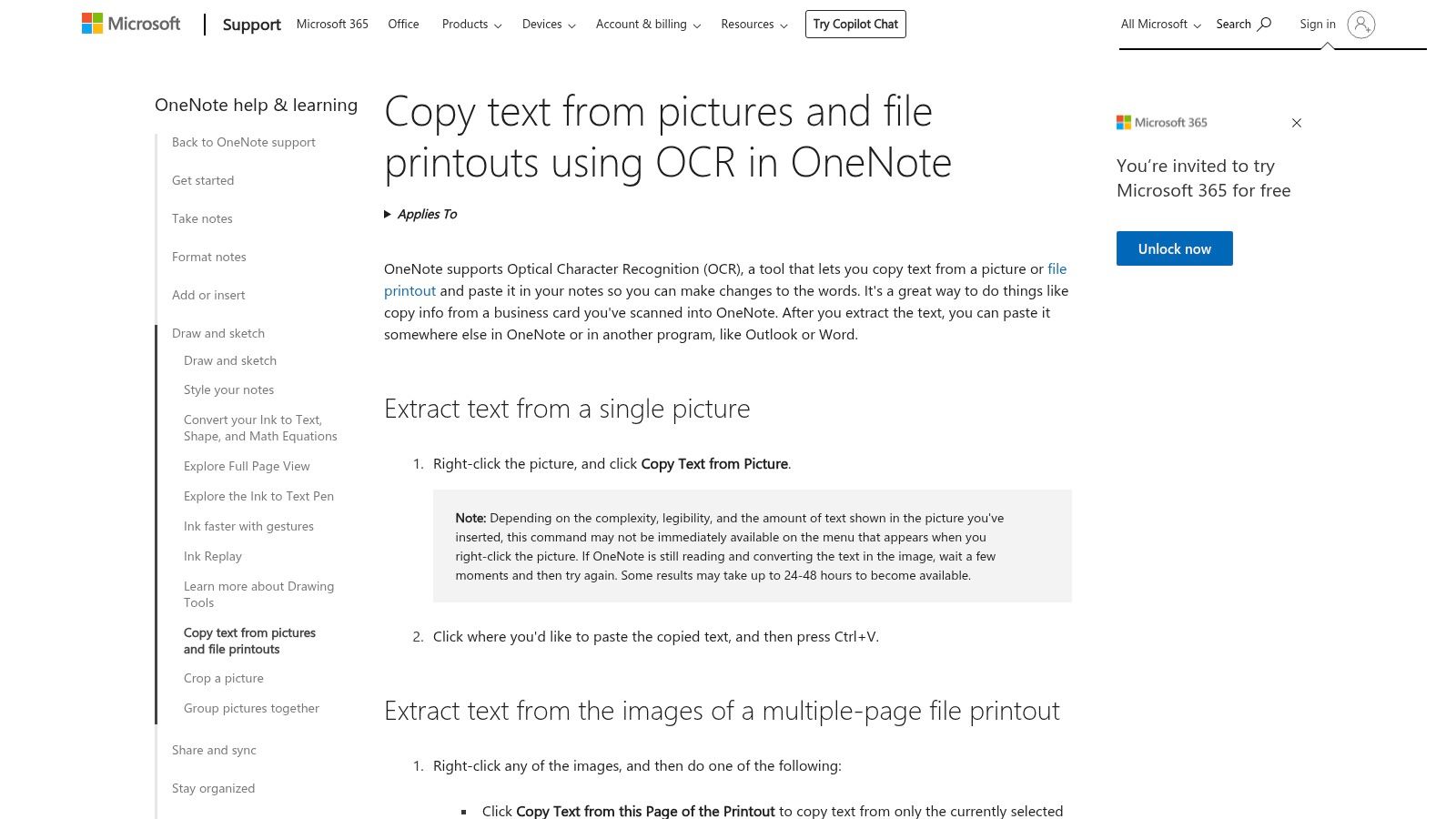
The primary advantage is convenience; there is no additional software to install or learn. The text is immediately available on your clipboard to paste into an Excel sheet, email, or any other application. This makes it ideal for an accounts payable clerk needing to grab an invoice number or a project manager capturing key terms from a subcontractor's proposal without a formal process. While the text recognition is generally good for clear images, it’s not designed for complex layouts or batch processing.
Key Features and Considerations
| Feature | Details |
|---|---|
| Best For | Microsoft 365 users, students, and professionals needing quick text extraction from individual images. |
| User Interface | Integrated directly into the OneNote application. Very easy to use with a right-click menu option. |
| Accuracy | Good for clear, high-contrast images and standard fonts. Struggles with complex layouts and handwritten notes. |
| File Support | Works with images (PNG, JPEG, etc.) and PDF "printouts" inserted into a OneNote page. |
| Export Formats | Copies extracted text directly to the clipboard for pasting. |
Pros:
- Completely free for users who have Microsoft OneNote.
- Extremely easy to use, no technical skills needed.
- Integrates seamlessly into the existing Microsoft Office workflow.
Cons:
- OCR processing happens in the cloud and can sometimes be delayed.
- Does not preserve original formatting or layout.
- Not suitable for batch processing multiple documents.
Access OneNote's OCR feature here: Copy text from pictures and file printouts using OCR in OneNote
6. Microsoft PowerToys – Text Extractor
Sometimes, you don't need to process a full document; you just need to grab a snippet of text from an image, video, or even a remote desktop session where copying is disabled. For these quick, on-the-fly tasks, Microsoft's PowerToys Text Extractor is an incredibly efficient tool. It's not a standalone application but a utility within the free PowerToys suite for Windows, activated by a simple keyboard shortcut. You just highlight any area on your screen, and the recognized text is instantly copied to your clipboard.
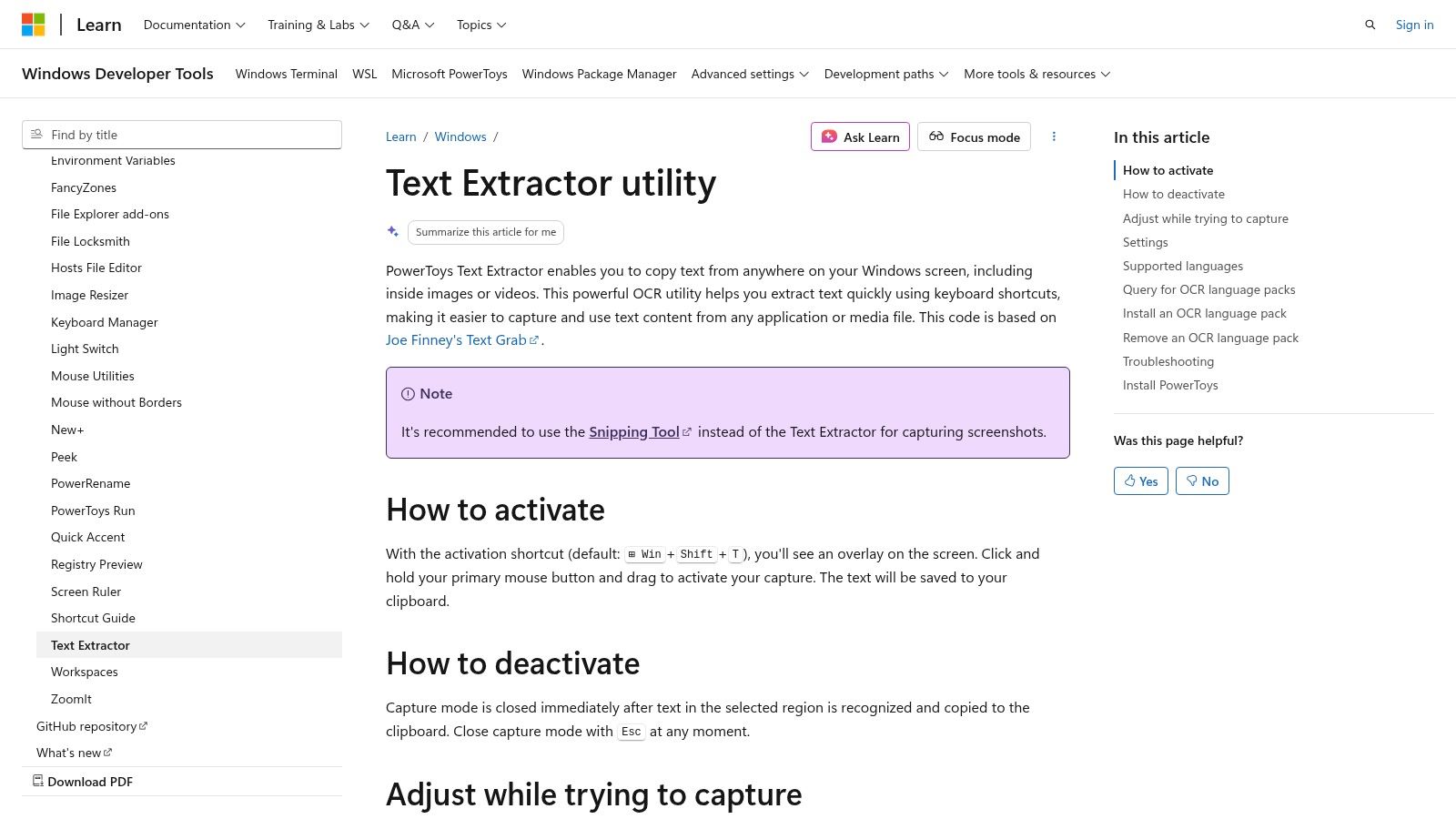
This tool stands out for its convenience and system-wide integration. Since it's an official Microsoft product, it is well-maintained and reliable. It’s perfect for finance professionals who need to pull a single account number from a scanned statement or for procurement teams grabbing a part number from a non-selectable PDF catalog. While it lacks the batch processing and document layout features of more robust OCR software, its speed for small jobs makes it one of the best free OCR software options for instant text capture.
Key Features and Considerations
| Feature | Details |
|---|---|
| Best For | Quick text grabs from any on-screen content (images, videos, applications). |
| User Interface | Minimalist. Activated via a keyboard shortcut (Win + Shift + T) to select a screen region. |
| Accuracy | Good for clear, standard fonts. Struggles with stylized text or low-quality images. |
| File Support | Does not process files directly. Captures text from any pixels visible on your screen. |
| Export Formats | Copies plain text directly to the clipboard. |
Pros:
- Extremely fast and convenient for capturing small amounts of text.
- Completely free and actively maintained by Microsoft as part of the PowerToys suite.
- Works anywhere on your screen, including inside videos and applications.
Cons:
- Windows-only and requires installing the entire PowerToys suite.
- No file processing, layout retention, or advanced features.
- Output is plain text only; no formatting is preserved.
Access PowerToys here: Microsoft PowerToys Text Extractor
7. Google Drive / Google Docs OCR
If you're looking for a quick and accessible OCR solution without installing new software, the tool is likely already in your Google account. Google Drive’s built-in OCR feature, which works when you open an image or PDF file with Google Docs, is one of the most convenient options available. This functionality transforms the static content into an editable Google Doc, making it an excellent choice for occasional, one-off tasks.
The process is simple: upload your file to Google Drive, right-click it, and select "Open with > Google Docs." This action triggers the conversion, placing the extracted text into a new document. While its strength is convenience, it often struggles with complex layouts, tables, or columns, meaning you will likely need to reformat the output. For more advanced needs where document structure is critical, you might explore solutions that use what is known as intelligent document processing to preserve layouts.
Key Features and Considerations
| Feature | Details |
|---|---|
| Best For | Casual users, students, and anyone needing quick text extraction without new software. |
| User Interface | Familiar Google Drive and Google Docs interface. Extremely easy to use. |
| Accuracy | Good for simple, text-heavy documents. Less reliable for complex formatting or tables. |
| File Support | Accepts common image formats (JPEG, PNG, GIF) and PDF files. |
| Export Formats | Google Doc, which can be downloaded as Word (DOCX), PDF, TXT, and others. |
Pros:
- Completely free with a standard Google account.
- No installation required; works entirely within a web browser.
- Seamlessly integrates with the Google Workspace ecosystem for easy sharing and collaboration.
Cons:
- Often fails to preserve the original document's formatting.
- Accuracy can be inconsistent with low-quality images or complex layouts.
- Lacks advanced features like batch processing or specific language controls.
Access Google Drive here: Google Drive
8. Adobe Scan: Mobile Scanning and OCR in Your Pocket
Adobe Scan turns your smartphone into a powerful scanning tool, making it one of the best free OCR software options for on-the-go document capture. It excels at quickly digitizing physical documents like receipts, invoices, or business cards. The app uses AI to automatically detect document borders, straighten the image, and clean up shadows and glare, producing a remarkably clean digital copy.
Once captured, Adobe Scan automatically runs OCR to convert the image into a searchable PDF. This is incredibly useful for professionals like sales representatives or consultants who need to digitize expense receipts or client notes immediately. The integration with the Adobe Document Cloud means your scanned files are readily available across devices and can be easily edited or shared using other Adobe products like Acrobat Reader. The user experience is smooth and intuitive, living up to Adobe's reputation for quality software.
Key Features and Considerations
| Feature | Details |
|---|---|
| Best For | Mobile professionals, students, and anyone needing to quickly digitize physical documents. |
| User Interface | Clean, modern mobile app interface. Very easy to use with guided capture. |
| Accuracy | High for a mobile app, especially with clear, well-lit documents. |
| File Support | Captures images from the phone camera; no file imports. |
| Export Formats | Searchable PDF, JPEG. |
Pros:
- Excellent automatic edge detection, cropping, and image enhancement.
- Fast and accurate OCR creates searchable PDFs directly.
- Seamless integration with Adobe Document Cloud and Acrobat.
Cons:
- Primarily a mobile-first solution; no dedicated desktop app.
- Advanced PDF editing features require a paid Adobe Acrobat subscription.
- Requires an Adobe account sign-in to use and save documents.
Access Adobe Scan here: Adobe Scan
9. PDF24 Creator and PDF24 Tools
PDF24 is a comprehensive suite of free utilities centered around PDF management, available as both a downloadable Windows application and a collection of web-based tools. Its inclusion in a list of the best free ocr software comes from its simple, direct function: converting non-searchable PDFs (like those from a scanner) into searchable documents. For users who need a broad set of PDF functions like merging, splitting, and redacting alongside OCR, PDF24 offers a convenient, all-in-one package.
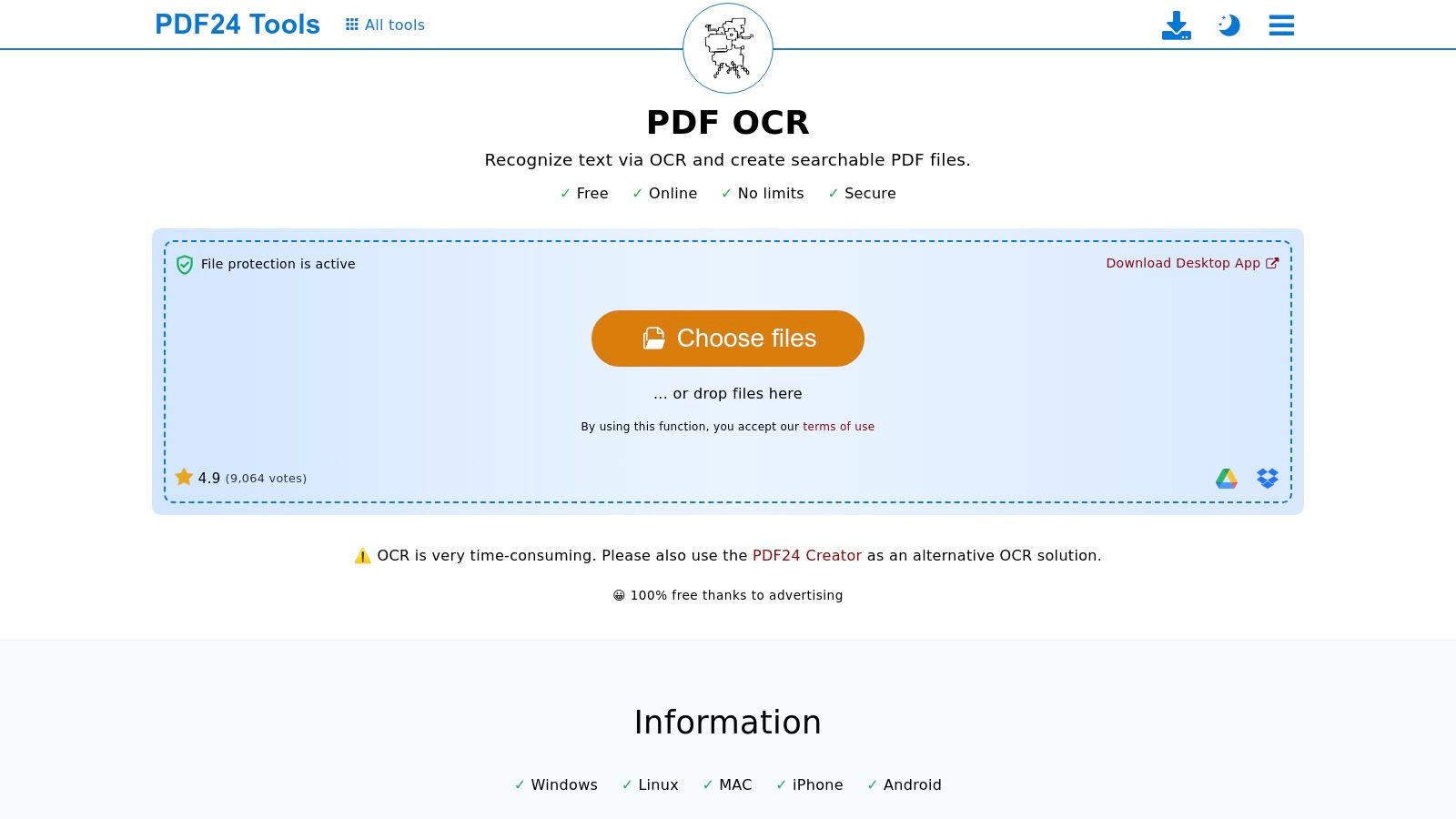
The platform’s strength is its accessibility for desktop users who prefer an offline workflow. The PDF24 Creator app can be installed and used without an internet connection, which is a key advantage for teams in accounting or procurement handling sensitive financial documents like invoices or vendor proposals. It uses the Tesseract engine, so the output quality for clear documents is generally reliable, though it is not designed for complex, large-scale automation pipelines. The process is straightforward: open a document, select the OCR function, and save the new searchable version.
Key Features and Considerations
| Feature | Details |
|---|---|
| Best For | Desktop users needing an all-in-one PDF tool with basic OCR functionality. |
| User Interface | Simple GUI for both the desktop app and online tools. Easy to navigate. |
| Accuracy | Good for clear, standard documents. Accuracy depends on the underlying Tesseract engine models. |
| File Support | Primarily focuses on PDF files. Can also handle some image-to-PDF conversions. |
| Export Formats | Creates a new searchable PDF as its primary output. |
Pros:
- Completely free with a rich set of PDF tools beyond just OCR.
- The Creator app works fully offline on Windows, ensuring data privacy.
- Very easy to use with a clean, straightforward interface.
Cons:
- OCR is a feature, not the core focus, so it lacks advanced options.
- Not suitable for automated, high-volume batch processing.
- Accuracy can be inconsistent with low-quality scans or complex layouts.
Access PDF24 Tools here: PDF24 OCR PDF Tool
10. OCR.Space: Quick Online and API-Based OCR
OCR.Space offers a convenient, browser-based approach to optical character recognition, making it a great choice for quick, one-off tasks without any software installation. It provides a simple web interface where you can upload a file or paste a URL and get your text extracted instantly. Beyond its web tool, its main draw is a free API, which allows developers and technically inclined users to integrate OCR functionality into their own applications or automated scripts.
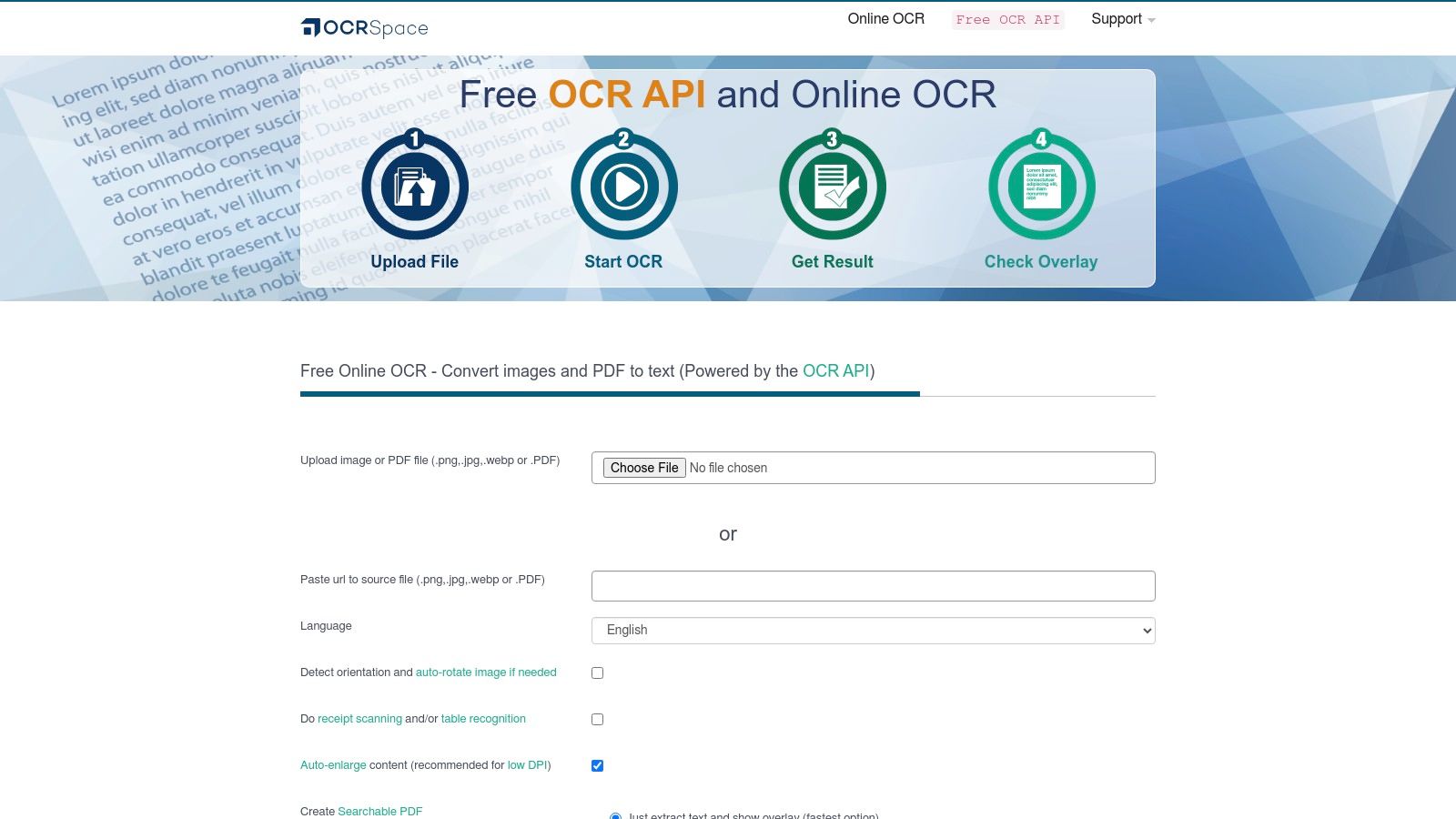
This hybrid model makes it one of the most flexible options on this list, catering to both casual users and developers. The service supports multiple languages and has specific settings to improve results for tables or receipts. While the free tier is generous for many use cases, it’s important to be aware of its limitations, such as API rate limits and watermarks on generated searchable PDFs. It's a solid tool for those who need a fast, accessible, and easily integrated OCR solution.
Key Features and Considerations
| Feature | Details |
|---|---|
| Best For | Quick, single-document conversions; developers needing a free OCR API for light-duty automation. |
| User Interface | Simple, clean web interface for direct uploads. Also offers a REST API. |
| Accuracy | Good for clear, high-quality images and standard documents. Includes modes for table and receipt scanning. |
| File Support | Accepts JPG, PNG, GIF, PDF, and WEBP files, or image URLs. |
| Export Formats | Plain text, JSON, and searchable PDF (with a watermark on the free tier). |
Pros:
- Completely web-based, no installation required.
- Provides a free API for automating simple OCR tasks.
- Easy to use with a straightforward drag-and-drop interface.
Cons:
- Free tier has usage limits on API calls and file sizes.
- Searchable PDFs created with the free API are watermarked.
- Accuracy can be lower on complex or low-quality documents.
Access OCR.Space here: OCR.Space
11. OnlineOCR.net: Quick and Easy Web-Based Conversions
OnlineOCR.net is a straightforward, browser-based tool designed for quick, one-off document conversions. It offers a simple three-step process: upload your file, select the language and output format, and convert. This makes it an excellent choice for users who need to occasionally extract text from an image or a PDF without the hassle of downloading and installing software. Its simplicity is its core strength, providing immediate access to OCR capabilities for single documents.
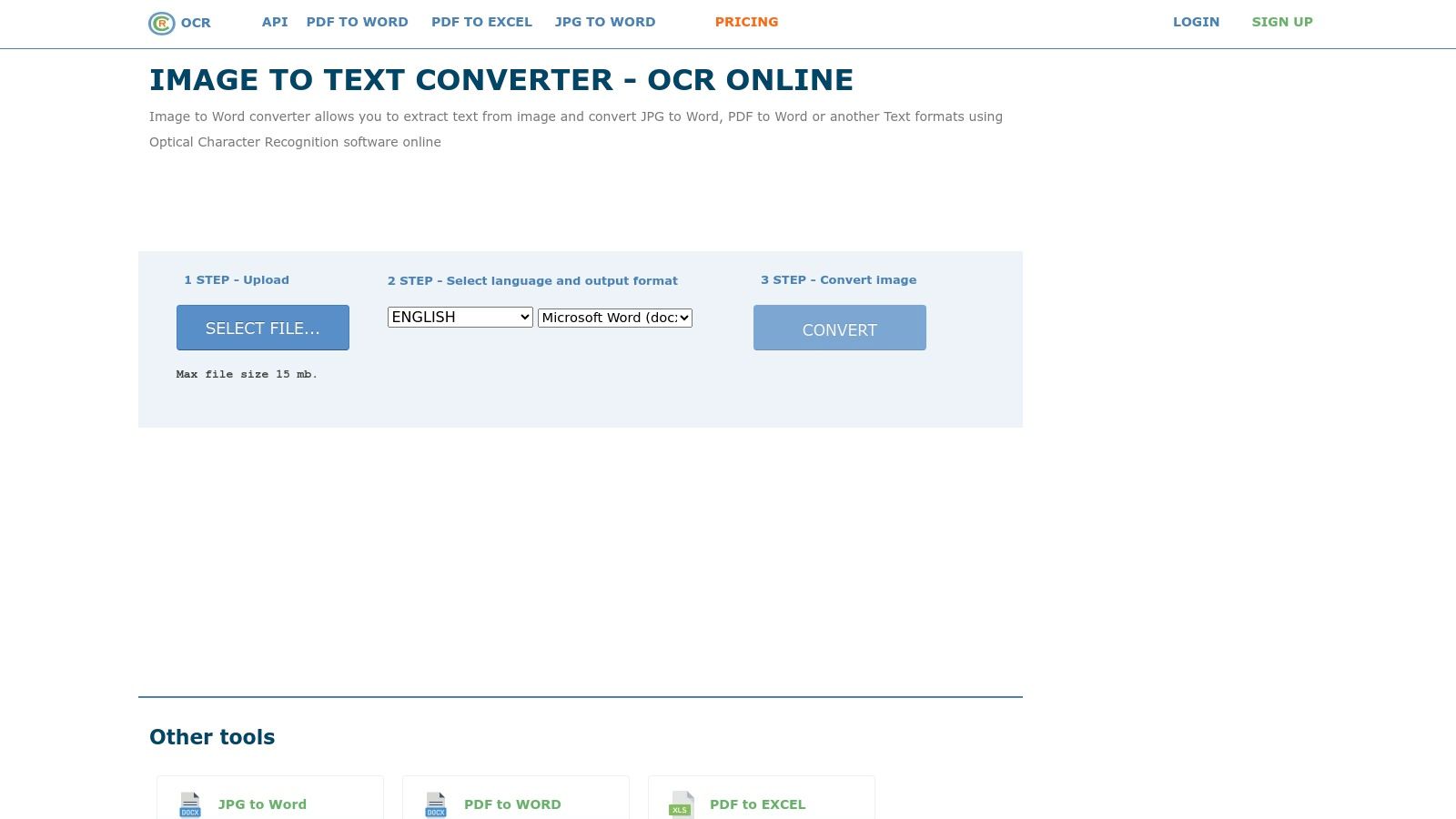
The platform supports a decent range of languages and can export directly into editable formats like Microsoft Word (DOCX), Excel (XLSX), and plain text. While it handles common image files and even multipage PDFs, the free "Guest mode" comes with limitations, including a cap on the number of pages you can process per hour and restrictions on file size. This positions OnlineOCR.net as one of the best free OCR software options for personal or infrequent use rather than for high-volume business processing.
Key Features and Considerations
| Feature | Details |
|---|---|
| Best For | Individuals needing a quick, one-time conversion without software installation. |
| User Interface | Simple, web-based three-step process. No registration required for guest use. |
| Accuracy | Good for clear, high-quality images. Struggles with complex layouts or poor-quality scans. |
| File Support | PDF (including multipage), JPG, PNG, GIF, BMP, TIFF. |
| Export Formats | DOCX, XLSX, TXT, HTML. |
Pros:
- Extremely easy to use with no software to install.
- No sign-up is required for basic, ad-hoc conversions.
- Directly exports to popular editable formats like Word and Excel.
Cons:
- Free guest mode has hourly limits and file size restrictions (15 MB).
- Accuracy can be lower on documents with complex formatting.
- Requires a paid plan to process larger files or multiple documents in a short period.
Access OnlineOCR.net here: https://www.onlineocr.net/
12. Project Naptha: Instant OCR for the Web
Project Naptha offers a unique approach to OCR by integrating directly into your Chrome browser. Instead of being a standalone application or web uploader, it's an extension that allows you to select, copy, and translate text from any image you encounter on the web. This makes it an incredibly useful tool for researchers, students, or anyone who needs to quickly grab text from a diagram, infographic, or screenshot without downloading the image first.
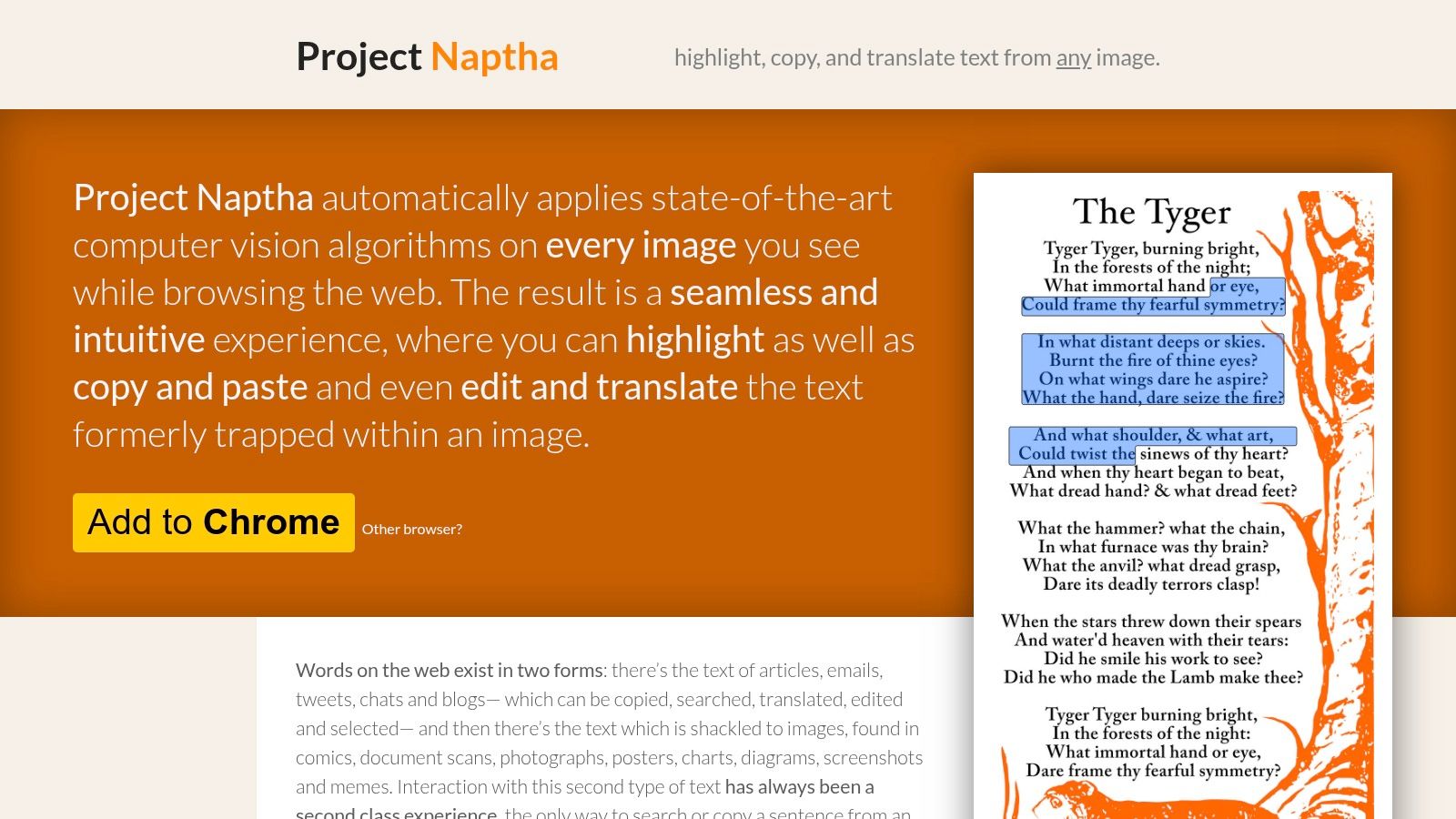
This browser-based tool is one of the best free OCR software options for on-the-fly text extraction. Once installed, it automatically scans web pages for images and applies character recognition technology in the background. You simply move your cursor over an image, and a text cursor will appear, allowing you to highlight and copy text just as you would from a regular web page.
Key Features and Considerations
| Feature | Details |
|---|---|
| Best For | Quickly copying text from images, memes, and screenshots found on the web. |
| User Interface | Integrated directly into the Google Chrome browser; no separate application. |
| Accuracy | Good for clear, high-contrast text on images. Performance may vary with complex backgrounds. |
| File Support | Works automatically on web image formats (JPEG, PNG, GIF) displayed in the browser. |
| Export Formats | Copies text directly to your clipboard. Also offers translation capabilities. |
Pros:
- Extremely convenient for extracting text directly from web images.
- Seamless browser integration makes it feel like a native feature.
- Completely free and works client-side for immediate results.
Cons:
- Only available for Google Chrome and Chromium-based browsers.
- Not designed for processing local files, PDFs, or bulk conversion tasks.
- Effectiveness depends on the quality of the image on the webpage.
Access Project Naptha here: Project Naptha
Top 12 Free OCR Tools Comparison
| Tool | Core features | UX / Quality (★) | Value / Price (💰) | Target audience (👥) | Unique selling point (✨/🏆) |
|---|---|---|---|---|---|
| Tesseract OCR | LSTM OCR, layout detection, 100+ langs | ★★★★ – accurate with prep | 💰 Free (Apache 2.0) | 👥 Devs, researchers, embedders | ✨ Extensible + offline; 🏆 large ecosystem |
| OCRmyPDF | Adds searchable text layer; deskew & PDF/A | ★★★★ – robust for batch | 💰 Free | 👥 Archivists, ETL & server pipelines | ✨ PDF/A output & batch error handling |
| NAPS2 | TWAIN/WIA scanning; one‑click OCR | ★★★★ – simple GUI | 💰 Free | 👥 Small teams, front‑desk users | ✨ Easy desktop scanning workflow |
| gImageReader | GUI front‑end for Tesseract; zone OCR | ★★★ – good for ad‑hoc tasks | 💰 Free | 👥 Casual users wanting GUI OCR | ✨ Selectable zones & multiple exports |
| Microsoft OneNote | Copy text from images/printouts; cloud sync | ★★★ – convenient but basic layout | 💰 Included with MS365 / free tier | 👥 Office users & note takers | ✨ Deep MS ecosystem integration |
| PowerToys – Text Extractor | Screen OCR via hotkey; clipboard copy | ★★★ – instant snippets | 💰 Free (Windows) | 👥 Windows power users, quick grabs | ✨ System‑wide hotkey capture |
| Google Drive / Docs OCR | Browser OCR to editable Docs; export options | ★★★ – easy but layout limits | 💰 Free with Google account | 👥 Casual/cloud users | ✨ Zero-install web OCR; Drive integration |
| Adobe Scan | Mobile auto-crop, enhancement, OCR to PDF | ★★★★ – excellent mobile UX | 💰 Free app (some cloud features paid) | 👥 Mobile users capturing receipts/invoices | ✨ Superior auto-enhance; 🏆 mobile scanning |
| PDF24 Creator / Tools | Desktop PDF suite + OCR & web tools | ★★★ – feature‑rich desktop tools | 💰 Free | 👥 Offline desktop users | ✨ Wide PDF utilities + offline OCR |
| OCR.Space | Web OCR + REST API; table/receipt options | ★★★ – decent accuracy online | 💰 Freemium API (limits on free) | 👥 Developers needing quick API | ✨ Browser + API access; table options |
| OnlineOCR.net | Convert images/PDF to DOCX/XLSX/TXT | ★★★ – simple one‑off conversions | 💰 Free basic; paid for higher limits | 👥 Users needing single‑file exports | ✨ Direct export to Excel/Word |
| Project Naptha | In‑page image text selection & edit | ★★★ – instant web selection | 💰 Free extension | 👥 Researchers, web copy tasks | ✨ Edit/copy text inside web images |
Beyond OCR: When You Need to Understand, Not Just Read, Your Documents
We've explored a dozen powerful options, each demonstrating that you no longer need a significant budget to convert images and PDFs into searchable, editable text. From the raw power of command-line tools like Tesseract and OCRmyPDF to the surprising convenience of Microsoft OneNote and Google Docs, there is a free OCR tool for nearly any basic task. Simple utilities like NAPS2 and Microsoft PowerToys prove incredibly useful for quick text grabs, while web-based services like OCR.Space and PDF24 Tools offer accessibility from any device.
Choosing the right tool from this list comes down to your specific workflow. A developer or power user might gravitate toward Tesseract for its customization, while an accounting professional needing to quickly process a single, clear invoice might find Adobe Scan or Google Drive perfectly adequate. The key is to match the tool's strengths, such as language support, batch processing, or layout preservation, to your immediate document challenges.
The Limits of Simple Text Extraction
However, our deep dive into the best free OCR software also highlights a critical distinction: the difference between reading text and understanding it. Free OCR tools are fantastic at character recognition, turning a picture of a word into a digital word. What they don't do is interpret the meaning of that word in context.
An OCR tool can extract "Net 30," "$1,450.78," and "PO #98765" from an invoice. But it doesn't know that "Net 30" is a payment term, "$1,450.78" is the total amount due, and "PO #98765" is the purchase order number. For teams in accounting, insurance, or procurement, this is where pure OCR falls short. You are still left with the manual, time-consuming task of finding, copying, and pasting this data into another system. It's a digital version of a manual process, not a true automation of it.
Moving from Data Entry to Data Intelligence
True workflow automation requires a step beyond OCR. It requires a system that can parse documents, which means it not only reads the text but also identifies and structures the key information within it. Think of it this way:
- OCR gives you a block of unstructured text.
- Document Parsing gives you structured data fields, like
Invoice_Number,Due_Date, andLine_Item_Description.
This intelligent data extraction is what allows for real automation. Instead of just making a document searchable, you can automatically populate a spreadsheet, update a CRM, or flag a contract for review based on its specific terms. Once your documents are converted into searchable text, advanced tools can take over. For instance, an AI medical records summary tool can efficiently distill complex medical records, helping you extract key information and insights. This same principle applies to financial and business documents.
When your team spends more time verifying and entering data from documents than acting on it, you’ve outgrown free OCR. The manual effort of correcting errors, handling complex layouts, and structuring the extracted text begins to outweigh the cost savings. At this point, the question is no longer "How can I get the text out of this PDF?" but "How can I get this data into my system automatically and accurately?"
Have you hit the ceiling with free OCR tools? If you're tired of manually copying and pasting data from invoices, reports, and statements, it’s time to upgrade your workflow. DocParseMagic goes beyond simple text extraction to intelligently identify, structure, and export the specific data you need, turning your documents into actionable information instantly. Try DocParseMagic today and see how true document automation works.