What Is OCR in PDF Documents A Simple Explainer
So, what exactly is Optical Character Recognition (OCR)? Think of it as a technology that gives your PDFs superpowers, turning them from a simple picture of a document into something smart and interactive. It literally reads the text inside an image or a scanned file and translates it into machine-readable text you can actually work with.
Why Some PDFs Are Just Digital Paperweights
You’ve probably run into this problem before. Your finance team gets a stack of invoices as PDFs, but when they open one, they can't highlight a line item, copy an invoice number, or even use Ctrl+F to find a vendor's name.
That’s because the PDF is acting like a photograph—it's a flat, unsearchable image of a document. We call these scanned or image-only PDFs, but a better name for them might be "digital paperweights." They look like documents, but you can’t do much with them.
This is exactly where OCR comes in. Without it, you’re stuck manually re-typing everything, which is not only slow but a perfect recipe for errors.
The Translator for Your Documents
The easiest way to understand OCR is to think of it as a translator. It teaches your computer to "read" the text in an image, just like you would. The software scans the document, analyzes the shapes of the letters and numbers, recognizes them, and then creates an invisible layer of searchable text on top of the original image.
That useless "picture" of an invoice suddenly becomes a fully interactive file.
At its core, OCR bridges the gap between the visual world of images and the data-driven world of text. It unlocks the valuable information trapped inside your scanned documents, making it accessible and actionable.
This isn’t some niche technology, either. The global OCR market is expected to explode from USD 17.06 billion in 2025 to USD 44.52 billion by 2031, mostly because businesses are desperate to automate their old, paper-based processes. You can dig into more of the data on this trend over at Mordor Intelligence.
Image-Only PDF vs. Searchable PDF at a Glance
This simple table really highlights the night-and-day difference between a standard PDF and one that’s been run through an OCR engine.
| Capability | Image-Only PDF | OCR-Processed (Searchable) PDF |
|---|---|---|
| Search Text | No | Yes |
| Copy & Paste | No | Yes |
| Data Extraction | Manual Entry Only | Automated |
| Accessibility | Poor | High |
Simply put, applying OCR transforms a dead-end digital archive into a powerful, searchable database that’s ready for real work.
How a Computer Learns to Read Your Documents
So how does a computer actually look at a flat picture of a document and pull out text you can actually use? It’s not magic, but it’s a pretty clever process. Think of it as teaching a computer to read from square one, breaking the whole thing down into a few common-sense steps.
When you glance at a document, your brain just sees the words. A computer has to be taught how to do that, and it starts by cleaning up the image to make it as crisp and clear as possible.
Step 1: Image Cleanup and Preparation
The first thing an OCR engine does is get the document ready for analysis. If you’ve ever tried to read a blurry, crooked photo of a receipt, you know the drill—you’d want to straighten it out and sharpen it up first.
OCR software does the exact same thing in a phase called pre-processing. This usually involves a few key tweaks:
- Deskewing: This is just a fancy word for straightening the page. It digitally rotates the image so all the text runs perfectly horizontal.
- Denoising: Scanned documents often have little specks or digital "noise" that can confuse the software. This step cleans up those random pixels.
- Binarization: The image is converted to simple black and white. This boosts the contrast between the text and the background, making it much easier for the software to "see" the characters.
Getting this cleanup right is absolutely crucial. A clean, high-contrast image is the bedrock of accurate OCR. We dive even deeper into the nuts and bolts of this in our complete guide to Optical Character Recognition.
The chart below shows how a static, locked-down document gets converted into something dynamic and searchable.
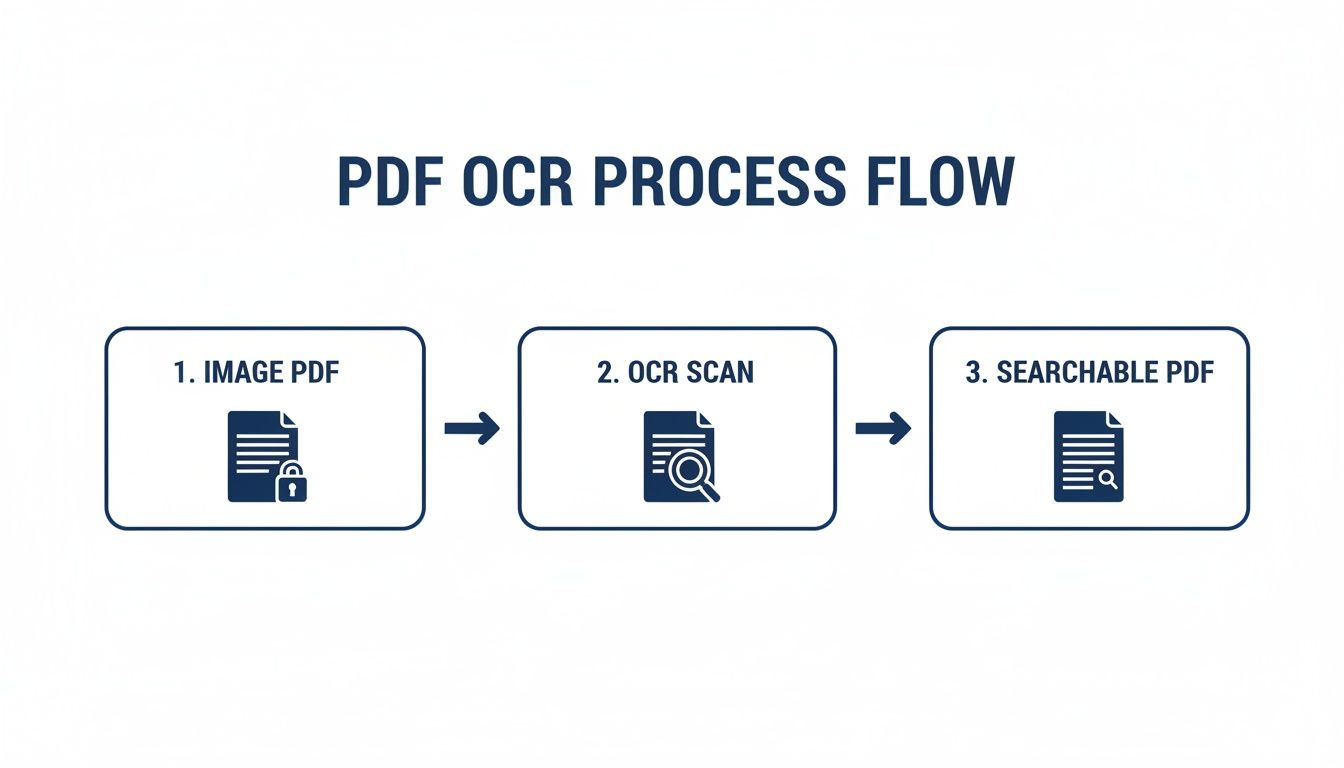
As you can see, the whole point of OCR is to free the data that’s trapped inside an image-based file.
Step 2: Character Recognition and Assembly
With a clean image in hand, the real work starts. The software scans the page, identifying blocks of text, then individual lines, then words, and finally, each separate character. From there, it uses one of two main methods to figure out what each letter or number is.
The first approach is called pattern matching. The software has a big library of fonts and characters stored in its memory, and it tries to find a perfect match for the shape it's looking at. It’s a bit like a digital matching game.
A more sophisticated method is feature detection. Instead of looking for an exact match, the software identifies the core components of a character—the lines, curves, and loops. For example, it knows an "A" is made of two diagonal lines that meet at the top and a horizontal line crossing them. This is way more flexible and works much better with different fonts and text styles.
For really tricky documents, some systems use Intelligent Character Recognition (ICR). This is basically OCR on steroids, using machine learning to decipher messy handwriting or unusual print styles.
Once all the individual characters are identified, the software pieces them back together into words and sentences. It often checks its work against a built-in dictionary to catch obvious mistakes and make sense of the context. What you’re left with is a hidden layer of digital text that lines up perfectly with the original image—ready for you to search, copy, and work with.
Putting OCR to Work in Your Business
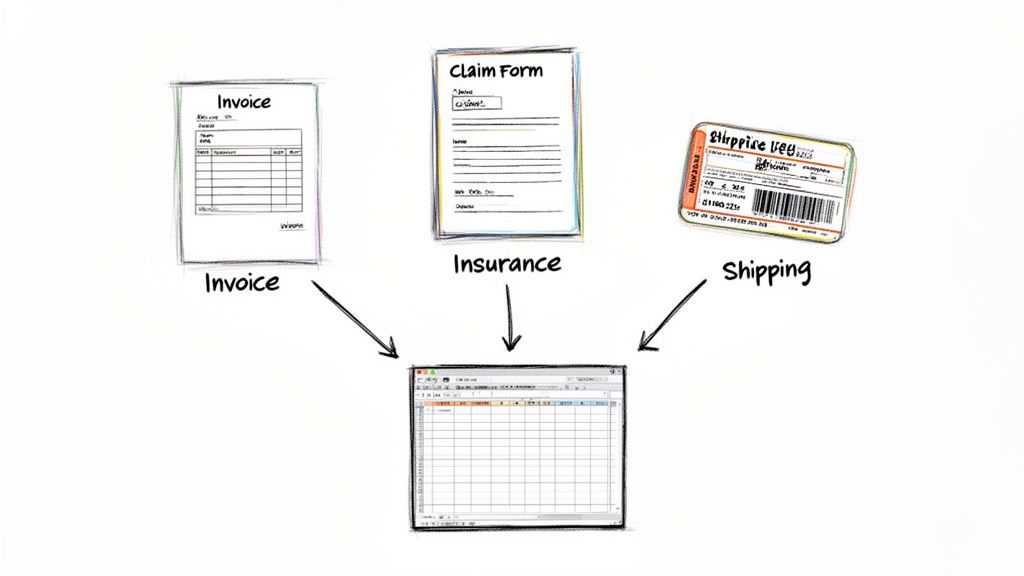 It's one thing to understand how a computer reads a PDF, but the real magic happens when you use that technology to solve real-world business problems. Across just about every industry, teams are using OCR to get back thousands of hours previously lost to manual data entry, sidestep expensive human errors, and speed up work that actually matters.
Modern tools don't just stop at turning images into text. They use OCR as the starting point for a much bigger process: understanding and structuring information. This is where the theory behind what is OCR in PDF documents turns into real, measurable results for your business.
Automating Accounts Payable for Finance Teams
If you've ever worked in finance, you know that processing supplier invoices is a relentless, time-sucking chore. Scanned PDF invoices pour in every day, each one with a different layout. That means someone has to manually hunt for and re-type key details like invoice numbers, due dates, line items, and totals into the accounting software.
Not only is this process painfully slow, but it’s also a breeding ground for typos that can lead to costly payment mistakes.
OCR flips this workflow on its head. A system built with OCR can automatically “read” a huge batch of PDF invoices, instantly pinpointing and pulling out all the necessary data. This gets rid of manual keying altogether, slashing the time it takes to process an invoice from several minutes down to just a few seconds.
Accelerating Claims for Insurance Agencies
The insurance world is built on a mountain of paperwork, from new client applications to multi-page claim forms. When a customer files a claim, agents are flooded with scanned documents—police reports, medical bills, repair estimates—that all need to be handled quickly and accurately.
Manually digging through these PDFs to find policy numbers, incident dates, and claim details creates major bottlenecks.
By using OCR to automatically lift this information from submitted documents, insurers can kick off the validation and payout process almost immediately. This isn't just about efficiency; it's about giving the policyholder a much faster, better experience during what's often a stressful time.
This heavy reliance on document automation is why the B2B sector makes up 55.7% of the entire OCR market. The financial services and insurance industry alone accounts for a whopping 21.8% of that revenue.
Streamlining Logistics and Operations
Operations and logistics managers are constantly juggling physical goods, all tracked with paper or PDF documents like packing slips, bills of lading, and delivery orders. Making sure a shipment’s contents match the original order often means manually checking these documents against records in the system, a step that can slow down the whole supply chain.
With OCR, a warehouse team can just scan a packing slip. The software pulls the product codes and quantities, automatically checking them against the purchase order in the inventory system.
This instant verification helps teams catch mistakes right away, keep inventory counts accurate, and get products moving much faster. A similar logic applies when businesses need to extract data from PDF pitch decks automatically to quickly populate a CRM.
To see how modern AI takes this a step further, check out our guide on what is Intelligent Document Processing.
Why OCR Accuracy Isn't a Given
Modern OCR is an incredible piece of technology, but it isn't magic. It's easy to assume that any OCR tool can just read any document with 100% accuracy, but that assumption often leads to frustration and messy data. The truth is, the quality of the final text extraction hinges almost entirely on the quality of the document you start with.
Think about it this way: imagine someone hands you two notes to read. The first is a letter, neatly typed on crisp white paper. The second is a crumpled napkin, stained with coffee and scrawled with a leaky pen. You'd breeze through the first one without a second thought, but the second one? You'd have to squint, guess at a few words, and probably make a mistake or two.
OCR software faces the exact same problem. It works beautifully on clean, high-quality documents but stumbles when the source material is a mess. Grasping this is fundamental to understanding what OCR is in PDF documents and setting realistic expectations for what it can do.
Common Roadblocks to Accurate OCR
So, what trips up an OCR engine? Several factors can cause even the most advanced software to misread characters—confusing an "O" with a "0," an "l" with a "1"—or miss entire words. Almost all of these issues trace back to the condition of the original document.
Here are some of the biggest culprits:
- Low-Resolution Scans: A blurry or pixelated image is like asking the software to read through a thick fog. For decent results, you really need a scan with a resolution of at least 300 DPI (dots per inch).
- Complicated Layouts: Documents packed with multiple columns, text boxes, images, and tables can easily confuse an OCR engine. It might start reading the text in the wrong order, jumbling your data.
- Weird Fonts: Highly stylized, decorative, or teeny-tiny fonts aren't what OCR models are trained on. They expect standard typefaces and can get tripped up by anything too unusual.
- Poor Image Quality: Things like shadows on the page, a crooked scan, or low-contrast text (think light gray print on a white background) make it tough for the software to tell one character from another.
It all boils down to a simple, timeless principle: garbage in, garbage out. The quality of your scanned PDF is the single biggest factor that will determine the accuracy of your OCR output.
Knowing these limitations is the first step to getting better results. And while no OCR tool is perfect, today's AI-powered solutions are built to tackle many of these old-school challenges. They use contextual clues and smarter image processing to pull cleaner, more reliable data even from less-than-perfect documents.
Getting Better Results from Your Scanned PDFs
Knowing what trips up OCR is half the battle. The other half is actually setting up your documents for success before you even hit the "scan" button.
The good news? You don't need a top-of-the-line scanner or complicated software to get dramatically better results. Just a few simple prep steps can make a world of difference. It’s a classic case of "garbage in, garbage out"—the cleaner the image you feed the OCR engine, the more accurate the data you'll get back.
A Quick Checklist for High-Quality Scans
Your goal is simple: create an image that's as clear for a machine to read as it is for you. Of course, choosing the right scanner helps, but even a basic machine can produce great results if you follow a few key rules.
Before you scan your next document, run through this list. These small tweaks pay off big time.
-
Go for High Resolution: A resolution of 300 DPI (dots per inch) is the sweet spot. It provides enough detail for the software to accurately identify characters without making your files massive and unwieldy.
-
Avoid Shadows and Glare: Always scan your documents on a flat, even surface with good lighting. Shadows are a huge problem for OCR, as they can completely obscure letters or merge them, leading to recognition errors.
-
Stick to Clean Fonts (When Possible): If you're creating the document yourself, use standard fonts like Arial, Times New Roman, or Helvetica. Fancy, script-like, or overly decorative fonts are a nightmare for OCR software to interpret correctly.
-
Keep Layouts Simple: A straightforward, single-column layout is the easiest for any OCR engine to understand. Complex tables, multiple columns, or text wrapped around images can confuse the software, causing it to jumble the reading order.
Following these simple best practices is like clearing a path for the OCR software to do its job. By removing the common roadblocks, you're ensuring the system gets clean input, which is the surest way to get clean, reliable data as your output.
From Messy Text to Clean Data with DocParseMagic
Think of standard OCR as a tool that can read every word on a page and dump it into a single, massive text file. It’s a great first step, but it leaves you with a jumble of raw text. The real magic isn't just pulling the words out; it's understanding what they mean and putting them into a format you can actually use.
That’s where a more intelligent approach comes in. True document automation needs to do more than just read—it needs to comprehend.
Beyond Just Reading to Actually Understanding
Imagine you run OCR on an invoice. The tool pulls all the text, but you still have to hunt through the digital mess to find the invoice number, spot the due date, and then manually copy and paste every single line item into Excel. That’s the classic limitation of basic OCR. It gets you part of the way there, but leaves the most tedious work for you.
DocParseMagic goes a step further by layering smart, AI-powered parsing on top of the OCR engine. It doesn’t just see the characters "INV-12345." It recognizes that string of text as the Invoice Number. It understands that a grid of numbers and words isn't just a random block of data; it's a table with specific columns like Quantity, Description, and Price.
This is the fundamental difference between simple text extraction and intelligent data parsing.
OCR tells you what text is on the page. Intelligent parsing tells you what that text means. This shift turns a flat, static document into structured data ready for your workflow.
The image below gives you a perfect visual of this transformation, turning a messy, handwritten invoice into a clean, organized table.
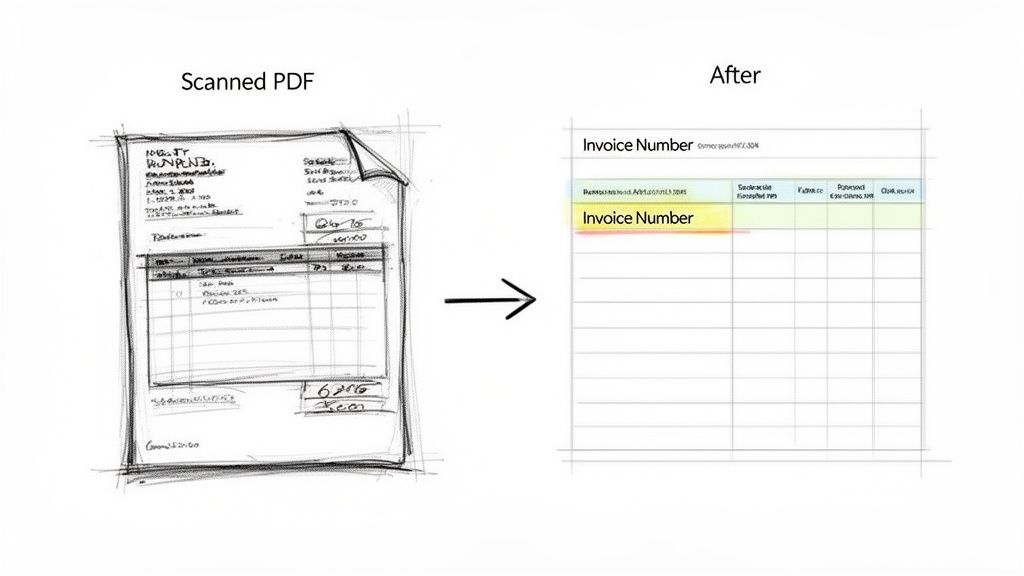
The system automatically identifies and labels every piece of data—from the vendor's name right down to the grand total—without you ever needing to build a template.
With a tool like this, you can drop in a complex PDF invoice and get a clean, ready-to-use spreadsheet back in seconds. This completely changes the game, freeing your team from the soul-crushing work of copy-pasting and letting them focus on what they do best: analysis and making smart decisions.
Common Questions About OCR and PDFs
So, you have a decent handle on what OCR is and how it helps with PDFs. But when you start to apply it in the real world, a few practical questions always seem to pop up. Let's walk through some of the most common ones.
Is OCR 100 Percent Accurate?
It’s tempting to think so, but the honest answer is no. While modern AI-powered OCR can hit an impressive 99% accuracy on a clean, high-quality document, it’s never going to be perfect 100% of the time.
Think of it like this: garbage in, garbage out. The final result is only as good as the original file. Things like a fuzzy scan, a weird layout, or faded text can all trip up the software and introduce small errors.
That's where intelligent parsing tools come in handy. They act as a second layer of defense, reviewing the OCR output to catch and fix those little mistakes. This ensures the data you end up with is clean, reliable, and actually ready to be used.
Can OCR Read Handwritten Text?
Yes, but that’s a slightly different beast called Intelligent Character Recognition (ICR). And its success rate really hinges on one thing: how neat the handwriting is.
ICR works best with structured forms where someone has carefully printed in block letters or numbers. It gets into trouble when faced with sloppy cursive or densely packed, free-form notes. For most day-to-day business documents, you'll get the most reliable results from OCR working on standard, typed text.
The bottom line is that while technology is improving, legibility is key. The messier the writing, the higher the chance of errors, making ICR better suited for specific, controlled use cases.
Do I Need to Install Software to Use OCR?
Not anymore, thankfully. In the past, you absolutely had to install clunky desktop software that needed constant updates and maintenance. Today's best tools are cloud-based.
Modern platforms let you just drag and drop your PDF into a web browser, and all the complex processing happens on their secure servers. This makes powerful OCR accessible to anyone on your team, from any computer, without bogging down your IT department. It’s simply a faster, smarter, and more scalable way to work.
Ready to stop copying and pasting? DocParseMagic turns your messy PDFs into clean, structured data in seconds. Try it for free and see how much time you can save.