
Convert Image to Excel A Practical Guide
Turning a picture into an Excel file is a game-changer. It gets you out of the mind-numbing task of manually typing data from photos, receipts, or scanned documents directly into a spreadsheet. The magic behind it is Optical Character Recognition (OCR), a technology that pulls out text and numbers, saving you a ton of time and pretty much eliminating typos.
Why Manual Data Entry Is Holding Your Business Back
We've all been there: staring at a scanned receipt or a photo of an inventory sheet, getting ready to type every single number into a spreadsheet. That all-too-familiar grind is costing your business way more than just time. The hidden costs of manual data entry stack up fast, from the billable hours your team loses to the critical business decisions that get derailed by simple typos.
This isn't just about being more efficient. It's about letting your team graduate from being data clerks to becoming strategic thinkers. Modern tools aren't just a nice-to-have anymore; they're essential for any business that needs to move faster and with more confidence in its numbers.
The True Cost of Manual Labor
In the worlds of accounting and finance, manually punching in data from scanned invoices is a notorious time-waster. It can eat up as much as 40% of an accountant's day. Think about that for a second. For a mid-sized firm processing around 500 invoices a week, that’s over 125 hours lost every single week—basically, three full-time employees stuck doing tedious work. You can read more about these financial impacts and see just how much automation can help.
Here’s a glimpse of how Excel's own "Data from Picture" feature kicks things off, turning a static image into a live, editable table.

As you can see, the tool doesn't just dump the text. It intelligently identifies the rows and columns, giving you a chance to review everything for errors before it even hits your spreadsheet.
Beyond Time Savings
Automating the conversion from image to Excel does a lot more than just clear up your team’s calendar. It fundamentally boosts the quality of your data and puts decision-making on the fast track.
Just look at these advantages:
- Fewer Human Errors: Let's face it, even the most careful person makes mistakes. Automated tools capture data with much higher precision, which helps you avoid costly errors in financial reports or inventory counts.
- Faster Turnaround Times: Invoices get paid quicker, client info is updated almost instantly, and you can generate reports in minutes instead of days.
- Smarter Use of Your Team: When your people aren't bogged down with manual entry, they can actually analyze the data. This shift empowers them to spot trends, find new opportunities, and focus on work that really grows the business.
The goal is to free up your most valuable resource—your people—for work that actually matters. By automating data entry, you're not just saving money; you're investing in a more strategic, agile, and competitive business.
How to Prep Your Images for a Flawless Conversion
The old saying "garbage in, garbage out" has never been more true than with image-to-Excel conversion. Your success starts and ends with the quality of your source image. A blurry, shadowy photo will inevitably lead to a jumbled spreadsheet, leaving you to fix more errors than if you'd just typed it all out by hand.
The good news? You don't need a high-end scanner or fancy camera. Your smartphone is more than capable of capturing a high-quality image. A few simple tweaks before you start are all it takes to save yourself hours of cleanup later.
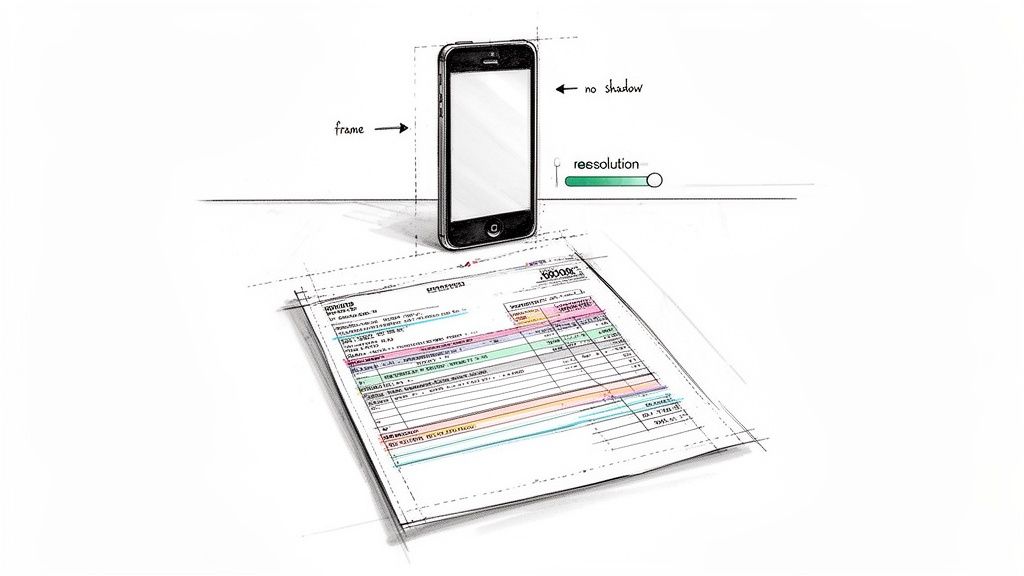
Ultimately, your job is to give the OCR software the cleanest, clearest possible look at your data. Even the smallest improvements can make a huge difference in accuracy.
Dial in the Lighting and Contrast
Shadows are the number one enemy of good OCR. A dark line across a row of numbers can render them completely unreadable to the software, turning a "9" into a "3" or just gibberish.
-
Find Indirect Light: Never use your phone’s flash. It creates a harsh glare right in the middle of the page. Instead, move the document near a window or under a lamp with a shade. You want bright, even light across the entire page, with no dark spots.
-
Bump Up the Contrast: The software works best when it can easily tell the text apart from the background. Most built-in phone photo editors have a contrast slider. Use it to make faint gray text crisp and black.
Frame Your Shot Like a Pro
How you line up the document is just as critical as the lighting. If the image is skewed or shot at a weird angle, the OCR software has to guess where the columns and rows are supposed to be, and it often guesses wrong.
Position your camera directly over the document, making sure it’s lying flat. If you have to shoot from an angle, use a perspective correction tool. Free apps like Microsoft Lens or Adobe Scan are brilliant for this; they let you digitally flatten the image so it looks like a perfect overhead scan. You can find more practical tips in this guide on how to https://docparsemagic.com/blog/scan-documents-to-excel.
Pro Tip: Fill the frame with the document, but leave a tiny bit of border around the edges. This tells the software exactly where the document begins and ends, focusing all the resolution on the data you care about.
One last thing—think about the file type. For documents that are mostly text with sharp lines, a PNG file usually keeps things clearer than a JPG. The format really can impact your results, so it's worth taking a moment for understanding image format differences if you want the best possible outcome.
Taking Advantage of Excel's Built-In "Data from Picture" Feature
Sometimes the best tool for the job is the one you already have. You might be surprised to learn that Excel has its own powerful feature for pulling data straight from an image, tucked away right in the ribbon.
This native "Data from Picture" tool is my go-to for simple conversion tasks. If you have a clean, straightforward table in a picture and just need to get it into a spreadsheet fast, this is the perfect place to start. It often saves you the hassle of hunting down another app for a one-off job.
Finding and Using the Feature
Getting started is easy. You'll find the tool right in the Data tab.
-
For a saved image file: Head to the Data tab, look for the "Get & Transform Data" section, and click From Picture. From there, choose "Picture From File" to upload your image.
-
For a screenshot or copied image: If you just snapped a screenshot or copied a table from a PDF, you can take a shortcut. In that same From Picture menu, select "Picture From Clipboard." It's a fantastic time-saver.
Once you’ve fed it the image, Excel’s own OCR engine starts analyzing the picture. It scans for a table structure, identifies the text, and pulls everything into a handy preview pane.
What's great about this is that it's not just a blind text dump. Excel's tool is smart enough to recognize the grid and attempts to put everything into the right rows and columns. That alone is a huge head start.
The All-Important Review and Insert Step
After its initial scan, Excel shows you its work in the "Data from Picture" pane on the right. This is where you come in, and frankly, it's the most important part of the process.
The tool is clever enough to know when it's not sure about something. It will highlight any characters it's less than 100% confident about, usually in red, giving you a chance to verify them.
You can click on each of these flagged cells. Excel will show you a close-up of that part of the original image, so you can quickly either accept its best guess or type in the correct value. This review step is what makes the feature so practical. It recognizes that OCR isn't foolproof and gives you an easy way to clean up the results.
Think about a scanned price list where a smudged "8" looks like a "3". Excel will likely flag it, letting you fix it with a single click. Once you've reviewed all the suggestions and are happy with the preview, just hit the "Insert Data" button. The clean, corrected data pops right into your spreadsheet, ready to go.
When to Use Dedicated OCR Software
Excel’s built-in tool is a fantastic starting point for quick, simple jobs. I use it myself for grabbing a clean table from a screenshot. But it has its limits.
When you’re staring down a mountain of complex documents or dealing with data where every digit matters, you’ll quickly hit a wall. That’s when you need to bring in the heavy hitters: dedicated Optical Character Recognition (OCR) software.
These specialized platforms are built from the ground up to do one thing exceptionally well—pull data from images and documents with a level of accuracy and speed that a simple add-on can't match. They’re designed to tackle the messy, real-world documents that businesses actually run on.
This flowchart can give you a quick gut check on whether to stick with Excel or move to a more powerful tool.
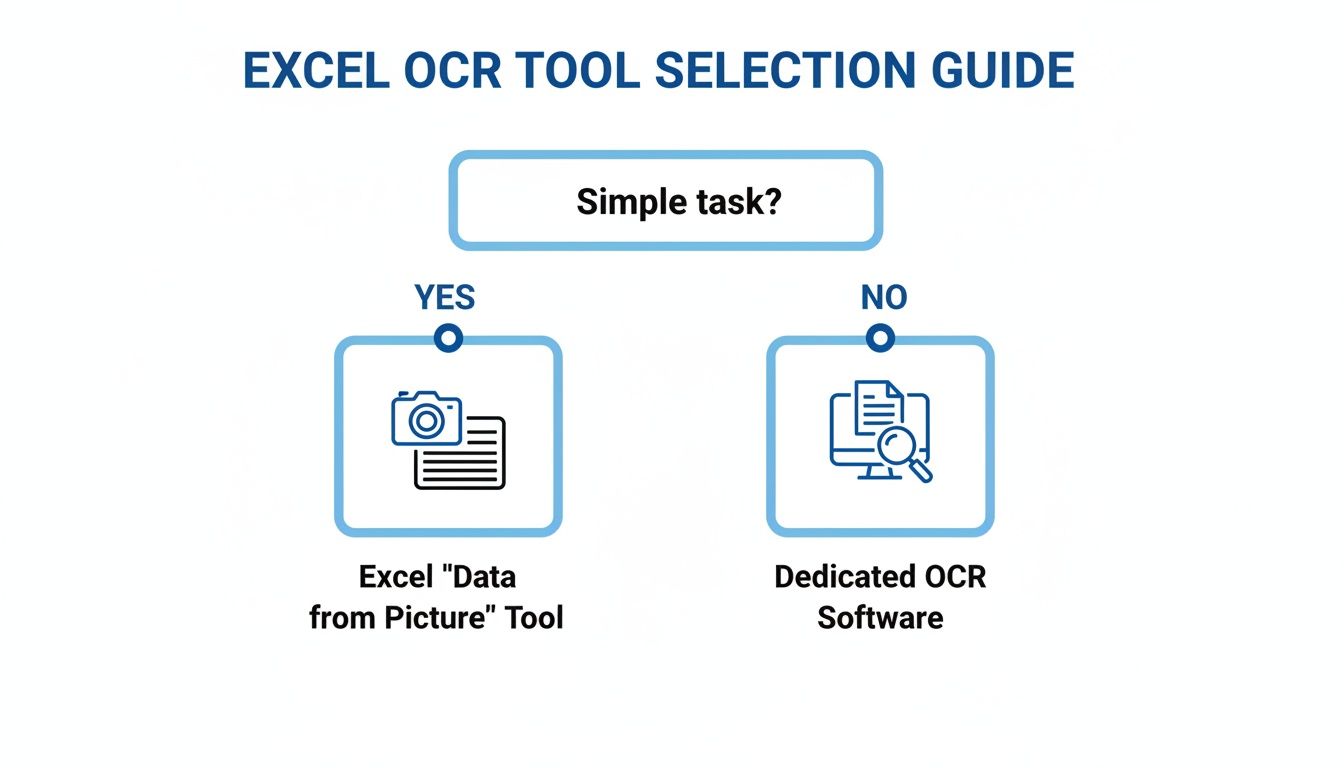
The rule of thumb is pretty simple: if it's anything more than a straightforward, clean table, a dedicated tool will almost certainly save you a ton of time and prevent a lot of headaches.
Handling High Volume and Complexity
Picture this: you've just been handed a 50-page scanned financial report, or you have a stack of hundreds of invoices from different vendors. Trying to process those one by one with Excel's tool would be a nightmare of slow, repetitive, error-prone work. This is exactly the kind of scale that dedicated OCR software is built for.
Here’s what makes a real difference:
- Batch Processing: Instead of one image at a time, you can upload hundreds of files or a massive multi-page PDF and let the software work its magic in the background.
- Advanced Table Detection: These tools have sophisticated algorithms that can make sense of complex table structures—think merged cells, tables inside of other tables, or inconsistent layouts that would completely trip up simpler tools.
- Multi-Language Support: If you’re dealing with international documents, dedicated software can recognize text in dozens of languages, sometimes even within the same document.
The real power of dedicated OCR is its robustness. It's designed to preserve the original document's structure, slashing the amount of manual cleanup you have to do. It turns a daunting, impossible-feeling task into a smooth, manageable workflow.
Achieving Superior Accuracy and Reliability
In fields like finance or insurance, data accuracy isn't just a nice-to-have; it's absolutely critical. A single misplaced decimal or a misread name can have serious financial consequences.
For instance, some studies show that 25% of insurance claims processing time is eaten up by manual data entry. One tiny error can contribute to the estimated $500 million that insurers lose each year in claim disputes. A professional-grade OCR tool dramatically cuts down on these risks. For a deeper dive, you can read more about how OCR streamlines insurance workflows.
Professional software uses advanced machine learning models to hit accuracy rates that often top 99% on clear documents. They excel at telling the difference between tricky characters (like 'O' and '0' or 'l' and '1') and can handle a much wider range of fonts and image qualities. If you want to understand the technology behind this, our guide on what is OCR is a great place to start.
Comparing Image to Excel Conversion Methods
To help you choose the right approach, let's break down the key differences between the methods we've discussed.
| Feature | Excel 'Data from Picture' | Dedicated OCR Software | DocParseMagic |
|---|---|---|---|
| Best For | Quick, simple, one-off tasks from clear images. | High-volume, complex, or mission-critical data extraction. | Automated workflows where data needs to be structured and validated. |
| Accuracy | Good for clean, simple tables. | Very high, often exceeding 99% on clear documents. | Highest, with built-in validation and AI-powered error correction. |
| Batch Processing | No, single image at a time. | Yes, handles hundreds of files or multi-page documents. | Yes, designed for bulk processing and automation. |
| Setup | Built-in, no setup needed. | Requires software installation or account setup. | No-code platform, set up custom workflows in minutes. |
| Cost | Free (with Microsoft 365). | Subscription or licensing fees. | Tiered subscription based on usage. |
| Customization | None. | Some options for language and output formats. | Fully customizable parsing rules, templates, and integrations. |
Each tool has its place. For a one-off data grab, Excel is fine. For serious, recurring data work, a dedicated OCR tool or a no-code platform like DocParseMagic will deliver far better and more reliable results.
Dealing With Messy, Real-World Documents? AI Document Parsing is the Answer
Basic OCR is great when you're dealing with text in a neat, orderly table. But let's be honest, how often does that happen in the real world? Business documents—supplier invoices, purchase orders, bank statements—are usually all over the place. This is exactly where standard tools hit a wall and a more advanced approach, intelligent document parsing, really shines.
Instead of just reading characters, this method actually understands the document's context. Think about it: a smart tool won't just see the words "Invoice Number." It knows to look for the specific string of digits that comes after it, no matter where it is on the page. That's the real power of AI-driven parsing.
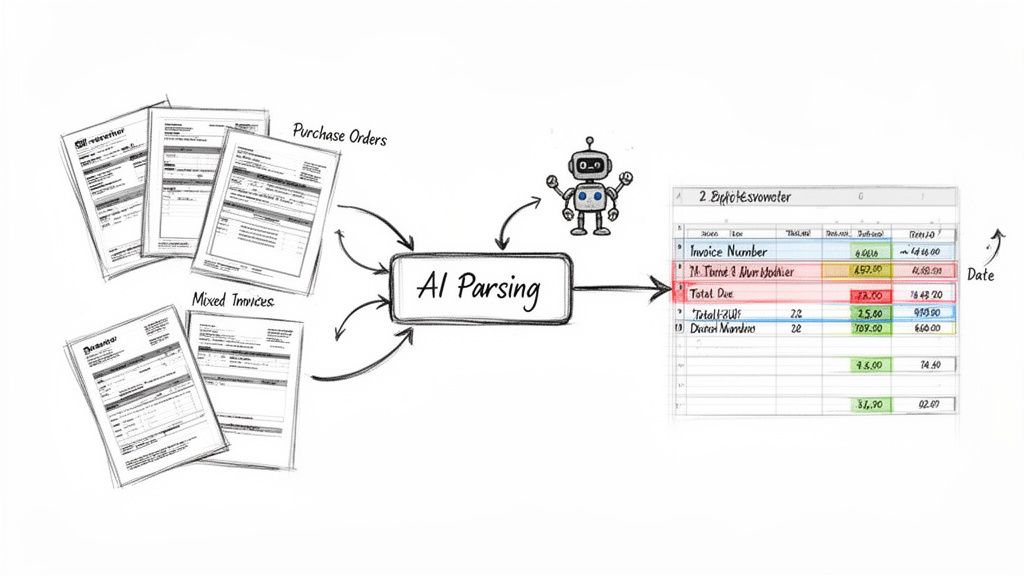
Solutions like DocParseMagic are designed for this kind of chaos. They can pinpoint and pull out key fields like 'Total Due' or 'Customer PO' even if the layout changes from one document to the next. This turns a jumbled mess of images into perfectly organized data you can actually use.
It’s Not Just About Recognizing Text, It's About Understanding Data
The biggest headache for businesses isn't just turning images into text; it's making sense of that text. For many small and mid-sized companies, the manual work involved is overwhelming.
Picture an operations manager drowning in a sea of commission reports and subcontractor invoices, many arriving as blurry phone photos or low-quality scans. Pulling all that information into Excel can eat up 30-50% of a project's timeline. I once worked with a construction firm that was processing 300 subcontractor liens every month. Their manual copy-and-paste process had a 7% error rate, which ended up costing them $1.2 million a year in disputes.
This is where AI document parsing changes the game. It doesn't just dump text from an image into Excel. Instead, it uses pre-trained models to do so much more:
- Find Key-Value Pairs: It automatically connects a label (like "Invoice Date") with its value ("10/25/2024").
- Grab Line Items: It can pull entire tables of products, quantities, and prices, even if the table looks different on every invoice.
- Check the Data: It can flag a missing invoice number or check if the subtotal plus tax actually equals the total amount, catching mistakes before they poison your data.
By understanding a document’s layout and how different pieces of information relate to each other, AI parsing delivers clean, structured data—not just a wall of jumbled text. That accuracy is something standard OCR just can't offer.
Building a No-Code Automation Workflow
Let's walk through a common scenario: you need to process a mixed batch of supplier invoices. Each one is laid out differently, uses unique fonts, and might even call the same thing by a different name. Doing this by hand would take hours and be a recipe for mistakes.
With a platform like DocParseMagic, you can set up a no-code workflow to handle this automatically. You just upload the batch of image files or PDFs, and the AI takes over. It intelligently finds and extracts the crucial fields from every single invoice—vendor name, invoice number, date, line items, and the total amount. Then, it organizes everything into a clean, standardized Excel spreadsheet.
While specialized tools are key for converting images to Excel, it's also worth exploring how AI software for small business can unlock even more operational efficiencies.
The end result isn't just a transcription. It's a structured dataset ready for payment processing, expense tracking, or deep financial analysis. A manual task that used to take hours is now a workflow that runs in minutes, giving your team back valuable time to focus on work that really matters. If you want to dive deeper into the tech that makes this possible, our guide on https://docparsemagic.com/blog/what-is-intelligent-document-processing is a great place to start.
Working Through Common Conversion Problems
Even with the best tools, your first image-to-Excel conversion probably won't be perfect. Don't sweat it. Most errors are predictable and, once you know what to look for, surprisingly easy to fix. Think of this as your field guide for squashing the most common conversion bugs without having to start from scratch.
You'll run into frustrating issues like numbers being read as letters ('0' for 'O' or '1' for 'l'), columns getting smashed together, or data just landing in the wrong cells. These problems almost always come down to how the OCR technology interpreted the original image, not a fundamental flaw in the tool. Something as simple as a faint line or a weird shadow can throw it off.
Spotting and Fixing the Usual Suspects
Your first move should always be a quick visual scan of the spreadsheet. Does the row count look right? Are all your columns accounted for? Most glitches fall into just a few categories.
Here’s how I typically handle them:
-
Merged or Split Columns: This is a classic. It usually happens when the vertical lines in your source table are faint or broken, causing the OCR to see two columns as one giant one. The fastest fix is to manually insert a new column in Excel and use the Text to Columns feature. You can find it in the Data tab, and it's perfect for splitting that jumbled data using a space or comma.
-
Character Recognition Goofs: This is your 'O' versus '0' problem. Your best friend here is Excel's Find and Replace (Ctrl+H). If you see a product code like "TVS098" repeatedly showing up as "TVSO98," a quick Find and Replace can fix the entire sheet in seconds.
Don't just rely on your eyes to spot errors, especially with numbers. A great pro-tip is to use the
SUMformula on a column of financial data. If your total doesn't match the source document, you know for a fact there's a character error hiding in there somewhere.
Handling Weird Characters and Formatting
Every now and then, special characters like currency symbols (€, £, ¥) or accents (é, ñ) get mangled in the conversion process. If you see a bunch of strange symbols like "�" scattered through your data, it's almost certainly an encoding problem.
To fix this, make sure your Excel file is saved with UTF-8 encoding. This format supports a massive range of international characters. You can usually find this setting in the "Save As" dialog under "Tools" > "Web Options" > "Encoding." It's a simple tweak that can prevent a lot of formatting headaches.
Common Questions Answered
When you're trying to get data out of an image and into a spreadsheet, a few questions always seem to pop up. Let's tackle them head-on, based on years of wrangling this kind of data.
Just How Accurate Is This Stuff?
The honest answer? It depends entirely on your source image and the tool you're using.
If you have a clean, perfectly formatted table, Excel's own "Data from Picture" feature can do a surprisingly good job, often landing in the 80-90% accuracy range. That’s not bad for a quick and dirty conversion.
Dedicated OCR software can get you closer, hitting 98-99% accuracy on crisp, high-quality scans. Where I see the real difference is with AI-powered platforms like DocParseMagic. They can consistently break the 99% barrier, even with messy layouts, because they're not just reading characters—they're understanding the document's structure.
What About Converting Handwriting to Excel?
Yes, you can, but this is where things get tricky. Most standard OCR tools really struggle with handwriting. It's just too inconsistent for them.
The newer, smarter AI platforms are making impressive strides, especially with neat, block-style printing. If you want to give it a shot, make sure your image has high contrast and the writing is as clear as possible. Cursive or sloppy script? That’s still the final boss for pretty much any automated tool out there.
My Two Cents: Converting handwriting is possible with the right tool, but it's not what the simple, built-in features were designed for. For that, you really need to bring in the more advanced AI.
Is It Safe to Upload My Documents for Conversion?
This is a big one, and something you should absolutely be thinking about. Security can't be an afterthought.
Those free, no-login-required online converters are tempting, but you're often rolling the dice on their data privacy policies. If your document has any sensitive financial, personal, or client information, I would steer clear.
Always opt for a professional service designed for business use. These platforms are built with security at their core, using things like data encryption to ensure your information stays yours. It's the only way to have real peace of mind.
Ready to stop squinting at scanned tables and manually typing data? DocParseMagic can turn those jumbled images, scans, and PDFs into perfectly structured spreadsheets in minutes. Give it a try for free and see the magic for yourself.