How to print a secured pdf file: Safely Print Secured PDF Fi
You have an invoice that needs approval in the next hour. Or a commission statement that has to go into a monthly reconciliation pack. You open the PDF, hit print, and the option is disabled.
That’s a familiar operations problem. It looks small, but it can burn a lot of time because the answer depends on what kind of security is on the file, who sent it, and whether you’re allowed to remove the restriction in the first place.
A lot of guides jump straight to hacks. That’s incomplete advice. Some methods work well. Some damage formatting. Some are a bad idea for finance, insurance, procurement, or any team that has to preserve controls. If you need to know how to print a secured pdf file, start by identifying the lock, then choose the least risky path.
Why You Can't Print That Secured PDF
Individuals often encounter this in the middle of real work, not while experimenting. A vendor sends a statement. A carrier sends a policy PDF. A lender sends supporting documentation. You can open the file, read it, maybe even search it, but you can’t print.
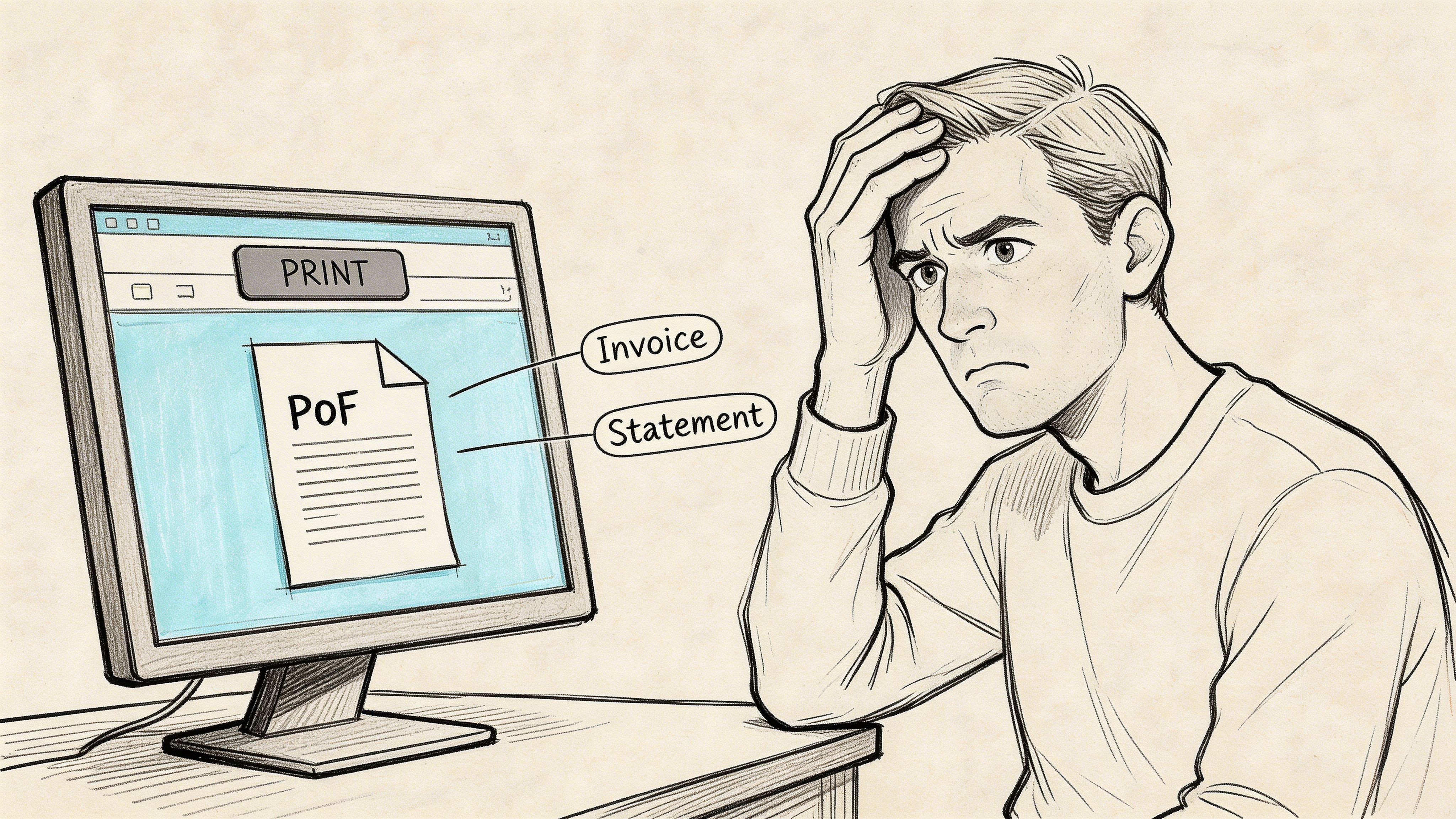
This isn’t rare. By 2023, 67% of business PDFs worldwide, equating to over 2.5 trillion files annually in accounting, insurance, and procurement sectors, featured print restrictions according to G2 and Spiceworks aggregated data cited here.
Two different passwords cause two different problems
A PDF can be restricted in two main ways:
- User password. This blocks the file from opening at all. If you don’t know it, you usually can’t even view the document.
- Owner password. This lets you open the file, but limits actions like printing, copying, or editing.
That distinction matters because people often say “password protected” as if it’s one thing. It isn’t. If the file opens but print is disabled, you’re usually dealing with permissions, not an access lock.
What the sender is trying to control
From the sender’s side, these restrictions are often intentional. They may want to:
- Prevent casual redistribution of statements or policies
- Stop edits to a finalized document
- Force controlled handling inside a regulated workflow
- Preserve a signed or official version of a record
From your side, the problem is practical. You may just need a hard copy for review, or a printable version for a downstream process. Before you do anything, check the security settings in your PDF reader so you know whether printing is blocked by permissions or by a full document password. If you want a quick way to inspect document details, this guide on how to view PDF metadata helps you confirm what you’re working with.
Practical rule: If you can open the file but can’t print it, don’t assume you need a “cracker.” You may only be dealing with a permissions setting.
The quick diagnosis
Open the PDF and check its document properties.
A few signs point to permission restrictions:
| Sign | What it usually means |
|---|---|
| File opens normally | No user password blocking access |
| Print is grayed out | Printing permission is disabled |
| Copy/select text is blocked | Owner restrictions are active |
| Security tab shows limits | The PDF has active permissions |
That’s the fork in the road. If you have authorized credentials, use them. If you don’t, any workaround becomes a judgment call involving quality, privacy, and compliance.
Printing a Secured PDF with the Owner Password
If you have the owner password or approved credentials from the document owner, use that route first. It’s the cleanest method, keeps quality intact, and avoids the messy side effects that browser workarounds can create.
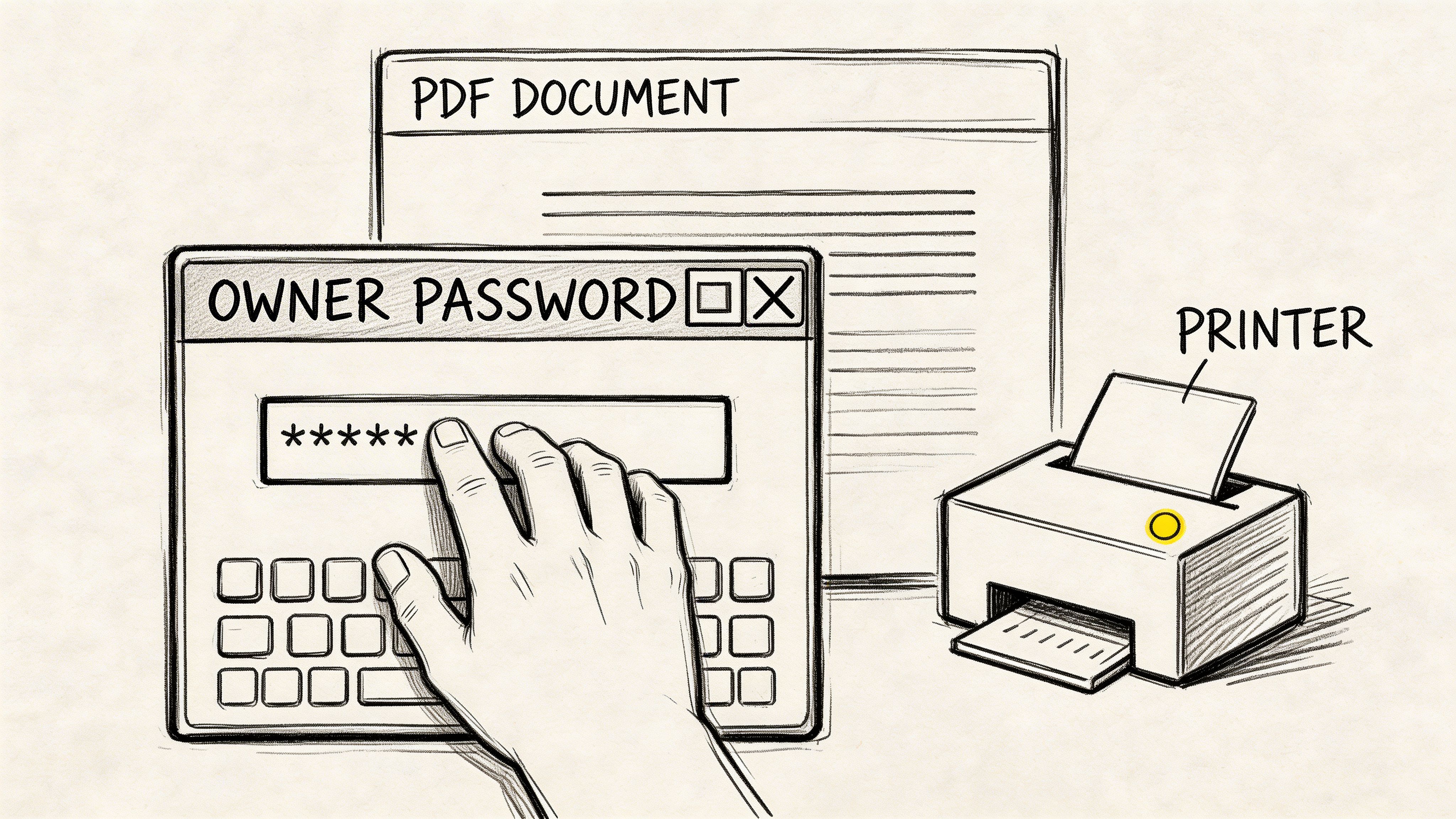
A lot of current PDF permission behavior traces back to an older milestone. Adobe Acrobat 3.0 in June 1996 introduced DRM-style PDF restrictions through owner passwords, which changed how businesses handled print, copy, and edit permissions, as described in this overview of printing a secured PDF with password-related methods.
Use Adobe Acrobat or Acrobat Pro
If the file opens and you know the authorized password, this is the standard workflow:
-
Open the PDF in Adobe Acrobat Enter the password if prompted.
-
Check current permissions Go to File, then Properties, then Security. Look for the printing setting.
-
Remove or change the restriction In Acrobat Pro, switch security to No Security if your permission level allows it.
-
Save a new copy Don’t overwrite the original unless your document policy allows it.
-
Print from the new file Use the regular print dialog after saving.
If you only have Reader and not Pro, your options are narrower. In practice, many teams use Pro because it exposes the security settings directly and preserves the original document structure better than print-to-PDF workarounds.
What works well with this method
The main benefit is document fidelity. Fonts, vector graphics, and page layout usually stay intact.
That matters for:
- Invoice archives where line items must remain readable
- Insurance forms with small text and tables
- Commission reports where page breaks affect interpretation
- Construction or loan files with stamps, signatures, or layered content
Here’s a walkthrough if you want to see the general process in motion:
A few checks before you save
Don’t just gain access and print automatically. Confirm three things:
- You’re permitted to remove the restriction
- The saved copy won’t break a retention rule
- You still know which file is the official original
When teams get into trouble, it’s often not because the print step failed. It’s because nobody marked which version was altered and which version remained the source record.
If you have the password, this is usually the right path. If you don’t, the next methods can still work, but they stop being clean and start becoming trade-offs.
Browser and Cloud Workarounds for Printing
When you don’t have the owner password, the most common workaround is to let another viewer render the PDF visually, then save that rendered output as a new file. That’s why Chrome and Google Drive come up so often in discussions about how to print a secured pdf file.
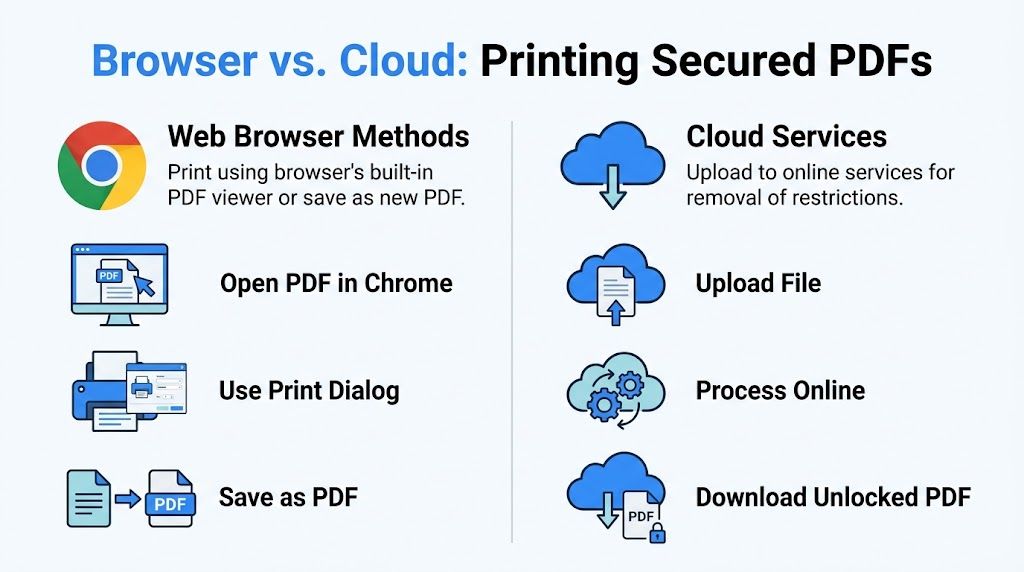
The Chrome or Drive approach can work very well on standard permissions locks. The method succeeds in 95 to 98% of standard permissions-restricted PDFs, because Chrome’s renderer ignores PDF permissions flags in many cases, according to this explanation of the Chrome and Drive bypass behavior. The trade-off is quality. It can rasterize vector content and increase file size by 2 to 5 times.
Chrome method
This is the fastest local workaround when the file opens but printing is disabled.
Steps in Chrome
- Drag the PDF into a Chrome window or open it with Chrome.
- Press Ctrl+P or use the print menu.
- In Destination, choose Save as PDF.
- Save the new file.
- Open the saved copy and print from your usual PDF tool.
Why it works: Chrome often treats the file as something to render, not as something whose permissions it must respect in the same way Adobe does.
Where it works best:
- standard business PDFs
- short documents
- files where exact vector preservation isn’t critical
Where it falls short:
- technical drawings
- forms with delicate alignment
- image-heavy or long PDFs
- documents where file size matters
Google Drive preview method
Google Drive uses a similar idea, but the processing happens through Drive’s viewer.
General flow
- Upload the file to Drive
- Open the preview
- Use the print option from the preview
- Save or print the rendered version
This can be handy when you’re on a locked-down work machine or moving between devices. It’s also simple for occasional use.
Side-by-side trade-offs
| Method | Best use | Main benefit | Main risk |
|---|---|---|---|
| Chrome Save as PDF | Quick local workaround | No third-party unlock site needed | Can bloat file size or flatten quality |
| Google Drive preview | Cross-device convenience | Easy if Drive is already part of workflow | Uploading business files to cloud may violate policy |
What usually goes wrong
The biggest mistake is treating a successful print as proof that nothing changed. Something often changed.
- Text may become image-like and harder to search later
- Vector graphics may flatten
- File size may jump
- Page scaling may shift
- Hidden layers or metadata may be lost
A workaround that “prints fine” can still be a bad archive copy.
If you use Chrome, inspect the output before you send it on. Check page count, readability, and whether tables still line up. If the PDF contains financial detail, signatures, or compliance-sensitive formatting, verify the rendered copy against the original side by side.
For occasional, low-risk jobs, browser and cloud methods are practical. For repeated business use, they become fragile fast.
Advanced Methods Using Converters and Unlockers
When browser methods fail, people move to converters and access tools. That’s where the risk profile changes. These tools often modify the file itself, convert it into another format, or upload it to an outside service for processing.
This category includes PDF-to-Word converters, image export tools, and web-based access sites. They can solve edge cases. They can also create new problems you didn’t have before.
Converting to Word or images
If the document is mostly text and simple tables, converting it to Word can produce a printable version. If it’s a layout-heavy file, converting pages to images can at least create a readable hard copy.
Typical approaches include:
- PDF to Word for text-based documents
- PDF to image when layout matters more than editable text
- Print to image then reassemble for stubborn files
- OCR conversion for scanned pages
If you work with scanned documents, quality becomes the main issue. Existing guides poorly cover image-based secured PDFs, even though 35% of invoices are now scanned uploads, and AI parsing with OCR shows 97% accuracy on such files, as discussed in this article on printing secured PDFs and scanned-file limitations.
Scanned PDFs are a different problem
A scanned PDF isn’t really a text document. It’s often a stack of images inside a PDF container. That’s why standard copy, search, or simple conversion fails so often.
With scanned secured files, I’d separate the job into two questions:
- Do you need a paper copy?
- Or do you need usable data from the page?
If you need only readability, image export may be enough. If you need values, tables, or line items, OCR quality matters more than printing.
For teams working with statements, invoice photos, or multi-page scans, converting the file to a structured text format can be more useful than forcing a print path. If you need a cleaner machine-readable format after extraction, this guide on PDF to Markdown is useful for understanding how structured conversion differs from a simple visual export.
Online unlockers and why I’m cautious
Online access tools are attractive because they feel easy. Upload file. Wait. Download “processed” PDF. Done.
That convenience hides several questions:
- Where is the file processed?
- How long is it stored?
- Can your vendor contract allow that upload?
- Does your team have approval to send customer or financial files to that service?
Here’s the practical test I use.
If you wouldn’t email the document to a stranger, don’t upload it to a random unlock site.
What to use only with caution
| Method | Can work | Common downside |
|---|---|---|
| PDF to Word converter | Good for simple text docs | Tables, spacing, and pagination may break |
| PDF to image export | Good for visual preservation | Text becomes harder to search or reuse |
| OCR unlock and convert | Good for scans | Accuracy depends on source quality |
| Free online unlocker | Good for convenience | Data exposure and policy violations |
These methods are sometimes necessary. They just shouldn’t be your first instinct with business documents that contain client, policy, payroll, or banking information.
Legal and Security Risks of Bypassing PDF Locks
Most articles about secured PDFs stop at “try Chrome” or “upload it here.” That’s not enough for business use.
The hidden issue is that bypassing a print restriction can trigger legal, contractual, or internal policy problems. Many guides miss this entirely, even though finance teams have faced fines tied to unauthorized document handling, with 42% cited in PDF security audit trends in this discussion about printing secured PDFs and related risks.
The legal question isn’t just “can I”
The core question is whether you’re authorized.
A file may be technically printable through a workaround and still be off-limits under:
- contract terms with a vendor or carrier
- internal information security policy
- records management rules
- anti-circumvention law, including DMCA-related concerns in some cases
If your company handles regulated data, the shortcut can be more dangerous than the original inconvenience.
What breaks in a business process
When someone bypasses restrictions casually, these control problems show up:
- Audit trail loss. The printed or re-saved copy may no longer match the original restricted file.
- Version confusion. Staff may circulate an altered copy without knowing it.
- Unapproved sharing. A cloud workaround may move the file outside approved systems.
- Retention issues. The output file may not preserve the attributes your compliance team expects.
This matters most in accounting, insurance, procurement, and lending. Those teams work with documents that often carry sensitive customer, pricing, or policy information.
Security isn’t just about the PDF lock
A lot of teams focus on removing the restriction and ignore the broader handling model. That’s backwards.
If you’re evaluating document workflows, it helps to understand how end-to-end encryption protects data during transfer. It won’t solve a PDF permissions problem by itself, but it sharpens the right question: are you protecting the document through the whole chain, or just trying to get around one obstacle?
A secure document process is more than “did the file open.” It’s “who touched it, where it moved, and what evidence remains.”
When to stop and escalate
Stop using workarounds and escalate to IT, legal, compliance, or the document owner when:
- The file contains personal or financial data
- The sender is an insurer, lender, law firm, or regulated vendor
- The document is part of an audit or dispute
- Your only option involves an unknown web tool
- You can’t clearly explain why you’re entitled to remove the restriction
A blocked print button is annoying. A broken compliance trail is expensive.
Beyond Printing A Professional Document Workflow
In most business settings, printing isn’t the primary goal. The primary goal is getting reliable data out of the document so the team can review, reconcile, compare, approve, or report on it.
That shift matters. Once you stop treating the PDF as a thing that must be printed, better workflows open up.
Ask what you actually need
A finance team usually doesn’t need “paper.” It needs:
- invoice number
- date
- total
- line items
- policy details
- payee or vendor information
An operations team doesn’t benefit much from printing fifty secured statements if the next step is manual rekeying into Excel anyway.
Parsing beats printing for repeat work
Document parsing becomes more useful than another access trick. Tools like DocParseMagic can parse secured PDFs without code, extracting fields like totals and dates with 99% accuracy and saving an average of 5 hours weekly per user in procurement teams, as described qualitatively in the product background and quantified in the verified data tied to the earlier source set.
That matters because it changes the workflow from:
- open file
- bypass restriction
- print or re-save
- copy data manually
- fix errors later
to something much cleaner:
- ingest file
- extract the needed fields
- review structured output
- push into spreadsheet or downstream process
If you’re building a repeatable process, this article on automated document workflow is a practical next read.
Better handling also starts at the source
Part of the long-term fix is upstream. If your team sends PDFs out to vendors, clients, or field staff, lock them deliberately and share them cleanly. This guide on how to encrypt and share files like a pro is useful because it focuses on controlled sharing rather than ad hoc protection.
The operational advantage
The strongest document workflows do three things well:
| Workflow choice | What you get |
|---|---|
| Print-and-hack | Quick short-term result, weak repeatability |
| Convert-and-clean up | Better flexibility, more QA work |
| Parse structured data directly | Faster downstream use, cleaner controls |
I’ve seen teams spend more time trying to make a secured PDF printable than the underlying data was worth. That’s usually a sign the process is wrong.
If the file is a one-off and you’re authorized, a print workaround may be fine. If this happens every week, stop solving the same small problem over and over. Build a workflow that captures the data you need without depending on manual printing at all.
Frequently Asked Questions About Printing Secured PDFs
Can I print a secured PDF if I don’t know the password
Sometimes, yes, if the file only has permission restrictions and a browser-based rendering workaround succeeds. But that doesn’t mean you should. You still need authorization to bypass the restriction.
If the PDF has a true user password that blocks opening the file, you typically need that password to proceed.
What’s the difference between a user password and an owner password
A user password stops the file from opening.
An owner password allows opening but restricts actions like printing, copying, or editing.
That’s the first thing to figure out before choosing any method.
Why does the printed or saved copy sometimes look worse
Because some workarounds don’t preserve the original document structure. They render the page visually, then create a new file from that output.
That can flatten vectors, reduce text quality, change scaling, or create a larger file.
Is it legal to remove print restrictions from a PDF
It depends on whether you own the file or have permission from the owner. In business use, legal isn’t the only standard. Internal policy, client agreements, and audit requirements matter too.
If you can’t clearly justify the action, don’t do it.
Can I print a secured PDF from my phone
Sometimes, but mobile apps usually give you fewer controls and less visibility into security settings. For business documents, desktop tools are safer because you can inspect permissions, confirm output quality, and control where the file is saved.
What should I do if the PDF is scanned
Treat it as an OCR problem, not just a print problem. If it’s a scan, the main challenge is extracting readable text and preserving layout. Generic print workarounds often create poor outputs on scanned files.
If your team keeps getting locked invoices, statements, policies, or commission reports, don’t keep burning time on one-off hacks. DocParseMagic helps you extract the fields you need from secured PDFs, scanned pages, and messy business documents into clean spreadsheets, so you can move the work forward without living in print dialogs and copy-paste cleanup.