How to View Metadata PDF Files A Complete Guide
Ever wonder what’s hiding inside your PDF files? Beyond the text and images you see on the screen, every PDF carries a hidden layer of information—its metadata. This digital footprint tells the story of the document: who made it, when they made it, and even the software they used.
Learning to view metadata in a PDF isn't just a neat trick; it's a fundamental skill for anyone who needs to verify a document's history.
What PDF Metadata Reveals and Why It Matters
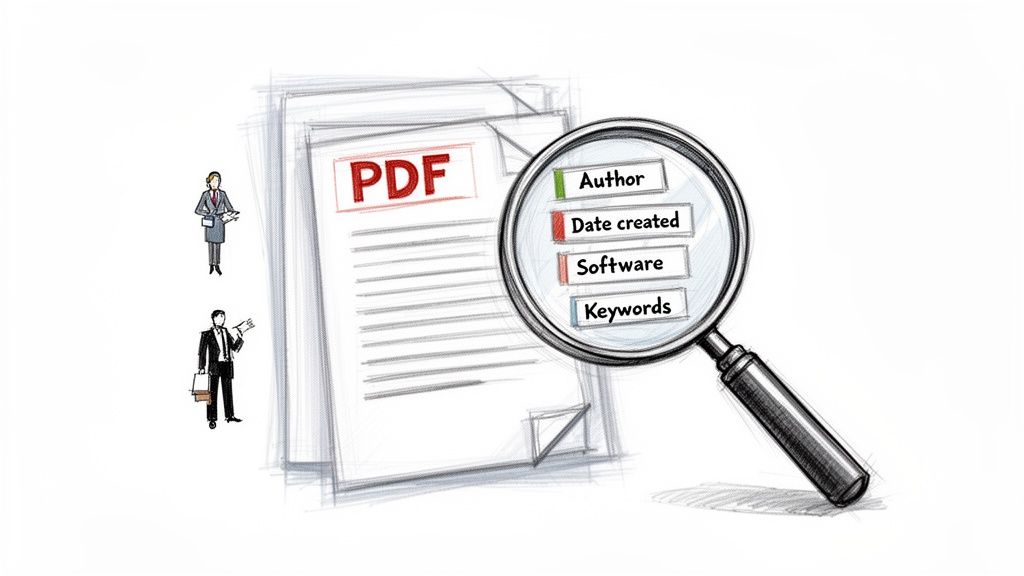
Think of metadata as the digital equivalent of a file's birth certificate and work history, all rolled into one. For professionals in fields like law, accounting, and insurance, this information is far from trivial. It’s often the key to verifying authenticity and maintaining a clear audit trail.
For instance, a lawyer might inspect a contract’s metadata to confirm its modification history, ensuring no one tampered with the terms after it was signed. An accountant could use the creation date on an invoice to cross-reference records and flag potential fraud. In these scenarios, metadata provides an essential layer of trust and accountability.
The Business Impact of Metadata
In business environments where documents fly back and forth, the value of metadata really comes into focus. Consider a busy accounting department processing thousands of invoices a month. A Deloitte survey found that 68% of finance professionals were sinking over 20 hours a week into manual data entry from PDFs. That’s a massive time sink, and it often means crucial metadata that could signal a problem gets completely overlooked.
By automating how you extract data and metadata, you can completely reshape your team's workflow. We've seen platforms like DocParseMagic save accounting teams an average of 12 hours weekly, leading to a 25% productivity jump while cutting down on costly errors.
Going Beyond Basic Information
While basic details like "Author" and "Creation Date" are useful, modern PDFs contain far richer information. It’s important to understand where this data comes from. For example, some systems are set up to automatically populate documents; you can see how metafields are used to populate PDFs with detailed product specs or other structured data.
This leads to a key component of modern PDFs: the Extensible Metadata Platform (XMP). XMP is what allows complex, structured data to be embedded directly into the file, going way beyond the simple "Document Properties" you might be used to. This is precisely why automated tools are so powerful—they can parse both the basic info and this deeper XMP data.
While our focus here is on viewing metadata, this process is closely tied to pulling out the visible text itself. To learn more about that, check out our guide on PDF text extraction to see how these two capabilities work together.
Checking PDF Metadata on Windows and macOS
Sometimes, you don't need a fancy, specialized tool to see what's going on behind the scenes of a PDF. Your computer’s operating system already has everything you need for a quick look, and learning how to use these built-in features is a game-changer for quick checks.
This is my go-to method when I just need to verify a file's origin or see when it was last touched. It’s fast, free, and doesn’t require any downloads.
Finding PDF Details in Windows File Explorer
If you’re working on a Windows machine, inspecting a PDF’s basic metadata is baked right into the system. You can do it in seconds.
Just track down the PDF you want to inspect. Give the file a right-click and choose Properties from the menu that pops up. In the new window, navigate over to the Details tab.
This is where you'll get the rundown. You'll see a list of properties, but the most useful ones are usually:
- Author: The person or program listed as the document's creator.
- Date created: The original timestamp for when the file was first made.
- Date modified: Shows the last time someone saved a change to the file.
- Title: The document's official title, which is often different from the filename.
- Application: The software that created the PDF, like "Microsoft Word" or "Adobe Acrobat."
This quick summary is perfect for figuring out the basics, like who originally drafted a contract or when a report was last updated.
A quick tip: Pay attention to the "Date created" and "Date modified" fields. If they seem way off, it can sometimes mean the file was copied or altered after it was originally created, as these timestamps can be pulled from both the file system and the document itself.
Using Preview on macOS to Inspect Metadata
Mac users have an equally simple method, thanks to the surprisingly powerful Preview app. Most people think of it as just a simple viewer, but it has a great little inspection tool built right in.
First, pop open your PDF in Preview. If another program is your default, just right-click the file, go to "Open With," and select "Preview." With the document on screen, head up to the "Tools" menu and click Show Inspector.
Even better, just use the keyboard shortcut: Command + I.
This brings up a small "Inspector" window. Make sure you're on the tab with the little "i" in a circle (the General Info tab). You’ll get a clean, straightforward summary of the PDF's metadata—title, author, creation and modification dates, and the software used to generate it. It’s a clean and efficient way to get the essential details on any PDF.
Using Free Online Tools to Inspect PDF Metadata
Sometimes you just need a quick look at a PDF’s metadata without the hassle of installing new software. This is where free online tools really shine. They're a lifesaver when you’re on a public computer, a locked-down work machine, or just need to check a single file.
Most of these tools work the same way: you visit a website, drag and drop your PDF, and it instantly spits out the hidden data. Simple as that. Some give you just the basics, while others can dig deep into the more technical XMP data structures.
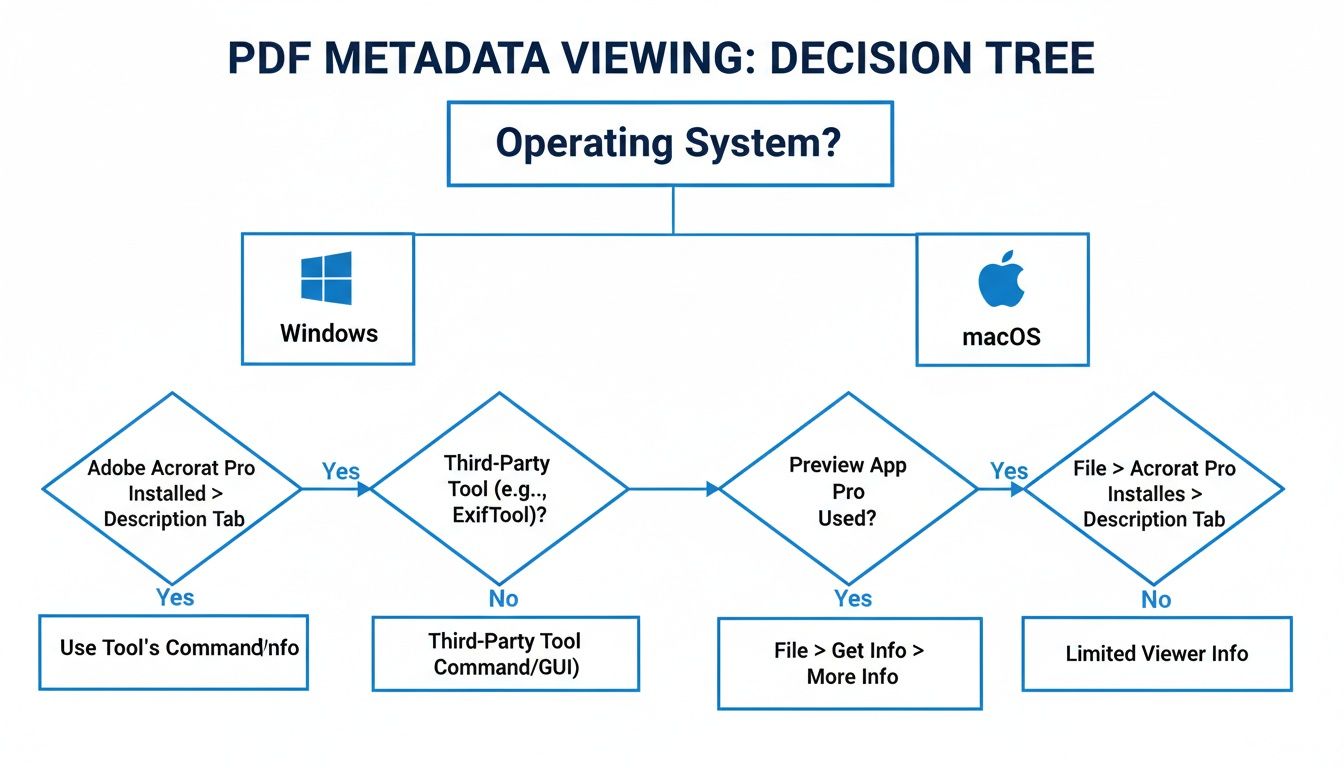
This decision tree gives you a quick visual guide for choosing the right method based on your setup and needs. As you can see, while native tools are great, online viewers are the go-to universal solution.
A Serious Word on Privacy and Security
Here’s the catch with most online tools: privacy. When you upload a document, you’re sending it to a server you don’t control. For a public flyer or a recipe, that’s probably fine. But for a confidential contract or your personal financial records? That’s a huge risk.
Always assume that any file you upload to a public online tool could be stored, scanned, or seen by others. Never, ever use these services for documents containing sensitive personal, financial, or proprietary information.
For those sensitive files, you have a much better option. Look for tools that specifically advertise in-browser processing. These use JavaScript to inspect the file right on your machine, so your data never leaves your computer. It’s the only truly secure way to use an online viewer.
How to Choose the Right Online Viewer
With so many options out there, it can be tough to pick one. Here are a few things I always look for before uploading anything:
- In-Browser Processing: I can't stress this enough. Does the tool explicitly state that files are processed locally on your machine and never uploaded? This is my number one priority for security.
- A Clear Privacy Policy: Does the site tell you what it does with your data? Look for a clear statement that they delete files immediately after you’re done.
- The Right Level of Detail: Do you need basic info like author and creation date, or are you after advanced XMP data? Make sure the tool shows what you need.
- File Size Limits: Many free services cap the size of the PDF you can upload. Check this first if you’re working with a large file.
This might seem like a lot of fuss for a simple task, but getting it right has real-world benefits. A 2026 McKinsey report, for example, found that 55% of sales reps lose 10 to 15 hours every week just trying to reconcile PDF commission statements, often because of metadata errors.
Using a browser-based viewer that processes files locally can save teams 5 to 7 hours per 100 documents by giving them instant, private verification without needing IT to install software. You can learn more about how to extract PDF metadata using online tools.
Comparison of PDF Metadata Viewing Methods
To help you decide which approach is best for you, here’s a quick comparison of the different methods available.
| Method | Best For | Security Level | Ease of Use |
|---|---|---|---|
| Desktop Software | Power users needing detailed analysis and editing. | High (offline) | Moderate |
| Native OS Tools | Quick, basic checks on your own computer. | High (offline) | Very Easy |
| Online Viewers (Server-Side) | Non-sensitive files on restricted computers. | Low | Very Easy |
| Online Viewers (In-Browser) | Sensitive files when you can't install software. | High | Very Easy |
| Command-Line Utilities | Developers and technical users needing automation. | High (offline) | Difficult |
Each method has its place. Your choice really depends on balancing convenience, the level of detail you need, and most importantly, the security of your information.
Advanced Methods for Uncovering Hidden Metadata
The built-in tools in your OS or PDF reader are fine for a quick peek, but they don't tell the whole story. They often only give you a sanitized, high-level summary of a file's history.
For anyone who needs to dig deeper—think IT pros, forensic investigators, or even just a curious power user—you need more powerful tools. To truly view PDF metadata in its raw, unfiltered form, we have to turn to the command line. These utilities can uncover information standard viewers completely ignore, like obscure XMP tags, a document's full version history, and even GPS coordinates stripped from an embedded photo.
This is where you find the hidden data trails.
Diving Deep with Command-Line Tools
If you're comfortable in a terminal, a couple of utilities are indispensable: ExifTool and pdfinfo. Think of them as a digital microscope for your files. Both are free, open-source, and available for Windows, macOS, and Linux.
ExifTool is the heavyweight champion. It’s incredibly thorough. Once it's installed, just open your terminal or Command Prompt, navigate to the file's folder, and run this simple command:
exiftool your-document.pdf
Be prepared for a wall of text. ExifTool lists everything it can find, which can be dozens or even hundreds of data points. You’ll see the basics like Author and Creation Date, but also every single modification date, the exact PDF software used, and all the XMP data packed inside.
For a quicker, more concise summary, I often use pdfinfo. It's part of the Poppler PDF library. The command is just as simple:
pdfinfo your-document.pdf
This is my go-to for getting a fast overview of a PDF's core attributes: page count, its security status (is it encrypted?), and the specific PDF version format it uses.
Interpreting the Command-Line Output
Getting a massive data dump from a tool like ExifTool can feel like drinking from a firehose. The trick is learning to scan for what matters.
Are you trying to verify a document's timeline? Look for the CreateDate, ModifyDate, and any fields related to History.
I once used ExifTool on a contract that just felt… off. The basic properties in Adobe Reader showed a recent modification date. But the full ExifTool output revealed a hidden "History" section with a log of changes from months earlier, including actions performed by a completely different user account. That hidden data was the red flag we needed to investigate further.
You simply can't get that kind of forensic insight from a standard properties window. You learn to spot the anomalies and inconsistencies that tell the real story of a document, which is why these tools are essential for security audits and verification.
Programmatic Extraction with Python
When you need to view PDF metadata for hundreds or thousands of files, checking them one by one is a non-starter. This is where you can automate the work with a bit of code. Python, with its incredible ecosystem of libraries, is perfect for this.
Libraries like PyPDF2 or pypdf let you write a simple script to rip through a whole directory of files in seconds. With just a few lines of code, you can open each PDF, grab its "document info" dictionary, and pull out the author, title, and creation date, logging it all neatly into a CSV file. It turns a tedious manual audit into a fast, automated process.
For anyone looking to build custom document workflows, learning how to extract data and metadata from PDFs using Python is a game-changing skill. By combining command-line knowledge with some basic scripting, you can create incredibly powerful systems for managing and analyzing documents at scale.
The Security and Privacy Risks of PDF Metadata
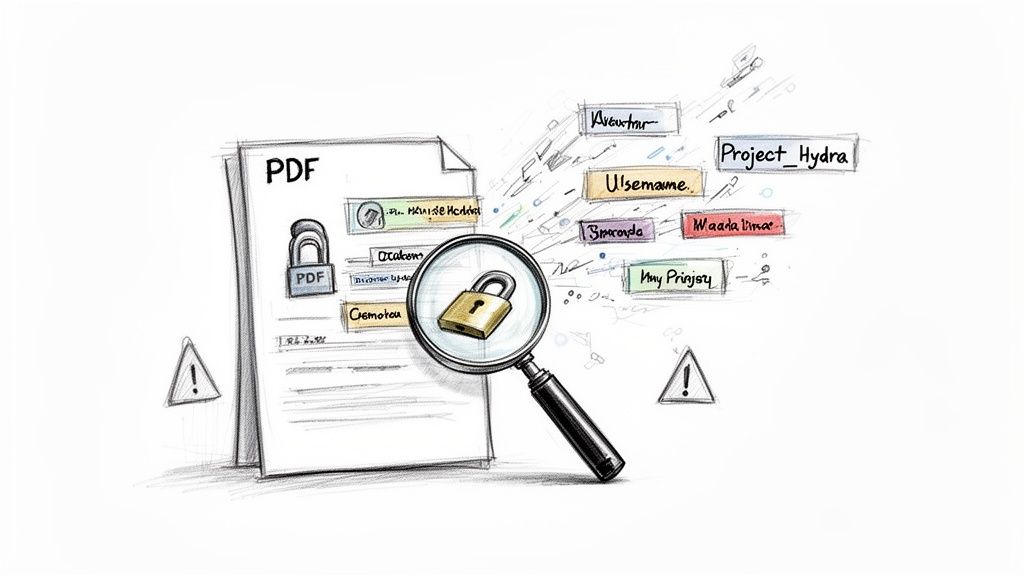
So, you know how to find a PDF’s metadata. The next crucial step is understanding that this isn't just harmless background info—it's a hidden layer that can create serious data leaks if you don't manage it properly.
Imagine a law firm sending a draft contract to a client. What they don't realize is that the PDF metadata contains the full name and computer username of every lawyer who touched the file. For someone planning a social engineering attack, that's a goldmine.
Or consider a company that publishes its annual report. It's a classic mistake, but one I've seen happen: the file's metadata title still says 'Project_Hydra_Final_Draft_Internal'. Just like that, a confidential project name is out in the wild.
How Hidden Data Creates Real-World Problems
The real danger lies in how easily malicious actors can connect these seemingly small dots. A username from one document, a software version from another, and a project name from a third can be pieced together to build a surprisingly detailed map of an organization's inner workings.
This intelligence makes it much simpler to craft a convincing phishing email or find the right software vulnerability to exploit.
The risk isn't just about security—it's about compliance. Regulations like GDPR treat any data that can identify a person, including names and usernames in metadata, as personal data. A leak can lead to hefty fines and a damaged reputation.
Managing the security and privacy of PDF metadata needs to be a core part of any modern information security policy. It's a fundamental piece of protecting sensitive company information and a key element of the best practices for document management.
Uncovering Truths in Financial Documents
In fields like finance, the ability to view metadata in a PDF can be a double-edged sword. For a loan processor, metadata can expose truths that aren't visible on the page. In fact, a 2024 FICO study revealed that 47% of lenders reject applications because of unverified document histories—something metadata like creation dates can quickly expose as fraudulent.
Since its introduction in 1993, PDF metadata has become a rich source of information. Today, internal project codes are found in an estimated 35% of finance PDFs. Forgetting to scrub this data before sharing documents is a costly oversight, contributing to compliance fines that average $14,000 per incident.
The key takeaway is that you need to shift your thinking from just viewing metadata to actively managing it. Knowing what information is attached to your documents—and who can see it—is the first and most important step toward better data security and privacy.
Common Questions About PDF Metadata
Once you start peeking under the hood at a PDF’s metadata, you’ll probably find yourself with a few more questions. It’s one thing to see the data, but it’s another to know what to do with it. Let’s tackle some of the most common things people ask after they’ve learned how to find this hidden information.
We'll cover everything from cleaning up sensitive data to figuring out if what you're seeing is even trustworthy.
Can I Edit or Remove PDF Metadata?
Yes, you can—and in many cases, you absolutely should. Most full-featured PDF editors like Adobe Acrobat Pro give you direct access to the document's properties. You can go right in and change or delete fields like "Author," "Title," and "Keywords" with just a few clicks.
For a more serious cleanup, look for a feature often called "Remove Hidden Information." This is the digital equivalent of a deep scrub. It doesn't just clear the obvious fields; it goes after bits of data you might not even know are there, like old comments, version history, or other stray XMP data. If you need to do this for a lot of files, command-line tools like ExifTool are fantastic for stripping all metadata from a file or an entire folder in one go.
A Quick Word of Advice: Editing metadata is useful, but removing it is a critical security habit. Before you share a document publicly or send it outside your company, always scrub its metadata. It's a simple step that can prevent accidental data leaks.
Is the Metadata I See Always Accurate?
Not always, and that's a crucial distinction. While metadata often paints an accurate picture of a file’s history, it can be changed just as easily as it can be read. The "Creation Date" or "Author" name you see is only as reliable as the last person who touched the file.
Think of it less as a permanent record and more like a label on a folder that anyone can rewrite. Someone could easily create a document today but edit the metadata to make it look like it was created five years ago. Because of this, you should always treat metadata as a clue, not undeniable proof. In legal or forensic situations, that information has to be backed up by other evidence to be considered authentic.
Document Properties vs. XMP Metadata
When you open a PDF's properties, you're usually looking at a blend of two different types of metadata.
- Document Information Dictionary: This is the old-school metadata. It’s a basic, standardized set of fields including Author, Title, Subject, and Keywords. It’s simple, straightforward, and supported by just about every PDF reader out there.
- Extensible Metadata Platform (XMP): Developed by Adobe, XMP is the modern, more powerful standard. It allows for incredibly rich, structured data to be embedded right into the file. We're talking about everything from the GPS coordinates of a photo to complex revision histories or even custom data specific to a company's internal workflow.
Most modern PDF tools show you a clean, combined view of both. To see the raw, detailed XMP structure, you'd typically need a more specialized utility.
How Can I Extract Metadata from Hundreds of PDFs at Once?
Going through hundreds of files one by one just isn't realistic. When you need to work at scale, you need to bring in the power of automation. There are a couple of great ways to handle this.
- Command-Line Scripts: If you're comfortable with the command line, tools like ExifTool or pdfinfo are your best friends. You can write a short script that zips through an entire folder of PDFs, pulling the metadata from each one and saving it all to a single, organized file like a CSV.
- Document Processing Platforms: For business and enterprise use, dedicated document processing platforms are built for this exact scenario. These tools can ingest thousands of documents, automatically pull out both the visible text and the hidden metadata, and organize it all into a structured, usable database or spreadsheet.
Automating this process is a game-changer for big projects like compliance audits, data migrations, or just trying to build a more efficient document workflow.
If your team is buried in PDFs and spends too much time manually copying and pasting information, DocParseMagic might be the answer. Our platform automatically extracts the data you need—from invoice details to hidden metadata—and turns it into clean, analysis-ready spreadsheets. You can get started for free at DocParseMagic and see for yourself how quickly you can transform messy documents into valuable, organized data.