
How to Parse Data in Excel a Practical Guide
At its core, parsing data in Excel is all about taking messy, jumbled information and transforming it into a clean, structured format you can actually work with. It's the art of using tools like Text to Columns, clever formulas like LEFT and MID, or even the powerhouse that is Power Query to split, clean, and organize raw text into neat columns.
This process is what turns a chaotic data dump into an orderly spreadsheet, saving you from what would otherwise be hours of painful manual work.
Why You Need to Master Data Parsing in Excel
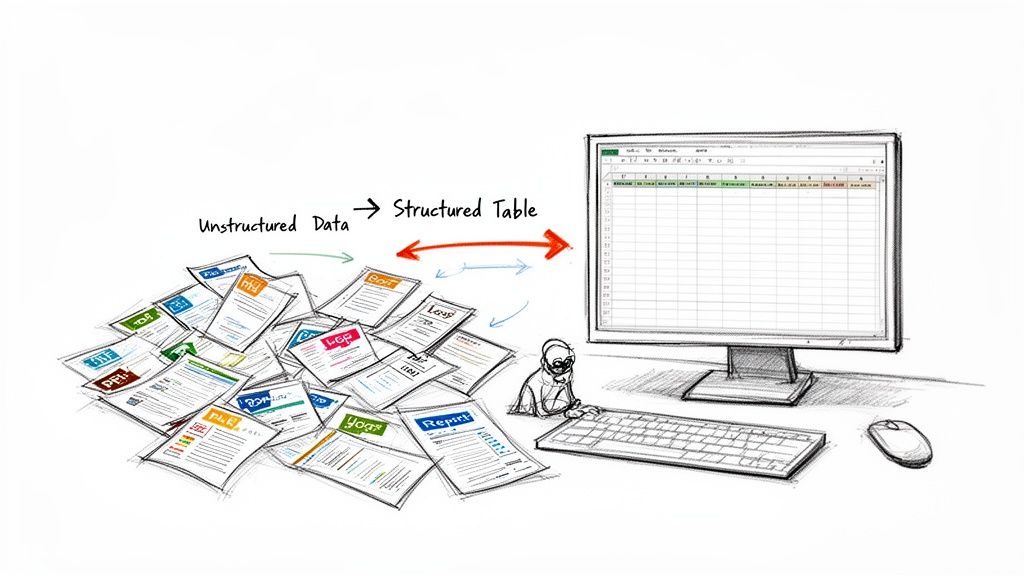
If you've ever found yourself spending an entire afternoon copying and pasting bits of information from a poorly formatted report into a spreadsheet, you know the frustration of unstructured data. For many of us, this isn’t just a rare annoyance—it's a daily grind that kills productivity and opens the door to costly mistakes.
Learning to parse data in Excel isn't just another technical skill to add to your resume; it's a fundamental business necessity. It’s the essential bridge between raw, chaotic information and the clear, actionable insights your job relies on.
The Real-World Cost of Messy Data
Think about the everyday hurdles in different departments. A finance team might get slammed with dozens of vendor invoices in PDF format, each one laid out just a little differently. Manually typing in invoice numbers, dates, and line items is incredibly dull, but it's also a breeding ground for human error. A single misplaced decimal point could have serious financial implications.
Or picture a logistics coordinator who receives a text file of shipment details where the product ID, quantity, and destination are all smashed together in one long string of text. Without solid parsing skills, they're stuck separating this data by hand for hundreds of entries, delaying inventory updates and slowing down order fulfillment.
These common scenarios all point to the same problem: valuable time is being burned on data prep instead of data analysis. Your job isn't to be a data entry clerk; it's to use that data to make smart decisions. For a deeper dive into the basics, you can explore our guide on what data parsing is and why it's critical.
The true goal of data parsing is to reclaim your time. It’s about automating the 80% of work that is data preparation so you can focus on the 20% that is analysis and strategy—where your expertise truly adds value.
Turning Tedious Tasks into Automated Workflows
Getting a handle on Excel's parsing tools completely changes the game. Instead of staring at a folder of messy reports with a sense of dread, you can build a simple workflow that cleans and structures the data in minutes.
Making this shift delivers some powerful advantages:
- Increased Accuracy: Automation gets rid of the typos and copy-paste blunders that are almost unavoidable with manual data entry.
- Massive Time Savings: Repetitive tasks that used to eat up your day can be done with a few clicks, freeing you up for more important work.
- Improved Scalability: You can suddenly handle much larger volumes of data without needing to bring in extra help.
- Enhanced Decision-Making: When clean, reliable data is ready to go, you can generate reports and spot trends faster than ever before.
Simple Data Parsing with Excel's Built-In Tools
Before you even think about complex formulas or advanced workflows, take a look at the powerful tools Excel has built right in. These are your go-to options for quick and dirty data parsing, designed for speed and simplicity. Honestly, they’re often all you need to tame messy data without writing a single line of code.
It's easy to forget just how much time is lost to manual data wrangling. A 2023 Deloitte survey revealed that finance pros spend an average of 12 hours a week just on data entry and parsing. That inefficiency adds up to an incredible $1.2 trillion in lost productivity for the global accounting industry. It’s a clear signal that we all need smarter, faster ways to handle our data.
Split Data in Seconds with Text to Columns
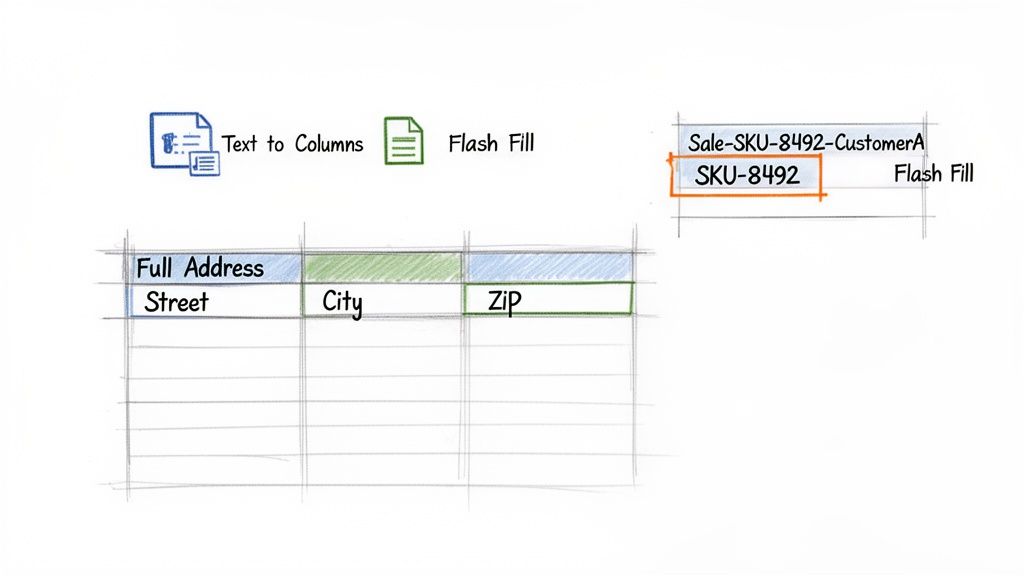
One of the oldest and most reliable tools in the Excel toolbox is Text to Columns. It's the perfect solution when your data is neatly separated by a consistent character—like a comma, space, or hyphen—or when it’s aligned in fixed-width columns.
Think about a common scenario: a column of full names you need to split into "First Name" and "Last Name." Or maybe you have a full address like "123 Main St, Anytown, CA 90210" that needs to be broken down into separate columns for Street, City, State, and ZIP Code. Text to Columns was made for exactly these jobs.
To get started, just highlight the column you want to parse, head over to the Data tab on the ribbon, and click Text to Columns. A simple wizard will pop up to walk you through the rest.
You’ll see two main options:
- Delimited: Pick this if a specific character separates your data. You can tell Excel if it's a comma, tab, space, or even a custom character you define yourself.
- Fixed Width: This is your best bet for data where each field starts in the exact same position, which is common with exports from older, legacy systems.
Pro Tip: Always make sure you have enough empty columns to the right of your source data before you run Text to Columns. The tool will overwrite anything in its path without a warning, and a quick check can save you from a major headache.
Let Excel Learn with Flash Fill
This is where Excel feels a little bit like magic. Introduced back in Excel 2013, Flash Fill actively detects patterns in your data entry and automatically fills the rest of the column for you. It’s brilliant for more complex extractions where Text to Columns would fall short.
Imagine a column of transaction details like "Sale-SKU-8492-CustomerA" or "Return-SKU-3105-CustomerB." If you just want to pull out the SKU number from each one, Text to Columns would struggle with the different text at the beginning.
With Flash Fill, you just start typing what you want in the next column. Type "SKU-8492" in the cell next to the first entry, and maybe "SKU-3105" next to the second. Excel will often recognize the pattern instantly and show a grayed-out preview of the rest. All you have to do is hit Enter, and the job is done.
Troubleshooting Your Built-In Tools
Of course, these tools aren't always perfect. If Flash Fill doesn't kick in on its own, you can give it a nudge by going to the Data tab and clicking the Flash Fill button. The keyboard shortcut Ctrl + E also works wonders. If it suggests the wrong pattern, just correct it and provide a couple more examples to give it better clues.
Sometimes, your data doesn't even start in Excel. You might get it as a Comma Separated Value (CSV) file. Using a good CSV to Excel converter can make this part of the process much smoother. And if your data is locked away in a PDF, getting it into Excel can be a real challenge. For those tricky situations, check out our guide on https://docparsemagic.com/blog/excel-get-data-from-pdf for more specialized techniques.
Taking Control with Excel Formulas
While the quick-and-dirty tools like Flash Fill are great for simple jobs, they often hit a wall with inconsistent or messy data. That's when you need to roll up your sleeves and let Excel formulas do the heavy lifting. Using text functions gives you complete control, letting you build custom, dynamic solutions that can handle just about anything you throw at them.
Think of formulas as your precision toolkit. They let you extract information based on specific rules you create, making them far more reliable than pattern-recognition tools when your data has annoying little variations. Instead of seeing them as complicated code, think of them as simple building blocks you can snap together to solve any data-parsing puzzle.
Finding Your Way with FIND and SEARCH
Before you can grab a piece of text, you first have to know where it is. The FIND and SEARCH functions are your GPS for this. Both functions look for a specific character (like a comma or hyphen) inside a cell and tell you its starting position.
So, what's the difference?
FINDis case-sensitive. It's perfect for when "ID-a" is completely different from "ID-A".SEARCHis not case-sensitive, which makes it more flexible for general use. It also lets you use wildcard characters if you need to.
For instance, if cell A2 has the text "Order #AB-12345", the formula =FIND("-", A2) will return the number 10. This tells you the hyphen is the 10th character in the string, a crucial piece of information for the next step.
Extracting Text with LEFT, MID, and RIGHT
Once you've located your data, a trio of powerhouse functions can pull it out: LEFT, MID, and RIGHT. These are the true workhorses for parsing data with formulas in Excel.
LEFT(text, num_chars): Grabs a set number of characters from the start of a cell.RIGHT(text, num_chars): Pulls a set number of characters from the end.MID(text, start_num, num_chars): This is the most versatile one. It extracts text from anywhere in the middle of a string—you just have to tell it where to start and how many characters to get.
Let's put this into practice. Imagine cell A2 contains "CUST:ACMECORP-2024".
To get just the customer ID "ACMECORP", we have to combine a few functions. First, we find the colon with =FIND(":", A2), which gives us 5. Next, we find the hyphen with =FIND("-", A2), which returns 14. We know the customer ID starts one character after the colon, and its length is 14 - 5 - 1 = 8 characters.
The final, combined formula looks like this: =MID(A2, FIND(":", A2) + 1, FIND("-", A2) - FIND(":", A2) - 1)
This technique of "nesting" functions—using the output of one function as the input for another—is how you solve the really tough parsing challenges. It lets you build one smart formula that can break down almost any text string.
Cleaning Up with SUBSTITUTE
Raw, extracted data is rarely clean. You'll often find extra spaces, weird characters, or inconsistent formats. The SUBSTITUTE and REPLACE functions are your go-to tools for tidying up this mess.
SUBSTITUTE(text, old_text, new_text, [instance_num]) is perfect for swapping every instance of a character with something else. For example, if you have phone numbers formatted like "555-867-5309" and want to get rid of the dashes, the formula =SUBSTITUTE(A2, "-", "") does the trick instantly.
This kind of data prep is absolutely essential for any real analysis. In fact, Microsoft's 2024 data reveals that while over 1.2 billion people use Excel for data tasks each month, a surprising 75% stick to older, less effective methods. This has led to a 35% failure rate on complex documents—a huge jump from 22% in 2018, mostly because of messy data from PDFs.
Mastering these skills can make a massive difference in your workflow. For a great real-world example, building a custom Excel timesheet with custom formulas is a project that relies heavily on these exact data manipulation techniques.
Excel Parsing Formulas Cheat Sheet
Not sure which function to use? This little cheat sheet will help you pick the right tool for the job.
| Function | What It Does | Best Used For |
|---|---|---|
| LEFT | Extracts text from the beginning of a cell. | Grabbing the first few characters, like an area code or prefix. |
| RIGHT | Extracts text from the end of a cell. | Pulling the last few characters, like a file extension or year. |
| MID | Extracts text from the middle of a cell. | Extracting data that is sandwiched between other text. |
| FIND | Returns the position of a text string (case-sensitive). | Pinpointing the exact location of a specific character or delimiter. |
| SEARCH | Returns the position of a text string (not case-sensitive). | Locating text when capitalization doesn't matter. |
| LEN | Returns the total number of characters in a cell. | Calculating lengths for use in other formulas, like RIGHT or MID. |
| SUBSTITUTE | Replaces specific text with new text. | Removing unwanted characters or standardizing terms across a dataset. |
Keep this handy. With a little practice, combining these functions will become second nature, and you'll be able to deconstruct even the most stubborn text data with confidence.
Taming Complex Data with Power Query
When you're facing a mountain of messy data that needs cleaning every week, formulas start to feel like a band-aid on a bigger problem. They're great for quick fixes and surgical strikes, but for repetitive, large-scale cleanup jobs—like consolidating weekly sales reports from a dozen different files—they quickly become a tangled mess.
This is where you need to bring out the big guns: Power Query.
You'll find it hiding in plain sight on the Data tab, usually under the Get & Transform Data section. Think of Power Query as a dedicated workshop attached to Excel. Instead of cramming complex formulas into your cells, you use a clean, visual interface to build a series of cleaning and shaping steps. The best part? You can save that entire process and re-run it on new data with a single click.
It’s the difference between fixing something by hand versus building an assembly line. Once the assembly line is set, you can process thousands of items perfectly, every single time.
Building Your First Repeatable Workflow
Let's walk through a classic scenario. You have a folder where new sales reports, all in CSV format, are dropped every Friday. Your job is to pull them all together into one master table for your Monday morning meeting. Doing this manually is a soul-crushing exercise in copy-paste.
With Power Query, you can automate the whole thing.
You start by pointing Power Query to a data source—not a single file, but the entire folder of CSVs. This opens the Power Query Editor, a user-friendly window where you'll build your workflow. Here, you can perform all sorts of transformations without writing a single formula:
- Combine Files: Tell Power Query to automatically stack every file in that folder into a single, unified table.
- Split Columns: It’s like Text to Columns, but far more powerful and, crucially, reversible.
- Filter Rows: Easily strip out junk data, like blank rows or entries from regions you don’t care about.
- Change Data Types: Make sure your "Date" column is recognized as a date and your "Revenue" column is a number, not just text.
As you perform these actions, Power Query quietly records each one as an "Applied Step." This list of steps becomes your repeatable recipe.
The real game-changer here isn't just the tools themselves, but the fact that the entire process is non-destructive and repeatable. Your original files are never touched, and your cleaning workflow is saved as a query you can run again and again.
The Magic of the Refresh Button
Once you've built your workflow and loaded the clean, consolidated data into an Excel sheet, you're done. The real work is finished.
Next week, when a new sales report lands in the folder, you don't repeat anything. You just go to the Data tab and hit Refresh All.
In seconds, Power Query runs through every step you defined, grabs the new data, cleans it, and appends it to your master table. A task that used to eat up your Monday morning is now done before your coffee is ready.
This kind of automated workflow is essential for maintaining data integrity. A recent Statista survey of 10,000 finance professionals found that a staggering 62% see parsing unstructured statements as their biggest bottleneck. This chore eats up over 900 hours per year for a small team. In insurance, where carriers manage 4.2 billion policies, manual parsing from scanned documents fails almost half the time, leading to a cascade of errors. You can read more about these statistical challenges to see just how critical clean data is.
This infographic breaks down the core logic of a good parsing process, which is exactly what Power Query helps you build.
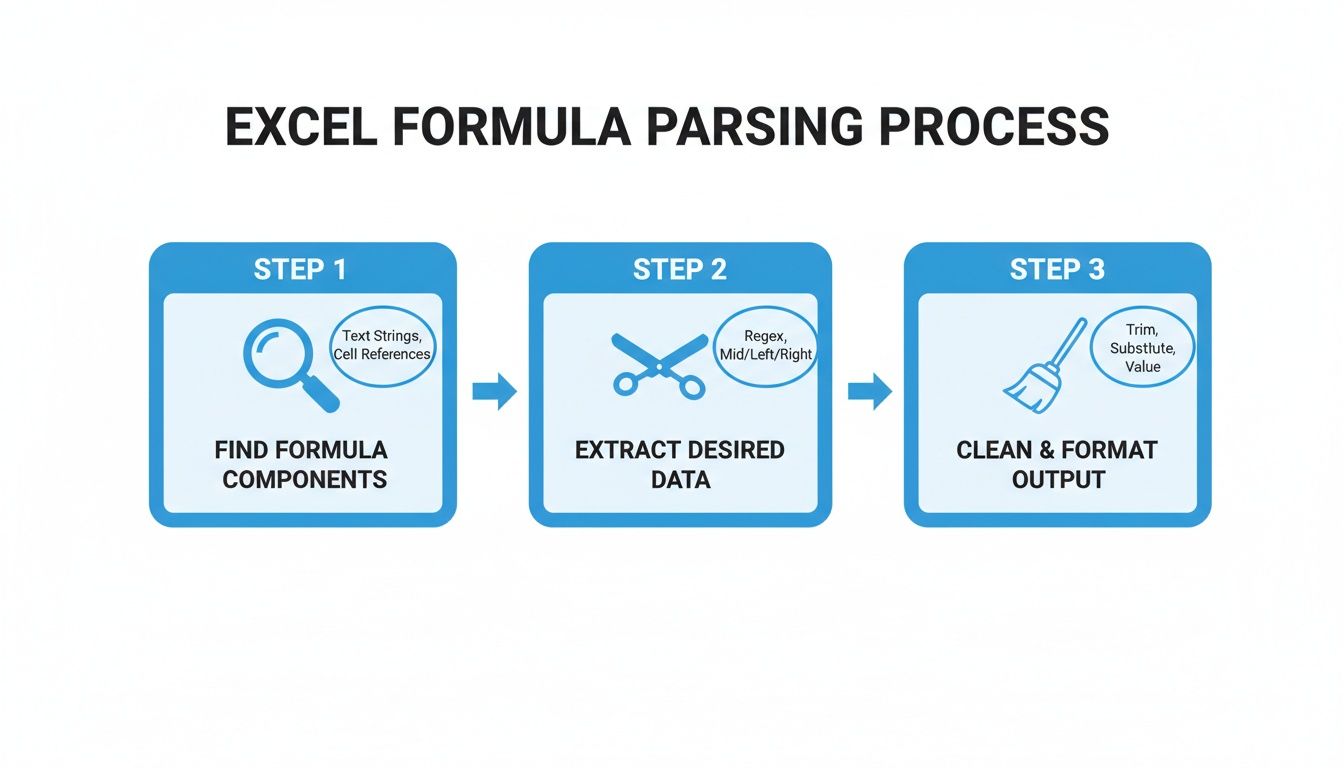
It’s a simple loop: find the data, extract it, and clean it up. Power Query just puts that loop on autopilot.
Power Query vs. Formulas: When to Use Each
So, when should you reach for a formula and when should you fire up Power Query? It really boils down to the scale and frequency of your task.
Here’s a simple rule of thumb:
- Use Formulas for: Quick, one-time jobs on data that’s already in your worksheet. They're perfect for fast analysis when you need immediate answers without leaving the spreadsheet grid.
- Use Power Query for: Any task that is repetitive, involves multiple cleaning steps, or pulls data from external sources (like folders of files, databases, or websites). It's the only real choice when you need to build a reliable, automated data pipeline.
By investing a little time upfront to build a Power Query workflow, you're not just solving a problem for today—you're creating a permanent solution that will save you countless hours down the road.
When to Move Beyond Manual Excel Parsing
Excel’s built-in tools are fantastic, and Power Query is a genuine game-changer. But even these powerhouses have their limits. They are at their best when they have some kind of structure to work with—data with consistent delimiters, predictable layouts, or at least selectable digital text.
So, what happens when your source is a grainy, scanned PDF of a vendor invoice? Or a messy stack of commission statements where no two are formatted the same?
This is where you hit the wall. It’s the point where you’re trying to force a spreadsheet to do a document interpretation job it was never built for. You can wrestle with a Power Query workflow for hours trying to make sense of a scanned document, only for it to fall apart because the layout is too chaotic. It’s not a failure of Excel; it's just the wrong tool for that specific job.
The Problem with Unstructured Documents
For many of us, the real bottleneck isn't the analysis in Excel. It’s the soul-crushing effort of getting clean data into Excel in the first place. This pain is most acute when you’re dealing with documents designed for human eyes, not computer scripts.
You’ve probably run into these common headaches:
- Scanned PDFs and Images: To a computer, these are just pictures. Excel’s tools can’t read the text without an Optical Character Recognition (OCR) step, which is often a one-way ticket to typos and formatting errors.
- Inconsistent Vendor Invoices: Vendor A puts the invoice number at the top left. Vendor B buries it in a paragraph at the bottom right. No single formula or rigid Power Query rule can reliably handle that kind of chaos.
- Complex Reports with Nested Tables: Think about financial statements or insurance reports where critical figures are scattered all over the page, not neatly organized in simple rows and columns.
When faced with these challenges, you spend far more time cleaning and preparing the data than you do on actual analysis. You stop being a data analyst and become a data janitor.
The biggest efficiency gains don't come from getting faster at manual parsing. They come from eliminating the need to parse messy documents by hand in the first place. The goal is to get clean, structured data delivered and ready for your real work.
A Smarter Approach: Pre-Excel Preparation
Instead of trying to do everything inside your spreadsheet, the next logical step is to pair Excel with a tool that specializes in the heavy lifting of data extraction.
Imagine this: you have an intelligent tool that acts as your specialist pre-processor. You feed it a folder of your messiest documents—scanned receipts, PDF invoices, complex reports—and in return, you get a perfectly structured Excel file.
This completely flips the traditional workflow on its head. Instead of pulling messy data into Excel and then cleaning it for hours, you extract clean data from your documents first and then import the finished product. The data arrives structured and ready for analysis the moment you open the spreadsheet. Invoice numbers, line items, totals, and dates are already in the right columns, saving you a massive amount of tedious work.
This is exactly what intelligent document parsing platforms are designed for. They use AI to understand the context and layout of business documents, identifying and extracting key information no matter where it appears on the page. For a closer look, you can explore how automated data extraction transforms business workflows on our blog.
By letting a specialized tool handle that initial, messy extraction, you free up yourself—and your valuable Excel skills—to focus on what actually matters: analysis, forecasting, and making smart decisions.
Got Questions? Let's Talk Excel Data Parsing
As you start working with Excel's data tools, you'll inevitably run into some real-world snags. One dataset will be a complete mess, or you'll stare at the screen wondering if you should be writing a formula or firing up Power Query. Let's tackle some of the most common questions that pop up.
Think of this as your go-to troubleshooting guide. These are the kinds of insights that come from experience, helping you bridge the gap between knowing what a tool does and knowing how to use it effectively.
How Should I Handle Inconsistent Data Formats?
When your data is all over the place, Power Query is your best friend. It's the tool I turn to immediately. While formulas need predictable patterns and Flash Fill requires clean examples to learn from, Power Query was built to handle variability. It lets you create a series of repeatable steps to clean up data, no matter how messy.
For instance, imagine you're dealing with dates. Some might be in MM-DD-YYYY format, while others are written as DD/Mon/YY. A formula to handle both would be a nightmare—long, complicated, and likely to break.
In Power Query, you can use features like "Column From Examples" or its built-in date tools to intelligently figure out what you have and standardize it all into a single, clean format.
The real magic of Power Query is its resilience. You build a cleaning process that expects inconsistencies, so your workflow doesn't shatter the moment a new data variation shows up. It's how you move from a one-time fix to a reliable, repeatable solution.
Can Excel Parse Data Directly from a PDF?
Yes, but it's a bit of a gamble. Newer versions of Excel have a feature tucked away in Power Query (Get Data > From File > From PDF) that lets you import data directly from PDF files. For simple PDFs that contain clean, selectable tables, it can work surprisingly well.
The problem is, it often falls short right when you need it most.
- Scanned Documents: If your PDF is just a scan (an image of a document), Excel's tool can't read the text. The results are often gibberish.
- Complex Layouts: Invoices and statements rarely put data in a perfect grid. The importer gets confused easily, mixing up columns and rows.
- Non-Tabular Data: What about the invoice number or customer name sitting at the top of the page? The PDF connector usually has no idea how to grab that kind of information.
More often than not, the imported data needs a ton of cleanup inside Power Query. This is where a dedicated parsing tool really shows its value, since it's designed to understand document layouts and extract data accurately from the start.
How Do I Choose Between Formulas and Power Query?
This is a great question. The decision really boils down to the scale, complexity, and how often you'll be doing the task. Both are fantastic tools, but they shine in different scenarios.
Use formulas (like LEFT, MID, FIND) for:
- Quick, one-off jobs.
- Data that's already sitting in your worksheet.
- When you just need a fast answer without leaving the spreadsheet.
Reach for Power Query when you have:
- A repeatable process, like running weekly or monthly reports.
- Data coming from outside of Excel (like a folder full of CSVs, a database, or a website).
- A cleaning workflow with multiple steps (think filtering, unpivoting, merging, etc.).
At the end of the day, formulas are for quick, tactical analysis. Power Query is for building automated, durable data pipelines that you can set and forget.
Tired of forcing Excel to work with messy PDFs and inconsistent invoices? DocParseMagic handles the painful extraction for you. Instead of wrestling with formulas or Power Query cleanup, you get a perfectly structured spreadsheet, ready for analysis in minutes. Stop the manual work and see how much time you can save. Try DocParseMagic for free.