A Guide to Excel Get Data From PDF Files
Trying to get data from a PDF into Excel can feel like you're trying to fit a square peg in a round hole. It's a common headache, but you're definitely not alone in feeling that frustration.
PDFs were designed to act like digital paper. Their whole purpose is to lock information into a fixed layout so it looks the same everywhere. That’s the complete opposite of Excel, which is all about a dynamic grid of rows and columns built for sorting, filtering, and crunching numbers.
Why Is Getting Data Out of PDFs So Hard?
The real friction comes from this fundamental design difference. A PDF is meant to freeze content, while Excel is all about flexible, structured data. This clash leads to some classic problems that I've seen countless times.
- The Single-Column Nightmare: You try a simple copy-paste, and your beautifully structured table from the PDF turns into a single, jumbled column of text in Excel. It's a mess.
- The "It's Just a Picture" Problem: A lot of PDFs are just scans of paper documents. To your computer, that's not text—it's an image. You can't copy and paste something the computer doesn't even recognize as characters.
- Hidden Formatting Traps: Things like merged cells, text that wraps onto multiple lines within a single cell, or tables with slightly different layouts can completely trip up most import tools.
The good news is, there are ways around this. This guide will walk you through five solid methods to get that locked-up data into a usable Excel sheet.
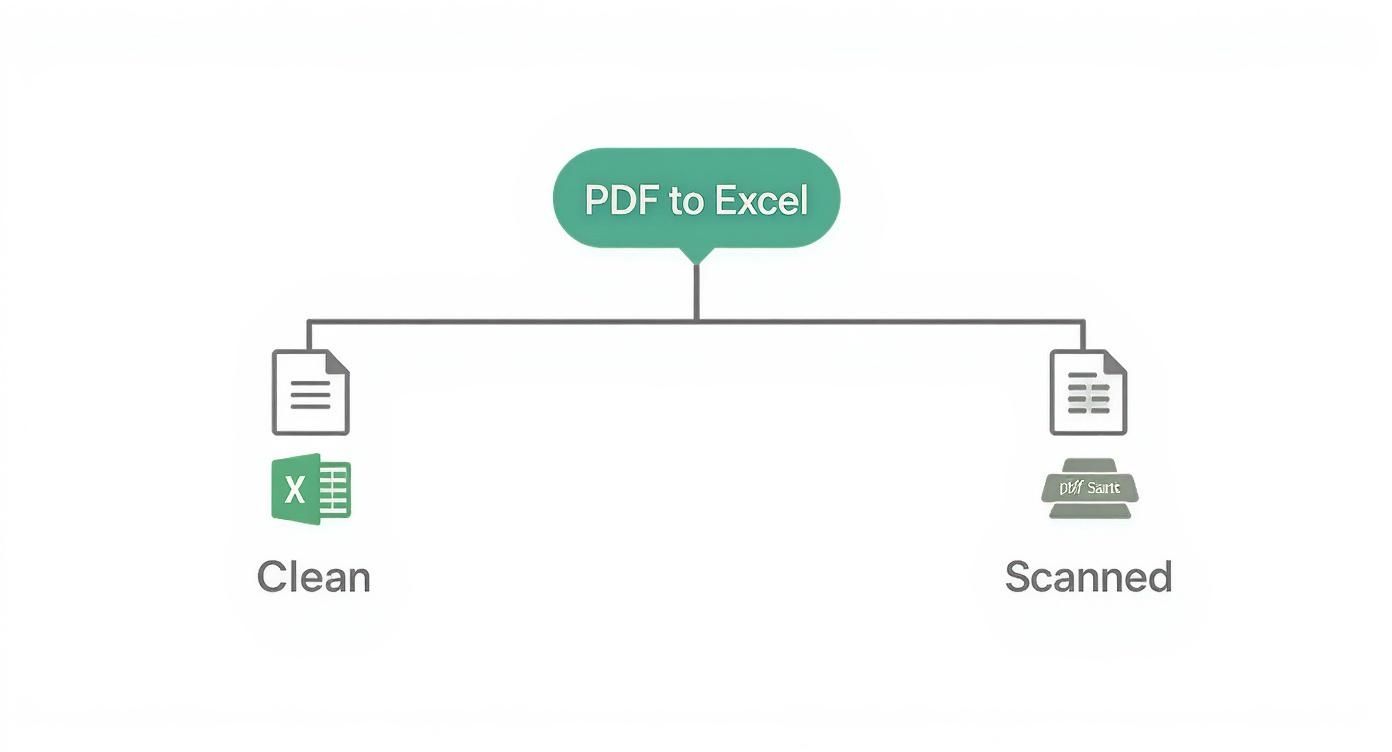
The first, most crucial step is figuring out what kind of PDF you're dealing with. Is it a "clean" digitally created file, or is it a scanned image? Your answer determines which tools will actually work.
A Quick Look at How We Got Here
The demand for pulling data from PDFs has been around for decades. Back in the early 2000s, it was an incredibly manual and painful process. Fast forward to the mid-2010s, and we started seeing Optical Character Recognition (OCR) and machine learning tools that could automate a lot of it, hitting accuracy rates of around 70-80%.
Today, the best tools have gotten remarkably good. It’s now common to see 95% to 99% accuracy, even when dealing with tricky tables and scanned pages. The technology has come a long way.
The biggest hurdle isn't just getting the text out; it's preserving the structure. A successful extraction maintains the row and column relationships that give the data its meaning.
For a deeper dive into the technical side of things, this guide on how to extract data from PDF files is a fantastic resource. But for now, let's focus on the practical, step-by-step methods you can use right away.
Which PDF to Excel Method Should You Use?
Choosing the right approach depends entirely on your specific situation. Are you dealing with a single, clean table or hundreds of scanned invoices? This quick comparison table should help you pinpoint the best tool for your job.
| Method | Best For | Accuracy | Speed | Effort Level |
|---|---|---|---|---|
| Excel Power Query | Clean, well-structured digital PDFs with consistent tables | High (for native PDFs) | Fast | Low |
| Manual Copy/Paste | Very small, simple tables in a digital PDF | Low to Medium (formatting often breaks) | Very Fast | Very Low |
| Adobe/Online Converter | One-off conversions of simple to moderately complex digital PDFs | Medium to High | Fast | Low |
| OCR (for Scanned PDFs) | Scanned documents or image-based PDFs where text isn't selectable | Medium (depends heavily on image quality) | Moderate | Medium |
| DocParseMagic | High-volume, complex, or varied PDF layouts (both native & scanned) | Very High (up to 99%+) | Very Fast (Automated) | Low |
Ultimately, having a few different methods in your toolkit is the best strategy. What works perfectly for a bank statement might not work at all for a scanned inventory sheet. Let's get into the specifics of each one.
Using Excel's Built-In Power Query for Clean PDF Data
When you're dealing with a clean, digitally-born PDF—think financial reports or price lists, not scanned documents—your best friend is a powerful tool already hiding inside Excel. It's called Power Query, and it's built specifically for this kind of work.
Forget the usual chaos of copy-and-paste. Power Query acts like a smart data pipeline. It looks inside the PDF, identifies what looks like a table, and shows you a clean preview before anything even hits your spreadsheet. This is hands-down the best method for reliable, repeatable imports from well-structured documents.
Finding the "From PDF" Connector
Getting started is simple. You'll find everything you need right in Excel's main ribbon.
Just head to the Data tab. On the far left, click Get Data, hover over From File, and then select From PDF. That's it.
This opens up a file browser, asking you to point it to the PDF you want to work with. Once you've selected your file and hit Import, Excel hands off the job to the Power Query engine to start its analysis.
At this point, the Navigator window will pop up. This is your command center. It shows you a list of all the tables and pages it found within the PDF. You can click on any item on the left to see a live preview on the right. This is a huge time-saver for multi-page reports—you can grab just the sales summary from page 12 without importing the whole thing.
Here's what that looks like. The Navigator gives you a clear preview of the tables and pages Power Query detected, so you can pick and choose what you need.
As you can see, the different data elements are neatly separated, letting you select precisely what you need before loading it.
Transforming Your Data Before You Import It
Let's be honest: data inside a PDF is rarely perfect. You might find extra summary rows, columns with mixed-up data types, or other junk you don't need. This is where Power Query really proves its worth. Instead of just loading the messy data, you'll want to click the Transform Data button.
This launches the Power Query Editor, a dedicated workshop for cleaning and reshaping your data before it ever touches your spreadsheet. It's a game-changer.
Inside the editor, you have total control. Here are a few things I do all the time:
- Ditch Useless Columns: Got columns you don't need? Just right-click the header and select "Remove."
- Fix Data Types: Power Query sometimes imports numbers as text, which will wreck your formulas. You can fix this in two clicks by selecting a column and using the "Data Type" dropdown to change it to "Whole Number," "Decimal Number," or "Date."
- Filter Out Rows: If there's a "Grand Total" row at the bottom you don't want, just use the filter icon on a column to uncheck it, exactly like you would in a normal Excel table.
The real magic of the Power Query Editor is that it remembers every single step you take. When next month's report comes in, all you have to do is hit "Refresh." Excel will automatically run through all your cleaning steps on the new file.
Once the data looks exactly how you want it, click Close & Load. Power Query will drop the clean, structured data into a new worksheet as a proper Excel table, ready for formulas, charts, or PivotTables. This is the heart of true data parsing in Excel. You’ve just turned a painful manual task into an automated, refreshable workflow.
When a Quick Copy and Paste Is Good Enough
Sometimes the simplest tool in the box is the right one for the job. Before you jump into more complex methods, don't forget about the classic copy and paste. For those quick, one-off tasks, it's often the fastest way to pull data from a PDF into Excel.
Think about it: you just need a short contact list or a small price table from a single-page PDF. Is it really worth building a whole import process? Probably not. A quick highlight, copy, and paste gets the job done in seconds. The trick is knowing when this no-frills approach makes the most sense.
Scenarios Built for Simplicity
I find myself reaching for the copy-paste method in a few specific situations. It's my go-to when I'm working with:
- Small, Clean Tables: A table with just a handful of clearly defined rows and columns is a perfect candidate.
- One-Time Data Needs: If you're grabbing data you'll never need to pull again, there’s no point in setting up an automated workflow.
- Digitally Created PDFs: This works best with PDFs that were born from a digital source, like a Word doc or a system-generated report. The text is selectable and "real," not just an image of text.
But let's be honest, this simplicity often comes with a frustrating catch. You copy a perfect table, paste it into Excel, and... it all collapses into one long, messy column. This is the exact moment most people throw their hands up and assume it's a lost cause. It's not.
The biggest mistake is thinking a messy paste means the data is ruined. Excel has a fantastic built-in tool that can fix this exact problem, turning that jumbled mess back into a clean table with just a few clicks.
Your Secret Weapon: Text to Columns
When your data lands in a single column, don't even think about hitting delete. This is where you bring out Excel’s Text to Columns feature. It's an absolute lifesaver for cleaning up pasted data. This tool lets you slice the content of one column into several columns by identifying a separator, or "delimiter."
Most of the time, the spaces between your PDF columns get converted into tabs or a series of spaces when you paste. Text to Columns uses those invisible characters to perfectly reconstruct your table.

Here's how to make the magic happen:
- First, select the single column that holds all your jumbled data.
- Head over to the Data tab in the Excel ribbon and click on Text to Columns.
- A wizard will pop up. Choose Delimited. This tells Excel you're splitting the data based on a character like a tab, comma, or space.
- On the next screen, tick the boxes for Tab and Space. Pay attention to the preview window at the bottom—it shows you exactly how your data will be split into nice, clean columns.
- Click Finish, and watch your data snap into a perfectly organized table.
This "quick and dirty" method, supercharged by the Text to Columns tool, is a surprisingly powerful strategy. For small data jobs where speed is everything, it's often the smartest way to go.
What About Scanned PDFs? OCR to the Rescue
Ever tried to select text in a PDF, but your cursor just draws a big blue box? That’s a classic sign you're dealing with a scanned document. What you’re seeing is just a picture of text, not actual, machine-readable text.
This is a common roadblock, especially with older archives, paper invoices, or anything that started its life on a scanner. When this happens, both Power Query and the simple copy-paste method are completely useless. But don't worry, you’re not stuck.
The Problem With Free Online Converters
A quick Google search will give you a ton of free online "PDF to Excel" converters. They all promise the same thing: upload your file, click a button, and get a perfect spreadsheet. For a one-off, non-sensitive file, they can sometimes get the job done.
But I’ve seen this go wrong too many times. Using these free services comes with some serious risks.
- Security is a Huge Concern: When you upload a document, you're sending your data to some unknown third-party server. If that PDF contains sensitive financial info, customer lists, or internal company data, you’ve just handed it over.
- Accuracy is Spotty at Best: These free tools often choke on complex layouts, small fonts, or anything less than a perfect scan. The Excel file you get back can be a jumbled mess of misplaced columns and scrambled data, creating more cleanup work than you started with.
- No Real OCR: Many free converters don't even have proper Optical Character Recognition (OCR). They might just spit out an Excel file with a static image of your PDF embedded in it—totally useless.
For a quick and non-confidential task, maybe give one a try. But for any recurring business process, you need a more professional and secure tool.
The Right Way: Optical Character Recognition (OCR)
The real magic for turning scanned images into usable data is Optical Character Recognition, or OCR. This technology is essentially a digital translator. It scans the image, identifies the shapes of letters and numbers, and converts them into actual, editable text. If you're curious, you can learn more about what OCR technology is and how it works.
Think of it like this: without OCR, your computer sees a scanned invoice as just one big photograph. With OCR, it can actually read the "Invoice Number," the "Date," and the "Total Amount" as individual pieces of data you can work with in Excel.
OCR is the bridge that connects the visual world of scanned documents to the structured world of spreadsheets. It’s the one essential technology that makes it possible to get data from a PDF when the text isn't selectable.
Professional software like Adobe Acrobat Pro comes with a powerful OCR engine built right in. The process is pretty straightforward: you open your scanned PDF and run the "Recognize Text" tool. The software then analyzes the document and lays an invisible layer of editable text right over the original image.
A Realistic OCR Example in Action
Let's say you've been given a stack of ten-year-old financial reports that were scanned years ago. The scans are a little blurry, and the tables are packed with tiny numbers.
Before OCR: You’re looking at an image file. You can't copy anything, you can't search for a specific value, and you certainly can't get that data into Excel easily.
After Running OCR: Once you run the tool in Adobe Acrobat, the software does its thing. Now, when you hover over the text, your cursor changes to the familiar I-beam. You can highlight entire rows, copy the data, and paste it directly into your spreadsheet.
But let's be realistic—it's rarely a one-click-and-done miracle. OCR is powerful, but it's not perfect, especially with low-quality scans.
You'll often run into common OCR errors:
- A "5" gets mistaken for an "S".
- An "8" becomes a "B".
- The letter "l" gets confused with the number "1".
This is why a final proofread is absolutely non-negotiable. After using OCR to get data from a PDF, you have to budget time to carefully review the output in Excel. A quick scan to catch and correct any of these little errors is a critical last step to ensure your data is actually reliable.
Moving Past Manual: How to Automate Bulk PDF Extraction
Let's be honest. When you're only dealing with a handful of PDFs, manual methods work just fine. But what happens when that trickle becomes a flood? When you’re staring down a folder with dozens, or even hundreds, of similar invoices, reports, or forms that all need to be processed this month?
At that point, copy-paste is a nightmare, and even running Power Query one file at a time feels like a slow-motion bottleneck. The hours spent on mind-numbing data entry start to add up, and so do the inevitable typos and mistakes. This is where you need to change your thinking from "one-off conversion" to building a truly scalable, automated system.
This is precisely the problem that modern, no-code data extraction tools were built to solve. They’re designed to do one thing exceptionally well: process huge volumes of documents with incredible speed and accuracy. It’s a complete shift in how you get data from PDFs into Excel, especially when dealing with any kind of volume.

The No-Code Workflow in Action
Picture this: you're an accountant, and 300 vendor invoices land on your desk every month. They’re all mostly the same, but the layouts are just different enough to break simple tools. Manually keying in the invoice number, date, and total amount for each one isn't just tedious—it’s a recipe for costly errors.
An automated tool flips this entire process on its head.
The workflow is surprisingly simple and completely visual. First, you upload a single example of the document, like one of those vendor invoices. The tool shows you the PDF, and you just point and click. You select the invoice number and label it "InvoiceID," then click the date and call it "Date," and so on. No coding needed.
Once you’ve set up this simple template, you can unleash it on a whole folder of files. The platform intelligently applies your rules to every single one of the 300 invoices, pulling the right data from the right place, even when the formatting isn't identical.
The final step? You get a perfectly structured Excel or CSV file with all your data neatly organized in columns, ready for analysis or to be imported into another system. You’ve effectively built an intelligent data pipeline for your documents. For a deeper look into this, check out our guide on https://docparsemagic.com/blog/automating-data-entry.
The Clear ROI of Automation
The benefits here go way beyond just getting your time back. You’re fundamentally upgrading the quality and reliability of your business's data.
One study, for example, found that a specialized tool could process over 30 survey report PDFs in less than 5 minutes with zero data loss. Think about how many hours that would take to do by hand.
The real win with automation isn't just about speed. It's about building a reliable, error-free data foundation that your entire organization can trust. You're turning a chaotic manual task into a predictable, scalable asset.
The advantages are tangible and hit your bottom line directly:
- Massive Time Savings: We're talking about slashing hours, sometimes even days, of manual work from your team's plate every single month.
- Near-Zero Errors: Automation gets rid of the typos and transposition errors that always creep into manual data entry, giving you much more accurate reporting and analysis.
- Effortless Scalability: As your business grows and the document pile gets bigger, your process scales right along with it. No need to hire more people just for data entry.
And this isn't just about getting data into a spreadsheet. The clean, structured data you extract can feed more advanced systems, like AI-powered knowledge management platforms designed to find value in scattered information. When you're dealing with a high volume of documents, switching to an automated solution isn't just an upgrade—it's a strategic move for your business.
Common Extraction Problems and How to Fix Them
Even with the best tools, getting data out of a PDF can sometimes feel like you're trying to solve a puzzle with missing pieces. You'll almost certainly hit a snag where the data just doesn't cooperate. But don't worry—most of these issues are incredibly common, and the fixes are pretty straightforward once you know them.
Think of this section as your personal troubleshooting guide for those classic data extraction headaches. We'll walk through the most frequent problems I've seen and give you clear, actionable ways to fix them on the spot. You might want to bookmark this one.

Your Data Pastes Into a Single Column
This is probably the most common frustration of all. You copy a perfectly structured table from a PDF, paste it into Excel, and... it all collapses into one long, jumbled column. It’s a mess, but thankfully, it’s an easy fix.
The hero here is Excel's Text to Columns feature, which lives on the Data tab. When you paste from a PDF, the spaces between columns are often preserved as tabs or a series of spaces. Text to Columns uses these invisible markers to split everything back into its proper structure. Just select the column, open the tool, choose "Delimited," and tell Excel to split the data by tabs and spaces.
Numbers Are Imported as Text, Breaking Your Formulas
You've got your data into Excel, but none of your SUM or AVERAGE formulas are working. You look closer and see those little green triangles in the corner of your number cells. That's Excel’s subtle way of telling you it thinks those numbers are actually text.
This happens all the time when you get data from a PDF because of tiny formatting quirks. You've got two great options to sort this out:
- Change the Cell Format: Select all the affected cells, right-click, choose "Format Cells," and switch the category to "Number" or "General."
- Use the VALUE Function: My personal favorite for a clean fix. Create a new column next to your text-numbers. If your bad data is in cell A2, just enter the formula
=VALUE(A2)in cell B2 and drag it down. This function forces anything that looks like a number to become a real, calculable number.
Merged Cells Are Wreaking Havoc
Merged cells might look nice and tidy in a PDF report, but they are an absolute nightmare for data analysis in Excel. They break sorting, filtering, and just about every other useful function. Your best weapon against this is Power Query, which lets you fix the problem before the data even touches your spreadsheet.
When you load your data into the Power Query Editor, you'll immediately spot the tell-tale signs of merged cells: lots of "null" or blank values where data should be.
The most effective way to handle merged cells is to unmerge them and then fill down the values. This ensures every single row has the correct corresponding category or label, creating a clean, flat table perfect for analysis.
To do this, just right-click the column header that has the gaps and select Fill, then Down. Power Query intelligently copies the value from the cell above into all the empty cells below it, instantly fixing your table's structure.
Power Query Is Detecting Tables Incorrectly
Sometimes, Power Query’s automatic table detection gets a little overzealous or misses the mark entirely. It might skip a table you need or, worse, lump several distinct tables into one giant, confusing mess.
The fix is to take back control. In the Navigator window that pops up, instead of selecting one of the suggested "Table" items, select the entire "Page" object instead. This loads all the raw data from that page into the Power Query Editor, giving you a blank slate to remove extra rows, split columns, and manually shape the data into the exact table you need.
OCR Tools Are Making Mistakes on Blurry Scans
When you're using Optical Character Recognition (OCR) on scanned documents, the quality of the scan is everything. A blurry or poorly lit document can easily lead to common recognition errors, like mistaking a "5" for an "S" or a "1" for an "l."
There’s no magic button for this one—the solution is a quick, final manual review. After the OCR has done its work, set aside a few minutes to scan the output in Excel. If you spot a recurring mistake, use Excel's "Find and Replace" (Ctrl+H) to make quick work of it. This final proofread is a non-negotiable step to ensure you can actually trust your data.
If you find yourself spending more time fixing these issues than analyzing data, especially when dealing with a high volume of documents, it might be time to automate. DocParseMagic is a no-code platform built to intelligently extract data from invoices, reports, and other PDFs, turning them into clean, analysis-ready spreadsheets in minutes. You can skip the manual fixes and let our platform deliver the accurate data you need. Try it for free at https://docparsemagic.com.