
How to Import Text File into Excel A Modern Guide for 2026
Getting data from a text file into Excel should be straightforward, but as many of us have learned the hard way, one wrong move can create a real mess. Sure, you can sometimes just open a file directly or even copy and paste, but those methods often fall apart when you're dealing with the kind of data real businesses run on—think messy bank statements or system-generated reports.
When 90% of business decisions hinge on accurate data, choosing the right import method isn't just a technical step; it's a critical one. For anyone new to this, it's worth getting a solid grip on the basics, like how to properly convert a CSV file to XLSX, as this forms the foundation for many data tasks.
So, how do you pick the right tool for the job? This quick decision guide should help point you in the right direction.
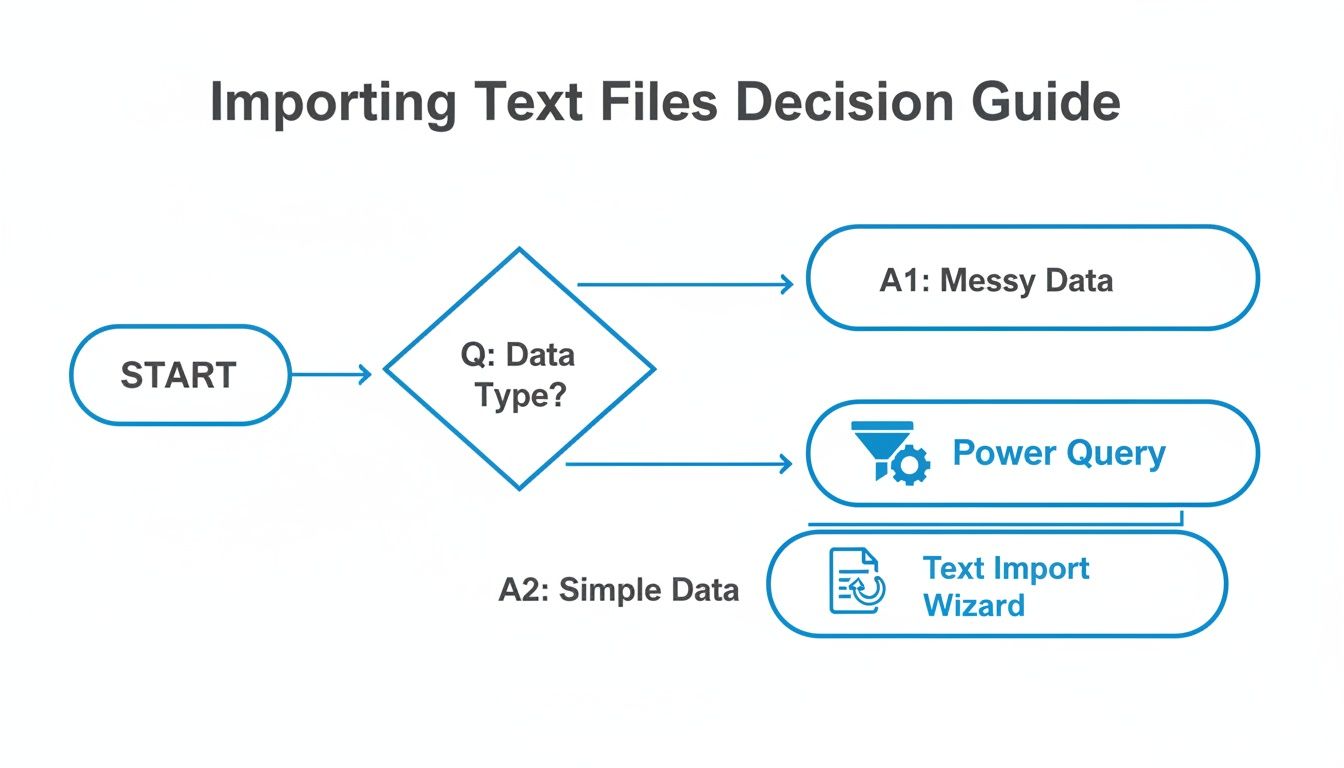
To make it even clearer, here’s a quick breakdown of the main import methods and what they're best used for.
Choosing Your Excel Import Method
This table offers a quick comparison of the primary methods for importing text files into Excel, outlining their best use cases and key features to help you select the right approach.
| Import Method | Best For | Key Feature |
|---|---|---|
| Get Data (Power Query) | Complex, recurring, or messy data imports that need cleaning and transformation. | Repeatable steps that can be refreshed with a single click; powerful data shaping. |
| Text Import Wizard | Simple, well-structured CSV or TXT files that need specific data type formatting on import. | Step-by-step guidance for defining columns and data types; good for one-off tasks. |
| Open File Directly | Clean, perfectly delimited CSV files where default settings work fine. | The fastest way to open a file, but offers no control over the import process. |
| Drag-and-Drop | Identical to opening a file directly; useful for quickly viewing a clean CSV. | Simple and intuitive, but provides no import customization. |
Essentially, it boils down to this: If your data is messy, complex, or you need to repeat the import process regularly, Power Query is your go-to powerhouse. For a quick and simple one-off task with clean data, the legacy Text Import Wizard or even a direct open will often get the job done.
Get Perfect Imports Every Time with Power Query
Let's get practical. If you want a truly robust way to import text files, Power Query is the answer. It's built right into modern Excel and gives you incredible control over your data before it ever lands in a spreadsheet.
To start, head over to the Data tab on the ribbon. From there, click Get Data > From File > From Text/CSV. Go ahead and choose your text file, and you'll see a new preview window pop up. This isn't just a preview; it's your command center for getting the import right the first time.
From Mess to Masterpiece in the Preview Window
Think about a real-world scenario. A procurement manager gets a monthly price list from a key vendor, but the file is a mess—product codes are mixed with descriptions, and prices have currency symbols that Excel won't recognize as numbers. Instead of spending an hour on manual cleanup, Power Query can fix this in minutes.
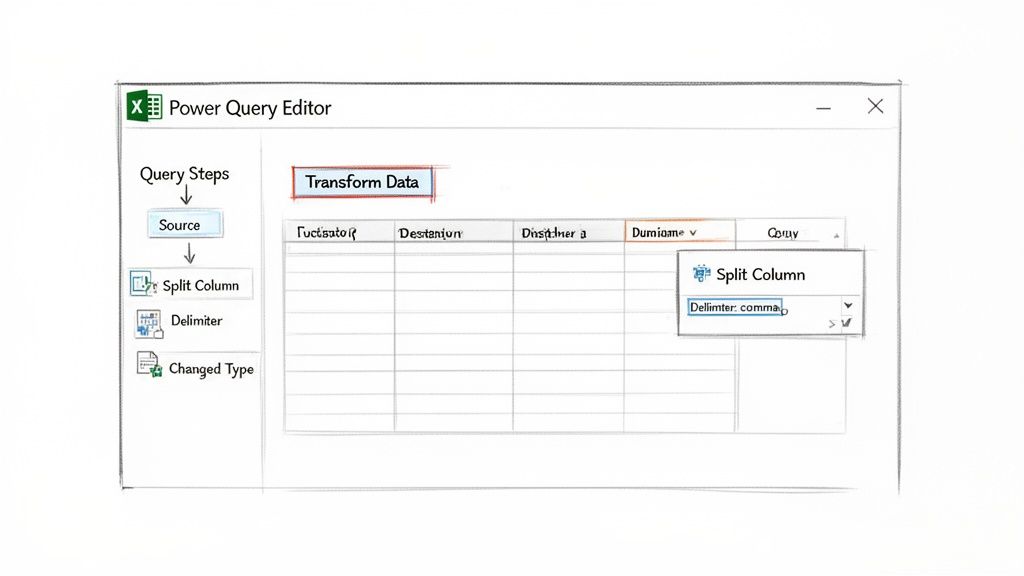
The initial preview window immediately tries to help by detecting the file's origin, the delimiter (like a comma or tab), and what kind of data is in each column. But the real magic happens when you click Transform Data.
Unleash the Full Power Query Editor
Clicking Transform Data opens the full-blown Power Query Editor. This is where you can truly take charge. You can split columns, remove blank rows, change text to numbers, and so much more. Each step you take is recorded, creating a repeatable recipe for cleaning your data.
This approach is leagues better than just opening a file and hoping for the best.
In my experience, relying on Excel to guess formats is a recipe for frustration. A study even found that 73% of imported datasets need some kind of formatting fix after the fact. Power Query lets you do that work upfront. You can find more details in Microsoft's official documentation on importing text files.
Once you've shaped your data into a clean, usable table, just click Close & Load. Power Query will place the data into a new worksheet. The best part? It creates a refreshable connection. So when next month's messy price list arrives, you just open the file and click "Refresh All." All your cleaning steps are applied automatically.
For a deeper dive into organizing and structuring this kind of information, you might find our guide on how to parse data in Excel incredibly helpful.
When to Use the Classic Text Import Wizard
Even with Power Query being Excel’s modern powerhouse, the old-school Text Import Wizard still has its place. I find myself turning to this classic tool for quick, one-and-done imports where I don't need to set up a repeatable, automated process.
It’s especially handy if you're working with an older spreadsheet that already has a data connection built with the wizard. Trying to rebuild that in Power Query might be more trouble than it's worth for a simple task.
The wizard's real strength is its straightforward, guided three-step process. The biggest choice you'll make right away is whether your data is Delimited or Fixed Width.
Delimited is your go-to for standard files, like a basic contact list where commas separate each piece of information. On the other hand, Fixed Width is a lifesaver for legacy data, like reports exported from old mainframe systems where each field is locked into a specific character position.
Whichever path you take, keep a close eye on the Data Preview window. It’s your best friend for making sure Excel is splitting your columns correctly before you commit and finish the import.
Tackling Common Text File Import Headaches
So, you tried to import a text file into Excel, and it all went wrong. It happens to the best of us. Most of the time, the fix is surprisingly simple once you know what to look for.
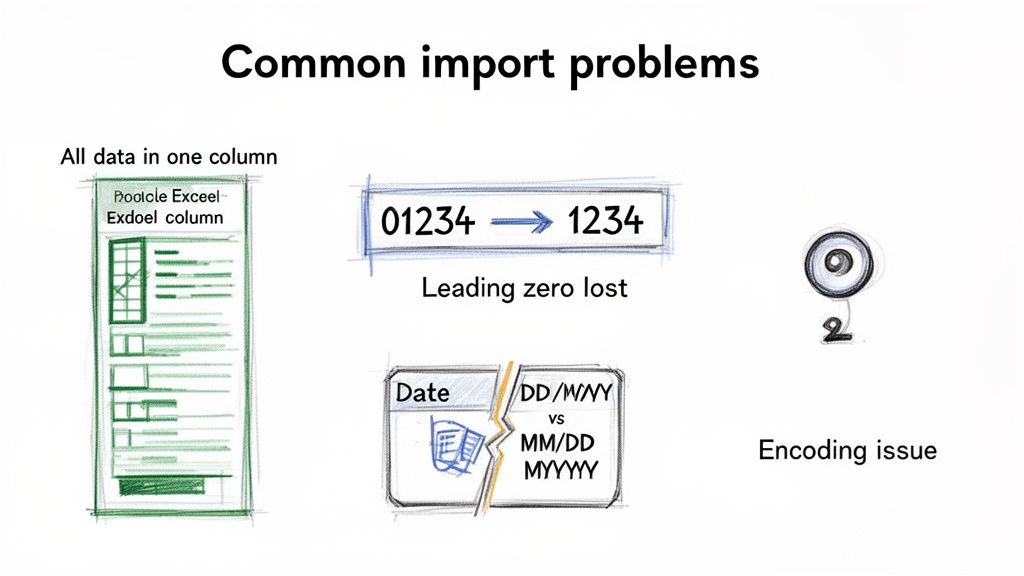
If you’ve ever seen your beautifully structured data get crammed into a single column, you've run into the most common culprit: a delimiter problem. This just means Excel took a wild guess at what character separates your data—like a comma, tab, or semicolon—and guessed wrong.
The good news is that this is an easy fix. When you're using Power Query, you’ll see a preview of your data. Just look for the Delimiter dropdown and pick the right one. Your data should instantly snap into neat, separate columns.

Beyond delimiters, a few other frequent issues can crop up, especially around how Excel interprets your numbers and dates.
Keeping Your Data Formats Intact
Two of the most frustrating import problems are watching Excel strip your leading zeros or scramble international date formats. It’s trying to be helpful by converting what it thinks are numbers and dates, but it often gets it wrong.
The secret is to step in and tell Excel exactly what kind of data is in each column before it tries to auto-format everything. A little proactive intervention goes a long way.
Here’s how to handle it:
- For leading zeros: If you have product codes, phone numbers, or ZIP codes like "07551," Excel will want to turn that into "7551." To stop it, simply change that column's data type to Text in the Power Query editor. This tells Excel to leave the data exactly as it is.
- For date formats: A date like 04/08/2024 could be April 8th or August 4th, depending on where you are. To avoid confusion, use Power Query's Using Locale option. This lets you specify the exact format (like DD/MM/YYYY) so your dates import correctly every time.
Automating Imports with Power Query and VBA
Once you've nailed down a single import process, the next logical step is to make it repeatable and automatic. Manually importing the same report every week is a perfect recipe for burnout and human error.
The most straightforward path to automation inside Excel is using Power Query. When you set up an import with Power Query, you can configure it to automatically refresh the data whenever the source text file is updated. This is a game-changer for recurring reports and dashboards—just open your workbook, hit refresh, and you're done.
If you need more granular control or want to integrate the import into a larger workflow, you can turn to a simple VBA (Visual Basic for Applications) macro. A few lines of code can trigger a Power Query refresh on command, or even handle more complex import tasks that go beyond what the standard tools offer. If you're curious about taking this further, our guide to automating data entry processes is a great place to start.
Excel is constantly evolving, and a great example of this is the new IMPORTTEXT and IMPORTCSV functions currently being tested for Microsoft 365. Imagine being able to import a whole text file with just a single formula! You can read more on How-To Geek about these upcoming Excel functions. This move just goes to show how essential and fundamental text file importing is to everyday Excel use.
When to Look Beyond Excel: A Guide to Document Parsing Tools
Excel is an absolute powerhouse for working with structured data. No question about it. But its magic starts to fade when you need to import a text file into Excel that isn't a neat, predictable TXT or CSV file.
Picture this: you have a stack of 100 PDF invoices from different vendors. Each one has a slightly different layout. Trying to manually copy and paste invoice numbers, dates, and line items into a spreadsheet is more than just tedious—it's a surefire way to introduce errors and burn through countless hours. This is exactly where you hit Excel's ceiling.
When your data extraction needs get this complex, it's time to bring in a specialist. This is where dedicated document parsing tools come into play. Platforms like DocParseMagic are designed for the messy reality of business documents. Instead of just importing raw text, they intelligently read unstructured files—like PDFs, scanned images, or even Word documents.
These tools are smart. They can identify and grab the specific information you need—like an "Invoice No.", "Due Date," or "Total Amount"—even if it’s in a different spot on every single document.
Simply put, these tools take your piles of messy, inconsistent documents and turn them into the clean, structured spreadsheet data you wanted all along. They’re the perfect next step when your data challenges have outgrown Excel's native capabilities.
If this sounds like a problem you're facing, it's worth exploring some of these modern data extraction tools to see how they automate what used to be a painful manual process.
Common Questions When Importing Text Files
Even when you know the steps, importing text files into Excel can throw a few curveballs. Let's tackle some of the most frequent questions that come up.
How Can I Import a Bunch of Text Files at the Same Time?
When you need to merge several files from one folder, Power Query is definitely the way to go.
Just use the Get Data > From File > From Folder command. This tells Excel to look at an entire folder, grab all the text or CSV files inside, and stack them into a single, unified table. It's a lifesaver when you're trying to consolidate things like monthly sales reports from different regional offices.
Why Do My Numbers Show Up as Text?
Ah, the classic formatting headache. This happens all the time, but thankfully, it's a simple fix if you're using Power Query.
Inside the Power Query Editor, just click on the column header for the numbers that are acting like text. Then, head over to the Transform tab, find the Data Type dropdown, and switch it to Decimal Number or Whole Number. This simple click forces Excel to treat them as proper numbers, so all your formulas and charts will work correctly.
What's the real difference between a TXT and a CSV file? A TXT file is just any file containing plain text. A CSV (Comma-Separated Values) is a specific type of text file where commas are used to separate the columns of data. So, while all CSVs are technically TXT files, not all TXT files are CSVs. You'll often find text files that use tabs, semicolons, or even pipes (|) as delimiters instead.
For organizations dealing with massive datasets, ensuring this kind of data is consistent across all your software is a huge challenge. This is where dedicated Master Data Management (MDM) systems come in, helping create a reliable "single source of truth" for the entire company.
Are you tired of manually copy-pasting data from messy documents? DocParseMagic intelligently extracts the information you need from invoices, statements, and reports, turning them into clean, analysis-ready spreadsheets in minutes. Start parsing for free at https://docparsemagic.com.