How to Extract Pages from PDF: Free Tools & Pro Methods
We’ve all been there. You get a massive, 100-page PDF, but the only thing you actually need is page 73—a single invoice, a specific client's policy schedule, or one crucial signature page. It seems simple enough to just pull it out, right?
But when your team does this dozens or even hundreds of times a day, what feels like a minor hiccup quickly turns into a major operational bottleneck. This is the daily reality for professionals in accounting, insurance, and procurement, and it’s a huge productivity killer.
Why Manually Splitting PDFs Just Doesn't Scale
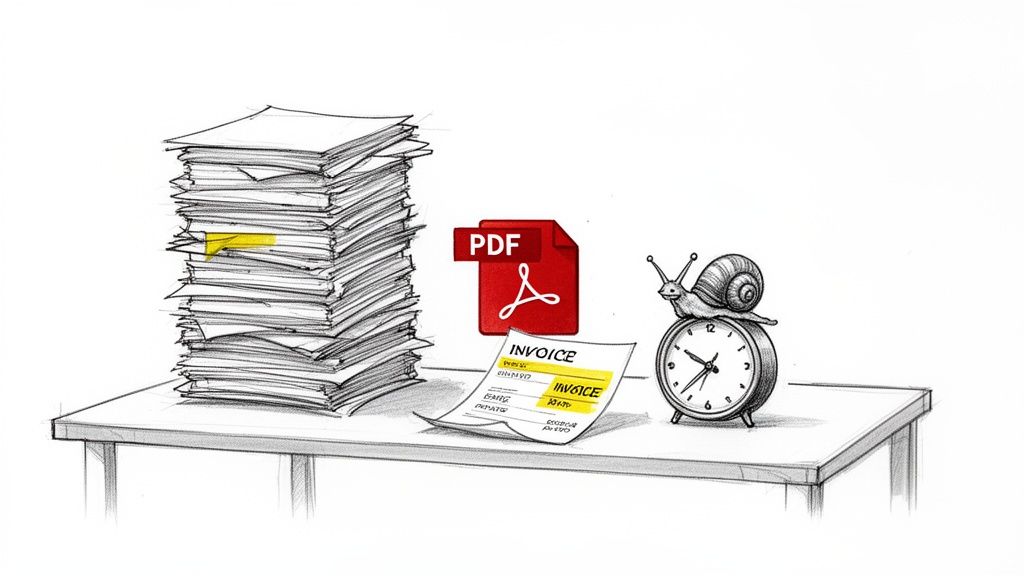
Before we jump into the different ways to extract pages, it’s worth taking a moment to appreciate why this manual process is so painful. On the surface, splitting a PDF is a small task. But when those small tasks pile up, they create real friction in your workflow, costing you more than just a few minutes of annoyance.
Think about a procurement specialist who receives a 200-page vendor proposal. They only need the pricing tables and the terms and conditions to move forward. The old-school way involves scrolling endlessly, printing select pages, and then re-scanning them into a new file. It's slow, tedious, and a recipe for mistakes. Did they accidentally grab last year's terms? Is the scan even legible?
The Day-to-Day Grind of Inefficient Workflows
For any team that handles a high volume of documents, these manual methods are completely unsustainable. The process is often clunky and unreliable, and it pulls people away from work that actually requires their expertise.
- Accounting Teams: Trying to reconcile commissions from a consolidated monthly report is a classic example. Splitting that file for each sales rep is a mind-numbing, repetitive job where one wrong click can lead to incorrect payouts and a lot of headaches.
- Insurance Brokers: When a client calls asking for their policy schedule, they expect it immediately. Fumbling with a free online tool that has tiny file size limits or slaps a watermark on the document just looks unprofessional and slows everything down.
- Operations Managers: If your workflow depends on processing dozens of multi-page PDFs every single day, the time your team spends manually cutting up files adds up. We're talking about days, even weeks, of lost productivity over the course of a year.
The real issue here is that manual extraction treats every document like a one-off problem. It completely misses the point that in business, you’re usually pulling the same type of page from the same type of document, over and over again.
Sticking with outdated methods like printing-and-scanning or wrestling with clunky software creates a kind of "workflow debt" that only gets worse over time. It’s a clear signal that it’s time to find a better way to extract pages from PDF files—whether that's a smarter tool for the job or a more powerful platform.
Extract PDF Pages for Free on Any Device
Let's be honest, sometimes you just need to grab a few pages from a huge PDF, and you need to do it right now. You don't always need to pay for heavyweight software for a simple task. The fastest way is often to use the tools you already have or can get to in a few clicks.
These methods are my go-to for quick, one-off jobs where getting it done is more important than having a ton of features.
The Universal "Print to PDF" Trick
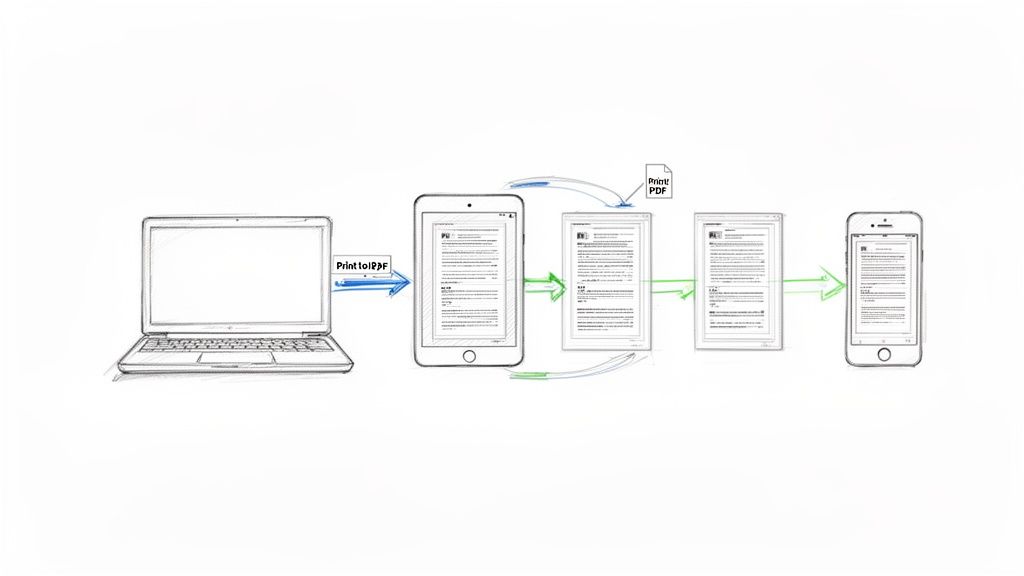
Here’s a little secret that's surprisingly powerful: the native "Print to PDF" function built into both Windows and macOS. Think of it as a virtual printer. Instead of sending a document to a physical printer, you "print" it into a brand-new, clean PDF file. It's fast, free, and doesn't require any installation.
Say you have a 50-page report but only need pages 5-7 for a colleague. Here's how to pull them out in less than a minute.
First, open the PDF in any application—your web browser, Adobe Reader, it doesn't matter. Head to File > Print (or just hit Ctrl+P on Windows, Cmd+P on a Mac). In the printer destination menu, look for "Microsoft Print to PDF" (on Windows) or "Save as PDF" (on macOS).
Now, find the "Pages" section. This is where you tell it what you want. You can type in a range like "5-7", pick out specific pages like "5, 9, 12", or even mix and match. Once you click "Print" or "Save," you'll just need to name your new, much smaller PDF. It’s a simple workflow that keeps all the original formatting intact.
Using Preview on macOS
If you’re a Mac user, you’re in luck. The built-in Preview app makes this process even more visual and, frankly, kind of fun.
Just open your PDF in Preview and make sure you can see the thumbnail sidebar (if not, go to View > Thumbnails). From there, all you have to do is click and drag the thumbnails of the pages you want right onto your desktop. That's it. Preview instantly creates a new PDF with just those pages. It’s an incredibly slick way to handle extracting pages from a PDF.
Key Takeaway: For most everyday tasks, the free tools built into your operating system are more than enough. The "Print to PDF" function and macOS Preview are fast, reliable, and don't require you to upload your files to a third-party server.
Free Online PDF Splitters
Of course, web-based tools are another popular option, especially when you're on a shared computer or a device without your usual software. You just upload your file, select the pages, and download the new document.
While they are convenient, there's a trade-off to consider: privacy. When you use an online tool, you're uploading your document to someone else's server. I’d think twice before doing this with sensitive financial records or confidential business reports.
The market for these tools is exploding. The PDF editor software industry, which covers page extraction, was valued at $4.77 billion in 2025 and is expected to climb to $10.01 billion by 2032. This surge is fueled by the 75% of teams that now depend on cloud-based tools. You can learn more about this trend over at 360iResearch.com.
Just be aware that many free online services come with strings attached, like file size limits, annoying ads, or watermarks on your final document. And if your PDF is a scanned image, these basic splitters won't work. For those cases, you’ll need to make the text readable first—our guide on the best free OCR software can help you with that.
Use Adobe Acrobat Pro for Precision Extraction
When you're dealing with simple, one-off tasks, a free PDF tool can get the job done. But if your work involves complex, sensitive, or high-volume documents, it's time to step up to the industry gold standard: Adobe Acrobat Pro. It offers a level of control and a suite of features that free options just can't touch, especially when you need to do more than just split a file in two.
The heart of PDF manipulation in Acrobat is the "Organize Pages" tool. Think of it as your mission control for the document. It lays out every page as a visual thumbnail, letting you quickly see the entire file at a glance. From there, you can click to select a single page, drag your cursor to grab a continuous range, or hold down the Control/Command key to pick and choose non-consecutive pages to pull out.
Go Beyond Basic Extraction
This is where Acrobat really starts to earn its keep, saving you from mind-numbing, repetitive work. Let's say you're handed a 500-page annual report, and you need to create separate files for each quarterly section, which are neatly bookmarked. Instead of manually scrolling and extracting, you can automate the entire job.
- Extract by Top-Level Bookmarks: This feature is an absolute lifesaver for long, structured documents. Head into the "Organize Pages" options, and you can tell Acrobat to split the PDF into separate files for each top-level bookmark. It even names the new files based on the bookmark titles.
- Split by Page Count or File Size: Ever tried to email a file that’s too large? Acrobat solves this instantly. You can command it to split a document every 10 pages, for example, or into smaller chunks that don't exceed a specific file size, like 5MB.
This kind of efficiency is critical. The market for data extraction software is expected to reach $4.14 billion by 2030, and it’s not hard to see why. According to one report, a staggering 61% of teams are bogged down by manual document processing. You can read more about this trend at The Business Research Company. For a procurement manager sifting through vendor proposals or a construction admin handling stacks of lien waivers, manual extraction can burn hours and introduce costly errors.
Preserve Critical Information During Extraction
One of the biggest pitfalls of using basic tools to extract pages is the risk of losing crucial information layered on top of the PDF. For anyone in legal, finance, or compliance, losing comments, annotations, or form field data is simply not an option.
When you use the "Extract" function within "Organize Pages," Acrobat provides a key choice: "Extract pages as separate files." This isn't just splitting the file; it’s a dedicated process that ensures all associated metadata travels with the extracted pages.
Imagine a lawyer has left detailed notes on specific clauses within a 100-page contract. If you just "print to PDF" to get those pages, you'll flatten the document, permanently erasing all those interactive comments and markups. By using Acrobat's extraction tool, every comment, link, and form field is preserved in the new, smaller PDF, keeping that vital context intact. This is what turns Acrobat from a simple viewer into an essential productivity engine.
Automating PDF Page Extraction with Code and CLI Tools
When you’re facing a mountain of PDFs, manually clicking to extract pages is a non-starter. For anyone building automated document workflows, whether you're an operations manager or in IT, the real power comes from using command-line and programmatic tools. These methods are built for scale and can process huge volumes of files without anyone lifting a finger.
For developers, Python is an excellent, go-to language for this kind of work. With libraries like PyPDF2 or its more modern, actively maintained successor pypdf, you can write a simple script to handle all your PDF splitting needs. Imagine a script that automatically combs through a folder of financial reports, pulls out just the summary page from each one, and saves them as new, neatly organized files.
You could just as easily write code to isolate specific pages from invoices based on keywords found in the text. To get a feel for how this works under the hood, you can explore the basics in our guide on how to use Python to extract text from a PDF.
Use Command-Line Tools for Quick Scripts
If you're comfortable in a terminal and don't want to spin up a full Python script, command-line interface (CLI) tools are your best friend. They're perfect for one-off batch jobs or for plugging into larger shell scripts you might already be using.
Two of the most reliable and popular tools for this are pdftk (the PDF Toolkit) and qpdf. Both are free, open-source, and incredibly handy.
- pdftk: This is a classic, known for its simple and direct commands. To grab pages 5 through 7 and page 10 from a file named
report.pdf, the command is wonderfully straightforward:pdftk report.pdf cat 5-7 10 output new_file.pdf. - qpdf: A more modern and well-maintained alternative to
pdftk. The same command inqpdfhas a slightly different structure:qpdf --empty --pages report.pdf 5-7,10 -- new_file.pdf.
These tools put precise control right at your fingertips, making them a favorite among system administrators and power users who need to get things done fast.
Some jobs require more than just splitting pages. For more sophisticated needs, AI-powered PDF tools like Pdfai can intelligently split documents and handle data based on what the content on each page actually means.
At the end of the day, automation is about buying back time. Instead of an employee spending hours manually splitting commission reports every month, a simple script can do it in seconds with zero errors. This frees up your team to stop shuffling digital paper and start focusing on the analysis and decisions that really matter.
When to Stop Extracting Pages and Start Extracting Data
Knowing how to split a PDF is a great skill to have in your back pocket. But I've seen countless teams get so focused on splitting files that they miss the real point: they don't actually need a smaller PDF. They need the information locked away on those pages.
Think about an accounting department drowning in invoices. Let's say 50 different vendors send them 50 unique PDFs every month. Sure, you could painstakingly extract each invoice into its own separate file. But what's the next step? Someone still has to open every single one and manually type the invoice number, due date, and total amount into a spreadsheet.
The problem wasn't the giant PDF; it was the manual data entry that followed. This is where you have to ask if you're solving the right problem.
The Real Goal: Moving from Splitting Files to Parsing Data
In most business situations, shuffling pages around is just busywork. The real work—analysis, reporting, or getting people paid—demands structured data, not a folder full of neatly separated PDF pages.
This shift is why the data extraction market is exploding. Valued at $5.287 billion in 2024, it's expected to surge to $28.48 billion by 2035. According to a detailed report from MarketResearchFuture.com, this isn't just a niche trend. While an estimated 68% of companies have digitized their documents, most are still stuck with unstructured files that bleed time and money.
For accounting teams, this can mean losing up to 40% of their week to copy-pasting. That’s two full workdays, every single week, spent on tasks a machine could do in minutes.
So, when should you stick with simple page splitting, and when is it time to look at something more powerful? This decision tree can help you think through it.
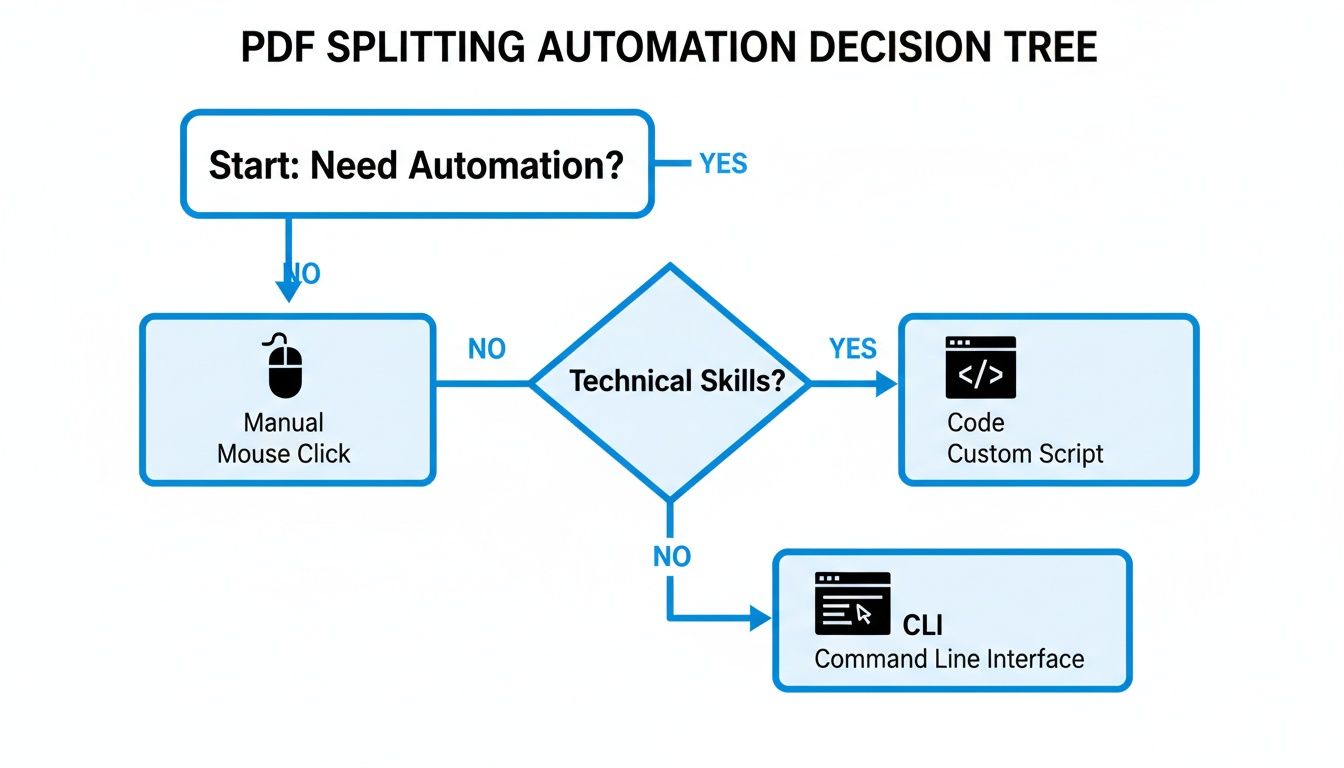
The key takeaway here is that once you start thinking about automation, you should also question whether simply extracting pages is the right task to automate in the first place.
When a Document Parsing Platform Is the Right Tool for the Job
If your team is buried under a mountain of repetitive document work, it’s time to graduate from thinking about pages to thinking about fields. A document parsing platform like DocParseMagic doesn't just split files; it reads the content, understands what it means, and pulls it out into clean, usable data.
It's a fundamental shift in thinking. You stop asking, "How do I get page 5?" and start asking, "How do I get the 'total due' from every invoice in this batch?"
I’ve seen this save teams in all sorts of industries. For example:
- Insurance: A broker needs to pull premium amounts and policy numbers from hundreds of different carrier documents to build a summary for a client.
- Sales: A manufacturer's rep has to reconcile commissions from a dozen different monthly statements, each with its own unique format.
- Procurement: A team needs to compare line-item pricing and payment terms from multiple vendor proposals to make a decision.
In every one of these cases, the end goal is a spreadsheet or a database entry, not a pile of PDFs. With the right automated tools, you can slash document processing time by 70% and get data accuracy up to 99%.
If that sounds like the relief your team needs, our guide on how to extract data from a PDF is the perfect place to start.
Got Questions About Pulling Pages from PDFs?
Once you get the hang of splitting a basic PDF, you'll inevitably run into the tricky stuff. It happens to everyone. You might hit a password-protected file that won't cooperate or wonder if you're losing quality along the way. Let's tackle some of the most common questions that come up when you move beyond simple extractions.
How Do I Get Pages Out of a Secured or Password-Protected PDF?
There's nothing more frustrating than having the file you need, only to be blocked by a password. When you hit this wall, it's important to know what kind of lock you're dealing with.
There are really only two types of PDF passwords:
-
A password to open the file: This is the tough one. If the PDF requires a password just to view it, you're at a dead end without that password. No tool can (or should) bypass this. You'll have to get the password from the source.
-
A password for permissions: This is far more common. You can open and read the file, but you can't print, copy text, or—you guessed it—extract pages.
If you have the permissions password, you can just plug it into a tool like Adobe Acrobat Pro and unlock the file's features.
But what if you don't? A great little workaround is the "Print to PDF" trick. Just open the document, go to the print menu, and select the pages you want. Instead of sending it to a physical printer, choose "Save as PDF" or "Microsoft Print to PDF." This creates a brand new, unrestricted PDF from the pages you selected. It's a simple but surprisingly effective way to sidestep those permissions.
Will Extracting Pages Make My File Look Worse?
That's a great question, and the short answer is: almost never. The quality of your new, smaller PDF depends entirely on how the original was made.
Think of it this way: some PDFs are built from code, and others are just a collection of images.
If your PDF is made of text and computer-generated graphics (known as vector content), you're just copying the digital instructions for that content. The result is a perfect, crisp copy with absolutely no loss in quality. The text will still be sharp, and the lines will be clean.
But if your PDF is a scan of a paper document, its pages are just big images (raster content). When you extract these pages, you're just copying those images. The quality won't get any worse, but it won't magically get better, either. You're stuck with the resolution of the original scan.
The bottom line: For most documents with text and charts, extracting pages won't reduce quality at all. For scanned documents, the quality is simply preserved, not improved.
Can I Extract the Same Page from a Bunch of PDFs at Once?
Yes, and learning how to do this is a game-changer. Manually opening 50 reports to pull out the summary page is the kind of task that makes you question your life choices. This is where a little automation goes a long way.
This is a perfect job for command-line tools. Using a simple script with a tool like qpdf or pdftk, you can process a whole folder of PDFs in seconds. For example, you could write a one-line command that says, "For every PDF in this folder, grab page 5 and save it into this other folder."
What's the Deal with Page Labels vs. Actual Page Numbers?
Here’s a classic trap. You want page 10, but the PDF starts with five pages of introductory material labeled with Roman numerals (i, ii, iii, iv, v). The page that actually says "10" on it might be the 15th physical page in the document.
Most extraction tools, especially the automated ones, don't care about the label printed on the page. They only understand the physical page order. So, in our example, to get the page labeled "10," you'd need to tell the tool to extract physical page 15. Always double-check the actual page count to make sure you're pulling the right one.
If your team is constantly wrestling with these kinds of document headaches, you might be solving the wrong problem. Instead of just shuffling pages, what if you could pull the data you need directly from those pages and into a spreadsheet?
DocParseMagic is a no-code platform designed for exactly that. It turns messy PDFs into clean, analysis-ready data in minutes. Stop shuffling files and start automating your data workflow at https://docparsemagic.com.