
How to Change a CSV File to Excel A Practical Guide
Often, the fastest way to get a CSV file into Excel is the most obvious one: simply double-click and open it directly. In many cases, especially with clean, standard files, Excel will automatically parse the data and lay it out in perfect columns. It’s the quick-and-dirty method that works beautifully a surprising amount of the time.
Your Quick Guide to Opening CSV Files in Excel
When you just need to see the data and you need it now, this direct-open approach is your best bet. It’s my first move when I download a straightforward dataset, like when I export contacts from LinkedIn and just need a quick look.
But let's be real—it's not always that simple. This method relies on Excel correctly guessing your file's structure. If it guesses wrong, you'll see a jumbled mess of data all crammed into one column or numbers that suddenly look like dates.
My Two-Second Rule: Double-clicking is the go-to for speed, but it gives you zero control. If the data doesn't look right instantly, it's time to use a more reliable method instead of trying to fix the mess.
For anything that doesn't open perfectly on the first try, Excel has a much more powerful tool called Get & Transform Data (you might also know it as Power Query). This is your secret weapon for trickier situations.
I switch to this method when I need to:
- Tell Excel that my file uses semicolons or tabs instead of commas.
- Clean up messy data before it even hits the spreadsheet.
- Set up a repeatable process for reports I get every week or month.
We’ll dive deep into those more advanced techniques later on. For now, always give the simple double-click a shot first—you might be pleasantly surprised.
So, what happens when you double-click a CSV file and Excel serves you a jumbled mess of data all stuck in one column? Don't panic. This is a classic Excel problem, and the solution is to take control with its built-in import tools.

For years, the most reliable way to handle this has been the Text Import Wizard. You'll find it by going to the Data tab and clicking From Text/CSV. This little wizard is your best friend for walking you through the import, step-by-step, and letting you make crucial decisions about how your data should look.
Getting Your Data Structure Right
The first and most important job is telling Excel how your data is separated. This separator is called a delimiter, and it's the character that tells Excel where one column ends and the next one begins.
You’ll need to pick the right one for your file. Common delimiters include:
- Commas: The standard for most CSV files.
- Semicolons: You'll see this a lot, especially with files from European systems.
- Tabs: Another very common format for plain text data.
- Pipes (|): Less frequent, but sometimes used in system-generated reports.
Choosing the correct delimiter is everything. If you get it wrong, all your data gets crammed into column A. The good news is that the wizard gives you a live data preview, so you can instantly see if you’ve made the right choice.
I run into this all the time: a client sends a product list where the IDs start with zeros, like "00123". A simple double-click makes Excel think it's a number, and it "helpfully" changes it to "123", breaking all the data. The import wizard is the perfect fix for this.
This is where the wizard really shines. As you move through the steps, you get a chance to define the data format for each column. By clicking a column in the preview (like your product IDs) and choosing Text, you're telling Excel to leave it alone. It will preserve the data exactly as it is—including those crucial leading zeros. This one small step can save you hours of cleanup.
For a deeper dive, our guide on how to import a text file into Excel has even more tips on mastering this process.
While Excel’s tools are great for one-off tasks, the world of file conversion has exploded. Some modern tools now support over 1,200 file formats, offering features like automatic delimiter detection that can really speed things up. It's fascinating to see the evolution of these conversion tools and how far they've come.
Using Power Query for Advanced Data Imports
When you're dealing with more than just a single, clean CSV file, it's time to move up to Power Query. Think of it as Excel's built-in data-shaping powerhouse. You'll find it under the Get & Transform Data tab, and it's what the pros use to create solid, automated import workflows.
Instead of just opening a file, Power Query lets you build a repeatable recipe for cleaning and structuring your data before it ever lands in your spreadsheet.
Imagine you get a new sales report every week, saved as a CSV in a shared folder. Opening each one, fixing the columns, and pasting the data together is a recipe for mistakes and wasted time. This is exactly where Power Query shines.
Building a Repeatable Workflow
Rather than opening files one-by-one, you can point Power Query straight to the folder containing them. It will connect to all the CSVs at once and show you a preview of the combined data. This is where you start shaping it.
You can apply a whole series of cleaning steps that Power Query remembers for you. Some of my most common go-to actions are:
- Splitting columns: I often get a "Full Name" column that I need to break into "First Name" and "Last Name."
- Changing data types: Forcing a column to be Text is crucial for things like ZIP codes or employee IDs with leading zeros. Same for making sure dates are actually dates.
- Removing extra spaces: The "Trim" function is a lifesaver for cleaning up messy, user-entered text.
- Filtering out rows: You can easily tell Power Query to ignore the first 3 rows of every file if they contain junk headers.
Now for the best part. Next week, when a new sales report gets dropped into that same folder, you don't have to do any of that work again. You just head to the Data tab and hit Refresh All.
Power Query instantly runs all your saved cleaning and formatting steps on the new data, adding it perfectly to your master table. A task that used to take an hour now takes a single click.
This kind of automation completely changes how you work with recurring reports. It guarantees your data is always consistent and gives you back valuable time to actually analyze what it's telling you.
Once you get the hang of it, you'll find there are even more powerful ways of parsing data in Excel, allowing you to tackle some truly complex data challenges. In fact, Power Query is so central to Microsoft's ecosystem that even Power BI uses it as the primary way to get and clean data.
Fixing Common CSV Import Problems
It’s a classic data headache: you open a CSV file, and all your neatly organized data is jammed into a single column. Sound familiar? Or maybe your product IDs and ZIP codes have suddenly lost all their leading zeros. These are some of the most common frustrations when working with CSVs in Excel, but thankfully, they’re also easy to fix.
These problems almost always boil down to two culprits: Excel guessing the wrong delimiter or being a little too helpful with its automatic data formatting.
The Delimiter Dilemma: Data in One Column
The most frequent issue by far is seeing all your data crammed into column A. This happens when your file uses a separator (a delimiter) that Excel doesn't expect. For example, many systems outside the US use a semicolon (;) instead of a comma, but Excel defaults to looking for commas.
When Excel can't find the comma, it assumes the entire row is just one big piece of text.
The fix is to take control of the import process. Instead of double-clicking the file, you need to use a tool like the Text Import Wizard or Power Query. Both give you an option to explicitly tell Excel which delimiter to use—whether it's a comma, semicolon, tab, or even a pipe character (|). This ensures every piece of data lands in the correct column right from the start.
This decision guide can help you figure out which import method is best for your situation.
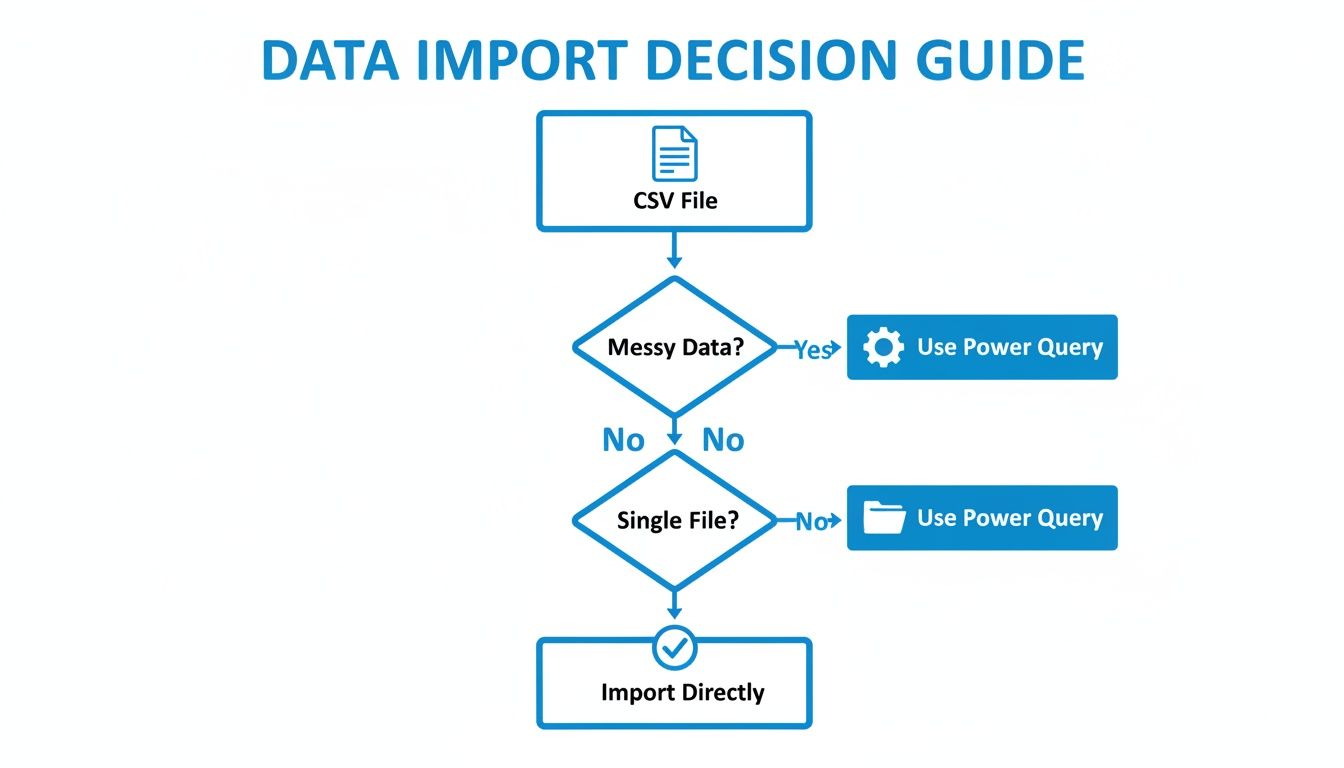
As you can see, Power Query is often the go-to solution for messy data or when you need to import multiple files at once.
The Formatting Fiasco: Lost Zeros and Scientific Notation
Another major headache is when Excel tries to be too smart. It sees a number like "00789" and "helpfully" changes it to "789," completely breaking your product codes or ZIP codes. Long strings of numbers, like credit card or tracking numbers, often get mangled into scientific notation (like 1.23E+15).
The secret is to tell Excel how to treat the data before it gets a chance to change it. During the import, you have to format the column as Text.
Whether you're using the Text Import Wizard or Power Query, you can select any column and change its data type. By setting it to Text, you're telling Excel, "Hands off! Treat this as plain text." This single step preserves your leading zeros and stops any unwanted number conversions, saving you a ton of cleanup work later.
Knowing When to Use Tools Beyond Excel
Excel and its built-in tools like Power Query are absolute workhorses for data. Knowing how to get a CSV file opened and formatted is a fundamental skill. But experience teaches you to recognize when you're pushing a tool past its limits. For some jobs, stepping outside of Excel isn’t just about finding a different option—it's about finding a smarter one.
Take collaboration, for instance. If you need multiple people to jump into a file at once, Google Sheets is built for that from the ground up. It’s a much smoother experience than Excel's co-authoring features. On the other hand, if you're just looking for a free, powerful alternative, the open-source LibreOffice Calc has fantastic CSV import features that rival Excel's, without the cost.
These are perfect for one-off tasks. But what happens when converting files becomes a major, repeating part of your workflow?
Scaling Up with Automated Parsing
There's a point where manually opening, cleaning, and formatting CSVs just doesn't make sense anymore. If you find yourself doing the same tedious import routine every single day or week, you’ve hit a wall. That's when your process needs to evolve, especially for teams drowning in documents.
Think about an accounts payable team getting hundreds of PDF invoices from different vendors every month. Manually keying in that data or even using a template to convert each one is a huge time-drain and a recipe for typos. This is precisely why many are looking for ways to convert PDFs into structured data like CSVs in the first place, skipping the manual step entirely.
This is where dedicated document parsing tools come in. They do more than just change a file's format; they're built to read and understand the content inside. A good tool can intelligently grab invoice numbers, line items, and totals, no matter how the original document was laid out.
This isn't just conversion anymore—it's genuine workflow automation.
The move toward these platforms is happening for a simple reason: they work. In fact, research shows that companies embracing AI-powered conversion tools can see a 30% jump in productivity. That boost comes from slashing manual data entry and catching errors before they cause problems, which you can read more about in this guide on how AI is transforming data processing.
So, when is it time to make the switch? Ask yourself if your workflow involves any of these:
- High Volume: Are you processing more than 20-30 similar files every week?
- Repetitive Work: Is the same conversion and cleanup process a daily or weekly chore?
- Mixed Formats: Are you handling not just CSVs, but also PDFs, scanned receipts, or Word documents?
- Costly Errors: Does a simple data entry mistake lead to serious financial or operational headaches?
If you're nodding along to these points, a dedicated tool like DocParseMagic is no longer a "nice-to-have." It’s the logical next step for scaling your work and getting your time back.
Common Questions About Working with CSVs in Excel
Even after you've learned the ropes, a few tricky situations always seem to pop up. Let's tackle some of the most common questions people have when trying to get their CSV data into Excel.
The quickest way? Just double-click the file. If your CSV is simple and uses standard commas, Excel will often open it perfectly. But consider this a gamble—it gives you zero control over the import, so it’s only good for a quick-and-dirty look.
How Can I Automatically Import a Folder Full of CSVs?
For anything you have to do more than once, Power Query is your best friend. You can point it at an entire folder of CSV files.
Once you’ve set up the steps—like telling it to skip the first three rows or how to split a column—you just hit "Refresh." Any new files you drop into that folder will be automatically imported and cleaned using the exact same rules. It’s a huge time-saver for recurring reports.
How do I stop Excel from deleting the zeros at the front of my numbers? This is a classic problem with things like ZIP codes or product IDs. The only foolproof way to prevent it is to set that column's data type to Text during the import. You can do this with the Text Import Wizard or Power Query. This has to be done before Excel gets its hands on the data and tries to "help" by turning it into a number.
Treating the column as text from the start is non-negotiable if you care about your data's integrity. It forces Excel to leave your numbers exactly as they are.
What if I Need to Do More Than Just Convert a File?
Excel is fantastic for handling CSVs, but sometimes you hit its limits. It's worth looking at the many alternative to Excel options out there, especially if you need stronger features for team collaboration or advanced data visualization.
This isn't a niche skill anymore. Professionals in research, finance, and countless other fields rely on these conversion methods daily. You can get a sense of the global relevance of CSV to Excel conversion and see just how essential this process has become in modern business.
When you're tired of fighting with messy files, it might be time to let a tool do the work. DocParseMagic is designed to intelligently pull data from documents like invoices and statements and turn it into a perfectly structured spreadsheet, no manual cleanup required. Give it a try for free at https://docparsemagic.com.