How to Forward Emails to Text: A Complete Guide (2026)
Your inbox already has the pattern.
A vendor sends a revised invoice late in the day. A customer replies with an urgent document request. A carrier emails a policy update with an attachment your team needs before tomorrow morning. Nobody misses these emails because they’re careless. They miss them because email is crowded, delayed, and easy to triage into “I’ll get to it later.”
That’s why businesses try to forward emails to text. They want a short path between “something important arrived” and “someone saw it.” For simple alerts, that can work well. For document-heavy work, though, basic forwarding only solves half the problem. Full value comes when you can extract the useful data inside the attachment and send a text that tells the recipient what action to take.
Why Critical Emails Get Lost and How Text Alerts Can Help
An accounting manager might receive dozens of routine messages before lunch. Most are harmless. One isn’t. It contains a supplier invoice that needs approval the same day because the terms changed and the amount is higher than expected. The email lands in the same inbox as newsletters, internal replies, calendar updates, and system notifications.
That’s the problem with relying on email as your only urgent channel. Important messages don’t just arrive. They compete.
Texting behaves very differently. According to Intradyn’s 2025 text messaging compliance insights, SMS has a 98% open rate and 95% of messages are read within 3 minutes, while email averages 20% to 28% open rates. If your goal is instant visibility, text is the better delivery format for the final alert.
What businesses actually need
Organizations generally do not require every email to be turned into a text. That would create a new kind of noise. They need a priority lane for a narrow set of messages:
- Accounts payable alerts for overdue notices, invoice exceptions, or vendor updates
- Procurement messages tied to proposals, revised terms, or bid deadlines
- Insurance notifications when policy documents or endorsements arrive
- Operations escalations where an attachment changes next-day work
Practical rule: Don’t forward inbox traffic. Forward decision points.
A useful text alert changes behavior. Instead of checking the inbox over and over, the right person gets a short message when a specific event happens. That keeps attention focused and reduces the habit of manually monitoring shared mailboxes all day.
Why this matters more with attachments
The missed email usually isn’t valuable because of the subject line. It’s valuable because of what’s inside the PDF, scan, or statement. If the text only says “New email received,” the recipient still has to open the message, find the file, and interpret it.
That’s why basic forwarding is a starting point, not the finish line. The strongest workflows don’t just notify. They turn attachment content into an actionable text.
Comparing Three Core Methods to Forward Emails to Text
There are three common ways to forward emails to text. They differ a lot in setup effort, reliability, and how well they handle attachments.
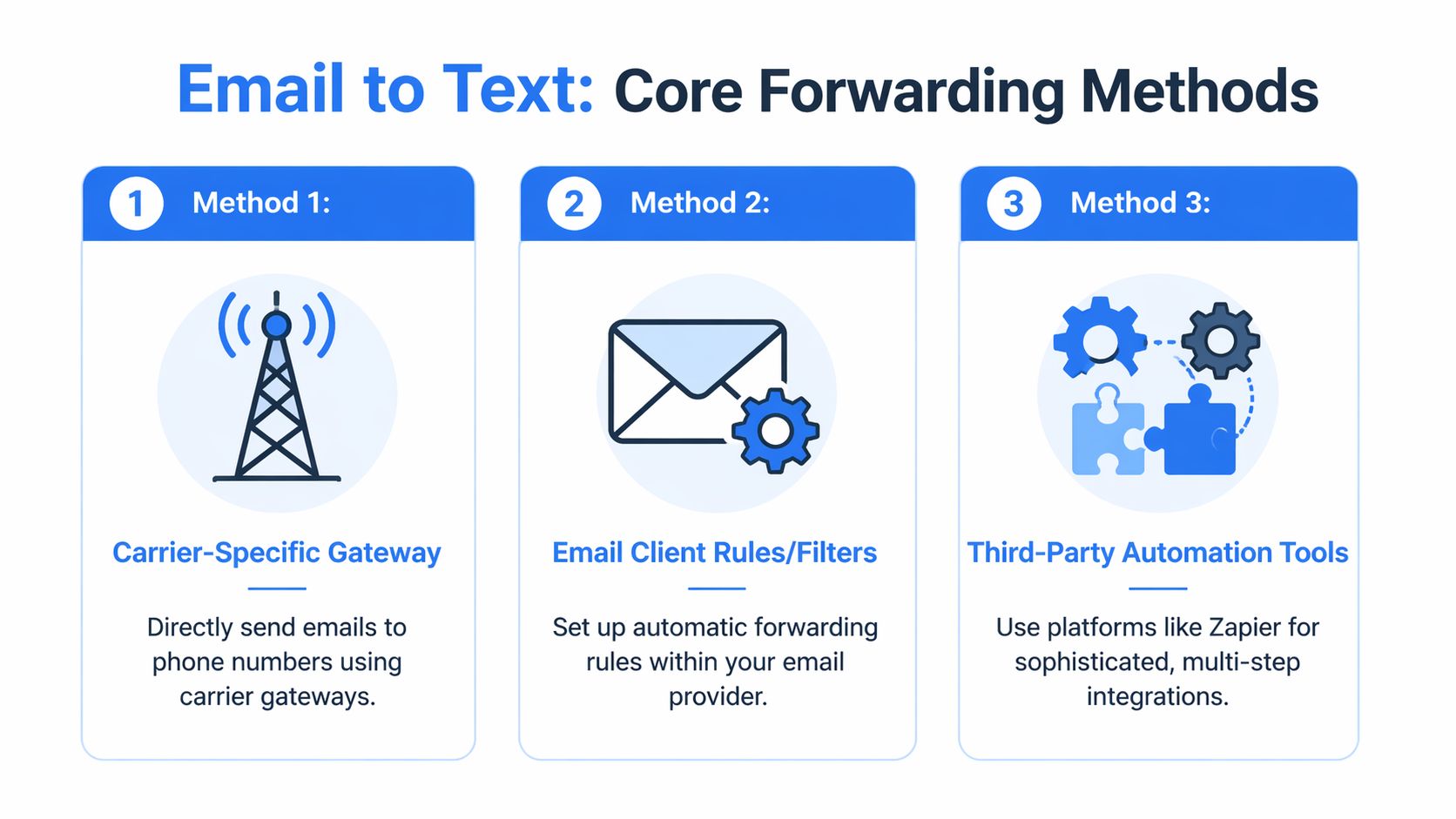
Carrier gateways
This is the old-school method. You send an email to a phone-number-based gateway address supplied by the mobile carrier, and the carrier converts the message into SMS.
It’s attractive because it’s simple. No app. No workflow builder. No separate integration layer. If you only need occasional plain-text alerts, it can be enough.
Where it falls down is business context. Gateways are not built for structured handling of invoices, statements, or approval packets. Formatting gets messy, long content gets awkward, and attachments usually don’t translate into something useful on the phone.
Email rules inside Gmail or Outlook
This method uses built-in rules or filters to automatically forward matching emails. For example, you can forward messages from a vendor, or only those with “past due” in the subject, to an SMS destination or another service that converts email to text.
For many small teams, this is the best first step. It’s easier to manage than carrier-level manual forwarding because the logic lives in the mailbox where the messages arrive. You can be selective and keep the texts relevant.
The limitation is that mailbox rules only route messages. They don’t understand document content. If important information sits inside an attachment, rules can move the email but they can’t extract the invoice total, due date, claim number, or premium details.
Automation platforms
Tools like Zapier, Make, and similar workflow products sit between your inbox and your messaging tool. They can watch labels, folders, or specific senders, then perform multiple actions in sequence.
That makes them the strongest option when your workflow depends on attachments. You can detect a message, grab the file, pass it to a parser or another system, format the result, and send a short text with only the fields that matter.
Basic forwarding tells someone an email exists. Automation tells them what the email means.
This is also the best fit when your process doesn’t end with SMS. Maybe a text needs to go out, a spreadsheet needs updating, and a CRM or ticketing system needs a record.
Email-to-SMS Forwarding Method Comparison
| Method | Best For | Cost | Reliability | Attachment Handling |
|---|---|---|---|---|
| Carrier-Specific Gateway | Personal alerts and very simple business notifications | Usually low or built into existing carrier usage | Varies by carrier and formatting can be inconsistent | Poor |
| Email Client Rules/Filters | Small teams that need targeted forwarding from Gmail or Outlook | Usually low if you already use the email platform | Better control than manual forwarding, but still limited by email routing behavior | Limited |
| Third-Party Automation Tools | Accounting, procurement, insurance, and operations workflows | Varies by platform and volume | Strongest control and best visibility into workflow steps | Best option of the three |
Which one usually works best
If you’re forwarding a short status update, start with mailbox rules.
If you’re trying to move document-derived information to a phone, skip straight to automation. That’s the dividing line that matters in practice. Teams often waste time trying to stretch simple forwarding into a document workflow it was never designed to handle.
How to Set Up Basic Email to SMS Forwarding
The two easiest paths are carrier gateways and email-client rules. Both are useful when you want alerts fast and don’t need document parsing yet.
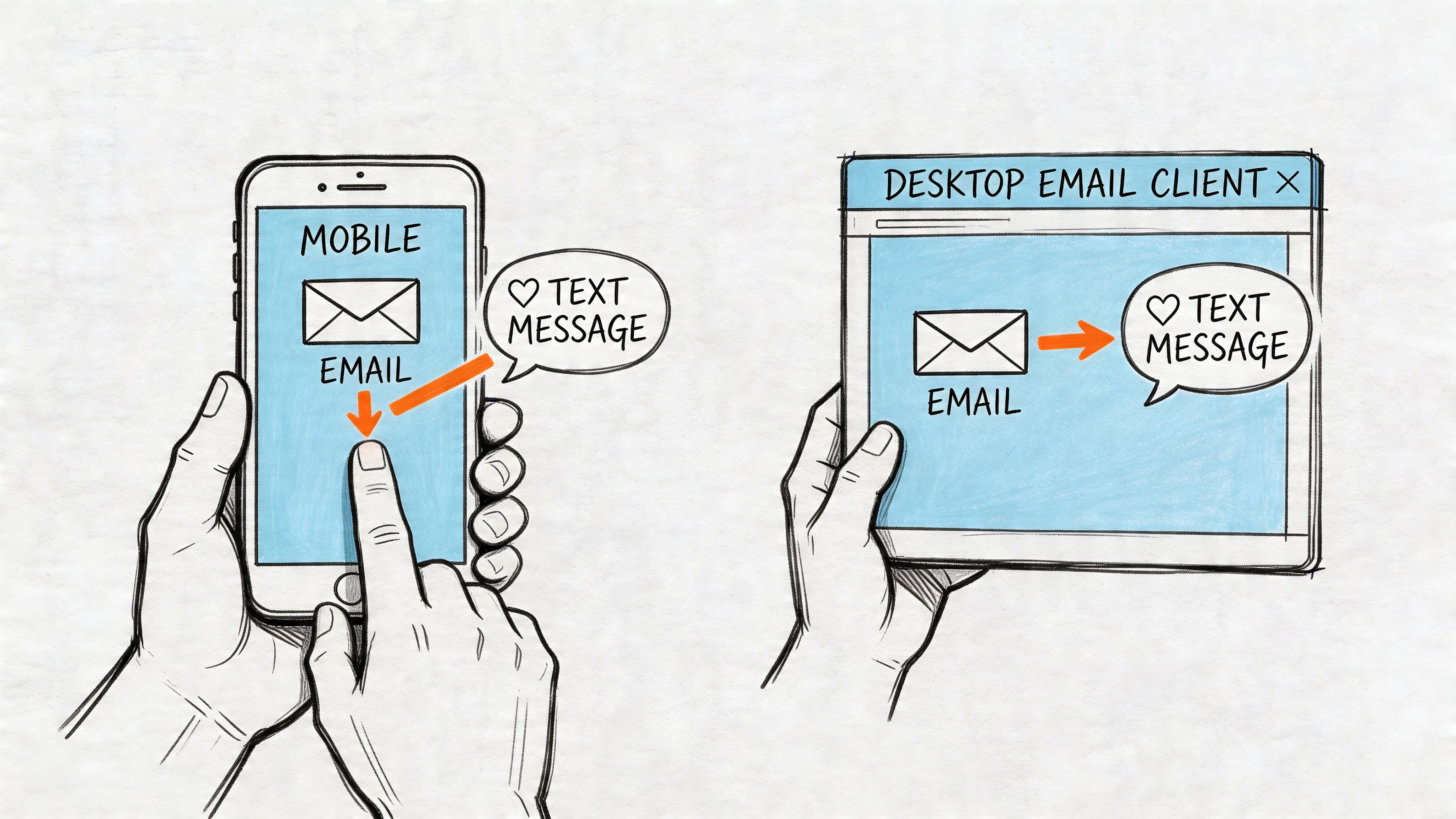
Set up a carrier gateway forward
Start with the destination. You’ll need the recipient’s mobile number and the correct email-to-SMS gateway format from that person’s carrier. Once you have it, send a short test email manually first. Keep the subject and body clean so you can see how the carrier formats the result.
Then create a simple forwarding rule in your mailbox:
- Choose a narrow trigger. A good first rule is a single sender, such as a key vendor or a monitored system mailbox.
- Use a meaningful condition. Subject phrases like “overdue,” “approval needed,” or “updated statement” work better than broad terms.
- Forward to the gateway address. This sends qualifying emails as texts.
- Run a live test. Use a real example email, not a blank test, so you can see the actual mobile result.
- Trim noise quickly. If the phone starts getting too many texts, tighten the rule immediately.
This setup is fine for short alerts. It’s weak for anything attachment-heavy, because the recipient may receive a stripped-down fragment that doesn’t answer the core question.
Forward only messages that can still make sense when reduced to a short mobile alert.
If you need a separate number for testing or temporary routing during setup, a guide on using a virtual number for texting can help you think through sandboxing and account separation before you involve live staff numbers.
Build smarter filters in Gmail
Gmail works better when you treat forwarding like triage, not like a blanket copy.
A practical AP example might be:
- sender contains a vendor domain
- subject contains “invoice” or “past due”
- has attachment
- skip everything else
For teams that haven’t configured rules before, this walkthrough on automatic forwarding in Gmail is a useful reference for the mailbox setup itself.
A stronger Gmail pattern is to combine labels with forwarding. Label the messages first, then forward only the label that represents urgent action. That keeps your logic readable when someone else has to maintain it later.
Use Outlook rules for role-based alerts
Outlook is often better in shared inbox settings because finance and operations teams already work from role accounts. The most practical rules aren’t generic. They map to responsibilities.
Examples:
- Vendor exception route. If an email comes from a known supplier and includes “revised invoice,” forward it to the AP lead’s SMS destination.
- Procurement deadline route. If a message contains “proposal” and arrives from an approved vendor list, forward it to the buyer on duty.
- Collections route. If the subject includes “past due” and the sender matches a customer account, notify the account owner.
A short demo can help if you want to see the flow before building your own:
What basic forwarding does not do well
Basic forwarding breaks down when the recipient needs details from a PDF or scan. A text that says “Invoice attached” still forces someone to open the original message, download the file, and read it manually.
That’s acceptable for low volume. It’s not a durable process for teams handling repeated invoices, statements, endorsements, or proposal packages every day.
Building Advanced Workflows with Automation Platforms
Here, forward emails to text becomes a real workflow instead of a notification trick.
A common finance problem looks like this: invoices arrive by email, often as PDFs, and someone needs the total, invoice number, and due date immediately. Not later when they open the mailbox. Right away, in a format they can act on from a phone.
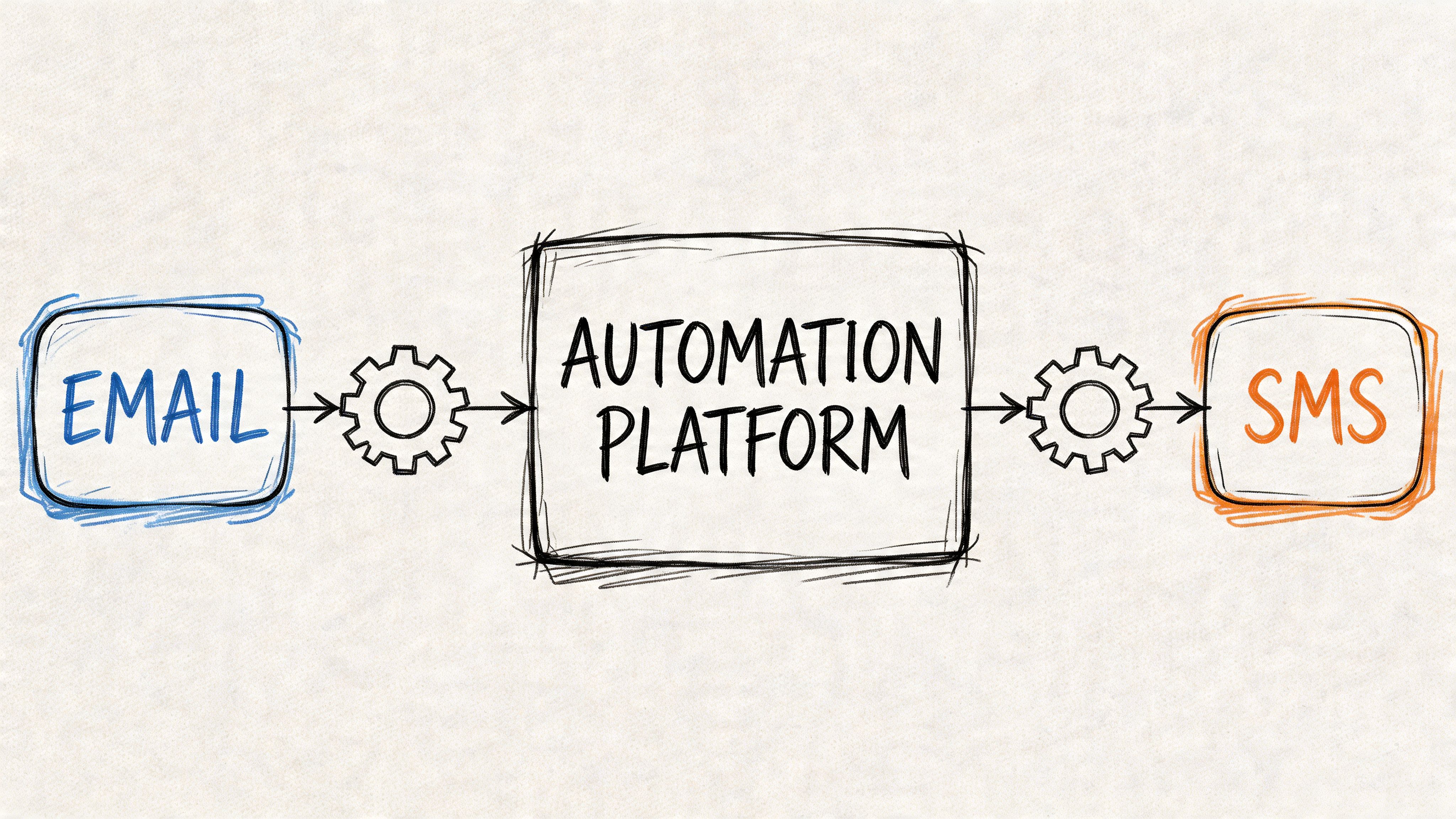
The workflow that usually makes sense
A practical automation sequence in Zapier might look like this:
- Trigger on a mailbox label or folder. Example: “Invoices” in Gmail or a dedicated AP folder in Outlook.
- Pull the attachment from the email. This matters more than the message body.
- Send the file into a document extraction step. The goal is to read fields, not just forward the file.
- Format a compact SMS. Keep only the fields the recipient needs for a quick decision.
- Optionally update another system. Spreadsheet, approval queue, CRM, or ticket record.
That pattern is much closer to the way accounting and procurement teams work. The inbox becomes the intake layer. The text becomes the action layer.
Why attachment parsing changes the result
A 2025 Zapier survey found that 68% of businesses report attachment-related delays in email-to-mobile workflows, and internal data referenced for this audience shows parsing-integrated forwarding boosts team response by 3x in insurance and procurement in the cited material at this supporting source. That lines up with what teams see operationally. The bottleneck usually isn’t sending the alert. It’s interpreting the file fast enough to do something useful.
Here’s the difference between weak and strong SMS output:
- Weak text: “New invoice email received from Vendor A”
- Strong text: “Vendor A invoice 1847 due 05/30. Total $4,260. Approval needed today.”
The second message creates a next step. The first one creates another inbox check.
Working rule: If a person still has to open the attachment to understand the alert, the automation is only half built.
Add business context, not just message transport
Good automation platforms let you route based on content and process stage. Procurement can send one kind of text for bid updates and a different one for revised terms. Insurance teams can route policy-related messages by carrier or account. Finance can separate standard invoices from exceptions that need same-day review.
That same mindset applies beyond texting. If your workflow also touches customer records or pipeline tracking, a guide on how to integrate email with Salesforce is useful because it shows how email events become structured downstream actions instead of isolated messages.
If you’re deciding between workflow tools before building this out, a side-by-side view of Zapier vs n8n is worth reviewing. The right choice often comes down to who will maintain the automation after it goes live.
Where teams usually go wrong
They overbuild the trigger and underbuild the output.
The trigger can stay simple. “New labeled email with attachment” is often enough. The actual work is in producing a text that’s short, consistent, and specific enough to drive action without opening the original email unless necessary.
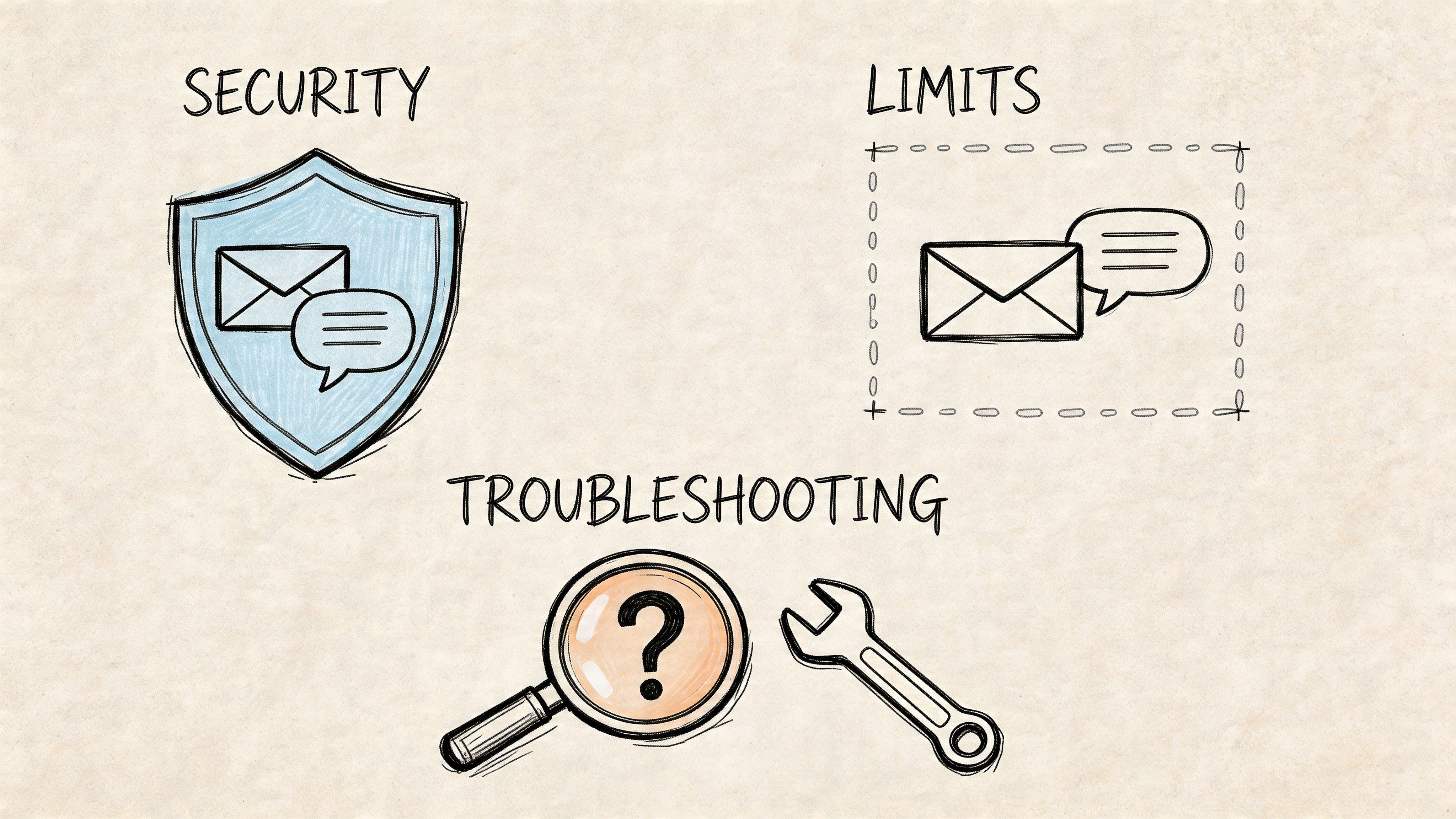
Security, Limits, and Troubleshooting Common Issues
Forwarding business email to text sounds simple until a sensitive attachment, a delivery failure, or a badly formatted message exposes the weak points.
Reliability problems are real
Email forwarding introduces compounding reliability failures. According to the MIT forwarding pitfalls analysis, each additional server hop creates another chance for spam filtering, delays, or authentication problems, and forwarded messages can be lost with no notification to either side. For invoice and statement workflows, that’s a serious operational risk.
This is why critical document processes shouldn’t rely on blind forwarding alone. If the message path gets longer, your confidence should go down, not up.
Don’t treat forwarding as proof of delivery. Treat it as a convenience layer unless your workflow gives you visibility into each step.
Keep sensitive content out of the text
A text message is easy to read. That’s also the risk.
Use SMS for alerts and extracted essentials, not for full document disclosure. In finance and insurance workflows, that usually means sending a short summary and leaving the complete record inside a secured system or mailbox. If a recipient only needs to know the vendor, total, due date, and status, don’t send the entire underlying content.
Message limits affect formatting
SMS is best when the final message is short and deliberate. Long forwarded email bodies are hard to scan on a phone, and attachment-heavy messages often turn into cluttered fragments.
When formatting your text alert, keep only:
- Who it’s from
- What happened
- Which document or record matters
- What action is needed
If delivery starts failing at the messaging layer, a breakdown of common SMS delivery error codes can help your team diagnose whether the issue is formatting, carrier filtering, or destination-specific.
Quick troubleshooting checklist
When a forward emails to text workflow stops working, check the basics in this order:
- Review the filter logic. A changed sender address or subject pattern breaks more rules than people expect.
- Test with a real message. Sample emails without attachments often don’t reveal the actual problem.
- Inspect forwarding scope. Shared mailbox changes, moved folders, or label updates can stop the trigger.
- Check attachment assumptions. Large scans and complex PDFs can behave differently than simple files.
- Verify the output template. If the SMS body is too messy, users may think delivery failed when the actual issue is readability.
The cleanest setups have one rule for routing, one step for extraction, and one output format that never changes unless the team approves the change.
Conclusion: Moving From Simple Alerts to Automated Action
Most guides on how to forward emails to text stop too early. They show how to send an email to a phone. That’s useful, but it doesn’t solve the harder business problem.
Accounting, procurement, insurance, and operations teams don’t just need to know that an email arrived. They need the critical detail inside that email, often buried in an attachment, delivered fast enough to act on it. That’s the difference between a notification setup and a workflow.
Basic methods still have a place. Carrier gateways and mailbox rules are fine for narrow alerts, light volume, and plain-text messages. They’re quick to deploy and easy to understand. But once your process depends on invoice totals, due dates, policy details, or proposal terms, simple forwarding starts to show its limits.
The better model is no-code automation that routes the message, extracts the document data, and sends a compact text that tells the recipient exactly what matters. If you’re exploring that broader shift, this overview of no-code automation is a good next step for thinking beyond manual inbox monitoring.
The win isn’t more alerts. It’s fewer manual checks, fewer missed documents, and faster decisions from cleaner information. When the text contains the right data instead of just another reminder to open your inbox, your team gets time back for work that requires judgment.
If your team handles invoices, statements, policy documents, or vendor files all day, DocParseMagic helps you turn those messy attachments into structured data you can use. Instead of forwarding a PDF and hoping someone reads it in time, you can extract the fields that matter and build cleaner downstream alerts, approvals, and reporting without manual copy-paste.