How to Setup Automatic Forwarding in Gmail (2026 Guide)
Monday starts with a familiar routine. You open Gmail, spot invoices from vendors, statements from carriers, commission reports from partners, and a handful of emails that need to land somewhere else before anyone can act on them.
Then the manual work begins. Download attachment. Rename file. Forward to accounting. Copy someone on the team. Flag the original so you can find it later. By lunch, you've spent more time routing email than doing the work the email was supposed to trigger.
Automatic forwarding is one of the simplest ways to stop that drift. Done well, it turns Gmail from a catch-all inbox into a traffic controller. Messages move where they need to go without constant intervention, and the rest of your workflow gets faster because fewer steps depend on a person remembering to click Forward.
That matters most when email is tied to operations. Accounting teams need invoices in the right place. Insurance teams need policy documents routed consistently. Small business owners need fewer handoffs and fewer missed messages. If you're trying to automate workflows in Google Workspace, forwarding is often the first practical building block.
It also pairs well with broader process cleanup. If your team is still doing repetitive inbox triage by hand, this practical guide on https://docparsemagic.com/blog/automating-repetitive-tasks is worth a look.
Stop Drowning in Your Inbox and Start Automating
A lot of small businesses don't have an email problem. They have a routing problem.
The inbox keeps receiving the right information, but the business still depends on someone to move that information into the right process. That might be an operations manager forwarding order confirmations. It might be a bookkeeper sending invoice PDFs to a shared mailbox. It might be an owner checking two or three inboxes because messages arrive in the wrong place.
Gmail can help with that, but only if you choose the right forwarding method.
Some teams need a simple mirror of an inbox. Every new non-spam message goes to another address so a second person can monitor it. Other teams need precision. They only want emails from a vendor, or only messages with "invoice" in the subject, or only attachments that match a recurring document type.
Those are very different setups. The wrong choice creates clutter fast.
Forwarding is easy to enable. Building a forwarding setup that supports real business work takes a little more thought.
The useful way to think about how to setup automatic forwarding in gmail is this. You're not just moving email. You're defining a rule for how work enters your business.
Once that clicks, the setup decisions get easier. You can decide whether you need broad coverage or narrow rules, whether you need a shared inbox or a processing address, and whether your team can safely forward sensitive documents at all.
The Two Paths to Automatic Forwarding
Gmail gives you two practical ways to automate routing.
The first is universal forwarding, where Gmail sends a copy of every incoming non-spam message to one verified address. The second is filter-based forwarding, where Gmail only forwards messages that match rules you define.
For a small business, that difference matters more than most tutorials admit. One approach is simple and blunt. The other is more precise and far better for operational workflows.
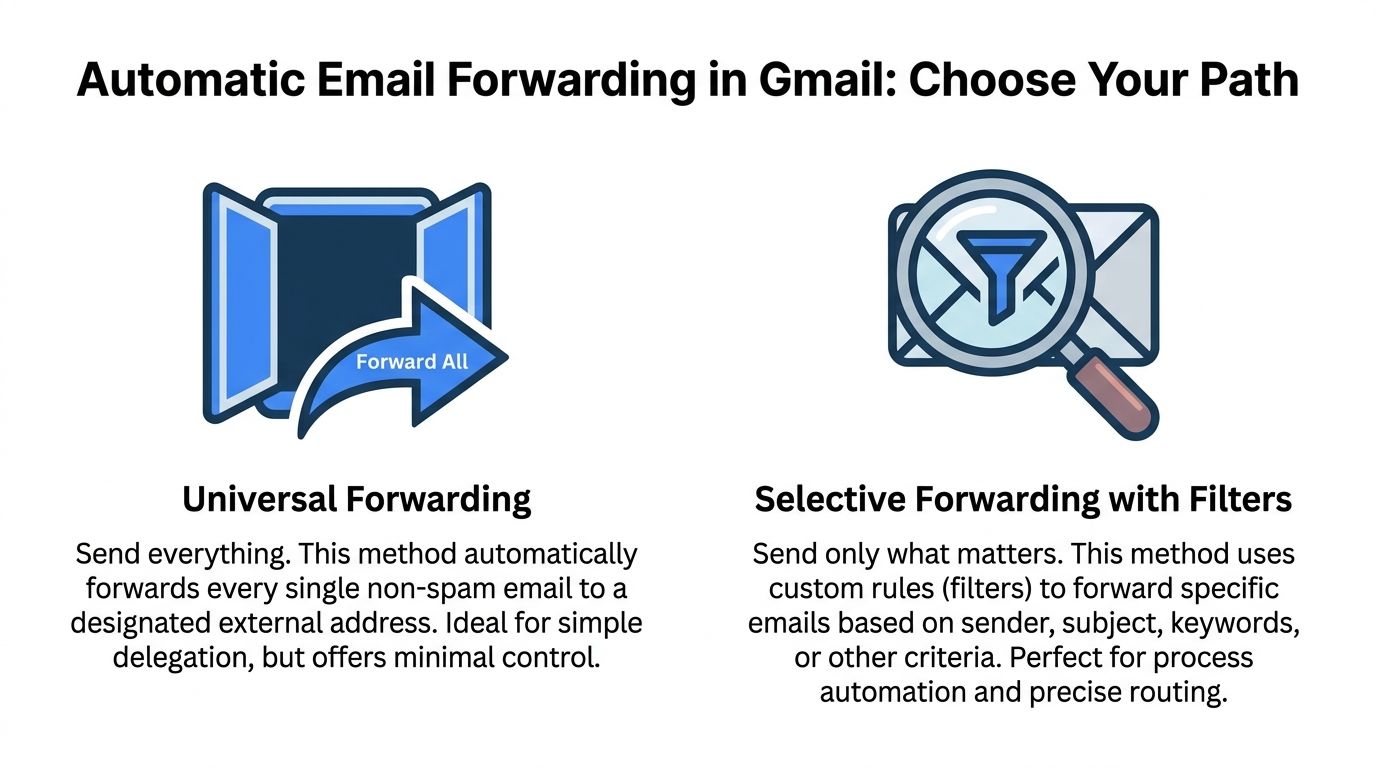
Universal forwarding vs filter-based forwarding
| Feature | Universal Forwarding (Forward a copy of all incoming mail) | Filter-Based Forwarding (Forward specific messages) |
|---|---|---|
| Scope | All incoming non-spam emails | Only messages that match defined criteria |
| Best fit | Shared visibility, backup inboxes, simple delegation | Invoice routing, document intake, department-specific workflows |
| Setup effort | Lower | Higher |
| Control | Minimal | High |
| Risk of clutter | Higher | Lower if filters are well designed |
| Audit handling | Easier if you keep the original in Gmail | Good if rules are clear and labels are used |
| Flexibility | Limited | Strong for process automation |
| Good example | Owner forwards all support mail to an assistant | AP team forwards only invoice PDFs from vendors |
When universal forwarding makes sense
Use it when the main need is visibility.
A common example is a founder who wants a second inbox to monitor a role-based mailbox, or a manager who wants a colleague to see everything arriving in a departmental account. If your goal is "make sure another inbox receives everything," this is the cleanest route.
The trade-off is obvious. It forwards everything that qualifies, not just the useful subset.
When filters are the better business tool
Filters are what I recommend when email is feeding a process rather than just sharing access.
If you're sending invoice attachments to a processing inbox, routing policy documents to a dedicated address, or splitting inquiries by sender or subject, filters are the smarter choice. They let you decide what enters the workflow and what stays out.
A forwarding rule should reflect how your business works. If every email isn't work, don't forward every email.
That's why many operational teams eventually move from broad forwarding to selective forwarding. They start by mirroring an inbox, then realize they need rules, labels, and tighter control so the receiving system only gets the messages that matter.
Enabling Universal Forwarding for All Incoming Mail
If you want every incoming non-spam email to go to another inbox, Gmail's built-in forwarding tool handles it well. This setup works best on desktop. The mobile app doesn't provide the full setup flow.
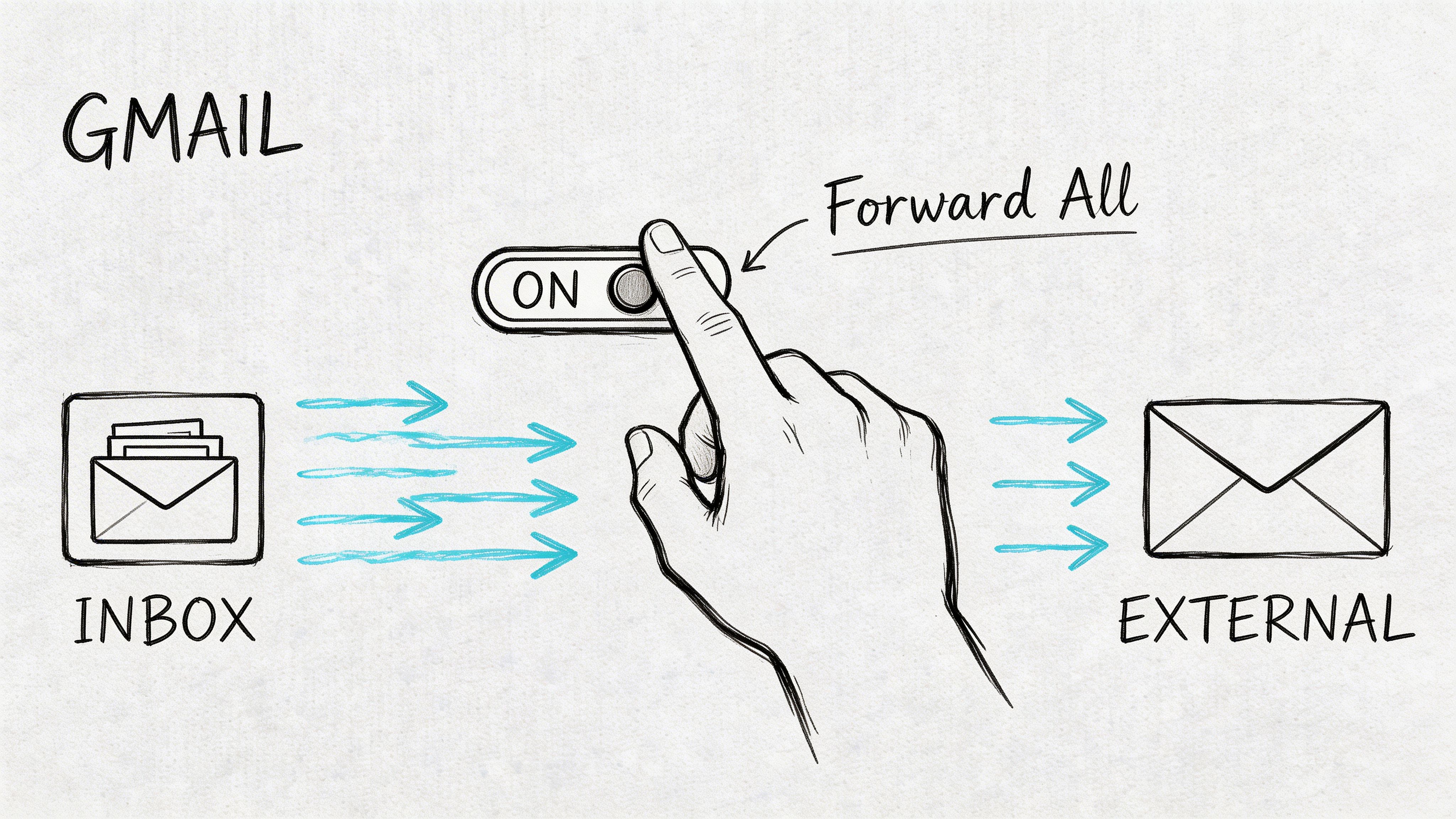
The exact setup flow
Follow these steps in the Gmail account that will send mail onward:
- Open Gmail on a desktop browser and sign in to the source account.
- Click Settings.
- Click See all settings.
- Open the Forwarding and POP/IMAP tab.
- Click Add a forwarding address.
- Enter the destination email address.
- Click Proceed.
- Check the target inbox for Gmail's verification email.
- Open the verification message and complete the approval step.
- Return to the source Gmail account.
- Refresh the settings page if needed.
- Choose Forward a copy of incoming mail to the verified address.
- Pick what Gmail should do with the original message, then click Save Changes.
That flow matters because Gmail won't activate forwarding until the destination address is verified.
The setting most businesses should choose
When Gmail asks what to do with the original message, the safest business default is Keep Gmail's copy in Inbox.
That choice preserves the original record in the source mailbox. If accounting, operations, or compliance staff need to verify what arrived and when, the original is still there. For teams handling invoices, statements, or approvals, that's much better than treating forwarding like a handoff that erases the trail.
Practical rule: If the email has business value, keep the original in Gmail unless your retention policy says otherwise.
The admin issue many users hit first
In Google Workspace, users might not be able to turn this on until an administrator allows it in the Admin console. The control sits under Apps > Gmail > End User Access, and admins can apply the setting by organizational unit according to Google's Workspace guidance at https://knowledge.workspace.google.com/admin/gmail/let-users-automatically-forward-their-own-gmail-emails.
That same Google Workspace guidance notes a hard limit of one verified forwarding address per account and points out a common failure point. 70-80% of forwarding issues come from unverified addresses, and the verification link expires in one week if it's ignored (https://knowledge.workspace.google.com/admin/gmail/let-users-automatically-forward-their-own-gmail-emails).
What works and what doesn't
A few patterns show up repeatedly in real setups:
- Works well: Forwarding a departmental inbox to one shared review address.
- Works well: Keeping the original message in the source inbox for traceability.
- Doesn't work well: Trying to configure this from mobile and wondering why options seem incomplete.
- Doesn't work well: Adding the forwarding address, skipping verification, and assuming Gmail will handle the rest.
- Doesn't work well: Forwarding to yourself or creating circular routing between accounts.
Gmail also excludes spam from automatic forwarding, which is a good default. It reduces abuse and keeps junk from filling the receiving inbox.
If your need is simple coverage, universal forwarding is enough. If your inbox contains a mix of useful business documents and everything else, filters are the better next step.
Mastering Selective Forwarding with Gmail Filters
Filter-based forwarding is where Gmail becomes operationally useful.
Instead of sending every message onward, you can tell Gmail to forward only messages that meet clear conditions. For most finance and admin teams, this is the setup that prevents noise from flooding a shared inbox or downstream system.
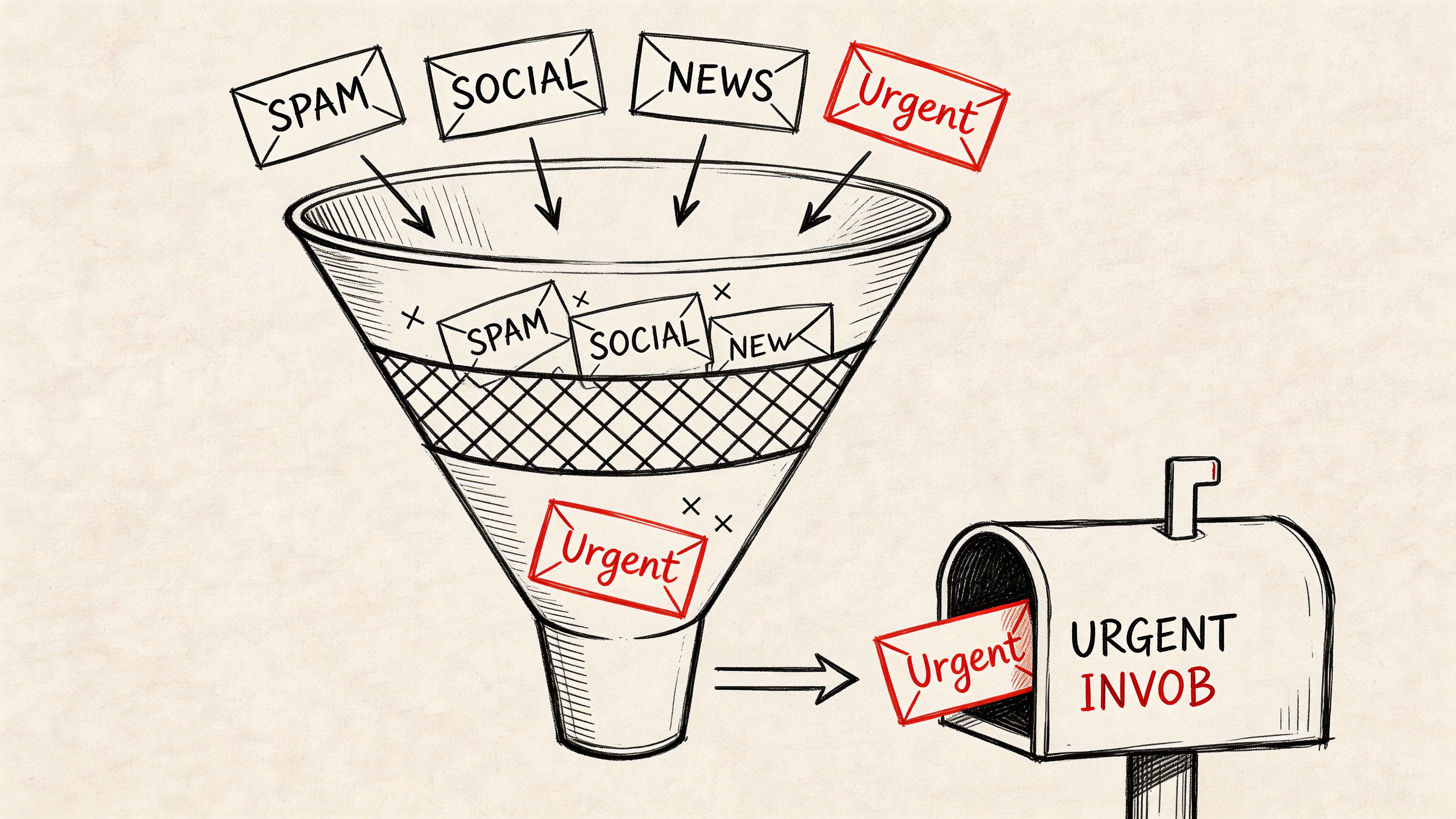
A practical example
Say invoices arrive from invoicing@vendor.com. You only want emails that contain the word "invoice" and include a PDF attachment to be forwarded to a dedicated processing address.
That's a good filter. It's narrow, understandable, and tied to a real process.
By contrast, a vague rule like "forward anything with attachment" usually creates problems. It catches too much, invites false matches, and makes the receiving inbox harder to trust.
How to build the filter
Start by verifying the forwarding address first. Gmail needs that in place before the filter can use it.
Then do this:
- In Gmail, click the small down-arrow in the search bar to open advanced search.
- In From, enter the sender you care about, such as
invoicing@vendor.com. - In Subject or Has the words, add a term like
invoice. - Add attachment criteria that fit the workflow.
- Click Create filter.
- Check Forward it to and pick the verified forwarding address.
- Add supporting actions if useful, such as Apply label or Mark as read.
- Click Create filter again.
Well-defined filters can be highly reliable. The verified data provided for this article states that combining address verification with advanced filter rules reaches a 95%+ success rate for targeted emails, while filters support over 20 operators for narrowing criteria (https://www.youtube.com/watch?v=4nhp19yo32o).
Use Gmail's search operators carefully
You don't need to build a complicated rule to get good results.
Often, the strongest filter combines just a few conditions:
- Sender condition: Limit by vendor, carrier, or partner address.
- Keyword condition: Use subject or body terms like invoice, statement, remittance, or policy.
- Attachment condition: Narrow the rule to documents rather than conversational email.
- Label action: Tag matching mail so someone can audit the route later.
Overly complex criteria can backfire. The verified data notes that complex filters can run into 10% match errors, while testing with Gmail's search tool can reach 98% accuracy when you validate the rule before saving it (https://www.youtube.com/watch?v=4nhp19yo32o).
The best filter is usually the simplest one that reliably separates process email from normal conversation.
The mistake that breaks filters early
A lot of people create the filter before they finish address verification. That leads to unnecessary rework.
The verified data says filters fail 25% of the time initially when the forwarding address hasn't been verified first (https://www.youtube.com/watch?v=4nhp19yo32o). So verify the destination, then build the rule.
If you're comparing Gmail-native routing with broader automation tools, this breakdown at https://docparsemagic.com/blog/zapier-vs-n-8-n is useful for thinking about when a simple filter is enough and when you need a fuller workflow engine.
A quick visual walkthrough can help if you want to see the interface before building your own rule.
Good uses for selective forwarding
This method works especially well when the destination inbox or tool should only receive business documents.
Examples include:
- Accounts payable: Forward invoice emails from known vendors to a processing address.
- Insurance operations: Route policy PDFs and renewal documents by sender or subject.
- Loan and underwriting teams: Separate statements or supporting financial documents from general applicant correspondence.
- Procurement: Forward proposal emails from supplier domains while leaving internal discussion threads untouched.
This is also the one place in the workflow where a document parser can fit naturally. For example, DocParseMagic can receive forwarded business documents at a parser email address and turn attachments into structured spreadsheet-ready data. That makes sense after the filter is stable, not before.
Critical Security and Admin Considerations for Businesses
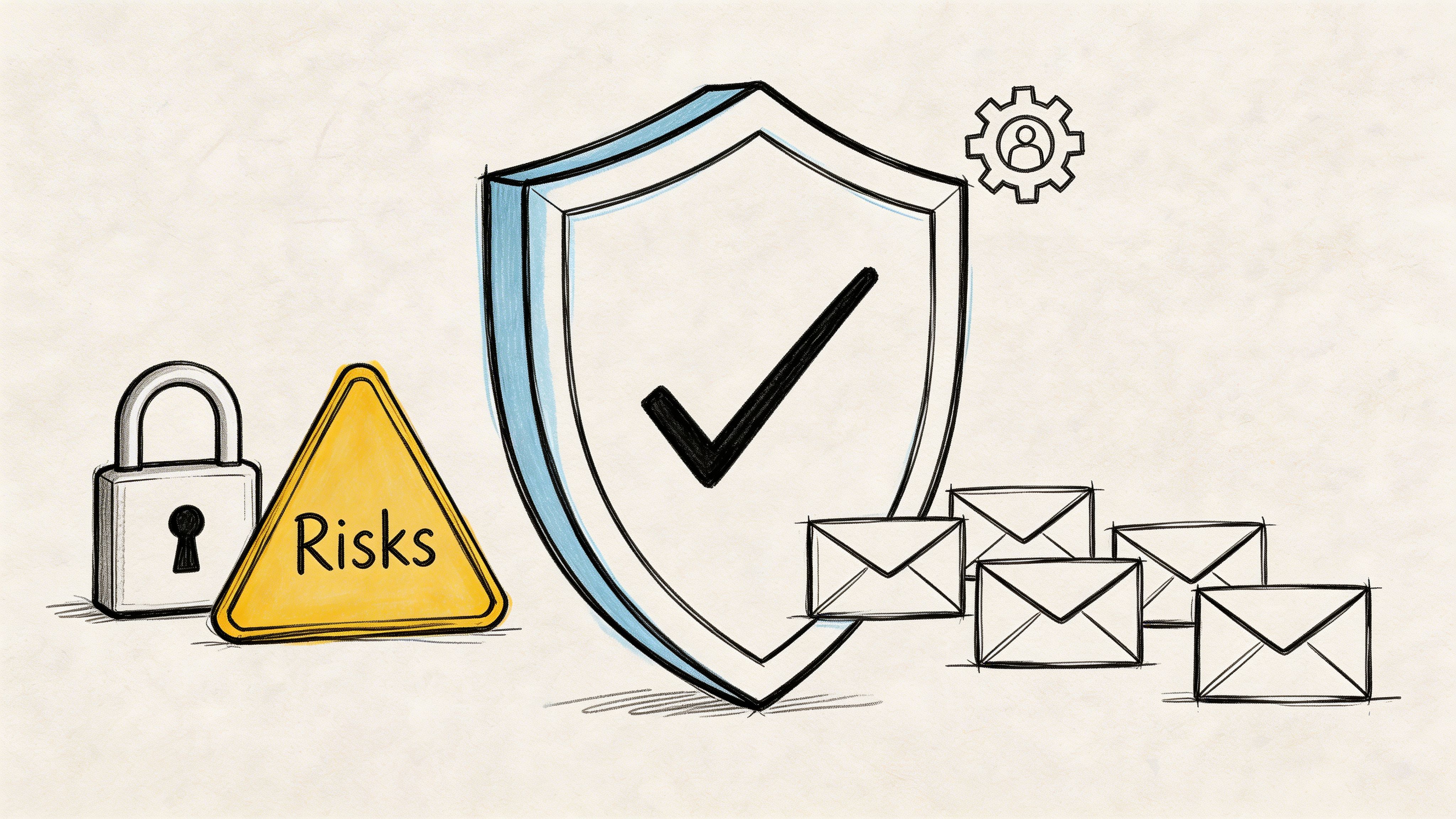
Forwarding isn't just an inbox convenience. In many businesses, it's a data movement decision.
That's where most basic tutorials fall short. They explain where to click, but they don't deal with the consequences of forwarding invoices, statements, policy details, or other business records outside the original mailbox.
Why finance teams need a stricter standard
If a staff member forwards sensitive documents to a personal inbox because it's "easier to check later," the risk isn't theoretical. It can undermine internal controls, create retention problems, and make audits harder.
The verified data for this article notes that standard Gmail forwarding tutorials often under-address security risks, and that forwarding invoices or financial statements can create compliance exposure under SOX, HIPAA, or GDPR when it violates data protection policies or breaks audit trails (https://support.google.com/mail/answer/10957?hl=en).
That doesn't mean forwarding is always wrong. It means the decision belongs inside your business rules.
Questions to answer before you enable forwarding
Use these as a minimum review checklist:
- Where is the email going: Is the destination a company-managed account or a personal mailbox?
- What type of data is inside: Are you forwarding routine notices, or documents with sensitive financial or personal information?
- Who needs access: Does the receiving address map to a real business process and an approved owner?
- How will you preserve the record: Can your team still find the original message in the source mailbox if there's a dispute or audit?
- What happens under retention policy: Will the forwarded copy create conflicts with how your organization stores and deletes business records?
Convenience is not a policy. If a forwarding rule moves regulated or sensitive data, someone should approve it.
Google Workspace admin controls matter
If you manage Google Workspace, don't treat forwarding as an all-user free-for-all.
Admin controls let you enable or restrict forwarding by organizational unit. That matters because sales, finance, support, and executive accounts often shouldn't share the same policy. A small business can keep things simple by allowing forwarding only where there's a documented business need and only to approved destinations.
A more mature setup also defines who can request a forwarding rule, who approves it, and how often it gets reviewed. That's a better control than waiting until a compliance issue exposes the gap.
If you're thinking beyond forwarding and into broader process design, https://docparsemagic.com/blog/what-is-intelligent-automation is a useful way to frame the bigger shift. The important point is that inbox automation should reduce risk and manual work at the same time.
Safer habits in practice
These habits are effective in practice:
- Prefer company-controlled destinations: Shared mailboxes or approved operational inboxes are easier to govern.
- Keep original messages available: That supports traceability.
- Avoid personal accounts for business documents: Here, convenience usually collides with policy.
- Review forwarding rules periodically: Old rules outlive the process that created them.
- Use API-based or managed integrations when governance matters more than convenience: That's often the better path for sensitive workflows.
Troubleshooting Common Forwarding Issues
Even a correct setup can fail in ordinary ways. Most problems come down to verification, admin restrictions, overlapping rules, or expectations that don't match how Gmail forwarding functions.
Forwarding isn't working
Start with the basics.
Check that the forwarding address was verified. Then confirm the rule is still enabled in Gmail. If you're using Google Workspace, make sure the admin hasn't restricted forwarding for your account or organizational unit.
If messages still aren't arriving, it's worth reviewing a broader email delivery checklist. This guide on how to troubleshoot emails not coming through is useful when the problem may not be the forwarding rule itself.
I set it up on mobile and can't find the option
That's expected.
Gmail's full automatic forwarding setup needs to be done on desktop. The verified data for this article notes that the mobile app lacks the full setup flow, which is why so many users get stuck trying to configure it there. Use your phone to monitor results if you want, but do the setup in a browser on a computer.
I'm getting duplicates or odd routing behavior
This usually means one of two things.
First, multiple filters may be catching the same message. Second, you've built a loop across accounts or services. Gmail helps prevent obvious self-forwarding loops, but multi-step routing can still create messy behavior if two systems keep passing mail back and forth.
If a message could match more than one rule, assume it eventually will.
Tighten your criteria. Remove overlap. Keep each forwarding rule attached to one business purpose.
Can I forward to more than one address
For universal forwarding, no. Gmail allows one verified forwarding address per account for that built-in all-mail setting, as noted earlier from Google's Workspace documentation.
If you need different message types to go to different places, use filters. That's the practical workaround. One filter can send vendor invoices to one inbox, another can send policy documents elsewhere, and ordinary mail can stay put.
Why did forwarding stop suddenly
Look for administrative changes, deleted filters, or a destination address that was changed without updating the rule.
When a forwarding setup was working and then goes quiet, the fix is usually in settings, not in the email itself.
Conclusion: Putting Your Automated Workflow to Work
Gmail forwarding works best when you treat it like an operational tool, not just an inbox trick.
The choice is simple. Use universal forwarding when another inbox needs to see everything. Use filters when only certain messages should move. In both cases, verification matters, desktop setup is easier, and business teams should think carefully about audit trails, retention, and where sensitive documents are being sent.
For an overwhelmed manager or accounting lead, that shift can remove a surprising amount of manual inbox work. Fewer clicks. Fewer misses. Cleaner handoffs.
The bigger opportunity starts after the emails land where they belong. Once invoices, statements, or policy documents are flowing into the right destination automatically, the next question is how to extract the data and use it without another round of copy-paste.
If your team is forwarding invoices, statements, or other business documents into a shared inbox, DocParseMagic can help with the next step. It turns those files into structured, spreadsheet-ready data without requiring template setup, which makes it useful when forwarding is only the first layer of your workflow automation.