Extract Data PDF Excel A Guide to Unlocking Your Documents
If you've ever found yourself mind-numbingly copying and pasting data from a PDF into an Excel spreadsheet, you know the pain. It’s a daily grind for so many businesses, but this manual process is more than just annoying—it’s a hidden drain on your resources, breeding costly errors and bogging down your entire operation.
Why Manual Data Entry Is Costing You More Than Time

The friction of moving information from a PDF into a spreadsheet might feel like a small, unavoidable part of the job. But when you scale that task across hundreds of documents every month, the real costs start to pile up, impacting everything from team morale to your bottom line.
The Real-World Friction of Copy and Paste
Picture your accounting team at the end of the month, staring down a pile of 200 vendor invoices, all sitting in their inbox as PDFs. For each one, someone has to open the file, hunt for the invoice number, due date, and line-item totals, then painstakingly type it all into an Excel sheet.
This isn’t just slow; it’s a recipe for disaster. A single misplaced decimal or a transposed number can lead to overpayments, missed deadlines, and strained relationships with your vendors. It's tedious work that pulls your sharpest people away from tasks that actually require their expertise.
The core issue isn't just the time spent—it's the opportunity cost. Every hour your team spends on manual data entry is an hour they aren't spending on financial analysis, forecasting, or strategic planning.
The Scale of the PDF Problem
The challenge is massive. Analysts estimate that over 2.5 trillion PDFs are created every year, with invoicing alone accounting for roughly 550 billion of them. A huge chunk of these documents requires someone to manually key the data into Excel.
A Goldman Sachs analysis even found that inefficient, paper-based invoice processing costs businesses a staggering $2.7 trillion globally.
This heavy reliance on manual work creates a series of operational headaches:
- Delayed Insights: Critical data is trapped in PDFs, useless for real-time analysis. By the time it’s entered manually, the window of opportunity to act on it might have already closed.
- Scalability Issues: The only way to process more documents is to hire more people. This creates a clunky, expensive growth model that just doesn’t scale.
- Employee Burnout: Let's be honest, repetitive copy-pasting is a soul-crushing task. It’s a known cause of job dissatisfaction and can lead to high employee turnover.
Ultimately, the manual struggle to extract data from a PDF to Excel is far more than an inconvenience. It’s a major operational bottleneck that holds your business back. To see how you can move past these issues, check out our guide on the benefits of automating data entry.
You might be surprised to learn that you probably already have a powerful PDF data extraction tool sitting right on your computer. Before you even think about buying specialized software, it’s worth looking at what Microsoft Excel can do on its own.
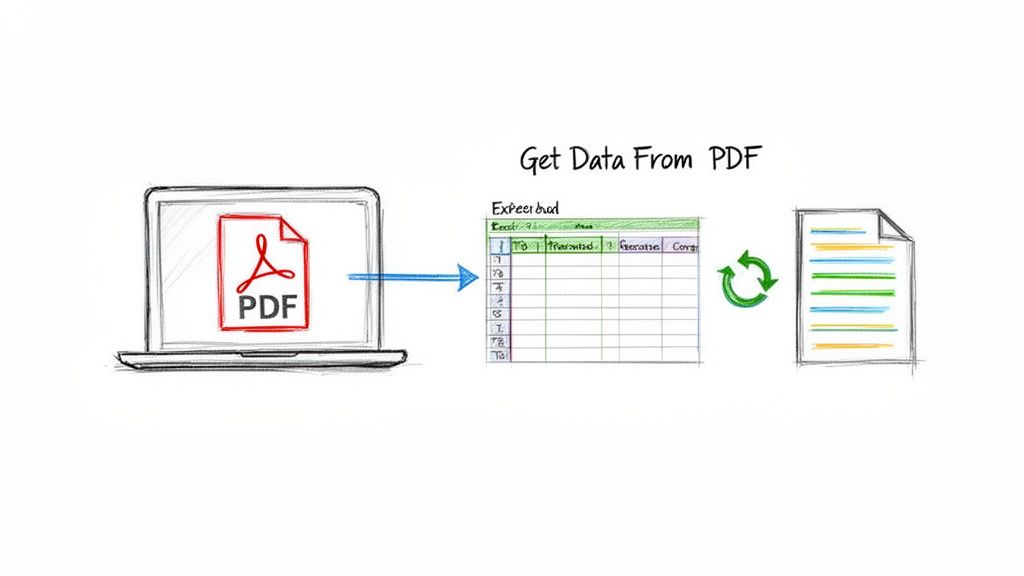
This is a huge step up from the old copy-and-paste routine, which we all know can be a formatting nightmare. Modern versions of Excel come with a built-in feature called Power Query that's specifically designed to extract data from a PDF into Excel. For any PDF with clean, well-defined tables, it works surprisingly well.
What makes Power Query so useful is that it creates a live, refreshable connection to the source PDF. This means if the original document gets updated, you can just hit 'Refresh' in Excel to pull in the new data without having to repeat the whole process. It’s a real time-saver.
Getting Started with Power Query
Ready to give it a try? Open a new Excel workbook and head over to the Data tab in the ribbon. From there, click Get Data > From File > From PDF. Excel will open a dialog box asking you to find and select the PDF file you need to work with.
After you choose your file, the Power Query Navigator window will pop up. This is where you'll see a preview of all the tables and pages that Power Query automatically detected in the document. You get a clear look at the data before you import anything, which helps you pick exactly what you need.
Best Practices for Built-in Tools
Power Query is fantastic, but it does have its limits. It really shines with digitally-native PDFs—the ones created directly from another program, not scanned from paper. Documents with clear tables and simple layouts are its sweet spot.
Our detailed guide on how to get data from a PDF in Excel goes into even more detail, but here are a few quick tips I’ve picked up from experience:
- Combine Tables from Multiple Pages: Ever had a single table that spills over two or three pages in a PDF? Power Query sees these as separate tables. No problem. Just use the "Append Queries" function inside the Power Query Editor to stitch them back together into one master table.
- Clean Before You Load: It's tempting to just hit the "Load" button, but I always click "Transform Data" first. This opens the Power Query Editor, a powerful space where you can clean everything up before it lands in your spreadsheet. You can remove extra columns, fix headers, and change data types (like making sure dates are dates and numbers are numbers).
- Source Quality Matters: The old saying "garbage in, garbage out" definitely applies here. If you have the choice, always work with the original digital PDF. Scanned copies can be messy and often confuse the tool.
Key Takeaway: Excel's 'Get Data From PDF' feature is the perfect starting point for most people. It's free, it's already installed, and it eliminates the tedious, error-prone work of manual data entry for structured PDFs.
Once your data is in Excel, the next step is organizing it effectively. You can really supercharge your workflow by optimizing your Excel data formats.
Of course, if you're dealing with scanned documents, invoices with tricky layouts, or just need more power, you'll eventually have to look beyond Excel’s built-in capabilities.
Turning Scanned Documents into Usable Data with OCR
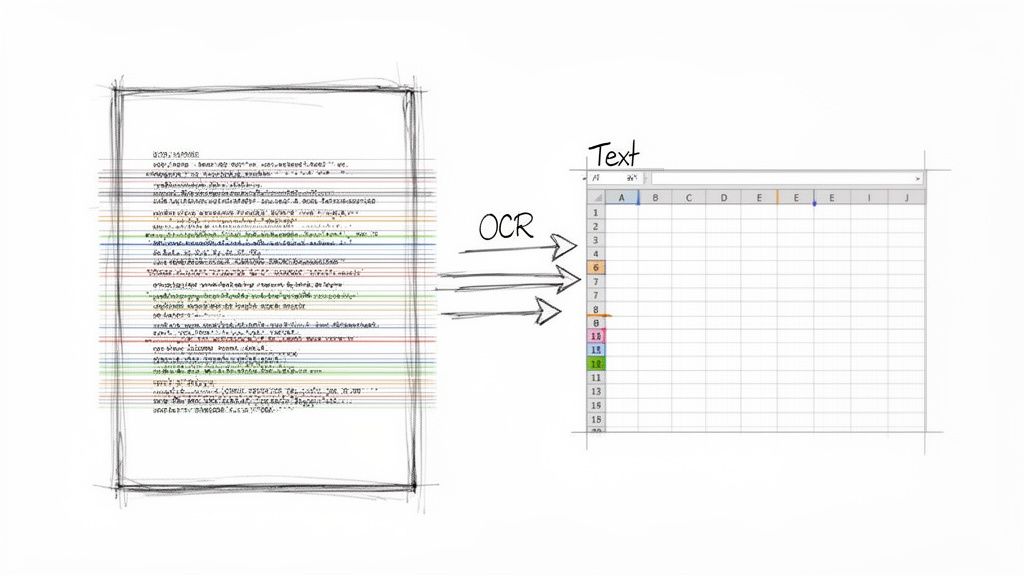
Excel’s built-in tools are fantastic for PDFs born on a computer, but what about the ones that start as paper? If you’ve ever scanned an old invoice, a signed contract, or a bank statement, you’ve created an image-based PDF. To Excel, that file is just a flat picture—a collection of pixels, not actual text you can copy or analyze.
This is where Optical Character Recognition (OCR) comes to the rescue. OCR technology scans an image, intelligently identifies the characters, and converts them into machine-readable text. It's the critical link that turns a static picture of a document into something you can finally work with.
How OCR Changes the Game
Have you ever tried to highlight a sentence in a scanned document, only to find you can just draw a box around it? That's the exact problem OCR was built to solve. It meticulously analyzes the shapes of letters and numbers, turning them back into editable text.
Suddenly, that stack of scanned receipts or a dusty, multi-page printed report isn't a dead-end. It’s a source of structured data just waiting to be pulled into your spreadsheets, saving you from hours of painful, manual re-typing.
OCR is the crucial first step for digitizing any paper trail. Without it, any document that started its life on paper remains effectively locked and unreadable to data extraction tools.
Choosing the Right OCR Tool
Not all OCR tools are built the same. They range from simple online converters to powerful software integrated into enterprise-level platforms. The right choice really boils down to your specific needs—how many documents you process, how accurate you need to be, and your data security requirements.
- Free Online Converters: Perfect for a quick, one-off job with non-sensitive information. They’re easy to use, but watch out for limitations on file size and page count. And be warned: uploading confidential financial documents to a random free website is a major security risk.
- Desktop Software: Applications like Adobe Acrobat Pro offer robust and highly accurate OCR features. This is a solid choice for individuals or small teams who need consistent results and want to keep their data securely on their own computers.
- Integrated Platforms: For businesses swimming in documents, OCR is usually a core feature of a larger document processing system. These platforms don't just "read" the text; they understand it, identify key fields (like "Invoice Total" or "Due Date"), and can push that structured data right into Excel for you.
A little prep work goes a long way. Ensuring your initial scan is straight, well-lit, and at a decent resolution (aim for at least 300 DPI) will make a huge difference in your OCR accuracy. To get a better handle on the specifics, you can learn more about what OCR technology is and how it works.
Automating Extraction for High-Volume Tasks
When you're staring down a pile of dozens, hundreds, or even thousands of similar documents every month, manual copy-pasting just isn't an option. Even the built-in tools start to buckle under the pressure. For these kinds of repetitive, large-scale jobs, a little bit of code can be a lifesaver, saving an incredible amount of time and wiping out the risk of human error.
This is where scripting languages like Python really shine, giving you a powerful way to extract data from a PDF to Excel on autopilot.
Don't let the word "code" scare you off. You don't need to become a software developer overnight. The idea is just to see how a few lines of a script can build a process that scales. This is the perfect route for teams that have a developer handy or for anyone who’s a bit curious and wants to elevate their data workflow.
Powerful Python Libraries for PDF Extraction
The Python community has created some fantastic open-source libraries designed specifically for reading and pulling data from PDFs. Two of the most popular and effective ones for this job are pdfplumber and tabula-py.
- pdfplumber: This library is a champ at extracting not just text, but also shapes and tables. It's especially good at pinpointing the exact location of elements on a page, which is a huge help when you need to grab specific data fields with high accuracy.
- tabula-py: Just like the name suggests,
tabula-pyspecializes in one thing and does it incredibly well: finding and extracting tables from PDFs. It’s essentially a Python wrapper for a Java tool called Tabula and is amazing at turning messy PDF tables into clean, structured data.
This screenshot from the PyPI (Python Package Index) page gives you a sense of just how popular tabula-py is—it gets hundreds of thousands of downloads every month.
That kind of download volume is a strong signal that countless developers and companies depend on this tool for their automated workflows. It's a well-tested and reliable choice.
Expert Tip: If your main goal is just to rip tables out of a PDF, start with
tabula-py. It's built for that. But if you also need to grab individual bits of text—like an invoice number or a customer's name—pdfplumberwill give you the more detailed control you need.
For those looking to go a step further and almost completely eliminate manual data entry, exploring Intelligent Document Processing (IDP) software can open up even more advanced possibilities.
Let's say you have a monthly report and you always need to pull a specific table from page five. A simple Python script using tabula-py could handle that in seconds. The code would just need to point to the PDF file, specify the page number, and then it could save that table directly into a CSV or Excel file. Once you've written that script, you can run it on every new report, turning a boring manual chore into a completely automated process that just works.
When You Need Automation Without the Code
Python is incredibly powerful, but let's be realistic—most teams in finance, logistics, or insurance don't have a developer on standby. Writing and maintaining code just isn't practical for everyday business needs. This is where modern, no-code platforms come in and completely change the game. They make it possible for anyone to automatically extract data from a PDF to Excel.
Think of these tools as an AI-powered assistant. This isn't just basic text recognition; this assistant understands documents. It can look at a thousand invoices from a hundred different vendors and instantly know where to find the "Invoice Number," "Due Date," and "Total Amount," even if the layout is different on every single one.
This Isn’t Your Standard OCR
Simple OCR tools just turn an image of a document into a block of text. That's it. AI-driven platforms go so much further. They use sophisticated machine learning, trained on millions of real-world documents, to identify and understand the context of each piece of data.
This intelligent parsing is what makes all the difference. It’s the gap between getting a jumbled mess of text you have to clean up yourself and receiving a perfectly structured Excel sheet with clean, labeled columns ready for analysis.
For example, a platform like Parsio lets you upload a stack of vendor proposals. The AI gets to work, pulling out key terms, spotting pricing tables, and grabbing delivery dates from each one. It then organizes everything neatly in a spreadsheet, making it ridiculously fast to compare bids and make a decision.
Most of these tools are designed with a simple drag-and-drop interface, making them accessible to anyone.
The clean, visual layout means you don't need a technical background to build a powerful extraction workflow. The entire process, from uploading your PDFs to getting structured data back, is designed to be intuitive.
What This Means for Your Business
The jump in efficiency is huge. Teams that used to spend days manually typing data from financial statements or commission reports can now process the same workload in minutes. This isn't just a time-saver; it has a direct impact on the bottom line.
Vendors in the intelligent document processing space report that AI-driven extraction can boost efficiency by up to 10x and slash operational costs by 60–70%. With accuracy rates hitting over 99%, these systems nearly eliminate the costly human errors that come with manual data entry. You can learn more about how this technology transforms bank statement analysis in this deep-dive.
This kind of performance is why no-code platforms are quickly becoming the standard for any business drowning in document-heavy work.
Who Gets the Biggest Payoff?
Honestly, any team dealing with a high volume of PDFs will see a benefit, but for some roles, the change is transformative. These platforms are a true game-changer for:
- Accounting Teams: Imagine automating the extraction of line items from thousands of vendor invoices. Accounts payable processing goes from a week-long headache to a background task.
- Insurance Brokers: They can instantly pull policy details, premium amounts, and coverage limits from stacks of carrier documents to create client summaries in a fraction of the time.
- Procurement Specialists: By extracting pricing, terms, and specs from different vendor quotes, they can standardize the data into a single Excel file for easy, side-by-side comparison.
- Manufacturers’ Reps: Finally, a simple way to consolidate commission statements from dozens of different manufacturers, each with its own bizarre format, into one clean master report.
For these professionals, the ability to extract data from a PDF to Excel without calling the IT department is a massive win. It gives them the power to build their own automated solutions, freeing them up to focus on the work that actually matters.
Common Questions About PDF Data Extraction
Trying to get data from a PDF into Excel can feel like solving a puzzle. You run into roadblocks with tricky documents or just get stuck wondering which method is the right one for the job. Let's walk through some of the most common questions and hurdles people face.
This little decision tree is a great starting point for figuring out where to begin based on what your documents look like.
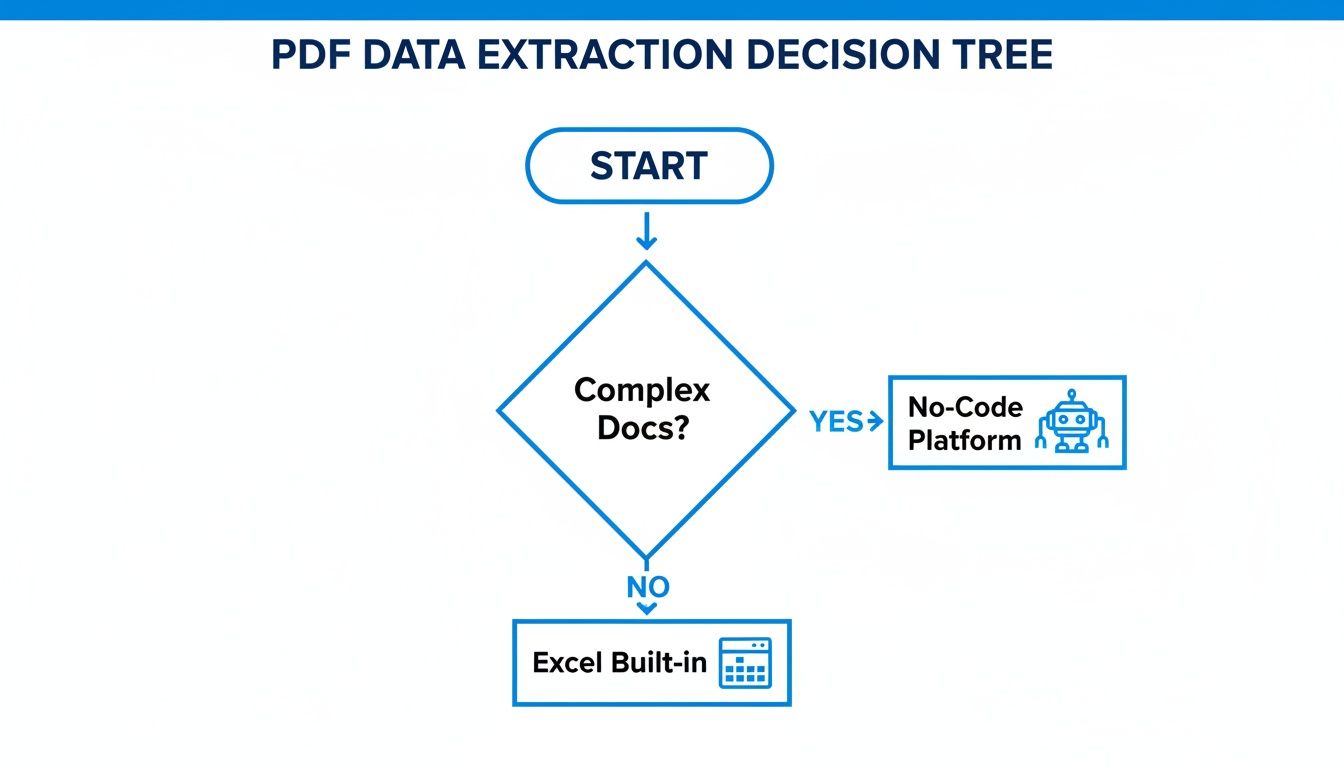
As you can see, it really boils down to document complexity. A simple, built-in tool might be perfect for one job, while a more powerful platform is the only real choice for another.
Can I Extract Data from a Scanned PDF?
Absolutely, but your standard tools won't cut it. A scanned PDF is essentially a picture of a document, which is why you can't just select and copy the text.
The key here is a technology called Optical Character Recognition (OCR). An OCR tool scans the "image" of your document, identifies the letters and numbers, and turns them back into real, editable text. From there, you can pull it into Excel. Just remember, the quality of your scan matters—a crisp, clear document will always give you cleaner data.
Why Is My Data a Mess After Extraction?
This is probably the most common frustration I hear about. You use a tool, even Excel's built-in importer, and the result is a jumbled mess. The problem isn't you; it's the PDF's internal structure.
PDFs were designed to look good on screen and in print, not to be a structured database. This design choice leads to a few common culprits for messy data:
- Complex Tables: If a table has merged cells or runs across multiple pages, basic tools almost always get confused.
- Invisible Formatting: PDFs can have all sorts of hidden characters and weird spacing that completely throws off your column alignment in Excel.
- Mixed Content: When a PDF mixes text, tables, and images, simple extractors don't know what to grab and what to ignore.
When you run into these issues, it's a clear sign you need a more advanced parser that can intelligently understand the document's layout.
My Two Cents: The right tool completely depends on the PDF. If you have a clean, computer-generated table, Excel’s "Get Data" feature is fantastic. For a scanned document, OCR is a must. But for messy, high-volume, or inconsistent files, an intelligent no-code platform is the only way to go if you want to keep your sanity.
How Do I Handle Thousands of Documents?
Trying to manually extract data from thousands of PDFs is a non-starter. It’s not just slow; it’s a recipe for errors. This is where you absolutely need automation.
While you could write custom scripts with Python, a no-code document parsing platform is a far more practical solution for most businesses. These tools are designed to process documents in bulk. You teach them what to look for once, and they'll automatically find and pull that specific data from every file, dropping it all into a perfectly organized spreadsheet for you. No more manual work.
Ready to stop copying and pasting for good? DocParseMagic is a no-code platform that intelligently extracts the data you need from any business document—invoices, statements, proposals, and more—and delivers it as a clean, analysis-ready spreadsheet. Sign up for free and see how it works.