Seamlessly Extract Data from Scanned Documents
Month-end document work has a way of piling up all at once. Invoices arrive as PDFs from one vendor, phone photos from another, and scanned statements from a copier that hasn’t produced a straight page in years. Someone on the team still has to key totals, dates, policy numbers, line items, and commission amounts into a spreadsheet before the main work can begin.
That’s usually where teams lose time. Not in analysis. Not in decision-making. In transcription.
I’ve seen the same pattern in accounting, procurement, and operations. Manual entry feels manageable until document volume creeps up. Then every exception slows the queue: a shadow across a receipt, a crooked scan, a proposal with tables that don’t line up, a handwritten note in the margin that changes the meaning of a total. The work becomes slow, repetitive, and risky.
The good news is that extract data from scanned documents is no longer just an OCR problem. Modern document automation can read text, understand layout, identify key fields, and turn messy files into structured output your team can use. According to intelligent document processing market data, IDP solutions can cut document processing time by 50% or more, and some AI-native platforms can increase the data extraction rate by as much as tenfold while maintaining near 99.9% accuracy.
That kind of improvement changes the economics of back-office work. A process that used to require a stack of spreadsheets and a lot of patience can become a controlled workflow with review, validation, and clean exports.
Introduction
A finance manager doesn’t usually need another dashboard. They need the invoice total pulled correctly, the due date captured, and the line items available before approvals stall. The same goes for an insurance operations team trying to pull policy details from scanned declarations, or a procurement lead comparing vendor proposals that all arrive in different formats.
That’s why document automation only starts with text recognition. Value comes when the system knows that one number is an invoice total, another is a tax amount, and a third belongs in a line-item table. Raw text alone doesn’t close books or reconcile commissions.
In practice, the workflow that works has five parts. Clean the image. Read the text. understand the layout. validate the result. Then push the data into the spreadsheet, accounting system, or reporting process where the team already works. Miss one of those steps and the whole setup becomes fragile.
Practical rule: If your team still has to re-read every extracted row before using it, you haven’t automated the process. You’ve only moved the typing.
For teams that want a no-code option, DocParseMagic fits this operational model. It reads scanned PDFs, images, and photos, extracts fields and tables into structured output, and gives non-technical teams a way to handle messy business documents without building a custom pipeline.
Preparing Scanned Documents for Maximum Accuracy
The fastest way to ruin an automation project is to feed it bad scans and expect the software to figure everything out. That almost never works. OCR and AI parsing can recover a lot, but they can’t make an unreadable image fully reliable.
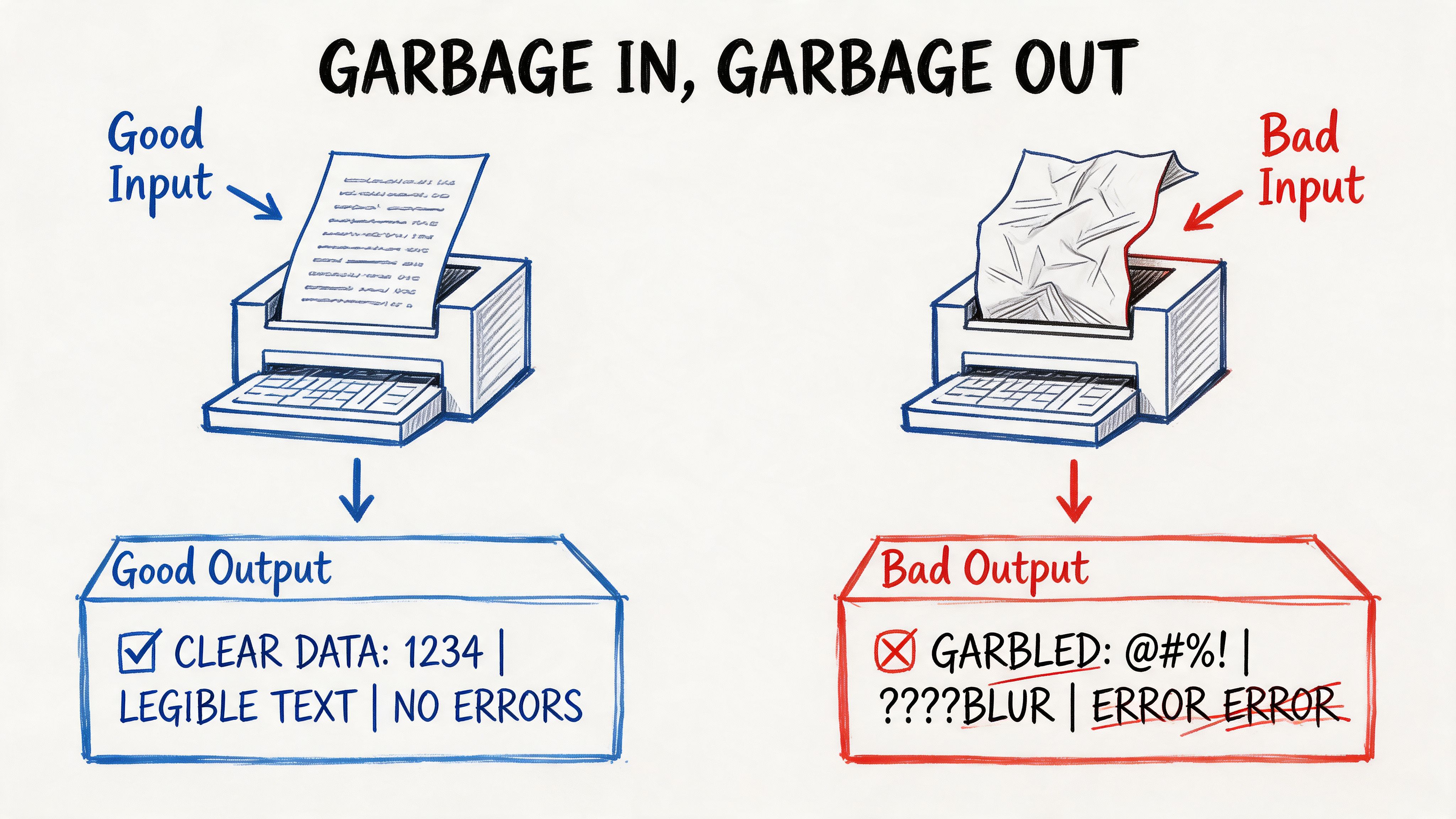
Real business files are messy for predictable reasons. Receipts get photographed on a desk under bad lighting. Invoice packets are faxed, printed, re-scanned, and emailed around. Statements come from old archives with faded text. According to this breakdown of document extraction challenges, common quality issues such as low resolution, skewed scans, and lighting variations appear in 70-80% of scanned invoices and statements. The same source notes that basic OCR accuracy can drop to 64% for poor scans, and up to 36% of key data can be missed in stylized fonts or faded documents without proper image enhancement.
What to fix before extraction
The cleanup stage doesn’t need to be complicated, but it does need to be deliberate.
- Straighten the page: Deskewing matters because even a slightly angled invoice can break line-item detection and reading order.
- Improve contrast: Binarization or contrast cleanup helps separate text from gray backgrounds, coffee stains, and scanner shadows.
- Remove noise: Speckles, fax artifacts, and background texture create false characters that show up later as bad totals or broken names.
- Crop the document area: Mobile photos often include table edges, fingers, or dark borders that confuse layout detection.
- Normalize orientation: Rotated pages create downstream errors that look like extraction failures, even when the root problem is image position.
Some teams try to skip this because they assume newer AI models make preprocessing optional. They don’t. Better models reduce the pain, but they don’t erase it.
A useful way to think about this comes from insights from DataTeams on AI vision. Computer vision systems don’t just “see text.” They interpret shapes, boundaries, contrast, and spatial relationships. If those signals are messy, the extraction layer starts from a weaker foundation.
A practical intake checklist
When I’m setting up a document workflow, I want the intake rules to be boring and repeatable. Teams get better results when they standardize what enters the pipeline.
| Intake issue | What it causes | What to do |
|---|---|---|
| Crooked pages | Broken reading order | Auto-deskew on upload |
| Dark shadows | Missing words near page edges | Increase contrast and crop margins |
| Low resolution scans | Character confusion | Rescan if possible, otherwise enhance before OCR |
| Wrinkled mobile photos | Distorted totals and dates | Flatten perspective and route low-confidence results to review |
| Faded print | Incomplete field extraction | Use image enhancement before parsing |
Clean-up work feels like overhead until you compare it with manual correction later. A few seconds of automated preprocessing usually saves far more time in review.
If your files still live on paper, it also helps to standardize the digitization step before extraction starts. A simple workflow for scanning and archiving documents is covered in this guide on how to digitize paper documents.
What works and what doesn’t
What works is automatic preprocessing at intake. What doesn’t work is asking staff to manually fix image quality one file at a time in a graphics tool.
What works is setting rules for accepted uploads, especially for recurring workflows like invoices and policy packets. What doesn’t work is treating every scan as unique and hoping your parser can absorb the variation.
For operations teams, this is a reliability issue more than a technical one. If the incoming file quality is inconsistent, your downstream output will be inconsistent too. Start by controlling the scan, and every later step gets easier.
Moving from Raw Text to Intelligent Recognition
Traditional OCR and modern IDP are not the same thing. They solve related problems, but they produce very different business outcomes.
Classic OCR is good at one basic job. It turns visible characters into machine-readable text. If the page is clean and the layout is simple, that can be enough. But once documents become irregular, OCR starts dumping text in a block with little sense of what belongs together.
Why OCR alone usually falls short
An invoice doesn’t just contain words and numbers. It contains relationships.
The invoice number belongs to a label. The date belongs near the vendor header. The table rows belong in sequence. The total at the bottom matters more than the number in a shipping line halfway up the page. OCR by itself doesn’t reliably understand those distinctions.
That gap matters because the difference between “all text captured” and “usable data extracted” is where most back-office effort still lives. If your team gets a text blob and then has to figure out which number is the due date or subtotal, the actual work hasn’t been automated.
The accuracy jump that changed the category
The main reason document automation is finally practical for finance, insurance, and procurement teams is that the recognition layer has improved sharply. According to this OCR accuracy summary, modern AI-powered OCR systems can achieve 95-99% accuracy rates compared with traditional OCR’s 85% baseline. The same source notes that manual data entry typically has an error rate of around 1% to 10%.
That matters in a way teams feel immediately. At old OCR levels, every extracted batch needed too much checking. At current AI-enhanced levels, automated capture can move from “helpful draft” to “operationally usable,” especially when paired with validation rules.
OCR gives you text. Intelligent recognition gives you a starting point for decisions.
What IDP adds on top of OCR
Intelligent Document Processing builds on OCR and adds context. In practical terms, that usually means four capabilities:
- Document understanding: The system recognizes headers, tables, labels, and sections instead of reading the page as one flat stream.
- Field extraction: It identifies values like invoice number, vendor name, premium amount, or policy effective date.
- Classification: It can separate invoices from statements, proposals, or supporting forms.
- Confidence-based review: It flags uncertain extractions instead of pretending every output is equally trustworthy.
This is the difference between a copier and a clerk. OCR copies what’s there. IDP starts to organize it.
A useful primer on this distinction is this article on PDF text extraction, especially if your team is dealing with a mix of scanned PDFs and text-based PDFs in the same workflow.
Where teams usually choose the wrong tool
If all your documents come from one source, use the same format every time, and never include handwritten notes or layout shifts, a lightweight OCR setup can be enough. Many teams don’t have that luxury.
Vendor invoices change. Brokers send mobile scans. Policy forms include stamps, initials, and addenda. Procurement packages arrive as long PDFs with cover pages, tables, and terms mixed together. That’s where OCR-only tools become expensive in hidden labor.
The strongest setups I’ve seen don’t ask OCR to do a job it was never meant to do. They use OCR as the reading layer, then let a smarter parsing layer turn the result into fields, tables, and reviewable output.
Extracting Key Fields and Structured Data
Once the text is readable, the next problem is structure. Many projects stall at this point. Teams can “extract text” from a document but still can’t use the output without cleaning it up manually.
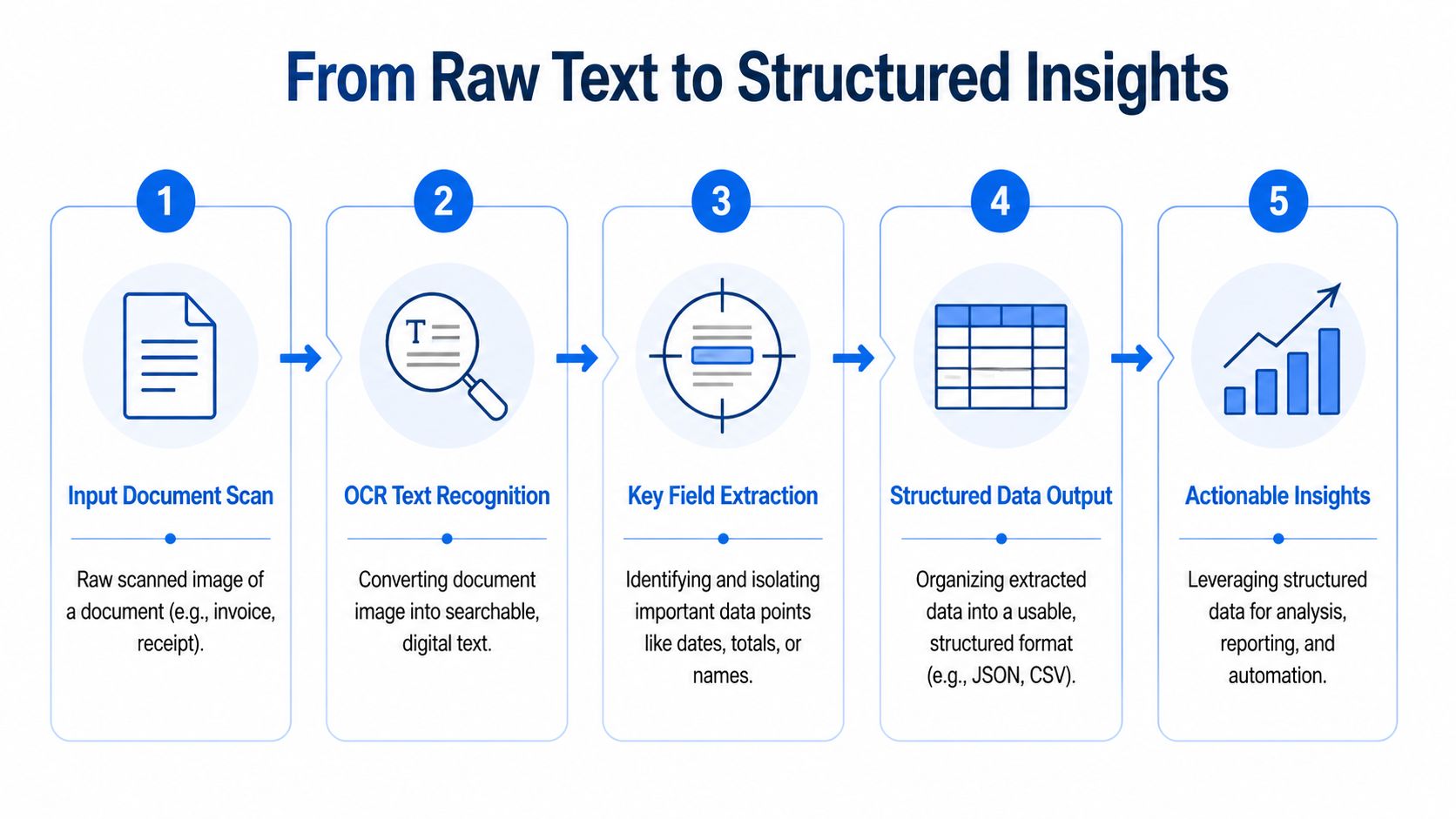
A useful extraction result doesn’t just show that the page contains “Total 542.18.” It should return a field like invoice_total = 542.18. It should know that a date near the top belongs to the invoice header, not a payment history table buried in the footer. It should also preserve rows when a document contains line items.
Why layout matters more than most teams expect
The utility of layout-aware parsing becomes clear: Documents aren’t written for machines. They’re designed for people scanning a page visually. Labels sit beside values. Tables have merged cells. Important information is sometimes isolated in a corner box instead of appearing in reading order.
According to this analysis of PDF extraction problems, modern IDP reaches 95%+ field-level accuracy on standardized forms, but performance can degrade by 25-40% on documents with inconsistent structures such as vendor proposals. That’s why models that understand layout are so important in real operations.
A proposal comparison workflow is a good example. One vendor lists terms in a neat table. Another embeds pricing in paragraphs. A third adds handwritten notes to a printed quote. The words may all be there, but only a layout-aware system has a realistic chance of mapping them into the same output schema.
The fields that usually matter most
For most back-office teams, useful extraction centers on a short list of operational fields. The exact set changes by department, but the pattern is familiar.
- Accounting teams usually need invoice number, vendor name, invoice date, due date, subtotal, tax, total, and line items.
- Insurance teams often need policy number, insured name, premium amount, effective dates, carrier, and endorsements.
- Procurement teams care about quoted price, item descriptions, quantity, lead time, terms, and exceptions.
- Manufacturers’ reps tend to focus on commission rate, booked amount, territory, rep name, and period covered.
When those fields arrive in a spreadsheet or JSON file with consistent column names, the workflow changes. Teams can filter, reconcile, compare, and audit instead of transcribing.
For construction and estimating teams dealing with drawings and proposal packages, related workflow thinking shows up in tools like Exayard AI-powered takeoff and estimating, where the hard part isn’t seeing the document. It’s converting messy source material into structured, decision-ready data.
What usually breaks field extraction
The most common failure modes aren’t exotic. They’re routine.
| Failure point | What happens |
|---|---|
| Similar nearby numbers | Tax, subtotal, and total get confused |
| Inconsistent label wording | “Amount Due” and “Total” may not map cleanly |
| Multi-page tables | Line items get split or truncated |
| Proposal-style formatting | Key values hide inside paragraphs |
| Header repetition across pages | Page-level text gets mistaken for document-level fields |
This is why simple text scraping almost always disappoints. It treats a business document like a long string instead of a visual object with hierarchy.
What a usable output should look like
A good extraction pipeline produces output that a downstream system can trust. That usually means one of three structures:
- Header fields for single values such as invoice number or policy ID
- Line-item tables for repeated rows such as products, charges, or coverages
- Normalized metadata such as source file, page count, extraction status, and review notes
That’s the standard I use when evaluating tools. If the result still needs heavy reshaping before import, the tool hasn’t saved much time.
This is also where a no-code parser can help if it supports scanned PDFs, images, and mixed layouts. DocParseMagic is one example. It extracts fields and tables from business documents into structured outputs like spreadsheets and JSON, without requiring template setup for every new vendor format. For teams dealing with variable layouts, that flexibility matters more than flashy OCR claims.
If your downstream systems prefer machine-readable output, this walkthrough on converting PDF data to JSON is a practical next step.
Mastering Validation and Error Handling for Any Scan
Most document automation projects don’t fail because text extraction is impossible. They fail because nobody plans for bad inputs and uncertain outputs.
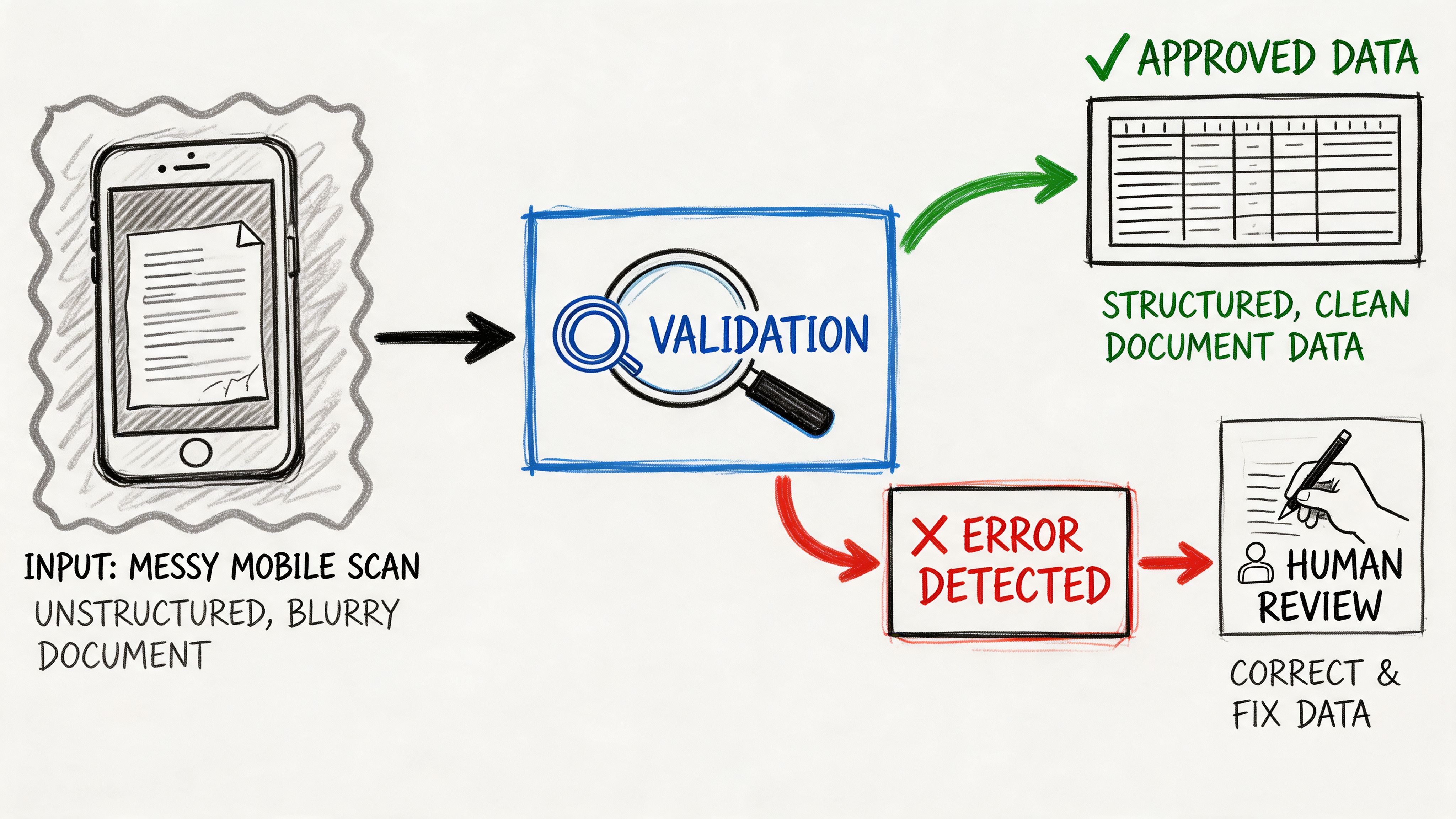
That’s the part too many vendors gloss over. They demo a clean PDF on a bright background, then the actual files arrive: wrinkled receipts, angled mobile photos, partially cut-off statements, faded attachments, handwritten corrections. Suddenly the team spends more time reviewing than they saved through automation.
According to this discussion of OCR validation burdens, OCR error rates can exceed 20-30% on wrinkled, angled, or handwritten mobile captures, and a 2025 Gartner report notes that 68% of SMEs abandon OCR projects because post-extraction validation and correction are too burdensome.
Validation is where ROI is protected
If the extraction result feeds accounting, claims, procurement, or compliance workflows, unchecked errors create expensive downstream work. A wrong due date can trigger a payment problem. A missed handwritten adjustment can throw off a commission reconciliation. A bad total can invalidate a report before anyone notices.
That’s why I treat validation as part of extraction, not as a separate cleanup task. The workflow has to decide what can pass automatically, what needs a rule-based check, and what should be routed to a human reviewer.
A document pipeline becomes trustworthy when it knows when not to trust itself.
The review model that works in practice
The most reliable setup is a confidence-based workflow. Instead of pretending every extracted value is equally solid, the system assigns confidence to fields and routes uncertain values for review.
Here’s the practical model:
- Auto-accept obvious fields: Clean vendor names, invoice dates, and repeated labels can usually pass straight through.
- Validate calculated fields: Totals should be checked against subtotal and tax. Commission amounts should be checked against rates and base amounts when possible.
- Flag low-confidence values: If a total comes from a blurry image corner or a handwritten note, it should go into a review queue.
- Keep a correction trail: Teams need to know what was extracted, what was changed, and who approved it.
That review queue is where human effort belongs. Not on every field. Only on the exceptions.
Rules catch the errors OCR misses
Confidence score alone isn’t enough. You also need business logic.
A good validation layer asks operational questions:
- Does the invoice total match the sum of the line items?
- Is the due date after the invoice date?
- Does the policy premium appear in the same currency as the rest of the form?
- Is the commission rate plausible for this vendor or territory?
- Did the mobile photo capture the whole page, or is the bottom cut off?
These checks often catch the errors that look “readable” to OCR but are still wrong in context. For example, a blurred 8 can easily become a 3. The text engine may feel confident. A total reconciliation rule won’t.
This kind of walkthrough is easier to grasp when you watch a live process rather than just reading about it:
Handling handwritten and mixed-format documents
Handwriting is still a hard case, especially when it changes the meaning of printed data. Margin notes, initials beside corrected totals, and handwritten terms in proposal packages create ambiguity that machines don’t resolve well unless you design for review.
The operational answer is simple. Don’t force full automation where assisted automation is safer.
| Document condition | Recommended treatment |
|---|---|
| Clean printed scan | Straight-through extraction |
| Clean scan with variable layout | Layout-aware extraction plus rules |
| Mobile photo with glare or angle | Extraction plus mandatory review for key fields |
| Printed form with handwritten edits | Review all changed or adjacent fields |
| Multi-page mixed packet | Classify pages first, then validate per document type |
Field rule: Review the values that drive money, compliance, or commitments first. Header text can wait. Totals, dates, and identifiers can’t.
The teams that stick with automation long term build for exceptions from the start. They assume some files will be ugly. They assume users will upload phone photos. They assume handwritten notes will appear in the worst possible place. Once you accept that reality, validation stops feeling like friction and starts acting like insurance.
Integrating and Scaling Your Document Data Workflow
Clean extraction only matters if the data lands somewhere useful. A CSV sitting in a downloads folder is better than manual typing, but it still leaves work on the table.
Payoff comes when extracted and validated data moves directly into the tools your team already uses. That might mean a spreadsheet for month-end review, a JSON payload for an internal app, or a structured file that feeds your ERP or accounting stack.
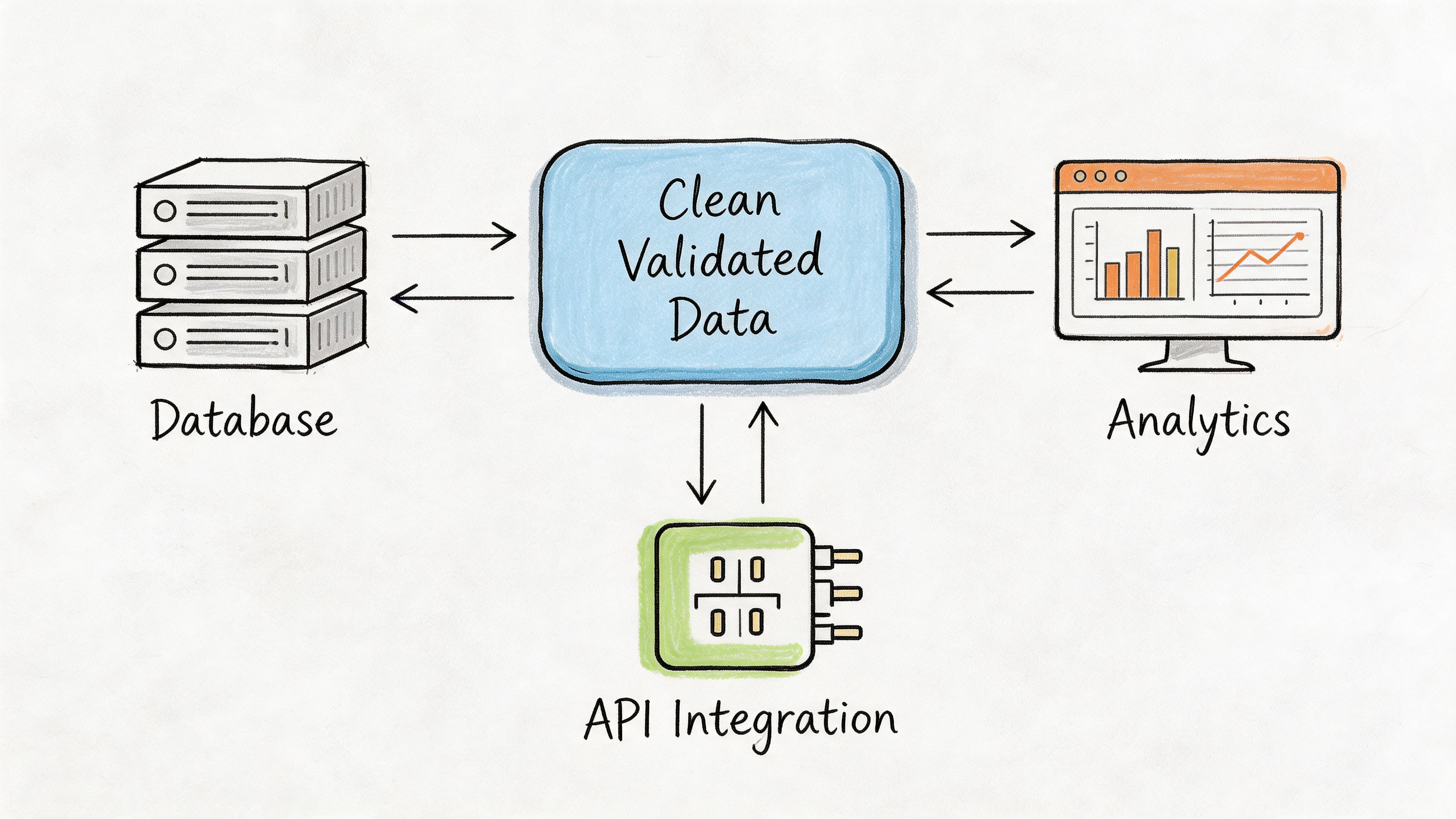
Choose the output format based on the next action
Different outputs suit different jobs. The mistake I see most often is choosing a format based on what the extraction tool offers by default instead of what the business process needs next.
- CSV or Excel works well for finance teams reviewing batches, reconciling exceptions, or handing data to staff who live in spreadsheets.
- JSON fits system-to-system workflows where extracted fields feed dashboards, ERPs, internal apps, or approval processes.
- Database-ready tables help when multiple departments need to query the same extracted data later.
If your accounting lead wants to sort and filter invoices in Excel, don’t overengineer it. If your operations team wants data to move into a dashboard every morning, a structured API payload makes more sense.
Integration is where consistency pays off
Scaling depends less on how smart the parser is and more on whether the output is stable. If one vendor’s invoice total lands in amount_due and another lands in invoice_total, downstream automation starts breaking.
That’s why I push teams to normalize schemas early. Pick one field name for vendor name, one for invoice date, one for total, one for currency, and one for review status. Then hold to it across document types wherever possible.
A practical workflow often looks like this:
- Upload or collect files from email, shared folders, or user submissions.
- Run extraction and validation.
- Route exceptions to a review queue.
- Export approved data to the target system.
- Archive both the original document and the final structured record.
Governance matters once volume grows
A single person can manage a light workflow ad hoc. A team can’t. Once you’re processing documents across departments, you need controls.
That usually includes:
- Shared parsing rules so different staff don’t create competing versions of the same workflow
- Role-based access so reviewers, managers, and admins don’t all have the same permissions
- Status visibility so someone can see what’s processed, what failed, and what is waiting on review
- Retention and audit discipline so extracted data and source files are kept according to policy
Retention is easy to overlook until legal, finance, or security asks how long source files are stored and who can access them. A practical reference point for this is a compliant data retention policy, especially if your workflow includes financial or operational records that need documented handling.
How to scale without creating a new admin burden
The temptation is to build a highly customized process for every document source. That approach works for a few vendors, then collapses under maintenance.
What scales is a layered model:
| Layer | Purpose |
|---|---|
| Standard intake rules | Keep uploads usable |
| Shared extraction schema | Make outputs consistent |
| Validation rules | Catch business-critical errors |
| Exception queue | Focus human effort where needed |
| Final export and archive | Keep data actionable and auditable |
This model also keeps staffing realistic. You don’t need everyone on the team to understand OCR settings or parsing logic. You need a workflow that routes clean files automatically and presents exceptions clearly.
For small and midsize teams, that’s the difference between “we automated a task” and “we changed the process.” The first saves time for a while. The second keeps saving time as volume grows.
Conclusion: From Document Chaos to Automated Clarity
Organizations often don’t struggle because they lack data. They struggle because the data is trapped inside scans, photos, PDFs, and inconsistent document layouts. The hard part isn’t getting files. It’s turning those files into something reliable enough to use.
The workflow that holds up in practice is straightforward. Clean the scan so the text is readable. Use intelligent recognition instead of relying on OCR alone. Extract fields and tables based on layout, not just character capture. Validate aggressively, especially for totals, dates, and identifiers. Then send the approved output into the system where work already happens.
That combination is what makes it practical to extract data from scanned documents at scale. Not one clever model. Not one clean demo file. A full process that expects imperfect inputs and still produces usable results.
When teams get this right, the gain isn’t abstract. Staff spend less time typing. Reviews get faster because exceptions are isolated. Reporting improves because the source data is structured. Skilled employees can focus on approvals, analysis, and vendor or customer decisions instead of copy-paste work.
If your current process still depends on opening each file, reading it manually, and retyping the important parts, there’s a better option.
If you want to turn invoices, statements, proposals, and scanned business documents into clean spreadsheets without building a custom workflow, try DocParseMagic. You can upload messy files, extract structured data, review exceptions, and start automating document-heavy work in minutes. Signup is free, and no credit card is required.