How to Expertly Export PDF to Excel A Practical Guide
Relying on copy-paste to get data from a PDF into Excel is a habit for many, but it's a slow and surprisingly fragile process. This method is riddled with the risk of human error, kills productivity, and ends up costing businesses a lot more than just wasted time. A better way to handle data extraction is crucial for keeping your numbers accurate and your team efficient.
The Hidden Costs of Manual Data Entry from PDFs
Manually keying in data from a PDF to an Excel sheet might seem simple enough on the surface. But in reality, it's a tedious slog through repetitive work. For teams drowning in documents—think of an accounting department sifting through vendor invoices or analysts trying to consolidate sales reports—this quickly becomes a major bottleneck. Every single copy-and-paste is a chance for something to go wrong.
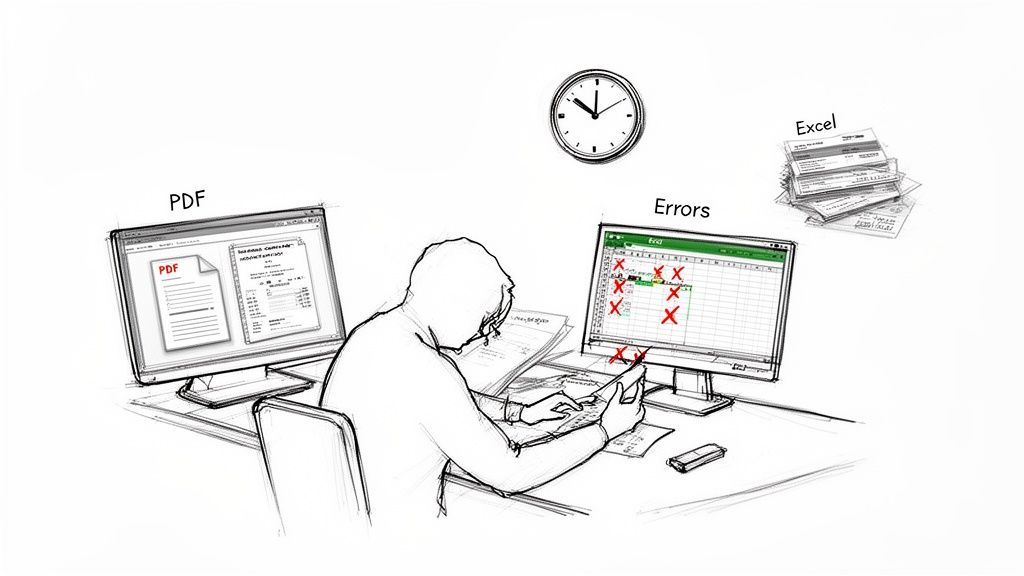
The direct cost is easy to see: hours of employee time spent on a low-value task. It's the hidden costs, though, that often do the most damage.
The True Impact of Manual Methods
Let's be honest, human error is practically guaranteed with repetitive data entry. A single misplaced decimal, a few transposed numbers, or a skipped row can poison an entire dataset. This leads directly to bad financial reports, incorrect inventory levels, or business strategies built on faulty information. Some studies suggest that even a 1% error rate in a 10,000-cell spreadsheet means you're looking at 100 incorrect data points.
Beyond the numbers, there's a human cost. Making skilled people do mind-numbing data entry is a fast track to low morale and burnout. It keeps them from doing the high-impact analysis and strategic work you hired them for. Realizing the deep flaws of manual data entry is the first step toward getting that lost potential back.
The time you spend fixing data entry mistakes is often double the time it took to enter the data in the first place. This cycle of input and correction is a massive drag on productivity.
Why a Better Workflow Is a Necessity
At the end of the day, the goal is to get clean, reliable data into Excel so you can actually work with it. When the very process of getting it there introduces errors and delays, the whole workflow is compromised. This isn't about convenience; it’s a business imperative.
Here are the core problems with manually moving PDF data to Excel:
- High Risk of Errors: Simple typos or formatting glitches can have a ripple effect, wrecking calculations and reports.
- Lost Productivity: Your team's valuable hours are eaten up by tasks that should be automated, pulling them away from real analysis.
- Poor Data Integrity: Inconsistent formatting and copy-paste junk make the final data a mess that needs extensive cleanup before it's usable.
- Scalability Issues: The process completely falls apart when you're dealing with dozens or hundreds of documents, making it impossible to scale.
Moving past these manual methods is essential for any organization that values accuracy and wants its team focused on what truly matters.
Quick PDF Conversions Using Tools You Already Have
Before you even think about searching for a new app, take a look at the software you're probably already using every day. Many people don't realize that tools like Excel and Adobe Acrobat have powerful, built-in features that can handle simple PDF-to-Excel conversions without any extra cost.
This is your best first step for well-structured, straightforward documents. You get a quick, clean data transfer without having to upload potentially sensitive information to a random online converter.
Using Excel’s Get Data From PDF Feature
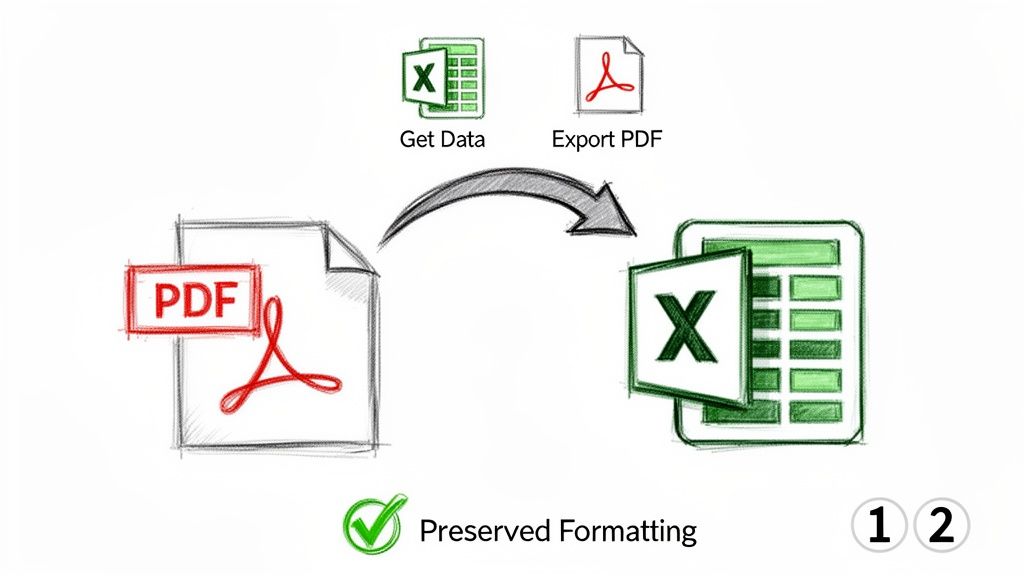
One of the most direct ways to pull data from a PDF is right inside modern versions of Microsoft Excel. The magic happens in Power Query, which has a specific connector made just for PDF files. It’s fantastic for grabbing simple, clean tables from things like reports, invoices, or price lists.
When you use the "Get Data from PDF" option, Excel scans the document, identifies anything that looks like a table, and shows you a preview in a navigator window. You can then pick the exact table you need. It's a much cleaner solution than the old copy-and-paste method, which almost always messes up the formatting and merges columns incorrectly. We've got more tips on this in our detailed guide on Excel's built-in PDF import functionality.
Here’s what that Navigator panel looks like after you've pointed Excel to a PDF. It lets you select specific tables or even entire pages.
But, this built-in tool isn't a silver bullet. It really shines with digitally-created PDFs that have clearly defined tables. It tends to stumble with:
- Scanned Documents: Since it doesn't have OCR (Optical Character Recognition), it can't read text from an image-based PDF.
- Complex Layouts: Tables that run across multiple pages or have weird formatting can throw it for a loop.
- Merged Cells: Complicated tables with lots of merged cells often get misinterpreted, leaving you with jumbled data.
Converting with Adobe Acrobat Pro
If you have a subscription to Adobe Acrobat Pro, you’ve got another excellent tool at your disposal: the "Export PDF" function. This is a different beast altogether. While Excel's feature is about extracting raw data, Acrobat's goal is to recreate the PDF's look and feel as closely as possible within an Excel file.
This makes it the perfect choice when the visual layout is just as important as the numbers. The process couldn't be simpler: open your PDF in Acrobat, go to the "Export PDF" tool, and choose "Spreadsheet" as your export format. Acrobat usually does a great job of turning tables into editable cells while keeping most of the original styling intact.
The key takeaway: Excel's tool is for pulling data for analysis. Adobe's tool is for preserving the document's layout in a spreadsheet format.
With an estimated 1.5 billion people using Microsoft Excel around the world, the demand for reliable ways to get data into a spreadsheet is massive. This underscores just how vital smooth data import is for everything from financial reporting to daily operations.
Comparing Built-In PDF to Excel Conversion Methods
So, which built-in tool should you use? It really depends on what you're trying to accomplish. Here’s a quick side-by-side look to help you decide.
| Feature | Excel (Get Data) | Adobe Acrobat Pro (Export) |
|---|---|---|
| Primary Goal | Data extraction and analysis | Document recreation and format preservation |
| Best For | Clean, digitally-native PDFs with well-structured tables. | Visually complex documents where layout and formatting are crucial. |
| Formatting Preservation | Minimal. It focuses on pulling raw data into a standard table format for use in Power Query. | High. It attempts to replicate fonts, colors, and cell structures as closely as possible. |
| User Control | Lets you preview and select specific tables or pages before importing. | Converts the entire document (or selected pages) at once, with some formatting options. |
| Key Limitation | Struggles with scanned PDFs (no OCR) and complex table layouts with merged cells. | Requires a paid subscription. Can sometimes create complex cell merges to match the look. |
Ultimately, both are powerful options if your PDF is a good fit. Excel is your go-to for raw data analysis, while Adobe Acrobat Pro is better when you need the final spreadsheet to look like the original PDF.
What About Online Converters and Scanned Files?
When the built-in tools in Excel or Adobe just can't get the job done, most of us turn to the web. A quick search brings up dozens of free online PDF to Excel converters. They seem like the perfect solution: upload your file, click a button, and you've got a spreadsheet. Super convenient for a one-off job, right?
But that convenience has a catch. The biggest one is data privacy. Think twice before uploading a PDF packed with sensitive financial data or confidential client information to a free, third-party website. It's a risk. I always tell people to at least glance at the privacy policy before uploading anything you wouldn't want to be made public.
On top of that, these free tools often struggle with anything more complex than a basic table. You might get your Excel file, but it's a mess of merged cells, broken columns, and scrambled data—leaving you with more manual cleanup than you started with.
The Real Headache: Scanned Documents
Now, let's talk about the biggest hurdle you'll face when trying to export PDF to Excel: scanned documents.
A scanned PDF isn't really a document at all; it's just a picture of one. Standard converters look for text data, but in a scan, there's none to find. They see an image and either give up or spit out a garbled, useless file. This is where a game-changing technology comes into play.
That technology is Optical Character Recognition (OCR).
Essentially, OCR acts like a digital detective. It scans the image of the page, recognizes the shapes of letters and numbers, and translates them back into actual, machine-readable text that you can copy, paste, and work with in Excel. For scanned invoices, old paper reports, or printed bank statements, OCR isn't a "nice-to-have"—it's an absolute necessity. You can read our complete guide on how PDF OCR works for a deeper dive.
Key takeaway: A "digitally native" PDF is born on a computer and already contains text. A "scanned" PDF is an image and needs OCR to become text. Figuring out which kind you have is the very first step.
What to Look For in a Good Conversion Tool
So, when you're looking for a tool—whether online or a dedicated piece of software—to handle your scanned PDFs, it's all about the OCR. The demand for smart document tools is booming. In 2023, the PDF software market hit $5.6 billion, and it's expected to rocket to $10.4 billion by 2030. That growth is fueled by the need for powerful features like OCR. You can find more details on the expanding PDF software market on smallpdf.com.
When I'm evaluating a tool for a project involving scanned files, here's what I look for:
- OCR Accuracy: How well does it read the text, especially on grainy or low-quality scans? A tool with 99% accuracy is worlds better than one with 95%, as it drastically cuts down on manual corrections.
- Smart Table Recognition: Does it just pull text, or does it actually understand the table's structure? A great tool keeps your rows and columns intact, which is the whole point of moving data to Excel.
- Data Security: If it's an online service, what's their security protocol? For anything sensitive, I always opt for an offline tool or a service with a rock-solid, transparent privacy policy.
- Batch Processing: Can you feed it a whole folder of documents at once? This is non-negotiable if you're dealing with anything more than a few files.
In the end, while a quick online converter has its place for simple, non-sensitive tasks, tackling scanned documents requires a smarter, OCR-powered approach. That's how you turn flat images of data into real, workable information in your spreadsheet.
How to Fix Common PDF to Excel Conversion Errors
Even with the best tools, a messy conversion is almost a rite of passage. We've all been there: you export a PDF and open an Excel file that looks like a data explosion. Columns are merged, numbers are jumbled, and text is scattered everywhere. Don't panic. Most of these issues are fixable right inside Excel without having to start the whole process over.
The most frequent culprit is usually the converter struggling to make sense of the original PDF's layout. It might see two text boxes sitting side-by-side and incorrectly cram them into a single Excel cell. This happens all the time with invoices or reports where the columns aren't perfectly aligned in the source file.
Splitting Merged Columns with Text to Columns
One of the most powerful cleanup tools in your Excel arsenal is Text to Columns. I consider this feature my go-to when a single column wrongly contains multiple pieces of information, like a full name or an entire address.
Let’s say your conversion left you with a column where "John Smith" is stuck in one cell instead of two separate "First Name" and "Last Name" columns. Fixing this is surprisingly simple:
- First, select the entire column you need to split.
- Head over to the Data tab on the Excel ribbon and click Text to Columns.
- You'll want to choose Delimited if your data is separated by a consistent character, like a space, comma, or tab. This is perfect for splitting names.
- Just select the right delimiter (in this case, "Space") and hit Finish.
That’s it. This simple process instantly breaks the jumbled data into neat, distinct columns, saving you from a massive manual cleanup job.
Taming Jumbled Tables and Incorrect Formatting
Another common headache is when your numbers get misinterpreted. Ever see a date turn into a five-digit serial number like 45321 instead of 1/1/2024? Or currency values that lose their dollar signs and commas? This happens because Excel sometimes fails to guess the correct data type during the import.
The fastest fix is to select the affected column, right-click, choose "Format Cells," and re-apply the correct format, whether it's Date, Currency, or even just plain Text.
But what about truly chaotic tables where rows and columns are completely out of whack? The problem often lies in the source PDF's invisible structure. Some converters get confused by multi-line text inside a single table cell, breaking it into multiple rows and throwing off all the data that follows.
When you're facing that kind of mess, your best bet is a combination of Excel functions and a little manual work:
- Rejoin split text: Use the
CONCATENATEfunction or the&symbol to merge text that was incorrectly split. For example, a formula like=A2 & " " & B2will combine text from two cells back into one. - Let Flash Fill do the work: Start manually correcting a pattern in an adjacent column. Excel’s Flash Fill is incredibly smart and will often detect what you're doing and offer to complete the task for you. It’s a huge time-saver.
- Filter and sort to clean up: Use Excel’s filtering tools to quickly find and isolate blank or broken rows, which you can then delete in bulk.
By getting comfortable with these simple Excel functions, you can rescue most messy conversions and turn that chaotic data into a clean, usable spreadsheet.
Automating Data Extraction with a Document Parser
If your team is buried in documents, you already know that the basic conversion methods just don’t cut it. When you’re dealing with hundreds of invoices, purchase orders, or bills of lading every month, just getting the PDF into an Excel file isn’t the real goal. The actual challenge is getting specific, structured data out of those files quickly and without mistakes.
This is where intelligent document parsing completely changes the game.
A simple converter just dumps text from one format to another. A parser, on the other hand, is built to understand the document’s structure. It's designed to find and pull out specific data points—like an invoice number, a subtotal, or a customer ID—no matter where they are on the page.
More Than Conversion: Intelligent Extraction
Let’s take a real-world example. Imagine a logistics team that gets dozens of bills of lading every single day, each from a different carrier with a completely different layout. The team needs the same key information from every single one: shipper's name, consignee, freight details, and delivery date.
Doing this by hand is a nightmare. It's slow, tedious, and a perfect recipe for expensive errors.
A document parsing tool automates this entire workflow. You can set it up to hunt for these specific fields, pull them from each PDF, and drop them neatly into a single, clean Excel spreadsheet—all automatically. That’s the core benefit right there: speed, consistency, and an accuracy that manual work can never hope to match. Many businesses even bring in specialized Process Automation Services to build out these kinds of powerful data workflows, freeing up their teams for more important work.
The whole point of a parser is to skip the messy cleanup that comes after a basic conversion.
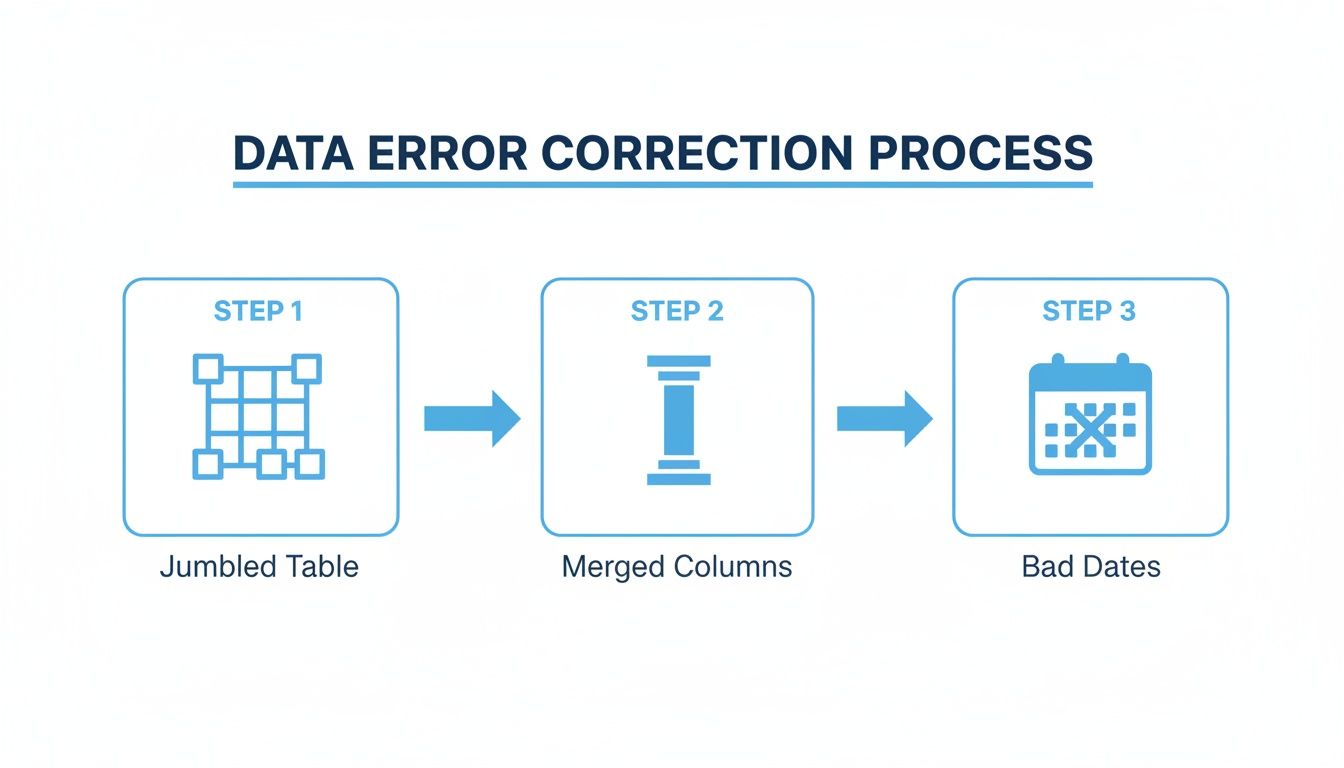
As you can see, a lot of time is wasted fixing jumbled tables, splitting merged columns, and correcting mangled dates. A dedicated parsing solution is designed to prevent these headaches from the very beginning.
How No-Code Parsers Get the Job Done
The good news is you don’t need to be a developer to make this happen. Modern parsing platforms like DocParseMagic are built for regular business users, so there’s no coding required. You can create rules to find the data you need, creating a process you can use over and over again.
Here’s a quick look at how it generally works:
- You define the data: First, you tell the tool what you’re looking for (e.g., "Invoice Date," "Total Amount").
- You upload the documents: Next, you can upload your files in bulk, and it often handles various formats, including scanned PDFs.
- The tool gets to work: Using smart logic and sometimes AI, the parser scans each file to find and grab the data fields you defined.
- You get a clean output: Finally, all the extracted data is organized into a structured table, ready for you to download as a perfect Excel file.
The real power here is in handling variation. A good parser can intelligently find the "Total" amount whether it’s at the top, bottom, or middle of an invoice—something a rigid, template-based tool chokes on. If you want to dig a bit deeper, this is a great primer on what data parsing is.
The business case for this is a no-brainer. Advanced tools can hit accuracy rates of 90% or higher on standard PDF-to-Excel jobs, with even better precision on things like financial documents. When you need to reliably export PDF to Excel at scale, moving from simple conversion to intelligent parsing isn't just an upgrade—it's a necessity.
Got Questions About PDF to Excel? We've Got Answers.
When you're trying to get data out of a PDF and into a spreadsheet, a few questions always seem to pop up. Let's get them answered so you can choose the right approach and avoid some common headaches, especially when you're working with tricky files or sensitive data.
Are Online PDF to Excel Converters Actually Safe?
This is a big one, and the honest answer is: it depends entirely on what's in your PDF.
Think about it this way: when you upload a file to a free online tool, you're handing your data over to someone else's server. If it's a public price list or a non-confidential report, you're probably fine. The convenience is often worth it.
But if that PDF contains financial statements, customer lists, or any kind of confidential information, you need to hit the pause button. Before uploading anything sensitive, hunt down the site's privacy policy. You need to know how they handle your data and how long they keep it.
My rule of thumb? For anything you wouldn't post on a public bulletin board, stick to a desktop application like Adobe or a secure, reputable platform designed for business use. It's just not worth the risk.
What About Password-Protected PDFs?
Yes, you can absolutely convert them, but there's a catch: you have to know the password.
Security features are built into PDFs for a reason, and conversion tools are designed to respect them, not bypass them. If you try to import a locked file, the software (whether it's Excel itself or Adobe Acrobat) will stop and ask for the password before it can read the contents.
If you have a protected file you need to work with:
- The easiest route is to open the PDF with the password and simply use the "Save As" function to create a new, unprotected copy. Then, convert that new file.
- Alternatively, many tools will prompt you for the password right in the middle of the import process.
Bottom line: no password, no data.
When Should I Use a Parser Instead of a Simple Converter?
This is a great question because it gets to the heart of efficiency. A basic converter is perfect for quick, one-off jobs where the PDF has a clean, straightforward table.
But you've hit the point where you need a real parser when you find yourself doing the same cleanup tasks over and over again. Are you constantly fixing jumbled columns, re-merging split cells, or manually pulling out specific numbers from blocks of text?
If you're spending more time fixing the output than you saved with the initial conversion, it's time to upgrade.
Think about it in terms of scale. A converter is a hand tool; a parser is a power tool. Parsers like DocParseMagic are built for handling dozens or hundreds of similar documents—like invoices, purchase orders, or daily reports—where you need the exact same data pulled from the exact same spots every single time, with no mistakes. That's when automation isn't just a nice-to-have, it's a necessity.
Stop wasting hours on manual data entry and messy conversions. DocParseMagic intelligently extracts the exact data you need from any document and delivers it in a perfectly structured Excel file. Try DocParseMagic for free and automate your workflow in minutes.