Data Extraction From PDF to Excel A Practical Guide
Let's be real—copying and pasting from PDFs into Excel is a soul-crushing task. It's more than just annoying; it’s a massive source of errors and a major bottleneck for anyone in finance, procurement, or operations. This old-school approach kills productivity and, worse, leads to bad business decisions based on faulty data.
Why Manual Data Entry Is Holding Your Team Back
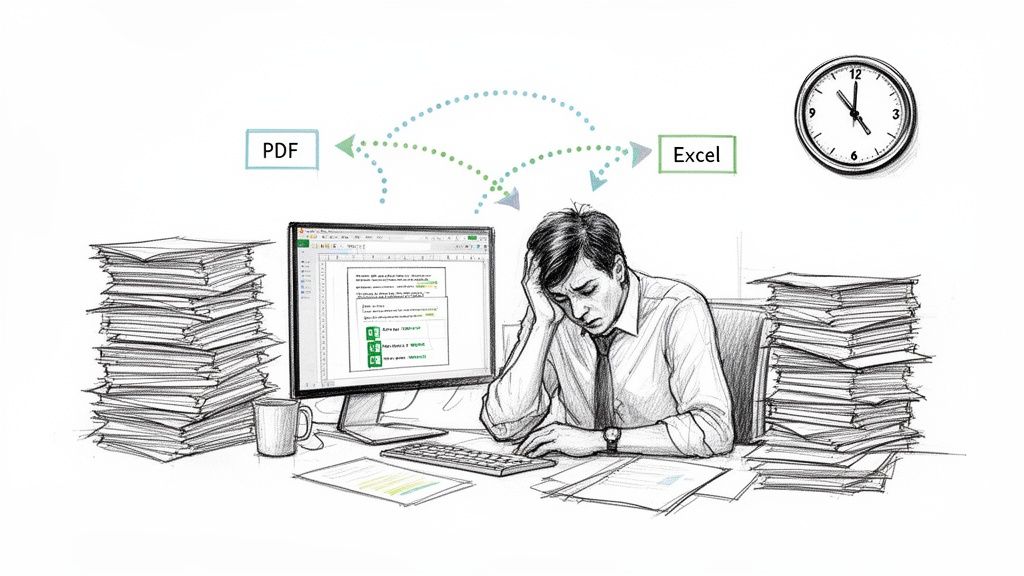
If your team is still burning hours manually keying in numbers from invoices, commission reports, or vendor quotes, you've got a serious operational drag on your hands. This kind of repetitive work isn't just a morale killer; it's a direct hit to your bottom line.
Think about it: every single keystroke is a new chance for a mistake. A misplaced decimal, a transposed digit, a completely overlooked line item—these tiny errors pile up fast.
Over time, these "small" mistakes snowball into costly problems. You end up with incorrect financial reports, late payments to angry vendors, and business analytics that are just plain wrong. Making big decisions with bad data is a recipe for disaster.
The Real Cost of Inefficiency
The problem isn't just about typos. The sheer volume of documents most businesses deal with today makes manual entry completely unsustainable.
Let's do some quick math. An employee might take a few minutes to process one invoice. Now, multiply that by hundreds—or even thousands—of documents every month. The hours stack up incredibly quickly, stealing precious time that your skilled people could be using for actual analysis and strategic work.
This bottleneck clogs up the works for everyone:
- Finance and Accounting: Teams get stuck reconciling accounts and hunting down discrepancies that started with a simple data entry error.
- Procurement: Trying to compare vendor proposals becomes a slow, painful slog, delaying important purchasing decisions.
- Operations: Workflows grind to a halt while everyone waits for data to be compiled and double-checked, hurting the entire company's agility.
The core issue is that PDFs were designed for viewing and sharing, not for data analysis. They lock information into a static format, forcing teams into clumsy workarounds just to get to the numbers inside.
The Scale of the PDF Challenge
The challenge of data extraction from PDF to Excel has exploded in recent years. There are now over 2.5 trillion PDFs in the world, with another 290 billion created annually. That's a mind-boggling amount of data to deal with.
This growth is particularly sharp in emerging markets, where PDF usage has jumped 28% since 2020. Since 98% of businesses rely on PDFs for external communication, they've become the default for everything from invoices to legal contracts.
And the problem goes beyond just data entry; many teams are also wasting hours redesigning PDFs by hand. This is precisely why smart companies are ditching the copy-paste grind for automated tools.
For a clearer picture, let's compare the two approaches side-by-side.
Manual vs Automated Data Extraction At a Glance
| Metric | Manual Data Entry | Automated Parsing |
|---|---|---|
| Time | Hours to days. A single employee can spend minutes per document. | Seconds to minutes. An entire batch of documents is processed at once. |
| Cost | High. Tied to employee hours, salaries, and benefits. | Low. Fixed subscription fee, regardless of document volume. |
| Accuracy | Low to moderate. Human error rates are typically 1-4%. | High. Often 99% or more, with built-in validation rules. |
| Scalability | Poor. Processing more documents requires hiring more people. | Excellent. Handles sudden spikes in volume with no extra effort. |
The table makes it obvious: automation turns a frustrating, error-prone chore into a seamless and efficient workflow. If you want to dive deeper, you can learn more about the hidden costs of manual data entry in our detailed article on the topic.
Finding the Right Tool for the Job
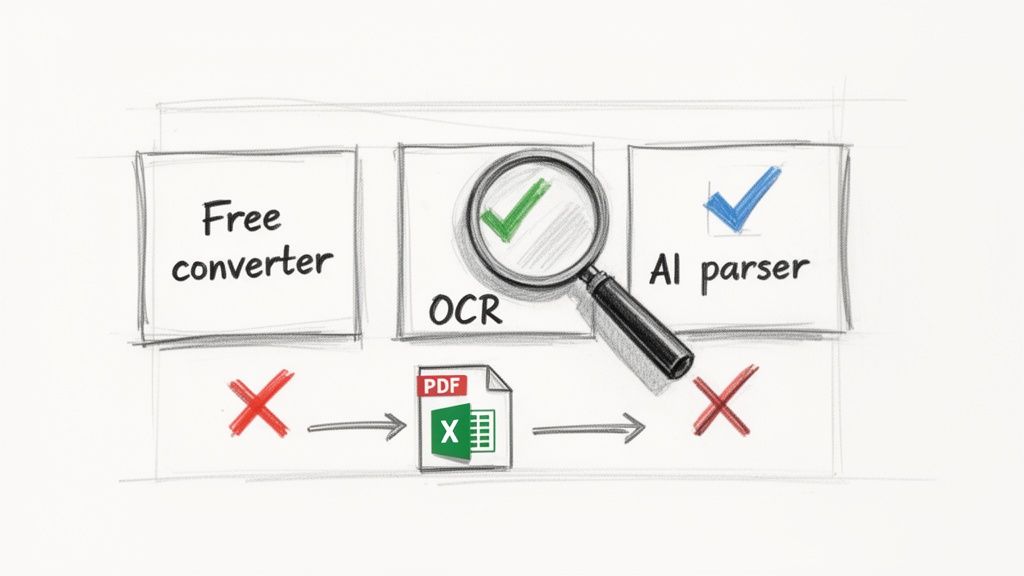
Choosing a way to get data from a PDF into Excel can feel a bit paralyzing. Your options run the gamut from a simple copy-paste all the way up to sophisticated AI platforms. The right tool for you really boils down to your specific situation: how many documents you have, how messy they are, and how accurate the final data needs to be.
If you’re just trying to grab a table from a single, clean PDF that was born digital, you might get away with the manual copy-paste method. Sometimes, a free online converter is all you need for a quick, one-off job. You can have your data in a few minutes, no cost involved.
But let's be realistic—that’s rarely how it works. This approach falls apart fast. Free tools are notorious for mangling formats, mashing columns together, and giving up on tables that stretch across multiple pages. You often end up spending more time cleaning up the mess than if you'd just typed it all out by hand.
Where Simple Converters Fall Short
Most real-world business documents are far from simple. They arrive in a dozen different layouts, many are grainy scans, and some contain complex, nested tables. This is where basic converters just hit a brick wall.
They usually can’t handle scanned documents because they lack Optical Character Recognition (OCR), which is the tech that lets a computer read text from an image. Even with a perfect digital PDF, they get confused by anything more complex than a basic, single-page table.
This leads to some all-too-common headaches:
- Mangled Data: You'll see text from three different columns squished into one Excel cell.
- Lost Structure: That neatly organized PDF table turns into a chaotic mess of text in your spreadsheet.
- Partial Extractions: The tool simply stops working halfway through a long report or multi-page invoice.
The fundamental problem with basic converters is that they have no real understanding of the document. They see characters and lines, but they don't know they’re looking at an invoice number, a line item description, or a final total.
Moving Up to Intelligent Document Processing
When you’re staring down a pile of hundreds or thousands of documents, you need a smarter approach. This is where intelligent document processing (IDP) platforms like DocParseMagic completely change the equation. These tools don't just "convert" a file; they actually understand it.
An IDP solution uses AI to identify the structure of the document, no matter the layout. It finds fields like "Invoice Number" or "Total Amount" based on context, not because it's always in the same place. For any business drowning in invoices from countless different vendors, this template-free approach is a huge win.
The results are simply on another level:
- High Accuracy: Modern AI models can pull data with over 90% accuracy, even from tricky financial statements.
- Handles Scanned Docs: Advanced OCR can reliably read text even from poor-quality scans or photos.
- Built to Scale: You can set up automated workflows to process massive batches of documents without a human touching them.
If your daily work involves more than just a few simple PDFs, a smart tool will pay for itself almost instantly. The time you save and the errors you avoid are well worth the investment. To get a deeper look at the landscape, check out our guide on the best data extraction tools for your business.
Alright, let's ditch the theory and get our hands dirty. Here’s a practical, field-tested workflow for turning those frustrating PDFs into pristine, analysis-ready Excel files.
This isn't just a simple checklist. Think of it as a repeatable system that’s smart enough to handle documents from different vendors without you needing to build a new template for every single one. That’s the goal: an intelligent process, not a mountain of manual work.
Start with a Clean Source
Your first move, always, is to prep the documents. If you're working with digital-native PDFs (the ones created on a computer), you're already in good shape. Just make sure the files are ready to go.
But for scanned documents, quality is everything. A clean, high-resolution scan—aim for 300 DPI if you can—gives the OCR engine its best shot at getting the text right. Before uploading, do a quick visual check. Are pages skewed? Are there dark shadows or blurry spots? Modern tools are pretty forgiving, but they aren't miracle workers. A little prep work here will save you a ton of cleanup later.
Pinpoint Exactly What You Need
With your documents ready, it’s time to define your target. Don't fall into the trap of trying to grab every single piece of data from the PDF. That just creates a messy spreadsheet you'll have to deal with later.
Instead, think like an analyst. What information is absolutely essential for your report, your dashboard, or your accounting system?
Make a simple list. For example, if you're processing invoices, you’d probably want:
- Invoice Number: The unique ID for that transaction.
- Invoice Date: A must-have for tracking payment timelines.
- Vendor Name: To see who you're paying.
- Line Items: The nitty-gritty details—descriptions, quantities, prices.
- Total Amount: The bottom-line number for reconciliation.
This focused approach helps the tool know exactly what to look for, which speeds things up and keeps your final spreadsheet clean and relevant.
Let Intelligent Mapping Do the Heavy Lifting
This is where the magic happens. Instead of manually drawing boxes around every field on every document, modern tools use intelligent mapping. A platform like DocParseMagic can understand the context and find "Invoice No." or "Total Due" no matter where it appears on the page. That flexibility is the secret to successful data extraction from PDF to Excel when you're dealing with a high volume of documents.
The payoff for getting this right is huge. Consider that 78% of digital agreements are finalized as PDFs—that’s a massive amount of valuable data locked away. Tools that can hit over 90% accuracy on financial documents have been shown to cut processing time by as much as 70%. Hours of tedious work become minutes. This is a game-changer for anyone from loan processors to construction managers who need to centralize data without the old-school headaches. You can dive deeper into these powerful PDF to Excel conversion insights on EasyDataWorld.com.
Ultimately, this workflow is about building a reliable engine, not just converting one file. By prepping your documents and defining your data needs upfront, you set the stage for clean, structured output every single time. For a more technical look at this, check out our guide on how to extract tables from a PDF effectively.
Navigating the Tricky Parts of PDF Extraction
You've got a workflow going, but then you hit a snag. It's the table that splits across three pages, or the scanned invoice that looks like it came through a fax machine in 1995. These are the moments when basic tools fail, leaving you with a jumbled mess. Getting past these hurdles is what separates a decent process from a truly reliable one for data extraction from PDF to Excel.
The basic idea seems simple enough, but the real devil is in the details.
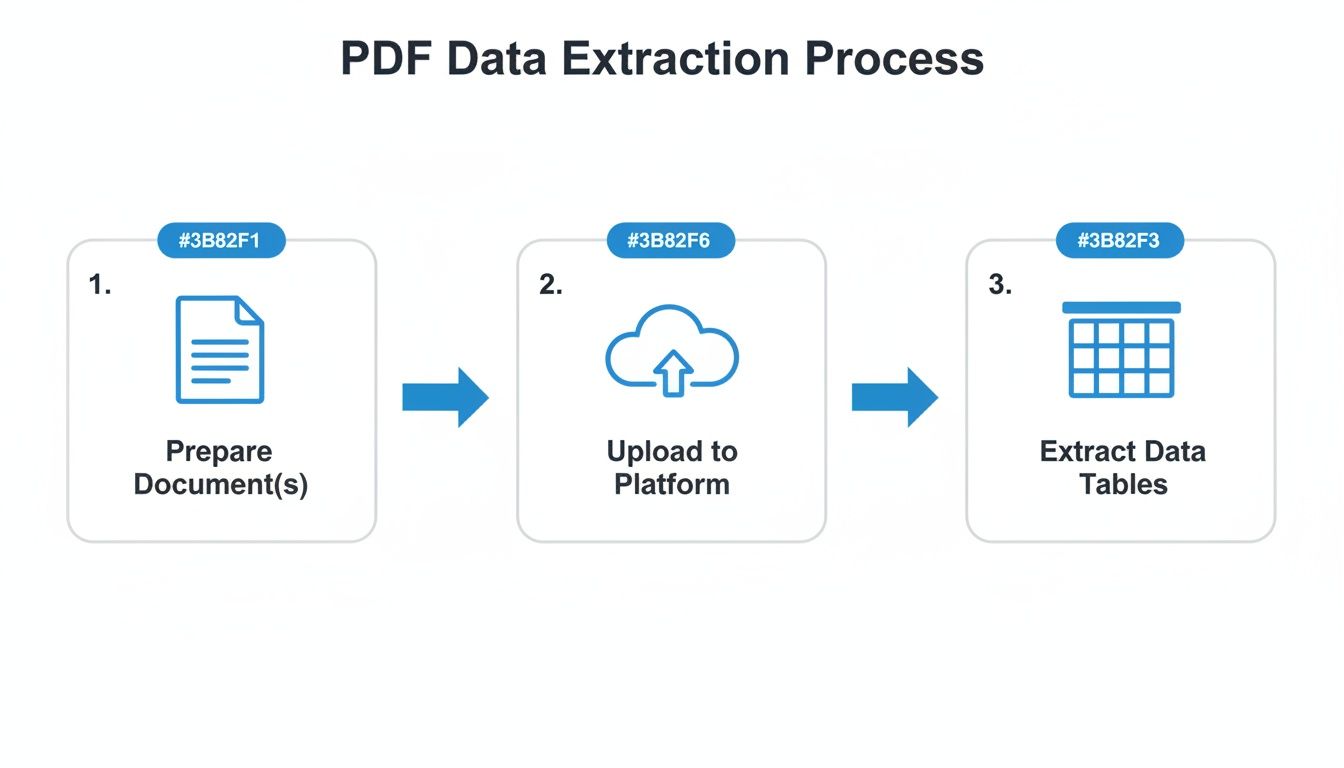
While the flow looks linear—prep, upload, extract—your success hinges on how well you handle the inevitable exceptions.
Dealing With Multi-Page Tables
One of the most common headaches I see is a single table that spans multiple pages. A simple converter often sees the second page as a completely new table, totally missing its connection to the first. You're left with broken data, mismatched headers, and a lot of manual cleanup.
The solution is to use a tool that's smart enough to recognize repeating headers and footers. A good platform will see that the column layout on page two is the same as page one and automatically stitch the line items together. The result? One clean, continuous table in Excel.
Tackling Low-Quality Scans and OCR Errors
What about those grainy, crooked scans? When a document is poorly scanned, Optical Character Recognition (OCR) technology really struggles. It can easily misread characters, giving you gibberish instead of data. An "8" might become a "B," or a "1" might turn into an "l."
Your first line of defense here is preprocessing. Many advanced tools automatically deskew (straighten) the image and improve the contrast before the OCR engine even touches it. This one step can boost accuracy significantly.
If errors still slip through, a system with a human-in-the-loop (HITL) review process is invaluable. This allows a person to quickly check only the fields the AI is unsure about, fixing mistakes without having to re-key the whole document.
Pro Tip: Never trust the output blindly. Always build in a validation step. Set up simple rules, like checking if the sum of line items actually matches the invoice total. This small bit of logic catches a surprising number of extraction errors.
Handling Inconsistent Document Formats
Maybe the biggest challenge of all is dealing with variety. You get invoices from hundreds of different vendors, each with its own unique layout. Creating a separate template for every single one is a non-starter. This is where AI-driven, template-free extraction really shines.
These modern systems don't depend on fixed coordinates on a page. Instead, they use Natural Language Processing (NLP) to understand the context of the data. The tool finds the "Invoice Number" by recognizing the label next to it, not because it's always in the top-right corner. This adaptability lets you process documents from new vendors without any manual setup.
Here are a few classic errors I've seen and how to fix them:
- Misplaced Decimals: This pops up all the time with currency. A simple validation rule that checks for reasonable monetary values can catch this.
- Incorrect Dates: Make sure your tool can handle different date formats (like MM/DD/YYYY vs. DD/MM/YYYY) without getting confused.
- Merged Columns: A classic table extraction fail. The best tools understand table structure based on visual lines and separators, not just how close the text is, which keeps columns properly separated.
Ultimately, solving these problems isn't about finding a magic button. It’s about choosing a smarter tool that anticipates these common issues and gives you the right mechanisms—like image preprocessing and contextual understanding—to handle them from the get-go.
Putting Your Data Extraction on Autopilot
Extracting data from one PDF is useful, but the real magic happens when you can make the entire process hands-off. This is where we move past one-off conversions and build a true automated workflow for getting data from PDF to Excel. We're talking about a system that processes documents the moment they arrive, without anyone ever having to click a button.
Think about it: what if you had a dedicated folder or an email inbox where your team could just drop all incoming vendor invoices? An automated system could constantly watch that source, grab each new file as it appears, pull out all the important details, and neatly populate an Excel spreadsheet. It could even push that data directly into your accounting software. This isn't science fiction; it's how efficient teams get things done.
Setting Up a Batch Processing Workflow
The cornerstone of this kind of automation is batch processing. Instead of wrestling with documents one by one, you can process hundreds or even thousands in a single go. This is a lifesaver for tasks like month-end closing, when you're suddenly flooded with invoices and receipts.
A good data extraction platform will let you set up "watched folders" on cloud services like Google Drive or OneDrive. Any file that gets added to that folder automatically kicks off the extraction process. Just like that, a tedious manual chore becomes a background process that just works.
This approach is a game-changer for a few key reasons:
- It scales effortlessly. A sudden spike in document volume won't overwhelm your team.
- It’s incredibly consistent. Every single document is processed with the exact same rules, which gets rid of human error and variability.
- It's fast. Work that used to take days of mind-numbing manual entry can now be finished in minutes.
Integrating with the Tools You Already Use
True automation is about more than just extraction; it's about connecting the dots between the software you already rely on. This is usually done through an API (Application Programming Interface) or by using no-code integration platforms like Zapier or Make. These tools act as the glue, creating a seamless flow of information between your systems.
For example, you could easily build a workflow where a new invoice PDF sent to a Gmail address is automatically forwarded to your parsing tool. The extracted data then creates a new row in a master Excel sheet, and a notification pings your team's Slack channel for a final quick approval. This kind of setup completely removes manual touchpoints and dramatically speeds up the entire accounts payable cycle.
Automation isn't just a time-saver; it builds a more reliable and responsive data pipeline. It makes sure that the people making decisions always have the most current information, free from the delays of manual processing bottlenecks.
The need for this is huge, especially when you realize how central Excel is to business. In 2023, a staggering 1.5 billion users worldwide depended on it for everything from financial planning to market research. Now, consider that 98% of companies use PDFs to share their most important documents, and you can see the bottleneck pretty clearly. A smart automation tool rescues finance professionals from the "copy-paste trap" and turns a dreaded task into an efficient, automated process.
When you're designing an intelligent document processing system for complex PDFs, it's also smart to understand what different AI models can do. Looking into the top AI models for data processing can give you a better idea of which technology is the right fit for your specific documents and accuracy needs. By putting your data extraction on autopilot, you're not just converting files—you're building a powerful engine to run your business.
Got Questions? We've Got Answers
Even with the best tools in your arsenal, converting PDFs to Excel can throw a few curveballs. It's a process with plenty of "gotchas," but knowing what to expect is half the battle. Here are some of the most common questions we hear from people wrestling with PDF data.
Can I Really Pull Handwritten Notes Out of a PDF?
Yes, you often can—but your mileage will vary. Modern OCR, especially the AI-driven kind, has become surprisingly adept at deciphering both cursive and print. The real deciding factor? How legible the handwriting is in the first place.
If you're working with neatly written notes on a clear scan, you've got a great shot at accurate extraction. On the other hand, messy, rushed scrawls will always be a tough nut to crack. For mission-critical data, I always recommend a tool that includes a "human-in-the-loop" option. This feature flags any text the AI isn't sure about, letting a person give it a quick once-over for approval.
Just How Accurate Is OCR, Anyway?
This is the big one. OCR accuracy can be all over the map. For a clean, high-resolution, computer-generated document like a standard invoice, you can expect top-tier tools to hit over 99% accuracy. That's where this technology really sings.
But once you start dealing with less-than-perfect documents, the accuracy can drop. A few things can trip it up:
- Scan Quality: A blurry, skewed, or low-res scan is OCR's worst enemy. Garbage in, garbage out.
- Funky Layouts: Documents with a mishmash of columns, text boxes, and images can easily confuse a less sophisticated engine.
- Weird Fonts: Highly stylized or unusual fonts are another common culprit for misread characters.
The more advanced platforms combat this with AI-powered image processing. They can automatically de-skew pages, clean up background noise, and boost contrast, which makes a huge difference, especially with poor-quality scans.
Here's the bottom line: Not all OCR is created equal. The engine powering your extraction tool is what separates a decent result from a great one. A basic tool might get you 80% of the way, but a specialized platform is built to handle that tricky 20% that causes most of the headaches.
Are Those Online PDF to Excel Converters Secure?
A crucial question, especially if you're uploading anything with sensitive financial or personal information. The security of any online tool comes down entirely to the provider. Let's be blunt: those free, ad-riddled websites often have flimsy privacy policies and may not even encrypt your connection, which is a major red flag.
For any business-related documents, you absolutely must use a service that explicitly guarantees data security and is compliant with standards like GDPR. Look for providers that offer end-to-end encryption and have transparent policies on how they handle and store your data. A reputable platform will treat your documents with the same seriousness as your bank treats your money.
Ready to stop fighting with PDFs and start getting clean, usable data in minutes? DocParseMagic uses smart AI to pull tables, line items, and key fields right from your documents. It turns a painful manual task into a simple, automated workflow. Try DocParseMagic for free and see how much time you can save.