A Guide to Copying and Pasting from PDF Without the Headaches
Ever tried to copy and paste something from a PDF, only to get a jumble of broken sentences and weird line breaks? It’s a classic frustration, and there's a good reason for it. PDFs were originally designed to be like digital prints, not editable documents.
The core issue is how a PDF “sees” text. Instead of recognizing flowing paragraphs like a Word document does, it sees every line—sometimes every word—as a separate, positioned block. When you copy that content, your computer is just grabbing all those individual blocks and trying its best to stitch them back together. The results are often chaotic.
Why Copying from PDFs Breaks Your Formatting
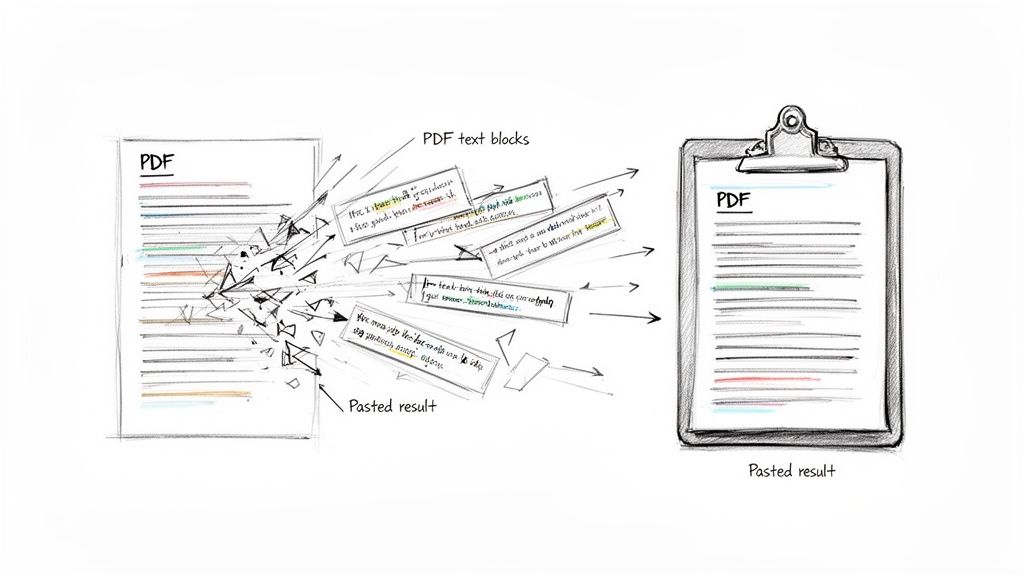
This is a shared pain point for almost everyone who works with documents. You highlight a perfectly clean section, copy it, and then paste it into an email or a report. What you get is a mess. That’s the PDF's primary design goal at work: visual consistency. It was built to ensure a document looks identical everywhere, on any screen or printer.
To pull off that trick, a PDF doesn't store text in a continuous stream. It's more like a digital artboard where text is placed in independent containers, each with exact coordinates. When your software copies the text, it’s often just guessing the correct reading order for these scattered pieces.
The Two Types of PDFs
Before you can fix the problem, you have to know what you’re dealing with. PDFs generally fall into two categories, and how you handle them is completely different.
- Native PDFs: These are the "good" ones. They were created directly from a program like Microsoft Word, Google Docs, or Adobe InDesign. The text is real, selectable, and embedded in the file. While you can still run into formatting hiccups, getting text out of these is much easier.
- Scanned PDFs: These are basically just pictures of paper. Think of a document run through a scanner. To your computer, the text isn't text at all—it's just part of an image. You can’t highlight or select it directly. Getting text from these requires a special technology called Optical Character Recognition (OCR) to convert the image back into actual characters.
This same structural challenge is why tasks like figuring out how to translate a PDF and perfectly preserve its formatting can be so complex; you're fighting against the document's fundamental design.
Think of a PDF as a digital snapshot. It freezes the content and layout perfectly in place, which is great for viewing but terrible for editing or repurposing. This single design choice is the root of nearly every copy-paste headache.
Once you know which type of PDF you have, you can choose the right tool and technique for the job. The rest of this guide will walk you through the specific solutions for each scenario.
Everyday Tricks for Clean Copying and Pasting
We've all been there. You copy some text from a PDF, paste it into a document, and get a jumbled mess of broken lines and weird spacing. It’s a common frustration, but for most standard, text-based PDFs, a couple of simple tricks can solve 90% of these headaches without any special software.
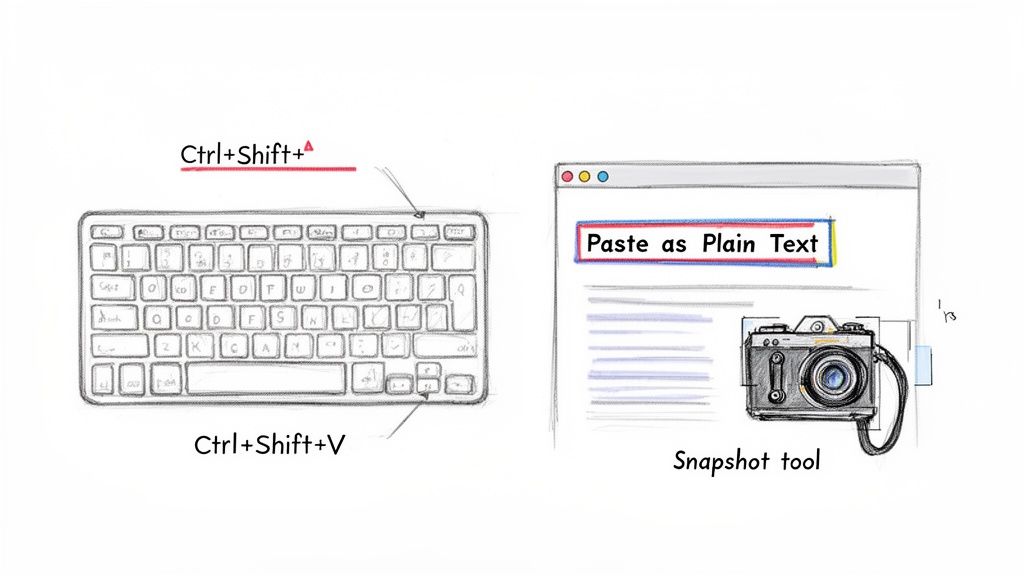
Your most powerful weapon is a keyboard shortcut: Paste as Plain Text.
Instead of the usual Ctrl+V (or Cmd+V on a Mac), get in the habit of using Ctrl+Shift+V (or Cmd+Shift+V). This simple change strips away all the invisible formatting that causes the chaos, leaving you with just the raw text.
Think of it as rinsing the text clean. Your destination app—whether it's Microsoft Word, an email, or Google Docs—gets only the words, letting you apply your own styling from a clean slate.
Master the Tools You Already Have
Your computer already has built-in tools that make grabbing content from PDFs a breeze. You just need to know which one to use.
- For Windows Users: The Snipping Tool (or the newer Snip & Sketch) is your best friend for anything visual. Instead of fighting to copy a table or chart that will just break apart, just draw a box around it. It instantly becomes a clean image, ready to use.
- For macOS Users: The screenshot shortcut Cmd+Shift+4 is your go-to. It turns your cursor into a precise crosshair, allowing you to select and capture any part of the PDF as a crisp image.
These screenshot methods are perfect when you need to preserve the look of something, not edit its content. They give you a perfect replica of a graph, a logo, or a complex layout that you can drop right into your work.
If you actually need to edit the content, you'll need a different approach. For a deeper dive, our guide on how to convert PDF files into editable text has you covered.
Handling PDFs in Your Browser
What if you're looking at the PDF in Google Chrome or another web browser? The same rules apply. Use the browser's "Select" tool to highlight text, but remember to use the Paste as Plain Text shortcut to avoid formatting issues.
And for images or tricky layouts, your computer’s built-in screenshot tools work just as well inside the browser window.
The core idea is to separate the content from its formatting. Use Ctrl+Shift+V to get clean text you can style yourself. When the visual layout is what matters most, use a screenshot tool. This two-part strategy turns a frustrating task into a quick, predictable fix.
Dealing with Scanned or Protected PDFs
So far, we've been talking about PDFs where the text is actually text. But what about those times you open a file and it behaves like a stubborn photograph, refusing to let you highlight a single word? This is a classic sign of a scanned document—think old reports, invoices, or academic papers where the pages are just images.
This is where a technology called Optical Character Recognition (OCR) saves the day. Think of OCR as a translator; it scans the image of the text and converts it into real, digital characters your computer can understand, select, and copy. It’s the magic that turns a flat picture of words into usable data.
If you're stuck with a scanned PDF, your first step is to use OCR on scanned PDFs with a specialized tool. Many modern PDF editors, like Adobe Acrobat Pro, have this feature built-in. You just run the "Recognize Text" function, and in a few moments, the entire document becomes searchable and selectable.
Unlocking Content from Protected Files
Another common headache is the protected PDF. You open a file, try to copy a sentence, and get a pop-up saying the action is not allowed. Frustrating, right? It helps to know there are two main types of protection.
- An Owner Password is the high-security version. You can't even open the file without it. If you don't have the password, you're pretty much stuck.
- A Permissions Password is more common. This lets you open and read the file but blocks you from doing things like printing, editing, or copying text.
If you have the legal right to use the content—maybe it’s your own company’s report or a public document—but a permissions setting is blocking you, there are a few legitimate ways around it. You can get a deeper understanding of the tech behind this by reading our article on what OCR is in PDF documents.
One of the simplest and most reliable solutions is what I call the "Print to PDF" trick. This method essentially creates a brand-new, unrestricted version of the document.
The "Print to PDF" Workaround:
- Open the restricted PDF in any viewer that allows printing, like Google Chrome or Preview on a Mac.
- Go to the File > Print menu (or press
Ctrl+P/Cmd+P).- In the printer destination dropdown, don't choose your physical printer. Instead, select "Microsoft Print to PDF" on Windows or "Save as PDF" on a Mac.
- Save the file. The new PDF you just created should be free of the old copy restrictions, letting you select and copy text freely.
Why does this work? The print command processes the document's visual layer. By "printing" it to a new PDF file, you're generating a clean copy without the original restrictive metadata. It's a surprisingly effective trick for getting around permissions-based roadblocks when you’re authorized to access the content.
How to Copy PDF Tables into Excel Perfectly
Let's be honest, trying to copy a table from a PDF into Excel can feel like a game of chance. You highlight a perfectly organized table, hit paste, and... you get a single, chaotic column of data. It’s a classic, frustrating problem.
This happens because, from a technical standpoint, a PDF doesn't see a "table." It just sees a collection of individual text boxes and lines. But don't worry, there are a few solid techniques to get that data into your spreadsheet cleanly.
If you're ever stuck on a tricky PDF, this decision tree can help you figure out the best way forward.
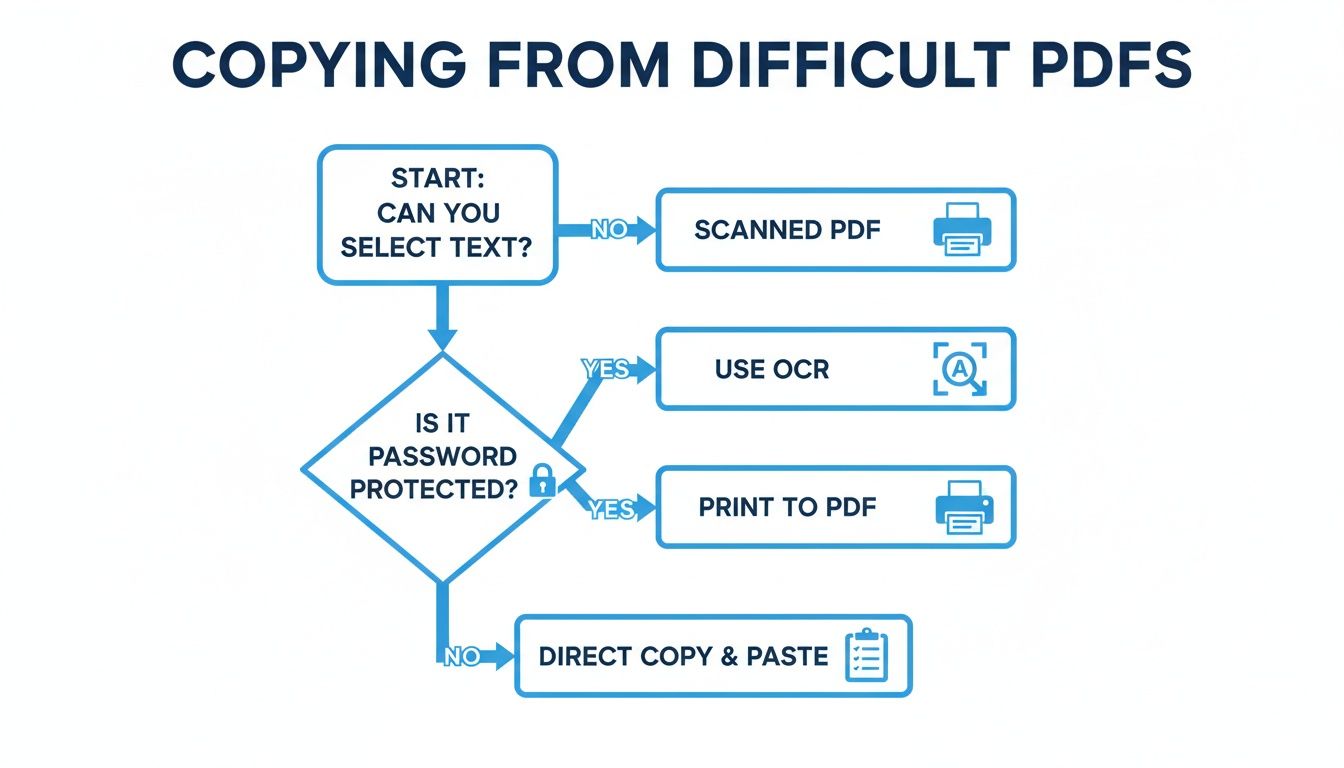
As the chart shows, the first question is always: can you actually select the text? If you can't, you'll need an OCR tool. If you can but the PDF is locked down, the old "Print to PDF" trick is often your best bet to create an unlocked copy.
The Best Tool is Already in Excel
For anyone using a modern version of Microsoft 365, you already have access to the most powerful solution. It's a feature called Get Data from PDF, and it’s a total game-changer. You'll find it right under the Data tab.
Instead of the messy copy-paste routine, this tool lets you directly import the data. Excel scans the PDF, intelligently identifies anything that looks like a table, and even shows you a preview before pulling the data in. It's incredibly good at keeping columns and rows intact, especially with clean, computer-generated PDFs.
Honestly, this should be the very first thing you try. It's fast, accurate, and saves a ton of time on manual cleanup.
Use Microsoft Word as a Bridge
What if you're on an older version of Excel that doesn't have the fancy import feature? No problem. A great workaround is to use Microsoft Word as a go-between.
Word has a surprisingly good PDF conversion engine built right in. Here’s how it works:
- Just open the PDF file directly with Microsoft Word.
- Word will pop up a message saying it's converting the PDF into an editable Word document. Let it work its magic.
- Once it's open, you can copy the table from the Word doc and paste it into your Excel sheet. The structure usually holds up way better this way.
Pro Tip: After you paste from Word into Excel, a little clipboard icon will appear. Click on it to see the Paste Options. Try both "Keep Source Formatting" and "Match Destination Formatting" to see which one gives you a cleaner result. Sometimes one works better than the other.
Comparing Methods for Copying PDF Tables to Excel
Choosing the right approach really depends on the PDF you're dealing with, how complex the table is, and what software you have on hand. Here’s a quick breakdown to help you decide.
| Method | Best For | Speed | Accuracy & Formatting | Limitations |
|---|---|---|---|---|
| Excel's Get Data | Clean, native PDFs with well-defined tables. | Very Fast | High | Requires a modern version of Microsoft 365. |
| Word as Intermediary | Excel's import fails or isn't available. | Moderate | Good to High | Can struggle with complex layouts or heavily formatted tables. |
| Manual Copy-Paste | Very small, simple tables with no merged cells. | Fast | Low to Poor | Almost always breaks formatting, creating a single column. |
| Specialized OCR Tools | Scanned PDFs or images where text isn't selectable. | Varies | Moderate to High | Requires separate software; accuracy depends on image quality. |
Ultimately, starting with Excel's built-in tool will handle most situations with the least amount of fuss. But if that's not an option, the Word method is a reliable backup.
For a deeper dive into this topic, you can explore more advanced techniques in our detailed guide on how to copy a table from a PDF to Excel.
Time to Move Past Manual Copy-Paste? Let’s Talk Automation
Getting good at copying and pasting from a PDF is a useful skill, no doubt. But let’s be honest—it’s usually a band-aid for a much bigger headache.
Every minute you spend wrestling with a PDF, manually pulling out data, fixing broken formatting, or retyping text from a scanned document, is a minute you’re not spending on actual analysis or strategy. That manual grind isn't just a time sink; it’s a breeding ground for human error.
And the problem is only getting bigger. PDF creation has been climbing by 12% annually since 2020, and the format now drives a staggering 78% of all digital agreements. Think about the loan processor who needs to pull income data from a bank statement, or the underwriter verifying assets from a scanned tax return. It's a daily reality for millions. The market for PDF editor software is even projected to swell from $4.77 billion in 2025 to $10.01 billion by 2032, fueled by the need to work with data that manual copy-paste just can't handle. You can dig into more of these numbers by checking out the latest PDF statistics.
This is where the conversation has to shift from just copying to intelligent automation. Modern tools don't just grab text; they actually understand it.
What We Mean by Intelligent Document Processing
Intelligent Document Processing (IDP) is a huge step up from basic OCR. Instead of just ripping out blocks of characters, IDP platforms use AI to recognize, understand, and structure the information inside a document.
Picture this: you have a stack of 50 invoices from different vendors. The old way would be to open each one, hunt for the invoice number, date, and total, and then painstakingly paste them into a spreadsheet. It’s tedious, and one slip-up can throw everything off.
An automated solution handles this completely differently.
- It finds the "Invoice #" no matter where it is on the page.
- It pulls out each line item, quantity, and price, organizing them into neat columns.
- It formats dates and currency values correctly so you can use them for calculations right away.
This isn't just about speed; it's about intelligence. It transforms messy, unstructured PDFs into clean, analysis-ready data with zero manual effort.
When Does Automation Actually Make Sense?
Switching to an automated workflow isn’t about replacing a single copy-paste job. It’s a strategic move to fix a recurring, systemic problem.
Automation becomes a no-brainer when the volume, variety, or complexity of your documents makes manual data entry a bottleneck. If your team is burning hours every week just moving information from PDFs into other systems, you've already found your use case.
Here are a few classic examples where automation delivers a massive return:
- Accounts Payable: Imagine automatically pulling all the key data from hundreds of vendor invoices. You can process payments faster and avoid late fees, all without someone manually keying in numbers.
- Insurance Claims: Instead of manually reading through forms, an IDP tool can instantly pull claimant details, policy numbers, and incident reports to get claims processed in a fraction of the time.
- Sales Commissions: You get partner reports in all sorts of PDF formats. Automation can consolidate all that sales data into a single, unified spreadsheet, ensuring everyone gets paid accurately and on time.
In every one of these situations, automation gets rid of the soul-crushing task of manual data entry. It frees up your team to focus on what really matters—analyzing the data, not just collecting it. It’s the next evolution of copy-paste, built for the real world.
Got a PDF Problem? Let's Get It Solved
Even after you've mastered the basics, a few tricky PDF issues seem to pop up again and again. You’re not alone. I’ve put together this quick Q&A to tackle those nagging problems without you having to sift through endless forums for a simple answer.
Let’s get right to it.
Why Does My Copied Text Look So Weird?
This is, without a doubt, the number one complaint. You copy a clean-looking paragraph, paste it, and suddenly it's riddled with extra spaces and awkward line breaks. It's because PDFs often treat every single line as a separate text box, and your word processor is just trying its best to make sense of the mess.
The simplest fix? Paste it as plain text.
- Windows: Hit Ctrl+Shift+V
- Mac: Use Cmd+Shift+V
This one command strips away all that problematic formatting code, leaving you with clean, unformatted text. It’s a real lifesaver.
Am I Allowed to Copy Content from Any PDF?
Here’s where it gets a little gray. Just because technology lets you copy something doesn't automatically mean it's legally okay. Most content you find is protected by copyright law, which means you can't just lift it and republish it as your own work.
However, copying snippets for personal use—like grabbing quotes for a school paper or pulling stats for an internal business report—is almost always fine under "fair use." The line gets crossed when you start sharing that content publicly. If you're going to use it in a blog post, a presentation for clients, or anything external, you need permission from the creator.
My rule of thumb: If you’re not sure, always credit your source. It's the right thing to do and can save you a headache later.
What’s the Best Free Tool for Copying Tables?
You might already have the best tool on your computer. If you're running a recent version of Microsoft 365, Excel has a fantastic built-in feature that many people don't know about. Just go to Get Data > From File > From PDF. It’s surprisingly good at pulling structured tables out of PDFs cleanly.
If you’re looking for a quick, web-based solution, Tabula is a fantastic open-source tool. It was built for one thing: extracting tables from PDFs, and it does it well. Just know that most free tools will hit their limits with really complex layouts or scanned documents.
Can I Copy Text from a PDF on My Phone?
Absolutely. It works just like copying text from a webpage or an email. On both iOS and Android, just tap and hold on the text you want to select. You’ll see little handles appear that you can drag to highlight exactly what you need.
Once you have your text selected, a "Copy" button will pop up. It's not as precise as using a mouse on a desktop, but for grabbing a quick sentence, a phone number, or an address, it works perfectly.
Tired of fighting with manual copy-paste? DocParseMagic automates document data extraction, turning messy PDFs, scans, and invoices into clean, structured spreadsheets in minutes. Stop wrestling with formatting and start using your data. Try it free today and see how much time you can save. Get started at https://docparsemagic.com.