A Practical Guide to Convert PDF to Text Flawlessly
Before you can pull text out of a PDF, you have to know what you're dealing with. Is it a native PDF that was born digital, or is it a scanned PDF—basically a picture of a paper document? The first kind often lets you grab the text directly, but the second requires something more advanced called Optical Character Recognition (OCR) to figure out what the letters and numbers are.
Why You Can't Just Copy-Paste from a PDF
Have you ever tried to copy a paragraph from a PDF, only to paste it into Word and find a chaotic mess of weird line breaks and wonky spacing? It’s a common frustration, and there's a good reason for it.
A PDF isn't like a standard text document. Its main job is to be a digital snapshot, preserving the exact visual layout of a page no matter what computer or software you're using.
Think of it less like a text file and more like a photograph of a document. You can see the words, but the file doesn't necessarily recognize them as editable characters. It's really just a set of instructions for where to put ink on a page (or pixels on a screen). That’s why you need a specific strategy to properly convert PDF to text if you want to do anything useful with the information inside.
The Two Types of PDFs
Knowing where your PDF came from is the first, most crucial step. They almost always fall into one of two buckets, and how you handle them is completely different.
- Native PDFs: These are the easy ones. They were created directly from a digital source, like saving a document from Microsoft Word or Google Docs. The text is already there, living in a layer you can access. While copy-pasting might work for simple paragraphs, it often falls apart with anything complex, like tables or multi-column layouts.
- Scanned PDFs: These are just images. Think of a document run through a scanner or a photo taken with your phone. There's no text layer at all. Trying to select text here is like trying to highlight words in a JPEG—it’s impossible without the right tool.
Imagine an accountant who gets dozens of scanned invoices from vendors every day. Each one is a flat image. Without the right tech, they're stuck re-typing every single line item into their system. It’s a painfully slow process and a recipe for typos and errors.
A paralegal once told me they wasted a whole day manually retyping clauses from a 50-page scanned legal agreement because copy-paste gave them nothing but gibberish. That story perfectly illustrates the gap between seeing text on a screen and actually being able to use it.
This fundamental difference is why hitting "Ctrl+C" is so often a dead end. With scanned documents, your computer literally sees a picture, not words. To get around this, you need tools specifically built to translate that visual information back into real, usable text.
Choosing the Right Tool to Convert PDF to Text
With so many tools out there, figuring out the best way to turn a PDF into text can be a real headache. The right answer really just boils down to what you're trying to accomplish. What kind of document is it? How many do you have? And just how sensitive is the information inside?
For a simple, one-off job with non-confidential info, a free online converter is probably all you need. Think about grabbing the text from a recipe you found online or saving a blog post to read later. These tools are quick, easy, and get the job done without any fuss.
But when you're dealing with business-critical documents, the game changes completely. You wouldn't just upload a client contract or a folder of financial reports to a random website, right? That’s when it’s time to look at professional-grade software or dedicated platforms built for security and accuracy.
Evaluating Your Conversion Needs
Before you jump into a solution, take a moment to ask a few practical questions. Your answers will steer you toward the smartest and safest option.
- Where did this PDF come from? Is it a "born-digital" file, like a report saved directly from Microsoft Word? Or is it a scan of a paper document, which means you'll definitely need OCR?
- How sensitive is the data? Anything with personal, financial, or legal information—think invoices, bank statements, or contracts—should stay far away from free online tools with flimsy privacy policies.
- What’s the scale of the job? Are you converting a single page, or are you trying to process hundreds of purchase orders every single week? Volume changes everything.
- What do you need the text for? Do you just need a raw block of text to copy and paste? Or are you trying to pull out specific data points, like invoice numbers and line items, to put into a spreadsheet?
This decision tree gives you a simple way to think about the process, starting with the most important question: is your PDF digital or scanned?
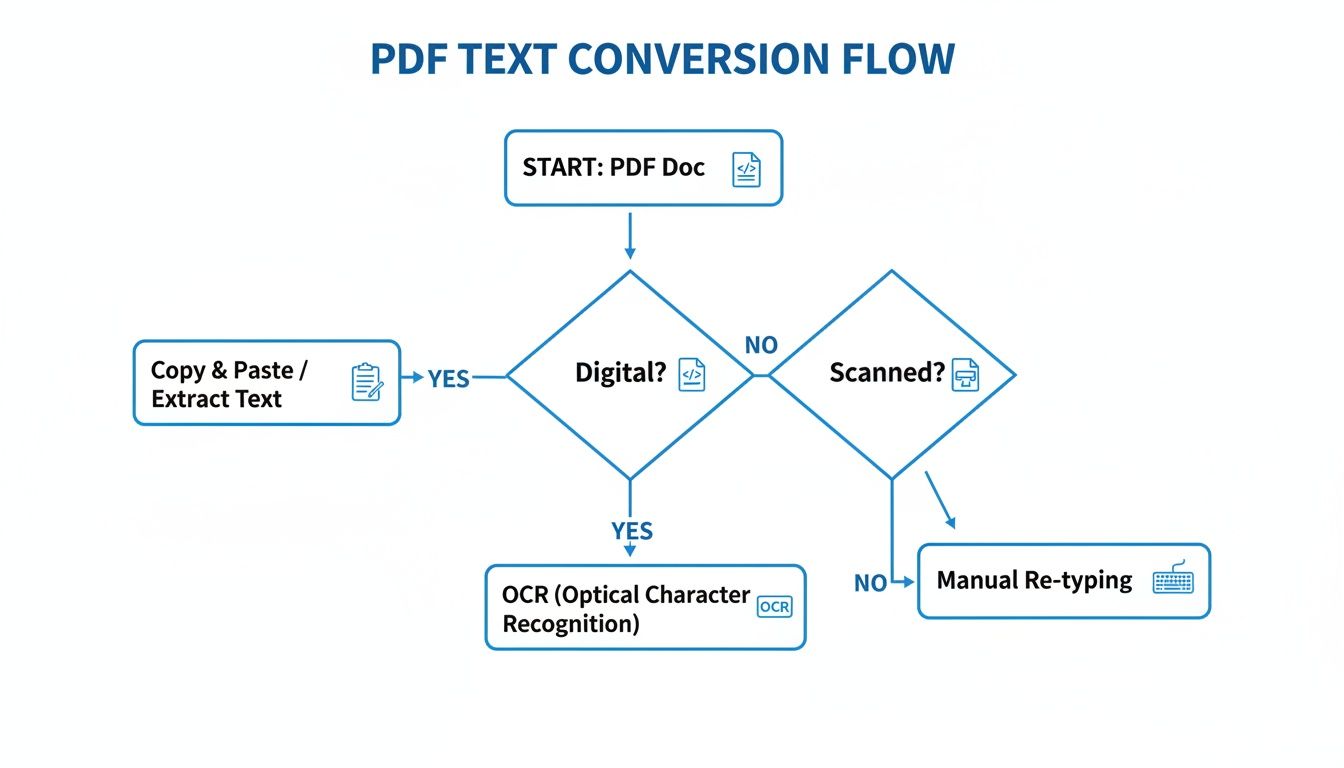
As the chart shows, identifying the PDF type is your first move. It immediately tells you whether a straightforward text extraction will work or if you need to bring in the heavy machinery of OCR.
A Quick Comparison of Common Tools
To make things even clearer, here’s a look at the most common methods side-by-side. Each has its strengths, and knowing them will help you build a much more efficient workflow. And for those with more technical projects, diving into the best Python PDF reader libraries can open up a world of powerful, custom-built solutions.
Here's a breakdown to help you match the tool to the task.
Comparison of PDF to Text Conversion Methods
| Conversion Method | Best For | Pros | Cons |
|---|---|---|---|
| Free Online Converters | Quick, non-sensitive, single-file conversions. | No installation, free, and very fast. | Security risks, ads, and poor OCR quality. |
| Desktop Software (e.g., Adobe Acrobat) | High-quality OCR and reliable native text extraction. | Secure, feature-rich, and handles formatting well. | Costly and requires software installation. |
| Intelligent Document Parsers | High-volume, structured data extraction for business. | Automates workflows, highly accurate, and understands document layouts. | Subscription-based and designed for business use cases. |
At the end of the day, it's about making sure your choice saves you time, protects your data, and delivers accurate, usable text.
The tool should always match the value of the task. Using a free online converter for a recipe is just plain smart. But using that same tool for a hundred client applications is a security and efficiency disaster waiting to happen.
For simple jobs, keep the tools simple. But when your business processes depend on it, investing in a professional or automated solution isn't just a good idea—it's essential.
Getting Clean Text from Scanned Documents with OCR
So, what happens when your PDF isn't really a text document at all, but just a picture of one? If you've ever scanned a contract or taken a photo of a receipt, you know what I'm talking about. You can't just copy and paste the text because, to your computer, it's just a flat image.
This is where a bit of magic called Optical Character Recognition, or OCR, comes in.
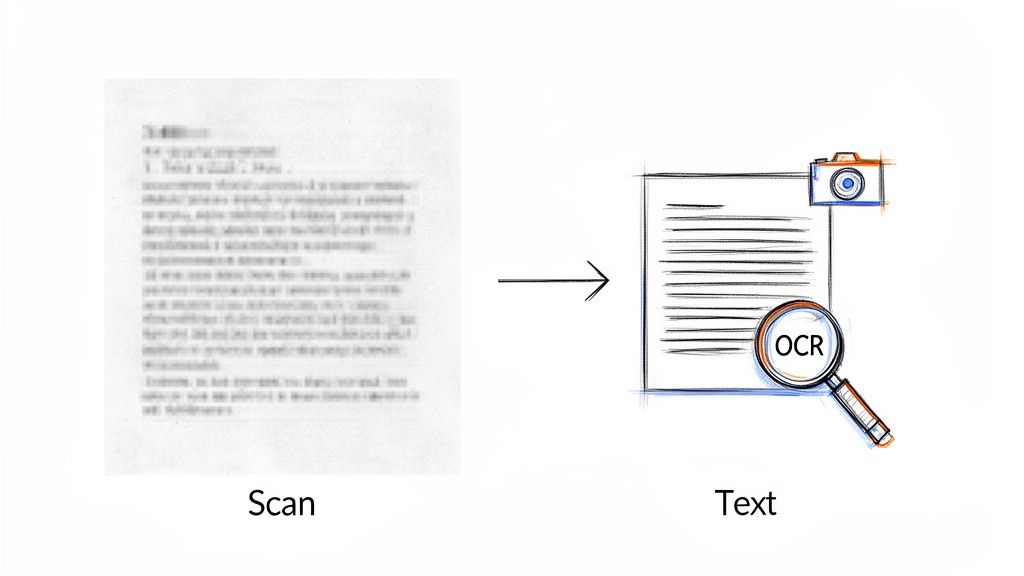
Think of OCR as a digital translator for images. It scans the document, recognizes the shapes of letters and numbers, and converts them into actual, editable text that your computer can work with. It’s the essential bridge between a static picture and usable data.
The need for this kind of technology is massive. The global PDF software market was valued at USD 1.85 billion in 2024 and is projected to hit over USD 4 billion by 2031. That growth isn't just about creating PDFs; it's driven by businesses trying to unlock the data trapped inside scanned invoices, financial statements, and old records.
Why Your Scan Quality Is Everything
I can't stress this enough: the old saying "garbage in, garbage out" is the golden rule of OCR. The quality of your original scan will make or break your results. A blurry, crooked, or poorly lit scan forces the OCR software to guess, and that leads to all sorts of frustrating errors.
To give your OCR tool the best shot at success, pay attention to these three simple things:
- Resolution (DPI): Aim for 300 DPI (dots per inch) or higher. Anything less and the software might struggle to see the fine details that distinguish one character from another.
- Lighting and Contrast: Scan in a well-lit area without shadows or glare. You want crisp, dark text on a clean, light background.
- Alignment: A crooked page can throw off the best OCR engines. Do your best to scan the document as straight as possible.
I once worked with a client trying to pull numbers from scanned sales commission reports. A few bad scans meant the OCR kept confusing '0' with 'O' and '8' with 'B'. It completely wrecked their financial calculations. Taking an extra 30 seconds to get a clean scan can literally save you hours of fixing mistakes later.
Modern AI-Powered OCR Is a Game-Changer
Traditional OCR has been around for a while, and it's good. But modern, AI-powered systems are in a completely different league. These tools use sophisticated machine learning models, trained on millions of diverse documents, to achieve stunning accuracy—even when the scans aren't perfect.
They can often figure out blurry text, handle weird fonts, and sometimes even read handwriting. This is a huge win for anyone who deals with inconsistent documents, like an insurance agent pulling details from a stack of handwritten claim forms.
AI is smoothing over many of the rough edges of older OCR, making the whole process faster, more reliable, and frankly, a lot less painful. If you're curious about the mechanics behind this, you can learn more from our guide on what Optical Character Recognition is and how it's changing the game.
5. Taking It to the Next Level: Automating PDF Conversions for High-Volume Workflows
Dealing with a few PDFs here and there is manageable. But what happens when your team gets hit with an avalanche of documents every single day? Manually opening, converting, and pulling text from hundreds of files isn't just a chore—it’s a massive bottleneck that kills productivity.
This is exactly where automation steps in, letting you convert PDF to text at a scale that manual work could never match.
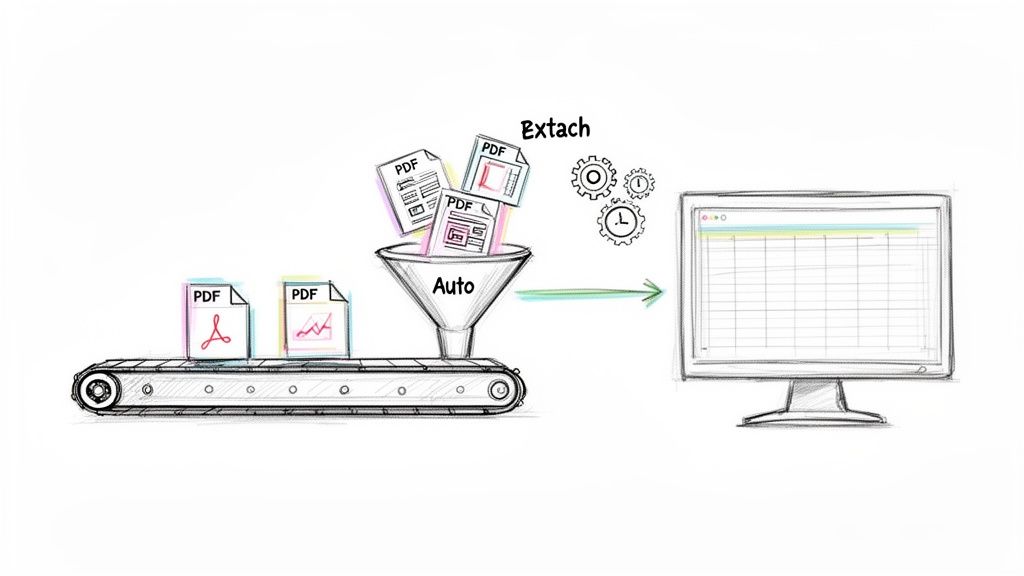
When you're dealing with a flood of documents, the goal isn't just to get the text out. The real win is intelligent data extraction—building a system that can grab incoming files, find the exact pieces of information you need, and shuttle that data where it belongs, all without anyone having to lift a finger.
How a Hands-Free Workflow Looks in the Real World
Let's picture an accounting team that gets 200 vendor invoices emailed to them every morning. The old way? Someone had to open every single PDF attachment, find the invoice number, due date, and total, and then manually type it all into the accounting software. It was a time-consuming process just begging for typos.
An automated workflow completely flips the script. Here’s how it works:
- Automated Ingestion: A tool is set up to watch the "invoices" email inbox around the clock.
- Intelligent Parsing: As soon as a new PDF invoice lands, it's automatically routed to a parsing tool like DocParseMagic.
- Data Extraction: The parser scans the document, instantly identifies the key fields—like "Invoice #," "Due Date," and "Total"—and extracts that specific data.
- System Integration: That extracted data is then automatically sent to the accounting software, populating the correct fields.
This entire process unfolds in mere seconds. A task that used to eat up half the day becomes a background process that’s finished before anyone has had their first sip of coffee.
This kind of efficiency is why the data extraction market is exploding. It's projected to jump from USD 5.29 billion in 2024 to USD 28.48 billion by 2035, according to Market Research Future. This growth is driven by teams in accounting, finance, and logistics who simply can't afford the time and cost of manual work anymore.
Finding the Right Automation Path for Your Team
Not all automation solutions are created equal. If you have a team with deep technical skills, command-line tools and custom scripts can be a powerful way to handle bulk conversions. The downside is that this path requires coding expertise and ongoing maintenance to keep it running smoothly.
For most business teams, however, no-code platforms are the way to go. These tools provide a visual, drag-and-drop interface, allowing anyone to connect different apps and build sophisticated automations without writing any code.
Think of it this way: you could connect a tool like DocParseMagic to an automation platform to create a workflow that monitors a Google Drive folder. Whenever a new PDF is added, it gets processed, and the extracted data is automatically sent to a Slack channel or added as a new row in an Excel spreadsheet. You’re essentially building a smart, self-operating system for your documents.
Ultimately, automation is about getting your team's time back. It eliminates the repetitive, low-value task of manual data entry, freeing up your people to focus on analysis, strategy, and other work that actually pushes the business forward.
To see more examples of how these systems operate, check out our guide on how to automate data entry.
Moving Beyond Text with an Intelligent Document Parser
Getting a raw block of text out of a PDF is one thing. But if you’re running a business, that’s rarely the end goal. The real challenge is pulling out specific, structured data—the kind you can actually plug into a spreadsheet or another system. This is where an intelligent document parser like DocParseMagic completely changes the game.
These tools don’t just see text; they understand it. A basic converter might dump an entire invoice into a single, jumbled paragraph. An intelligent parser, on the other hand, knows the difference between an "Invoice Date" and a "Due Date." It can spot and extract individual line items from a table, complete with quantities and prices.
For teams in finance, logistics, or legal, this level of precision isn't just nice to have—it's essential. They need accurate data, not just loose text.
From Unstructured Mess to Actionable Data
I’ve seen this firsthand. Imagine a procurement manager trying to compare quotes from 50 different vendors. Every PDF is laid out differently. One has the price on page one, another buries it on page three. Delivery terms are all over the place. A simple text conversion would create 50 walls of text, leaving the manager to manually dig for the crucial data points.
That's a nightmare that could take days. An intelligent parser turns it into a task you can knock out in minutes. It can instantly find and pull the pricing, delivery terms, and product SKUs from all 50 files, organizing them into a clean spreadsheet ready for comparison.
The big idea here is shifting from simple "text extraction" to what I call "data liberation." You're no longer just pulling words out of a file; you're freeing the valuable data that was trapped by the document's layout.
This targeted approach helps you sidestep the errors that plague less sophisticated tools. There's a reason the market for PDF editors is projected to explode from USD 3.97 billion to USD 17.71 billion by 2033. Businesses are demanding tools that can handle complexity. I’ve seen traditional converters mangle the structure of financial statements up to 40% of the time, creating more work than they save.
How Intelligent Parsing Works in Practice
So, how does it do this? Unlike old-school, template-based systems where you had to manually map out every new document layout, modern parsers use AI to figure things out on their own.
- It understands context. The tool sees a label like "Total Due" and knows the number right next to it is the value you need.
- It reads tables like a human. It can accurately extract rows and columns, even from tables with tricky formatting like merged cells.
- It often validates the data. Many tools can even spot logical errors or inconsistencies, flagging them for a quick human review.
This screenshot gives you a clear picture of how a parser visualizes the extracted fields, effectively turning a static PDF into a structured database.
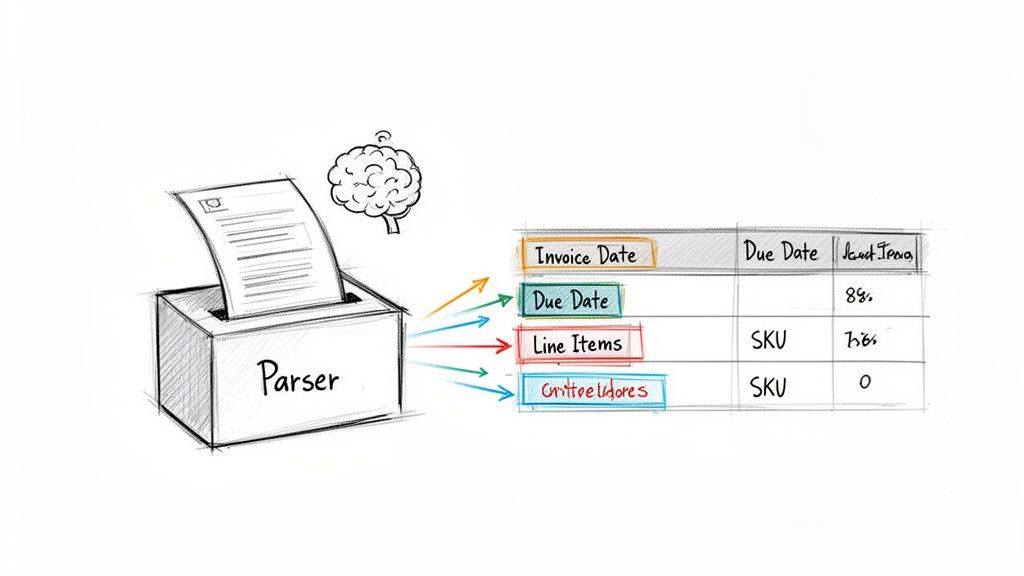
As you can see, the system automatically identifies and tags each critical piece of information, getting it ready for export. For finance teams, this is a lifesaver. When you need to pull highly structured data, a purpose-built tool like a bank statement converter to Excel can make short work of complex PDF layouts.
If you want to get a better handle on the technology behind this, our guide on https://docparsemagic.com/blog/what-is-intelligent-document-processing is a great place to start.
Questions We Hear All the Time About PDF Conversion
Even with the best tools in hand, converting PDFs to text can throw a few curveballs your way. Let's walk through some of the questions that come up constantly and get you some practical, no-nonsense answers.
Can I Actually Keep the Formatting When I Convert a PDF?
This is probably the number one question, and the honest answer is… sort of. If you’re converting a PDF to a Word document, you can often save the basic layout, like columns and text styles (think bold or italics).
But a perfect, pixel-for-pixel copy? That’s almost never going to happen, especially with complex documents full of detailed tables or layered images. When you convert, the priority shifts from looking pretty to being editable, so you have to expect some trade-offs.
Quick tip: If your goal isn't to replicate the look but to pull out specific data—like invoice line items or customer details—a dedicated document parser is a much smarter move. It focuses on getting you clean, structured data, not a perfect visual clone.
Are Those Free Online PDF Converters Safe?
For casual, non-sensitive stuff? Sure. If you're converting a recipe you found online or a public event flyer, they're perfectly fine. They get the job done quickly without any fuss.
But the moment you’re handling anything confidential, you need to hit the brakes. When you upload a file to a free online tool, you're sending it to someone else's server, often with vague (or no) privacy policies. For anything like business contracts, financial reports, or invoices containing client info, always, always use a secure, professional tool that’s transparent about how it handles your data.
Why Did My Converted Text Come Out Looking Like Gibberish?
Nine times out of ten, this is an OCR issue caused by a poor-quality scan. If the original document was blurry, scanned at an angle, or had weird shadows, the OCR software is just making its best guess at the characters—and often guessing wrong.
To get a much better result, try rescanning the document in a well-lit space at 300 DPI or higher. If rescanning isn't an option, especially for important business files, this is where AI-powered parsers really shine. They use much more sophisticated models that can accurately read text even from less-than-perfect scans, saving you a ton of headaches.
How Can I Get Data Out of a PDF Table Without Losing My Mind?
Ah, the classic copy-paste from a PDF table. It almost always ends in a jumbled mess of text on a single line, completely destroying the original structure. It's a universal frustration.
Some OCR tools say they can handle tables, but they often stumble over anything slightly complex, like merged cells or multi-line entries. The most reliable way to handle this is with an intelligent document parser. These platforms are built from the ground up to understand table structures—rows, columns, cells, and all. They pull the data out cleanly and drop it into a spreadsheet-ready format, no manual cleanup required.
Stop wrestling with messy documents and start getting clean, actionable data in minutes. DocParseMagic turns your invoices, statements, and reports into organized spreadsheets, eliminating manual work and errors. Sign up for free and see how it works.