How to Copy a Table from PDF to Excel The Right Way
Trying to copy a table from PDF to Excel? We’ve all been there. It feels like it should be simple, but it almost always ends in a jumbled mess of broken columns and scrambled data. What starts as a quick task quickly becomes a tedious, cell-by-cell cleanup project.
The High Cost of a "Simple" Copy and Paste
Think about this everyday scenario: an analyst gets a stack of PDF sales reports and needs to pull all the product data into a single Excel sheet for a forecast. It’s urgent, of course. But the quick copy-paste job turns into an hour-long slog, fighting formatting issues every step of the way.
This isn’t user error. It’s a fundamental clash between two different technologies. PDFs are built to be static, like a digital snapshot, preserving a document's look and feel across any device. They were never designed for you to easily pull data out of them.
What Goes Wrong When You Copy and Paste
When you highlight a table in a PDF and drop it into Excel, you're not just moving the text you see. You're also dragging along all sorts of hidden formatting code that Excel has no idea what to do with. This leads to a predictable trainwreck:
- The Single-Column Mess: All your beautifully organized data gets dumped into Column A, leaving you to manually split it back out.
- Numbers That Aren't Numbers: Figures with currency symbols ($) or commas are often pasted as plain text. Good luck using SUM or AVERAGE on those.
- Vanishing Structure: The neat grid of rows and columns from your PDF dissolves into a chaotic jumble of misaligned cells.
- Invisible Gremlins: Pesky line breaks and extra spaces can hide inside your cells, quietly breaking your formulas and filters.
This manual wrestling match is more than just a minor headache; it’s a genuine business expense. For finance and operations teams everywhere, manually moving data from PDFs is a costly, error-prone bottleneck. In fact, industry studies estimate that office workers spend 10% to 20% of their time on repetitive data entry and reformatting. For a medium-sized accounting department, that's like having a couple of people on staff whose only job is to retype things. You can find more insights on business efficiency at askdataentry.com.
At its core, the problem is that PDFs care about visual layout, while Excel cares about data structure. When you copy a table, you're forcing Excel to guess what Adobe's visual instructions mean, and it almost always guesses wrong.
This ongoing struggle doesn't just waste hours—it invites human error. A single misplaced decimal or a number pasted as text can torpedo an entire financial model and lead to bad business decisions. The frustration is real, but thankfully, there are much better ways to copy a table from PDF to Excel.
Comparing Your PDF to Excel Conversion Options
Let's be honest, getting a table out of a PDF and into Excel can be anything from a two-minute job to a hair-pulling nightmare. The right approach really depends on what you're working with. Are you just trying to grab a single, clean table? Or are you staring down a mountain of scanned invoices?
Before we jump into the step-by-step instructions, it's worth taking a moment to understand the tools at your disposal. Knowing the pros and cons of each method upfront will save you a world of frustration.
Breaking Down the Five Key Methods
Think of these five options as different tools in a toolbox. You wouldn't use a sledgehammer to hang a picture frame, and you wouldn't use a tiny screwdriver to break up concrete. The same logic applies here.
Here are the main ways to tackle this, from the simplest to the most powerful:
- Manual Copy and Paste: The classic. It's the first thing everyone tries, and for a simple, well-behaved table in a "native" PDF (one created digitally, not scanned), it can sometimes work. We’ll cover a few tricks to make it less messy.
- Excel's Get Data from PDF: This is a surprisingly powerful feature built right into modern versions of Excel. It can often intelligently find and import tables, saving you a ton of cleanup. It's my go-to for quick, one-off tasks.
- Adobe Acrobat Pro Export: If you already have a subscription to Adobe Acrobat Pro, its "Export PDF" feature is incredibly reliable. Adobe knows the PDF format inside and out, so its conversions are usually clean and accurate.
- Optical Character Recognition (OCR) Tools: This is where you turn when your PDF is just an image. If someone scanned a document or saved it as an image-based PDF, you need OCR software to "read" the text and turn it into something you can actually work with.
- Automated AI Parsing Platforms: For the big jobs. If you're processing hundreds of invoices, bank statements, or reports every month, these platforms are lifesavers. They use AI to automatically find, extract, and even validate the data, no matter how the document is formatted.
This flowchart gives you a good idea of the very first decision point—the simple copy-and-paste attempt.
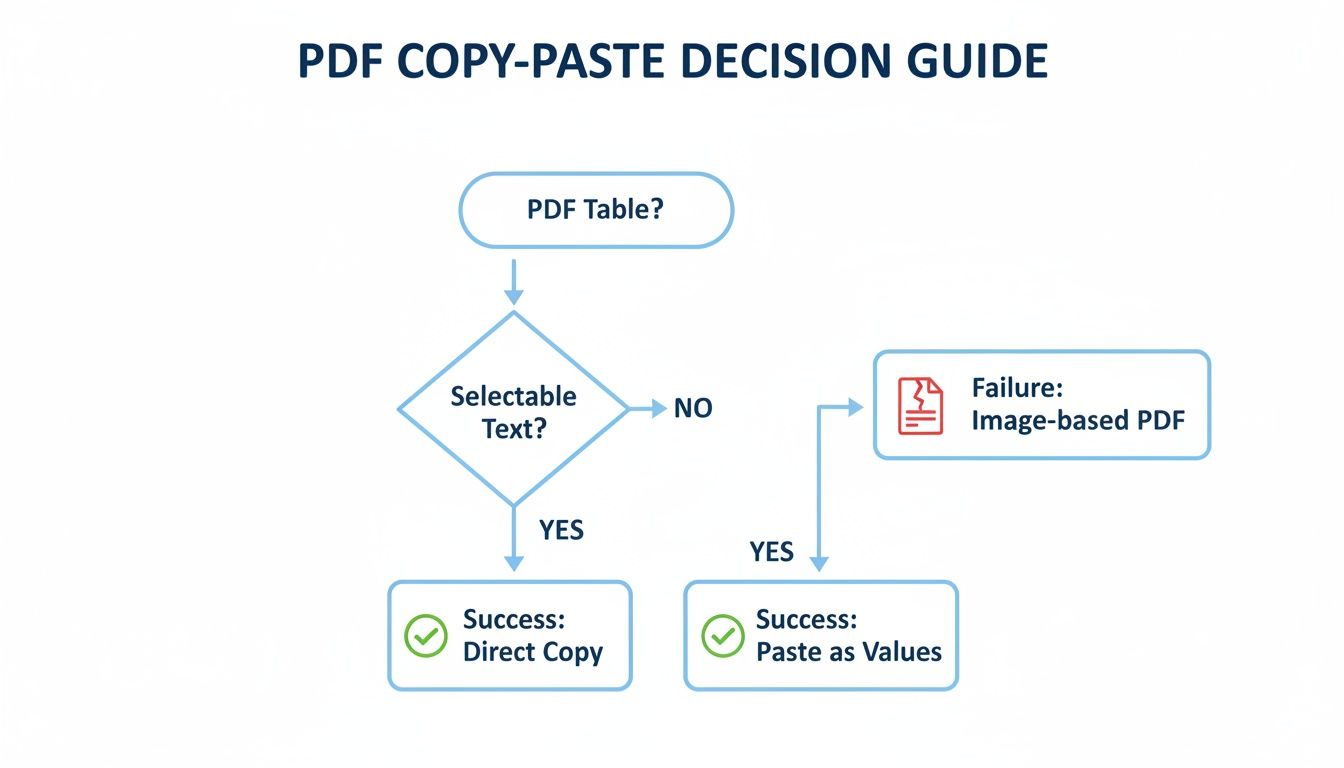
As you can see, that first attempt is often a bit of a gamble. If it fails, you're better off moving straight to a more robust tool rather than wasting time trying to manually fix a jumbled mess.
Choosing the Best Method to Copy a PDF Table to Excel
So, which one is right for you? It really boils down to balancing speed, accuracy, cost, and the type of PDF you have. To make this crystal clear, I've put together a quick comparison table.
| Method | Best For | Accuracy | Speed | Cost | Handles Scanned PDFs? |
|---|---|---|---|---|---|
| Manual Copy & Paste | A single, super-simple table in a clean, native PDF. | Low | Fast (for one) | Free | No |
| Excel 'Get Data' | One-off imports of well-structured native PDFs. | Medium-High | Fast | Included w/ Excel | No |
| Adobe Acrobat Pro | Frequent, reliable conversions of native PDFs. | High | Fast | Subscription | Yes (with OCR) |
| Dedicated OCR Tools | Extracting data from scanned or image-based PDFs. | Medium-High | Moderate | Varies | Yes (Core Function) |
| AI Parsing Platform | High-volume, automated workflows for any PDF type. | Very High | Fastest (at scale) | Subscription | Yes (Advanced OCR) |
My rule of thumb: If it's a one-time thing with a clean, digital PDF, start with Excel's 'Get Data' tool. But the second you hit a scanned document or find yourself doing the same task over and over, it's time to look at a dedicated tool like an OCR program or a full-fledged AI platform like DocParseMagic.
Ultimately, you see a clear trade-off. The free methods are great in a pinch for simple jobs, but they just don't have the muscle for complex or repetitive work. When your time and the accuracy of your data matter, investing in a specialized tool almost always pays for itself.
Now, let's dive into exactly how to use each of these methods.
Mastering Excel's Built-In PDF Import Tool
If you need to get a table out of a PDF, your first and best option might already be waiting for you. Most modern versions of Excel include a fantastic built-in feature designed for this exact problem, tucked away on the Data tab.
This tool, known officially as "Get Data From PDF," uses Excel's powerful Power Query engine to intelligently scan a PDF, identify the tables inside, and let you preview them before they ever hit your spreadsheet. It's a world away from the jumbled mess that a simple copy-and-paste often creates.
Kicking Off the Import Process
The first thing to remember is that you start this process from inside Excel, not by opening the PDF. Think of it as telling Excel to go out and fetch the data for you.
Here's how you get to it from the Excel ribbon:
- First, head to the Data tab.
- Look for the "Get & Transform Data" section and click Get Data.
- From the dropdown, hover over From File, then select From PDF.
A window will pop up asking you to find the PDF on your computer. Just select the file you need, click "Import," and Excel will start analyzing the document.
Choosing Your Table in the Navigator
After a moment, a "Navigator" window appears. This is where the magic happens. On the left, you'll see every table and page Excel managed to find in your PDF.
This is the best part. As you click on each item in the list, a live preview of that specific table shows up on the right. It’s an easy way to see if you've got the right data before you commit. You can instantly see how Excel has interpreted the rows and columns, giving you a chance to spot any weird formatting early on.
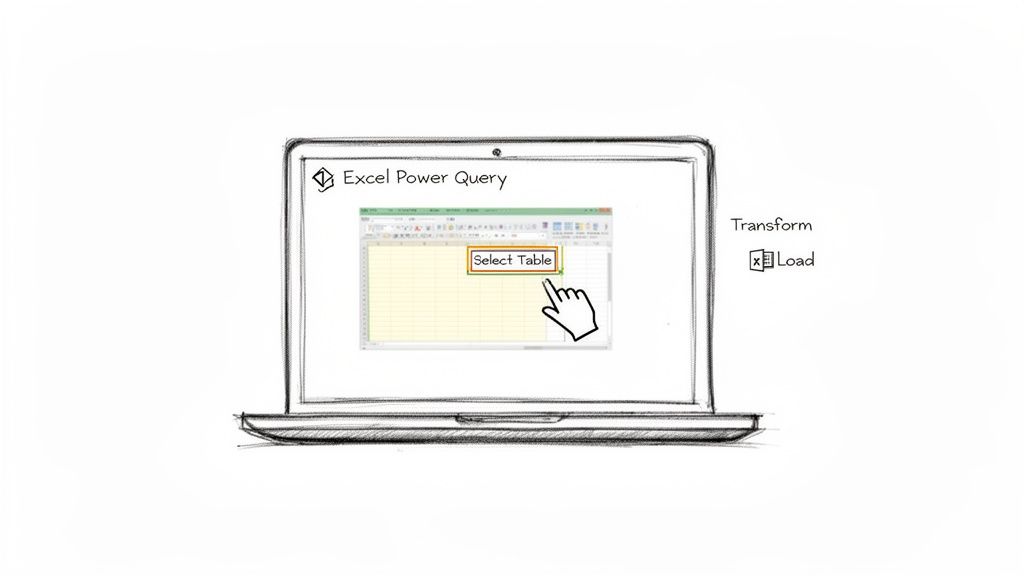
As you can see, you have total control over which piece of data you bring into your worksheet.
Once you’ve found the table you need, you’ll see two main buttons at the bottom: Load and Transform Data.
- Load: Think of this as the "easy button." Clicking it drops the table directly into a new worksheet, just as you see it in the preview. It's great when the data looks clean and you're ready to go.
- Transform Data: This is the pro move. It opens the Power Query Editor, a separate interface where you can clean, reshape, and fix your data before it gets to your spreadsheet.
My personal tip: I almost always choose Transform Data. It gives you so much power to fix common PDF issues, like columns formatted as text instead of numbers or extra header rows messing things up. It’s worth the extra click to get your data perfect from the start.
When to Use Excel's Built-In Importer
So, when is this the right tool for the job? Its biggest strength is recognizing and preserving the structure of a proper table, saving you from the nightmare of manually fixing columns and rows.
This method works especially well for:
- One-off jobs, like grabbing a single table from an annual report or a bank statement.
- Digitally created PDFs that were exported from another program (like Word or InDesign) and have clean table structures.
- Pulling tables from multiple pages of a long document into one consolidated view.
But it’s important to know its limits. This tool can’t work miracles with scanned documents or PDFs that are just images of a table. It needs actual, selectable text and data to work with. For those image-based files, you'll need a tool with Optical Character Recognition (OCR). If you want to dive deeper into the different ways to pull in data, check out our guide on how to get data from a PDF in Excel.
For the right kind of PDF, though, this free, built-in Excel feature is a surprisingly powerful way to copy a table from PDF to Excel without any fuss.
When the free, built-in tools just can’t get the job done, it’s time to call in the specialists. Dedicated software is the answer when you're dealing with complex documents or a constant flow of PDFs where getting the data right is non-negotiable. These tools are built from the ground up to do one thing really well: get clean, structured data out of stubborn PDFs.
For a lot of folks, the most logical first step is Adobe Acrobat Pro. After all, Adobe invented the PDF format, so their software has a native, foundational understanding of how these files are built. This gives it a serious edge when you need to copy a table from PDF to Excel.
Unlocking the Power of Adobe Acrobat Pro
Acrobat’s “Export PDF” function is a game-changer. Unlike simpler converters that just guess at the table structure, Acrobat actually reads the underlying code of the PDF. This means it can tell the difference between a real table and just a bunch of text formatted in columns far more reliably.
The process itself is refreshingly straightforward:
- First, open your PDF in Adobe Acrobat Pro.
- Head over to the Tools center and find Export PDF.
- Choose Spreadsheet as your export format, and then select Microsoft Excel Workbook.
- Click Export. Acrobat will do its thing and create a new
.xlsxfile for you.
More often than not, the resulting Excel file is remarkably clean. It usually keeps the columns, rows, and even some of the original formatting with impressive accuracy. It’s a fantastic option for anyone who works with PDFs regularly and already has an Adobe Creative Cloud subscription.
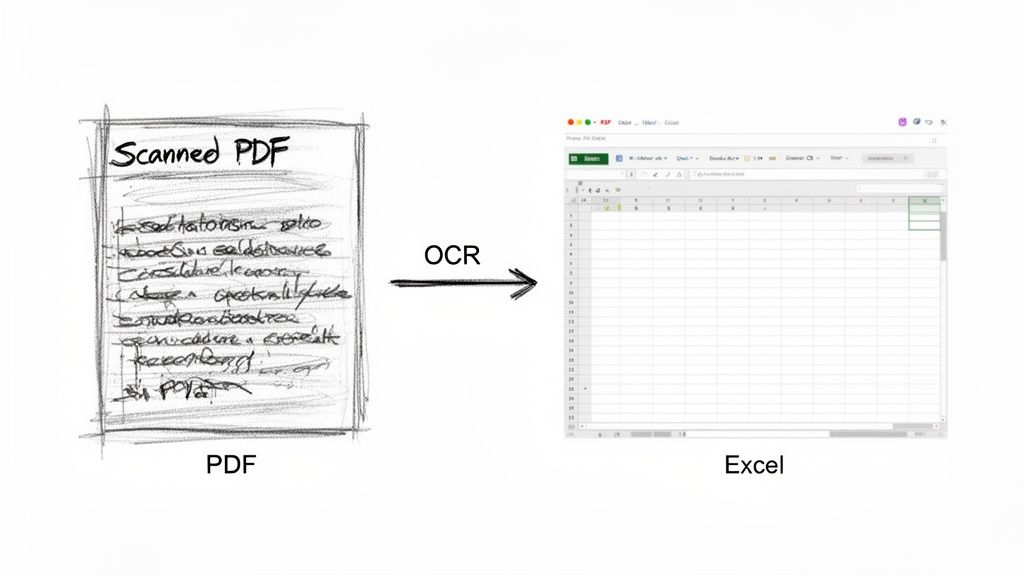
Tackling Scanned Documents with OCR
But what if your PDF isn't a digitally created file? What if it's just a scan of a paper invoice, a signed contract, or an old report? In that case, the PDF is basically just a flat picture. There's no text to select and no data structure to interpret.
This is where Optical Character Recognition (OCR) becomes your best friend. OCR is the technology that scans an image, identifies characters and numbers, and turns them into actual, editable text. Think of it as a digital translator that turns a picture of words into real words you can work with.
OCR bridges the critical gap between paper and digital. Without it, any data locked away in a scanned document would have to be re-typed by hand—a process that's both mind-numbingly slow and notoriously prone to error.
Plenty of dedicated tools, including Adobe Acrobat Pro, have powerful OCR engines built right in. When you open a scanned PDF, the software will often recognize it's an image and ask if you want to run OCR. Once the process is done, the "dead" text in the image becomes "live," selectable text that you can copy and export just like a normal PDF. To learn more about modern solutions, check out our guide on the best document data extraction software for business needs.
Getting the Best Results from OCR
While OCR technology is incredibly good, its accuracy lives and dies by the quality of the original scan. A blurry, skewed, or low-resolution image will inevitably trip it up and lead to mistakes.
To get the cleanest data possible:
- Start with a high-quality scan. Always aim for at least 300 DPI (dots per inch). This gives the software enough detail to work with.
- Ensure good lighting and contrast. Dark text on a clean, light background is ideal. Watch out for shadows or faded print.
- Straighten the document. A crooked table is much harder for the software to parse correctly. Most scanning software has a "deskew" feature—use it.
Even with a perfect scan, you should still plan on doing a little cleanup. OCR can make predictable mistakes, like confusing the letter 'O' with the number '0', or the lowercase 'l' with the number '1'. Always give the converted data a quick once-over.
When exploring your options, you'll also find specialized tools built for specific tasks, like a secure bank statement converter that is designed to handle the unique formatting of financial documents.
Accuracy is a huge deal for businesses relying on this data. In recent benchmarks, established tools like Adobe Acrobat Pro report table extraction accuracies from 92% to over 99% on native PDFs. But for scanned or poor-quality images, that accuracy can drop to between 85% and 95%, unless the tool uses machine learning to improve results. This difference really drives home why starting with a high-quality document is so critical for reliable data extraction.
Automating Data Extraction with AI-Powered Tools
When you go from handling a handful of documents a month to a few hundred, the game completely changes. Suddenly, even the most efficient manual methods—like Excel’s importer or Adobe’s export function—become frustrating bottlenecks.
This is the point where you stop thinking about one-off conversions and start thinking seriously about automation. For high-volume, repetitive tasks, you need a solution that doesn't just copy data but actually understands it. This is the world of automated document parsing, a modern approach that lets AI do the heavy lifting.
Beyond Conversion: The Power of AI Parsing
So, what exactly is AI parsing? It’s a technology that goes miles beyond simple data extraction. Instead of just grabbing blocks of text from a PDF, an AI-powered platform reads and interprets the document's structure and context, much like a human would.
Imagine an accounting team staring down a mountain of 500 vendor invoices at the end of the month. Manually, they’d have to open each PDF, hunt for the invoice number, find the total amount, and painstakingly copy every single line item into a master spreadsheet. It’s a recipe for burnout and human error.
An AI parser, on the other hand, can be taught what an "invoice number" or a "line item" looks like, no matter where it appears on the page. It can process invoices from hundreds of different vendors, each with its own unique layout, without needing a custom template for every single one.
The Real-World Impact of Automation
This intelligent approach delivers benefits that manual methods just can't touch. The most obvious one? The complete elimination of manual data entry. Instead of spending hours copying and pasting, the process becomes as simple as uploading a batch of files and letting the system do its thing.
Let's go back to that accounting team. With an automated system, they can upload all 500 invoices at once. The AI platform gets to work, identifying and extracting key data points from each document:
- Invoice Number and Date
- Vendor Name and Address
- Individual Line Items with quantities and prices
- Subtotal, Tax, and Grand Total
Within minutes, the platform spits out a single, perfectly structured Excel file with all this information, sorted and ready for analysis or import into their accounting software. There’s no human intervention, no risk of typos, and no need to double-check every cell. If you're looking to eliminate these kinds of tedious tasks, our detailed guide explains exactly how to automate data entry and reclaim your team's time.
This isn't just about speed; it's about achieving near-perfect accuracy at scale. An AI model doesn’t get tired or distracted, ensuring that the data flowing into your systems is clean and reliable every single time.
This level of automation is also a lifesaver for complex, multi-page documents. The AI can intelligently piece together tables that span across several pages—a task that often trips up even the best manual tools and leaves you with a formatting mess.
The Compelling Economics of Automation
The business case for adopting these tools is incredibly strong, especially now that pricing models are more flexible. Modern subscription and credit-based systems let businesses pay for what they use without a massive upfront investment.
Consider a small or medium-sized enterprise processing 5,000 invoices per month. A typical AI parsing service might cost around $12,000 annually. When you compare that to the estimated $36,000 to $90,000 in manual labor costs for the same volume of work, the savings are undeniable. That's a 3x to 7x cost improvement, and it doesn't even account for the value of faster financial closing cycles and avoiding costly data entry errors. For more data on these financial models, you can find great industry insights over at nanonets.com.
To get this kind of advanced automation, it helps to understand what makes these tools tick. Unlike basic converters, advanced AI scraper tools can be configured to navigate complex documents and extract specific, hard-to-reach information automatically. This is the core capability that allows modern platforms to handle such a wide variety of layouts with such high precision.
Ultimately, when you need to copy a table from PDF to Excel as part of a core business process, AI-powered automation isn't just a nice-to-have. It’s a strategic advantage that unlocks real efficiency, accuracy, and scalability.
Answering Your Top Questions
Even with the best tools, moving tables from PDF to Excel can throw a few curveballs your way. Let's tackle some of the most common snags you might hit and figure out the best approach for your specific problem.
How Do I Keep My Formatting When Copying a Table from PDF to Excel?
This is the big one, isn't it? We've all seen the mess a simple copy-paste can make. The trick is to use a method that reads the PDF's underlying structure, not just the text on the surface.
Excel's built-in "Get Data From PDF" feature is a fantastic first step. It's designed to recognize rows and columns, so it does a much better job of keeping everything organized than a manual copy. For an even cleaner conversion, the export function in Adobe Acrobat Pro is incredibly reliable and maintains high fidelity.
But what if "good enough" isn't good enough? When you absolutely need perfect formatting every single time, especially with complex tables, an AI-powered parsing tool is the way to go. You can set up a template once, and the tool will map the extracted data into your predefined Excel columns flawlessly, no matter how many PDFs you process.
What's the Best Way to Get a Table from a Scanned PDF?
A scanned PDF is really just a picture of a document, so standard extraction tools can't "read" the text. This is where Optical Character Recognition (OCR) comes into play. OCR technology scans the image and turns the printed characters into actual text data your computer can work with.
- For a one-off task: If you just have a few scanned documents, Adobe Acrobat Pro has a very capable OCR engine built right in. You can run it on your PDF to make the text selectable, then export the table to Excel.
- For accuracy and volume: If you're dealing with lots of scanned documents or the quality isn't great, you'll get far better results from a dedicated OCR tool or an intelligent parsing platform. These advanced systems are built to handle tricky layouts and less-than-perfect scans, which means fewer errors and less time spent on manual corrections.
A quick tip from experience: The quality of your scan makes all the difference. For the best OCR results, always start with a clear scan at 300 DPI or higher. Garbage in, garbage out, as they say.
How Can I Pull Data from Hundreds of PDFs into a Single Excel File?
Tackling hundreds of PDFs one by one is a recipe for headaches and human error. This is where you need to stop thinking manually and start thinking about automation. A document parsing platform that handles batch processing is exactly what you need.
You can simply upload all of your PDFs in one go. The software gets to work, intelligently finding and pulling the specific tables you need from every single file.
Once all the data is extracted, the platform consolidates it for you, compiling everything into one clean, organized Excel sheet. This kind of automated workflow transforms a week of tedious work into a task that takes just a few minutes, all while ensuring your final data is accurate and ready for analysis.
Stop wasting hours on manual data entry. DocParseMagic turns your messy PDFs into clean, analysis-ready spreadsheets in minutes. Upload your documents and let our AI do the heavy lifting—no templates, no coding, and no more copy-paste errors. Try DocParseMagic for free and see how much time you can save.