Converting Word Docs to Excel a Guide for Clean Data
Getting Your Data Out of Word and Into Excel: A Practical Guide
Getting data from a Word document into an Excel spreadsheet should be easy, right? Sometimes, a quick copy-paste is all you need for a simple table. But as soon as you're dealing with anything more complex, like invoices, detailed reports, or long lists, that simple task becomes a time-consuming nightmare.
This guide will walk you through all the options, from the basic manual methods to the powerhouse automated tools that can give you back your day. We'll focus on getting clean, accurate data you can actually use.
The Real Cost of Manual Data Entry
If you’ve ever spent an afternoon meticulously retyping rows from a Word document into Excel, you know the pain. It’s a common frustration for anyone in accounting, insurance, or procurement. That endless cycle of highlight, copy, paste, and reformat is more than just tedious—it's incredibly costly.
Every minute spent manually transferring data is a minute you're not spending on the strategic work that matters. Think about pulling line items from vendor invoices or trying to organize a massive commission report. You're not analyzing the data; you're just being a data mule.
Hidden Errors Can Wreak Havoc
Beyond the lost time, manual data entry is a minefield of potential errors. It's so easy for a stray space or a misplaced decimal to throw off an entire dataset. These tiny mistakes are tough to catch but can lead to bad calculations and flawed reports.
This is especially dangerous during critical times like the month-end close process, where one small error can have a massive ripple effect. The demand for a better way is obvious. For documents with tricky nested tables, manual conversion error rates can climb as high as 30%. It's no wonder that nearly 70% of managers point to document-heavy workflows as their biggest bottleneck.
So, how do you decide which method to use? This flowchart breaks it down based on what you're working with.
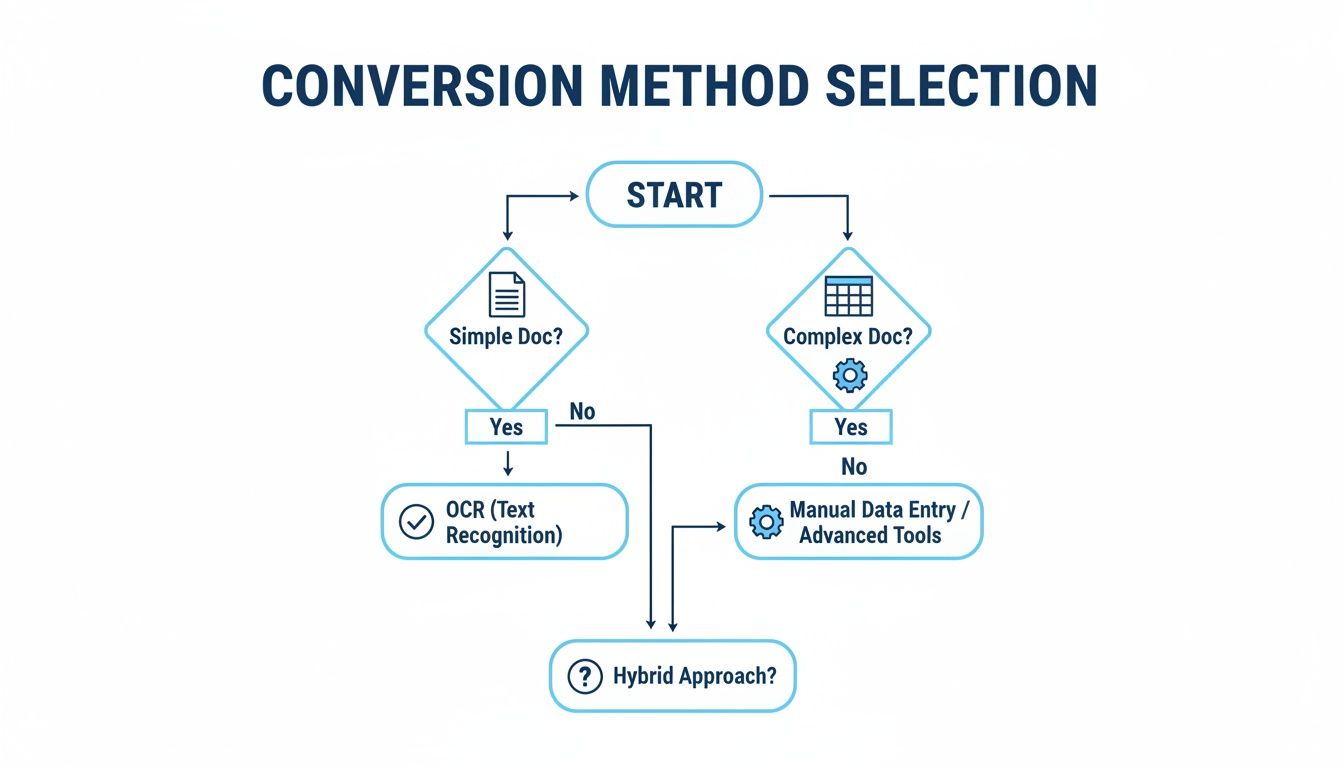
As you can see, simple, clean documents are fine to handle manually. But the moment things get complex, with varied layouts or scanned content, automated parsing tools are your best bet.
Let’s dive into the different methods so you can finally reclaim your time and, more importantly, trust your data again.
Which Word to Excel Method Is Right for You?
Here’s a quick rundown of the main approaches we'll cover. Use this table to get a feel for which method best fits your specific needs, considering the type of document you have and how much time you want to spend.
| Method | Best For | Speed | Accuracy | Technical Skill |
|---|---|---|---|---|
| Manual Copy & Paste | Simple, well-formatted tables | Fast (for small jobs) | Low to Medium | Low |
| Import from Text/File | Plain text lists, structured data | Medium | Medium to High | Low to Medium |
| Power Query | Complex, repeatable tasks | Slow setup, then fast | High | Medium to High |
| VBA Scripts | Custom, repetitive conversions | Slow to create, then very fast | Very High | High |
| Automated Parsers | Invoices, reports, varied layouts | Very Fast | Very High | Low |
Ultimately, choosing the right tool depends on balancing the one-time effort against the long-term gains in speed and accuracy.
Using Excel's Built-In Data Import Tools
Before you start hunting for specialized software, it's worth taking a closer look at the powerful tools you already have in Excel. Many of us instinctively reach for a quick copy-paste, but that often results in a formatting nightmare that takes longer to fix than it would have to retype everything.
But even the classic copy-paste can work beautifully for simple, clean tables if you know the trick. The key is to sidestep the standard Ctrl+V. Instead, right-click where you want the data to go and look for the Paste Special options. When you choose Match Destination Formatting, you're telling Excel to forget all the fonts, colors, and wacky spacing from Word and just pour the data neatly into your spreadsheet's existing format. This one small move can save you a mountain of cleanup work.

Go Beyond Basic Pasting with Power Query
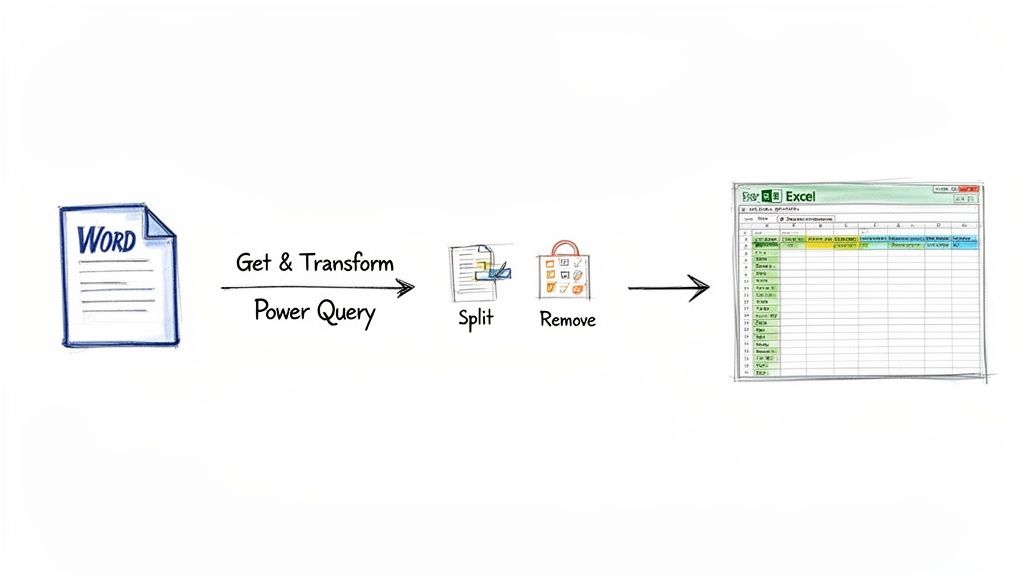
What if you're dealing with something more complex than a single, perfect table? This is where you need to bring in the heavy artillery: Excel's own Get & Transform Data engine, better known to data pros as Power Query. Frankly, it’s Excel’s best-kept secret for this kind of work.
Power Query is so much more than an import tool. It lets you build a repeatable, automated recipe for cleaning and structuring your data. This is an absolute game-changer if you get the same kind of Word document over and over, like a weekly report or monthly invoice summary. You set up the import and cleaning steps just once, and from then on, a simple click of the "Refresh" button will process new files for you.
Pro Tip: Power Query thrives on messy data. It's brilliant at tasks that are tedious to do by hand, like unpivoting tables, splitting one column into several, or stripping out useless header and footer rows before they even hit your worksheet.
Let's say you've got a multi-page product list from a Word doc. A direct copy-paste would be a disaster. The smarter approach is to first save that Word file as a Plain Text (.txt) file. This simple step strips away all the formatting junk, leaving you with raw text that Power Query can easily digest.
With your data in a .txt file, Power Query can:
- Pull the data in directly from the text file.
- Split columns that are stuck together (like "SKU-ProductName").
- Filter out junk rows like page numbers, document titles, or blank lines.
- Turn the first row of data into proper table headers.
What starts as a messy block of text becomes a pristine, analysis-ready Excel table in just a few clicks.
Your First Power Query Import
Getting started is actually pretty simple. In Excel, go to the Data tab and select From Text/CSV. Find the .txt file you saved, and Excel will launch the Power Query Editor. This is where the magic happens.
You'll immediately see a preview of your data and a whole panel of tools to transform it. You can use intuitive buttons like "Split Column" or "Remove Rows" to tidy things up. Every action you take is recorded as a step, creating that repeatable recipe for the next time you have a similar file.
If you want to really get a handle on this, our guide on data parsing in Excel dives much deeper into these powerful features.
By getting comfortable with Power Query, you gain incredible control over converting Word docs to Excel. You ensure the data isn't just transferred, but that it arrives perfectly structured and ready for work.
When to Use Online Converters and Their Hidden Risks
Online file converters seem like the perfect magic wand for turning a Word doc into an Excel spreadsheet. You drag, drop, click a button, and poof—your file appears. And sometimes, they work just fine. If you have a one-off, super simple conversion with non-sensitive data, like a public product list or a school project, they can be a real time-saver.
The main draw is pure convenience. There’s no software to install and no learning curve. It's the go-to solution when you're in a rush and just need to get data from A to B without thinking too hard. For a Word document with a single, perfectly clean table, many of these tools can spit out a decent Excel file.
But that convenience? It comes with some serious strings attached, and it's crucial to understand them before you upload a single file.
The Major Pitfalls of Free Online Tools
The single biggest issue with free online converters is data privacy. As soon as you upload that document, you're sending your information to a third-party server. You have no real idea where that server is, who can access it, or what happens to your data after you close the browser.
Think twice before uploading any document that contains:
- Confidential financial data like invoices, bank statements, or payroll records.
- Sensitive client details such as names, addresses, or contact information.
- Proprietary business information like internal sales reports or strategic plans.
A good way to think about it: using a free online converter for a sensitive file is like leaving a copy of your company’s financial records on a public park bench. You’ve completely lost control over who sees it.
Security aside, these tools often just don't work very well from a technical standpoint. They’re notorious for mangling complex tables, merging cells incorrectly, and spitting out a jumbled mess of data that takes longer to fix than it would have to copy and paste manually. If your document has anything remotely complicated, like nested tables or specific formatting, the output is often completely unusable.
Limitations in a Business Context
The market for file converter software is exploding, projected to jump from $3.48 billion in 2023 to nearly $7.88 billion by 2032. But here’s the irony: teams still spend a staggering 40-50% of their time on rework, fixing the very formatting and data errors caused by basic converters. For more details, you can read about the file converter software market and its trends.
In fact, one UK healthcare study found that switching to an intelligent AI-based converter dramatically cut processing times precisely because it could handle complex documents that standard online tools butchered.
In the end, while an online converter might feel like a clever shortcut, it’s a tool best left for the simplest, least important tasks. For any serious business process involving converting Word docs to Excel, relying on these free services introduces unacceptable risks to both your data security and its accuracy.
Let a Specialized Tool Do the Heavy Lifting: DocParseMagic
Let's be honest. The manual methods and even Excel's built-in tools can only take you so far. When you're drowning in messy, inconsistent documents—the kind that businesses actually run on—you hit a wall pretty fast. This is where dedicated parsing platforms like DocParseMagic really shine, moving beyond simple conversion into the realm of intelligent data extraction.
This isn't about just changing a file from .docx to .xlsx. It’s about understanding the content inside the document.
Think about a sales manager trying to track commissions. They get reports from ten different vendors, all in Word. The problem? The layouts are all slightly different. One report labels the field "Sales Rep," another calls it "Agent Name," and a third just has a column for "Name." A basic converter would choke on this, spitting out a jumbled, useless spreadsheet.
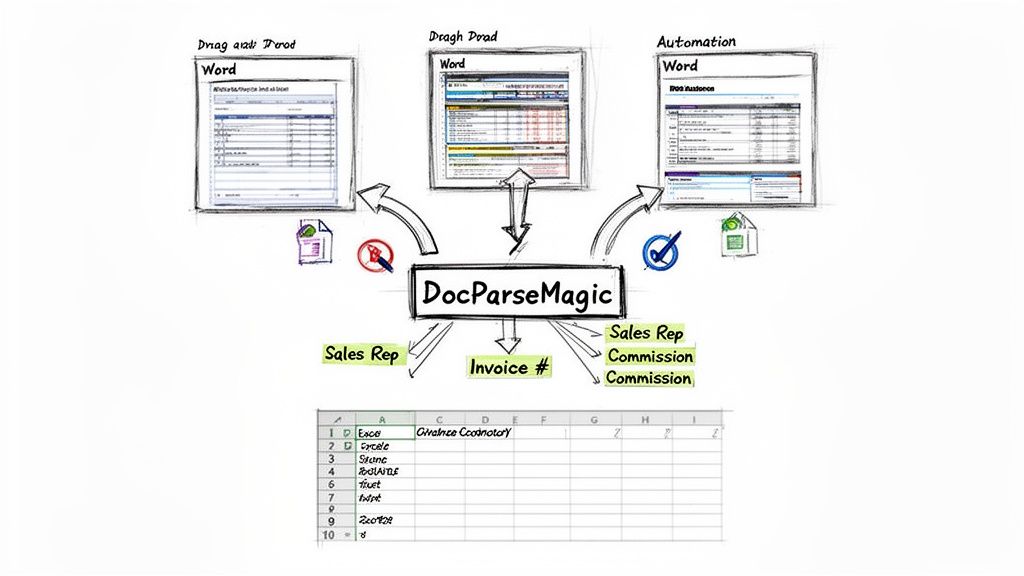
DocParseMagic, on the other hand, is built for this kind of chaos. You can configure it to recognize all those variations. Just drag and drop the files, and the tool intelligently plucks out the key fields—'Sales Rep', 'Invoice Number', and 'Commission Amount'—and lines them up in clean, standardized Excel columns.
Taming Real-World Document Complexity
The real magic here is how these tools handle documents that were never meant for easy data transfer. We're talking about the tough stuff:
- Invoices with endless line items: Effortlessly pulling each product, quantity, and price from a long, multi-page invoice into its own row.
- Dense insurance policies: Finding and extracting specific details like policy numbers, coverage amounts, and effective dates from a wall of text.
- Competing vendor proposals: Grabbing key data points from wildly different proposal formats so you can compare terms and pricing in a single, organized spreadsheet.
This kind of automation turns a soul-crushing manual task into a simple, background workflow. You get data that’s ready for analysis in seconds, not hours. Curious how it works under the hood? You can learn more by exploring our guide on document data extraction software.
A Smarter Path to Clean Data
The market for data conversion is exploding, projected to jump from just under $39 billion in 2022 to over $540 billion by 2032. But here’s the catch: standard methods often introduce 20-35% data errors because they just can't preserve a document's original structure.
Studies show that 85% of finance professionals lose five to ten hours every week to manual data chores. No-code platforms reclaim that time by processing Word files, PDFs, and even scans to produce audit-ready, perfectly organized tables.
The process itself couldn't be simpler. As you can see below, it’s all drag-and-drop.
This no-code approach means anyone on your team can automate data extraction. No technical background needed.
Key Takeaway: Shifting your mindset from "converting a file" to "extracting data" changes everything. You're no longer just moving text around; you're creating structured, reliable information ready for immediate analysis, reporting, and decision-making.
Looking ahead, advanced solutions are getting even smarter as they leverage Large Language Models (LLMs) to boost accuracy. These models can understand context and meaning, which is a massive leap beyond simple text recognition.
Ultimately, using a specialized tool to get data from Word into Excel is about more than saving time. It’s about accuracy. It’s about reducing risk. It’s about freeing up your team to do valuable work instead of getting bogged down in the mind-numbing, error-prone cycle of manual data entry. It’s the difference between fighting your documents and making them work for you.
Tips for Preparing and Verifying Your Data
Getting your data into Excel is a huge step, but the job isn't done until you’ve confirmed that data is actually correct. I’ve seen it time and time again: success in converting Word docs to Excel often hinges on the small details you handle before and after the process. A few minutes of prep and verification can save you hours of frustration down the road.
Think of it like cooking. The quality of your ingredients (your source data) and a final taste test (verification) are just as important as the recipe you follow.
Pre-Conversion Best Practices
If you have any control over the original Word document, a little bit of prep goes a long, long way. The cleaner the source file, the smoother the conversion will be, no matter which method you're using.
-
Use Proper Tables: Avoid the temptation to create tables using tabs or spaces. It might look okay in Word, but it’s a nightmare to parse. Always use Word’s built-in table feature (
Insert > Table). This gives conversion tools a clear, logical structure to work with. -
Eliminate Merged Cells: Merged cells are the absolute enemy of clean data conversion. They cause all sorts of chaos, shifting data into the wrong columns. Before you do anything else, unmerge all the cells in your Word tables. You're aiming for a clean grid where every cell holds just one piece of data.
-
Standardize Your Layout: If you find yourself converting the same type of document over and over, do yourself a favor and create a standard layout. When headers and data structures are consistent, both manual copy-pasting and automated tools become dramatically more reliable.
Post-Conversion Verification Checklist
Alright, the data is in Excel. Now it's time to put on your detective hat. Never just assume everything transferred perfectly—it rarely does. Spend a few moments running through these checks to spot common errors and make sure your data is trustworthy.
A quick spot-check is your best defense against those subtle-but-costly data issues that can completely throw off your analysis.
The goal of verification isn't just to find mistakes; it's to build confidence in your data. Accurate data leads to better decisions, whether you're analyzing sales figures, reconciling invoices, or managing project expenses.
Here's what I always look for after a conversion:
-
Check for Data Type Mismatches: This is a classic. Dates showing up as plain text, or numbers that Excel refuses to treat as numbers, are incredibly common. An easy way to spot this is to use Excel’s filters. If you try to sort a date column and it doesn't order chronologically, you’ve got text-formatted dates.
-
Verify Row and Column Counts: It’s simple, but it’s effective. Does the number of rows in your new spreadsheet match the number of records in the original Word doc? This is a fast way to see if any records got dropped or accidentally duplicated during the import.
-
Perform Spot-Checks: You have to do this. Randomly pick a few rows from your Excel sheet and compare them, cell by cell, against the Word document. This manual check is great for catching weird formatting quirks or data shifts that an automated process might have missed.
-
Use Basic Formulas for Totals: If you have columns with numbers, drop a quick
SUMformula at the bottom. Does the total match what you expected from the source document? This simple calculation is one of the most powerful validation techniques you have.
To truly get to a state of "flawless tracking," you have to internalize this mindset of structure and verification. Adopting tools like a pre-built expense report template in Excel for flawless tracking can really help reinforce these good habits.
Common Questions About Word to Excel Conversion
Even when you know the basic steps, converting Word docs to Excel can throw you a curveball. You might get a document with dozens of tables, or a scanned PDF that just won't cooperate. I've run into these issues countless times, so let's walk through some of the most common questions and how to solve them.
Getting a handle on these specific problems can save you hours of frustrating trial and error. Here’s what most people struggle with.
How Do I Convert a Word Doc with Many Tables into One Excel Sheet?
If you've ever tried to manually copy and paste 20 tables from a Word file, you know it's a nightmare. It’s not just slow; it’s a recipe for mistakes. For this job, you need something more powerful. Your two best bets are Excel’s own Power Query or a dedicated automated tool.
Power Query is a fantastic option. You can point it to your Word document (saving it as an HTML or Text file often helps), and its engine is smart enough to see each table separately. From there, you can easily combine—or append—them into one master table before loading the final result into your worksheet.
A no-code platform like DocParseMagic takes this a step further. It's built specifically for this kind of task. You just upload the file, and it automatically finds every single table, pulls the data, and merges it all into one clean Excel file for you. No manual steps needed.
What Is the Best Way to Handle Scanned Word Documents?
This is a big one. Standard conversion methods see a scanned document or an image of a table as just that—a picture. They can't read the text inside. To get around this, you need a technology called Optical Character Recognition (OCR), which essentially teaches the computer to read text from an image.
You'll find plenty of free online tools with basic OCR, but I've found their accuracy can be shaky, especially with less-than-perfect scans or complex table layouts.
A dedicated document parsing tool is the clear winner here. It builds high-quality OCR right into the process. You can feed it a scanned document, and it will perform the OCR scan first, then intelligently pull the structured data into proper Excel columns. It’s a seamless workflow that solves a problem most other methods can't touch.
Can I Keep My Original Word Formatting in Excel?
This question comes up all the time, and my advice is usually to let go of the original formatting. Trying to make your Excel sheet look exactly like the Word document—with the same colors, fonts, and cell shading—is often more trouble than it's worth.
The real goal of converting Word docs to Excel is to preserve the data's structure, not its look.
Here's what to focus on instead:
- Structure Over Style: Clean, raw data in a well-organized table is infinitely more valuable for analysis than a spreadsheet that looks pretty but is a mess to work with.
- Say No to Merged Cells: Trying to keep the original layout often creates merged cells in Excel. These are notorious for breaking formulas, filters, and pivot tables.
- Do Your Formatting in Excel: Once the clean data is in your spreadsheet, use Excel’s own powerful styling tools to make it look good. This way, your data stays clean and usable, and you still get a professional-looking result.
Stop wasting time on manual data entry. DocParseMagic intelligently extracts information from your messy Word docs, PDFs, and scans, turning them into clean spreadsheets automatically. Try it for free and see how much time you can save. Get started at https://docparsemagic.com.