Convert Handwriting to Text: Quick Guide for Accurate Digital Transcription
If you're dealing with stacks of handwritten invoices, field reports, or client intake forms, you know the pain of manual data entry. It’s a huge bottleneck. Instead of that information working for you, it's stuck on paper, creating a slow, tedious chore for your team.
The good news is you can convert handwriting to text with current tech, turning those messy scribbles into clean, digital data that you can actually use.
Why You Need to Move Beyond Manual Data Entry
Let's be blunt: manual data entry is a business killer. It’s not just annoying; it’s a direct drain on your resources and a magnet for expensive mistakes. Every hour someone spends trying to read and re-type information is an hour they could have spent on work that actually grows the business.
The process is slow and, worse, it's incredibly prone to error. I've seen studies showing manual data entry error rates can be as high as 4%. That might not sound like much, but think about what that looks like in the real world:
- Field Service Reports: A technician’s notes on parts and hours are entered late, which means you can't send the invoice. Now you have a cash flow delay and a client wondering where their bill is.
- Client Intake Forms: A single typo in a new client's email address can lead to missed follow-ups and a terrible first impression. You’ve lost them before you even started.
- Accounting Invoices: Misreading a number on a vendor invoice—say, a 3 for an 8—can cause overpayments that are a nightmare to find and claw back.
These little issues pile up, creating serious drag on your operations. This isn't just about saving a few minutes here and there. It’s about getting accurate data, speeding up your entire workflow, and finally unlocking the value trapped in all that paper. The goal is to get from a physical document to usable data without the friction.
Of course, the best way to deal with paper is to avoid creating it in the first place. Many teams are already going digital from the start, and this guide on How to Take Notes on iPad is a great starting point for making that switch.
The Modern Conversion Workflow
At its core, the process for converting handwriting to text is pretty straightforward. It boils down to three main stages: capturing the document, using AI to convert it, and then organizing the digital data.
This flowchart shows how it all fits together, moving from a physical page to structured, organized information.
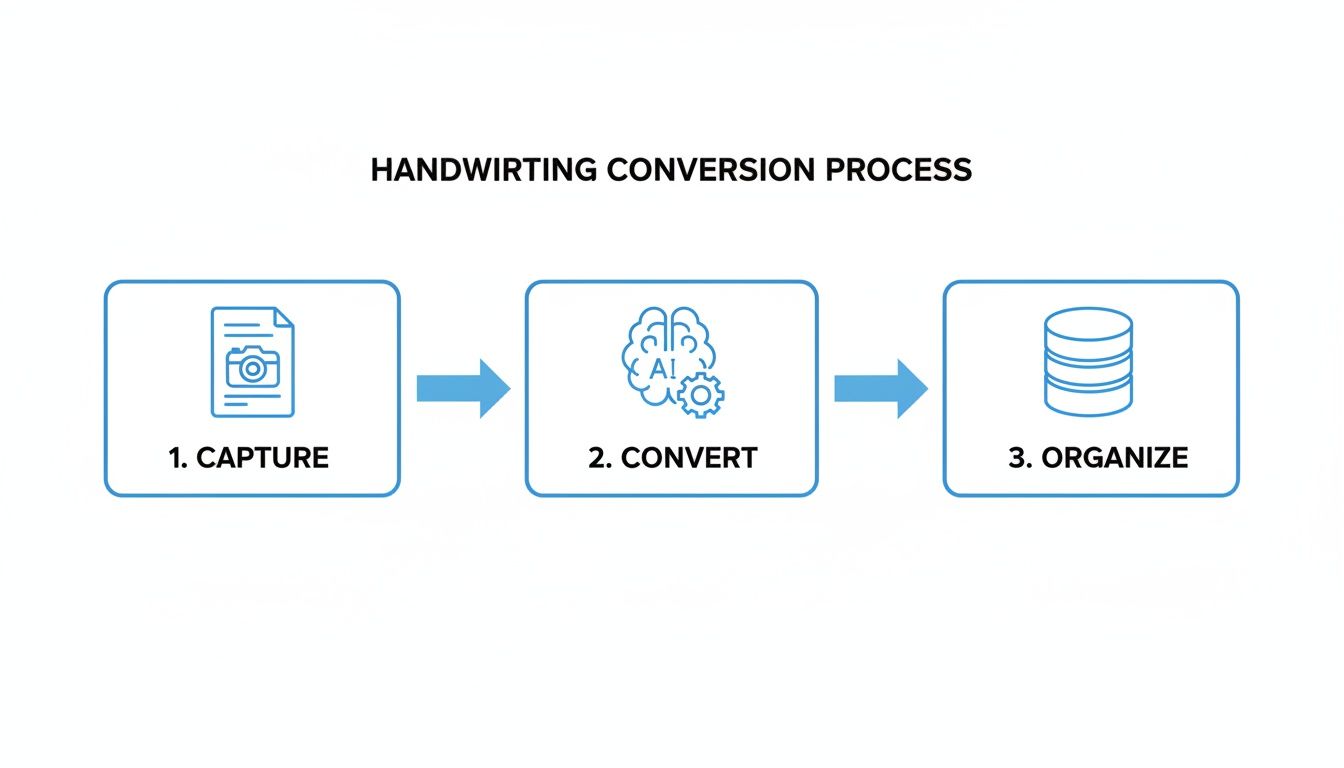
As you can see, success here isn’t about finding one magic tool. It's about building a solid, repeatable process. Once you get each of these steps right, you can reliably turn those piles of paper into searchable, valuable assets for your business.
Capturing a Perfect Digital Copy of Your Document
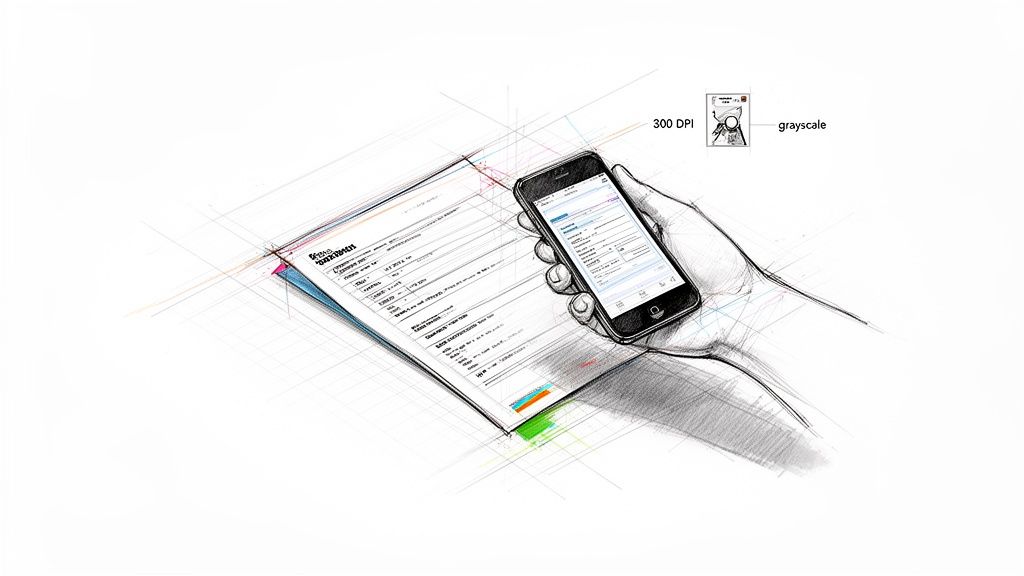
The success of any handwriting conversion project hinges on one thing: the quality of your initial scan. Think of it this way—if you hand an AI a blurry, crooked, or poorly lit image, you’re going to get a garbled mess of text back.
It’s the classic "garbage in, garbage out" problem. Taking an extra 30 seconds to get a clean digital copy is the single best investment you can make. Whether you’re using a dedicated flatbed scanner or just the phone in your pocket, a few tweaks can make all the difference.
Using a Flatbed Scanner
If you have a dedicated scanner at your desk, you’re in a great position to control the image quality. But don't just hit the default "Scan" button and hope for the best. You need to get into the settings to optimize for text recognition.
Here’s what I recommend focusing on for the best results:
- Resolution: Stick with 300 DPI (dots per inch). It's the sweet spot. Anything lower can make the text look pixelated to the AI, and anything higher just creates massive files without much benefit for accuracy.
- Color Mode: Always choose grayscale. This mode captures the subtle tones of the ink and paper, giving the recognition engine more data to work with than a simple black-and-white scan would. Full color is usually overkill.
- File Format: Save your files as PNG or TIFF. These are "lossless" formats, meaning they don't compress the image in a way that creates smudges or artifacts. JPEGs, on the other hand, can introduce compression noise that confuses the software.
Your goal isn't a pretty picture of the document; it's a functional map for the AI. High contrast, sharp lines, and zero distortion are what truly matter.
Getting a Great Scan with Your Smartphone
When you're out in the field, your phone is your scanner. Modern scanning apps are surprisingly powerful and often more convenient than a bulky office machine. The biggest mistake people make is simply opening their camera and snapping a quick photo. A dedicated scanning app is a much better tool for the job.
Apps like Microsoft Lens or Adobe Scan automatically find the document's edges, fix the perspective so it looks like a flat-on scan, and smooth out the lighting to get rid of shadows. One user who was digitizing old journal entries found this took just 18 seconds per page—a tiny amount of time for a much cleaner result. This methodical approach is essential whether you're digitizing your index card recipes or capturing handwritten work orders on a job site.
Scanning Best Practices for Maximum Accuracy
To get the best possible scan every time, it helps to see what works and what doesn't. This quick comparison shows how small changes in your technique can have a big impact on the final result.
| Practice | Poor Technique (Low Accuracy) | Recommended Technique (High Accuracy) |
|---|---|---|
| Lighting | Dim, uneven light with harsh shadows. | Bright, indirect light from an overhead source. |
| Angle | Capturing the image from an angle. | Holding the phone parallel to the flat document. |
| App | Using the default camera app. | Using a scanning app (like Microsoft Lens). |
| Focus | Letting the image be slightly blurry. | Tapping the screen to ensure sharp focus on text. |
Following these simple rules gives the AI a clean, readable source document to work from. This drastically cuts down on transcription errors and saves you a ton of time on manual corrections later. If you want to explore this topic further, we cover more advanced tips in our guide on how to scan documents to Excel.
Choosing the Right Handwriting Recognition Tool
Okay, you’ve got a clean digital copy of your document. Now comes the crucial part: picking the software to actually read the handwriting. This is a common stumbling block because not all "text recognition" tools are built for the same job. Getting this wrong can completely derail your project.
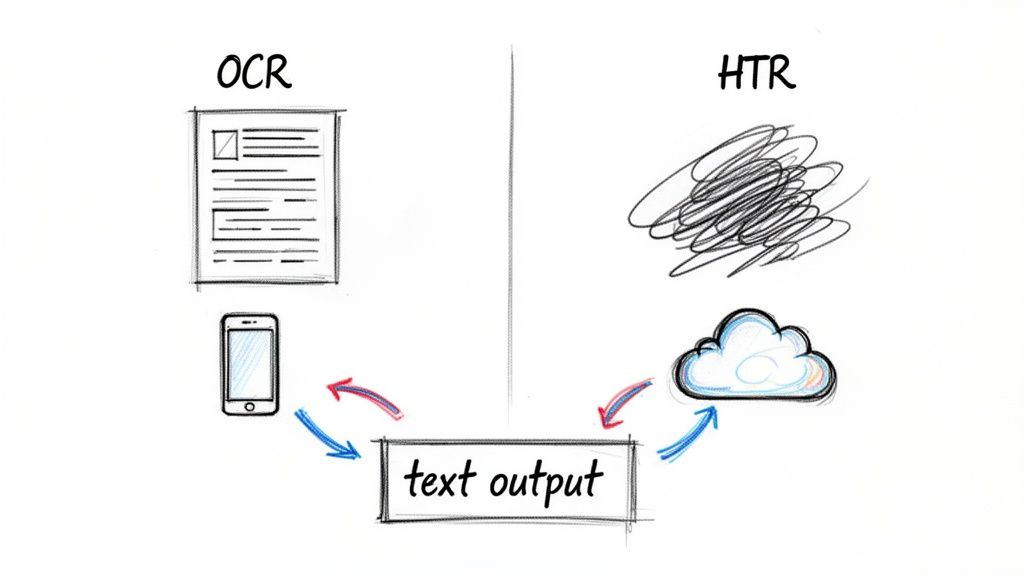
The first technology people usually think of is Optical Character Recognition (OCR). It’s an absolute workhorse for turning clean, printed text—like the kind you see on a typed invoice or in a book—into editable digital words. We cover this in-depth in our guide on what optical character recognition is and how it works.
But when it comes to the wild, unpredictable nature of human handwriting, standard OCR just can't keep up. For that, you need a specialist.
Why HTR Is What You Really Need for Handwritten Notes
Enter Handwriting Text Recognition (HTR). You might also see it called Handwriting OCR, and it’s a specific type of AI built from the ground up to decipher the unique loops, slants, and scribbles of handwritten script.
Where OCR looks for consistent, uniform characters, HTR uses sophisticated machine learning models that have been fed millions of different handwriting examples. It learns to read in context, figuring out that a messy squiggle is an "a" and not an "o" based on the words around it. This is exactly what makes HTR essential for tackling handwritten field notes, messy client intake forms, or even decades-old historical records.
I can't stress this enough: using a standard OCR tool on a handwritten document is like asking a spell-checker to translate a foreign language. You might get a few recognizable words, but the final output will be a mess.
Tools for Quick Jobs and Personal Use
For a one-off task or just digitizing your own notes, you don't need to bring out the heavy machinery. A simple mobile app is often your best bet, bundling the scanning and HTR into one easy workflow.
A fantastic example is Microsoft Lens. You can snap a picture of a whiteboard after a meeting or a page from your notebook, and its built-in HTR will pull the text right out. From there, you can copy it, share it, or send it straight to OneDrive. It’s perfect for anyone who just needs to get handwritten information onto their computer without any fuss.
When You Need to Scale Up: Cloud-Based HTR Services
Mobile apps are great, but they won’t work when you’re facing a mountain of handwritten documents. For businesses that need to process hundreds or thousands of pages, dedicated cloud-based HTR services are the only way to go. These platforms are built for volume and accuracy.
- Google Cloud Vision AI: This service is known for its incredibly high accuracy and broad language support. If you're dealing with documents from all over the world, Vision AI is a top contender for getting precise transcriptions.
- Amazon Textract: Textract is more than just a transcriber. It’s smart enough to understand the structure of a document, meaning it can identify and extract handwritten data from forms and tables directly into an organized format. This is a game-changer for processing things like applications, claims, and invoices.
The need for these powerful HTR systems is skyrocketing. The market is projected to jump from $2.84 billion in 2024 to over $10 billion by 2033. Much of this explosive growth in the AI market comes from massive digitization efforts in regions like Asia-Pacific, where billions of handwritten government and business forms need to be processed.
In the end, the "best" tool is the one that fits your specific situation—your document volume, your budget, and how you plan to use the data.
Fine-Tuning Your Text for Maximum Accuracy
Even the most advanced HTR tools aren't perfect. When you're converting handwriting, a 95% accuracy rate sounds great on paper, but that final 5% is where the real problems hide. A single wrong digit can throw off an invoice total, a misspelled name can sour a client relationship, and a misunderstood instruction can derail a project.
Thankfully, you don't have to settle for "good enough." With a bit of prep work before conversion and a quick review after, you can bridge that gap and turn slightly flawed text into reliable, business-ready data. These small adjustments make a massive difference in the final quality.
Pre-Processing: Setting the AI Up for Success
Before you even send your document to a recognition tool, a few simple tweaks to the image can dramatically improve the outcome. Think of it as giving the AI a clean, easy-to-read page instead of a crumpled, faded one.
- Boost the Contrast: Jump into any basic image editor—even the one built into your phone—and make the ink darker while lightening the paper. This sharp distinction helps the AI see the characters clearly.
- Straighten and Crop: If the photo was taken at an angle or has a messy desk in the background, use the "straighten" or "perspective" tool to square it up. Then, crop out everything that isn't the document itself. This eliminates distracting visual noise.
These fixes take just a minute but prevent the HTR software from getting confused by shadows, weird angles, or background textures. You’re giving it the best possible source to work with.
Post-Processing: The Human Touch After Conversion
Once the AI has done its job, you'll have a block of raw text. Now it’s time for a quick, essential review to catch the common mistakes that machines often make.
From my experience, HTR models consistently stumble on similar-looking characters. They might read a '5' as an 'S', an 'l' as a '1', or an 'O' as a '0'. A quick "Find and Replace" for these common mix-ups can fix dozens of errors in seconds.
Here's a pro tip: create a custom dictionary. If your business relies on specific jargon, acronyms, or unique client names, add them to a custom list in your word processor. This stops the spell-checker from incorrectly "fixing" terms it doesn't recognize.
Getting this right is becoming more critical every day. The handwriting recognition market, valued at $1,276.06 million in 2023, is expected to skyrocket to $3,293.06 million by 2032. This explosive growth is driven by businesses that can't afford errors—in fact, over 59% of enterprise users need highly secure and precise conversions for things like handwritten field service reports and contractor timesheets. You can dive deeper into the trends with this full market analysis on handwriting recognition.
This fine-tuning process isn't about retyping everything by hand. It's about making smart, targeted edits that ensure your final document is truly accurate and trustworthy. With that clean text in hand, you’re ready to structure it for automated analysis.
Turning Raw Text into Structured Business Data
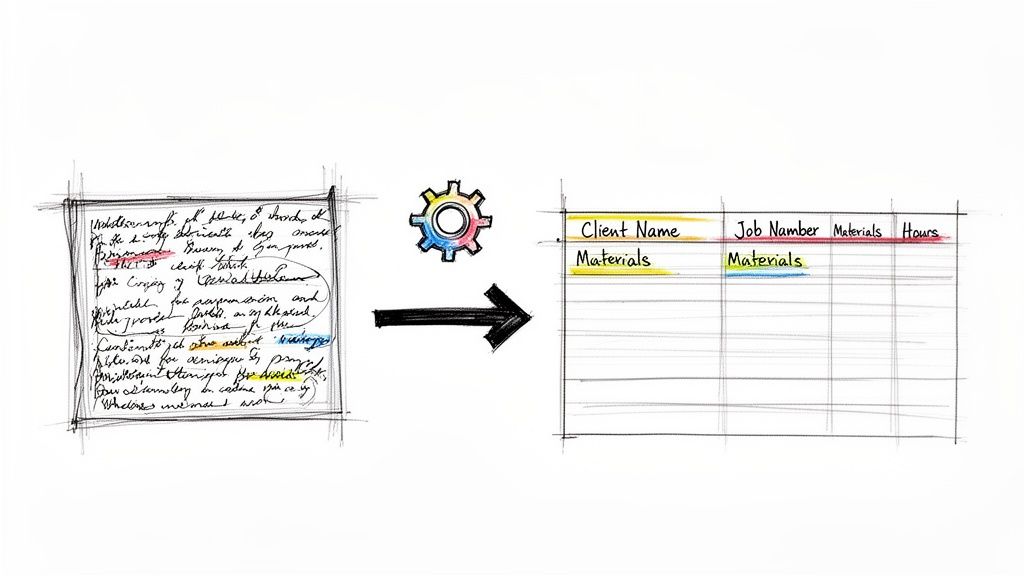
Getting a clean digital transcript from a handwritten document is a great first step, but the job isn't done yet. You’ve essentially just traded a piece of paper for a block of text. It's better, but it’s not really usable.
The real value emerges when you transform that unstructured text into organized, structured data that your systems can actually understand and use. This is where you go from simple digitization to true business automation.
From a Wall of Text to Actionable Insights
Let's say you've just run a stack of handwritten field service reports through your HTR software. You now have the text, but someone still has to manually pull out each client name, job number, and list of parts to put them into a spreadsheet or your CRM. It’s tedious work that kills productivity.
The goal is to cut out that manual copy-and-paste step entirely. That’s what a document parsing tool is for.
This is exactly the problem a platform like DocParseMagic solves. It goes beyond just reading text; it’s designed to understand the context of your documents. You tell it what information is important, and it intelligently finds and extracts it for you.
For those field service reports, you could automatically pull out fields like:
- Client Name: Pinpointing the customer for each report.
- Job Number: Grabbing the unique ID for the project.
- Materials Used: Capturing an itemized list of every part and screw.
- Hours Billed: Extracting labor time for faster, more accurate invoicing.
The goal shifts from just getting the words right to making those words work for you. Structuring data automatically is the key that unlocks analytics, faster invoicing, and better record-keeping.
This isn't a niche idea; it’s a massive trend. The market for these tools jumped from $4.01 billion in 2023 to an estimated $4.42 billion in 2024. Why? Because businesses are finding that AI-driven data extraction can slash manual processing time by up to 80%. What used to take hours of someone's day now takes minutes. If you want to dig into the numbers, you can read the full report about the handwriting to text converter market.
The Automated Data Extraction Workflow
With a tool like DocParseMagic, the final step is straightforward. You simply upload your file—this could be the plain text output from your HTR tool or even the original scanned image—and let the platform do the heavy lifting.
The system analyzes the document based on the rules you’ve set up, identifies the key pieces of information, and organizes everything into a clean, spreadsheet-ready format.
What started as a messy, handwritten form becomes a perfectly structured row in a database or a new entry in your project management software. This end-to-end automation is what creates a real competitive edge. To get a better handle on this, check out our guide on structuring unstructured data for business intelligence.
Common Questions About Handwriting Conversion
Jumping into handwriting conversion can feel like a leap of faith. I get it. You're probably wondering if the tech is really good enough for important business documents. It’s only natural to have questions about accuracy, security, and whether these tools can handle the messy reality of actual paperwork. Let's tackle some of the most common concerns I hear from teams making this transition.
How Secure Is Uploading Sensitive Handwritten Documents?
This is, without a doubt, the most important question, especially when you're dealing with client data or financial records. Any reputable platform that promises to convert handwriting to text puts security first. Top-tier services, including DocParseMagic, use end-to-end encryption to keep your data safe. This means your files are scrambled and unreadable from the moment they leave your computer until they're processed on a secure server.
For organizations with the strictest compliance mandates, like those in healthcare or finance, some providers offer on-premise solutions. This setup lets you process everything inside your own private network, so sensitive information never has to touch the internet. Always give a service's security and privacy policy a thorough read before you upload anything.
Can These Tools Reliably Read Cursive or Messy Writing?
Yes, and the results are often surprisingly good. Modern Handwriting Text Recognition (HTR) has come a long way. The old-school OCR tech you might remember struggled with anything but perfect block letters. Today’s AI, on the other hand, is trained on millions of handwriting samples, giving it an uncanny ability to figure out messy printing and even loopy, connected cursive.
While extremely unique or sloppy handwriting can still trip up the AI, you’ll find that a dedicated HTR tool is remarkably capable. The real trick is to start with a high-quality scan and use a tool built for handwriting, not just standard typed text.
Is the Accuracy Good Enough for Business Operations?
Absolutely. When you compare it to the slog of manual data entry, the accuracy is more than enough for most business workflows. For clean, printed handwriting, we often see accuracy rates climb above 95%. Even with average cursive, you can realistically expect 80% to 95% accuracy.
The point isn't to achieve 100% perfection on the first pass. The real win is automating the 80-95% of tedious transcription work. This frees up your team to spend a few moments on a quick final review, which is drastically faster than typing out every single word from scratch. You get the best of both worlds: huge time savings from the AI and high data integrity from a quick human check.
Do I Need Separate Tools for Different Languages?
Usually, no. Most of the heavy hitters in this space, like Google Vision AI and Amazon Textract, are multilingual right out of the box. They can often figure out the language on their own or let you specify it before processing. This is a huge advantage for global companies that handle documents from all over the world.
That said, performance can differ, especially with less common languages or unique scripts. A good rule of thumb is to always run a small test batch of your specific documents through any tool before you commit to it for a large-scale, multilingual project.
Ready to stop typing and start automating? DocParseMagic turns your handwritten forms, invoices, and reports into structured, spreadsheet-ready data in minutes. Try it for free and see how much time you can save.