Convert bank statement into excel: The Smart Way to Master Your Data
If you've ever found yourself hunched over a desk, manually typing transactions from a PDF bank statement into a spreadsheet, you know the feeling. It's a soul-crushing, mind-numbing task.
The good news is, there's a much better way. The easiest method to convert a bank statement into Excel is by using a smart, automated tool. These modern solutions use AI to instantly read the document, pull out all the transaction data, and neatly organize it into structured columns for you. What once took hours can now be done in seconds.
Why Manually Converting Bank Statements Is No Longer Viable
Manually typing financial data from a bank statement into Excel is more than just a chore—it’s a major business risk. This old-school approach is painfully slow, wide open to human error, and just can't keep up with the demands of modern accounting or finance.
Every misplaced decimal point or swapped number can throw off an entire financial analysis, leading to bad reports and even worse business decisions.
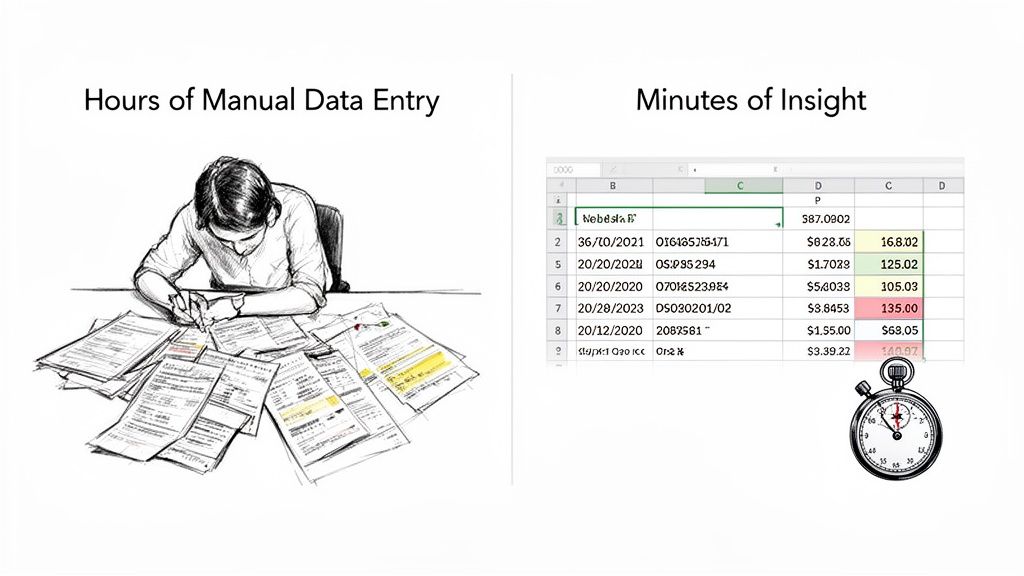
The hard truth is that this manual process has always been a huge bottleneck. Picture a mid-sized accounting firm handling 500 client statements every month. Before modern tools, accountants could easily spend 4-6 hours per statement on this copy-paste drudgery. Industry benchmarks show that data entry error rates could climb as high as 15-20%. You can get more insights on the impact of manual data entry from industry experts.
The True Cost of Manual Data Entry
The issues with manual conversion are bigger than just frustration. All that time spent on a low-value task directly adds up to lost productivity and higher operational costs. Instead of analyzing financial trends or giving strategic advice, your most skilled people are stuck doing robotic work.
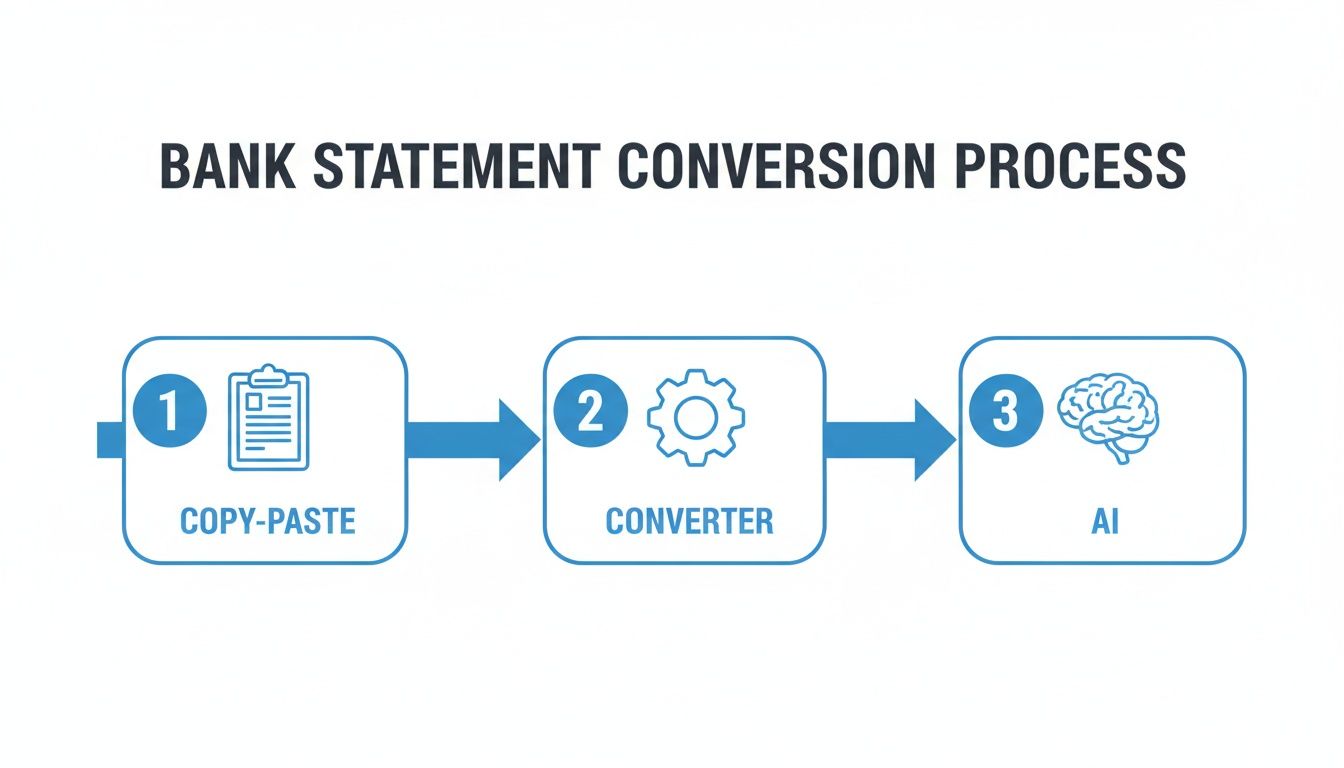
This guide is your roadmap to breaking free from that cycle. We'll walk through all the different ways you can convert a bank statement into Excel, from the simple copy-paste tricks to truly intelligent automation.
The goal is to give you the know-how to pick the right method for your needs, whether you're:
- A small business owner trying to get a clear picture of cash flow.
- An accountant juggling financial data for dozens of clients.
- A financial analyst who needs clean, reliable data for complex models.
By moving beyond manual entry, you aren't just saving time; you're fundamentally improving the quality and reliability of your financial data. This shift empowers teams to focus on what truly matters: deriving actionable insights that drive business growth and stability.
Before we dive into the step-by-step methods, it helps to see the big picture. Choosing the right approach depends on your specific needs—like how many statements you have, their format, and your budget.
Here’s a quick comparison of the common methods we'll be covering, so you can get a feel for what might work best for you.
Bank Statement Conversion Methods at a Glance
| Conversion Method | Best For | Speed | Accuracy | Cost |
|---|---|---|---|---|
| Direct Bank Export | Quick, one-off tasks with digitally generated statements from your own bank. | Very Fast | High | Free |
| PDF Conversion Tools | Clean, text-based PDFs where you need more control than a simple copy-paste. | Fast | Moderate to High | Low (Free to ~$15/mo) |
| OCR for Scans/Images | Scanned paper statements, images, or low-quality PDFs. | Moderate | Varies (Depends on scan quality) | Moderate (~$10-$30/mo) |
| Automated Parsers | High-volume, recurring tasks; accounting firms; complex data extraction needs. | Very Fast | Very High | Subscription-based |
Each of these methods has its place. A direct download might be perfect for your personal finances, while an automated parser is a game-changer for a growing business.
Now, let's get into the details of how to actually do it.
Exploring Your Bank Statement Conversion Options
So, you need to get your financial data out of a bank statement and into a nice, clean Excel file. Easier said than done, right? The best way to tackle this really depends on what kind of statement you're starting with. A pristine, one-page digital PDF is a completely different beast than a 20-page, slightly skewed scan from a paper document.
Let's walk through the options, from the quick-and-dirty methods to the truly powerful ones.
The most obvious first step for many is a simple direct copy-paste. You just highlight the transaction table in your PDF, hit Ctrl+C, and drop it into Excel. It's tempting because it feels so fast, but I've found this approach is almost always a waste of time.
PDFs are built to look good, not to be a structured database. More often than not, you'll end up with a chaotic jumble of text. Dates, descriptions, and dollar amounts all get shoved into a single column, leaving you with a bigger cleanup job than if you'd just typed it all in from scratch.
Moving Beyond Manual Cleanup
When copy-paste inevitably lets you down, it's time to look at tools built for the job. This is where dedicated online converters enter the picture.
A dedicated PDF to Excel converter can feel like a miracle at first. These services are designed to recognize the table-like structure of a bank statement and do a much better job of putting data into the right columns and rows. It’s a huge step up from manual copying.
The catch? They can still get tripped up. Bank statement formats are all over the place, varying from one bank to the next. A standard converter might get confused, merging your debit and credit columns or failing to ignore page headers and footers. These tools shine with clean, digitally-born PDFs but often stumble on complex layouts or any kind of scanned document.
Digitizing Paper with Optical Character Recognition
But what if your statement is a scan? Or a photo you took with your phone? That's when you need Optical Character Recognition (OCR). Think of OCR as a digital translator that reads the image of your document and turns the letters and numbers into actual, editable text.
This technology is the crucial first step to convert bank statement into excel when you're working with paper records. But basic OCR on its own is just a text grab—it doesn't understand what it's reading. It can see the number "100.00," but it has no idea if that's money you spent or money you received.
Key Takeaway: OCR is what gets your scanned documents into a digital format, but it's only half the battle. To get truly accurate data, you need to pair it with smarter software that can actually interpret the document's layout and meaning.
The Power of Intelligent Document Processing
This brings us to the most accurate and reliable method available today: Intelligent Document Processing (IDP). This is a whole different ballgame. IDP systems use AI and machine learning to read a bank statement the way a person would, but with the speed of a computer. If you're curious about the nuances of digital statement layouts, our guide on understanding online bank statements offers some great insights.
Instead of being locked into a rigid template for one specific bank, an AI-powered tool like DocParseMagic actively analyzes the document's structure and context. It figures out what's a date, what's a description, and what's a withdrawal amount based on where that data is on the page and what it’s next to.
Here’s why that makes all the difference:
- No Templates Needed: It just works, adapting on the fly to any bank’s unique format.
- High Accuracy: It correctly identifies and separates debits and credits into their own columns—a common failure point for simpler tools.
- Contextual Understanding: The AI knows that a number sitting under a "Withdrawals" heading is a negative transaction, which keeps your financial data accurate.
This intelligent approach practically eliminates the painstaking manual cleanup that other methods demand. It delivers a clean, correct, and analysis-ready Excel file every time, no matter what your bank statement looks like. For anyone handling financial documents regularly, it's easily the most efficient path forward.
A Real-World Walkthrough: Putting an AI Converter to Work
Let's move past the theory and see what this looks like in practice. This is where you really appreciate what a good automated tool can do for your workflow.
Imagine this all-too-common scenario: a client sends over a 10-page bank statement you need for an urgent report. The problem? It's a scanned PDF, and a few of the pages are slightly crooked. In the past, this meant one thing: a long, tedious afternoon of manually typing every single line item into a spreadsheet.
With a modern AI converter, that entire headache disappears. Your first move is to simply upload the file—crooked pages and all. You don’t need to straighten it, clean it up, or build a template. The software takes over from there, using its built-in intelligence to analyze the document's structure.
Almost instantly, the AI identifies the transaction table. It knows what a date column looks like, can tell the description apart from the transaction amount, and correctly splits debits and credits into separate columns. This is what sets an intelligent tool apart from a basic PDF converter; it understands the context of the data, ensuring everything is structured correctly right from the start.
The Quick-Check: Verifying and Finalizing Your Data
After the AI does its magic, you get to the verification step. Don't worry, this isn't about re-doing the work. It's a quick, final check to confirm the AI nailed it and the data is exactly what you need. A good platform will show you the extracted data in a clean table right next to an image of the original document.
This side-by-side view is perfect for a quick spot-check. It gives you complete confidence in the output before you even think about opening Excel. The entire process is built for speed, turning a task you used to dread into just another simple step in your day.
The shift to digital banking has left many finance teams drowning in PDFs, creating a serious bottleneck. A recent PwC study put some hard numbers on this, finding that 62% of SMEs were spending over 10 hours a week on manual data extraction. Worse, 35% reported that inaccuracies from this process delayed their financial closes.
In stark contrast, today’s AI solutions can process these same documents with 95-99% accuracy in less than 20 seconds. The difference is staggering.
From Messy PDF to Clean, Analysis-Ready Excel
The last step is the easiest: just download your perfectly structured spreadsheet. All the transactions from every page of that PDF are now organized into a single, clean table, ready for you to work with.
This automated approach is simply more reliable than trying to wrestle with the data yourself. For those who want to get even more out of their spreadsheets, it's worth learning how to use Excel’s Get Data from PDF feature, which can be a powerful tool for handling imported data.
By bringing an AI-powered tool into your workflow, you’re doing more than just converting a file. You’re building a repeatable, trustworthy process that delivers clean data every time. This frees you up to stop being a data entry clerk and start focusing on the high-level financial analysis where your expertise really shines.
Wrestling with Common Conversion Headaches
Look, even the best tools can get tripped up by a messy document. When you need to convert a bank statement into Excel, you're bound to hit a few snags that can completely throw off your workflow. The secret isn't finding a perfect, one-click solution—it's knowing what to do when things go wrong.
One of the biggest culprits? Blurry or low-quality scans. If you can barely read the document yourself, you can bet a machine will have a tough time, too. This is where you get frustrating extraction errors, like an 8 being mistaken for a 3 or a decimal point vanishing into thin air.

Dealing With Poor Quality Scans and Images
Before you even think about uploading that scanned statement, take a moment to look it over. A few quick pre-processing tweaks can make a world of difference.
If you have the original paper document, try rescanning it at a higher resolution (at least 300 DPI is a good target). Make sure the page is flat and well-lit. Many smartphone scanning apps are surprisingly good at this—they can automatically crop, straighten, and boost the contrast, making the text much clearer.
This prep work is crucial because it feeds directly into the accuracy of the Optical Character Recognition (OCR) technology that reads the document. A clean image means fewer mistakes for you to fix later. If you're curious about the magic behind it, you can get a good overview of what Optical Character Recognition is and see why the source quality matters so much.
I've learned this the hard way: spending one extra minute to get a clean scan can save you ten minutes of painful manual data entry and correction down the line. It’s always worth it.
Untangling Messy Formatting and Structural Quirks
The other major headache comes from documents with weird layouts. You know the ones—bank statements where the transaction table splits awkwardly across two pages, or headers and footers that change from one page to the next, completely confusing the software.
This is where a basic PDF converter falls flat and an intelligent automation tool really proves its worth. An AI-powered platform has seen these kinds of problems thousands of times and knows how to handle them.
Let’s look at some common conversion problems I’ve run into and how to think about solving them.
Common Conversion Problems and Their Solutions
| Common Problem | Why It Happens | How to Fix It |
|---|---|---|
| Blurry or Skewed Scans | Low-resolution scanning, poor lighting, or camera angle. | Rescan at 300 DPI or higher. Use a mobile app with document enhancement features to straighten and improve contrast. |
| Merged Columns or Cells | The PDF's underlying structure combines fields (e.g., Description and Amount) into one text block. | A smart parsing tool can use contextual clues and AI to correctly identify and split the data into separate columns. |
| Inconsistent Date Formats | Banks might use different formats like "Jan 01, 2024," "01-01-24," or "1/1/2024" on the same statement. | Use a tool that automatically recognizes and standardizes all date formats into a single, consistent one (like YYYY-MM-DD). |
| Tables Split Across Pages | A long list of transactions continues from the bottom of one page to the top of the next. | Manual copying is a nightmare. An advanced converter will intelligently "stitch" the table parts together into one continuous list. |
| Incorrect Decimal Places | OCR misreads a comma for a period (common in European formats) or misses the decimal point entirely. | Set the correct regional settings in your tool beforehand. Always perform a quick spot-check on a few transactions to verify. |
Ultimately, when you repeatedly hit these kinds of walls, it’s a clear sign that you’ve outgrown your current process. Instead of fighting with manual fixes, it might be time to look for a more sophisticated tool built to handle the messy reality of financial documents.
Prioritizing Security with Your Financial Data
Let's be honest—uploading a sensitive bank statement to a random website feels risky. And it should. When you convert a bank statement into Excel with an online tool, you're handing over some of the most confidential data your business or your clients possess.
The promise of a quick, automated conversion is tempting, but it can't come at the expense of security. I’ve seen people get burned by free, anonymous online converters. They might seem perfect for a one-off job, but their privacy policies are often murky at best. You're left wondering who's looking at your data, where it’s being stored, and for how long.
A data breach on one of these unsecured platforms could expose account numbers, transaction details, and personal information, creating a nightmare scenario.
What to Look for in a Secure Conversion Tool
If you’re handling financial data professionally, a security-first platform isn't just a nice-to-have; it's a must. The best tools are designed with data protection baked in from the start, not bolted on as an afterthought. A huge piece of this puzzle is adhering to strict data security compliance standards, which is a non-negotiable for protecting sensitive information.
So, what should you be looking for when you vet a service?
Here are a few critical security commitments to check for:
- End-to-End Encryption: This is your first line of defense. It means your data is scrambled and unreadable from the second it leaves your computer to the moment you download the finished Excel file.
- SOC 2 Compliance: Think of this as a rigorous, independent audit that proves a service provider can securely manage your data. It's a gold standard for protecting your organization's interests and your clients' privacy.
- Transparent Data Policies: Good providers are upfront about everything. They’ll have clear, easy-to-find policies explaining how your data is used, who has access, and how long they keep it. Most importantly, they should explicitly state they will never sell or share your data.
Choosing a tool with these security measures isn't just about following best practices—it's about fulfilling your responsibility to safeguard financial information. The peace of mind you get from using a secure, professional-grade service is priceless.
Why Automation is Your New Secret Weapon
We’ve walked through the whole process, from the old-school slog of manual data entry to the magic of smart automation. While you've got a few options for getting your bank statements into Excel, AI-powered tools are in a league of their own. They deliver the speed, precision, and scale that today's businesses simply can't do without.
Making this switch isn't just about ditching a mind-numbing task. It's a strategic decision. You're cutting down on expensive human errors, freeing up your team to do actual analysis, and building smarter financial workflows from the get-go.
The numbers speak for themselves. The latest AI extractors can hit 99% accuracy on scanned documents in just a few seconds. Think about what that means for a loan underwriter—they can make decisions 35% faster, based on data from LendingTree. Forget the copy-paste nightmare. We're talking about a tool that can deliver real ROI by slashing time spent by 75% and giving you perfectly clean spreadsheets ready for deep dives. If you want to see what's possible, check out the power of bank statement extraction software.
The bottom line is this: automation turns a frustrating chore into a smooth, almost effortless process. The real win isn't just getting a clean spreadsheet. It's the competitive edge you unlock when your team can stop wrestling with data and start finding valuable insights.
Got Questions? We've Got Answers
You're not the first person to wonder about the little details of getting bank statements into Excel. It's a common task, but the "how" can be tricky. Here are some quick answers to the questions I hear most often.
Can I Really Turn a Scanned Bank Statement Into a Usable Excel File?
Yes, you definitely can, but you'll need the right tool for the job. This is where Optical Character Recognition, or OCR, comes into play.
A simple OCR tool might just pull the text off the page, leaving you with a jumbled mess. What you really want is a more advanced, AI-driven platform. These tools don't just read the text; they understand the layout of a bank statement. They can intelligently figure out which numbers belong to the date column, what's a transaction description, and what's a debit or credit—even if the scan isn't perfectly straight. This is the key to getting a clean, properly formatted spreadsheet instead of a data puzzle.
Is It Actually Safe to Upload My Bank Statements to a Website?
This is a great question, and the answer comes down to which website you use. I'd be very cautious with free, anonymous online converters. You often have no idea who is running them or what they're doing with your sensitive financial data.
For something as important as a bank statement, you should always opt for a professional, business-oriented service.
Here's what to look for to ensure your data stays private:
- End-to-end encryption: This protects your information from the moment you upload it.
- SOC 2 or GDPR compliance: These certifications aren't just fancy acronyms; they mean the company has passed rigorous, independent security audits.
- A crystal-clear privacy policy: They should explicitly state that your data is yours and will never be sold or shared.
Reputable platforms are built from the ground up with security in mind, so you can feel confident your information is protected.
What's the Best Way to Handle Statements That Are Multiple Pages Long?
This used to be a huge headache, but modern conversion tools have made it incredibly simple.
A good platform is built to handle multi-page PDFs without breaking a sweat. You just upload the entire file—whether it's 2 pages or 20—and the software gets to work. It will process every single page, pull all the transactions, and merge them into one, single, clean Excel spreadsheet. You don't have to worry about splitting the PDF or stitching data together manually. It just works.
Ready to stop wasting time on manual data entry? DocParseMagic turns your messy bank statements into clean, analysis-ready spreadsheets in seconds. Try DocParseMagic for free and see how much time you can save.