The 12 Best Free PDF to Excel Converter Tools for 2026
Getting data out of a PDF and into an Excel spreadsheet shouldn't be a painful, manual process. Whether you're an accounting team processing invoices, a project manager tracking expenses, or a loan officer pulling financial data, the right tool can save you hours of work. But with dozens of options available, how do you find the best free PDF to Excel converter that actually works without hidden fees or frustrating limitations?
This guide cuts through the noise. We have tested and analyzed the top free converters to give you a clear, honest look at their strengths, weaknesses, and ideal use cases. Each review includes screenshots and direct links to help you get started immediately.
You will learn which tools handle complex tables best, which prioritize your privacy, and which are better for scanned documents versus digitally-born PDFs. We'll show you exactly how each platform performs, so you can pick the right one for your specific task, from simple data pulls to batch processing.
For many professionals, a common and often difficult task is extracting financial records. Our guide provides specific insights to help you convert bank statements to Excel, ensuring you get clean, usable data for all your financial needs. We also explore what to do when a simple conversion isn't enough and you need more reliable, structured data extraction for your team's workflows. Let's find the converter that will stop you from ever having to re-type data from a PDF again.
1. DocParseMagic
DocParseMagic earns its top spot by fundamentally rethinking what a PDF to Excel converter should do. Instead of just transcribing data, it acts as a powerful data extraction engine designed for business workflows. It moves beyond simple conversions to offer a no-code platform that can interpret, structure, and even analyze information from messy documents like invoices, scanned pages, and financial statements. This makes it an exceptional choice for professionals who need not just data, but clean, reliable, and analysis-ready data.
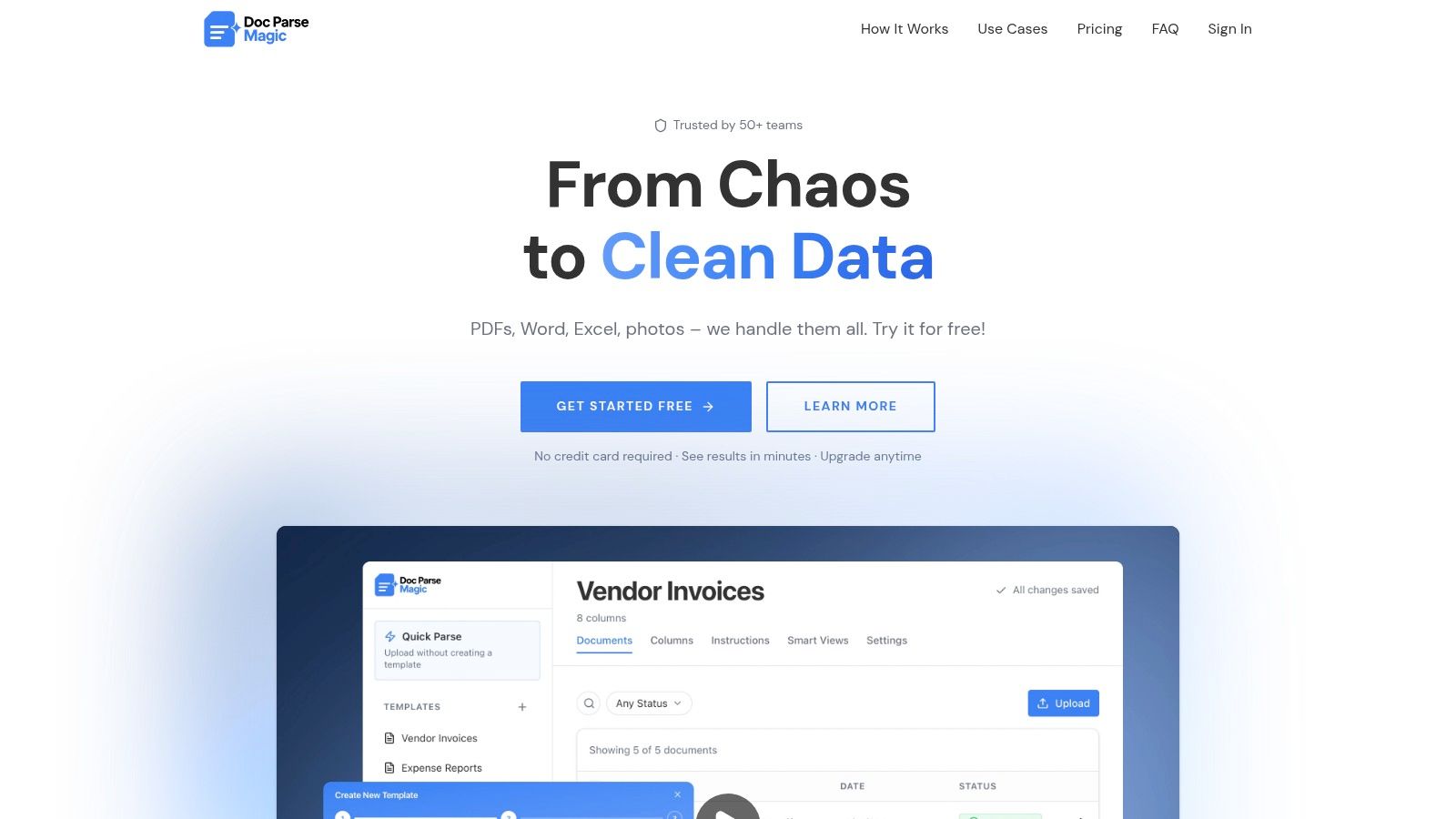
The platform’s standout feature is its ease of use. You can instruct the tool on what to extract using plain English commands, completely bypassing the need for complex templates or technical training. It excels at handling low-quality scans and photos, automatically validating numbers and filling in missing context, which significantly reduces the manual clean-up required with other tools. For teams in accounting, insurance, or procurement, this means turning stacks of invoices or policy documents into organized spreadsheets in minutes. You can explore a deeper dive into these methods and see how they apply to your own document challenges by reading their guide on PDF to Excel data extraction techniques.
Key Features & Use Cases
- Intelligent Data Parsing: Goes beyond basic OCR to identify and structure specific fields like invoice numbers, line items, dates, and totals. It can process PDFs, Word docs, and even image files from a phone camera.
- Built-in Analysis: After extraction, you can ask plain-English questions like “show me totals by vendor” or “flag all invoices over $5,000,” getting instant insights without touching a spreadsheet formula.
- Workflow-Ready Exports: Generates clean CSV, XLSX, or JSON files formatted for direct import into tools like QuickBooks, Shopify, and Salesforce.
Pricing & Access
DocParseMagic operates on a credit-based system, making it accessible for a wide range of needs.
- Free Plan: Includes 3 credits per day (1 credit = 1 document) with a 5 MB file size limit. This is ideal for individuals with occasional, low-volume needs. No credit card is required to sign up.
- Paid Plans: Starter (€14/month) and Pro (€45/month) plans offer higher document volumes, larger file size limits, and advanced features.
- Enterprise: Custom pricing is available for teams needing features like SSO, HIPAA compliance, and dedicated support.
Who is it Best For?
DocParseMagic is the best free PDF to Excel converter for professionals and teams who handle high volumes of structured documents and need to eliminate manual data entry. It’s a perfect fit for accounting departments processing invoices, insurance brokers extracting policy data, and operations managers automating any document-heavy workflow. While the free tier has its limits, it provides a powerful entry point to a tool that can fundamentally improve business processes.
2. Adobe Acrobat Online – PDF to Excel
Coming from the creators of the PDF format itself, Adobe's Acrobat Online converter serves as an industry baseline for document processing. Its primary strength lies in its ability to reliably handle clean, digitally native PDFs. If your workflow involves converting computer-generated invoices, financial statements, or reports with standard table structures, Adobe's tool offers one of the most accurate free experiences available. The browser-based interface is clean, straightforward, and requires no software installation, making it a dependable choice for quick, one-off tasks.
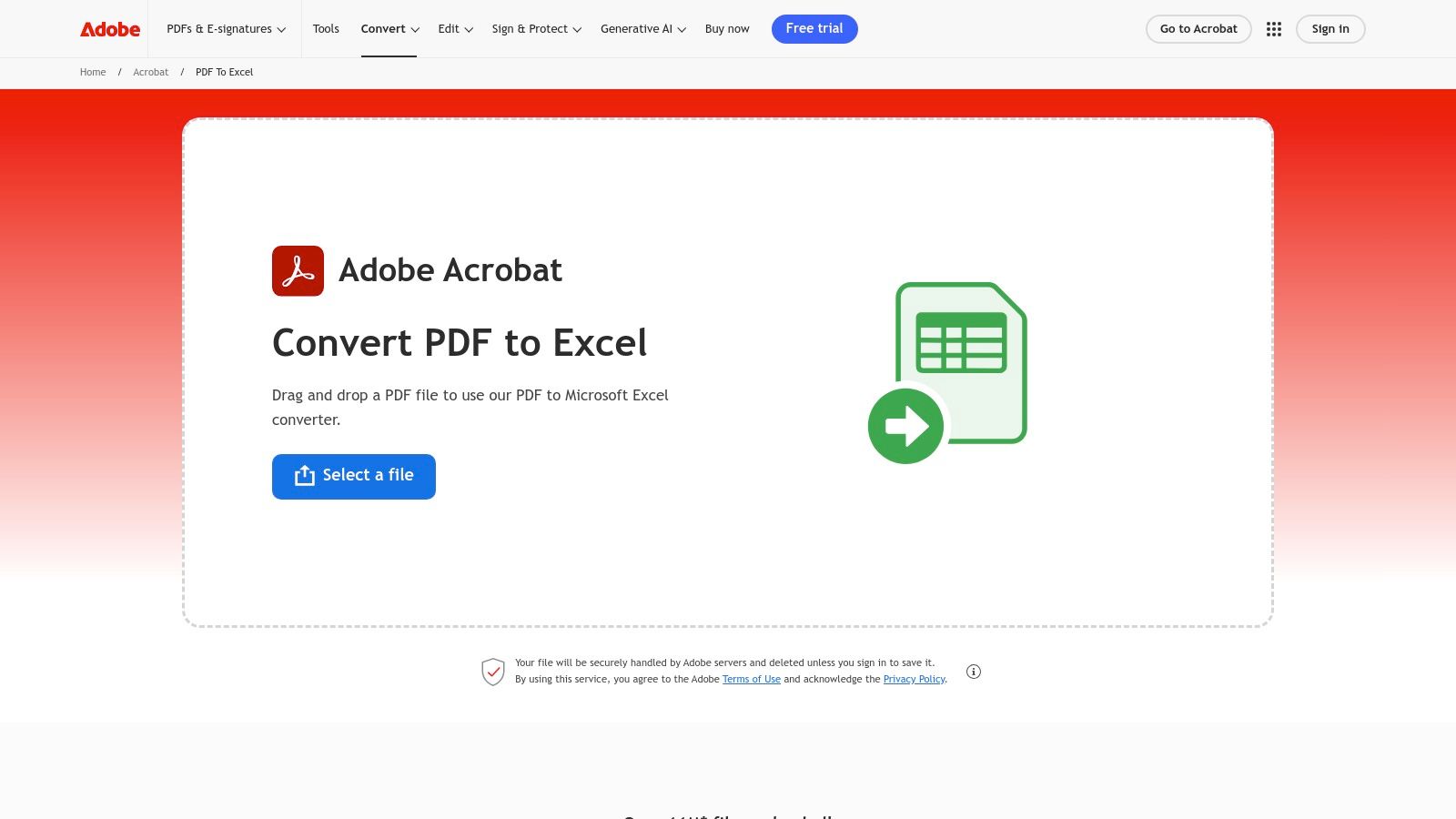
This tool is particularly useful for teams already integrated into the Adobe ecosystem, as it connects seamlessly with Acrobat cloud storage. While its OCR capabilities for scanned documents are present, the output often requires significant manual cleanup for complex or poorly scanned tables.
Key takeaway: Adobe’s online converter is a trustworthy option for converting well-structured digital PDFs, but its free usage is limited.
Key Features & Limitations
- Best For: Individuals or teams needing high-accuracy conversions of simple, digitally created PDFs and those who value the security of a major enterprise brand.
- Pros:
- Excellent accuracy in preserving columns and rows on clean tables.
- Simple drag-and-drop web interface.
- Strong security and privacy reputation.
- Cons:
- Free use is heavily restricted; frequent conversions require a paid Acrobat subscription.
- Struggles with complex layouts and scanned documents, often resulting in merged cells or data misplacement.
Website: Adobe Acrobat Online PDF to Excel Converter
3. Smallpdf – PDF to Excel
Smallpdf is one of the most popular online tools for document management, and its PDF to Excel converter is a standout for its speed and user-friendly design. It excels at processing standard, machine-readable PDFs, producing clean and well-formatted XLSX files with minimal fuss. The drag-and-drop interface is exceptionally intuitive, making it a go-to choice for users who need a quick conversion without a steep learning curve or software installation. Its direct integrations with Google Drive and Dropbox also simplify workflows for those who store documents in the cloud.
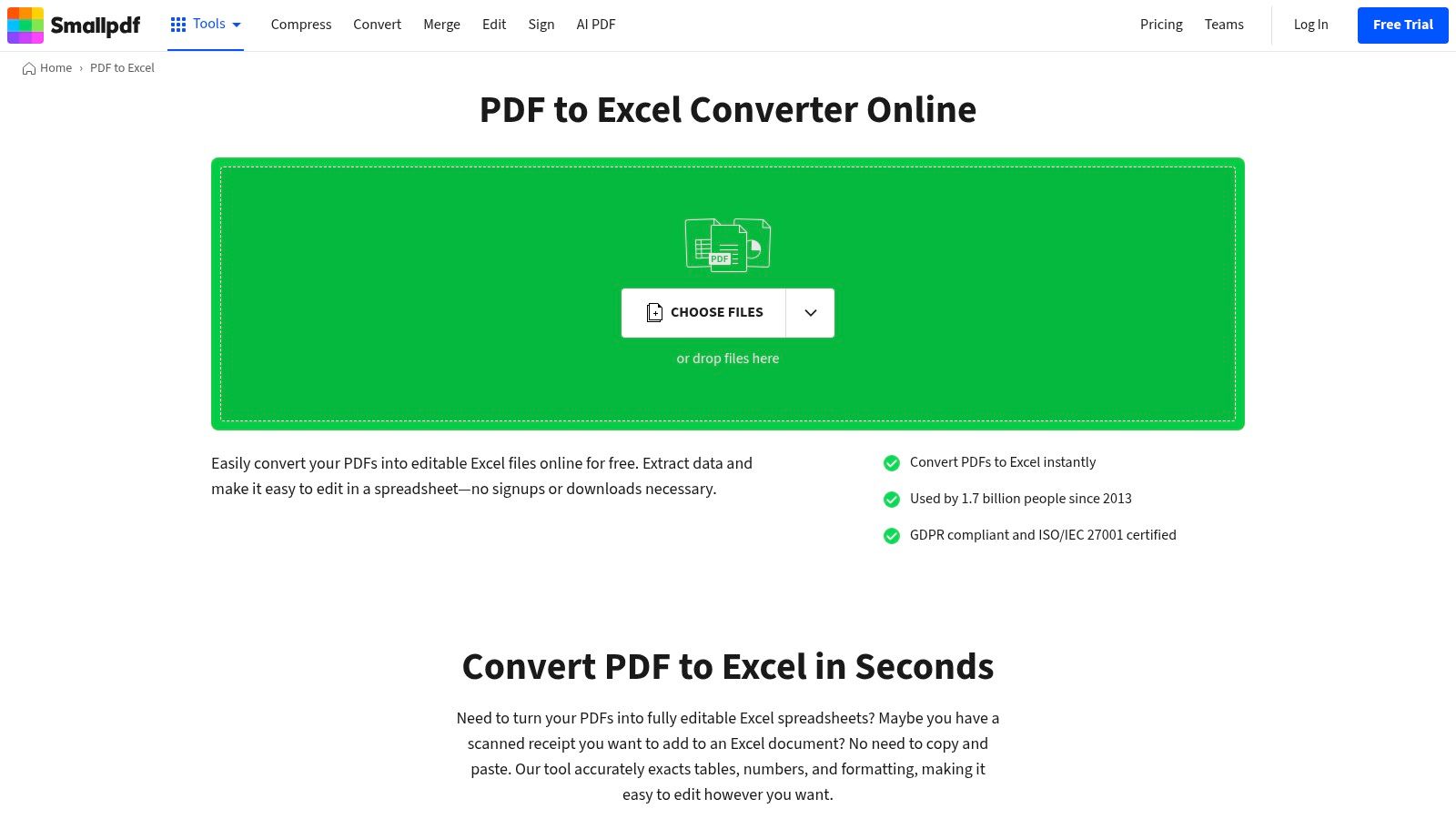
While the free version is one of the best for simple tables, processing scanned documents requires optical character recognition (OCR), a feature reserved for the paid Pro plan. If your documents are scans or photographs, you can explore specialized techniques to convert scanned documents to Excel more effectively. The platform also touts its ISO/IEC 27001 certification, which can provide peace of mind for users handling sensitive data.
Key takeaway: Smallpdf offers a fast, reliable, and user-friendly experience for converting basic PDFs, but frequent use or advanced features will require a subscription.
Key Features & Limitations
- Best For: Individuals and small businesses needing fast, occasional conversions of standard digital PDFs who value a simple interface and cloud storage integration.
- Pros:
- Extremely fast and intuitive web interface.
- Good conversion quality for simple, well-structured tables.
- Claims data protection compliance with ISO/IEC 27001 certification.
- Cons:
- The free plan is limited to a certain number of tasks per day.
- OCR technology and batch processing are locked behind the Pro subscription.
- Complex tables with merged cells or irregular layouts may require manual correction after conversion.
Website: Smallpdf PDF to Excel Converter
4. iLovePDF – PDF to Excel
iLovePDF has become a household name for online document management, offering a massive suite of tools for nearly any PDF task. Its PDF to Excel converter is a popular choice for users who need a quick, no-frills solution. The platform's strength is its simplicity and accessibility; you can drag a file, click convert, and download the resulting Excel sheet in seconds. This makes it ideal for one-off conversions of basic, well-formatted tables without needing to sign up or install software.
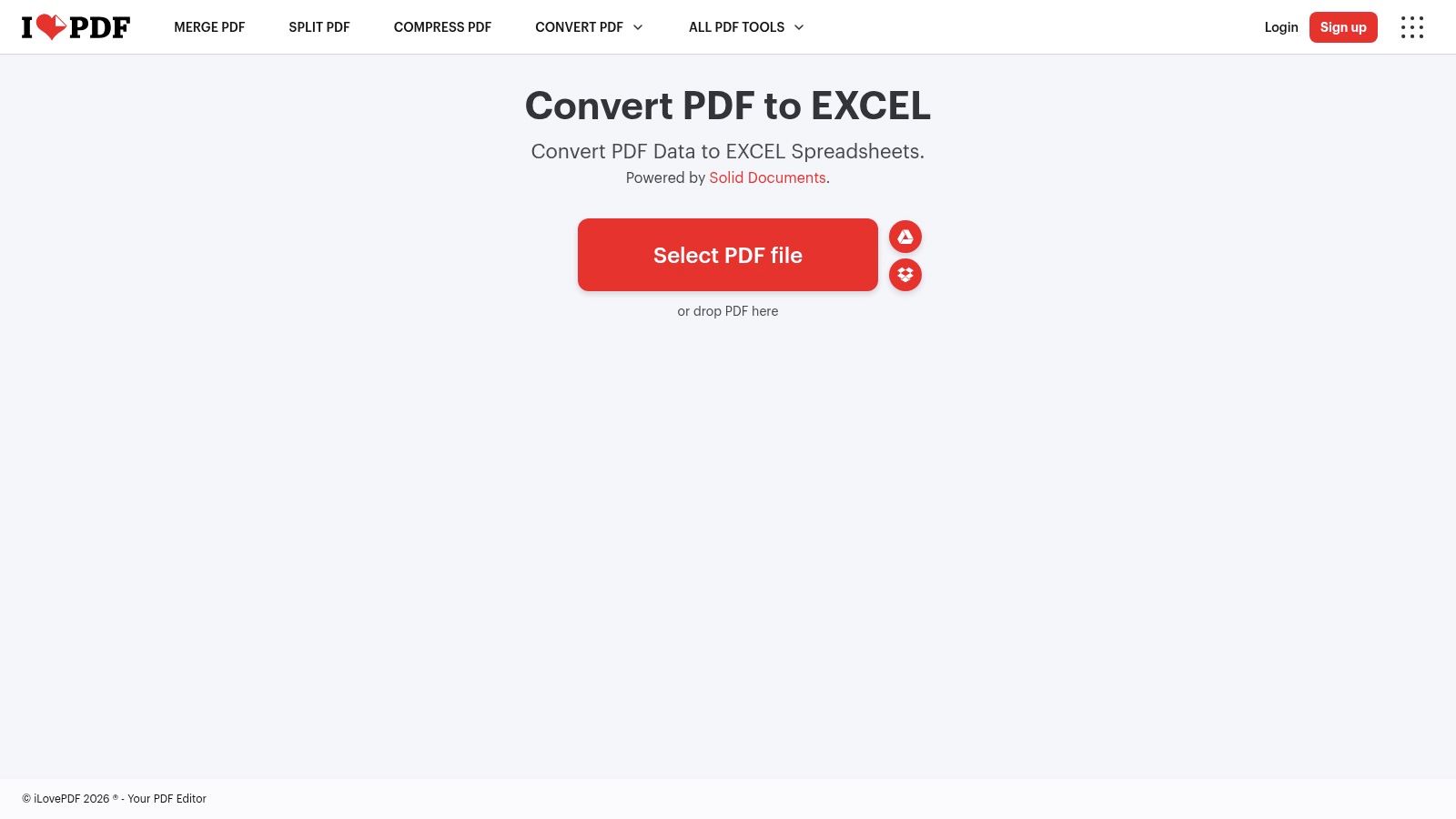
The platform also provides mobile and desktop applications, which can be useful for those who frequently work with PDFs on various devices. However, its free version is best for occasional use. The OCR feature, crucial for scanned documents, is reserved for premium users, meaning the free tool works best on digitally native PDFs. For more advanced workflows, you may need to look at how to get data from a PDF directly into Excel.
Key takeaway: iLovePDF is a fast, simple, and widely accessible tool for basic PDF to Excel conversions, but advanced features like OCR and batch processing are behind a paywall.
Key Features & Limitations
- Best For: Students, freelancers, or anyone needing to quickly convert a single, simple PDF table without a long-term commitment.
- Pros:
- Extremely simple and familiar drag-and-drop interface.
- Works well for basic tabular data in digitally created PDFs.
- No account registration is required for single conversions.
- Cons:
- Free plan imposes strict daily task and file-size limits.
- OCR and batch processing capabilities are only available with a paid subscription.
Website: iLovePDF – PDF to Excel
5. PDF Candy – PDF to Excel
PDF Candy positions itself as a comprehensive online PDF toolkit, and its dedicated PDF to Excel converter is a solid entry point. The platform's major appeal is its accessibility; you can perform conversions directly in your browser without creating an account or providing an email address. This makes it an excellent choice for users who prioritize privacy and need to convert a document quickly without any long-term commitment. Its automatic file deletion policy further adds to this sense of security, ensuring your documents aren't stored on their servers.
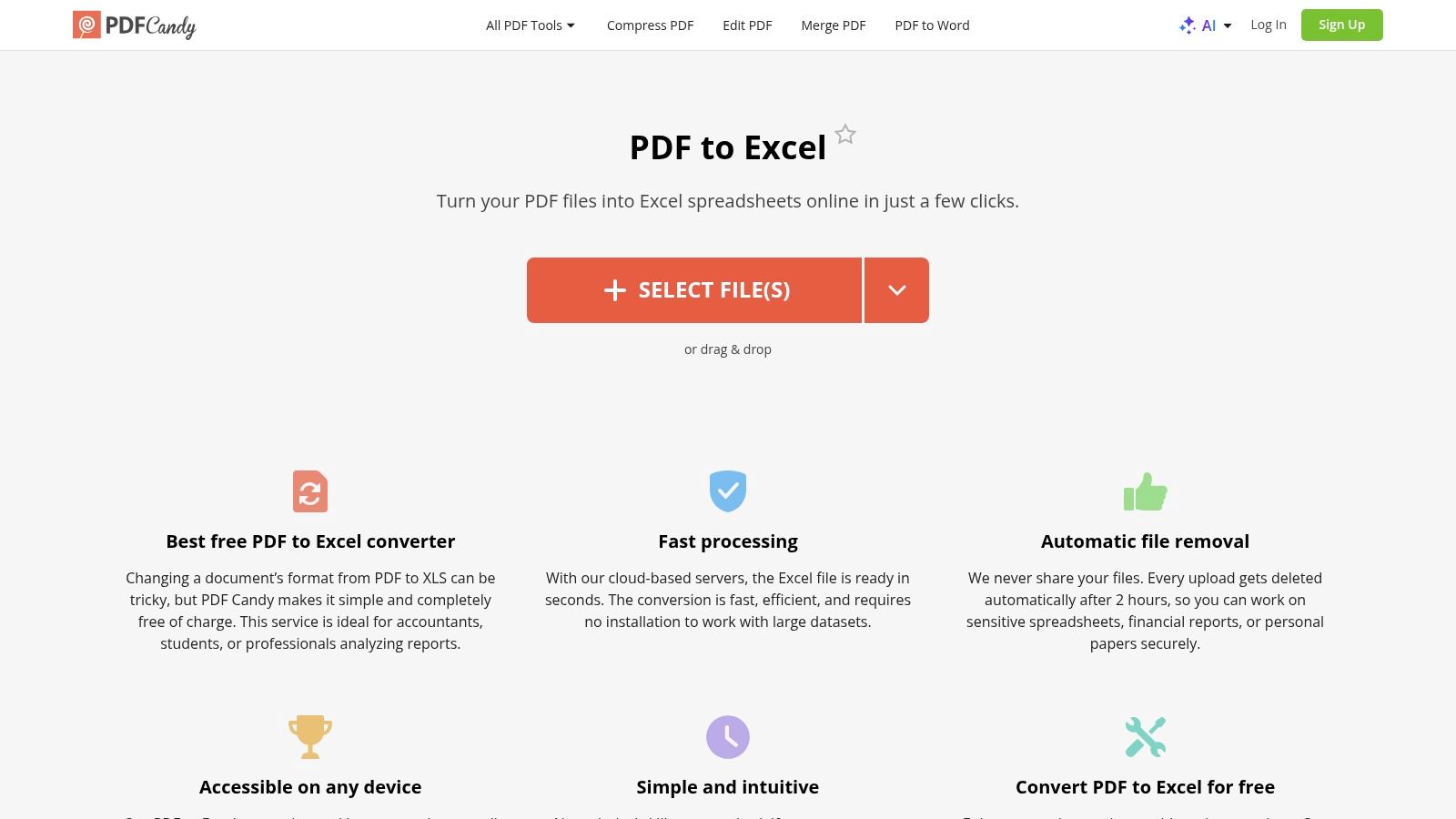
While the free web version is convenient, it's best for occasional, light use. The platform imposes limits on file sizes and the number of tasks you can perform within a certain timeframe. For more demanding needs like batch processing or offline access, PDF Candy offers a paid desktop application. This dual approach makes it a flexible, if limited, free option with a clear upgrade path for heavier workloads.
Key takeaway: PDF Candy is a fast, no-account-needed tool for simple one-off conversions, making it one of the best free PDF to Excel converter options for quick tasks.
Key Features & Limitations
- Best For: Users who need a quick, private conversion without signing up for an account and who might also need other simple PDF editing tools.
- Pros:
- No account or registration required for basic web use.
- Automatic file deletion enhances user privacy.
- Part of a larger suite with over 40 other free PDF tools.
- Cons:
- The free online service has file size and hourly task limits.
- OCR quality can be inconsistent on scanned documents with complex table layouts.
- Batch processing and offline functionality are locked behind the paid desktop app.
Website: PDF Candy PDF to Excel Converter
6. Sejda – PDF to Excel or CSV
Sejda stands out in the crowded field of online converters with its refreshingly direct approach to free usage. It offers both web and desktop tools for a variety of PDF tasks, including a capable converter that can output to either Excel (XLSX) or CSV. The platform is especially useful for users who need to perform a few quick conversions without signing up for an account or worrying about hidden restrictions. Its clear communication about its free-tier limits sets a predictable expectation from the start.
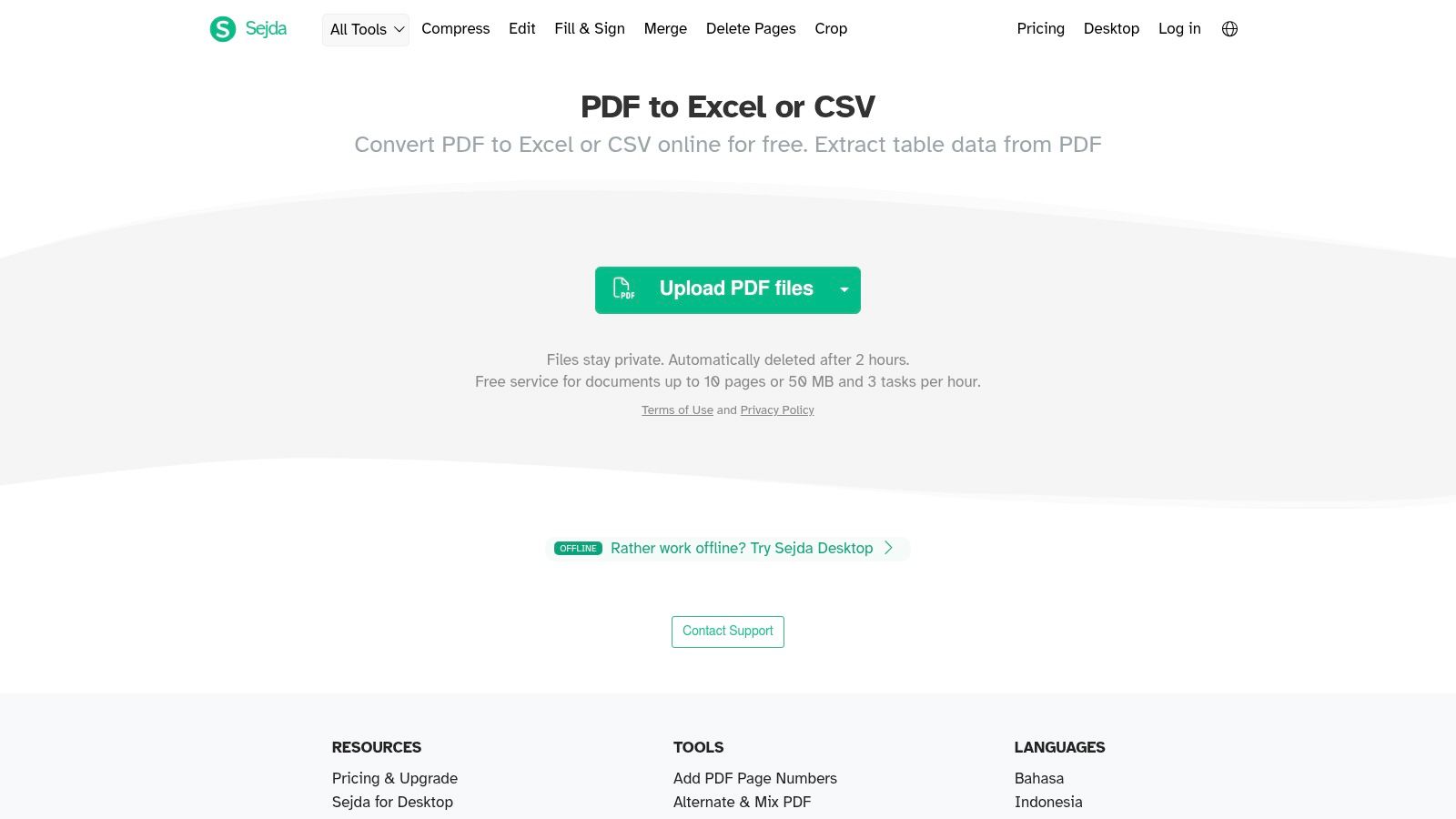
Another key aspect of Sejda is its privacy policy; files are automatically deleted from their servers after just two hours. This makes it a solid choice for converting documents with moderately sensitive data. The ability to export directly to CSV is a great feature for teams needing to import data into business intelligence tools or databases, bypassing the Excel format altogether.
Key takeaway: Sejda is a fantastic, no-nonsense tool for quick, infrequent conversions where transparency and file privacy are important.
Key Features & Limitations
- Best For: Users who need an honest, free tool for a small number of structured tables and appreciate automatic file deletion for privacy.
- Pros:
- Transparent free limits are clearly displayed on the tool page (3 tasks/hour).
- Files are automatically wiped after 2 hours, improving data security.
- Offers both XLSX and CSV output options.
- Cons:
- Free tier is limited to documents up to 50 MB or 10 pages.
- Very complex table layouts or poor-quality scans can result in data that needs manual correction.
Website: Sejda PDF to Excel Converter
7. Soda PDF Online – PDF to Excel
Soda PDF Online provides a full suite of browser-based tools, and its PDF to Excel converter stands out for its transparency regarding free usage. Unlike competitors who hide their limits, Soda PDF is upfront about its free-access policy, which typically involves daily file caps and size restrictions. This makes it a reliable choice for users who only need occasional conversions and want to avoid the surprise of hitting a paywall. The web interface is clean and guides users through a simple conversion process with minimal friction.
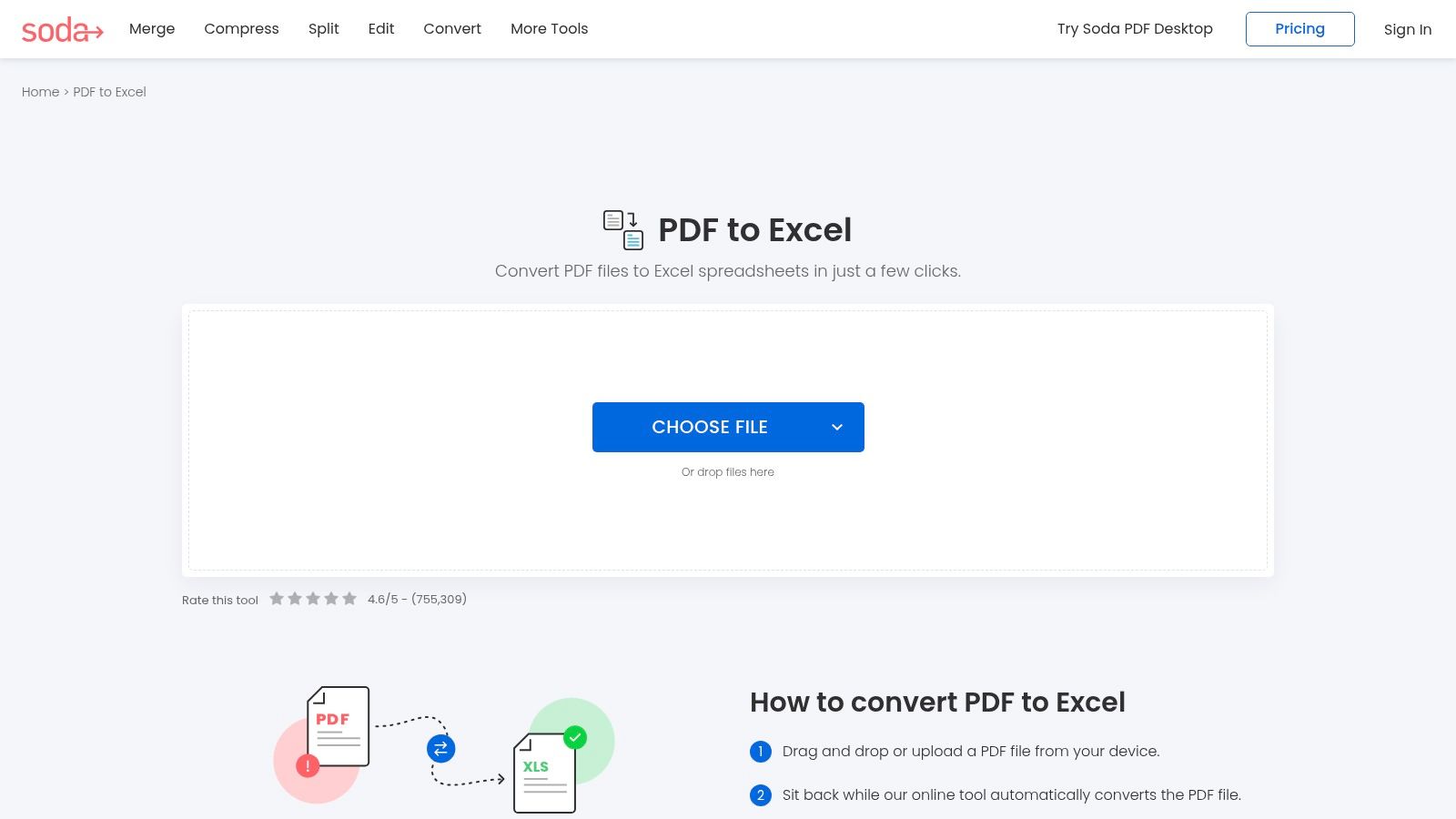
The tool performs well on standard forms and digitally created tables, providing decent accuracy that requires little cleanup. For users who prefer working offline or need more consistent access, Soda PDF also offers a desktop application, though most advanced features, including OCR for scanned documents, are reserved for its premium tiers.
Key takeaway: Soda PDF's clear free-use policy makes it a dependable tool for infrequent conversions of standard digital PDFs.
Key Features & Limitations
- Best For: Individuals who need a free PDF to Excel converter for a few files per day and appreciate knowing the exact usage limits upfront.
- Pros:
- Clearly documented free-access policy with daily and file size caps.
- Simple, multi-step process for uploading and converting files.
- Offers a desktop application for users who eventually need offline capabilities.
- Cons:
- Strict free limits (e.g., 2 files per day or 3 MB file size) can be restrictive.
- OCR functionality for scanned documents is locked behind a premium subscription.
Website: Soda PDF Online PDF to Excel Converter
8. PDF2Go – PDF to Excel
PDF2Go is an established all-in-one online tool that provides a dedicated PDF to Excel converter with an important, user-selectable feature: optical character recognition (OCR). This makes it a solid choice for users who know they are dealing with scanned documents or image-based PDFs and need a tool that can attempt to read the text. The interface is clean and upfront about its capabilities and free usage limits, which helps manage expectations before you upload a file.
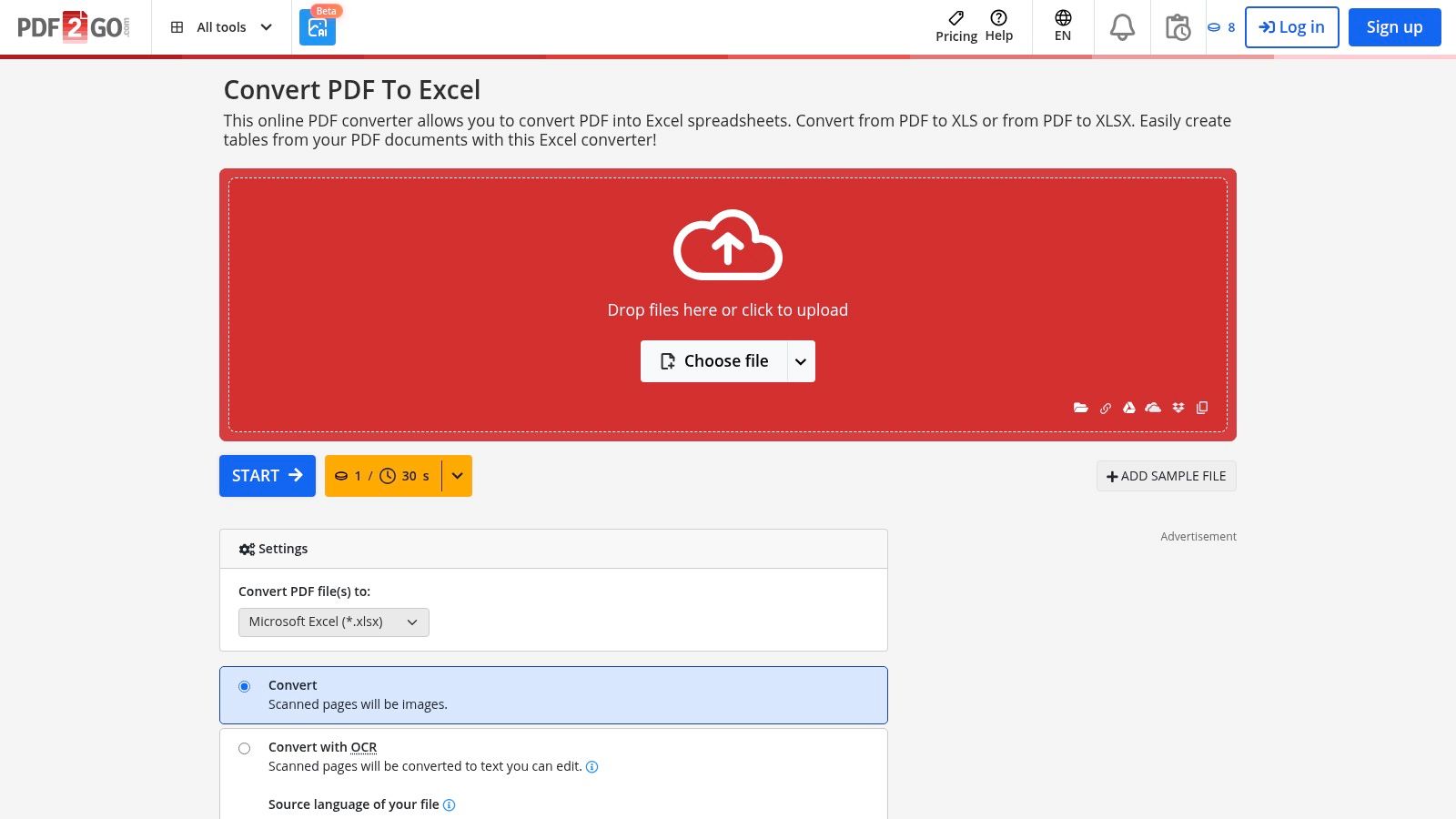
Its directness is its main advantage; you can simply toggle the "Convert with OCR" option if your PDF is not selectable text. While it’s not the most powerful OCR engine on the market, having the option integrated directly into a free converter is a significant convenience for quick, one-off tasks involving scanned receipts or simple reports.
Key takeaway: PDF2Go is a great go-to for its optional OCR, making it a versatile free pdf to excel converter for both digital and scanned documents.
Key Features & Limitations
- Best For: Users who need to occasionally convert scanned PDFs and appreciate having a clear, optional OCR setting directly in the tool.
- Pros:
- Built-in OCR can be enabled with a single click.
- Straightforward user interface with minimal clutter.
- Clear information on free file size and processing limitations.
- Cons:
- Conversion quality for complex tables can be inconsistent, even with OCR.
- The free tier limits file size and the number of concurrent conversions, pushing frequent users toward a premium plan.
Website: PDF2Go PDF to Excel Converter
9. Nitro – Free online PDF to Excel
Nitro offers a refreshingly direct approach to document conversion, positioning itself as a quick, no-fuss solution for one-off tasks. Its standout feature is the absence of any registration or email requirement for its online tool. This makes it an excellent choice for users who prioritize speed and privacy for a single file conversion without committing to an account or a software download. The web interface is clean and gets the job done efficiently for standard, well-structured PDFs.
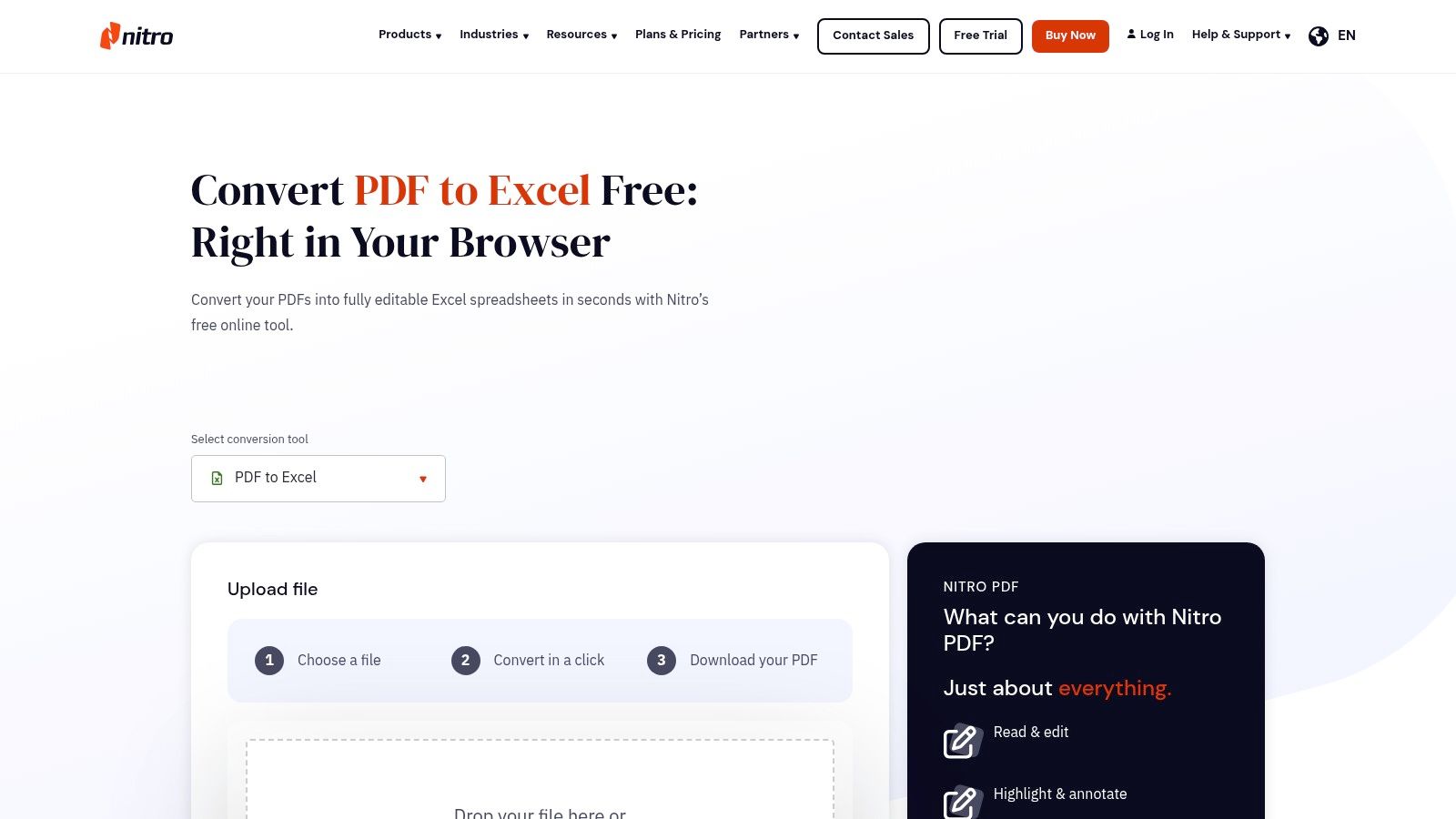
While the online tool is built for simplicity, Nitro also provides a clear pathway to more powerful features through its paid Nitro PDF Pro desktop software. This creates a good balance for users who may have an occasional need for a free converter but might require advanced controls, batch processing, or more robust editing capabilities in the future.
Key takeaway: Nitro’s free web tool is ideal for fast, anonymous, single-file conversions, with a paid desktop option available for heavy-duty workflows.
Key Features & Limitations
- Best For: Individuals needing a quick, private conversion without signing up, or small businesses testing the waters before considering a paid desktop PDF solution.
- Pros:
- No email or account registration required for the free online tool.
- Fast conversion speed for typical tabular documents.
- Serves as a free entry point to a more advanced, paid desktop ecosystem.
- Cons:
- The free web version is limited to processing one file at a time.
- Advanced features like batch processing and specific export controls are locked behind the paid Nitro PDF Pro software.
Website: Nitro PDF to Excel Converter
10. CloudConvert – PDF to XLSX
CloudConvert stands out as a versatile, all-in-one file conversion engine rather than just a dedicated PDF tool. Its strength lies in its robust infrastructure, developer-friendly API, and transparent usage model, making it a prime candidate for users who need occasional, automated conversions integrated into other workflows. Supporting over 200 formats, it handles PDF to XLSX as one of many possible transformations, giving it a broad utility beyond simple document tasks.
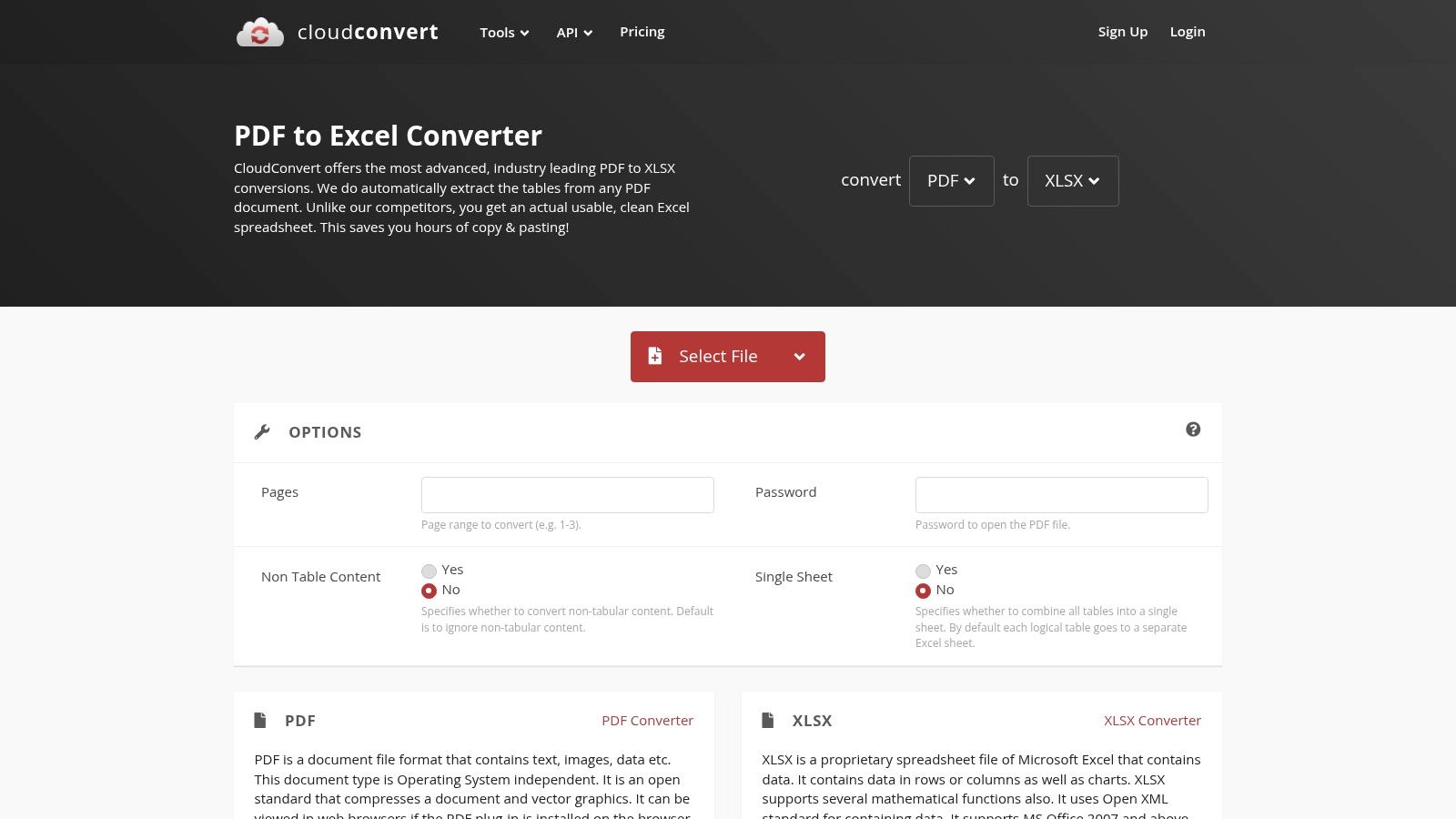
This platform's ISO 27001 certification and clear security posture provide a degree of trust often missing from other multi-format converters. While its table extraction is competent for standard layouts, its real value emerges when you need a predictable, free daily allowance or plan to build a small-scale, automated data extraction process using its well-documented API.
Key takeaway: CloudConvert is an excellent choice for developers or small businesses needing a reliable, API-driven converter with a clear free tier for low-volume, automated tasks.
Key Features & Limitations
- Best For: Technically-inclined users, small businesses needing to automate a few daily conversions, or anyone who values a single tool for multiple file-type conversions.
- Pros:
- Developer API allows for easy integration and workflow automation.
- Generous free tier with a set number of daily conversions.
- Strong security credentials (ISO 27001 certified).
- Cons:
- Free usage is capped daily; consistent or high-volume use requires paid credits.
- Data extraction on complex or non-standard tables can be inconsistent and may need manual correction.
Website: CloudConvert PDF to XLSX Converter
11. Convertio – PDF to XLSX
Convertio operates as a multipurpose file conversion engine, and its PDF to Excel tool excels in simplicity and speed. It’s built for the user who needs a quick, no-fuss conversion without downloading software or navigating complex menus. The interface is exceptionally straightforward, offering drag-and-drop functionality alongside convenient options to import files directly from Google Drive or Dropbox. This makes it a great choice for one-off tasks involving standard, clean tables that need to be moved into an XLSX format quickly.
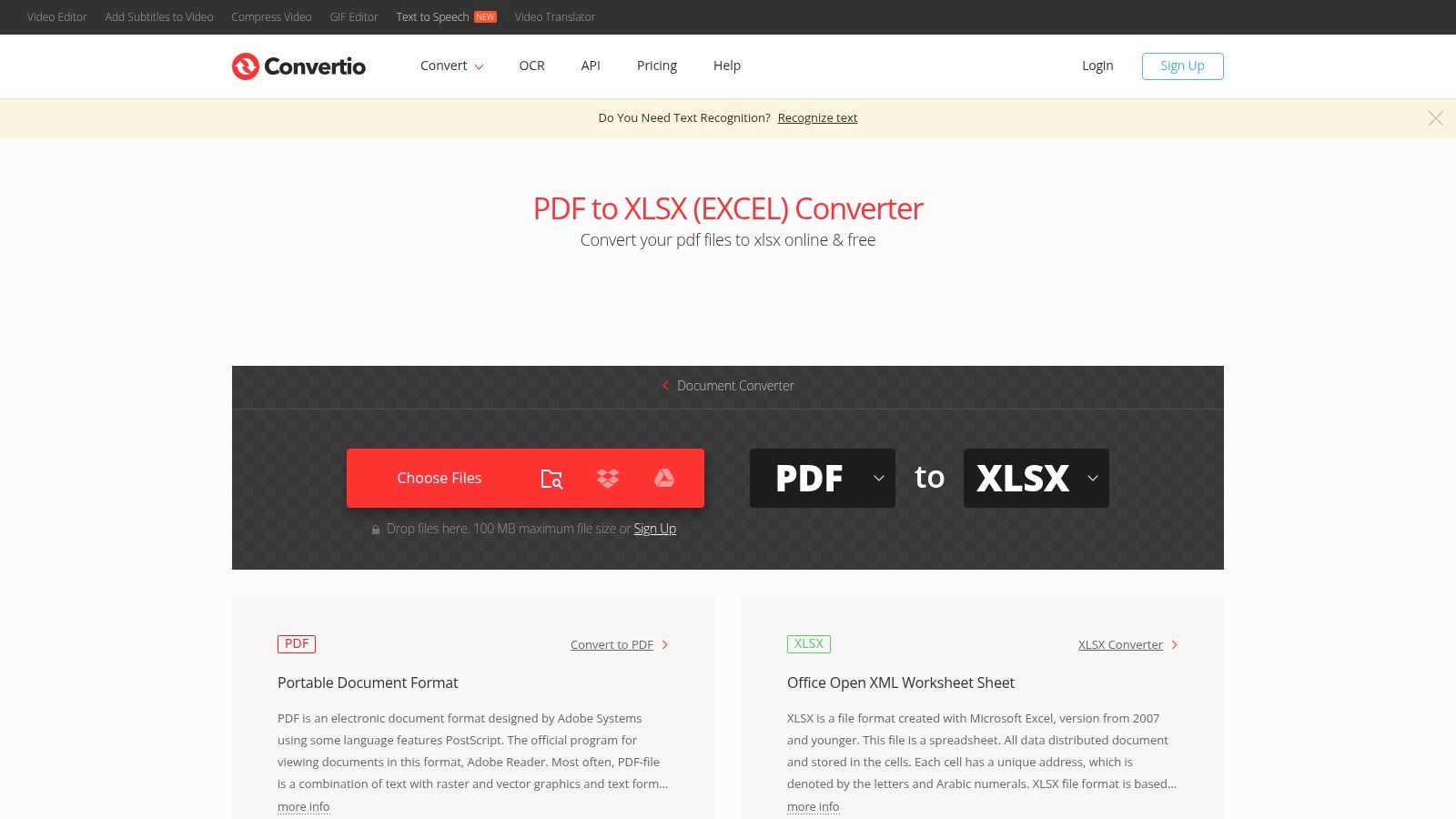
This tool is a solid contender in the category of best free PDF to Excel converter tools for its low-friction approach. However, its free tier comes with limitations on file size, daily conversions, and processing priority, which are not always made obvious until a user hits a limit. For anything beyond occasional use, a paid plan is necessary.
Key takeaway: Convertio is ideal for fast, single-file conversions of simple PDFs, especially when pulling files from cloud storage.
Key Features & Limitations
- Best For: Individuals needing a quick and easy way to convert a single, well-structured PDF without any software installation.
- Pros:
- Extremely simple and intuitive web interface.
- Convenient integration with Google Drive and Dropbox for file imports.
- Supports a huge variety of other file conversions beyond PDF to Excel.
- Cons:
- Free plan has daily usage and file size limits.
- Batch processing and priority support require a paid subscription.
- Accuracy can drop with complex or scanned documents.
Website: Convertio PDF to XLSX Converter
12. PDF24 Tools – PDF to Excel
PDF24 Tools offers a completely free, privacy-focused approach to document conversion, making it a standout choice for users wary of subscriptions and account sign-ups. Developed by a German company, the platform provides a robust suite of PDF utilities, including a straightforward online converter. Its main appeal is its dual-mode availability: a simple browser-based tool for quick jobs and a downloadable desktop application, PDF24 Creator, for offline processing on Windows. This flexibility makes it a reliable option for those who need a no-strings-attached solution.
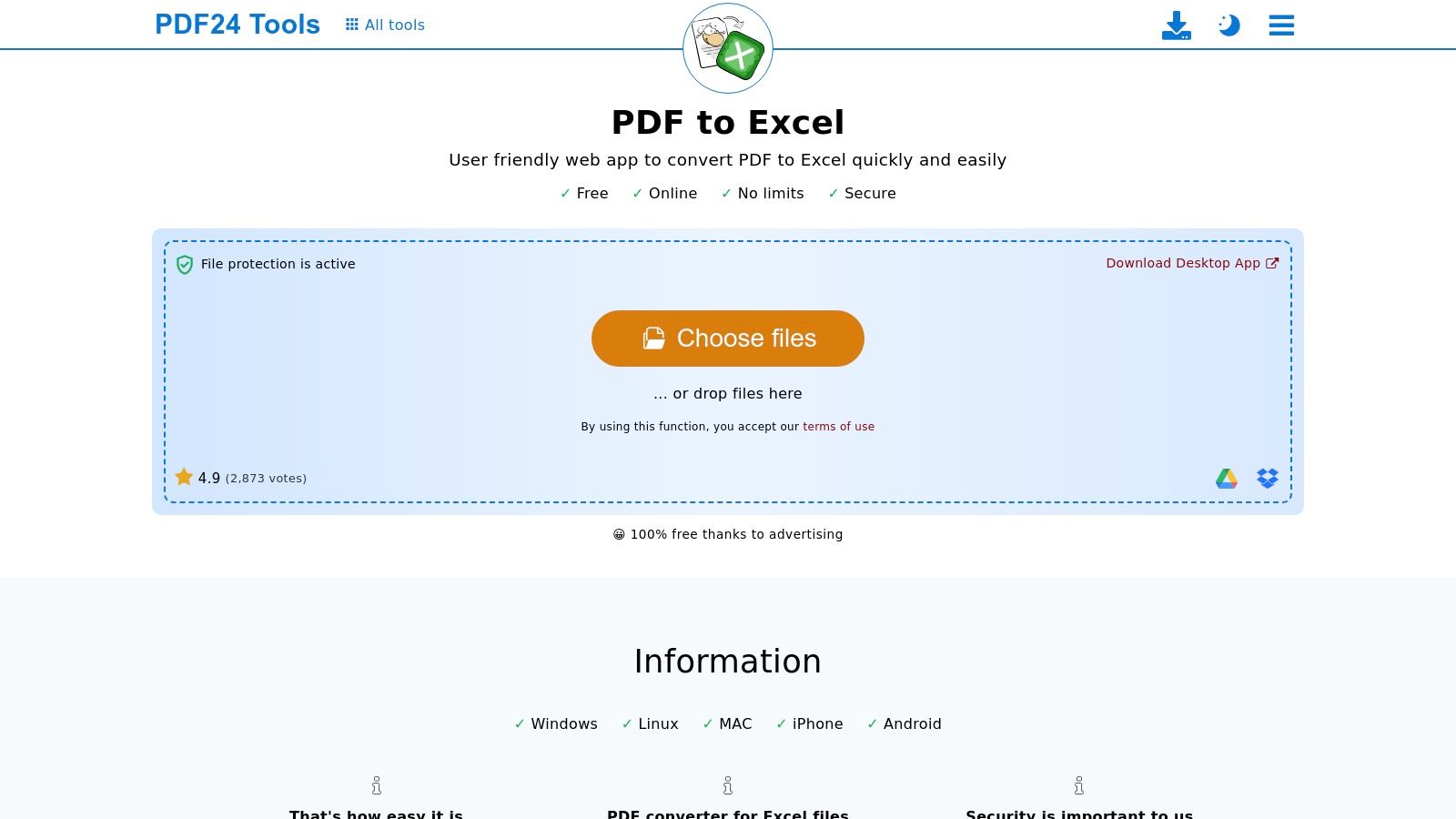
The online tool is intentionally basic, designed for fast uploads and conversions without complex settings. While this simplicity is great for accessibility, its performance with multi-page documents can be inconsistent. In some cases, it may output each PDF page into a separate Excel worksheet, which requires manual consolidation later.
Key takeaway: PDF24 Tools is the best free PDF to Excel converter for users who prioritize privacy, offline access, and avoiding paywalls, even if it means sacrificing advanced features.
Key Features & Limitations
- Best For: Individuals and small businesses needing a completely free tool for both online and offline use without creating an account or dealing with usage limits.
- Pros:
- 100% free with no hidden costs, both online and with the desktop app.
- Strong privacy focus; no account or registration required.
- Free desktop software (PDF24 Creator) allows for secure, offline conversions.
- Cons:
- Basic conversion engine may split PDF pages into separate Excel tabs.
- Lacks advanced features like OCR controls or specific table selection.
Website: PDF24 Tools PDF to Excel
12 Free PDF-to-Excel Converters Comparison
| Solution | Core features ✨ | Quality & UX ★ | Pricing/value 💰 | Best for 👥 | Standout 🏆 |
|---|---|---|---|---|---|
| DocParseMagic 🏆 | ✨ No-code parsing, OCR (images/scans), field extraction, math validation, CSV/XLSX/JSON exports | ★★★★☆ Fast, parallel processing; audit-ready outputs | 💰 Free credits + Starter / Pro / Enterprise (credit-based) | 👥 Finance, insurance, procurement, reps, loan ops | 🏆 Recommended — remembers rules, plain-English queries, SOC‑2/HIPAA options |
| Adobe Acrobat Online – PDF to Excel | ✨ Browser PDF→XLSX, preserves table structure, Acrobat cloud integration | ★★★★☆ Excellent on digital PDFs | 💰 Free limited; paid Acrobat plans for heavy use | 👥 Enterprises, Adobe ecosystem users | Trusted brand, strong security |
| Smallpdf – PDF to Excel | ✨ Quick PDF→XLSX, OCR on Pro, Google Drive/Dropbox integration | ★★★★☆ Very user-friendly; good for standard tables | 💰 Free limits; Pro for OCR/batch | 👥 SMBs, frequent quick conversions | Fast UX, compliance certifications |
| iLovePDF – PDF to Excel | ✨ Drag‑and‑drop, mobile/desktop apps, cloud import/export | ★★★☆☆ Simple and familiar interface | 💰 Free caps; paid unlocks OCR/bulk | 👥 Occasional users | Easy, approachable workflow |
| PDF Candy – PDF to Excel | ✨ Browser converter, auto-delete policy, paid desktop app | ★★★☆☆ Many tools; OCR varies on scans | 💰 Free web; paid desktop for batch/offline | 👥 Users needing assorted PDF tools | No-account basic conversions |
| Sejda – PDF to Excel or CSV | ✨ Exports to XLSX/CSV, auto-deletes files, clear free limits | ★★★☆☆ Good for structured tables and CSV exports | 💰 Free with page/size/task caps; paid for more | 👥 Small batches, BI/import workflows | Transparent limits, 2‑hour auto-delete |
| Soda PDF Online – PDF to Excel | ✨ Web XLSX converter, desktop app option, documented free policy | ★★★☆☆ Decent accuracy on standard forms | 💰 Free with strict caps; premium for OCR | 👥 Casual users needing desktop/offline | Clear free vs premium docs |
| PDF2Go – PDF to Excel | ✨ PDF→XLSX with OCR toggle, security/workflow info | ★★★☆☆ Useful for small OCR jobs | 💰 Free limits; paid for larger files | 👥 Quick OCR on smaller files | Direct OCR toggle on tool |
| Nitro – Free online PDF to Excel | ✨ No-signup web converter, Nitro PDF Pro desktop for advanced | ★★★☆☆ Fast for typical tabular PDFs | 💰 Free web (one file at a time); paid desktop | 👥 One-off users who may upgrade to desktop | No email/account required |
| CloudConvert – PDF to XLSX | ✨ PDF→XLSX, developer API, 200+ formats, ISO 27001 | ★★★★☆ Reliable infra for automation | 💰 Free limited conversions; pay-per-use credits | 👥 Developers, automated workflows | API + compliance posture |
| Convertio – PDF to XLSX | ✨ Drag‑and‑drop, cloud import, in‑browser conversion | ★★★☆☆ Quick & low friction for simple tables | 💰 Free limits; paid for batch/size | 👥 Users needing cloud imports & quick results | Easy cloud integrations |
| PDF24 Tools – PDF to Excel | ✨ Free web + desktop app, many PDF utilities, privacy-focused | ★★★☆☆ Basic but fully free; may split pages | 💰 100% free web & desktop | 👥 Privacy-conscious users, budget-conscious teams | Fully free offline desktop option |
Choosing the Right Tool for Your Data Workflow
After reviewing a dozen different tools, from browser-based converters to intelligent data platforms, one thing is clear: the best free PDF to Excel converter is not a single tool, but the one that perfectly matches your specific task. The friction of moving data from a static PDF into a workable spreadsheet is a common problem, but the right solution depends entirely on the complexity, volume, and final purpose of that data.
For many, a simple, one-time conversion is all that's needed. If you have a clean, digitally generated PDF like a bank statement or a simple vendor list, almost any of the free online tools we’ve covered will work well. Services like Adobe Acrobat Online and Smallpdf offer user-friendly interfaces and reliable conversions for straightforward documents. They get the job done quickly with minimal fuss, making them ideal for occasional use where data structure is not overly complex.
Navigating Key Decision Factors
Your choice becomes more critical as your requirements grow. To help you select the right path forward, consider these core questions:
- What is the source of your PDF? A digitally created PDF is fundamentally different from a scanned image. For scanned documents, you need a tool with strong Optical Character Recognition (OCR). While many free tools like iLovePDF or PDF Candy offer OCR, their accuracy can be inconsistent, often requiring significant manual correction.
- How often will you be converting documents? Daily or weekly batch processing quickly exposes the limitations of free tools. Hourly or daily usage limits, processing queues, and the lack of batch functionality on platforms like Sejda or PDF2Go can become major bottlenecks in a professional workflow.
- What level of data accuracy do you need? For internal analysis where a few errors are acceptable, a free tool is sufficient. However, for financial reporting, client invoicing, or compliance documentation, data integrity is non-negotiable. Free converters often struggle with complex tables, merged cells, and varied layouts, introducing errors that can be time-consuming and costly to fix. This is the point where manual cleanup costs more than a specialized solution.
- Are your documents confidential? Uploading sensitive financial or client data to a random online server is a significant security risk. For confidential information, a desktop application like PDF24 Creator provides an offline alternative. However, for business-critical workflows, a dedicated platform like DocParseMagic, with its secure processing and focus on data privacy, is the responsible choice.
Making a smart technology decision often involves comparing different features and aligning them with your budget and operational needs. When evaluating different options and trying to make the smartest tech choices, understanding how to use software comparison websites can be incredibly beneficial.
The Trade-Off: Free Convenience vs. Structured Reliability
Ultimately, the journey from PDF to Excel is a story of trade-offs. Free converters offer immediate convenience at no monetary cost. They are perfect for simple tasks. But that convenience disappears the moment you encounter a poorly scanned invoice, a 50-page report with inconsistent tables, or the need to process hundreds of documents at once.
The real cost of "free" often appears later, measured in hours spent manually correcting misaligned columns, retyping jumbled numbers, and validating data. For accounting teams, insurance brokers, and operations managers, this manual effort is not just tedious; it’s a direct hit to productivity and a risk to data accuracy. The right tool shouldn't just convert a file; it should advance your workflow. Start with the simplest option, but be ready to recognize when your data’s value demands a more powerful and reliable solution.
When your team can no longer afford the time spent on manual data entry and correction, it's time to move beyond simple converters. DocParseMagic is designed for businesses that need accurate, structured data from complex PDFs without the cleanup. Stop fighting with broken tables and start using your data instantly by exploring DocParseMagic today.