Create the Perfect Bank Statement Template for Automation
Let’s be honest, the standard bank statement templates you download are a massive headache for automation. They’re designed for human eyes, not software, and that fundamental flaw leads to countless hours of manual data entry, costly errors, and major delays in critical work like loan processing or accounting.
These generic PDFs are the root cause of so many inefficiencies, forcing teams to painstakingly transcribe data into spreadsheets or other systems. This total reliance on bank-provided formats creates serious bottlenecks and injects a lot of unnecessary risk into your financial operations.
Why Standard Bank Statement Formats Fail Automation
Think about a typical accounting team scrambling during a month-end close. They’re buried under a pile of PDF statements from a half-dozen different banks, each with its own quirky layout. One bank puts debits on the left, another on the right. Dates are all over the place—MM/DD/YY, DD-MM-YYYY, you name it. And the transaction descriptions? Often cut off or so cryptic they’re useless without context.
Every single one of these inconsistencies forces someone to stop and manually fix the data, grinding the whole process to a halt. It's a frustrating, repetitive, and completely avoidable problem.
The Hidden Costs of Poor Formatting
The fallout from these poorly designed documents goes way beyond just wasted time. Manual data entry is a recipe for errors.
Consider this: the U.S. commercial banking industry generated over $775 billion in revenue in 2019. With manual data entry error rates estimated to be between 1-3%, the potential for financial loss from simple keying mistakes could easily run into the billions every single year.
This inefficiency hits key business functions hard:
- Loan Processing: Underwriters end up spending their time trying to figure out a messy statement instead of making quick, informed lending decisions.
- Audits and Compliance: Pulling together clean, auditable data becomes a nightmare, which skyrockets your compliance risk.
- Financial Reporting: Bad data in means bad reports out. This directly undermines the strategic decisions you're trying to make.
Standard vs Automation-Ready Template Comparison
Here's a quick look at why a purpose-built template is so much more effective than the standard formats you're used to seeing.
| Feature | Standard Template | Automation-Ready Template |
|---|---|---|
| Layout | Inconsistent, designed for print/human viewing. | Consistent, grid-based, optimized for software parsing. |
| Data Fields | Often merged (e.g., date/time) or missing key info. | Discrete, clearly labeled fields (e.g., separate columns). |
| Format | Typically a messy PDF, sometimes just an image. | Structured formats like CSV, Excel, or well-tagged PDFs. |
| Error Rate | High, due to manual transcription and OCR mistakes. | Near-zero, as data is machine-readable from the start. |
| Processing Speed | Slow and manual, often taking hours or days. | Instantaneous, processed by software in seconds. |
As you can see, the difference is night and day. One creates bottlenecks, while the other enables speed and accuracy.
Shifting to an Automation-Ready Mindset
The solution is to ditch these rigid, unhelpful formats and adopt what I call an 'automation-ready' bank statement template. This isn't just about moving a few columns around; it’s a complete shift in how you think about and handle financial data.
By designing a template specifically for your automated systems, you build a workflow that actually works for you, not one you’re constantly fighting against. This approach uses technology like what is intelligent document processing to turn raw statement data into a structured, reliable asset. It’s the first step toward building a much more efficient, accurate, and scalable financial operation.
The Anatomy of an Automation-Friendly Statement
A truly effective bank statement isn't just a record of transactions; it's a blueprint designed specifically for your software. To get this right, you have to think like a machine. It's all about structure, consistency, and absolute clarity. Let's break down what makes a statement template that automated systems can read without a hitch.
This isn't just an academic exercise. Finance teams are constantly wrestling with the sheer variety of statement formats out there. One study actually identified over 10,000 unique templates from different banks. This mess creates huge headaches for 85% of finance teams working with multiple banks and eats up a staggering 25% of their time just on data extraction. If you want to dive deeper, you can learn more about bank statement analysis challenges.
Core Header Information
First things first: the header. The top of your statement needs to have static, clearly identifiable information. This isn't just for people; parsing tools look for these exact keywords and data points to get their bearings before they even start looking at the numbers. Think of it as the document's digital fingerprint.
Here are the must-haves for your header:
- Account Holder Details: Full name and address. Crucially, put each on a separate line. Otherwise, the software might read it all as one jumbled string.
- Bank Information: The bank’s name and address, also clearly separated.
- Account Number: Give this its own distinct, clearly labeled field. Never bury it in a long sentence.
- Statement Period: Always use a consistent start and end date format. My personal recommendation is
YYYY-MM-DD. This one simple rule can prevent countless errors from ambiguous formats like01-02-2024.
Key Takeaway: The header is your foundation for accurate data extraction. When you isolate key identifiers like account numbers and statement dates into their own clean, predictable spots, you give the software a reliable anchor point to start its work.
The Transaction Table: A Blueprint for Flawless OCR
The transaction table is the heart of the statement. This is where most automation efforts either succeed brilliantly or fail spectacularly. Your goal is a table that Optical Character Recognition (OCR) software can interpret without any guesswork. That means a rigid, grid-like structure with no ambiguity.
This infographic really drives home the bottlenecks that inconsistent statements and manual data entry create.
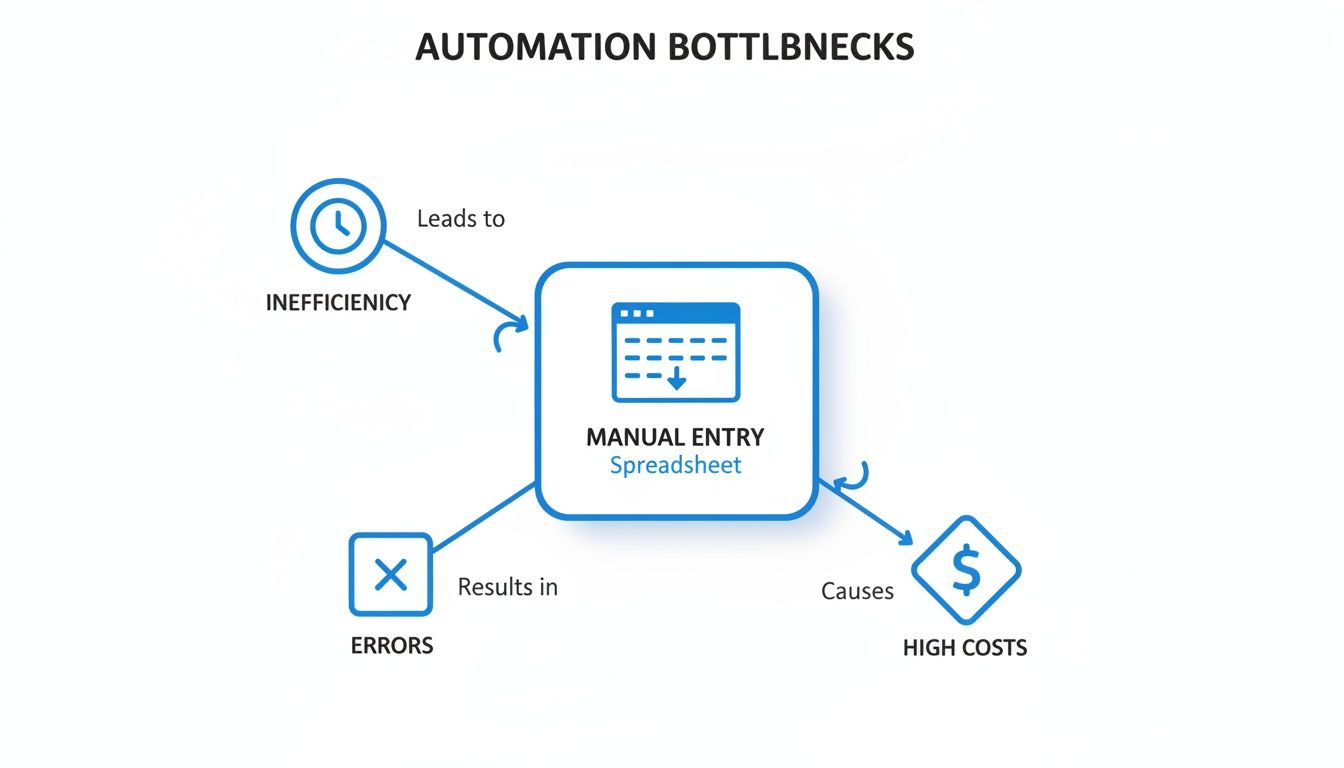
As you can see, sticking with manual entry is a direct path to inefficiency, mistakes, and higher costs.
For a table that a machine can actually read, you absolutely need these columns:
- Transaction Date: Again, stick to a standardized
YYYY-MM-DDformat. Consistency is everything. - Description: Make this field wide enough for full details. Truncated descriptions are a common source of jumbled data.
- Debits and Credits: Use separate columns for money out (debits) and money in (credits). Always. Combining them into one column with plus/minus signs is a classic mistake that trips up parsing software.
- Running Balance: This one is optional, but I highly recommend it. It provides a built-in way for the system to self-verify its work and makes auditing much easier.
- Unique Transaction ID: This is a total game-changer for data integrity. Including a unique ID for every single transaction creates a rock-solid audit trail and kills the risk of duplicate entries when you're importing data.
The Statement Summary Section
Finally, you need a summary section at the bottom of the statement. This area acts as a final checkpoint for your automation software. By providing clear totals, the system can cross-reference the transaction data it just extracted against these summary figures to validate its own accuracy.
Make sure this section clearly lays out the following:
- Opening Balance: The starting balance for the period.
- Total Deposits: The sum of all credits.
- Total Withdrawals: The sum of all debits.
- Closing Balance: The final balance for the period.
When you design your template with these distinct, machine-friendly sections, you're not just creating a document. You're building a powerful tool for automation that ensures your data gets captured quickly, accurately, and without anyone having to touch it.
Choosing Your Format: Excel, CSV, or PDF?
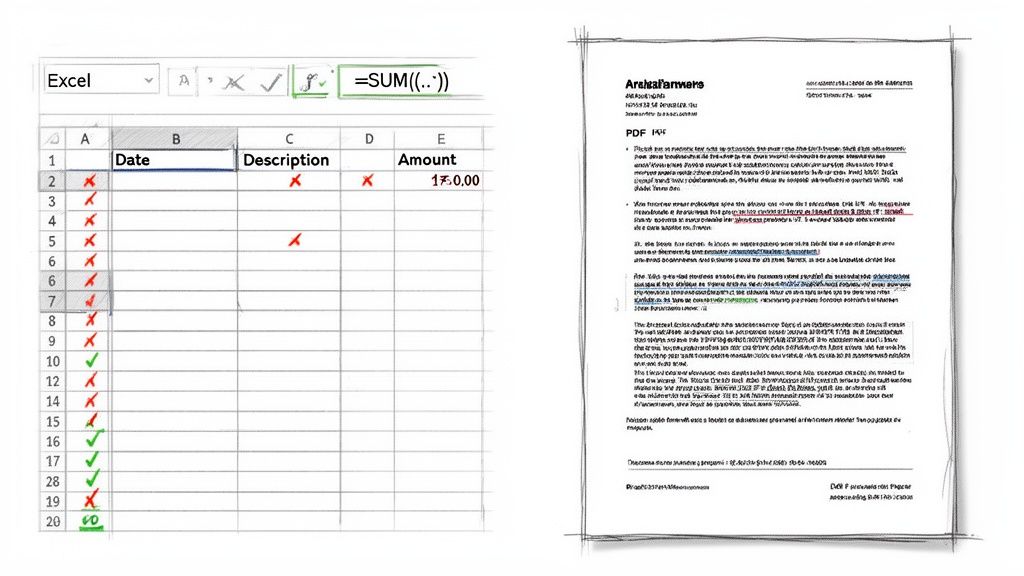
Alright, we’ve got the blueprint for a statement that machines can easily understand. Now, let’s get our hands dirty and actually build it. Your choice of format—be it Excel, CSV, or PDF—really comes down to your specific needs and how you plan to process the data.
Each one has its place, and picking the right one from the start will save you countless headaches down the road. Let's move from theory to practice.
For Raw Data: Crafting a Template in Excel and CSV
If your team needs data they can immediately plug into accounting software or analysis tools, nothing beats the pure, structured nature of Excel or a simple CSV file. These formats are the bread and butter of financial data processing.
When you're building a template in Excel, don't think of it as just a document. Think of it as a mini-database. Structure is king. Lay out your columns based on those essential fields we covered: Transaction Date, Description, Debit, Credit, and Running Balance.
My go-to trick here is to use Excel’s Table feature (just go to Insert > Table). It’s more than just pretty formatting; it locks in consistency. Every time you add a new transaction, it automatically applies the correct formatting and formulas, keeping your data clean and uniform.
Keeping Your Data Clean and Consistent
To head off common errors before they happen, lean on Excel's Data Validation tools. For your 'Transaction Date' column, you can set a rule that only accepts dates in a specific YYYY-MM-DD format. This one small step gets rid of any date ambiguity for your software.
You can also pop a simple formula into the 'Running Balance' column to have it calculate automatically. For instance, if your starting balance is in cell E2, the cell below it (E3) would have a formula like =E2-C3+D3, assuming debits are in column C and credits are in column D. It’s a built-in-self-check.
Pro Tip: If you're using CSV, simplicity is your best friend. A CSV should be a pure grid of data—no frills. Steer clear of merged cells, funky characters in your headers, or any other visual styling. These things are notorious for breaking import processes.
For teams wanting to get even more efficient, learning how to properly convert bank statements to Excel is a game-changer that bridges the gap between the documents you receive and the structured data you need.
For Archiving and Sharing: Designing an OCR-Friendly PDF
Excel and CSV are fantastic for internal use, but what about official records or sharing statements with external partners? That's where PDFs come in. The big challenge with PDFs, though, is making sure they can be read accurately by Optical Character Recognition (OCR) software. You have to "design for the machine."
This just means every choice you make, from fonts to spacing, should be done with a parsing engine in mind.
Here are a few hard-and-fast rules I always follow for an OCR-friendly PDF:
- Stick to Machine-Readable Fonts: Use standard, no-fuss fonts like Arial, Helvetica, or Calibri. Ditch the fancy script or stylized fonts that confuse OCR algorithms. I've seen this simple change boost extraction accuracy by over 15%.
- Go for High Contrast: It doesn't get better than black text on a plain white background. Avoid light gray text or, even worse, watermarks that sit behind your numbers. They wreak havoc on character recognition.
- Embrace White Space: Don't cram everything together to save a page. Generous spacing between columns and rows helps the OCR software clearly separate one data point from the next, preventing data from "bleeding" into adjacent fields.
Thinking about clear financial documents doesn't stop here. A good statement of account template follows many of the same principles of clarity and professionalism.
Good vs. Bad Layout: A Quick Comparison
To really see what I mean, let's look at a layout that works versus one that’s an automation nightmare.
A Poorly Designed Layout often has:
- A single "Amount" column with positive and negative numbers instead of separate Debit/Credit columns.
- A stylish, unreadable font for the bank logo and headers.
- Transaction descriptions that get cut off or run into other columns.
- A big, faint "CONFIDENTIAL" watermark plastered right over the most important data.
An Automation-Ready Layout always has:
- A clean, grid-based table with distinct columns for each data field.
- A standard font like Arial at a readable 10 or 11-point size.
- Columns that are wide enough to fit all the information without wrapping text.
- Zero background images, watermarks, or low-contrast text.
Ultimately, choosing the right format and sticking to these design rules is the most important part of the process. A well-made Excel or CSV file will slide right into your systems, and a smartly designed PDF will give you near-perfect data extraction every single time. This is how you eliminate the manual work that bogs your team down.
Getting Your Scans Right for OCR
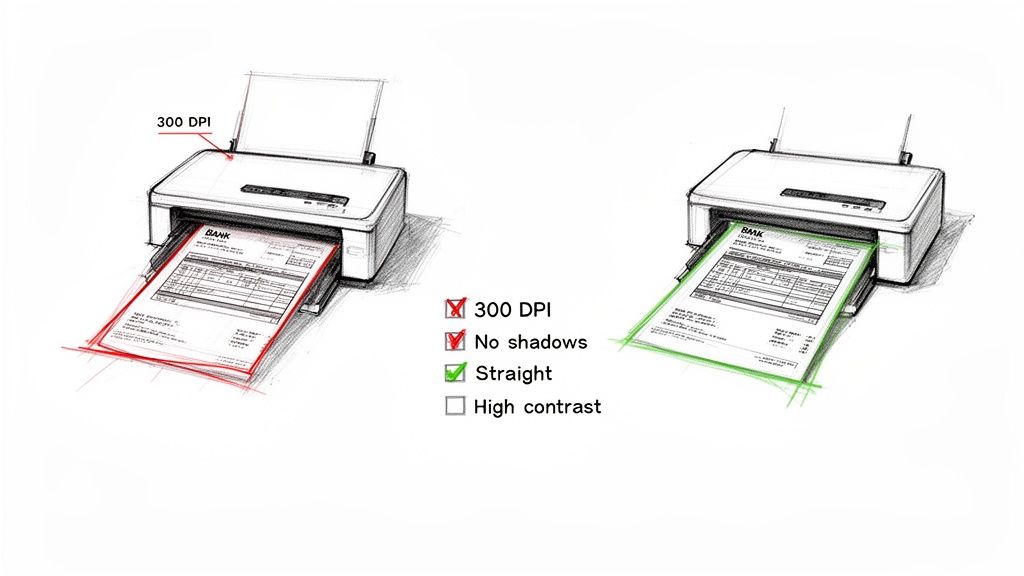 Even the most thoughtfully designed bank statement template will fall flat if the physical page doesn't translate cleanly into a digital file. The quality of your scan isn’t just a minor detail; it’s the make-or-break first step that dictates whether your automation workflow succeeds or fails.
A bad scan introduces errors that even the smartest software can't fix, pushing your team right back into the manual data entry you were trying to eliminate.
Think of your Optical Character Recognition (OCR) software as a very literal reader. It can only process what it can clearly see. If the text is fuzzy, tilted, or hidden in shadows, the software is forced to guess, and those guesses lead to expensive mistakes. For a deeper dive, it's helpful to understand the basics of what optical character recognition is.
Dialing in Your Scanner Settings
Before you even press the "scan" button, a couple of quick setting adjustments can make a world of difference in your results. It's all about feeding the software the best possible source material.
-
Resolution (DPI): Set your scanner to 300 DPI (dots per inch). This is the gold standard for document scanning. Going lower to 150 or 200 DPI often results in pixelated, unreadable text. Bumping it up to 600 DPI just creates massive files without a meaningful improvement in accuracy for standard documents.
-
Color Mode: This might seem backward, but scanning in grayscale is usually the way to go. It creates a crisp, high-contrast image that helps the OCR engine easily separate text from the background. Full-color scans can introduce subtle gradients and shades that just confuse the software.
Getting these two settings right is your first line of defense against most common data extraction errors.
Common Pitfalls on the Physical Side
With your scanner configured, the next step is prepping the actual paper. It's amazing how the smallest physical imperfection can create a major digital headache for an OCR tool. I've seen these issues trip up even the most sophisticated systems.
A Quick Tip from Experience: A document that's skewed by just a few degrees can completely prevent an OCR tool from recognizing a table. The software is looking for perfect horizontal and vertical lines to map out rows and columns. Even a slight tilt makes it see a chaotic mess of text instead of a structured grid.
Here's a quick checklist to help you get a clean scan every single time.
OCR Optimization Checklist
To keep things simple, run through this quick checklist before scanning your documents. It covers the most common physical issues that can derail an OCR process.
| Checklist Item | Best Practice | Reason |
|---|---|---|
| Document Alignment | Use document feeder guides or align with flatbed corners. | Prevents skewed scans, which destroy table recognition. |
| Lighting & Shadows | Ensure the scanner lid is closed flat and smooth out creases. | Shadows and dark spots can hide characters from the OCR engine. |
| Print Quality | Use a clear, high-contrast original document. | Faded or blurry print is nearly impossible for software to read accurately. |
| Markings | Ensure there are no handwritten notes or highlighter marks. | The software can mistake these markings for data, leading to errors. |
| Physical Condition | Check for stains, smudges, or tears. | Blemishes can be misinterpreted as characters, altering key data. |
By paying attention to these seemingly small details, you give the OCR engine a clean, unambiguous image to work with. It reinforces why a clean template design is so important—it creates a document that's naturally resilient to these common scanning problems, ensuring a smooth journey from paper to pixels.
Working Out the Kinks: Troubleshooting Common Data Extraction Errors
You’ve designed what you thought was the perfect bank statement template, run your first batch, and… the extracted data is a mess. Don't panic. This is a totally normal part of dialing in any automation process. Small hiccups and weird variations are bound to pop up, but they are almost always fixable.
Think of it as training a new hire. Your OCR software is brilliant but needs a little guidance to get up to speed. It might misread a few things at first, but with a few tweaks, it’ll be performing flawlessly. Let's go through the most common extraction headaches I've seen and how to solve them.
Correcting Misread Dates and Numbers
One of the first things to go wrong is often dates and numbers. You’ll see a date like 03/05/2024 get mangled, or a simple $1,500.00 show up as S1S00.00. When this happens, it's usually for one of two reasons.
The culprit is almost always a low-quality scan or an ambiguous format. If the software can’t tell an "8" from a "3," or if a dollar sign is crammed right up against a number, it has to make a guess—and it won't always be right.
First, go back to your scanning setup. A clean, 300 DPI grayscale scan is your first line of defense and solves more problems than you'd think. Next, make sure your bank statement template uses a single, crystal-clear format for these fields.
- For Dates: I always recommend
YYYY-MM-DD. It leaves zero room for confusion between days and months. - For Currency: Add a little breathing room between the currency symbol and the number (e.g.,
$ 1,500.00). Also, make your Debit and Credit columns wide enough so the numbers aren't squished together.
Handling Merged or Jumbled Text
Ever see a transaction description like "Monthly Service Fee" bleed into the next column? That's another classic. It's a layout problem, pure and simple. The OCR engine is struggling to see where one data field ends and the next one begins.
This is where generous white space in your template becomes your secret weapon. The fix is to create obvious visual separation between your columns. Don't be afraid to make them a bit wider in Excel or your PDF editor. This gives the software a clean, unobstructed path to follow.
A Pro Tip From Experience: A little extra padding between columns can make a massive difference in extraction accuracy. You want to make the data boundaries so obvious that a machine can't possibly get it wrong.
Dealing with Special Characters and Symbols
Special characters—think ampersands (&), asterisks (*), or different currency symbols (£, €)—can sometimes throw a wrench in the works. Some OCR systems aren't trained to recognize them and will either skip them or swap them for gibberish.
Your first move should be to dive into your data extraction software's settings. Many platforms let you define the character sets you expect to see. If that's not an option, the next best thing is a quick post-processing script to find and replace any rogue symbols.
For instance, you could create a simple rule that swaps any instance of "EUR" with "€" after the data is pulled. It's an extra step, but it keeps your final data set clean and consistent.
Managing Multi-Page Statements
Finally, there's the multi-page problem. What happens when a single statement spans two, three, or even ten pages? In many cases, the software treats each page as a brand-new document, splitting one statement's data across multiple files. This can be a nightmare for month-end reconciliation.
The solution is all about consistency in your template's header and footer on every single page.
- Page Numbers are a Must: A simple "Page X of Y" in the footer of every page works wonders.
- Repeat Key Header Info: Don't just put the account number and statement period on the first page. Make sure that information appears in the header of every single page.
This repeated information acts like a set of digital breadcrumbs. It tells the software how to stitch all the pages together into one continuous document, ensuring your transaction data stays complete and in the right order.
Putting Your Template to Work: Real-World Scenarios
A thoughtfully designed bank statement template isn't just a technical achievement; it's a practical tool that unlocks serious business value. The real "aha!" moment comes when you see it transform slow, manual workflows into fast, automated processes. Let's look at how this plays out in a few common situations.
The whole point is to get your teams away from mind-numbing data entry and empower them to make quicker, more accurate decisions. The impact is immediate.
Slashing Month-End Close for Accounting Teams
Picture a mid-sized accounting team buried under work at the end of the month. They're staring at a mountain of PDF statements from different banks, each with its own unique layout. The old way meant someone had to manually type every single transaction into their accounting software. It was slow, tedious, and a breeding ground for expensive typos.
It’s no surprise that manual bank statement processing eats up 15-20 hours a week for teams like this. In fact, a staggering 88% of accountants point to it as a major headache in their workflow, as highlighted in a QuickBooks global survey.
With your new automation-friendly template, everything changes. Instead of manually keying in data, the team gets structured files they can import into QuickBooks or their ERP system with a single click.
The Transformation: A task that used to devour days of tedious work is now finished in less than an hour. This gives the accounting team time to focus on what really matters—strategic analysis and financial forecasting—instead of just chasing numbers.
Speeding Up Approvals for Loan Processors
Now, think about a loan processor trying to verify an applicant's income and assets. Traditionally, this meant visually scanning every line of a bank statement, manually calculating income streams, and flagging any large or unusual deposits. This process was a notorious bottleneck, holding up loan approvals and leaving applicants waiting.
A well-structured bank statement template completely flips the script.
When a statement arrives in the new format, data extraction tools can instantly get to work:
- Pinpoint recurring deposits from employers to confirm income.
- Pull opening and closing balances to verify available assets.
- Flag unusual transactions that need a second look.
The loan processor goes from being a data hunter to a skilled analyst. They can confirm an applicant's financial health in minutes, not hours. This leads to dramatically faster loan approvals and gives them a real edge over the competition. For more context on how this fits into the bigger picture, you can find some great real-world payment processing insights.
Boosting Efficiency for Insurance Auditors
Finally, imagine an insurance auditor reviewing premium payments across hundreds of client accounts. Their job is to make sure payments were made on time and for the right amount. Digging through messy statements to find specific transactions was a massive time sink.
By using a standardized template, the auditor can now use software to instantly search and pull only the relevant premium payment data from a huge batch of statements. This targeted approach helps them complete audits faster and with much higher accuracy, which is crucial for compliance and managing risk. A clean, structured format makes all the difference.
Ready to stop fighting with messy documents and start automating your workflow? DocParseMagic turns any bank statement, invoice, or business file into clean, structured data you can use immediately. Drag, drop, and get hours back in your week. Try DocParseMagic for free and see the difference.