Bank Statement Converter: Automate Your Data from PDFs
A bank statement converter is a lifesaver. It’s a tool that pulls all the transaction data out of your PDF bank statements and neatly organizes it into a spreadsheet, like Excel or Google Sheets. Think of it as the ultimate shortcut, replacing hours of mind-numbing manual data entry and preventing those little typos that can cause big headaches.
Manual Data Entry Is Quietly Draining Your Resources
Let's face it: manually typing line items from bank statements into a spreadsheet is a soul-crushing task. It’s more than just boring—it’s a massive bottleneck that wastes time and money. Picture an accountant at the end of the month, surrounded by PDFs from five different banks, each with its own weird layout. It's a recipe for frustration and errors.

This is why a bank statement converter isn't just a nice-to-have tool. It’s a strategic investment. It helps you reclaim valuable hours, guarantee your data is accurate, and lets your team focus on analyzing the numbers instead of just inputting them. The real cost of sticking to the old way is often hidden.
The True Price of Manual Work
When your skilled finance pros are stuck doing data entry, the damage runs deeper than just wasted time. Here’s what it's really costing you:
- Missed Opportunities: Your team is too busy wrangling PDFs to focus on what they do best—financial planning, spotting risks, and finding ways to grow the business.
- Shaky Decisions: When data is messy, late, or just plain wrong, you can't get a clear picture of your cash flow. This makes smart, timely decisions almost impossible.
- Compliance Nightmares: For businesses that need to keep tight financial records, a simple manual error can lead to failed audits, regulatory fines, and a damaged reputation.
It's no surprise that more businesses are moving away from manual methods. The market for bank statement analysis tools was valued at $2.3 billion in 2025 and is expected to hit $4.1 billion by 2033. This boom is driven by a clear need for faster, more reliable financial management.
Making the Switch to Automation
The end goal is simple: turn a tedious, error-prone chore into a smooth, automated process. A good bank statement converter acts as the bridge, turning locked-down PDFs into financial data you can actually use.
By automating how you extract and organize this information, you’re not just saving time—you’re building a stronger, more efficient financial foundation. This frees up your team to focus on what really moves the needle: using clean data to make smarter business decisions. If you want to dive deeper into this, you can learn more about the challenges of manual data entry in our related guide.
Getting Your Bank Statements Ready for Conversion
To get clean data out, you have to put clean documents in. It’s that simple. Spending a few minutes prepping your bank statements can be the difference between a perfect data extraction and a frustrating mess. I like to think of it as a pre-flight check—it guarantees a smooth, error-free process every time.
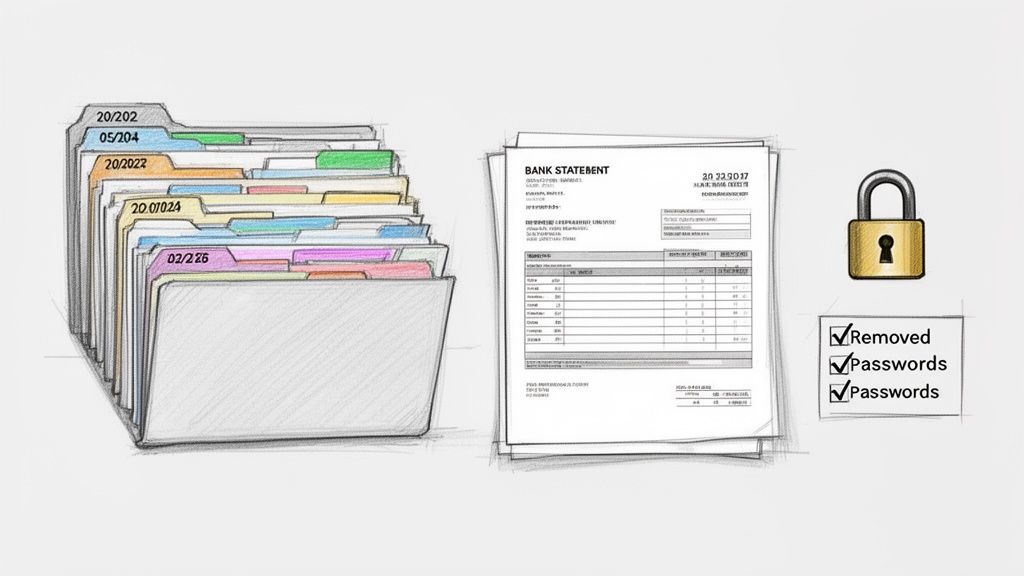
Before you even think about converting, make sure you know your way around the document itself. This foundational knowledge helps you spot the key information and ensures nothing important gets missed. If you need a refresher, this guide on understanding bank statements is a great place to start.
Once you’re confident about what to look for, it's time to get your digital files ready for processing. The quality of your source file has a huge impact on the final output.
Optimize Your Digital Files
Whenever you can, start with the original digital PDF from your bank. These "native" PDFs contain actual text data, which is far easier for any converter to read accurately than a scanned image.
If all you have are paper copies, a good, clean scan is your next best bet.
- Scan Quality: Set your scanner to a resolution of at least 300 DPI (dots per inch). This keeps the text sharp and legible, which helps the OCR avoid mistaking a "3" for an "8."
- Avoid Skewing: Lay the document completely flat and straight on the scanner. Even a slight tilt can throw off the entire data extraction process.
- Check for Clarity: Give your scans a quick once-over before uploading. Look for any blurriness, dark shadows, or weird smudges that could confuse the software.
Remove Document Passwords
Many banks issue password-protected PDFs, which is great for security. The problem? A bank statement converter can't open a locked file.
You'll have to remove the password before you upload the document. Most PDF viewers, like Adobe Acrobat or even the one in your web browser, let you save a new, unlocked version of the file. Just make sure you save this unprotected copy in a secure folder on your computer.
Pro Tip: I've found that when dealing with a big pile of statements, a consistent naming convention is a lifesaver. Try organizing files by account and date (e.g., "Checking_Account_2023-10.pdf"). It makes managing your data so much easier, especially if you're doing batch uploads. To get ideas on standardizing, it can be helpful to look at a common bank statement template.
Choosing The Right Bank Statement Conversion Method
Deciding how to get data out of your bank statements and into a spreadsheet can feel like a chore, but it really comes down to a simple trade-off between your time, your budget, and how much you can tolerate mistakes. You've got three main ways to tackle this: the old-school manual route, a middle-ground approach with basic OCR tools, or going all-in with a dedicated automated platform.
What works for a freelancer with 20 transactions a month just won't fly for a growing business hitting 200, let alone 2,000. The best choice for you depends entirely on where you fall on that spectrum.
Manual Entry: The Old Standby
This is exactly what it sounds like: you, a PDF, and a blank spreadsheet. Manually typing every line item gives you total control, but it's painfully slow and, let's be honest, a recipe for errors. We've all been there—one misplaced decimal can throw off your entire month's reconciliation.
This method is only practical for tiny volumes or a one-off project. If you're doing this regularly, the hours you sink into data entry make this the most expensive option when you factor in your own time.
Basic OCR Tools: A Step Up
General-purpose Optical Character Recognition (OCR) tools are the next logical step. These tools scan the document and convert the image of the text into something you can actually copy and paste. It definitely beats typing everything by hand.
The problem? Most bank statements have complex tables and layouts that generic OCR just can't handle well. You'll get a wall of text, often with jumbled columns, misread numbers, and weirdly formatted dates. It’s an improvement, but you’re still left with a hefty cleanup job.
Automated Platforms: The Modern Solution
This is where a purpose-built bank statement converter comes into play. These tools are designed from the ground up to understand the specific structure of financial documents. Bank statement automation has completely changed the game for businesses that handle financial data, replacing tedious manual work and the errors that come with it. These modern converters turn messy statements into clean, structured data with almost no manual effort.
These platforms use advanced AI, a field known as Intelligent Document Processing (IDP), which is what allows them to read and interpret complex documents like a human would, only much faster.
Key Takeaway: The goal isn't just to pull text from a page. It's to get structured, accurate data. A good automated tool knows the difference between a date, a description, a debit, and a credit, no matter how the bank formatted the statement.
A modern tool like DocParseMagic makes it as simple as dragging and dropping your files.
This kind of simple interface lets you upload a whole batch of statements at once, turning a full day's work into a task that takes just a few minutes.
Comparison of Bank Statement Conversion Methods
To make the choice clearer, here’s a side-by-side look at how these three methods stack up against the things that really matter for a business.
| Feature | Manual Entry (Excel) | Basic OCR Tools | Automated Platform (DocParseMagic) |
|---|---|---|---|
| Accuracy | Low (High risk of human error) | Medium (Requires significant cleanup) | High (AI-powered validation) |
| Speed | Very Slow (Hours per statement) | Slow (Minutes plus cleanup time) | Very Fast (Seconds per statement) |
| Cost | High (In terms of labor hours) | Low to Medium (Software cost) | Scalable (Best ROI for volume) |
| Scalability | Not Scalable | Limited Scalability | Highly Scalable |
While the manual method has its place for very small tasks, it just doesn't scale. Automated platforms, on the other hand, transform a tedious, error-prone chore into a fast and reliable part of your workflow, giving you back hours of your time.
Putting an Automated Converter to the Test
Alright, let's move past the theory and see how this actually works in the real world. I want to walk you through what it’s like to use an automated bank statement converter, like DocParseMagic, to turn a stack of unruly PDFs into a pristine spreadsheet you can actually work with.
The whole point is to get from raw bank statements to useful data in a few minutes, not a few hours. We'll look at how the technology intelligently handles different bank layouts and pulls out the information that matters—dates, descriptions, and, of course, the transaction amounts.
This flowchart lays out the decision-making process perfectly. Your choice really comes down to volume and how much you value your time.
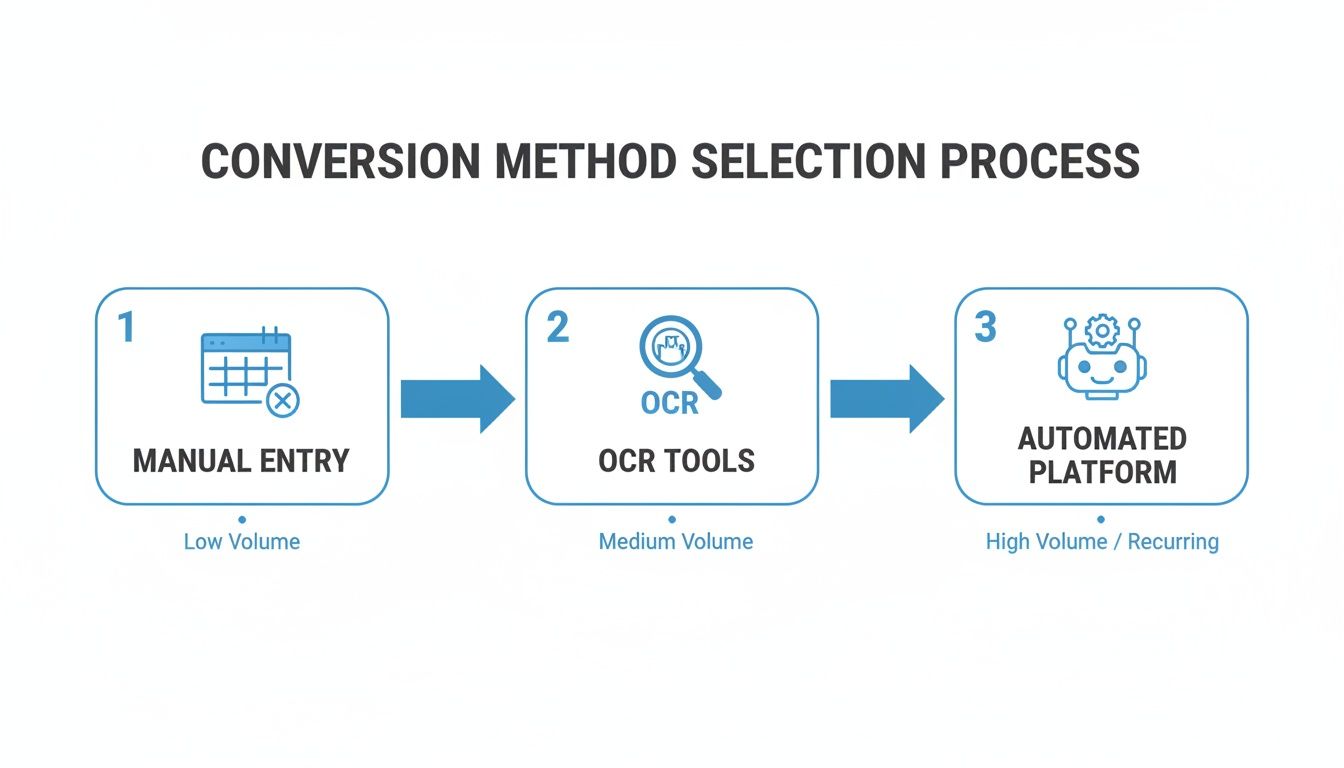
As you can see, once you hit a certain number of statements, automation isn't just a luxury; it's a necessity for any growing business.
Kicking Things Off: The Upload
The first time you use a modern bank statement converter, you'll probably be struck by how simple it is. There’s no software to install or a complicated setup wizard to click through. It all starts with a simple drag-and-drop.
Let’s say you’re an accountant who just received a dozen multi-page PDF statements from a new client. They’re from different banks, each with its own weird layout. Instead of the soul-crushing task of opening them one by one, you just grab all the files at once and drop them right into the web app.
That’s it. The platform starts chewing through them in the background, handling all the different file sizes and page counts at the same time. This batch-processing is a game-changer, especially when you compare it to basic OCR tools that often make you upload files one at a time.
What Happens Behind the Curtain: Intelligent Data Extraction
Once your files are uploaded, the real work begins. This isn't just simple text recognition that pulls everything off the page. This is intelligent data extraction, where the AI actually reads and understands the document's structure.
It’s figuring things out on its own, without you having to draw boxes or create templates.
Here's a quick look at what’s happening under the hood:
- Finding the Columns: The system scans the page and identifies columns for dates, descriptions, debits, credits, and the running balance. It doesn't get thrown off if they're in a weird order or even split across two pages.
- Knowing What's What: It recognizes different types of data. It knows "10/25/2023" is a date and "$150.00" is money.
- Keeping Transactions Together: The AI is smart enough to group all the pieces of a single transaction onto one row, so the date, the payee, and the amount always stay linked.
This is what makes it so powerful. A statement from Chase might have a completely different layout than one from a small community credit union, but a good converter adapts instantly. No manual mapping needed.
Real-World Scenario: Picture a statement where the first page is just a summary of account activity, and the actual transaction list doesn't start until page two. An automated tool is smart enough to ignore all that summary fluff and get straight to the line items, keeping your final spreadsheet clean and focused.
The Final Step: Review and Export
After just a few moments, the converter shows you the extracted data in a clean table, right in your browser. This is your chance to give it a quick once-over. The best platforms will even highlight any fields they had low confidence in—maybe because of a blurry scan or a strange note—which makes a final check incredibly fast.
You can sort the data, filter it, and make sure everything looks right before you download.
Once you’re happy, you just click export. The output is usually a perfectly formatted Excel (XLSX) or CSV file, ready to be dropped into your accounting software, financial models, or reporting dashboards. No fuss, no reformatting. You just saved yourself a ton of time.
Don't Skip This Last Step: How to Verify and Reconcile Your Data
You've done the hard part—you turned a clunky PDF bank statement into a neat, usable spreadsheet. It's a great feeling, but hold off on diving into your analysis just yet. There's one quick but critical final step: verification.
This isn't about re-doing the work; it's about building trust in your data so you know it's rock-solid for your accounting software or financial models.
Think of it as the final quality check that confirms the automation did its job perfectly. The good news? It’s surprisingly fast and straightforward.
First, a Quick Sanity Check with Summary Totals
The easiest way to get a bird's-eye view of your data's accuracy is to start with the totals. Grab your original bank statement PDF and find the summary section. You're looking for four key numbers: the starting balance, total deposits, total withdrawals, and the ending balance.
Now, pop over to your spreadsheet. Use the SUM function to get the totals for your debit and credit columns.
Compare the two.
- Do the total deposits in your spreadsheet match the statement?
- How about the total withdrawals?
- And the big one: does the starting balance plus your deposits, minus your withdrawals, equal the ending balance?
If these numbers line up, you can be 99% confident that every single transaction was pulled over correctly. This simple cross-check is usually all you need to do for a high-level confirmation.
I've seen people waste hours hunting down a tiny discrepancy during month-end close. A 60-second summary check upfront could have saved them all that pain. Don't skip it.
Next, Spot-Check a Few Transactions
Once the totals look good, I always recommend a quick scan of a few individual transactions. This isn't about being paranoid; it's about catching any weird formatting issues, especially if the original PDF was a low-quality scan.
You don't need to go crazy here. Just pick three to five random transactions from the PDF and find them in your spreadsheet.
Here’s the trio I usually pick:
- The very first transaction on the statement.
- The very last one.
- One messy-looking entry from the middle—maybe something with a really long description.
For each one, just make sure the date, description, and amount are an exact match. This confirms that the data columns were mapped correctly and nothing got garbled or cut off in the conversion.
Making Your Reconciliation Workflow a Breeze
With your data now verified and structured, the actual bank reconciliation becomes almost effortless. Instead of manually ticking off transactions one by one against your books, you can import this clean spreadsheet directly into your accounting software. The matching process suddenly becomes a whole lot faster.
This is where you really see the payoff. That tedious, manual cross-checking that eats up so much time? It's practically gone. If you want to see just how much this transforms the process, check out our guide on improving your accounting reconciliation.
By making these quick checks a habit, you turn a simple converter into a cornerstone of a faster, more accurate financial workflow.
Got Questions? We've Got Answers
Switching to a new tool, especially one that handles financial documents, always brings up a few questions. It’s completely normal to feel a bit hesitant before jumping into a new workflow. Let’s walk through some of the most common concerns I hear about using a bank statement converter so you can feel confident making the move.
We'll cover everything from data security to how the software handles tricky layouts, giving you the practical insights you need. The goal here is to show you how these tools are built to solve the real-world headaches of financial data entry.
Is My Financial Data Actually Secure?
This is, without a doubt, the number one question people ask. And for good reason. Giving any service access to your financial statements requires a huge amount of trust.
Reputable platforms treat your data like gold. They use powerful security measures like end-to-end 256-bit AES encryption, which protects your data both while it’s being uploaded and while it's stored. To put that in perspective, this is the same level of security that major banks rely on.
Think about it: sending an unencrypted bank statement over email is a huge risk. A dedicated bank statement converter, on the other hand, is built from the ground up to be a secure vault. I always recommend looking for platforms that are compliant with standards like SOC 2 and GDPR. These aren't just buzzwords; they signal a serious, verifiable commitment to keeping your data private.
Here's how it works in practice: When you upload a statement to a secure platform, it’s processed in an isolated, protected environment. Your data is never made public, and most services automatically delete your files after a short period to minimize any potential risk.
Will It Work With Statements From Different Banks?
Yes, and this is where today’s technology really flexes its muscles. In the old days, document processing tools were incredibly rigid. You had to build a custom template for every single bank and statement format. If a bank so much as moved a column, the whole thing would break. It was a nightmare.
Thankfully, modern tools are a lot smarter.
- They Think, Not Just Match: Instead of relying on fixed templates, they use AI to actually understand the document. It can spot a date, a transaction description, and a withdrawal amount, no matter where they appear on the page.
- No Fiddling Required: This means you can feed it a statement from a big national bank and then one from a tiny local credit union, one right after the other, without having to configure anything.
- Handles the Weird Stuff: The best converters are designed to handle real-world messiness, like transaction details that spill over onto two lines or statements that are formatted completely differently from one month to the next.
This flexibility is what makes a good converter so valuable for anyone who has to wrangle documents from multiple sources.
What if My Scans Aren't Perfect?
Let's be realistic—we don't always get pristine, high-quality PDFs. Sometimes you’re stuck with a grainy scan, a slightly crooked page, or a faint smudge mark right over a key number. While a clean document is always ideal, a good tool is built to handle these imperfections.
No OCR (Optical Character Recognition) technology is 100% flawless, but the best ones get very close and, more importantly, they help you spot-check.
Many platforms will show you a "confidence score" for each piece of data they pull, flagging anything they weren't sure about. This lets you zero in on potential mistakes immediately. The really helpful ones even let you click on a number in your spreadsheet and will instantly show you a picture of that exact spot on the original document. This makes verifying and correcting any errors take seconds, not minutes.
Ready to stop wasting hours on manual data entry? DocParseMagic turns your messy PDFs into clean, organized spreadsheets in minutes. Try it for free and see how much time you can save.