Boost Your Efficiency: automate document processing for Modern Workflows
Automating document processing is all about using smart technology—usually powered by AI—to pull key information from files like invoices, contracts, or forms. It gets rid of the soul-crushing task of manual data entry.
Instead of slow, error-prone work, you get a fast, accurate, and scalable workflow that saves a ton of time and money. It's the difference between copy-pasting your way through a workday and building an intelligent pipeline for your data.
Why Manual Document Processing Is Holding You Back
Let's be real for a moment. Manual data entry isn't just a bottleneck; it's a quiet killer of your company's potential. Every single hour someone spends typing invoice details or checking purchase orders is an hour they aren't spending on the strategic work that actually grows the business. This isn't just an efficiency issue—it's a massive strategic liability.
Think about an accounting team drowning in vendor invoices at the end of the quarter. Manually keying in every line item, double-checking the math, and chasing down approvals means payments get delayed. Those delays can damage relationships with suppliers and make you miss out on early payment discounts, hitting your bottom line directly. To see just how much you can gain, it's worth understanding the key benefits of workflow automation.
The Hidden Costs of Old Methods
The cost of paying someone to do this work is obvious. It's the hidden costs, however, that really do the damage.
Picture a procurement manager trying to compare three different vendor proposals. Pulling out all the terms, pricing tiers, and service agreements into a spreadsheet by hand is not only a drag, but it's also a breeding ground for mistakes. One misplaced decimal point or an overlooked clause could easily lead to a bad purchasing decision that costs the company thousands.
The real problem with manual processing isn't just that it’s slow—it’s that it forces your smartest people to do low-value, repetitive work. It puts a ceiling on their ability to make a real impact.
This is exactly where you can automate document processing and completely change the game. Tools like DocParseMagic are built for these exact situations, and you don't need a team of developers to get started. Instead of just treating the symptom (slow data entry), automation fixes the root cause by letting information flow seamlessly.
To give you a better idea of the contrast, here’s a quick comparison. This table gives you a clear, at-a-glance look at the challenges of manual processing versus the real benefits of automation, helping you quickly see the value.
Manual Vs Automated Document Processing A Quick Comparison
| Aspect | Manual Processing (The Old Way) | Automated Processing (The New Way) |
|---|---|---|
| Speed & Volume | Slow, limited by human capacity. | Fast, handles thousands of documents in minutes. |
| Accuracy | Prone to human errors (typos, missed data). | Highly accurate, with over 99% precision. |
| Cost | High labor costs, plus costs of fixing errors. | Lower operational costs, frees up staff for high-value tasks. |
| Employee Morale | Leads to tedious, repetitive work and burnout. | Empowers employees to focus on analysis and strategy. |
| Scalability | Difficult and expensive to scale; requires hiring more people. | Scales effortlessly with business growth. |
The difference is night and day. Automation isn't just about doing the same things faster; it's about enabling your team to work in a completely new, more valuable way.
The shift toward automation is undeniable. The intelligent document processing market is already valued at around $15-18 billion in 2024 and is expected to explode to $50-70 billion by 2030. That kind of growth sends a clear signal: businesses everywhere are recognizing the urgent need to automate, especially in document-heavy fields like banking, insurance, and healthcare.
Ultimately, this is all about getting back your team's most precious resource: their time. It’s about unlocking their potential to analyze, strategize, and solve the complex problems that software simply can't handle. We take a deeper look at the hurdles and fixes in our guide on the true cost of manual data entry.
Building Your Automation Game Plan
Jumping straight into a new tool without a clear strategy is like trying to build a house without a blueprint. Before you can successfully automate document processing, you first need to map out exactly what you want to achieve and how you're going to get there. My experience has shown time and again that a well-defined game plan is the single most important factor in a successful automation project.
This initial planning phase isn't about the tech; it's about deeply understanding your business. The first move is to set clear, measurable goals. What does success actually look like for your team? Vague objectives like "improve efficiency" just don't cut it. You need specific targets you can track and report on.
Define Your Key Objectives
Start by asking the tough questions to find your real pain points. Are you trying to slash invoice processing time from a grueling five days down to just one? Or maybe the big win is hitting a 99% accuracy rate on data pulled from client onboarding forms.
Here are a few common goals I see organizations target:
- Slash Processing Time: Aim to cut the hands-on time for a single document by a hard number, like 50% or 75%.
- Crush Manual Errors: Set a goal to get data entry mistakes down to nearly zero. This saves a surprising amount of time on rework and corrections.
- Accelerate Business Cycles: Focus on speeding up critical workflows, like shortening the accounts payable cycle or getting new clients onboarded faster.
- Free Up Your People: Figure out how many hours you want to give back to your team so they can focus on more valuable, strategic work.
This visualization perfectly illustrates the journey from manual, frustrating bottlenecks to a smooth, automated workflow.
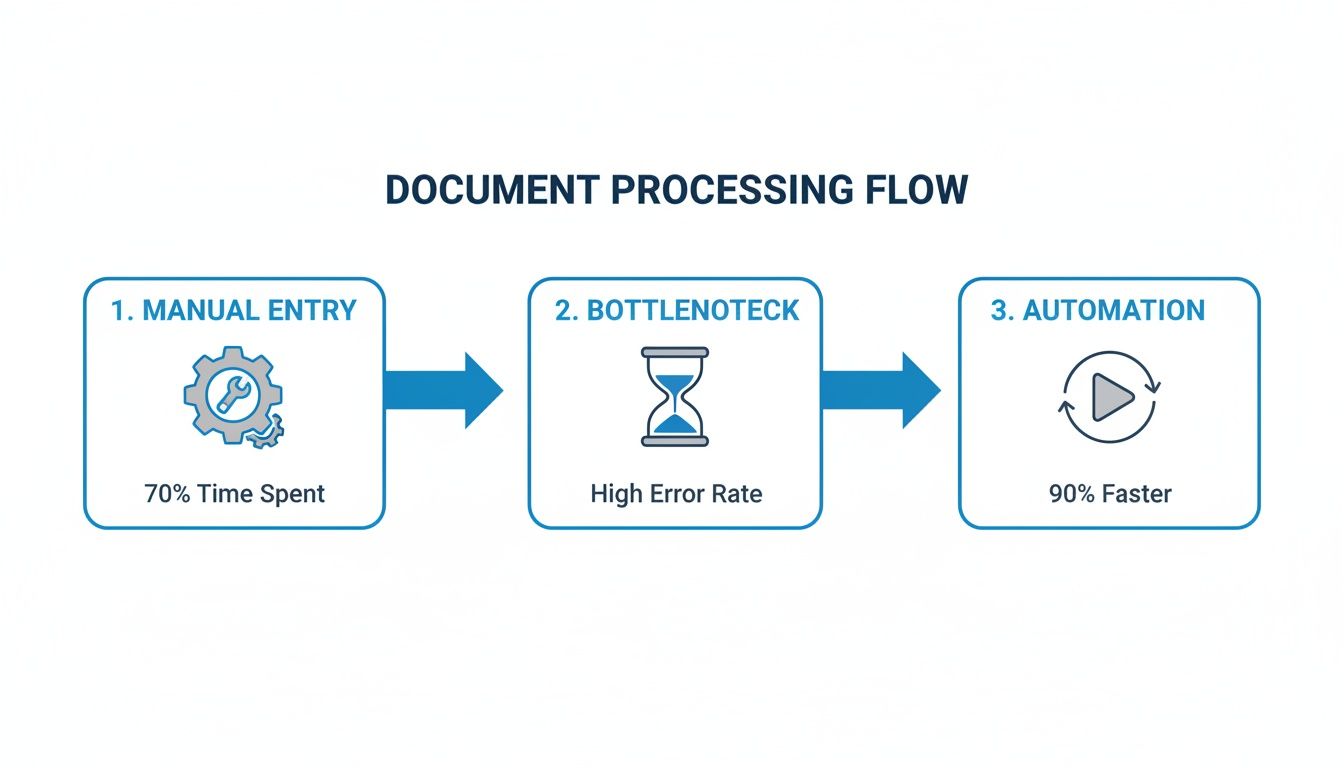
As you can see, automation directly tackles the choke points created by manual data entry, clearing a much faster path for your documents.
Map Your Current Document Workflow
With your goals in hand, it's time to get a crystal-clear picture of your current process. Don't rely on assumptions. You need to physically (or digitally) follow a document—let's say a vendor invoice—from the moment it lands in an inbox to the second it's archived.
Identify every single touchpoint, every person involved, and every piece of software it interacts with. This detailed map is where you'll find the hidden inefficiencies that are dragging you down. You might discover an invoice sits in someone’s inbox for two days waiting for an approval, or that data is being manually copied between three different apps. These are your golden opportunities for automation.
The massive push for these kinds of streamlined processes is easy to see in market trends. The document management system market is expected to explode from $9.74 billion in 2026 to a staggering $29.78 billion by 2034. This growth is all about organizations pouring money into workflow automation to get a competitive edge. You can discover more about this market expansion and what’s driving it.
Define Your Data Schema
Now we get to the nuts and bolts. A data schema is nothing more than a simple list of the exact pieces of information you need to pull from each document. Getting this right upfront is absolutely critical for configuring a tool like DocParseMagic. If you don’t tell it what to look for, it won't know what to grab.
Think of your data schema as a shopping list for your automation tool. You’re telling it precisely what to grab from the document and what to leave behind, ensuring you only get the data that matters.
For a typical vendor invoice, your data schema might look something like this:
| Field Name | Data Type | Example | Purpose |
|---|---|---|---|
| Invoice Number | Text/Alphanumeric | INV-2024-582 | Unique ID for payment tracking. |
| Vendor Name | Text | Acme Innovations Inc. | Match payment to the correct supplier. |
| Invoice Date | Date (YYYY-MM-DD) | 2024-10-26 | For aging reports and payment schedules. |
| Due Date | Date (YYYY-MM-DD) | 2024-11-25 | Avoid late fees and capture early-pay discounts. |
| Total Amount | Currency ($) | $1,450.75 | The final amount to be paid. |
By meticulously defining these fields beforehand, you ensure the data extracted by DocParseMagic will plug seamlessly into your accounting software, ERP, or any other system downstream. This detailed planning prevents headaches later and guarantees your automation project delivers clean, reliable data from day one.
Choosing Your Tools and Setting Up Extraction Rules
Once you've got a solid plan, it's time to pick the right tool to automate document processing and teach it what to look for. This decision is a big one. The right platform feels like a natural extension of your team, while the wrong one can create more headaches than it solves.
Not all tools are built the same. You need a solution that can gracefully handle the messy reality of business documents—that means processing everything from clean, digital PDFs to blurry smartphone photos of receipts and crinkled, scanned invoices. I've found the best tools have an intuitive interface, one that an accountant or a procurement specialist can manage on their own without needing to call IT.
Perhaps most importantly, think about integration. The extracted data is only useful if it can flow effortlessly into your existing software, whether that's QuickBooks, Salesforce, or a custom-built ERP system.
A Practical Walkthrough With DocParseMagic
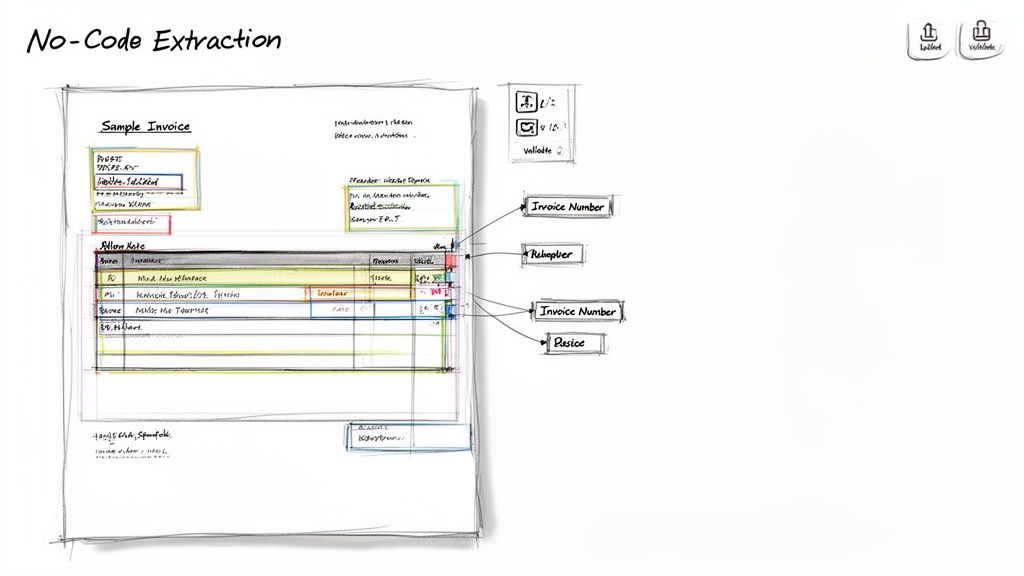
Let's make this real. Using a tool like DocParseMagic, you can sidestep the complexity of old-school, template-based systems. Instead of writing code or manually defining fixed coordinates for every single document layout, you just use a simple, no-code visual interface.
Imagine you've just received a new vendor invoice. Here’s how you’d set up your extraction rules in just a few minutes:
- Upload Your Sample: First, just drag and drop a typical invoice into the DocParseMagic interface. The platform's AI and Optical Character Recognition (OCR) immediately digitize the document, making all the text selectable.
- Point and Click to Label Fields: See the "Invoice Number" on the document? Click on it. A prompt appears asking you to name that field. You simply type "InvoiceNumber" and hit save. The AI learns not just the text but also its context—its position, formatting, and the words around it.
- Repeat for All Key Data: You'll do this for every field in your data schema:
VendorName,DueDate,TotalAmount, and so on. In literally minutes, you've trained a model on what matters in that document type.
This approach is so effective because the AI isn't just memorizing locations on a page. It’s learning the concept of an invoice number. So, when another invoice shows up from a different vendor with a totally different layout, DocParseMagic can still intelligently find and pull the right data. If you're exploring your options, check out our full breakdown of modern data extraction tools for business.
Handling Complexities Like Line Items
Let’s be honest, business documents are rarely simple. Invoices, purchase orders, and packing slips almost always have tables with multiple line items, each with its own description, quantity, price, and subtotal. Extracting this data by hand is one of the most mind-numbing tasks out there.
Modern document processing tools are built for this. With DocParseMagic, you can define a table and then label the columns just like you did with the individual fields.
- Highlight the entire table area.
- Label each column:
ItemDescription,Quantity,UnitPrice,LineTotal. - The platform automatically finds each row and extracts the data, organizing it into a clean, structured format ready for your other systems.
This feature alone can save your team dozens of hours every single week, transforming a painfully complex data entry chore into a fully automated process.
The real magic of no-code AI isn't just speed; it's accessibility. It puts the power to build sophisticated automation directly into the hands of the business experts who understand the data best.
Setting Up Validation and Normalization Rules
Extracted data is only valuable if it's accurate and consistent. That's where validation rules come in. Think of them as simple checks you can configure to automatically flag potential errors before they ever contaminate your systems. For a deeper dive into this, understanding how to apply Automating Enterprise Workflows with LLMs can seriously boost the precision of your rules.
For example, you can set up rules to ensure:
- Correct Data Formats: A
DueDatefield should always be a valid date, and aTotalAmountshould always be a number. The system can even automatically convert "Oct 26, 2024" to a standard "2024-10-26" format. - Logical Consistency: You can implement cross-field checks, like verifying that the sum of all line items plus tax actually equals the
TotalAmount. If it doesn’t, the document gets flagged for a human to look at. - Required Fields: You can make sure critical info, like an
InvoiceNumber, is always present. If it's missing, the document is sent to an exception queue instead of failing silently or causing problems downstream.
By building these simple guardrails directly into your workflow, you create a system that delivers clean, reliable, and analysis-ready data every single time. This is a foundational step that ensures your entire automation pipeline is built on a bedrock of accuracy.
Plugging Automation Into Your Existing Systems
Getting clean, accurate data out of your documents is a huge win, but it's really only half the battle. To truly automate document processing, that information can't just sit there; it needs to flow directly into the core systems that run your business. The real magic happens when an invoice automatically creates a bill in your accounting software, all without anyone lifting a finger.
This is the final, crucial step that creates a true end-to-end automated workflow. It’s where data moves from being a static thing—stuck in a PDF invoice or a signed contract—and becomes an active, useful part of your operations. You’re essentially building a seamless data pipeline from document to action.
The goal here is to get rid of that last manual checkpoint. Instead of someone downloading extracted data and then uploading it somewhere else, you create a direct, hands-free connection. This not only saves a ton of time but also protects data integrity and slashes the risk of errors that sneak in during manual file transfers.
Mapping Data Fields for a Perfect Handoff
The secret to a successful integration is field mapping. This is simply the process of telling your systems how the data extracted by a tool like DocParseMagic matches up with the fields in your other software. Think of it as teaching your apps to speak a common language.
For example, the field you labeled TotalAmount in DocParseMagic needs to be mapped to the "Total" field in your QuickBooks Online account. Likewise, VendorName from an invoice has to connect to the "Supplier" field in your ERP.
Getting this right from the start is absolutely crucial. A great little trick I've learned is to create a simple mapping table before you even start building the integration.
| DocParseMagic Field | QuickBooks Field | ERP System Field |
|---|---|---|
InvoiceNumber | Invoice # | PO_Reference_ID |
VendorName | Supplier Name | Supplier_Name |
DueDate | Due Date | Payment_Due_Date |
TotalAmount | Total | Grand_Total |
This simple exercise forces you to clarify exactly where each piece of data is supposed to go, preventing mismatched information and frustrating errors. It’s a five-minute task that can save you hours of headaches later on.
Common Integration Scenarios
Most businesses run on a handful of critical software platforms. Let’s look at how document processing automation actually plugs into them in the real world.
- Accounting Software (QuickBooks, Xero): This is easily the most common use case. When an invoice is processed, the extracted data can automatically create a new bill payable in Xero. This kicks off your standard approval workflows and gets the invoice into the payment queue almost instantly.
- ERP Systems (SAP, NetSuite): For larger companies, feeding data into an Enterprise Resource Planning system is a must. Purchase order details pulled from a PDF can be used to automatically update inventory levels or check a shipment against the original order in your NetSuite or SAP instance.
- CRM Platforms (Salesforce): You can automate the tedious process of updating client records. When a new client signs a contract, DocParseMagic can extract their name, address, and contract start date, then use that info to create or update their record in Salesforce.
Connecting your systems transforms data extraction from a standalone task into a dynamic, event-driven workflow. It’s the difference between having a list of ingredients and having a machine that automatically bakes the cake.
Supercharging Workflows with RPA Tools
But what if your process is more complicated than a simple data transfer? That’s where Robotic Process Automation (RPA) tools like UiPath or Automation Anywhere enter the picture. These platforms are brilliant at orchestrating complex, multi-step workflows across different applications that don’t naturally talk to each other.
Let's walk through a real-world scenario: an insurance claim is submitted via email as a PDF.
- DocParseMagic instantly extracts all the key data: the claimant's name, policy number, incident date, and the loss amount.
- This clean data is then handed off to an RPA bot.
- The bot logs into your internal claims management system, creates a new claim file, and populates it with all the extracted data.
- Next, it opens a separate fraud detection app and runs the claimant's details through it.
- Finally, based on the results, the bot assigns the claim to the right adjuster and shoots them an automated email notification.
In this workflow, DocParseMagic solves the "unstructured data" problem, and the RPA bot handles all the repetitive, rule-based clicking and typing across multiple systems. It’s a powerful combination that lets you automate document processing from start to finish, even for your most tangled processes.
To get a better sense of how this fits into your overall strategy, take a look at our guide on the best methods for automating data entry across your entire organization. By connecting these systems, you’re not just saving time—you’re building a resilient, hands-free operation that can grow with your business.
Managing Exceptions and Keeping Data Accurate
Let's be realistic: no automation is flawless. Even the most sophisticated systems will hit a snag with a document they can't process with 100% certainty. This isn't a failure—it's just part of the game when you automate document processing. The real trick is building a smart, efficient way to handle these exceptions so they don't bring everything to a halt.
This is where a human-in-the-loop workflow becomes your secret weapon. The idea isn't to get rid of people entirely, but to use their expertise only where it counts. Instead of your team manually checking every single document, they only step in for the small handful that the AI flags for a second look.
Think of it as a quality control checkpoint on an assembly line. Most items cruise right on by, but a few get pulled aside for a quick inspection. This simple step ensures only high-quality data makes it to the finish line, protecting the integrity of your entire process.

Setting Up a Human-in-the-Loop Workflow
The best way to manage these outliers is by using confidence scores. Modern document platforms like DocParseMagic don't just extract data; they assign a confidence score to every field—basically, a percentage of how sure the AI is that it got it right.
From there, you can set a simple but powerful rule: if any field's confidence score dips below a certain threshold, say 95%, the system automatically sends it to a team member for a quick review. This instantly creates an organized, efficient queue for handling exceptions.
When a flagged document lands in the queue, your team member sees exactly what needs attention. The platform highlights the specific field, showing the value it extracted and where it found it on the original document. All the user has to do is either confirm the data with a click or make a quick correction. The whole thing usually takes just a few seconds.
So, what usually triggers these reviews? I've seen a few common culprits:
- Poor Quality Scans: Coffee stains, blurry text, or weird shadows can trip up even the best OCR.
- Unusual Formats: You onboard a new supplier, and their invoice layout is unlike anything the system has ever seen.
- Handwritten Notes: A quick signature or a scribbled "PAID" in the margin can sometimes confuse the extraction logic.
Best Practices for Ongoing Quality Control
Fixing exceptions as they happen is reactive. To achieve true data accuracy, you also need to be proactive. Ongoing quality control ensures your system not only stays accurate but actually gets smarter over time. You're building a system that learns.
One of the most effective habits I recommend is performing regular spot-checks. Once a week, just pull a small, random sample of documents that the system processed without any flags—maybe 10 or 20 files. Do a quick manual review to confirm the extracted data is correct. This simple audit builds trust and ensures your automated workflow is performing as expected.
A great exception handling process does more than just fix errors—it provides the feedback loop needed to continuously improve the automation itself. Every correction is a lesson for the AI.
In many modern systems, including DocParseMagic, the corrections made during this human review process are fed back into the AI models. This means that if you fix the location of an invoice number for a new vendor once, the system is far more likely to get it right the next time a document from them shows up.
Fine-Tuning Your Extraction Rules
Your business evolves, and your automation rules need to keep up. Make it a point to periodically review your data schema and extraction logic. You might discover you need to add a new field for purchase order numbers or tweak a validation rule to handle a new date format from an international partner.
This isn't a "set it and forget it" task. I like to think of it as routine maintenance, like a tune-up for your car. A few small adjustments every quarter can keep your document processing engine running at peak performance, guaranteeing near-perfect data integrity across the board.
Proving It Worked: How to Measure Your Automation Success and ROI
You've put in the work to get your document processing automated. Now for the fun part: showing everyone how brilliant your decision was. This isn't just about a gut feeling of being more efficient; it's about hard numbers that prove the value to the business.
To do this right, you need to know where you started. Before flipping the switch on your new system, get a clear baseline of your manual process. How many minutes, on average, does it take someone to handle one invoice from the moment it lands on their desk to the moment it's paid? How many typos or errors pop up each week? These "before" stats are your secret weapon for a killer comparison later.
Once your new automated workflow is humming along, you can start tracking the "after" metrics and see just how far you've come.
The KPIs That Really Matter
To build your case, you don't need a spreadsheet with a hundred different metrics. You just need a few that tell a powerful story about efficiency, accuracy, and cost.
Here are the ones I always focus on:
-
Processing Time Per Document: This is your most obvious win. Measure the average time from when a document arrives to when its data is sitting happily in your ERP. You're looking for this to drop from several minutes down to just a few seconds. It’s a jaw-dropping difference.
-
Data Entry Error Rate: Keep an eye on the percentage of documents that need a human to step in and fix something. A good parsing tool like DocParseMagic should get this well below 1%. Compare that to the typical error rates for manual data entry, and the improvement is undeniable.
-
Employee Time Reclaimed: This is where the story gets really good. Add up the hours your team gets back every month. Let's say you handle 200 invoices a week and automation shaves off three minutes per invoice. That’s 10 hours of brainpower freed up every single week.
This is about more than just speed. The real goal is to get your smart, capable people off the copy-and-paste treadmill. You want them analyzing spending patterns, negotiating better terms with suppliers, and doing the kind of strategic work that actually grows the business.
Calculating the Cold, Hard ROI
Once you have your KPIs, figuring out the return on investment (ROI) is pretty simple. You're just weighing the cost of your solution (like a DocParseMagic subscription) against the money you're saving or the new value you're creating.
For a quick, powerful number, you can calculate your direct savings with a basic formula:
(Hours Reclaimed Per Month x Average Employee Hourly Rate) - Monthly Software Cost = Monthly ROI
Let's run the numbers. If you free up 40 hours a month for an employee whose fully-loaded hourly rate is $40, you've just saved $1,600 in labor costs. Subtract what you pay for the software, and you have your net monthly ROI. It's a straightforward calculation that shows exactly how this technology pays for itself and starts adding directly to your bottom line.
Got Questions? We've Got Answers
Thinking about how to automate document processing usually sparks a few questions. Let's tackle some of the most common ones I hear from folks just starting out.
Do I Need to Be a Coder to Set This Up?
Not at all. Modern tools like DocParseMagic are designed for the people who actually use the documents every day—finance teams, operations managers, and procurement specialists.
If you can use a mouse and keyboard, you're good to go. You can build out entire workflows and tell the system what data to grab using a simple point-and-click interface. No developers needed.
What About Scanned Documents and Photos?
Absolutely. This is a big one, and the answer is a resounding yes. Today’s best tools come equipped with powerful Optical Character Recognition (OCR) and AI that can read text from almost anything you throw at it.
- Scanned multi-page invoices
- Photos of receipts taken with a phone
- Low-quality PDF scans
A common myth is that automation only works for pristine, digitally-born PDFs. The reality is that modern systems are built for the messy, real-world documents businesses actually deal with every day. This is key to creating a single, reliable workflow for everything coming in, no matter the source.
How Long Until I'm Actually Up and Running?
This is where things have really changed. While old-school enterprise software could take months to implement, a user-friendly platform gets you moving much, much faster.
Honestly, you can get your first workflow live in a single afternoon. It really just comes down to a few simple steps: signing up, uploading a couple of sample documents to teach the system, and pointing the extracted data to your other business software. You could realistically have this done in just a few hours.
Ready to see how fast you can transform your document workflows? Sign up for DocParseMagic and get started for free.