Android SMS Forwarding: A Complete Guide for 2026
You leave your desk for an hour, and the phone that receives vendor texts stays in a drawer. During that window, a supplier sends an SMS confirming a payment issue, a client replies to a time-sensitive message, and a bank alert lands on the wrong device. Nobody sees any of it until later.
That’s the primary reason people search for android sms forwarding. It’s usually not about convenience. It’s about keeping a business process alive when one phone has become a hidden bottleneck.
For solo operators, forwarding solves missed messages across devices. For accounting teams, it can route invoice alerts into a shared mailbox. For insurance and finance teams, it can move key texts into a controlled workflow where someone can act on them. The challenge is that Android doesn’t make this easy out of the box, and the gap between “it forwards sometimes” and “it works reliably in production” is bigger than most guides admit.
Why You Need Android SMS Forwarding
The most common trigger is simple. One Android phone receives the message, but the person who needs it is somewhere else.
That phone might belong to a front-desk line, a field rep, a collections coordinator, or a manager who gets carrier alerts and client replies on a personal device. If that message is a one-time password, a payment confirmation, or a customer response, delay creates avoidable work. Someone has to manually relay the message, take a screenshot, or retype it into email or chat.
Android makes this harder than it should. It doesn’t include native SMS auto-forwarding, which is why third-party solutions have been in demand for years. That demand is easy to see in the Android ecosystem. Apps like SMS Forwarder have reached over 1 million downloads on Google Play as of 2026, and Android holds 70 to 80 percent market share in major markets, based on the app listing context and related market summary in the SMS Forwarder Google Play reference.
Where the pain shows up at work
In practice, I see the same business patterns over and over:
- Shared operational numbers: One device receives order updates, dispatch messages, or vendor confirmations, but several people need visibility.
- After-hours coverage: A message comes in outside office hours and needs to reach the on-call person automatically.
- Legacy workflows: A supplier or client still uses SMS even when the rest of your process runs through email, spreadsheets, and internal systems.
- Escalation needs: Specific texts should go to a manager, not sit on a phone until someone remembers to check it.
Most teams don’t need every text forwarded. They need the right texts forwarded, quickly, and to the right place.
Why manual forwarding breaks down
Manual forwarding works when message volume is low and timing doesn’t matter. Business SMS rarely stays in that safe zone. Once a process depends on someone noticing a message, accessing a phone, copying it, and sending it onward, reliability drops fast.
That’s why android sms forwarding becomes a systems problem, not just a phone setting. The question isn’t whether messages can be forwarded. The question is whether the forwarding method matches the workflow, the risk level, and the people who depend on it.
Choosing Your SMS Forwarding Method
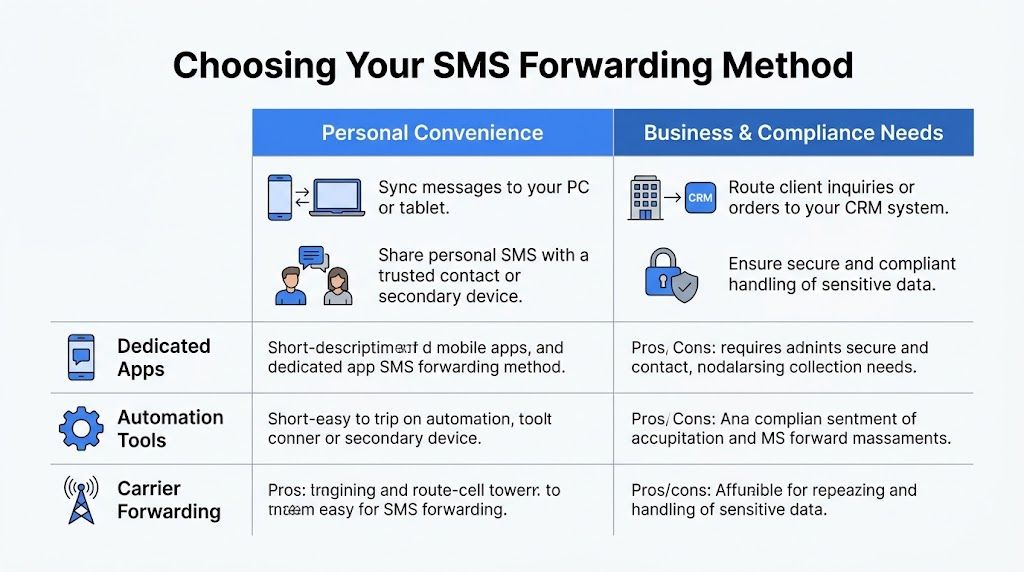
There are three realistic paths. Dedicated forwarding apps, automation tools, and carrier services. Each can work. Each fails in different ways.
Quick comparison
| Method | Best fit | Strengths | Trade-offs |
|---|---|---|---|
| Dedicated apps | Individuals, small teams, quick deployment | Fast to set up, built for SMS rules, easy filtering | Depends on app quality and Android background behavior |
| Automation tools | Ops leads, IT managers, advanced workflows | Deep logic, multi-step actions, strong customization | More setup time, more testing, more maintenance |
| Carrier services | Teams that prioritize stability over flexibility | Strong reliability when supported | Limited business logic, limited routing options, not always available |
Dedicated apps work best for speed
If you need a functioning setup today, start with a dedicated app such as SMS Forwarder or AutoForward SMS. These tools are purpose-built. You install them, grant permissions, define recipients, and add simple filters.
This approach fits teams that want to forward client messages to another phone, route invoice-related texts to email, or mirror alerts to a supervisor. It’s often the shortest path from problem to result.
A related workflow many teams pair with this is SMS to email forwarding and integration, especially when the next step in the process already happens in a mailbox or shared inbox rather than on another handset.
Automation tools are better when rules matter
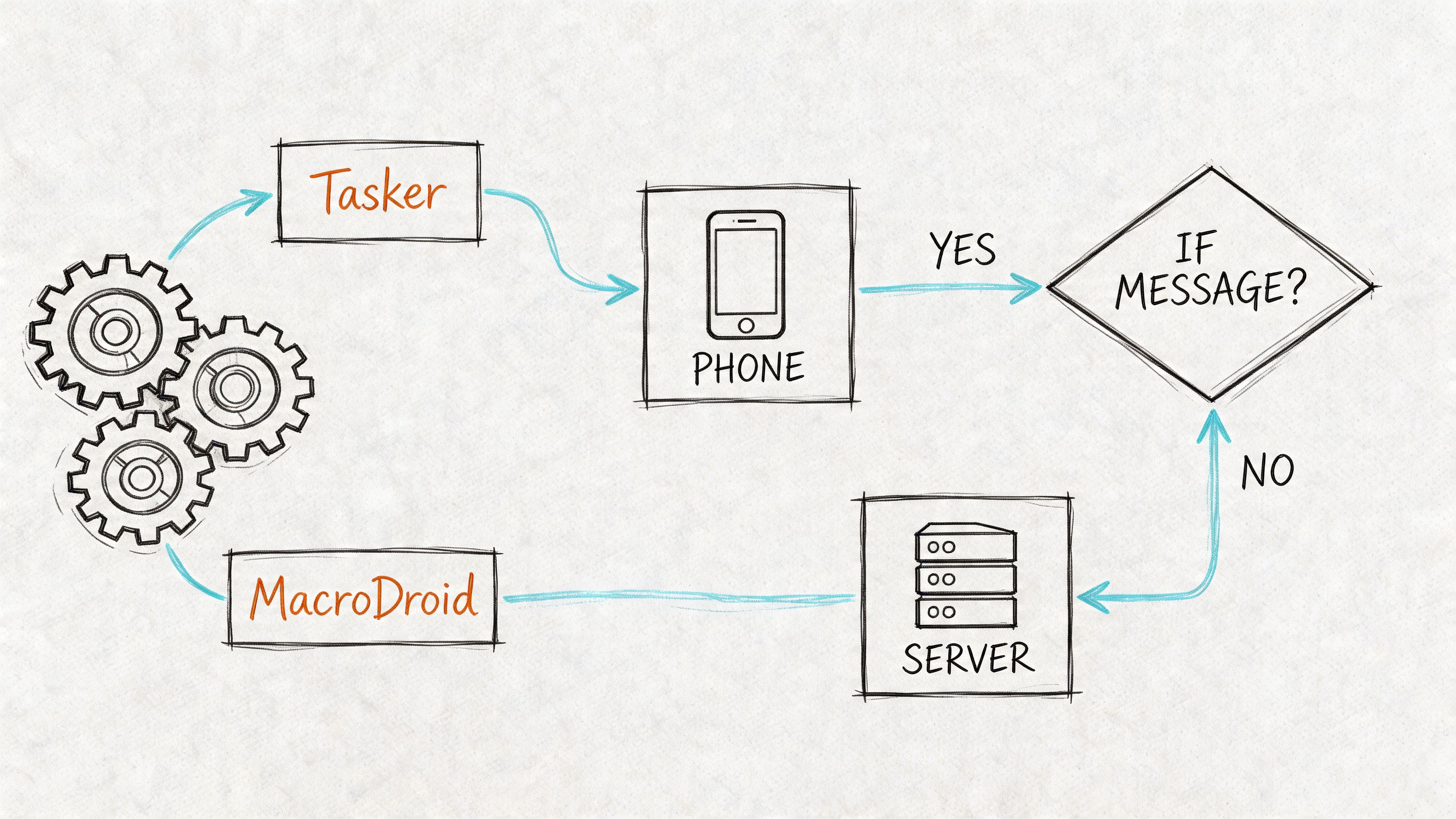
If the message needs to trigger more than a simple redirect, use Tasker or MacroDroid. These tools shine when you need conditions like sender matching, business-hour schedules, content parsing, or multiple destinations.
They’re the right choice when the process sounds like this: “Forward supplier payment texts to accounting email, but only during work hours, and send urgent client replies to the duty manager by SMS.” That’s not a forwarding app problem anymore. That’s workflow automation.
Teams that are still deciding whether SMS should feed email or another process can also compare patterns in this guide to forwarding SMS into email workflows.
Carrier services are the most stable, but often too limited
Carrier-based messaging sync can be attractive because it removes some device dependency. When a carrier supports this well, it can be more dependable than app-level forwarding. The trade-off is control. Carrier tools usually don’t give you nuanced filtering, content changes, or conditional routing.
A simple selection rule
Use this rule if you want to decide quickly:
- Choose a dedicated app when you need forwarding live fast and your rules are simple.
- Choose Tasker or MacroDroid when business logic matters more than convenience.
- Choose carrier tools when your carrier supports them and your main goal is message continuity rather than automation.
Selection shortcut: If your process involves compliance, audit, or multiple departments, don’t choose based on convenience alone. Choose based on control.
Setup Guide for Dedicated Forwarding Apps
Generally, this is the fastest working solution. A dedicated app gets you from zero to active forwarding without building a full automation stack.
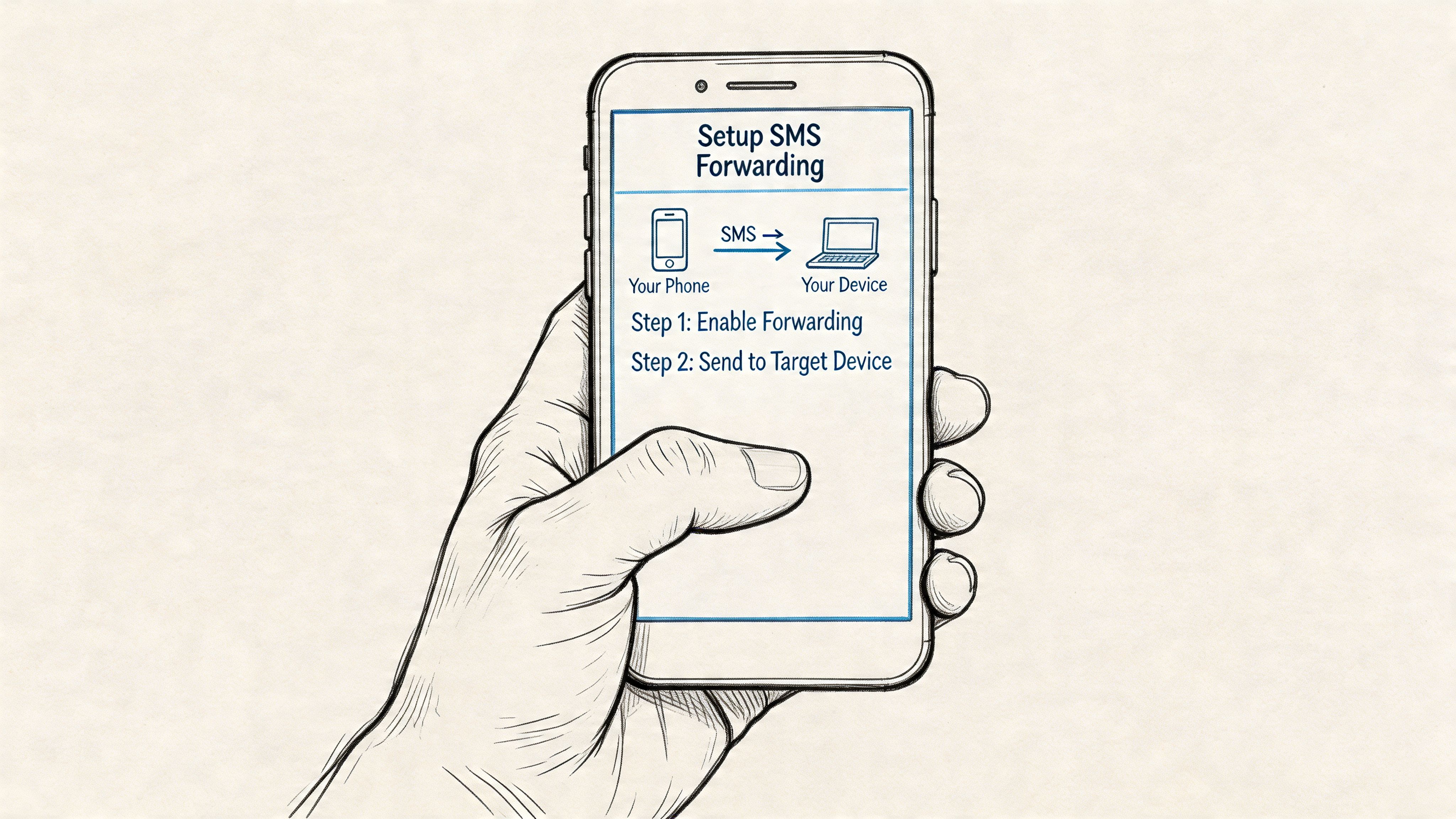
The example below uses the setup pattern common to apps like SMS Forwarder. The exact labels vary a little by app, but the logic stays the same.
Start with permissions and battery settings
Most failed setups begin with issues concerning permissions and battery optimization. The app needs permission to read and send SMS, and it needs to be excluded from battery optimization so Android doesn’t shut it down in the background.
According to the setup guidance summarized in BubblyPhone’s Android forwarding walkthrough, app-based forwarding reaches 85 to 95 percent success on Android 12+ with battery optimization exemptions, but can fall to 60 percent without them because of Doze mode. The same source notes that nearly 40 percent of users fail on permissions, which leads to 0 percent success.
Step-by-step app setup
-
Install a forwarding app from Google Play
Pick a well-established app and review what destinations it supports. Some teams only need another phone number. Others need email or Telegram. -
Grant the required access
Accept SMS read and send permissions. If the app asks for notification access or background operation permissions, read the prompt carefully and enable only what the workflow requires. -
Disable battery optimization for the app
Go to your Android battery settings and set the app to “Don’t optimize” or the equivalent option on your device. This matters more than most users expect. -
Create a forwarding rule
Add the recipient number or email target. Then define the filter. -
Test with live messages
Send a message to the Android device from another number. Confirm both receipt and forwarding.
Practical rule: If forwarding fails, assume battery management or permissions first. Don’t waste time tweaking filters until those basics are confirmed.
Example rule for invoice alerts
A clean business setup usually starts with one narrow rule instead of forwarding everything.
Use a filter like this:
Forward any incoming SMS that contains “invoice” or “payment due” to the accounting mailbox. Keep the original sender in the forwarded text so the team knows where it came from.
That kind of rule keeps personal or irrelevant messages out of the workflow. It also reduces noise, which makes people trust the system more.
Here’s a video walkthrough that can help if you want to compare screen flow against your own device setup:
Settings worth using on day one
A lot of teams stop after basic forwarding. That works, but a few extra settings make the result far more usable.
- Message prefixing: Add the sender and timestamp to the forwarded text so recipients don’t lose context.
- Keyword filtering: Forward only messages that match business terms such as invoice, payment due, policy, claim, or order.
- Recipient separation: Send high-priority alerts to a person and lower-priority ones to an inbox.
- Test log review: Check the app log after your first few tests to make sure triggers fire consistently.
What works and what doesn’t
What works is a small, deliberate rule set. One device. One or two forwarding targets. Clear business keywords. Proper Android permissions.
What doesn’t work is turning on broad forwarding and assuming the phone will keep it alive forever. Android vendors treat background tasks differently, and some handsets are much more aggressive than others.
I also don’t recommend forwarding every message from a mixed-use personal phone into a business channel. It creates privacy issues, noise, and confusion over ownership. If the workflow matters, use a dedicated device or at least a tightly filtered rule.
Advanced Automation with Tasker and MacroDroid
When a forwarding app feels too simple, move to automation. Through automation, android sms forwarding becomes part of a real operations workflow rather than a convenience feature.
Tasker and MacroDroid let you decide not only where a message goes, but also when, why, and in what format. That matters if different teams need different actions from the same incoming SMS.
What advanced rules can do
The core building blocks are sender conditions, content checks, and schedules. Based on the verified implementation summary in the SMSLocal rule-engine reference, advanced setups can use sender filters, content matching with regex such as /(invoice|total):\s*$€/i, and time schedules. Those actions can forward to multiple endpoints including SMS, email, and Telegram bots, and with proper setup these tools can process over 300 SMS/min with a 92 percent success rate for filtered rules.
That opens up practical business scenarios like these:
- Accounting: Catch texts containing invoice details and route them to a monitored mailbox.
- Client services: Forward messages from VIP numbers to a manager and archive a copy elsewhere.
- Operations: Only trigger forwarding during working hours so after-hours messages follow a different path.
A useful pattern for finance and ops teams
The strongest setups usually follow a three-part flow:
- Detect the incoming message
- Evaluate rules
- Send to one or more destinations with formatting
For example:
- A supplier sends an SMS containing “invoice” or “total”.
- MacroDroid checks whether the sender is on an approved list.
- If yes, it forwards the message to an accounting email target and a Telegram bot for team visibility.
- It prepends the device name and sender so nobody has to guess which phone received it.
Good automation removes two kinds of manual work at once. Relaying the message, and deciding who should see it.
Tasker vs MacroDroid
Both can work well, but they suit different operators.
| Tool | Best for | Why teams choose it | Friction point |
|---|---|---|---|
| Tasker | Power users and technical admins | Very flexible, supports deep logic | More setup complexity |
| MacroDroid | Teams that want speed with less scripting | Easier rule building, faster to hand off internally | Less granular than a full Tasker build |
If you’re building process logic around business communication, this broader practical guide to automation of processes is useful because it frames automation as an operational design problem, not just a tool choice.
Three advanced rules worth building
Business-hours forwarding
Forward invoice and payment texts only during office hours. Outside those hours, send them to a monitored email instead of another phone. This reduces late-night noise and keeps accountability clear.
Sender-based routing
Create a trusted sender list. Messages from clients, carriers, or vendors go one way. Unknown senders either get ignored or moved to a lower-priority destination.
Content extraction and message cleanup
Use regex or simple keyword parsing to isolate useful pieces of the message, then prepend context before forwarding. The recipient doesn’t need the entire thread history. They need the relevant signal.
For teams exploring this level of orchestration, no-code automation patterns for business workflows can help map where SMS forwarding fits inside a larger process.
Common mistakes in advanced setups
The most common failure isn’t the automation tool. It’s overengineering.
People add too many branches, too many exceptions, and too many destinations before they’ve validated the first useful rule. Start with one high-value message type. Prove it forwards correctly. Then expand.
Another mistake is failing to standardize naming. If five automations all use vague labels like “SMS rule 1” and “forward check,” nobody will maintain them confidently later. Name rules by business purpose, not by app behavior.
Security Privacy and Compliance
Forwarding a text is easy. Forwarding it responsibly takes more thought.
That’s especially true when SMS contains policy information, payment context, underwriting details, customer identifiers, or anything else that should not bounce casually between personal devices and consumer apps. In those environments, the technical problem is only half the job. The other half is governance.
The main gap in consumer forwarding tools
Most Android forwarding apps are built for convenience. They’re meant to redirect messages, not create defensible records.
That gap matters. The verified summary from AutoForwardText’s discussion of forwarding limitations notes that a key weakness in many Android SMS forwarding solutions is the lack of compliance and audit trail support, which is critical for finance and insurance. It also notes that forwarding sensitive financial data requires secure logging and retention policies, which consumer-focused apps generally don’t provide.
What professionals should do instead
If your team handles regulated data, treat SMS forwarding as a controlled intake channel.
- Use a dedicated device: Don’t mix sensitive business forwarding with a personal phone full of unrelated apps and conversations.
- Limit forwarding scope: Only forward messages that match approved business criteria.
- Capture an audit trail elsewhere: Don’t assume the forwarding app itself creates a sufficient record of access, retention, or review.
- Define retention rules: Decide where forwarded content belongs and how long it should stay there.
- Restrict recipients: Fewer endpoints mean fewer places sensitive data can leak.
If a text can affect payment, coverage, underwriting, or financial reporting, redirection alone isn’t enough. You need a record.
Privacy choices that matter
Android forwarding apps often need broad permissions because that’s how SMS handling works on the platform. That doesn’t automatically make them unsafe, but it does mean you should be selective. Install only from trusted marketplaces, review permissions carefully, and avoid sideloading forwarding apps from unknown sites.
When your endpoint is email, the destination matters as much as the forwarding tool. If messages land in a poorly controlled mailbox, the forwarding chain is only as secure as that inbox. Teams that are formalizing mailbox controls can borrow setup ideas from automatic forwarding practices in Gmail workflows, especially around access discipline and destination planning.
A practical business standard
For regulated teams, the safest pattern is usually this: use forwarding for alerting, then move the actual operational record into a managed system with access control and retention. That keeps SMS useful without letting it become an unmanaged shadow process.
Troubleshooting Common Forwarding Failures
Most forwarding failures come from four places. Android background restrictions, broken permissions, bad rule logic, or carrier behavior.
The first check is always the phone itself. If forwarding stopped after an Android update or device restart, recheck battery optimization, notification access if the app depends on it, and whether the app still has SMS permissions. On many phones, system updates automatically reset background behavior.
Fast diagnostic checklist
- Test the simplest rule first: Strip the rule down to one sender or one keyword. If that works, your issue is logic, not app access.
- Review keyword filters: Keyword filters matter because they improve routing quality. In workflows that track invoice SMS alerts, error rates can drop by 40 percent with keyword filters, based on the verified summary tied to this YouTube reference on Android SMS workflows.
- Check for manual-workflow drift: Android users rely on manual forwarding more often because there’s no native feature, and that creates more room for human error. If your team is still manually relaying messages as backup, confirm nobody changed the process informally.
- Watch carrier limits: If you’re forwarding a large number of messages and some stop going out, the carrier may be treating the pattern as suspicious traffic.
When to stop troubleshooting and redesign
If the workflow depends on one personal handset that changes owners, leaves the office, or runs many unrelated apps, fixes won’t stick. The better answer is a dedicated device, a tighter rule set, or a different message path entirely.
A good forwarding setup should be boring. If your team has to babysit it every week, the design is the problem.
If your SMS forwarding workflow is feeding invoices, statements, policy details, or payment-related messages into a document-heavy process, DocParseMagic can help after the handoff. It turns messy business documents into clean, structured spreadsheets, which is useful when forwarded alerts lead to PDFs, scans, statements, or attachments that still need extraction, review, and audit-ready output.