Xero for Invoicing: A Complete 2026 Guide
You’re probably here because invoicing still feels more manual than it should. A customer invoice goes out late because someone had to fix line items. A supplier bill sits in an inbox because nobody wants to retype a messy PDF into Xero. Then reconciliation slips, payment chasing starts, and cash flow feels harder to predict than it should.
That’s why xero for invoicing matters far beyond sending a polished bill. When it’s set up properly, it becomes the control point for how money enters the business, how bills get recorded, and how much admin your team burns on repetitive work.
Why Mastering Xero for Invoicing Is Non-Negotiable
Most businesses don’t have an invoicing problem. They have a workflow problem. The invoice itself is fine. The trouble starts when terms are inconsistent, reminders depend on memory, and incoming supplier bills pile up in formats nobody wants to key manually.
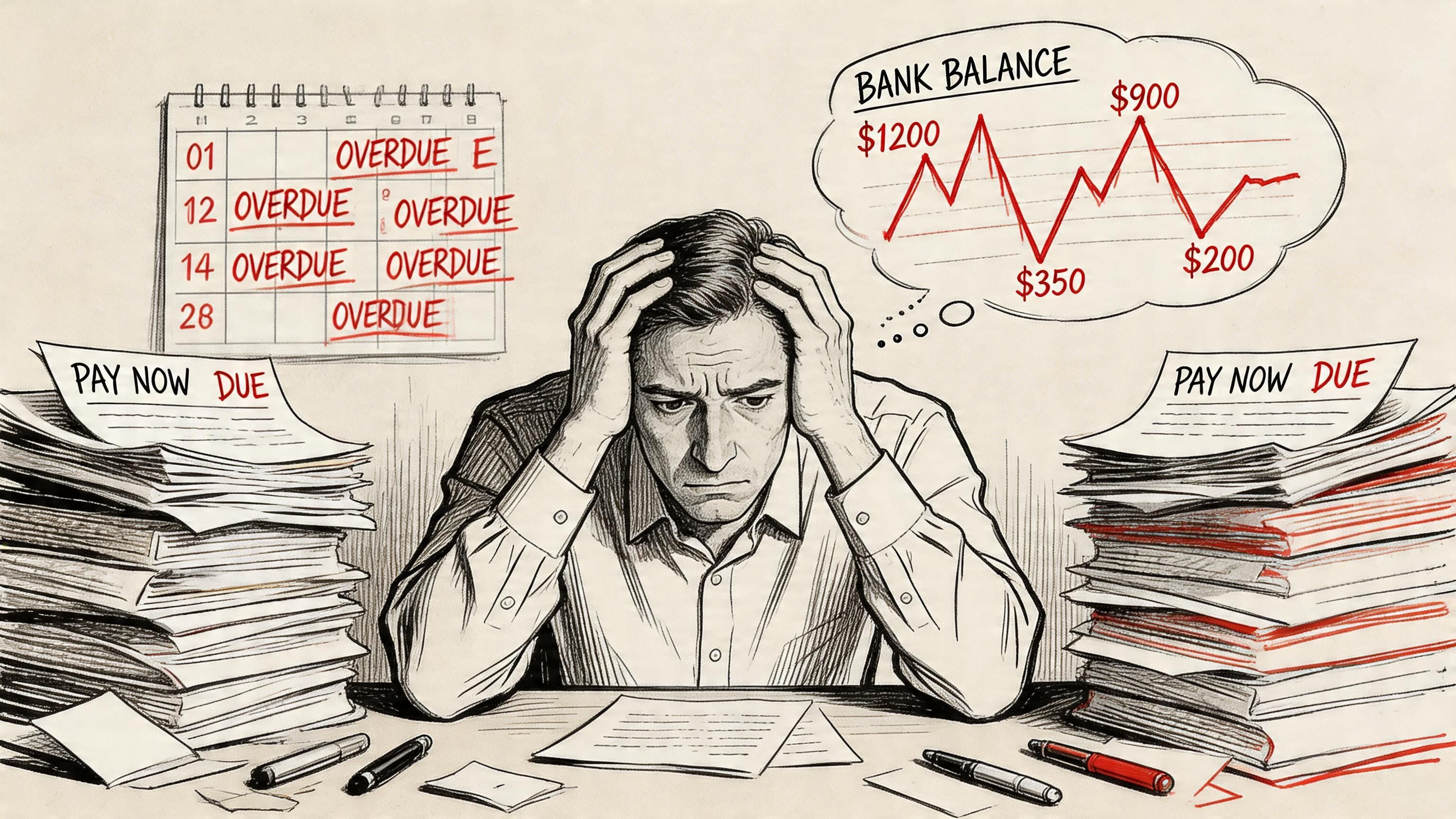
That weakness gets exposed fast when trading conditions tighten. US small businesses saw sales decline 4.9% year over year in the three months to September 2023, the largest decline since May 2020, according to Xero’s report on invoicing and payment times. When revenue is under pressure, late invoicing and weak collections stop being minor admin issues. They become liquidity issues.
Invoicing controls cash timing
I’ve seen the same pattern across service firms, contractors, wholesalers, and small finance teams. Revenue can look healthy on paper while the bank balance tells a different story. Usually the cause is one of these:
- Invoices go out too late because work completion and billing aren’t linked.
- Payment terms vary by person instead of following a consistent policy.
- Supplier bills arrive in messy formats and sit unprocessed, which slows reporting and approvals.
- Nobody owns the follow-up on overdue accounts until the problem is already old.
Practical rule: If invoicing depends on memory, your cash flow depends on memory too.
Xero helps because it centralizes the basics in one place. Templates, due dates, reminders, payment links, tracking categories, and contact records can all work together. That gives you a repeatable system instead of a series of one-off actions.
The real shift is operational, not cosmetic
A lot of owners first approach Xero as a way to make invoices look more professional. That matters, but it’s not the main win. The bigger gain is process discipline. The businesses that use xero for invoicing well tend to invoice sooner, track exceptions earlier, and spend less time fixing preventable errors.
If you want a broader view of where automation helps beyond just invoice design, this overview of automated invoice processing benefits in 2025 is a useful companion read.
Configuring Your First Professional Invoice in Xero
The first invoice setup matters because most businesses copy that setup for months or years. If the first template is sloppy, every later invoice inherits the same problems. Start with structure, not styling.
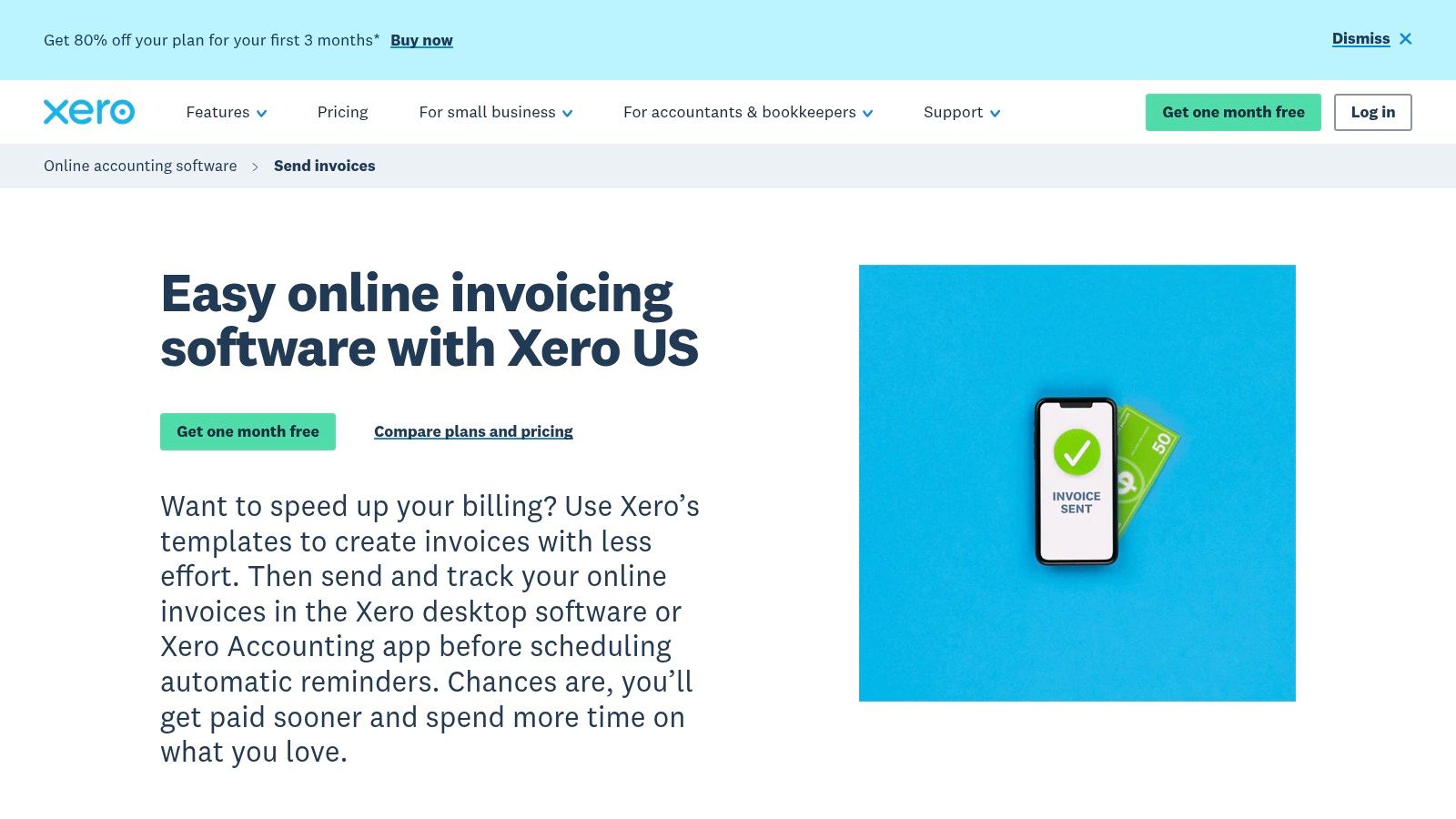
Near the top of the process, it helps to see what a finished invoice experience should look like in Xero.
Set the template up for clarity first
When I configure xero for invoicing, I want the customer to understand five things immediately: who sent the invoice, what was supplied, when it was issued, when it’s due, and how to pay. If any of those are unclear, payment delays usually follow.
Start with these basics in your branding and invoice settings:
- Upload your logo and confirm business details. Your legal name, address, and contact details should match what you use in customer communication.
- Choose one clean layout. Don’t overdesign the invoice. Clean spacing and readable line descriptions matter more than decorative elements.
- Set default payment terms. Don’t leave due dates to manual entry every time unless there’s a clear reason.
- Review tax treatment carefully. Tax errors on recurring invoices create annoying cleanup later.
- Add a clear reference field policy. Use purchase order numbers, project references, or service periods consistently.
Build more than one template when the work differs
One invoice template rarely suits every type of work. A retainer invoice, a product sale, and a project progress claim don’t need the same wording. Xero works better when you create variants that match how you bill.
For teams that need extra background on the wider platform, this guide on how to use Xero accounting software gives a helpful overview before you refine invoicing workflows.
A practical setup might include:
| Billing type | What to emphasize in the template |
|---|---|
| Monthly services | Service period, recurring description, standard due date |
| Project work | Milestone wording, reference to quote or scope |
| Product invoices | SKU or item detail, quantities, shipping or delivery reference |
| Deposit or staged billing | Clear label showing deposit, stage, or balance due |
Construction and project work need tighter coding
Many first setups fall apart due to generic line items creating confusion for both reporting and collections in project-based industries. Xero’s guidance for construction is clear that businesses should use job-specific coding from day one, with invoice line items coded to specific job cost accounts. It also notes that aligning invoices with project needs helps prevent cash flow problems and disputes caused by mismatches between quotes and final bills, as outlined in Xero’s construction accounting guide.
When the quote says one thing and the invoice says another, customers slow payment while they check the paperwork.
That’s why line descriptions matter so much. If your invoice has labor, materials, freight, variation work, or subcontracted services, keep those categories distinct. If your team needs a clearer grounding in invoice structure, this explainer on what line items are is worth reviewing.
Later in the setup, a short walkthrough can help newer users visualize the workflow inside Xero:
What works and what doesn’t
What works is a template that mirrors the commercial agreement. What doesn’t is a generic invoice that forces the customer to ask what they’re paying for.
Use plain wording. Tie the invoice back to the quote, contract, service period, or project stage. That single habit prevents a surprising amount of back-and-forth.
Automate Invoicing to Get Paid Faster
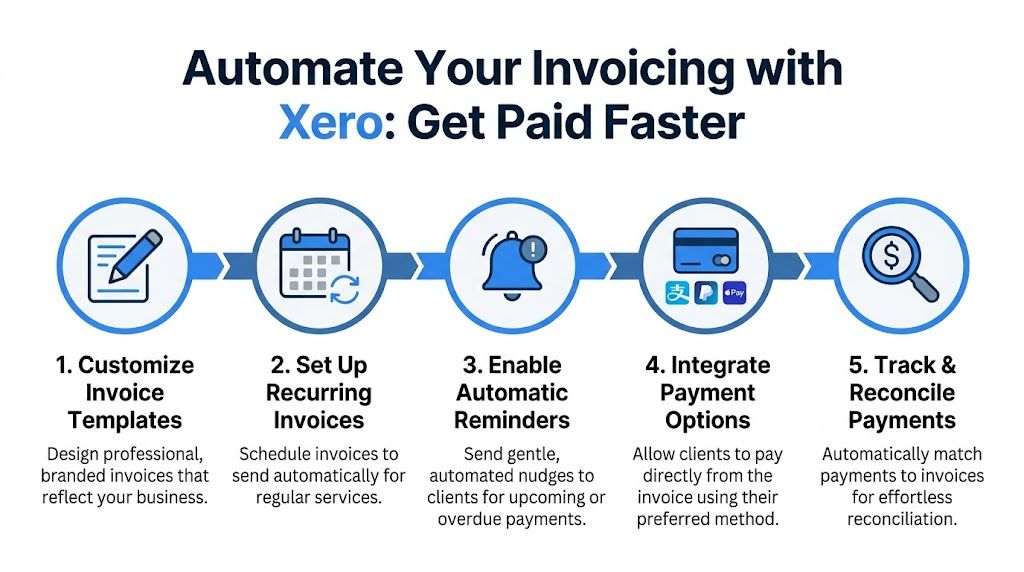
Once the template is clean, the next win is automation. Automation with xero for invoicing starts saving real time. Not because automation is fashionable, but because recurring billing and reminder workflows remove the most common causes of delay.
Use recurring invoices where the work repeats
If you bill retainers, support plans, rentals, subscriptions, or regular service packages, stop recreating those invoices manually. Build a recurring invoice in Xero and control the variables that matter, such as description, frequency, due date, and contact.
The key is not to automate bad data. Before switching recurring invoices on, check:
- Description quality. If the customer sees the same vague wording every month, disputes get harder to resolve.
- Term accuracy. Due dates should reflect the actual agreement, not a leftover default.
- Tax treatment. Recurring mistakes multiply fast.
- Reference logic. Add a service month or job reference if customers need it for approvals.
Turn reminders into policy, not personality
Automated reminders are one of the simplest cash collection improvements in Xero. They work best when they’re polite, consistent, and sent at predictable points around the due date.
I prefer a short sequence over one aggressive overdue email. The point is to keep the invoice visible without damaging the customer relationship. Teams often overcomplicate this. A simple reminder before due date, another after due date, and a firmer follow-up for older invoices is usually enough.
Working rule: Your reminder schedule should reflect your payment terms, not the mood of whoever checks receivables that day.
Payment behavior responds to improved systems. Xero Small Business Insights data for 2025 showed late payment times for US small businesses improved from 9.3 days in the March quarter to 7.8 days in the December quarter, a 16% reduction, which Xero links to broader adoption of digital invoicing and automated payment processes in its latest United States small business insights.
Automation only works when exceptions have owners
Automation handles routine work. It doesn’t handle exceptions well unless someone owns them. If a recurring invoice needs approval before release, define that. If a customer always requires a purchase order reference, add it to the contact process. If disputed invoices should pause reminders, document that rule.
A valuable perspective:
| Workflow | Good automation use | Bad automation use |
|---|---|---|
| Retainer billing | Repeating known charges on fixed dates | Sending invoices with outdated descriptions |
| Reminders | Consistent nudges tied to terms | Random manual chasing mixed with automation |
| Payment tracking | Matching paid status promptly | Assuming every open invoice is simply late |
If your team is exploring the broader workflow side of this, this guide to automated invoice processing helps frame where automation fits across finance operations.
The shortcut most teams miss
A key shortcut isn’t just scheduling invoices. It’s reducing decision points. If staff have to decide each time when to invoice, whether to remind, or how to label a recurring service, the process remains manual in disguise.
Set the rules once. Then let Xero enforce them.
Connecting Payment Gateways for Seamless Transactions
A good invoice still creates friction if the customer has to leave the document, open online banking, type your details, and email a remittance. That process works, but it gives the customer several chances to delay the task until later.
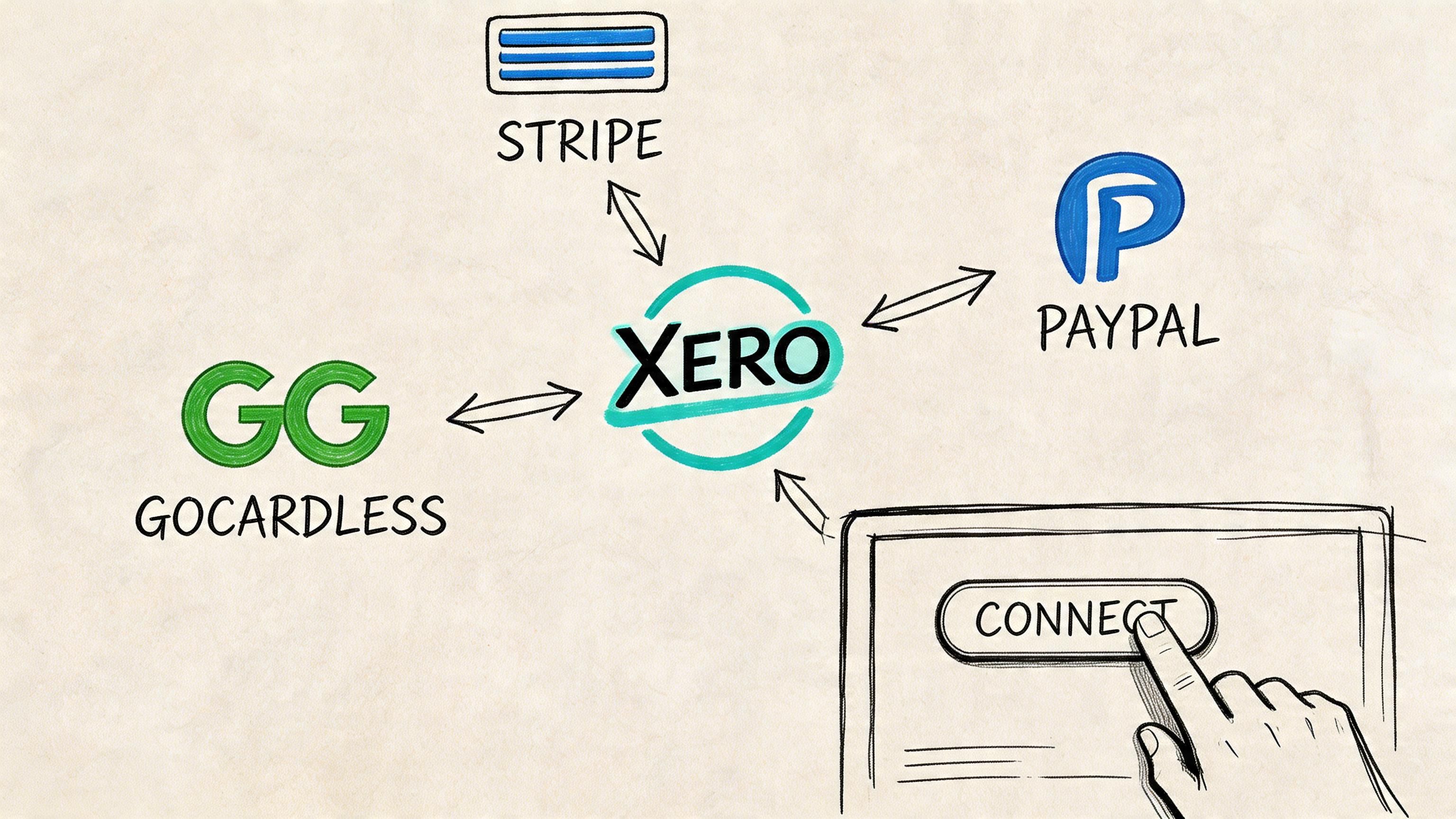
Bank transfer versus pay now options
This decision usually comes down to one trade-off. Traditional bank transfer avoids gateway fees, but it asks more of the customer. Integrated payment options add convenience, but they come with transaction costs and a bit more setup.
Here’s the practical comparison finance teams usually care about:
| Option | Main advantage | Main drawback | Best fit |
|---|---|---|---|
| Bank transfer | Lower direct processing cost | More manual effort for the payer | Established B2B customers with disciplined AP teams |
| Stripe | Fast card-based payment experience | Transaction fees and charge handling | Service businesses that value speed and convenience |
| PayPal | Familiar to many customers | Can feel less suited to formal B2B billing | Smaller invoices or mixed customer bases |
| GoCardless | Useful for bank-based collection flows | Setup and mandate fit matters | Businesses with repeat customers and regular billing |
Choose based on customer behavior
Don’t pick a gateway because it’s popular. Pick it based on how your customers pay.
If your clients are larger businesses with formal approval chains, direct bank transfer may still be fine if the invoice is clear and reference fields are consistent. If you work with smaller firms or consumers, the path of least resistance matters more. A visible pay button often gets the invoice settled before it drops off the customer’s radar.
Watch the reconciliation side too
The front-end payment experience gets most of the attention, but the bookkeeping side matters just as much. A gateway is only useful if your team can reconcile payments cleanly and understand what hit the bank versus what was deducted as fees.
That’s why I usually review three things before enabling any payment service in Xero:
- Settlement visibility. Can the finance team easily see gross payment, fees, and net deposit?
- Customer fit. Will the customer use the option offered?
- Dispute handling. Does the business know what happens when a payment is reversed or queried?
Faster payment collection often comes from reducing customer effort, not from writing tougher reminder emails.
For most businesses, a mixed approach works best. Keep bank transfer available for customers who expect it. Add integrated payment methods for the customers who want speed and simplicity.
Beyond Sending Invoices Taming Your Accounts Payable
This is the part most xero for invoicing guides skip. They show you how to send invoices, maybe how to remind customers, then they stop. Meanwhile, your team is still opening supplier PDFs, scanning phone photos of bills, and typing invoice numbers, dates, totals, and line items into Xero by hand.
That manual AP work causes more damage than people think. It slows month-end, introduces coding mistakes, and leaves approved costs sitting outside the ledger while someone waits for time to enter them.
The blind spot in most Xero setups
Outgoing invoicing gets attention because it touches revenue. Incoming bills get neglected because they feel administrative. But if supplier invoices are messy, the finance team loses control of purchase visibility and payment timing.
Xero’s own materials leave a gap here. A common but underserved pain point is handling incoming supplier invoices from unstructured PDFs or scans for reconciliation, rather than just creating polished customer invoices, as reflected in Xero’s invoicing software page.
That gap is why many teams start looking into AP automation. If you want a plain-English overview of the process, this explanation of what Accounts Payable automation entails gives useful context before you change your workflow.
What AP automation should actually do
A good AP process should do more than store documents. It should extract the fields your team needs, preserve line detail, and push structured data into the accounting workflow without forcing someone to rebuild the invoice manually.
For incoming supplier bills, the useful sequence looks like this:
- Capture the document from email, upload, scan, or photo.
- Extract the key fields such as invoice number, invoice date, due date, supplier, totals, tax, and line items.
- Route for review when coding, approval, or exception handling is needed.
- Create or prepare the bill in Xero so reconciliation and payment can happen on time.
Where parsing tools fit
Document parsing becomes practical, not theoretical. Instead of treating every supplier invoice as a one-off data entry task, parsing tools read the structure of the file and turn it into usable fields.
One option in this category is DocParseMagic, which can process messy invoices and convert them into structured Xero-ready data without manual keying. For teams dealing with inconsistent supplier formats, that’s often the missing layer between the document inbox and the bill entry process.
AP automation matters most when suppliers don’t send neat, standardized files.
What works versus what doesn’t
What works is automating capture for the repetitive parts while keeping a review step for exceptions. What doesn’t is forcing every vendor into a rigid template before you can process their documents.
If your supplier base is varied, expect mixed file quality. Some invoices will be clean PDFs. Others will be scans with stamps, handwriting, or awkward line breaks. Your process needs to absorb that variation without pushing everything back to manual data entry.
The businesses that clean this up usually see two immediate benefits. First, finance gets faster visibility into liabilities. Second, staff stop wasting time copying data that software should be extracting for them.
Xero Invoicing Best Practices and Common Fixes
Even well-configured Xero files drift over time. New staff improvise. Customers ask for exceptions. Tax settings get copied from old records. Then small errors start repeating.
The fix isn’t more effort. It’s tighter routine.
Build SOPs around the weak points
Strong invoicing teams don’t leave collections and reconciliation to general goodwill. Xero’s invoicing guidance emphasizes Standard Operating Procedures that assign responsibility for aged receivables reporting and define escalation steps for late payments, including actions for invoices exceeding two-week delays, in its guide to the invoicing process.
In practice, that means naming who does what and when. Not “finance follows up.” One person reviews overdue accounts. One person approves credit notes. One person checks weekly reconciliation exceptions.
Common issues and the fix
Use this as a working checklist when something feels off:
- Invoice numbers look out of sequence. Usually this comes from manual overrides or duplicate workflows. Lock down numbering habits and decide when manual edits are allowed.
- Payments don’t reconcile cleanly. Check whether the payment reference used by the customer matches what your team expects. Gateway fees can also confuse the bank side if nobody planned for them.
- Customers dispute line descriptions. Compare the invoice wording to the quote or contract. If they don’t align, rewrite the template, not just the one invoice.
- Wrong tax appears on repeat invoices. Review the item setup or contact defaults. Recurring mistakes usually begin in defaults, not in the invoice itself.
- Overdue accounts sit too long. This usually means reminders exist, but escalation doesn’t. Add a rule for when a person steps in.
Weekly habits beat heroic month-end cleanup
I prefer short weekly controls over long monthly repair sessions. For most businesses, the minimum discipline looks like this:
| Weekly task | Why it matters |
|---|---|
| Review aged receivables | Finds slow-paying accounts before they become old problems |
| Reconcile payment exceptions | Stops open invoices from staying unresolved |
| Check draft and pending bills | Keeps AP current and reporting cleaner |
| Spot-check recurring invoices | Catches outdated wording or wrong coding early |
A clean Xero ledger usually comes from boring weekly habits, not from one big cleanup at quarter end.
The practical standard
If you want xero for invoicing to stay reliable, document the process the same way you’d document payroll or month-end close. Staff change. Workloads spike. SOPs keep the system stable when memory and good intentions don’t.
Putting It All Together for Total Invoice Control
Used casually, Xero is a decent invoicing tool. Used properly, it becomes the operating system for billing discipline. The difference comes from configuration, automation, payment collection design, and a serious approach to incoming supplier invoices.
Most finance friction shows up where teams rely on memory. A proper Xero setup replaces memory with rules. Clean templates reduce disputes. Recurring invoices and reminders reduce delay. Payment integrations remove customer effort. AP automation removes rekeying. That combination gives you control over the full invoice lifecycle, not just the moment you press send.
If your team is strong on customer invoicing but still buried in supplier PDFs, scanned bills, and manual rekeying, DocParseMagic is worth a look. It helps turn messy incoming documents into structured, analysis-ready data that fits Xero workflows, which is often the missing piece between a good invoicing setup and a fully controlled finance process.