The Ultimate PDF to CSV Converter Guide
A good PDF to CSV converter is much more than a simple file-flipper. Think of it as the bridge between your static, locked-down PDF data and the dynamic, usable world of spreadsheets. It pulls structured information from tables and lays it out neatly in a CSV, ready for you to analyze, import, or manipulate. The whole point is to skip the soul-crushing drudgery of copy-pasting.
The Hidden Costs of Manual Data Entry
Let's be real for a moment. Manually keying in data from a PDF into a spreadsheet is a brutal time-waster. It might feel like no big deal for one or two documents, but the moment you have to do it at scale, it becomes a serious operational drag. We're not just talking about wasted hours; we're talking about real costs, both obvious and hidden, that pile up quickly.
Picture an accounts payable team drowning in a sea of vendor invoices at the end of every month. Each PDF is packed with essential details—invoice numbers, line items, due dates—that someone has to painstakingly transfer into the accounting system. Every minute they spend on that task is a minute they aren't spending on actual financial analysis or strategic work that moves the business forward.
The True Price of Inaccuracy
The biggest danger with manual conversion isn't just the lost time—it's human error. It's so easy for a single misplaced decimal or a couple of transposed numbers to completely throw off a financial report, leading to some truly bad business decisions. These little mistakes are sneaky and often go unnoticed until the damage is already done. A simple data entry task can quickly become a very expensive liability.
Sticking with manual processes gives you a false sense of control. In reality, you're just introducing a ton of unpredictability into your data workflow. One small typo can ripple out, impacting everything from your financial forecasts and inventory levels to your sales reports.
Why Automation Is Now Essential
The need for smarter document processing is exploding. The global market for PDF software was valued at USD 2.15 billion and is expected to climb to USD 5.72 billion by 2033. This surge is all about businesses going digital-first, and it highlights just how critical it is to have tools that can handle the modern pace of work. You can check out more insights on the PDF market growth to see the full trend.
This is where dedicated PDF to CSV converters come in. They're built to solve the exact problems that plague manual work.
- Time Savings: Automation can turn a task that takes hours into one that takes minutes. This frees up your team to focus on work that actually requires their expertise.
- Enhanced Accuracy: A solid converter takes human error out of the equation. You get clean, reliable data from the original document to your final spreadsheet, every time.
- Improved Scalability: Need to process a thousand documents instead of ten? No problem. Automation lets you handle massive volumes without needing to hire more people for data entry.
To give you a clearer picture, here’s a quick rundown of what you’re really choosing between.
Manual vs Automated Data Extraction: The Real Costs
| Factor | Manual Conversion | Automated Conversion |
|---|---|---|
| Time per Document | Minutes to hours, depending on complexity | Seconds |
| Error Rate | High; prone to typos and transposition errors | Near-zero for structured data |
| Labor Cost | High; requires dedicated employee hours | Low; frees up staff for high-value tasks |
| Scalability | Poor; more documents mean more people | Excellent; handles volume with no extra effort |
| Employee Morale | Low; repetitive, tedious work | High; staff focuses on engaging, meaningful work |
Ultimately, the choice becomes pretty clear.
Beyond just general document conversion, you can find tools built for very specific needs. For example, check out how automated receipt processing tools tackle the hidden costs of manual entry for expense reporting and bookkeeping. Embracing this kind of technology transforms data entry from a painful chore into a smooth, hands-off part of your workflow.
Choosing the Right PDF Conversion Method
Picking the right way to get data from a PDF into a CSV file really isn't a one-size-fits-all deal. What works for a simple, one-page report will completely fall apart when you're trying to process hundreds of vendor invoices each month.
Your best bet depends entirely on the situation: what kind of PDF are you working with, how messy is the data, and how many of these do you have to get through? Choosing poorly can mean hours of frustrating cleanup work, so let's walk through the options to find the right fit for you.
Simple PDFs and Built-in Tools
If you’ve got a clean, digitally created PDF with a straightforward table, you probably don't need to overcomplicate things. Sometimes the tools you already have are good enough for a quick job.
You could always try the classic copy-and-paste, but I've found that usually creates a jumbled mess of text and broken formatting. It often makes more work than it saves. A much better starting point is to use the software you likely already pay for.
- Adobe Acrobat: The full version has an 'Export To' function. Just save the PDF as an Excel or CSV file. This works surprisingly well for clean, well-structured documents.
- Microsoft Excel: Newer versions have a handy feature tucked away: "Get Data > From File > From PDF." It can pull tables directly from a PDF, though your mileage will vary depending on how complex the layout is.
My Take: These built-in methods are perfectly fine for a one-off, simple conversion. But if you need to handle tricky layouts, scanned papers, or a whole batch of files at once, they just aren't built for that kind of heavy lifting.
A Word of Caution on Free Online Converters
A quick Google search will give you a ton of free online PDF to CSV converters. They’re tempting—fast, easy, and nothing to install. For a single, non-sensitive document like a public price list, they can be a lifesaver.
But that convenience comes with a big catch: security. Uploading documents with sensitive financial data, customer lists, or internal business information to a random free website is a huge risk. You often have no idea where that data is going, who's storing it, or for how long.
This flowchart really puts the choice between manual work and automation into perspective.
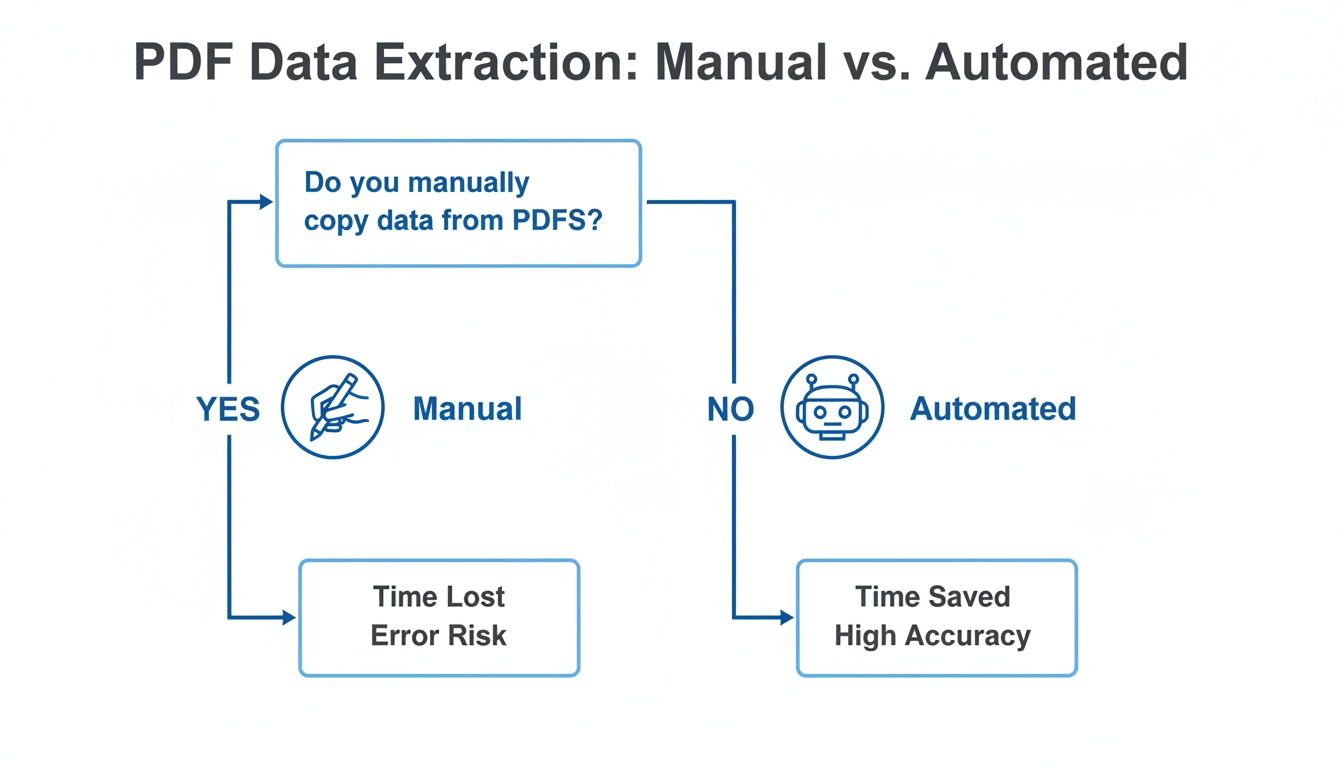
It’s clear that while you can do it by hand, automation is where you start getting your time back and trusting your data.
When You Need the Power of OCR for Scanned Documents
So, what happens when your PDF is just a picture of a paper document? This is where nearly all the basic converters completely fail. A scanned document is just an image as far as a computer is concerned; the software can't "read" the letters and numbers on the page.
This is a job for Optical Character Recognition (OCR). An OCR-powered tool scans the image, recognizes the shapes of the characters, and turns them back into actual text you can work with. From there, it can structure that text into a clean CSV.
If you’re wrestling with scanned invoices, old bank statements, or any paper trail saved as a PDF, a tool with OCR is an absolute must-have. You can get a deeper look into what Optical Character Recognition is and how it works, but the bottom line is simple: without it, you're stuck doing it all by hand.
Handling Complex Tables and Scanned PDFs
Not all PDF tables are created equal. A simple, grid-like table is one thing, but things get messy fast with more complex layouts. This is where most standard PDF to CSV converters fall apart, spitting out jumbled data that takes hours to fix by hand.
I've seen it countless times: a financial report with merged cells spanning multiple columns, or an invoice where a single line item wraps across two or three lines. Basic converters just don't get it. They see these as separate, unrelated bits of information, completely wrecking the structure of your data. You end up with a CSV file that’s even more confusing than the original PDF.
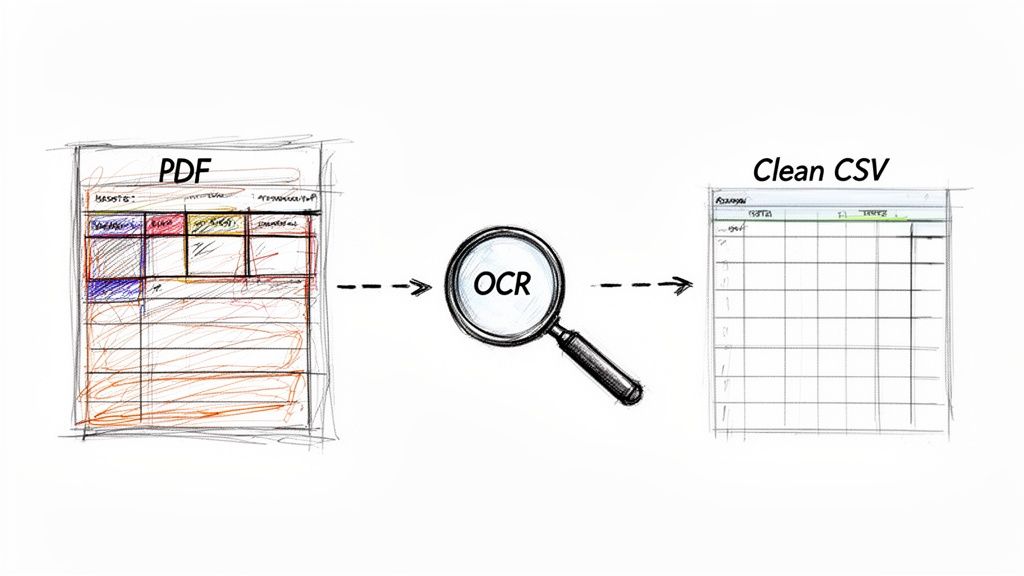
These tricky layouts require a smarter approach. You need a tool that doesn’t just blindly copy text but actually understands the spatial relationships on the page. For a deeper look at this, our guide on how to extract tables from PDF documents covers more advanced techniques to keep your data intact.
Demystifying OCR for Scanned Documents
The challenge gets even bigger when you’re dealing with a scanned document instead of a digitally native PDF. A scanned document is really just a picture of text. To a computer, it's a bunch of pixels, not actual characters you can work with. That's why you can't just copy and paste text from a scanned receipt or an old paper file.
This is where Optical Character Recognition (OCR) comes in. Think of OCR as a digital translator. It analyzes the image, recognizes the shapes of letters and numbers, and turns them back into machine-readable text. It's the core technology that makes it possible to pull any data at all from scanned paperwork.
A good OCR engine is absolutely essential for jobs like:
- Digitizing old, archived invoices to get them into your accounting software.
- Pulling transaction data from scanned bank statements.
- Processing paper forms that were scanned and saved as PDFs.
Beyond OCR: Intelligent Document Processing
While OCR is powerful, it’s not the whole story. Its main job is to recognize characters correctly, but it doesn't inherently understand the meaning or context of that data. It can tell you the characters are "12345," but it has no idea if that’s an invoice number, a zip code, or a product SKU. This is a huge limitation when you're working with all sorts of different document formats.
This is where a more advanced technology, Intelligent Document Processing (IDP), makes all the difference. IDP platforms use AI and machine learning to go way beyond simple character recognition. They actually learn to identify and understand the context of the information on the page.
IDP doesn't just read the document; it comprehends it. It can tell the difference between a "Due Date" and an "Issue Date" even if their positions change across different vendor invoices. This ensures the right data lands in the right column, every single time.
For instance, if you're processing a stack of vendor proposals with completely different layouts, an IDP system can correctly find and pull out key terms, pricing tables, and contact details, no matter the format. It's this contextual understanding that separates a basic PDF to CSV converter from a real data extraction solution, turning unstructured chaos into perfectly organized, actionable data.
A Smarter Workflow with DocParseMagic
The standard tools get you part of the way there, but they often fall flat when faced with the messy reality of business documents. The real leap forward isn't just finding a better pdf to csv converter; it's about adopting a platform that actually understands the context of your data. This is where a no-code document parsing tool like DocParseMagic completely changes the game.
It’s built from the ground up to solve the exact frustrations we’ve been talking about—from tangled table layouts to telling the difference between an invoice number and a PO number. Instead of just scraping text off a page, it intelligently finds and pulls out the specific fields you care about, no matter where they are on the document.
From Manual Mapping to Zero Setup
Let's think about a real-world headache. Imagine a sales team getting commission statements from ten different partners each month. Every partner uses their own unique PDF layout. That’s a massive data entry nightmare. Using old-school tools, the team would be stuck creating and maintaining ten separate templates or spending hours manually untangling the messy output.
With DocParseMagic, all that setup just disappears. The team can dump all ten different PDFs into the system in a single batch. The platform’s AI is smart enough to figure out each document's structure, pinpointing key data like the sales period, commission rate, and total payout. It then neatly organizes everything into one clean CSV, ready for analysis.
This kind of intelligent approach is becoming essential as businesses deal with more and more document types. In fact, the market for PDF driver technology—which covers conversion and security—is expected to jump from USD 4.1 billion to USD 9.5 billion, showing just how much demand there is for smarter solutions.
A Visual Look at the Process
The whole process is designed to be dead simple. You just drag your files in and let the platform do the work.
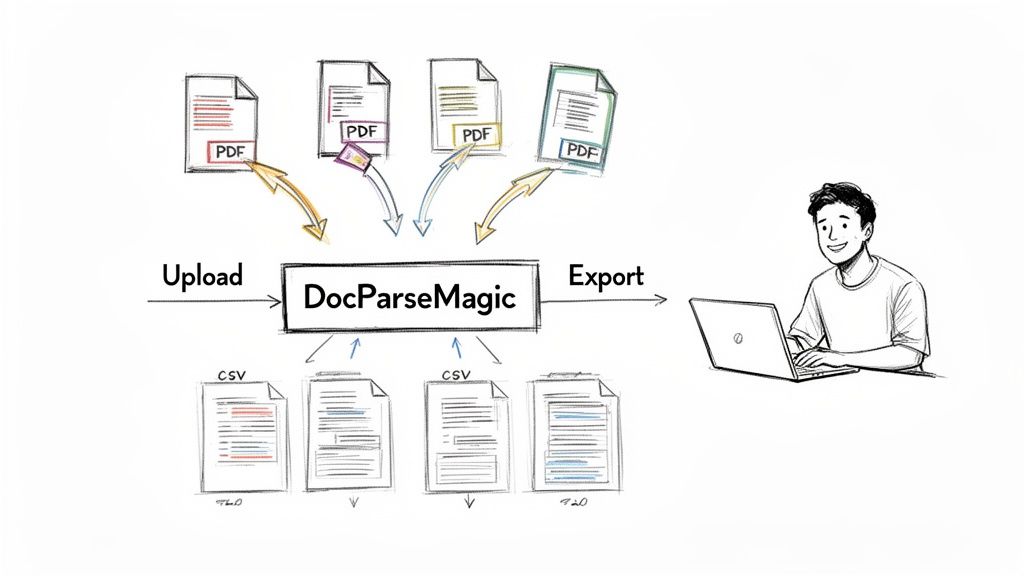
This image perfectly captures the promise: you put messy source files in and get perfectly structured, usable data out. Minimal effort required.
Unlocking True Workflow Automation
The real magic of an intelligent parser is how it slots into your bigger business workflow. It's not about converting a single file; it’s about automating an entire data pipeline from start to finish.
Think of DocParseMagic as the bridge connecting your unstructured documents to your core business systems. It preps the data so it can flow directly into your accounting software, CRM, or analytics dashboards without anyone having to touch it.
This level of automation delivers some serious wins:
- Radical Time Savings: A task that used to eat up hours of manual entry or template fiddling now takes minutes.
- Audit-Ready Accuracy: By cutting out the potential for human error, you can trust that the data fueling your reports is clean from the very beginning.
- Focus on High-Value Work: Your team is no longer stuck doing tedious data prep. Instead, they can focus on analysis, strategy, and making decisions that actually move the needle.
By taking on the heavy lifting of data extraction, DocParseMagic lets you build faster, more reliable processes. To see how this works for different industries, check out these real-world DocParseMagic use cases and see if one fits what you're trying to do.
Common PDF Conversion Mistakes to Avoid
Getting data out of PDFs can be tricky, and it’s easy to make a few classic mistakes that end up costing you a lot of time and headaches. I’ve seen them all. The good news is that once you know what to look for, you can build a workflow that actually works.
The single biggest mistake? Blindly trusting the output. A simple converter might grab the text, but it’s the little details it misses that cause the most trouble. I once worked with an analyst who found their final sales report was off by thousands. The culprit? A free tool had misinterpreted commas as decimal points across the entire dataset. A tiny error, a huge impact.
Ignoring Your Real Workflow Needs
It’s so easy to just grab the first free tool that pops up in a search. But this is a classic mistake, especially if you plan on doing this more than once. The most common pitfall here is picking a converter that doesn't have batch processing.
Think about it. You’ve got a stack of 50 vendor invoices on your desk. A tool that only handles one file at a time turns a quick job into an afternoon of mind-numbing clicking. That completely defeats the point of using a tool in the first place and adds a ton of friction to your process.
Key Takeaway: Look beyond the immediate task. If you're going to process more than a few documents on a regular basis, batch processing isn't a "nice-to-have" feature. It's essential for getting work done efficiently.
Underestimating Security and Privacy Risks
This is the big one, and it's something people overlook far too often. Those free online converters seem handy, but they come with a hidden price: your data's security. Every time you upload a document, you're handing it over to a third-party server. Do you know where that server is? Or who has access to it?
Uploading sensitive documents—like bank statements, client contracts, or internal financial reports—to a random, unvetted website is a gamble you don't want to take. You lose all control over that information.
Let's get specific about the risks:
- Financial Data: Invoices and bank statements contain account numbers, transaction details, and private client info.
- Customer Lists: Imagine your entire customer database getting compromised. That’s a massive privacy breach, not to mention a potential legal nightmare.
- Proprietary Reports: Leaking internal sales figures or strategic plans to the wrong people could be devastating.
Before you upload anything to an online pdf to csv converter, read its privacy policy. For any document with sensitive data, using a secure, professional platform isn't just a better option—it's the only responsible one. Steering clear of these common blunders will help you build a conversion process that's not just faster, but also accurate and safe.
Frequently Asked Questions
When you start converting PDFs to CSVs, you're bound to run into a few recurring headaches. Let's tackle some of the most common questions I hear so you can sidestep these issues and keep your projects moving.
What Happens to My Formatting and Table Structure?
This is, without a doubt, the number one concern. You’ve got a perfectly structured table in your PDF, but when you convert it, the CSV looks like a data explosion. Columns are mashed together, and rows are completely out of whack.
The problem is that basic converters just rip the text out without understanding the layout. For anything beyond a super simple table, you need a tool that can intelligently parse the document's structure. Something like DocParseMagic doesn't just see text; it recognizes the spatial relationships between columns and rows, preserving the integrity of your original table.
How Do I Deal with Password-Protected PDFs?
A password-protected PDF is like a locked door—no converter can get through it. Before you can even think about extracting data, you have to unlock the file.
Your best bet is to use a trusted application like Adobe Acrobat to remove the password protection. Once the file is unlocked and saved, you can run it through your conversion tool just like any other PDF.
A Quick Word of Caution: Be extremely careful with free, online PDF unlocking websites. Uploading a sensitive document to an unknown service is a major security risk. Always handle password removal within a secure, trusted software environment.
Can I Convert Scanned PDFs or Images?
Absolutely, but it's a different ballgame. A standard converter sees a scanned document as just one big image. It can't read the text because, to the machine, there isn't any text to read.
This is where Optical Character Recognition (OCR) comes in. An OCR engine acts like a pair of digital eyes, scanning the image, identifying the characters, and turning them back into machine-readable text. Once that's done, the text can be structured into a clean CSV file. If you’re working with scanned invoices, old reports, or any paper document you’ve digitized, a tool with built-in OCR isn't just nice to have—it's essential.
Ready to stop wrestling with messy data and manual cleanup? DocParseMagic intelligently extracts data from any PDF, turning complex tables into clean, analysis-ready CSV files in minutes. Try DocParseMagic for free and see how much time you can save.