Powerful Guide: extracting data from pdf to excel Made Simple
If you only have a few simple PDFs, a quick copy-paste or a free online converter will probably do the trick. But when you're dealing with a high volume of documents or complex layouts, you'll need something more powerful, like specialized automation software, to get the job done right.
Why Manual Data Entry Is Costing You Time and Money
Manually keying in data from a PDF to an Excel sheet might seem like a small, unavoidable chore. But multiply that across your team and over a year, and you’ll find it’s a massive drain on company resources. The time your employees spend just copying and pasting isn't just unproductive—it's a direct hit to your bottom line.
This tedious process is also ripe for human error. It only takes one misplaced decimal point or a single typo in a name to create a ripple effect of problems. Suddenly, you're dealing with skewed financial reports, inaccurate inventory, or business decisions based on faulty data. These aren't just minor hiccups; they're real issues that can damage profitability and mess with your operations.
The Hidden Impact of Inaccuracy
The fallout from bad data goes way beyond the time it takes to find and fix the original mistake. With nearly 1.5 billion people using Microsoft Excel in 2023, it’s clearly the backbone of modern business analysis. The problem is, getting clean data into it is still a major headache.
In fact, wrestling with manual PDF data extraction can eat up as much as 40% of an analyst's workday. Worse yet, studies show that errors creep into 15-20% of manually entered datasets. That’s a huge productivity killer.
The most direct way to solve these problems is to Automate Data Entry. It’s more than just a technical fix—it’s a strategic move that frees up your team and dramatically cuts down the risk of costly mistakes.
So, how do you pick the right approach? This simple decision tree can help guide you.
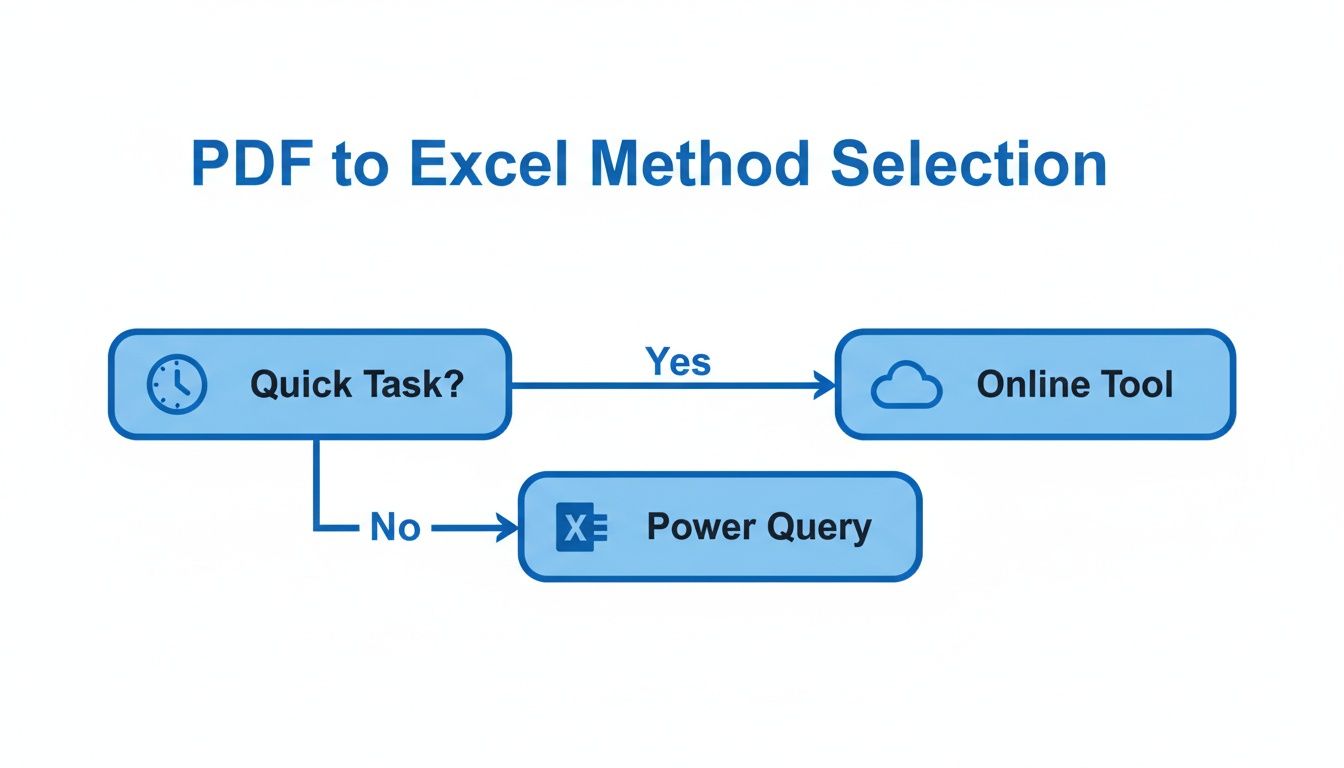
As you can see, a quick online tool is perfect for a simple, one-time job. But for anything more complex or repetitive, a robust tool like Power Query becomes the smarter choice.
Quick Comparison of PDF to Excel Extraction Methods
To make it even clearer, here’s a high-level look at the different methods, what they’re good for, and what you can expect in terms of difficulty and results.
| Method | Best For | Complexity | Typical Accuracy |
|---|---|---|---|
| Manual Copy & Paste | Simple, text-based PDFs with clean tables and minimal formatting. | Very Low | Low to Moderate |
| Online Converters | Quick, one-off conversions of standard, non-sensitive documents. | Low | Moderate |
| Excel's Power Query | Complex, multi-page PDFs; recurring tasks; and data cleanup. | Moderate to High | High |
| Automation Software | High-volume, complex, and business-critical data extraction. | Low (for user) | Very High |
This table should give you a solid starting point for figuring out which path makes the most sense for your specific task.
Shifting From Task to Strategy
When you master the right method for extracting data from PDF to Excel, you turn a mind-numbing task into a genuine business advantage. Data starts flowing seamlessly from static reports into dynamic spreadsheets, which empowers your team to:
- Make Faster Decisions: Analysts can finally focus on interpreting data instead of just typing it.
- Improve Data Reliability: Automation gets rid of the typos and transposition errors that plague manual entry.
- Boost Overall Efficiency: All those hours once wasted on copy-pasting can be put toward work that actually grows the business.
Ultimately, getting your PDF data into an actionable Excel format isn't just about saving time. It's a foundational step toward building a smarter, more accurate, and more agile organization.
Using Excel's Built-In Tools for Clean Data Extraction
A lot of people think you need some special third-party tool to pull data out of a PDF and into Excel. The truth is, you probably already have one of the best solutions for the job sitting right on your computer. Excel has some surprisingly powerful features built right in that go way beyond a simple, messy copy-and-paste.
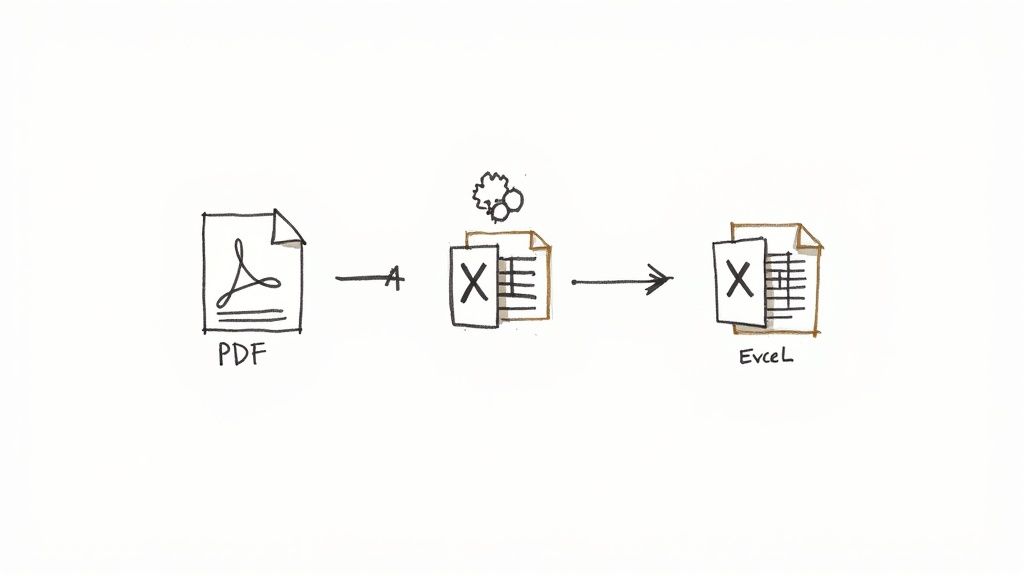
Sure, copying and pasting might work if you have a tiny, perfectly structured table. But most of the time? It just creates a jumbled mess of data scattered across random cells. You end up spending more time cleaning it up than you would have just typing it in manually.
Thankfully, there's a much smarter way to do this, and it all starts in Excel’s Data tab.
Unlocking Power Query for PDF Imports
The secret weapon here is Power Query. If you haven't used it before, prepare to meet your new favorite feature. It’s a seriously robust data tool that comes fully baked into modern versions of Excel, designed specifically to connect to different data sources, clean up the info, and load it into a spreadsheet in a neat, organized way.
Getting started is pretty simple. In Excel, just follow this path:
- Go to the Data tab on the ribbon.
- Click Get Data.
- Hover over From File.
- Select From PDF.
This will pop open a window where you can find and select the PDF file you need to work with. Once you choose your file, Excel will analyze its contents, intelligently identifying tables and pages within the document. It’s a pretty slick process.
If you want to go even deeper on this, we've got a complete guide that walks you through more advanced scenarios on how to use Excel to get data from PDF.
Navigating the Power Query Editor
After Excel chews on the PDF for a moment, it presents you with a Navigator window. This is basically a preview screen showing all the tables and pages it found. You can click on each item to see what it looks like, which is super helpful for pinpointing the exact data you want to grab.
Let's say you have a multi-page sales report. The Navigator might show you Table001 from the first page, Table002 from the second, and so on. If a single table in your report spans multiple pages, Power Query often sees them as separate tables. Don't sweat it—that’s a common scenario and easy to fix.
Here's my biggest tip: Resist the urge to click Load. Instead, always click Transform Data. This opens the Power Query Editor, an incredibly powerful interface where you can whip your data into shape before it ever hits your spreadsheet.
Power Query is your pre-processing workspace. Think of it as a data laboratory where you can clean, shape, and combine tables. Taking a few moments here saves hours of cleanup in Excel later.
Inside the editor, you can perform all kinds of essential cleanup. For instance, if your table was split across pages, you can use the Append Queries feature to stitch them back together into a single, cohesive table. You can also fix data types (so numbers are treated as numbers, not text), remove unnecessary columns, and filter rows.
The best part? Every step you take is recorded. The next time you get an updated version of that PDF, you can just refresh the connection, and Power Query will automatically repeat all your cleanup steps for you. It’s perfect for those recurring monthly reports.
Finding an Online PDF to Excel Converter That Actually Works
When you're in a pinch and need to get data out of a PDF and into Excel, a free online tool can feel like magic. You drag, you drop, and poof—a spreadsheet appears. But the internet is flooded with these converters, and it's a real mixed bag. Picking the wrong one won't just waste your time with messy results; it could even put your data at risk.
The truth is, not all converters are created equal. A tool that handles a simple, one-page report flawlessly might completely choke on a complex invoice with merged cells or tables that spill across multiple pages. It's so important to look past the shiny "Convert Now" button and understand what you're really getting.
What to Look for Beyond the Convert Button
Before you upload a single document, you have to think about the trade-offs. The right tool really depends on what you're trying to do. A freelancer who needs to convert a bank statement once a month has totally different needs than a marketing team processing hundreds of social media reports every day.
Keep these critical factors in mind:
- File Size and Page Limits: Free services almost always have strict limits, often capping you at 10MB or 50 pages. If you're dealing with hefty reports, you'll hit that ceiling fast.
- Data Privacy Policies: This is a big one, especially with sensitive info. Does the service keep your files? If so, for how long? Dig into their privacy policy to make sure your data isn't being sold or just sitting on their servers forever.
- Layout Complexity: How does the tool handle documents that aren't perfectly formatted? A great test is to throw it a curveball—a tricky invoice with merged cells or a table that breaks across two pages. That will show you its true capabilities.
For anyone working in fields like finance, accuracy is everything. We know that manual data entry can lead to errors in up to 25% of cases, a scary number that a good converter can dramatically reduce. For example, a reliable tool like Nitro PDF's free converter can often handle files up to 100MB and keeps data integrity around 98% for standard layouts. Meanwhile, more powerful cloud services can be 15-20% more accurate on tough scanned documents.
The Must-Have Features Checklist
Don't just grab the first converter that Google shows you. Use this checklist to make sure the tool you choose is up to the task and keeps your information safe.
The best online converter isn’t just fast. It’s reliable, secure, and has the right features to handle your specific documents without making you do a bunch of cleanup work afterward.
A solid converter needs to do more than just the basics. Optical Character Recognition (OCR), for instance, is absolutely essential if you’re working with scanned PDFs or documents that are just images of text. Without OCR, the tool can't "read" anything, making it useless for data extraction.
Likewise, if you have a stack of files to get through, batch processing is a lifesaver. You can learn more about what to look for in our guide to document data extraction software.
Finally, see if the tool offers any kind of data validation or cleanup features. The whole point is to get a clean spreadsheet you can start working with immediately, not a jumbled mess that needs another hour of your time to fix.
Automating Your Workflow With Smart Extraction Tools
When you're only dealing with a handful of PDFs, the manual methods we've covered will get the job done. But what happens when that trickle of invoices, reports, or statements turns into a daily flood? That’s when you need a much more powerful approach. This is where Intelligent Document Processing (IDP) completely changes the game.
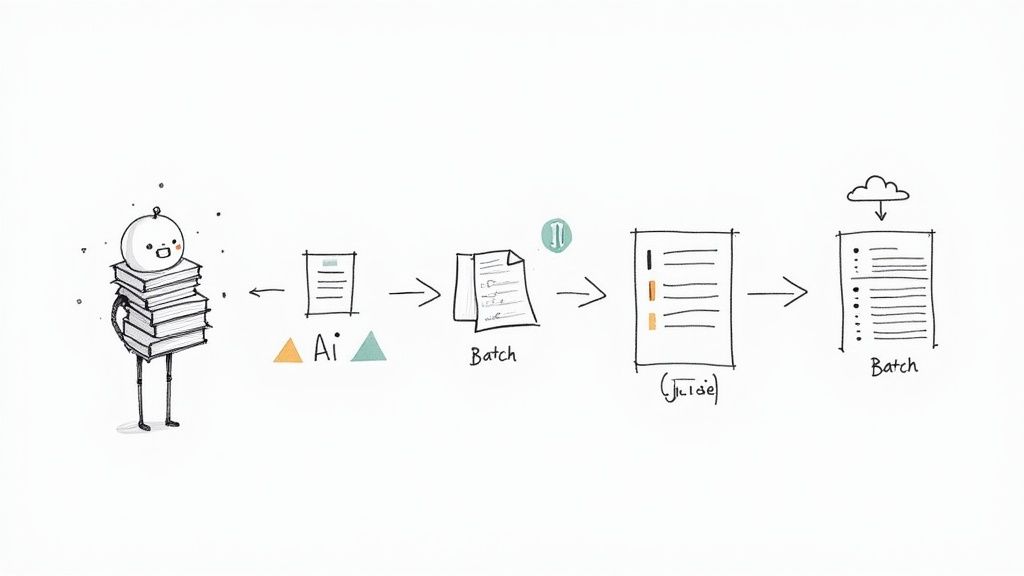
These smart, AI-powered tools are built to read, understand, and structure data from all sorts of messy, real-world documents with very little human help. It's so much more than just converting text; it's about understanding the context behind the words.
Imagine trying to process thousands of vendor invoices, where every single one has a different layout. An IDP system can instantly spot the invoice number, due date, and line items on each one, no matter where they are on the page. It's a massive leap forward in efficiency.
Template-Based vs. Template-Free Extraction
As you start looking into automation tools, you’ll run into two main ways they pull out data. Figuring out the difference is crucial for picking the right solution for your specific needs.
-
Template-Based Tools: This is the old-school method. You have to manually create a "template" for each document layout, essentially telling the software, "The invoice number is always here, and the total amount is always there." This works just fine if you only get documents from a few sources with consistent formatting. But the moment a vendor changes their invoice design or a new document type shows up, the whole system breaks.
-
Template-Free (AI-Powered) Tools: Modern IDP solutions use AI to understand documents more like a human would. They recognize labels and context—for instance, they know that the number following the words "Invoice #" is, well, the invoice number. This makes them incredibly flexible and scalable because they can handle brand-new layouts they've never seen before without any manual setup.
For most businesses that handle a variety of documents, the template-free approach is the clear winner. It saves countless hours you’d otherwise waste on tedious template creation and management. Our guide on how to automate data entry dives deeper into building these kinds of efficient systems.
The Real-World Impact of Smart Automation
The benefits of switching to an intelligent extraction tool are immediate and significant. For personal or small business expense tracking, specialized tools like receipt scanning apps can digitize and categorize your spending on the fly. This same principle just gets amplified when applied to core business operations.
Take the supply chain and logistics industry, which was once drowning in manual data entry. Before 2020, it wasn't uncommon for firms to waste up to 50% of their staff's time just transcribing PDF inventory lists. This led to massive stock discrepancies that cost the industry an estimated $1.7 trillion every year.
Advanced IDP systems, powered by modern AI, can now interpret these complex PDFs with an accuracy rate of around 92%—a huge jump from the 65-75% accuracy of older software. This shift doesn’t just cut down on errors; it fundamentally changes how teams work.
By automating the grunt work of data extraction, you free up your people to focus on higher-value activities like analysis, client relationships, and strategic planning. The return on investment isn't just measured in hours saved, but in better accuracy, faster processing, and ultimately, smarter business decisions.
Navigating Common PDF Extraction Headaches
Even with the best tools in your arsenal, getting data from a PDF into Excel isn’t always a straight shot. You’re bound to hit a snag sooner or later—maybe it's a scanned document that’s really just a picture, or a complex table that just won't behave. It’s easy to get frustrated, but trust me, most of these common problems have a straightforward fix.

Think of this as your field guide for when things go sideways. I’ll walk you through the most frequent issues I’ve seen and give you practical solutions to get your data moving again.
Dealing with Scanned or Image-Based PDFs
One of the most common brick walls you’ll hit is the scanned PDF. You open it, try to highlight some text, and… nothing. That’s because the whole document is just a flat image, and standard converters have nothing to work with.
The key to cracking these is Optical Character Recognition (OCR). It’s a bit like a digital magnifying glass that scans the image, identifies the letters and numbers, and turns them into actual, editable text.
- Quick Online Fixes: Many free online converters have a basic OCR function built-in. Just look for a checkbox or an option like “Enable OCR” before you upload.
- Serious OCR Power: For blurry scans or when accuracy is critical, you'll want to turn to something more robust. Dedicated software like Adobe Acrobat Pro or a smarter platform like DocParseMagic comes equipped with far more powerful OCR engines that can handle a lot more.
A little pro tip: the quality of your scan directly impacts the quality of the OCR. A crisp, high-resolution document will always give you better results than a blurry, skewed one.
Fixing Jumbled Formatting and Data Types
Another all-too-common headache is when your data finally lands in Excel, but it's a complete mess. Numbers are formatted as text, dates are scrambled, and columns are all over the place. This usually happens when the original PDF had a funky layout with merged cells or weird spacing.
Don’t get stuck fixing formatting cell by painful cell. The real magic happens when you clean up the data before it even touches your final spreadsheet. This is where Power Query becomes your secret weapon.
Once you’re in Excel’s Power Query Editor, you have a whole workshop of tools ready to go.
- Change Data Types: Instantly switch columns from text to numbers, dates, or currency. It’s a one-click fix that ensures all your formulas and calculations will actually work.
- Split Columns: Got data mashed together, like "Chicago, IL" in a single column? Use the "Split Column" feature to break it apart by a delimiter (like a comma) into two clean columns.
- Combine Multi-Page Tables: If a giant table from your PDF got broken up into separate pieces during the import, you can easily use the "Append Queries" function to stitch them back together into a single, seamless master table.
The beauty of doing all this cleanup in Power Query is that you’re building a repeatable recipe. The next time you get an updated version of that PDF, just hit refresh. All your cleaning steps will run automatically, saving you an incredible amount of manual work.
Got Questions About PDF to Excel Extraction?
If you're new to pulling data from PDFs into Excel, you've probably got a few questions buzzing around. Most people wonder about security, strange file types, and those impossibly messy tables. Let's clear up the most common ones.
Are Online PDF to Excel Converters Safe?
This is a big one, and the honest answer is: it depends entirely on what’s in your PDF.
If you’re working with a public document or something non-sensitive, a free online tool can be a quick and easy solution. But remember, you're uploading that file to someone else's server. It's always a good idea to quickly check their privacy policy to see what they do with your data and how long they keep it.
For anything confidential—think financial reports, client lists, or legal contracts—you absolutely want to stay away from generic web tools. Stick with an offline method where the file never leaves your machine. Excel’s own Power Query is perfect for this. If you need a more powerful cloud solution, make sure you choose a reputable service that guarantees security measures like end-to-end encryption.
What's This OCR Thing I Keep Hearing About?
OCR stands for Optical Character Recognition, and it's a game-changer. In simple terms, it's the magic that converts an image of text into real, editable text.
Think about a scanned document. To your computer, that PDF isn't a collection of words and numbers; it's just one big picture. Without OCR, trying to extract data from it is like trying to copy-paste text from a photograph—you can't. A tool with a solid OCR engine can actually read the image, recognize the characters, and turn them into the structured data you need for your spreadsheet.
When you're dealing with scanned documents, a high-quality OCR engine is non-negotiable. It’s the critical link between a flat image and usable, analyzable data in Excel.
What's the Best Way to Handle PDFs With Really Complex Tables?
We’ve all been there. You open a PDF and find tables with merged cells, weird headers, or data that sprawls across multiple pages. Trying to just copy and paste this kind of thing will give you nothing but a garbled disaster in Excel.
For these nightmare tables, your best bet is either Excel's Power Query or a specialized Intelligent Document Processing (IDP) platform. You'd be surprised how capable Power Query is; its editor gives you the tools to split columns, fix headers, and wrestle messy data back into shape.
But if even Power Query can't quite untangle the mess, it's time to bring in the big guns. An AI-powered tool is designed from the ground up to understand and reconstruct these kinds of complex layouts automatically, saving you hours of manual cleanup.
Tired of fighting with messy PDFs? DocParseMagic is a no-code platform that intelligently extracts the exact information you need from invoices, reports, and more—no templates required.
Try DocParseMagic for free and transform your workflow today!