A Guide to Extract PDF Data to Excel Without The Headaches
We’ve all tried it. Highlighting a table in a PDF, hitting copy, and pasting it into Excel, only to be greeted by a complete mess. It’s a frustrating, time-wasting ritual that almost never works as expected.
This isn’t just bad luck; it’s a design issue. PDFs are built to look good on any screen, like a digital printout. They don't care about the neat rows and columns that Excel needs to make sense of the data. When you copy-paste, you're grabbing visual text, not a structured table, which is why everything ends up jumbled.
Why Copying and Pasting From PDF to Excel Fails
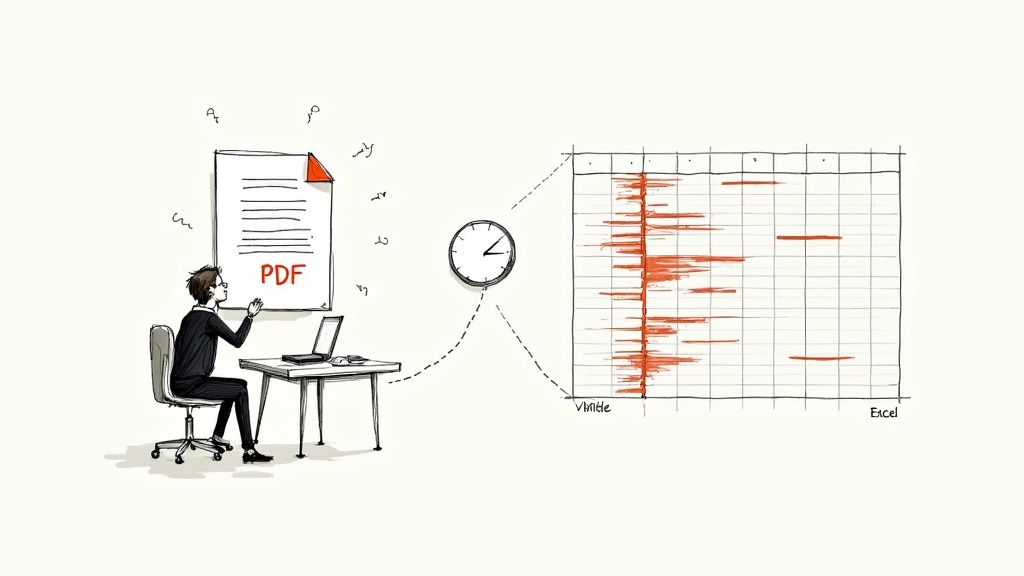
Let's be real—the old highlight-and-paste method is broken. You end up with text smashed together, numbers in the wrong columns, and hours of manual cleanup ahead of you. What should have taken a few seconds turns into a major productivity sink.
This happens because you're fighting against the PDF format itself. It’s designed to preserve a document's look and feel, not its underlying data structure. Think of it as a picture of a table, not the table itself. Excel needs structured data, and a simple paste just can't provide that.
The Real-World Cost of Manual Errors
Imagine you're an accountant working through dozens of PDF invoices. One misplaced decimal from a sloppy copy-paste job could lead to overpaying a vendor or throwing off your entire financial report. Finding that tiny mistake could take hours of backtracking.
This isn't just an accounting problem. The headache is universal:
- Inventory Managers: Trying to untangle inventory lists with thousands of part numbers is a nightmare when data is scrambled.
- Financial Analysts: Combining quarterly reports from different PDFs manually is slow and dangerously prone to errors.
- Sales Teams: Compiling regional sales data often results in inconsistent numbers and unreliable forecasts.
The bottom line is that manual extraction is a massive risk. It’s not just inefficient; it’s a direct threat to the accuracy of your business data.
The numbers back this up. The global market for PDF software was valued at USD 2.15 billion in 2024 and is projected to hit USD 5.72 billion by 2033. This surge shows a clear industry-wide move away from manual work and toward smarter, automated solutions.
For a deeper dive into different methods, check out a practical guide to extracting data from PDF. Ultimately, using an automated tool isn’t a luxury anymore—it’s just part of a modern, efficient workflow.
Manual vs Automated PDF Data Extraction
To put it into perspective, here’s a quick comparison of the old way versus the new way.
| Feature | Manual Copy-Paste | Automated Extraction (DocParseMagic) |
|---|---|---|
| Speed | Extremely slow, depends on document length and complexity. | Incredibly fast, processes documents in seconds. |
| Accuracy | Very low. Prone to human error, formatting issues, and typos. | High. Captures data precisely as it appears. |
| Scalability | Not scalable. Becomes unmanageable with more than a few documents. | Highly scalable. Handles thousands of documents with ease. |
| Consistency | Inconsistent. Varies from person to person and document to document. | Perfectly consistent. Follows predefined rules every time. |
| Effort | High. Requires intense focus and tedious manual reformatting. | Low. Set it up once and let it run automatically. |
The choice is pretty clear. While manual entry might seem okay for a one-off task, any recurring need to extract PDF data to Excel demands a more reliable and efficient approach.
Kicking Off Your First Automated Extraction Project
Alright, let's move from just talking about it to actually doing it. This is where you'll see how DocParseMagic turns a pretty technical chore into something surprisingly simple. The aim here is to get you from a fresh account to your first uploaded document in just a couple of minutes, skipping all the usual setup headaches.
Getting started is a breeze. After you sign up, you’ll land on the main dashboard. Find the big, obvious 'New Project' or 'Create Project' button—that's where everything begins. Think of a project as a dedicated folder for a specific kind of document you handle all the time, like all your monthly invoices or those weekly inventory reports.
Uploading Your First Document
Once you give your project a name, it's time to upload a sample PDF. Don't stress about finding the perfect one; just grab a file that's a good representation of what you need to process. You can drag it right from your desktop and drop it into the upload area.
DocParseMagic gets to work analyzing the document, which usually takes just a few seconds. This quick scan is super important because it gets the file ready for the next phase: telling the system exactly what information you want to grab. This is the first real step in learning how to automate data entry from your documents.
And don't worry if your document seems complicated. Whether it's a simple one-page invoice or a dense, multi-page report, the upload process works the exact same way.
I see a lot of people overthink this first step. Just pick a document that’s typical for you. The system is designed to be forgiving, and you can always tweak your rules later on as you get more familiar with it.
Getting Ready for Data Extraction
With your document uploaded and analyzed, you're officially set up for automated extraction. Notice you haven't had to write a single line of code or deal with any complex settings, but you’ve already laid all the important groundwork. The system is now waiting for you to visually point and click on the data fields you need, which we'll dive into next.
This simple setup is the backbone of any project to extract PDF data to Excel. For companies that want to take this even further, it's often worth looking into broader intelligent process automation solutions that can handle even more complex workflows.
By nailing these first few actions, you’re creating a repeatable process that will save you a ton of time down the road. The whole idea is to turn a tedious manual task into a smooth, automated system, and this foundation makes every single extraction after this one faster and more accurate.
Creating a Smart Template for Recurring Reports
This is where the real magic happens. By setting up a smart template, you're essentially teaching DocParseMagic what to look for just one time. After that, it can extract PDF data to Excel for you automatically, forever. The whole point is to build a reusable pattern that can handle all those recurring documents you get, like monthly invoices, weekly sales reports, or any other file you process regularly.
Let's imagine a real-world scenario: you need to pull line items from supplier invoices. Every month, you get a PDF from the same vendor. The layout might shift slightly, but the key information—invoice number, date, item descriptions, and prices—is always in there somewhere. Your template will learn to find this data no matter where it pops up on the page.
Defining Your Data Fields
Once you’ve uploaded a sample invoice, the process becomes incredibly visual and intuitive. Forget writing code. You'll just click and highlight the specific bits of information you need. For example, you can draw a box around the "Invoice Number" and give it a label.
You’ll do this for every important field:
- Invoice Date: Just select the date text on the document.
- Total Amount: Highlight the final price at the bottom.
- Vendor Name: Capture the supplier's name, usually at the top.
This visual mapping is what makes the system so effective. You're creating a powerful set of rules without needing any technical background, directly connecting your template to the document's structure.
The whole automated process is a simple, three-stage flow that takes you from sign-up to your final, extracted data.
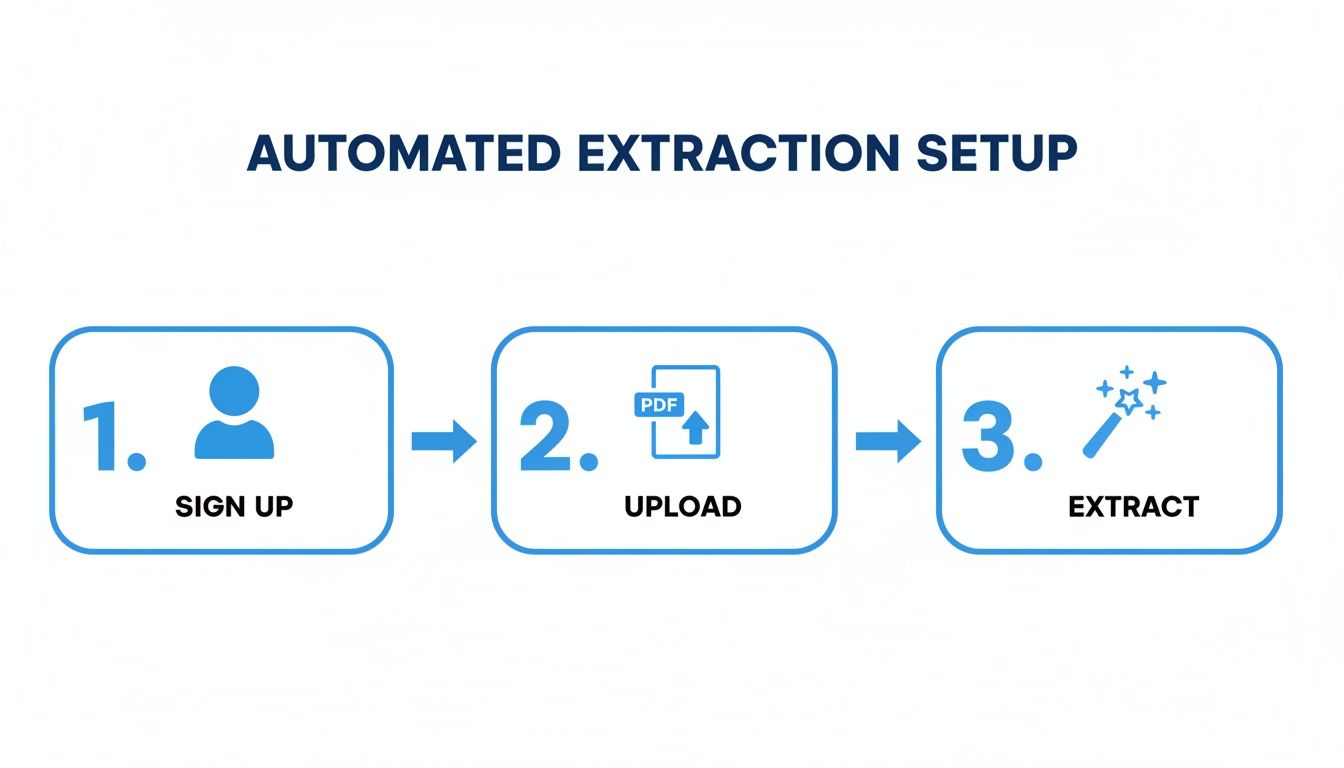
This setup is designed to get you from A to B quickly, removing all the unnecessary complexity so you can focus on the results.
Working with Tables and Line Items
What about entire tables, like a long list of products on an invoice? That’s just as straightforward. Many tools now include a ‘Smart Select’ feature that can automatically detect a table's boundaries with a single click.
You can then fine-tune the selection by dragging the column dividers or telling the system which row marks the start of the line items. This flexibility is a lifesaver when you're dealing with documents where tables don't have clear borders or even span across multiple pages.
If you want to dig deeper into how Excel organizes this kind of information, we've got a great guide on the fundamentals of data parsing in Excel.
A quick pro tip: Build a little flexibility into your template. If a column name sometimes appears as "Price" and other times as "Cost," you can often set up rules to recognize both words. This makes your template much more resilient to small changes in future documents.
The Power of AI in Modern Extraction
Modern tools are a world away from simple text scraping. Today’s AI-driven platforms have completely changed the game, with some of the best achieving over 95% precision when extracting tables. That level of accuracy means the tedious manual cleanups that used to take hours are now virtually a thing of the past.
Once your template is saved, all the heavy lifting is done. The next time you upload a similar invoice, DocParseMagic will instantly apply your rules, pull the right data, and serve it up in a clean format that’s ready for Excel. This one-time setup creates an automated workflow that saves a ton of time and ensures your data is always consistent and accurate.
Extracting Data From Scanned Documents and Images

So far, we've been talking about clean, digitally created PDFs. But let's be honest, the real world is messy. We're often dealing with scanned receipts, blurry photos of purchase orders, or reports that are just pictures of text.
Standard extraction methods won't work on these because, to a computer, they're just flat images. There's no text to grab.
This is where Optical Character Recognition (OCR) saves the day. OCR is the magic that scans an image, identifies the letters and numbers, and converts them into actual text you can work with. It's the critical bridge between a picture of a document and structured data ready for your spreadsheet.
DocParseMagic has this technology built right in. When you upload an image-based file, its OCR engine automatically gets to work, digitizing the text before your template rules even see it.
Getting the Best OCR Results
The quality of your final data hinges on the quality of the initial OCR scan. A fuzzy image will give you jumbled, unreliable data. The good news is that a few simple tweaks can make a massive difference.
First things first: start with a good quality scan. If you can control the scanning process, always aim for a resolution of at least 300 DPI (dots per inch). This gives the software enough detail to tell the difference between a "c" and an "e."
Also, try to make sure the document is as flat and well-lit as possible. Shadows, deep creases, and crooked angles can easily trick the OCR engine and lead to mistakes. A clean, high-contrast scan is your absolute best friend here. If you want to dive deeper into the nuts and bolts, you can learn more about what Optical Character Recognition is and how it all works.
A Practical Example: Digitizing a Scanned Contract
Let's say you have a stack of signed, scanned contracts and you need to build a spreadsheet tracking client names, start dates, and total contract values.
You'd start by scanning one of the contracts at high quality and uploading it to DocParseMagic. The OCR process will run automatically in the background, turning that scanned image into text. From there, the process is exactly the same as with a digital PDF. You just create your template, highlighting the fields for "Client Name," "Start Date," and "Contract Value."
It's a common misconception that you need a separate, more complicated workflow for scanned documents. With a tool like DocParseMagic, the process is nearly identical. The OCR engine handles the heavy lifting upfront, then your smart template takes over just like it would with any other file.
Once that template is saved, you can feed your whole batch of scanned contracts through it. The system will digitize each one and pull the data you need into a single, perfectly organized Excel file.
Spotting and Correcting OCR Errors
Even with a crystal-clear scan, OCR isn't infallible. You'll occasionally see common mix-ups, like an "O" being mistaken for a "0" or a "1" for an "l."
This is why most modern tools include a review step. You can quickly glance at the extracted data side-by-side with the original document image.
If you spot an error, you can usually just click on the field and type in the correction. This not only fixes your data but often helps train the system to be more accurate on similar documents down the road. This final quality check ensures that when you extract PDF data to Excel, the information is 100% clean and reliable.
Exploring Other PDF to Excel Extraction Methods
While an automated tool like DocParseMagic is designed for heavy lifting and precision, it's always good to know what else is out there. Knowing the alternatives helps you appreciate where a specialized platform really shines and when a simpler tool might be all you need for a quick, one-off job.
Sometimes, the best tool is the one you already have open.
Using Excel's Built-In "Data From PDF" Feature
Believe it or not, Microsoft Excel has a surprisingly capable, built-in feature for pulling data from PDFs. You can find it by navigating to the Data tab, then clicking Get Data > From File > From PDF.
Once you select your PDF, Excel's Power Query editor kicks in. It scans the document and tries to identify any tables it can find, letting you choose which ones to import directly into a worksheet.
This works like a charm for clean, computer-generated PDFs where the tables are perfectly formatted. If you have a simple report with clearly defined rows and columns, this feature can get the data you need in seconds, no extra software required.
But its limitations show up pretty quickly when you throw a tricky document at it. The importer really struggles with:
- Scanned PDFs: It doesn't have an OCR engine, so it can't read text from an image-based file.
- Messy Formatting: Tables that run across multiple pages or contain merged cells often turn into a garbled mess.
- One-at-a-Time Processing: You have to import each file individually, which makes it a non-starter for large volumes.
For a quick data grab from a pristine PDF, Excel’s native tool is a fantastic starting point. But for anything scanned, complex, or recurring, you'll hit its limits fast.
Online PDF to Excel Converters
A quick Google search will give you dozens of free online converters. These browser-based tools all follow the same simple formula: upload your PDF, click a button, and download an Excel file. They can be incredibly handy when you just need to extract PDF data to Excel in a pinch without installing anything.
Of course, that convenience comes with a few trade-offs. Accuracy is often hit-or-miss, especially if your tables aren't perfectly standard.
More importantly, data security is a huge question mark. Are you comfortable uploading sensitive financial statements or confidential client data to a random, free website? For most businesses, that's a serious risk.
These free tools also tend to be pretty basic. They usually lack features like OCR for scanned documents or any real ability to process files in bulk. They’re fine for simple, non-sensitive conversions, but a secure, dedicated platform is the only way to go for any serious business workflow.
Answering Your Top Questions About PDF Data Extraction
As you start pulling data from PDFs into Excel, a few questions are bound to pop up. It happens to everyone. Let's walk through some of the most common ones I hear from people so you can get ahead of any potential roadblocks and feel confident in your new process.
Can I Really Extract Data From a Whole Batch of PDFs at Once?
Yes, you can, and honestly, it’s one of the best parts. Most serious extraction tools, including DocParseMagic, are built for batch processing. This is the feature that will save you an incredible amount of time.
Here’s how it typically works: you build and perfect your extraction template using just one sample PDF. Once you know it works flawlessly, you can point the tool to a whole folder of similar documents. It’ll churn through all of them on its own and neatly organize all that extracted data into a single Excel sheet.
Think about processing hundreds of monthly invoices or a pile of survey responses. Instead of opening them one by one, you run a single process. It's a game-changer.
What Happens if My PDFs Don't All Look the Same?
This is probably the most common hurdle people face. If your documents are wildly different—say, invoices from two completely different companies—you’ll need to create a separate template for each layout. There's no getting around that.
But what about small differences?
This is where a smart tool really shines. Let's say one invoice has a table that's shifted a half-inch to the right, or another is missing an optional "Discount" column. Many modern tools use AI to recognize and adapt to these minor inconsistencies. This flexibility means your template won't break just because of a small layout change.
My advice? If you're dealing with truly distinct formats, sort your PDFs into separate folders first. Then, run each batch with its own tailored template. You'll get much cleaner, more reliable results that way.
Is It Actually Safe to Upload Sensitive Documents for Extraction?
Security is a huge deal, and you're right to be cautious. I'd be very wary of using those free, ad-supported websites you find with a quick search. You often have no idea who is seeing your data or how they're storing it.
Professional-grade platforms like DocParseMagic are a different story. They're built for business use, so security is a top priority. Look for key features that show they take it seriously:
- End-to-end data encryption: This means your files are protected the moment you upload them and while they're being processed.
- Strict privacy policies: Reputable companies will be upfront about their data handling, making it clear that your files are temporary and won't be snooped on.
When you're working with financial records, customer information, or anything confidential, investing in a secure, professional tool is non-negotiable. It keeps your workflow efficient and protects you and your clients from risk.
Ready to stop wasting time on manual data entry? DocParseMagic turns your messy PDFs into clean, analysis-ready spreadsheets in minutes. Sign up for free and see how it works.