Converting a Word Document to Excel A Practical Guide
Getting data from a Word document into Excel should be straightforward, but as many of us have learned the hard way, it’s rarely just a simple copy-paste. Depending on what you're working with—a clean table, a messy list, or paragraphs of text—the right approach can mean the difference between a five-minute task and a five-hour headache.
Why Your Manual Word to Excel Method Is Broken
Let's be real for a moment. That go-to method of highlighting text in Word, hitting Ctrl+C, and then Ctrl+V in Excel is a total gamble. Sure, sometimes it works perfectly. But more often than not, you’re left with a jumbled mess of misaligned columns, bizarrely merged cells, and text that spills all over the place. It's a familiar, frustrating ritual in offices everywhere.

The Real-World Headaches of Manual Conversion
This isn't just a minor annoyance; it’s a genuine productivity killer that creates serious problems down the line. We’ve all been there:
- Accounting teams get vendor invoices in a dozen different Word layouts. Manually typing line items, totals, and due dates into a spreadsheet is not only mind-numbingly slow but also a recipe for payment errors.
- Sales reps are tasked with merging weekly reports from their team into a single dashboard. Because everyone formats their document differently, someone gets stuck manually reformatting everything just to get the numbers to line up.
- HR managers need to centralize employee data from various forms into one master file. One wrong paste can scramble phone numbers, addresses, and other critical information, creating a data integrity nightmare.
With the word processing software market expected to grow from $111.2 billion to $119.84 billion, the number of documents we handle is only going up. This explosion in document creation makes efficient data extraction more critical than ever.
The hidden cost isn't just the time you waste fixing formatting. It's the delayed decisions, inaccurate reports, and stalled projects that come from working with unreliable data. Your manual process is costing you a lot more than you realize.
Before diving into the "how-to," let's quickly compare the two main approaches. Looking at them side-by-side really highlights why moving toward automation is often the smarter choice.
Manual vs. Automated Conversion: A Quick Comparison
| Feature | Manual Methods (Copy-Paste, Save As) | Automated Parsing |
|---|---|---|
| Speed | Slow, especially for large or multiple documents. | Extremely fast, processing thousands of pages in minutes. |
| Accuracy | Prone to human error (typos, formatting mistakes). | Highly accurate with consistent, rule-based extraction. |
| Scalability | Poor. Does not scale well with increasing volume. | Excellent. Handles any volume of documents effortlessly. |
| Complexity | Best for simple, perfectly formatted tables. | Handles complex layouts, unstructured text, and varied formats. |
| Effort | High manual effort required for cleanup and validation. | Minimal effort after initial setup. "Set it and forget it." |
This table makes it clear: while manual methods have their place for a quick, one-off task, they fall apart when you need consistency, accuracy, and efficiency at scale.
Moving Beyond Inefficient Workflows
A big reason manual methods are so painful is that they dump poorly structured data into Excel, which itself requires careful setup to be useful. For instance, just learning how to create an order form format in Excel shows how much thought goes into building a functional spreadsheet from the ground up. If your starting data is a mess, you're only making that job harder.
The endless cycle of copying, pasting, and fixing is a massive red flag that your process is broken. It’s a reactive, one-off approach in a world that demands smarter, repeatable systems. If you're ready to break free, our guide on how to escape manual data entry is a great place to start. In today’s data-centric environment, a reliable conversion process isn't a luxury—it's essential.
Before you jump to a third-party tool, it's worth getting to know the powerhouse features already built into Word and Excel. You'd be surprised how often a simple, native function is all you need, especially for those quick, one-off data transfers.
The most straightforward method? A good old-fashioned copy and paste. If your Word doc has a nicely structured table—and I mean a real table, with no merged cells or funky formatting—this can be a lifesaver. Just highlight the table in Word, copy it, and pop it over into a fresh Excel sheet.
But here’s a pro tip: don’t just hit Ctrl+V. The real magic is in the Paste Special options. Right-click in your Excel cell and look at your choices. "Match Destination Formatting" is great for making the data fit in, but for the cleanest possible import, I almost always go with the "Text" option. It strips out all the weird formatting that can cause headaches later.
The Save As Plain Text Trick
What happens when copy-paste gives you a garbled mess? This is where an intermediary file saves the day. By saving your Word document as a Plain Text (.txt) file, you remove all the invisible formatting code that confuses Excel. It’s like hitting a reset button on your data.
Let's say you've got a product list in Word, with each item's details—ID, Name, Quantity, Price—separated by a simple tab.
- In Word, head to File > Save As.
- From the "Save as type" dropdown, find and select Plain Text (.txt).
- You'll see a "File Conversion" pop-up. The default settings here are usually just what you need, so just click OK.
That's it. You now have a super clean text file that Excel can easily understand.
Importing Your Text File The Right Way
With your new .txt file in hand, it's time to pull it into Excel with total control. For this, we'll use the "Get Data" feature, which is part of Excel's Power Query toolset.
Open Excel, go to the Data tab, and click on From Text/CSV. Find and select the .txt file you just created. This launches an import wizard that shows you a preview of how your data will look. Excel is pretty smart and usually figures out the delimiter on its own—in our product list example, it would spot the tab character right away.
I lean on this method far more than copy-paste because it eliminates the guesswork. You’re not just hoping Excel gets it right; you're explicitly telling it how to break your data apart into clean, organized columns.
The final preview window gives you one last chance to make sure everything lines up perfectly before you load it. You can even load it directly into an Excel Table, which instantly gives you tools for filtering and sorting. This two-step dance—saving as text, then importing—is hands-down the most reliable built-in method for turning structured Word lists into pristine Excel data.
Tackling Complex Word Docs with Power Query
So, what happens when your Word document is a complete mess? I'm not talking about a neat table or a simple list. I'm talking about a multi-page report, jumbled paragraphs, or data that looks like it was formatted by a dozen different people.
When simple copy-paste fails, it's time to bring in the big guns: Power Query. This is Excel's built-in tool for grabbing and reshaping data, and it's a game-changer for messy conversions.
You'll find Power Query under the Data tab in the Get & Transform Data section. While it can't open a .docx file directly, it's brilliant at handling the plain text (.txt) files we've been using. This gives you incredible control over even the most disorganized content.
This is the basic workflow we're following—using a text file as the bridge between Word and Excel. Power Query just makes that process a lot more powerful.
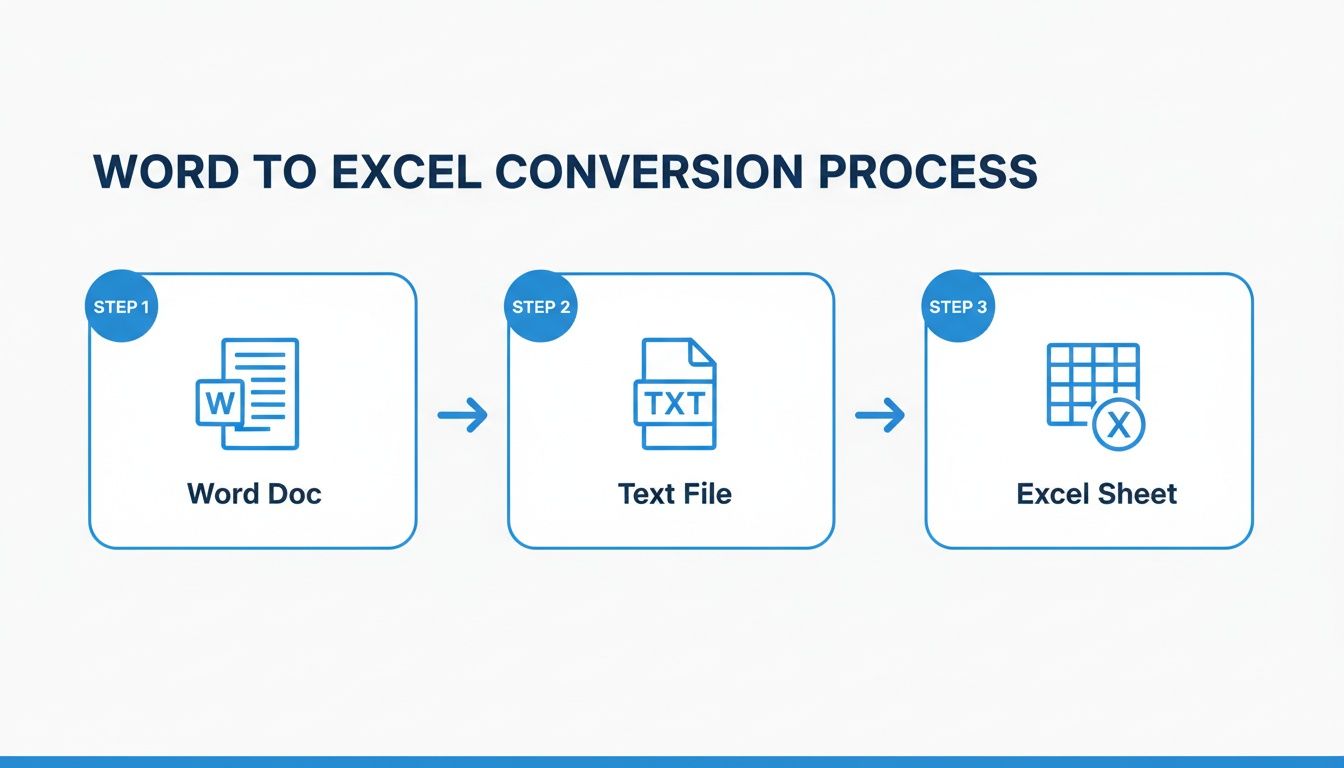
The key thing to remember is that the text file strips out all of Word's formatting noise, letting Excel and Power Query focus purely on the text and its structure.
A Real-World Scenario
Let's imagine a common headache: a five-page Word document full of project updates. Each update has a project name, manager, due date, and a paragraph of notes, but it's all just free-flowing text. No tables, no consistent indents. Nothing. Copying this manually would take forever and be full of errors.
With Power Query, we can build a system to handle it.
First, you save that Word doc as a plain text file. Then, jump over to Excel and go to Data > From Text/CSV and open that .txt file. This is where the magic happens—the Power Query Editor opens up. You won't see nice columns yet. You'll probably just see one long column containing every single line from your document. That's our starting point.
Cleaning Up the Mess with Transformations
Now, you can start applying a series of cleaning steps. The best part? Power Query records every step you take. This means you can save the query and reuse it on next month's report, turning a one-off project into a repeatable workflow.
Here are a few common moves I use all the time:
- Remove Top Rows: Most documents have a title page or some introductory text. A quick click and you can chop off those first few rows to get right to the good stuff.
- Split Column by Delimiter: If every project name starts with "Project:", you can tell Power Query to use that text as a separator to create new columns. It's incredibly smart.
- Filter Rows: Your document is probably full of blank lines or decorative lines (like "---"). You can easily filter these out to instantly tidy up the data.
- Use First Row as Headers: Once your data starts looking like a proper table, you can promote the first row to become the official column headers.
Power Query turns a frustrating, manual cleanup job into a logical, step-by-step puzzle. You only have to solve it once, and then you have a repeatable solution. Every transformation gets you one step closer to clean, usable data in Excel.
Getting good at this stuff is more than just a time-saver. The data conversion market is expected to explode from $38.9 billion to over $540 billion by 2032, which is a massive 30.1% compound annual growth rate. That tells you just how much the world is moving away from manual data entry.
Power Query is an incredibly effective tool for taming unruly data without spending hours on manual fixes. If you want to dive deeper into these kinds of data cleaning techniques, you can learn more about how to parse data in Excel and explore more advanced methods.
Using a Dedicated Parsing Tool for Automation
Look, the manual methods and even Power Query are fantastic for one-off jobs or documents that aren't too messy. But they have their limits. When converting Word documents to Excel becomes a regular part of your workflow—daily or even weekly—especially with a lot of files, you’ll quickly hit a wall.
Think about an accounting team that has to process 500 vendor invoices a month, and every single one arrives as a differently formatted Word doc. Or a procurement manager trying to compare ten long, complex vendor proposals to find the best deal. In these situations, manually converting files isn't just a slow-moving chore; it's a genuine business bottleneck that stalls important decisions.
This is exactly the point where a dedicated parsing tool starts to make a ton of sense.
Shifting From Manual Labor to Intelligent Extraction
Unlike tools that just dumbly scrape text, a real parsing platform is built to understand the context of the information in your documents. It honestly doesn't care if "Invoice Number" is at the top left of one file and buried in the middle of another. The software is smart enough to find and pull out the specific fields you need.
For these complex, high-volume jobs, dedicated tools often use advanced tech like intelligent document processing (IDP) to handle the heavy lifting. This approach uses AI and machine learning to read, classify, and extract data from unstructured documents with impressive accuracy.
What was once a multi-hour manual slog becomes a quick, automated process. You're no longer just moving data around; you're building a reliable system.
The real win with an automated tool isn't just speed—it's consistency. It gets rid of the human errors that always sneak into repetitive tasks, making sure your data is clean and ready for analysis every single time.
For instance, a tool like DocParseMagic is designed to let you define what you want to extract without needing a complicated setup.
This simple drag-and-drop interface shows how modern tools are built for business users, not just developers. The magic happens behind the scenes, where the platform automatically finds and structures the key information you need.
When Automation Becomes Essential
So, how do you know when you've outgrown the manual methods? It's probably time to look for a better solution if your team is running into these all-too-common problems:
- Growing Document Piles: The team is sinking more and more time each week just getting data out of documents and into a spreadsheet.
- Inconsistent Formats: Every Word file from different clients or vendors has a unique layout, making any kind of template-based approach useless.
- Need for Speed: Delays in getting data from Word to Excel are holding up critical business functions, like making payments or generating reports.
- Accuracy is Everything: Small copy-paste mistakes have already caused some painful financial or operational headaches.
If any of that sounds familiar, it’s a pretty clear sign that your manual workflow is costing you more than you realize. It's worth exploring the right document data extraction software to find a tool that fits what you do, freeing up your team to focus on analyzing data instead of just typing it.
Solving Common Word to Excel Conversion Problems
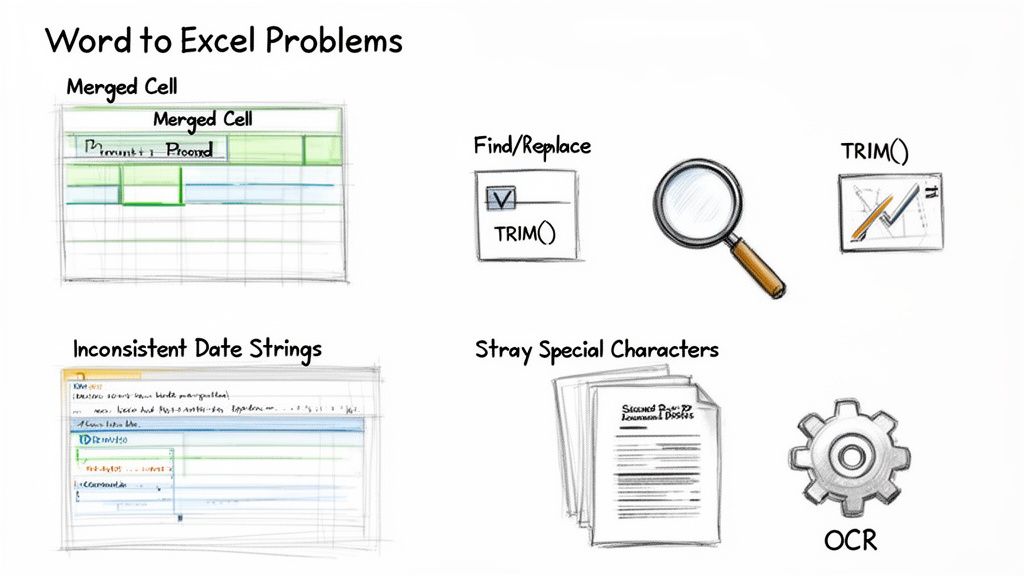
Even with the best techniques, getting data from a Word document into Excel can feel like you're navigating a minefield. The data looks perfectly fine in Word, but the moment it lands in a spreadsheet, it all falls apart. You're left with a mess to clean up.
Let's walk through some of the most frequent—and frustrating—issues that pop up and look at how to fix them.
One of the biggest culprits I see is the dreaded merged cell. When a Word table has cells spanning multiple columns or rows, they create absolute chaos in Excel. Suddenly, your sorting, filtering, and formulas are broken. After pasting the data, you’ll have to manually hunt down these cells, unmerge them (Home > Merge & Center > Unmerge Cells), and then carefully fill in the blank cells left behind. It’s tedious work.
Dealing With Data Cleanup
Inconsistent date formats are another classic headache. One row might say "Oct 15, 2024," while another has "10/15/24." Excel often gets confused and can't recognize these as the same type of data, which means any calculations you try to run will fail. You can fix this by selecting the whole column and using Excel’s Text to Columns feature or by forcing a uniform format under the "Format Cells" option.
Don't even get me started on extra spaces. A number with a single trailing space is treated as text by Excel, which is why your SUM function might be returning zero.
I can't tell you how many times the TRIM function has saved me. Applying
=TRIM(A1)to a cell instantly strips out those sneaky leading and trailing spaces. It’s a simple fix that solves frustrating formatting mysteries in seconds and saves a ton of troubleshooting time.
Another common problem is text that unexpectedly splits across multiple rows. This often happens because of a line break inside a single Word cell. Manually, you have to copy the text from the lower cell and paste it back into the primary one. For a quicker fix, you can use Excel's Find and Replace tool to find the character for a line break (press Ctrl+J in the "Find what" box) and replace it with a space.
Troubleshooting Common Word to Excel Errors
When you run into these issues, you have two paths: fix them by hand or let an automated tool handle it. Here’s a quick-reference table to guide you.
| Problem | Manual Fix in Excel | How Automation Solves It |
|---|---|---|
| Merged Cells | Select the cells, click Unmerge Cells, then manually copy the correct value into the new blank cells. | Automatically identifies the merged area's value and applies it to every corresponding row, eliminating gaps. |
| Inconsistent Dates | Use the Format Cells or Text to Columns feature to standardize the entire column to one format (e.g., MM/DD/YYYY). | Recognizes various date formats during extraction and standardizes them into a single, consistent format automatically. |
| Extra Spaces | Use the =TRIM() function in a helper column to remove leading/trailing spaces, then copy and paste values back. | Cleans and trims text fields as part of the extraction process, so numbers are treated as numbers. |
| Split Text/Line Breaks | Use Find and Replace (Ctrl+J for line breaks) or manually combine text from multiple cells into one. | Intelligently combines text from a single source cell, ignoring unwanted line breaks for clean output. |
| Garbled Characters | Manually find and replace special characters (like & or é) that didn't import correctly. | Correctly processes and encodes special characters, ensuring data integrity from the start. |
As you can see, manual fixes work, but they all happen after the problem has already landed in your spreadsheet.
Preventing Issues With Automation
While manual fixes get the job done, they're always reactive. An automated parsing tool like DocParseMagic is designed to prevent these problems from ever hitting your spreadsheet in the first place. It’s not just copying text; it’s intelligently interpreting the document’s structure.
Here’s how an automated approach sidesteps these common traps:
- Merged Cells: The tool sees a merged area, identifies its value, and correctly applies it to every single row it corresponds to in the final output. You never even have to see a merged cell in Excel.
- Inconsistent Dates: It’s smart enough to recognize different date formats and automatically standardize them into a consistent format, like YYYY-MM-DD.
- Special Characters: It correctly handles ampersands, accents, and currency symbols that often get garbled during a simple copy-paste or import.
The fundamental difference is that manual methods transfer the problems from Word to Excel, forcing you to clean up the mess. An automated solution cleans the data during the extraction, delivering a file that's ready for analysis right from the start. This proactive approach can turn hours of frustrating cleanup into a seamless, error-free workflow.
Common Questions About Word to Excel Conversions
You’ve seen the methods, but real-world documents are often messy and bring up their own unique challenges. Let's tackle some of the most common questions I hear from people trying to get their data out of Word and into Excel.
How Can I Get Multiple Tables from One Word Doc into a Single Excel Sheet?
Yes, and this is a situation that comes up all the time. If you're going the manual route, you're stuck copying and pasting each table individually, stacking them in your Excel sheet. It works, but it’s slow and tedious. A slightly more technical approach is to save the Word file as a plain text (.txt) document and then use something like Power Query to pull the different sections together.
Honestly, though, an automated tool is your best bet here. You can set it up to find every single table in the document and merge them into one spreadsheet automatically. It's a huge time-saver.
What’s the Best Way to Handle a Scanned Word Document?
A scanned document isn't really a text file—it's just a picture of one. You can't copy and paste the text because your computer doesn't see any. The first step is always Optical Character Recognition (OCR), which is the process of turning that image into actual, editable text.
The most dependable way to do this is with a dedicated document parsing platform that has high-quality OCR built right in. These tools don't just "read" the text; they understand its structure and can place the data into the right columns from the get-go. This is miles ahead of using a free online OCR tool and then spending hours trying to clean up the jumbled text it spits out.
A quick pro-tip: The quality of your scan makes all the difference. A crisp, high-resolution scan will give you far more accurate results than a blurry, crooked one. Garbage in, garbage out.
Can I Keep Formatting Like Bold or Italics When I Convert?
Generally, no—and you probably wouldn't want to. The whole point of moving data to Excel is for analysis, not for its design. Excel thrives on clean, structured data, and things like bold text, colors, or different fonts just get in the way.
Most robust conversion methods, especially Power Query or an automated parser, will strip out that formatting on purpose to give you uniform data.
If the look and feel are truly important for a simple table, you can try Paste Special > HTML Format in Excel. It sometimes keeps basic formatting, but it's notoriously unreliable and can create more problems than it solves. The best practice is always to prioritize clean data over fancy formatting.
Is There a Way to Automatically Convert Hundreds of Word Files at Once?
Absolutely. Trying to convert hundreds of files by hand is a recipe for disaster—it's incredibly inefficient and you're bound to make mistakes. This is exactly what automated solutions were built for.
Document parsing platforms excel at this kind of bulk processing. You can usually just upload a whole folder of Word documents, and the system will run your rules on every single one, pulling all the data together into one consolidated Excel file. A task that would take a human days can be done in a matter of minutes.
Stop wasting hours on manual data entry. DocParseMagic intelligently extracts the exact data you need from messy Word docs, PDFs, and scanned pages, delivering clean, analysis-ready spreadsheets in minutes. Sign up for free and see how it works.