
Convert Word Docs to Excel Without the Headaches
Stuck copying and pasting from Word to Excel? We've all been there. The best way to get that data out of a document and into a spreadsheet really depends on what you’re up against.
For a single, clean table, a quick copy and paste might be all you need. But if you're dealing with dozens of files or messy, unstructured documents, you'll want something more powerful. Think Power Query or even AI-driven tools.
The Hidden Costs of Manual Data Entry
If you’re still manually keying in data from Word docs, you're doing more than just a boring task—you're burning through time and money. It’s a quiet but significant drain on resources that slowly kills productivity and opens the door to costly mistakes.
Every minute spent retyping text or wrestling with formatting is a minute you could have spent on actual analysis or bigger-picture thinking. And let's be honest, manual entry is an open invitation for human error. One wrong number or a misspelled name can cascade into faulty reports, skewed financials, and bad business decisions. Getting serious about automating repetitive tasks is the first step to reclaiming that lost time and ensuring your data is reliable.
This guide is here to show you a better way. We'll walk through four different methods, so you can pick the right tool for the job every time.
How to Choose Your Conversion Method
The right technique really boils down to three things: volume, complexity, and repeatability.
- Are you converting one document or thousands?
- Is your data in a neat table or scattered throughout paragraphs?
- Is this a one-time job or something you'll need to do again and again?
Figuring out the answers will point you in the right direction. This decision tree can help you visualize which path makes the most sense for your situation.
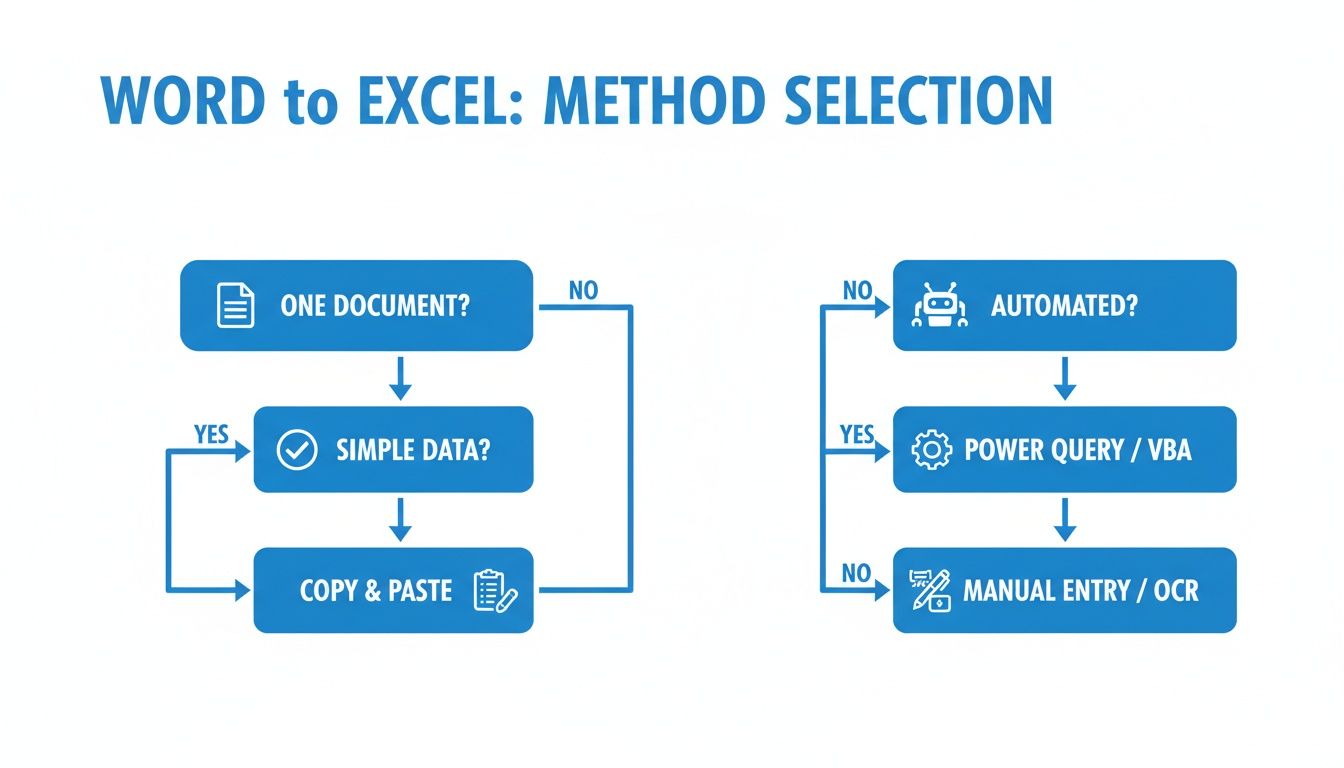
As the flowchart shows, simple, one-off jobs are perfect for manual methods. But the moment you need to scale up or create a repeatable process, more advanced tools like Power Query or AI become essential.
The demand for better conversion tools is exploding for a reason. The file converter software market was valued at $3.48 billion in 2023 and is projected to hit $7.88 billion by 2032. Why? Because businesses are finally recognizing the steep price of manual work, which can eat up 20–40% of an employee's time and introduce error rates as high as 5%.
To help you decide, here’s a quick comparison of the methods we'll cover.
Comparing Word to Excel Conversion Methods
| Conversion Method | Best For | Speed | Accuracy | Effort Level |
|---|---|---|---|---|
| Simple Copy/Paste | A single, clean table in a Word doc. | Very Fast | High (if table is clean) | Very Low |
| Text File Intermediary | Data scattered in paragraphs; needs cleaning. | Moderate | Varies; depends on data structure. | Medium |
| Power Query (Get & Transform) | Multiple files or complex, repeatable tasks. | Fast (after setup) | Very High | High (initial setup) |
| Automated AI/OCR Tools | Bulk conversions, scanned docs, or unstructured data. | Very Fast | High | Low (after setup) |
Each approach has its place. The simple copy-paste is your go-to for quick, one-off tasks, while Power Query and AI tools are your heavy lifters for anything complex or at scale.
Mastering the Manual Conversion Methods
For those one-off tasks, you don't always need to bring out the heavy-duty tools. When you just have a single, well-structured document, a manual approach is often the fastest way to convert word docs to excel. Let’s walk through a couple of go-to techniques that get the job done for most simple conversions.
The most obvious method is a classic copy-and-paste. But if you just hit Ctrl+V, you’re often in for a world of pain—funky formatting, merged cells, and a ton of cleanup work.
The real trick is to use Excel’s ‘Paste Special’ options. After you copy a table from Word, right-click a cell in your spreadsheet and explore that menu. It gives you fine-tuned control over what comes across, letting you paste just the values, keep the source formatting, or match the destination style. This is your best defense against a messy import.

From Plain Text to Perfect Columns
So, what happens when your data isn't in a nice, clean table? Let's say you have a product list from a memo, where each item's details are separated by commas or tabs. For this kind of data, saving the document as a plain text (.txt) file is a game-changer. This move strips away all the Word formatting, leaving you with nothing but the raw data.
With that .txt file in hand, open up Excel and head to the Data tab to find the ‘From Text/CSV’ feature. This will kick off an import wizard that walks you right through the process.
The Text Import Wizard is your key to mapping unstructured text into clean columns. It allows you to specify the delimiter—like a comma, tab, or custom character—that separates your data points, ensuring everything lands in the right place.
The wizard makes the whole process surprisingly simple:
- First, you’ll select the delimiter, telling Excel what character separates one piece of data from the next (like a comma).
- Then, it gives you a live preview so you can see exactly how your data will be split into columns before you commit.
- Finally, you can even adjust data formats for each column, marking them as text, dates, or numbers before the import is complete.
This method provides precise control, turning what was once a jumbled paragraph into a perfectly organized spreadsheet ready for you to sort and analyze.
These manual tricks are great for simple jobs. When a table in Word is clean and well-structured, a direct paste can give you nearly 100% mapping accuracy. But for semi-structured documents, you'll often need more advanced techniques to get clean data. To get more official guidance, you can discover insights on copying data into Excel directly from Microsoft.
Build Repeatable Workflows with Power Query
If you’re stuck converting the same type of Word document every week, you know the manual copy-paste routine gets old fast. It’s not just tedious; it’s a time sink. This is exactly where you can break that cycle by building a truly automated process with a tool you already have: Power Query.
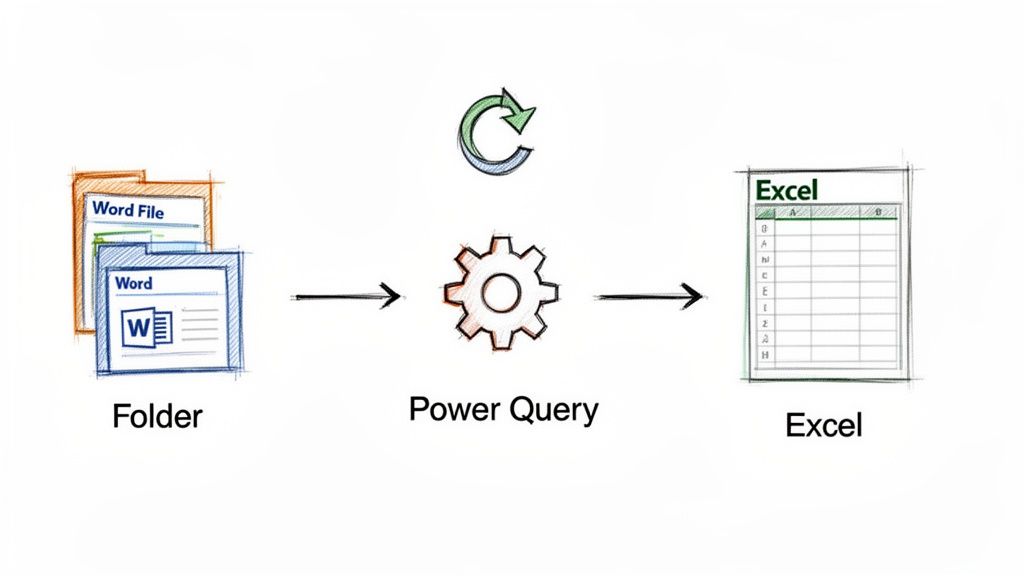
Power Query is Excel's built-in data transformation engine, and it’s a lifesaver for this kind of work. Instead of just dumping data one time, you create a live, refreshable connection to your source files. You build the conversion logic once—and from then on, a single click pulls in new data and applies all your cleaning steps automatically.
The Power of Connecting Directly to Your Files
Getting this set up is surprisingly simple. From the Data tab in Excel, you’ll go to Get Data > From File. This is where the magic begins, and you have two great options depending on what you need to do:
- From File > From Word: This option is perfect for connecting to a single, specific document. Think of that one recurring report you always get, like a weekly performance summary from the same person. You can point Power Query directly to it.
- From File > From Folder: This is the real game-changer for anyone dealing with volume. You can tell Power Query to look at an entire folder, and it will pull in and stack the data from every single Word doc it finds. Imagine instantly consolidating dozens of monthly sales reports from different regional offices into one master spreadsheet.
Once you make your choice, Excel launches the Power Query editor. You'll see a preview of the tables it found in your document(s), ready for you to work with.
The real power here isn't just the import. It's the sequence of transformation steps you build. Every action you take—removing a column, filtering a row, splitting text—is recorded. This creates a completely repeatable workflow to convert word docs to excel on demand.
This approach is also incredibly versatile. The same skills you use to pull data from Word can be applied to other tricky sources. For example, the process is very similar when you need to get data from a PDF with Excel, as both workflows run through the Power Query engine.
Transforming Your Data with Simple Clicks
Inside the Power Query editor, you get to shape the raw data into something clean and usable without ever touching a formula in your main spreadsheet. Every click you make becomes another step in your automated recipe.
Let's imagine you're pulling in weekly status updates from a Word table. Your workflow inside Power Query might look something like this:
- Remove Unnecessary Columns: The original document might have extra columns for things like "Reviewer Notes" or "Signature." A quick right-click and "Remove" gets rid of them for good.
- Filter Out Empty Rows: It’s common for Word tables to have blank rows just for spacing. Power Query can spot these and filter them out so they never clutter your final dataset.
- Split Text into Columns: What if one column has both a project name and a project code, like "Project Phoenix - PX-101"? The "Split Column" tool lets you easily separate them based on the hyphen.
- Set Data Types: Make sure Power Query sees your dates as actual dates and your sales figures as numbers. This is critical for doing any sort of analysis or calculations later.
Once you’ve defined your steps, just hit "Close & Load." Your clean, perfectly structured data pops into a new Excel sheet.
The best part? Next week, when a new report lands in that folder, all you have to do is right-click your data table in Excel and hit Refresh. Power Query runs through all those steps again in the background and appends the new data, perfectly formatted, in seconds.
Extract Data from Scans and Images Using OCR
Let's be real: sometimes the "Word doc" on your desk isn't a digital file. It’s a scanned contract, a photo of a receipt snapped on your phone, or a PDF that's really just a picture of a document. In those cases, you can't just copy and paste your way to a spreadsheet. You need a bridge from the physical page to digital, editable data.
That bridge is Optical Character Recognition (OCR).
Think of OCR as a digital transcriber. It scans the image, recognizes the shapes of letters and numbers, and turns them into text you can actually work with. You might be surprised to find you already have access to it. Tools like Adobe Acrobat, Microsoft OneNote, and a ton of online converters have OCR features built right in. This is how you can finally convert word docs to excel, even when they start out as a piece of paper.
Getting a Clean Extraction with OCR
The biggest catch with OCR is that your results are only as good as your original image. A blurry, low-resolution photo will give you a jumbled mess of text, leaving you with more cleanup work than if you’d just typed it out by hand.
To get the best possible extraction, you need to give the software a fighting chance.
- Scan at High Resolution: If you're using a scanner, set it to at least 300 DPI (dots per inch). This gives the OCR engine a clear, crisp image to work with, which makes a huge difference in accuracy.
- Use Good, Even Lighting: Taking a picture with your phone? Avoid shadows and glare. Get as much even light on the page as you can.
- Keep it Flat: A document that's creased, folded, or curved will distort the text and confuse the OCR. Lay it completely flat before you scan or snap a photo.
My Pro Tip: No matter how perfect your scan looks, always spot-check the output. I can't tell you how many times I've seen basic OCR tools mix up an 'O' with a '0' or an 'l' with a '1'. These tiny errors can wreak havoc on your data.
Imagine you're trying to log expenses from a receipt. A quick OCR scan might grab the store name just fine but read $8.00 as $B.OO because the ink was a little faded. That single character error throws off your entire budget if you don't catch it.
This manual double-check is non-negotiable for standard OCR. If you're dealing with lots of different document types or need higher accuracy, you’ll want to look at more specialized tools. For a much deeper look into this, check out our guide on how to convert an image to Excel with far greater precision.
4. Automate Bulk Conversions with AI Document Parsing
When you’re dealing with more than just a handful of files, even powerful tools like Power Query start to feel a bit clunky. Power Query is a lifesaver for structured, predictable tasks, but it hits a wall when you throw hundreds of documents at it with slight variations in their layout.
Think about invoices from different vendors or commission statements from multiple partners. Each one is a little different. This is exactly where AI-powered document parsing comes in and completely changes the game.
Modern AI tools don't just "read" text; they understand context. Imagine you have a folder overflowing with purchase orders. An AI parser can look at every single file and intelligently pull out the "PO Number," "Vendor Name," "Line Items," and "Grand Total," even if those fields are in different spots on each document.
This "no-template" approach is what makes AI so effective in the real world. You’re no longer stuck building and maintaining a separate set of rules for every document variation that comes your way.
Beyond Simple Text Extraction
The real magic of AI parsing is its ability to make sense of unstructured data. It can spot a date no matter how it’s written—"10/15/2024," "Oct 15, 2024," or "15-October-2024"—and pop it into your Excel sheet in a single, standard format.
It can also identify and separate individual line items from a table, even if that table has a different number of columns from one document to the next.
For teams in accounting, procurement, or sales, this capability is huge. It saves dozens of hours of soul-crushing manual data entry. You can learn more about how this works by exploring our guide on how to automate data entry and start getting that time back.
For teams buried in paperwork, this isn't just a small efficiency gain—it's a complete shift in how you work. You go from tedious, error-prone manual tasks to an automated system that delivers clean, analysis-ready data every single time.
The impact here is proven. AI projects designed to convert word docs to excel often boost throughput by 5x to 20x. A task that used to take 20 hours can now be done in just one to four. At the same time, error rates plummet from a few percent down to well under 1%, which is a massive win for data integrity.
How AI Handles Complex Workflows
These smart systems can do more than just basic extraction. You can set them up to perform calculations on the fly, flag documents that are missing key information, or even send the extracted data to other business systems automatically.
To get a better sense of how AI can manage these more complex, multi-step conversions, looking into agentic workflows offers some great insights into building really robust automation.
Ultimately, using AI for your bulk conversions means you can finally trust your data without having to manually spot-check every single file. It’s the most efficient, scalable way to turn a mountain of messy Word documents into a single, perfectly structured Excel spreadsheet.
Your Word to Excel Conversion Questions Answered

Even after walking through the different methods, you probably have a few nagging questions about how to convert word docs to excel, especially when things don't go perfectly. Let’s tackle some of the most common hurdles people run into.
These issues usually pop up when you’re dealing with messy, inconsistent documents or just a massive pile of files. Choosing the right tool for the job can be the difference between a quick win and a week of headaches.
Can I Convert a Word Document with Multiple Tables into One Excel Sheet?
Yes, absolutely. But how you do it depends on how many tables you're dealing with and whether they all have the same structure. If it’s just two or three simple tables, you can probably get away with copying and pasting them one after another into the same worksheet.
For anything more complex, a tool like Power Query is a lifesaver. It can import the entire document and let you stack, or "append," all the tables into one master dataset.
But if you want true automation and the highest accuracy, an AI parsing tool is the way to go. It can intelligently find and merge data from all the tables—even if they have slight layout differences—and map everything into a single, clean Excel file without you lifting a finger.
How Do I Handle Word Documents Where the Data Is Not in a Table?
This is a classic problem. You’ve got invoices, reports, or contracts where the information is just listed as plain text. For a one-off task, the quick-and-dirty method is to copy the text over to Excel and use the built-in 'Text to Columns' feature to split the data by commas, tabs, or other separators.
A more repeatable and reliable approach is Power Query. You can build a query that applies a series of steps to split, clean, and structure the text data. It’s perfect if you get the same type of document regularly.
However, for unstructured text, AI document parsing is in a league of its own. It's built for these messy scenarios. It can read a label like "Invoice Number:" or "Total Amount:" and grab the value next to it, no matter where it appears on the page. It doesn't rely on tables or a fixed layout, which is why it delivers such clean results from unstructured text.
What Is the Best Way to Convert Hundreds of Word Files at Once?
Don't even think about doing this manually. Converting hundreds of files one by one is a recipe for disaster—it's incredibly slow, and the chance of making a mistake is sky-high. When you're working at this scale, you need an automated solution.
- Power Query: This is a solid option and can connect to a whole folder of Word documents at once. The catch? It works best when every single file has an identical, predictable structure. Any small variation can throw off the entire process.
- AI Document Parsing: This is, by far, the most powerful and flexible method for bulk conversions. You just point it to a folder or upload a batch of files, and the platform handles the rest.
An AI tool will process each document, intelligently extracting the key information even if the layouts aren't consistent, and then compile it all into a single, consolidated Excel spreadsheet. It’s the fastest, most accurate way to turn a mountain of documents into clean, usable data.
Ready to stop wrestling with documents and start getting clean data in minutes? DocParseMagic is the no-code platform that intelligently extracts the information you need from invoices, reports, and more—no templates required. Try DocParseMagic for free and see how much time you can save.