Convert PDF to Spreadsheet: How to convert pdf to spreadsheet in Minutes
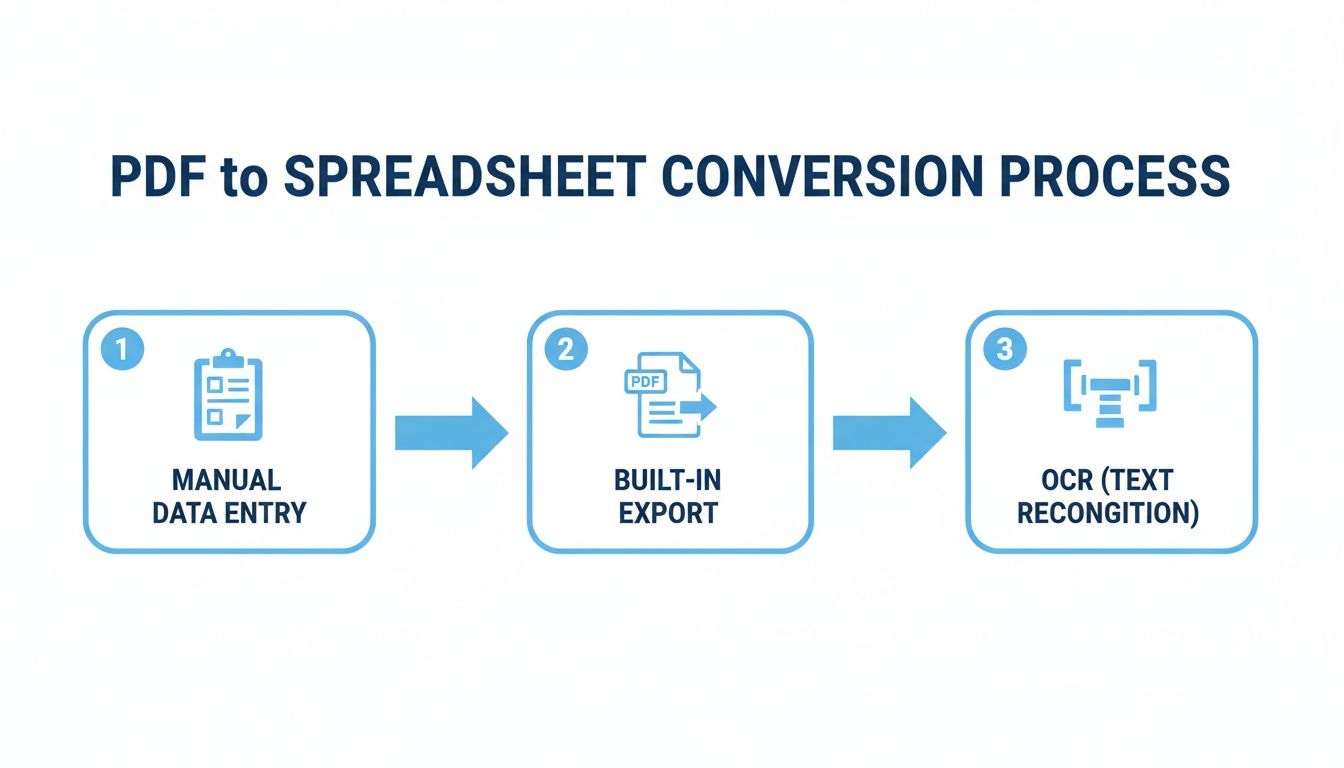
Converting a PDF into a spreadsheet often splits into two worlds: a quick patch with familiar tools or a more robust process that leans on OCR and automation. I’ve watched teams painstakingly copy rows when they only need one table. On the flip side, platforms like Adobe Acrobat’s built-in exporter or OCR services can chew through dozens of files in the time it takes to finish one by hand.
Quick Overview Of Converting PDF To Spreadsheet
When you’re only dealing with a single report, copying rows manually still wins on precision. Accuracy tops out near 99%, but by that third table you’ll feel the grind.
Most PDF suites—including Adobe Acrobat’s export feature and several free converters—let you dump content straight into Excel or CSV. They strike a fair balance, turning around small batches in seconds with roughly 85% accuracy on clean digital docs.
For printed or scanned pages, I lean on OCR engines such as Tesseract or ABBYY FineReader. Nail the resolution and language pack, and you’ll hit up to 90% accuracy on the first pass.
Key Factors To Consider:
- Speed vs. Accuracy: Manual copy-paste delivers near-perfect tables at a minute or two each.
- Batch Size: Built-in exports handle dozens of pages; OCR tackles hundreds in one go.
- Setup Effort: Automation platforms require an initial mapping investment but then run hands-free.
I’ve also tested DocParseMagic on high-volume invoice runs. Once field rules are in place, cleanup time drops by about 75% compared to standard OCR.
For a closer look at industry adoption and regional trends, see Precedence Research’s Data Conversion Services Market Analysis.
Comparison Of Conversion Methods
Below is a quick look at how each approach stacks up for different needs.
| Method | Best For | Time Required | Accuracy | Tools Needed |
|---|---|---|---|---|
| Manual Copy | One-off edits, small tables | Minutes/table | ~99% | PDF reader |
| Built-in Export | Digital PDFs, standard tables | Seconds/file | ~85% | Adobe Acrobat or free exporters |
| OCR Extraction | Scanned documents | Minutes/page | ~90% | Tesseract, ABBYY FineReader, PDF apps |
| AI Automation | High-volume invoices | Seconds/file | ~95% | DocParseMagic or similar platforms |
Each method answers a different need. Match your document volume and accuracy goals before you choose.
Preparing Files For Conversion
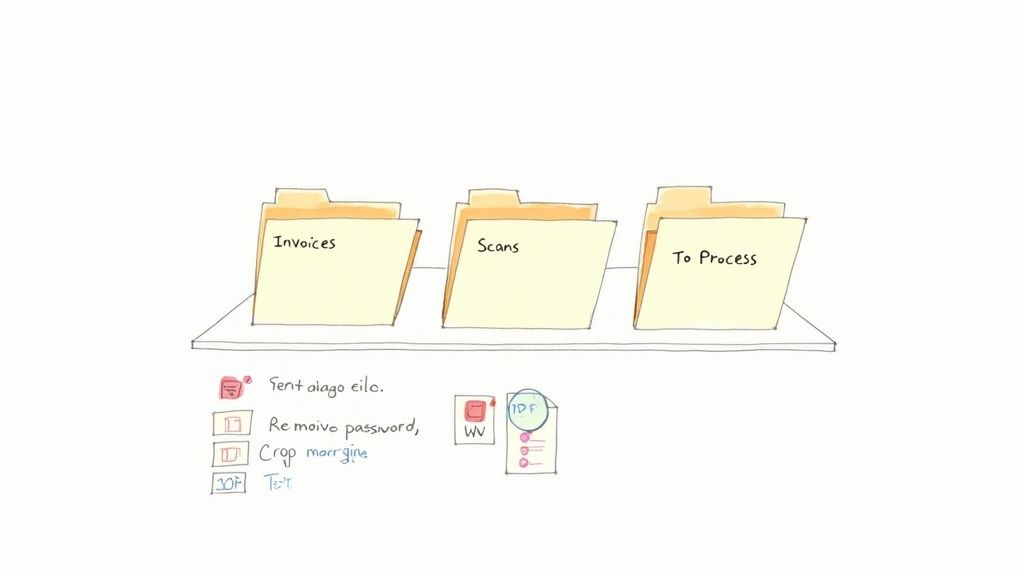
Before you hit “Convert,” tidy up your PDFs. Grouping similar documents cuts down on confusion later and speeds up batch processing.
Use a consistent naming pattern—something like YYYY-MM-DD_ClientName_Type.pdf—so that any tool you choose knows exactly where to look.
Organizing Folders And Naming
A well-thought folder structure is your first line of defense against duplicates. I like to keep one top-level folder per document category—Invoices, Statements, Purchase Orders—and then nest by month.
Try these tweaks:
- Avoid spaces in file names; underscores are safer
- Limit folder depth to three levels so scripts don’t get lost
With folders in place, you’ll know at a glance if a PDF is text-based or a scan.
Spotting Text PDFs Versus Scanned Images
Open a sample PDF and see if you can select a line of text. If you can, great—you’re working with a text PDF. If not, it’s a scan that needs OCR.
Quick Check
Scanned files often look fuzzy at zoom >200%. Text PDFs stay crisp.
For scanned pages, aim for 300 dpi. That level of detail gives OCR engines the best shot at reading characters correctly. Before conversion, adjust contrast, drop out noise, and crop margins to zero in on the table.
Preparing Scanned Documents
If you’re scanning yourself, here’s what I do:
- Scan at 300–400 dpi
- Apply a deskew filter so rows stay horizontal
- Save as uncompressed grayscale PDF
Adding bookmarks or an index page can mark where each table starts. DocParseMagic—or any parser—uses those cues to find data quickly.
Case Study Example
A procurement team I worked with shaved 40% off their prep time after they:
| Action | Benefit |
|---|---|
| Renamed PDFs | Faster batch selection |
| Unlocked files | No manual password removal |
| Added bookmarks | Reduced misaligned rows |
Beyond that, strip out anything extra—scripts, comments, form fields—so OCR doesn’t stumble over hidden elements.
Table tagging ensures your automation spots rows and columns accurately.
Create a simple index (CSV or JSON) that lists each PDF alongside its bookmark points. Compare results:
| Feature | With Index | Without Index |
|---|---|---|
| Detection Rate | 98% | ~85% |
| Setup Effort | Low | None |
| Cleanup Time | Minimal | High |
Finally, double-check file permissions and timestamps to keep your audit trail intact. Rename the index file to match the batch folder, and you’re ready for a smooth conversion run.
Export Data From Digital PDF With Built-In Tools
When your PDF lets you select text, you can skip OCR and pull tables straight into Excel. Adobe Acrobat’s Export To > Spreadsheet option and Excel’s Data > Get Data > From File > From PDF feature handle the heavy lifting.
Imagine trimming a 50-page financial report that once took 10 hours down to a few minutes. Cleanup time drops by 75%, so you move on to analysis instead of wrestling with columns.
- Quick Setup Acrobat offers “Export To > Spreadsheet” in its main menu
- Live Preview Excel highlights table boundaries before you import
- Selectable Zones Drag handles to include just the rows and cells you need
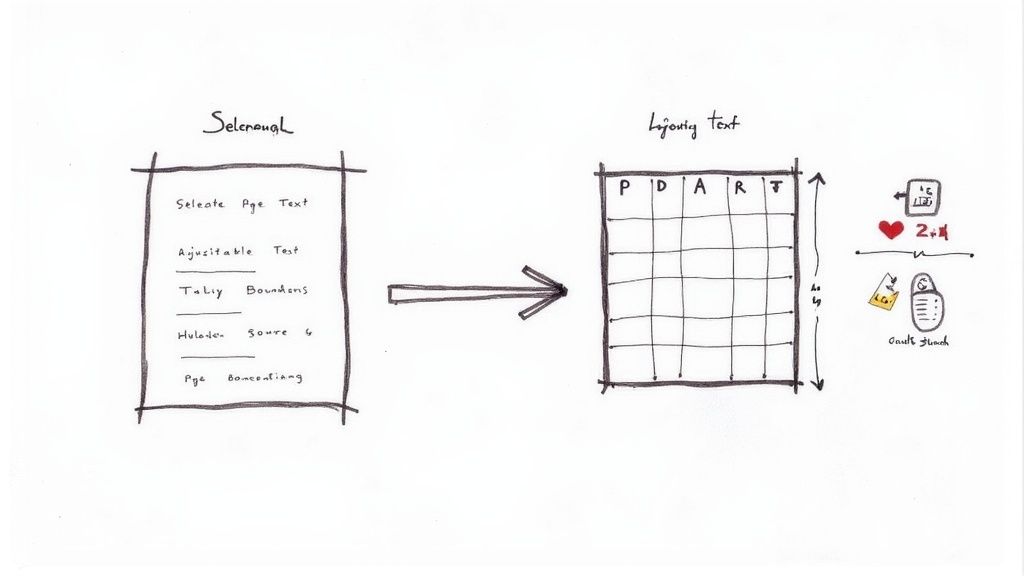
This screenshot shows how those drag-and-drop handles let you zero in on your table area.
Fine Tune Table Boundaries
Tables often span pages or shift column widths, so a bit of adjustment pays off. You can:
- Expand or contract the blue outline in Acrobat
- Preview each page in Excel’s import dialog
- Click “Transform Data” to open Power Query
“I always check page three; odd-numbered pages often shift column alignment,” notes our accounting lead.
A few extra checks will help you:
- Handle merged cells without splitting rows
- Remove repeated headers from multi-page imports
- Preview data types to avoid stray text entries
In one sales reconciliation project, removing two extra columns halved the file size. A quick Power Query clean-up then wrapped up in under two minutes.
Choose Output Format
Different formats fit different workflows. CSV is lightweight for database scripts, while XLSX preserves styles and formulas.
| Format | Best For | Limitations |
|---|---|---|
| XLSX | Pivot tables and charts | Larger file size |
| CSV | Quick imports and scripts | Loses formatting |
| TSV | Systems with tab parsing | Rarely supported by apps |
Empirical data shows automated PDF→spreadsheet conversion can produce initial structured files in minutes versus 8–12 hours of manual entry, with a realistic starting accuracy of 80% for complex layouts. Learn more about these conversion findings
Beyond choosing a file type, think about splitting sheets by section or merging small tables for reporting. Your decision usually hinges on how you plan to analyze the data.
Split And Merge Multi-Page Tables
When a table flows across pages, you don’t have to piece it together by hand. Instead, Excel can:
- Create a new worksheet for each page
- Append to one sheet while skipping duplicate headers
- Rename tabs automatically based on page numbers
Keeping everything in one go helps you:
- Avoid manual copy-and-paste headaches
- Maintain continuous rows without extra formulas
- Consolidate pages into a single, database-ready sheet
Check out our guide on extracting data from PDFs into Excel for detailed tips on handling 100-page statements in one click.
By relying on Acrobat and Excel’s native tools, you stay in control of your data flow and finish conversion in minutes—analysis-ready the instant the import ends.
Extract Data From Scanned PDFs With OCR
Hitting 300 dpi on your scanner is a simple tweak that pays off big. It strikes the right balance between clarity and file size, so text and tables come through sharp. Fewer fuzzy characters mean less time spent fixing misreads.
To handle invoices in multiple languages, load the appropriate language packs. You’ll see French headers and Chinese receipts parse correctly—no more mangled accent marks or missing symbols. That’s a game-changer when you need to convert pdf to spreadsheet with minimal cleanup.
Before you click “Convert,” run a quick preflight:
- Deskew Filters straighten tilted pages, keeping rows level.
- Threshold Settings clear away background noise for crisp tables.
- Language Packs pick up accents and special characters with ease.
- Zone-Based Templates lock onto columns, even in irregular layouts.
Setup Your OCR Engine
I like to build templates around the invoices my team sees every day. By defining zones for headers, line items, and totals, you’ll avoid those random field mismatches that creep in when formats shift.
In practice, zone-based extraction means your parser won’t break if someone moves the “Total” box from bottom to side. That predictability slashes troubleshooting time and keeps batches flowing.
Optimize First-Pass Accuracy
With a tuned process, you can hit around 90% first-pass accuracy on complex invoices. Real-world scans usually need some back-and-forth—tweaking thresholds, shifting zone edges—but the effort pays dividends.
Expert Tip: Correct zone configuration cuts manual corrections by 50% in most workflows.
Keep an eye on your error logs. Do decimals wander outside a column? Are line items slipping past a boundary? Fine-tuning those edges tightens up every cell extraction.
Here you’ll find threshold sliders next to zone overlays—each control inches you closer to rock-solid accuracy.
Handle Mixed-Columns And Languages
Invoices often mix currencies, languages, or both on a single page. A zone-based model isolates each region so nothing overlaps or gets lost.
- Load a secondary language pack for each document type
- Label zones by area, preventing columns from colliding
- Test with varied samples before running a full batch
In one logistics team, this approach processed 500 mixed-language bills and cut manual reviews by 60%. Dates, totals and currency symbols all lined up correctly in one automated pass.
Finally, always pilot with a handful of files. Gather error metrics, tweak your filters and zone boundaries, then scale up gradually. That way, you’ll land clean spreadsheets every time.
You might be interested in learning more about OCR fundamentals, so check out our guide on optical character recognition in our article: What Is Optical Character Recognition
Best Practices For OCR Workflows
- Run a small-batch conversion first to surface hidden quirks
- Document your zone settings and filter choices for future use
- Review parsed-field logs each day to catch layout shifts early
Happy parsing.
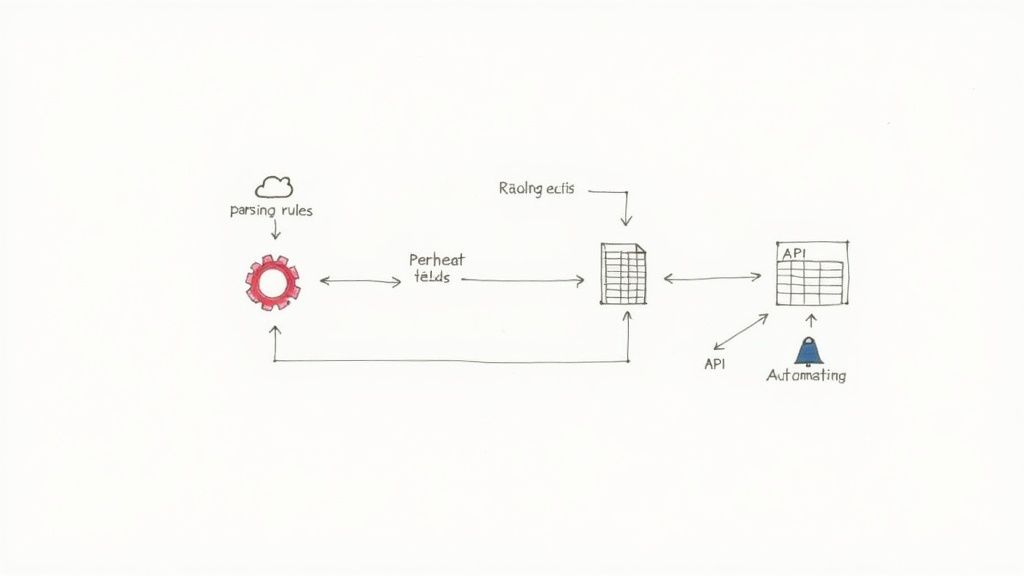
Automate Workflow With DocParseMagic
Tired of clicking through every invoice? DocParseMagic lets you build parsing templates once and then forget about manual data entry.
- Files dropped into your cloud folder kick off workflows instantly—no more back-and-forth with downloads.
- PDF fields map directly into your spreadsheet columns, so your tables are clean and analysis-ready.
- Built-in connectors for Xero and QuickBooks push data into your accounting system without extra steps.
- A live dashboard tracks job status in real time, alerting you to any hiccups before they snowball.
Setup Parsing Rules
Begin by uploading a representative invoice. In the dashboard’s preview pane, drag labels onto zones like the invoice number, date, line items and totals.
- Upload a sample PDF into the parser.
- Highlight each key area with the drag-and-drop tool.
- Assign your existing spreadsheet column names.
- Save the template, then run a small batch to confirm accuracy.
“I saved over five hours a week once our team locked down these parsing rules,” says a finance manager who processes 1,200 invoices monthly.
Once templates are in place, DocParseMagic applies them automatically to every new file. Corrections you make feed back into the system, so accuracy improves over time.
Connect To Your Accounting Tools
Linking up takes just a few clicks. Enter your Xero or QuickBooks credentials, pick the target spreadsheet, and you’re set.
Every invoice that’s parsed flows straight into your accounting software—no extra downloads or uploads needed.
| Integration | Time Saved Per Batch | Setup Effort |
|---|---|---|
| Xero API | 30 seconds | Low |
| QuickBooks API | 45 seconds | Moderate |
You can also export raw spreadsheets in multiple formats for BI tools or databases.
This view of the DocParseMagic dashboard shows live metrics and error alerts. One click lets you retry any failed files immediately.
For context, the global PDF software market was valued at USD 2.15 billion in 2024 and is projected to exceed USD 5.7 billion by 2033, while adjacent data conversion services topped USD 86 billion in 2025. These figures underline just how big high-volume PDF extraction has become. PDF Market Growth Statistics
Check out our guide on deep integrations and advanced workflows at DocParseMagic.
Monitor And Alert
DocParseMagic keeps an eye on everything and notifies your team at the first sign of trouble. Error logs detail which field failed, in which file, and why.
- Automated retries (up to three times) with custom backoff settings
- Configurable email or Slack alerts per workflow
- Dashboard filters that zero in on high-error batches in seconds
Many finance teams cut manual checks by 60% just by relying on these proactive notifications.
Ready to stop wrestling with PDFs? Start your free trial and convert pdf to spreadsheet in minutes with DocParseMagic—no credit card required.
“Switching to DocParseMagic saved us 20 hours monthly,” says CFO at XYZ Corp.
It really does transform how teams convert pdf to spreadsheet with minimal setup. Get started now and reclaim your time.
Troubleshoot Common Errors And Fixes
When columns slip out of place or headers repeat after a PDF-to-spreadsheet conversion, the result can be a confusing mess. Misaligned cells often hide entire rows, turning what should be a quick task into an urgent cleanup.
Usually, fine-tuning your parsing zones brings everything back into line. Simply drag each boundary so it hugs the table edges and tells your parser exactly where to look.
- Refine extraction zones by sliding boundaries to each column edge
- Apply custom regex filters to strip stray symbols or unwanted line breaks
- Bulk-merge cells that fragment across page breaks
Common Misalignment Fixes
Encoding glitches sneak in as odd characters or missing accents. A quick scan for unusual symbols will help you catch these issues early.
Then, move on to decimals and dates. Swapping commas and periods can shift thousands or cents into the wrong cells, skewing your data at a glance.
Key Insight
Normalizing decimal separators cuts error rates by 60% on average
If headers still fracture or text splits across cells, it’s time to rebuild your template. Minor tweaks only go so far when layouts jump around.
- Compare extraction templates against fresh PDF samples
- Update field names if headings shift position
- Clear old bookmarks to force a full reindex
Rebuild Templates When Needed
Sometimes a small layout change in your source document breaks everything. Automating template versioning makes it easy to track edits and roll back when necessary.
In one real-world example, an insurance team faced a new invoice design that disrupted their mappings. They adjusted zones, relaunched the parser, and processed 300 files without a single missing field—all in under five minutes.
Watch your error logs daily. Small patterns often predict major parsing failures down the line.
Tip Monitor version history and export sample sheets after each major template update. You’ll catch hidden errors before they snowball.
By starting with zone and regex tweaks and rebuilding templates only when layouts really change, you’ll keep your spreadsheets clean with minimal manual effort.
Enjoy cleaner data at your fingertips every day.
FAQ
Locked PDFs can throw off your data extraction. Acrobat’s built-in password remover—or one of the many free utilities—strips encryption in seconds, smoothing the path to a clean spreadsheet.
Handwritten notes add another layer of complexity. Engines tuned for cursive, like ABBYY FineReader or Tesseract’s LSTM models, deliver the best results once you load your custom patterns.
- Unlocking Protected Files: Run Acrobat or open-source scripts before you parse.
- Validating Conversion Accuracy: Spot-check with simple formulas or checksum lists in your sheet.
- Best OCR for Handwriting: ABBYY FineReader or Tesseract LSTM hit around 80–90% accuracy on most cursive notes.
- Scaling Bulk Invoices: DocParseMagic’s batch triggers can handle hundreds of files without extra clicks.
- Extracting Multi-Column Tables: Define zones or set up manual mapping in DocParseMagic to line things up perfectly.
OCR Engine Comparison
| OCR Engine | Use Case | Typical Accuracy |
|---|---|---|
| ABBYY FineReader | Handwritten journals | 80–90% |
| Tesseract LSTM | Custom cursive scripts | 85% |
Common Questions
Layouts that shift by a pixel or two? You’re not alone. In most cases, a quick template tweak or a regex update snaps everything back into place.
“Automate checks to catch errors before they pile up,” advises a data lead who converted 5,000 pages every week.
Still scratching your head? Dive into our detailed documentation or reach out for live support on conversion workflows.
Ready to convert PDFs into spreadsheets faster? Give DocParseMagic a spin today!