The Best Way to Organize Business Receipts for Good
The absolute best way to organize business receipts is to go digital from the start. I've found the most successful system boils down to three simple things: a good scanning app, smart cloud storage, and a daily habit of actually using them. It’s how you turn that dreaded shoebox of receipts into a searchable, audit-proof archive that makes tax time a breeze.
Why Your Old Receipt System Is Costing You
If you just pictured a shoebox overflowing with faded thermal paper and felt a wave of anxiety, you’re in the right place. That old-school, paper-based method isn't just a headache; it’s actively costing you money and putting your business at risk. Honestly, ditching the paper chaos for digital control is one of the most impactful changes a small business owner can make.
The True Cost of Manual Processing
Think about the time you (or someone on your team) spend sorting, checking, and typing in every single receipt. It adds up, and it adds up fast. This isn't just annoying administrative work; it's valuable time stolen from tasks that actually grow your business. The data backs this up in a big way.
Businesses still wrestling with paper receipts spend, on average, a staggering 8 minutes per receipt. In stark contrast, those who switch to digital tools slash that processing time by 60% and cut their overall costs by 35%. You can dig into more of these accounts payable statistics to see just how quickly automation pays for itself.
My two cents: Every minute you spend fighting with a pile of paper is a minute you're not closing a deal, improving your product, or talking to a customer. The goal here isn't just to be tidy—it's to get your time back.
This Is About More Than Just Being Tidy
A solid digital receipt system does way more than just clear up a messy desk. It creates a bulletproof financial record that gives you some serious advantages.
- You'll be audit-ready, always. When every expense is scanned and categorized, an IRS or auditor request becomes a minor task. You can pull the records they need in minutes, not frantic days of searching.
- You'll maximize your tax deductions. A clear, organized system means no business expense gets overlooked. You can confidently claim every single deduction you're entitled to, which can add up to thousands of dollars.
- You get a real-time pulse on your finances. With expenses tracked consistently, you always have an up-to-the-minute picture of your cash flow and spending patterns. No more guessing where the money went.
This guide is designed to walk you through building that exact system. These are the real-world workflows we've used to help countless small businesses finally get their receipt clutter under control for good.
Building Your Digital Receipt Management Toolkit
Getting your technology right is the first real step toward a bulletproof receipt organization system. The perfect toolkit really depends on the scale and complexity of your business. A freelance photographer’s needs are a world away from a construction company that has crews submitting expenses every single day.
When you boil it down, you’re looking at three main paths: a dedicated scanning app, the features already inside your accounting software, or a straightforward cloud storage setup. Each has its own sweet spot, depending on what you're trying to accomplish.
Dedicated Scanning Apps
Standalone receipt scanning apps are purpose-built for one thing: capturing expense data quickly and accurately. Tools like Dext or Expensify are masters of this. Their secret sauce is Optical Character Recognition (OCR), a technology that automatically reads and pulls key details—vendor, date, amount—right from a photo of your receipt. If you're curious about the mechanics, you can get a great overview of what is Optical Character Recognition here.
This mobile-first approach has exploded in popularity. In 2024 alone, mobile-based expense reporting jumped by a massive 42%, cementing its place as the go-to method for managing business receipts. The sheer efficiency of OCR and AI is driving this shift.
Integrated Accounting Software
If you’re like most small businesses, you’re probably already using accounting software like QuickBooks or Xero. Good news—many of these platforms have receipt capture features built right in.
This is often the path of least resistance. The data flows directly into your bookkeeping system, no extra apps needed. It’s an ideal setup for businesses with multiple employees because it centralizes everything, making expense reporting and reimbursements a breeze. It just works, all within one ecosystem.
Basic Cloud Storage
For the true minimalist or the solopreneur just starting out, a simple cloud drive like Google Drive or Dropbox can absolutely do the job. This method is all manual: you snap a photo or scan your receipt, then save it to an organized folder system you've created.
Sure, you lose the fancy automation, but it’s a completely free and direct way to manage receipts if you have a low volume of transactions. You’re trading a bit of time for zero cost and total simplicity.
This decision tree can help you see which path makes the most sense for where your business is today.
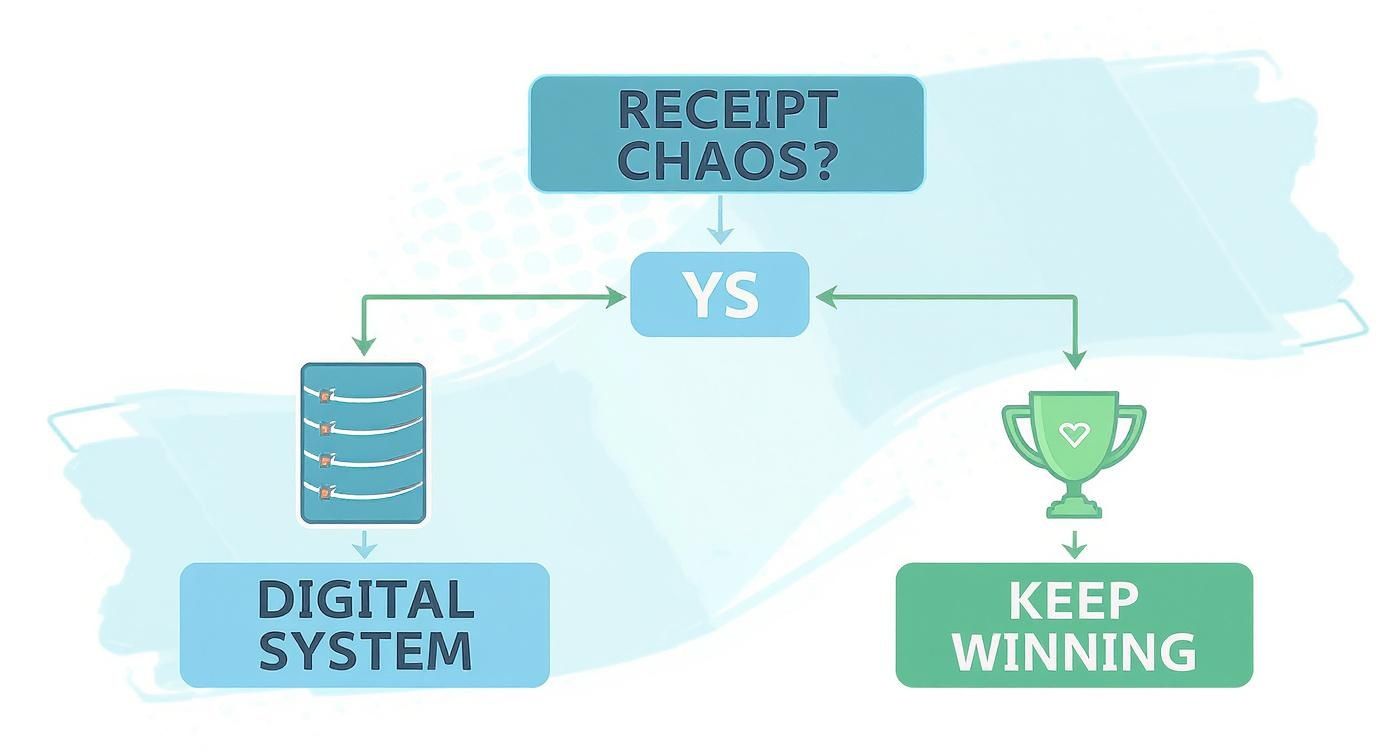
As the infographic suggests, if you're feeling any hint of "receipt chaos," a dedicated digital tool is almost always the answer. To help you choose, let’s break down how these different types of tools stack up against each other.
Comparison of Receipt Management Tools
Here's a quick look at how dedicated apps, accounting software, and cloud storage compare, so you can find the right fit for your business needs and budget.
| Tool Type | Best For | Key Features | Typical Cost |
|---|---|---|---|
| Dedicated App | Freelancers & small teams | Superior OCR, expense reports, direct integrations | $10 - $30 per month |
| Accounting Software | Established businesses | Seamless bookkeeping, payroll integration, invoicing | $30 - $90 per month |
| Cloud Storage | Solopreneurs & micro-businesses | Manual organization, file sharing, total control | Free - $15 per month |
Ultimately, the goal is to pick a system that fits your workflow and budget and then stick with it. Each option can work beautifully when implemented correctly.
The best tool is the one you will actually use consistently. Don't get sold on complicated features you'll never touch. Choose a practical, sustainable solution that removes friction from your day-to-day. Progress, not perfection, is the goal.
Designing Your Bulletproof Digital Filing System
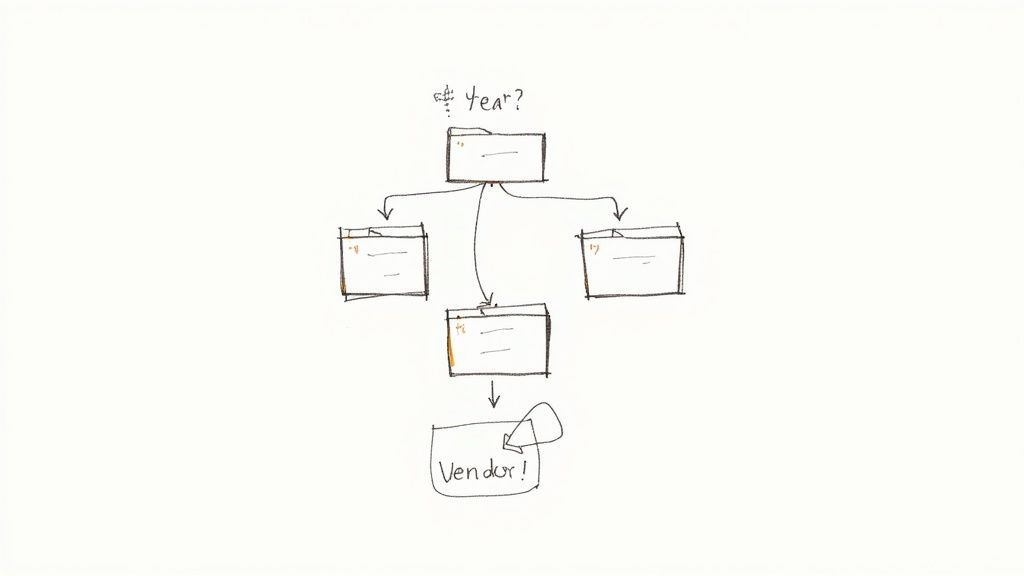
Even the slickest scanning app on the market won't save you from digital chaos if you don't have a solid plan for where everything goes. This is where we build the backbone of your system—a logical structure that prevents your hard drive from becoming a digital shoebox.
A good system isn't just about storing files; it's about fast retrieval. You need to be able to pull up a specific receipt in seconds, whether it's for an audit, a warranty claim, or just a budget check. Without a plan, you’ll just trade a physical mess for a digital one.
The Best Folder Structure for Taxes
I see this all the time: people default to organizing receipts by month. Folders like "January 2024," "February 2024," and so on. It feels intuitive, right? But it creates a massive headache come tax time.
Your accountant doesn’t care that you bought paper in March. They need to know your total office supply expense for the entire year. Thinking about your end-of-year needs from the start is the key.
Here’s a battle-tested folder template you can set up right now.
- Top-Level Folder:
[Year](e.g.,2024 Receipts)- Sub-Folder:
[Expense Category](e.g.,Office Supplies,Software,Vehicle Fuel)- Sub-Sub-Folder (Optional but helpful):
[Vendor](e.g.,Staples,Adobe,Chevron)
- Sub-Sub-Folder (Optional but helpful):
- Sub-Folder:
This structure lines up perfectly with how you or your accountant will prepare your tax return. When you need your annual fuel costs, you just go to the 2024 Receipts > Vehicle Fuel folder. Everything is right there. No more digging through twelve different monthly folders and adding everything up on a calculator.
By organizing your receipts by category first, you’re basically doing your tax prep in tiny pieces all year long. This turns a dreaded annual task into a simple, ongoing habit.
A Non-Negotiable File Naming Convention
Your folder structure gets you organized, but a consistent file naming convention is what makes your system truly searchable. This is a hard-and-fast rule: every single scanned receipt must be named the exact same way.
A great naming format puts the most critical, sortable information right at the beginning.
This is the standard I’ve used for years: YYYY-MM-DD_Vendor_Amount.pdf
Let's walk through a real-world example. You have a receipt from a client lunch at The Corner Bistro on March 15, 2024, for $47.50. Using the convention, the file name becomes:
2024-03-15_TheCornerBistro_47.50.pdf
When you commit to this, something magical happens. You can now instantly search your computer for "2024-03" to see all expenses from that month, or search for "TheCornerBistro" to see every time you've eaten there. Sorting the files by name automatically creates a perfect chronological record of your spending.
This simple discipline pays for itself over and over. It removes all the guesswork and frantic searching, ensuring every expense is properly documented and easy to find—a lifesaver if you ever get that dreaded audit notice.
Your Daily Capture and Categorize Workflow

Look, a perfect digital filing system is useless if you don't actually use it. This is where we turn theory into a simple, repeatable daily habit—a workflow that takes just a few minutes but pays off big time. The trick is to deal with receipts the second they come into your life, stopping that dreaded pile of paper clutter before it even starts.
This isn't about spending hours organizing. It’s about spending seconds capturing info so well that the organization practically takes care of itself.
The Immediate Capture Habit
If you take only one thing away from this guide, let it be this: speed is everything. The absolute best way to keep your business receipts organized is to deal with them on the spot, before they have a chance to get lost in your wallet, crumpled in a pocket, or buried in an email inbox.
Think of it this way: the moment the transaction is done, your job begins.
- Snap the Receipt Instantly: The cashier hands you the slip. Before you even put your wallet away, pull out your phone and snap a clear photo with your scanning app. This needs to become muscle memory.
- Verify the Data: Most scanning apps are pretty slick with their OCR technology, but they’re not perfect. Take five seconds—literally—to glance at the vendor, date, and amount the app extracted. Fixing a typo now saves a massive headache later.
- Assign and Save: Tag the expense with its proper accounting category (like "Meals & Entertainment" or "Office Supplies") and hit save. If you’ve set up your folders correctly, the app will file it right where it belongs.
For a single receipt, this whole dance should take you less than 30 seconds. When it becomes an immediate reflex, you completely eliminate the chance of ever losing that crucial piece of paper.
The systems that stick are built on small, consistent actions. Capturing a receipt right away removes the mental friction and chaos that comes from letting them pile up for "later."
Handling Every Type of Receipt
In the real world, receipts aren't just neat little paper slips. They show up as PDF invoices, email confirmations, and digital statements. A truly solid system has to handle all of them with the same efficiency, funneling everything into one central, organized place.
- Paper Slips: These are the most common, from coffee meetings to trips to the hardware store. Use your mobile scanner right at the point of sale. This is non-negotiable.
- PDF Invoices: When you get an invoice from a contractor or vendor, it’s even easier. Don't print it! Just save the PDF directly into the right folder (
[Year] > [Category] > [Vendor]) using the naming convention we talked about. - Email Confirmations: Online orders from places like Amazon or your monthly SaaS subscriptions will land in your inbox. Many scanning apps like Dext or Expensify give you a unique email address. Just forward the receipt email straight to that address, and the app does the rest. For a truly hands-off approach, you can even set up an email filter to automatically forward any message from key vendors that contains words like "invoice" or "receipt."
The End-of-Day Sweep
Let's be realistic—even with the best intentions, a receipt will occasionally slip through the cracks on a chaotic day. That’s where the "end-of-day sweep" comes in.
Set a daily reminder on your phone for five minutes before you plan to wrap up work. Use that time for a quick check of your wallet, pockets, and email inbox for any stragglers you might have missed.
This final check ensures nothing gets lost overnight. More importantly, it reinforces the daily habit, making your digital receipt system genuinely bulletproof.
Putting Your Receipt Organization on Autopilot
Once you've got a solid digital workflow, the next step is to get out of the weeds. You can stop being the system's operator and start acting as its architect. The real magic happens when the system starts working for you, not the other way around. This is where a little automation can turn a good process into a truly great one, handling the bulk of your receipts without you lifting a finger.
Think about it. You have dozens of recurring expenses every month—software subscriptions, fuel, utilities, you name it. They're predictable and repetitive, which makes them perfect candidates for automation. The best way to organize these types of business receipts is to teach your system how to recognize them once, so it can handle them forever.
Creating Smart Rules for Recurring Expenses
Most good receipt management and accounting software lets you create "rules" or "filters." This is your secret weapon for putting categorization on autopilot. It’s basically a simple "if this, then that" command that your software follows every single time.
For instance, you could set up a rule that automatically tags any transaction from "Chevron" or "Shell" as 'Vehicle Fuel'. From that point on, every time you fill up your tank and that receipt gets captured, it’s already filed correctly. No clicking, no dragging, no second-guessing.
Here are a few more real-world examples I've set up for my own business:
- Vendor: Adobe Inc. → Category: 'Software & Subscriptions'
- Vendor: The Home Depot → Category: 'Materials & Supplies'
- Merchant Contains: "USPS" → Category: 'Shipping & Postage'
Setting these up might take you 30 minutes on a Friday afternoon, but that small investment will save you hours of mind-numbing work every single month. The more rules you create for your predictable spending, the smarter and more hands-off your system becomes.
The goal here is to build a 'set it and forget it' process where 80% of your receipts are handled automatically. This doesn't just save you a ton of time; it dramatically cuts down on the human error that creeps in with manual categorization.
Automating Digital Receipt Forwarding
So, what do you do about all those receipts that land in your inbox? Manually saving PDFs and forwarding emails is a huge time-sink that automation can wipe out completely. The trick is to create a direct pipeline from your inbox straight to your receipt management app.
Most scanning apps, like Dext or Expensify, give you a unique email address for your account. From there, you just create filters in your email client (like Gmail or Outlook) to automatically forward messages from specific senders—think Amazon, your web hosting provider, or your online suppliers—directly to that address.
For example, you could set up a filter that says: "If an email is from receipts@amazon.com, forward it to your-unique-receipt-address@dext.com."
This simple tweak ensures every digital receipt is captured and processed before you even see the email. It’s a cornerstone of a truly efficient system. To explore these workflows in more detail, our guide on how to automate data entry offers some more advanced strategies.
By combining smart rules with automatic email forwarding, you build a system that pretty much runs itself. That frees you up to focus on what actually matters—running your business.
Common Questions About Managing Business Receipts
Switching from paper piles to a digital system always brings up a few questions. As you start figuring out the best way to organize your company's receipts, you'll probably run into some of the same concerns many others have. Getting good answers upfront makes the whole process smoother and helps you trust your new setup.
Let's walk through some of the most common questions business owners ask about keeping their receipts in order, staying on the right side of the law, and handling the little day-to-day details.
How Long Should I Keep Business Receipts?
The short answer from the IRS is three years from the date you file your taxes. That's their standard window for initiating an audit.
However, there are a few "what ifs" that can change that timeline. For instance, if you happen to underreport your income by more than 25%, the IRS has up to six years to take a look. Because of this, you'll find most accountants play it safe and recommend holding onto everything for a solid seven years.
Honestly, this is where a digital system really shines. Storage is cheap—practically free—and you have unlimited space. The best-case scenario? Just keep the digital copies forever. You'll never have to second-guess a records request again.
Are Digital Copies of Receipts Legally Valid?
Yes, without a doubt. In the U.S., a clear, readable digital copy of a receipt is considered just as valid as the paper original for all tax and audit purposes. This isn't a new development; it's been the standard for years, thanks to IRS Revenue Procedure 97-22.
Any decent receipt scanning app or software is built to meet these requirements. As long as your digital image faithfully captures all the details from the original receipt, you're in the clear. You can find more tips on how to properly organize receipts for taxes in our detailed guide.
How Do I Handle Receipts for Cash Payments?
Treat a cash receipt exactly like you would a credit card receipt. The moment you get that piece of paper, snap a picture of it with your scanning app. Done.
If you want to be extra careful, you can add a quick note like "Paid with cash" in the description field of whatever app you're using. What if a vendor doesn't give you a formal receipt for a small cash purchase? No problem. Just create your own record. Jot down the date, amount, vendor name, and what the expense was for. This keeps your financial records complete and accurate.
Ready to stop wrestling with receipts and automate your data entry? DocParseMagic uses AI to pull structured data from any receipt, invoice, or form directly into a spreadsheet in seconds. Define your template once, and let our system handle the rest. Sign up for free and see how much time you can save.